







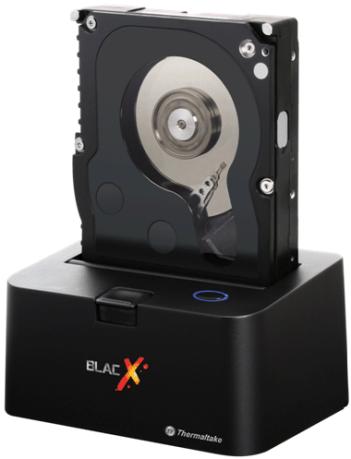
The Thermaltake BlacX hopes to fill the gap between external hard drive enclosures and hot swap caddies.
Product on Review: Thermaltake BlacX ST0005U USB and eSATA HDD Docking StationManufacturer: Thermaltake
MSRP: $64.99 USD
Street Price: $40 USD

Thermaltake has been involved in the computer hardware business for a very long time. Although they are better known for their power supplies, computer cases and CPU coolers, Thermaltake has made progress in their line-up of storage devices. Of their most recent storage devices is the BlacX hard drive docking station. With such a product, Thermaltake hopes to fill niche left between external hard drive enclosures and internal hot swap racks. Indeed, the BlacX integrates the two main features of these devices: the ease of use of hot swap racks, and the portability and accessibility of external enclosures.
As a dock, the BlacX’s selling point would be how it hard drives can be quickly accessed or removed. For those who have many hard drives on hand, this would seem to be the perfect product to juggle across their collection. The BlacX is even more attractive for those that troubleshoot and backup hard drives. Of the three models present in the BlacX series, the BlacX with USB 2.0 and eSATA support (product number ST0005U) will be examined in the following pages.
About Thermaltake:
We live in a world where most things seem to move at the speed of light. At Thermaltake, we feel the same way and that is exactly how Thermaltake conducts itself to deliver innovative, reliable and customer-centric solutions to the worldwide market.
Since the beginning of Thermaltake in 1999, it has been at the forefront of creating new and exciting products at a time where most computer users were provided little to no choices for components that may seem irrelevant, but in reality crucial to the performance of a PC.
Thermaltake Server Series solutions, with years of thermal experience and industry leadership, sets its goal on reforming total thermal management in server segment by formulating the perfect mixture of versatility, efficiency and thermal management with each respective server product category: Rackmount Chassis, Server Fixed & Redundant Power Supply and Server CPU Cooling Management Solutions.
With its comprehensive line of products available, it enables Thermaltake’s core customers to enjoy a one-stop-shop experience, reduce product design-in evaluation period and most important of all, flawless integration process. Each of Thermaltake’s strengths enables its customer to focus on their core business while taking advantage of the skills and efficiency of a single thermal management solution partner.
Features and Specifications
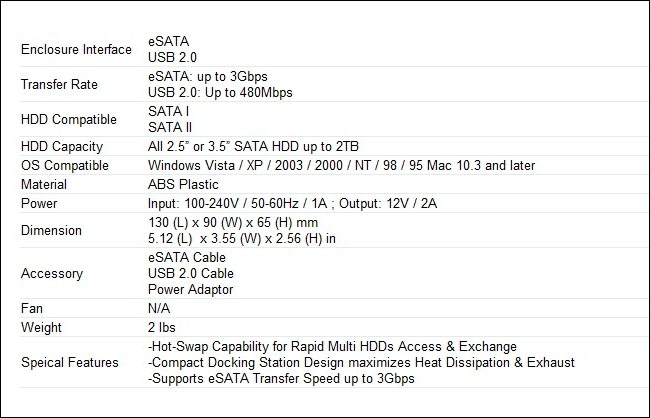
The Thermaltake BlacX series includes three different models: the USB BlacX (N0028USU), the USB and eSATA BlacX (ST0005U), and the BlacX SE (N0029USU). The three models share many common features, but they differ in terms of connectors. The first only supports USB 2.0, the second supports USB 2.0 and eSATA, and the third only supports USB 2.0, but has a built-in 4-port USB hub. As stated in the introduction, the BlacX (ST0005U) will be the subject of this review.The BlacX HDD docking station supports SATA hard drives. Given the fact that SATA hard drives have standardized connectors, this means that virtually any SATA hard drive is compatible with the BlacX HDD docking station. Thermaltake does mention, however, that only hard drives up-to 2TB are supported. The support for both 2.5” and 3.5” hard drives is a welcomed feature given the fact that most hard drive enclosures only support one of the two sizes. IDE hard drives are, unfortunately, not compatible with it.
Link: Features
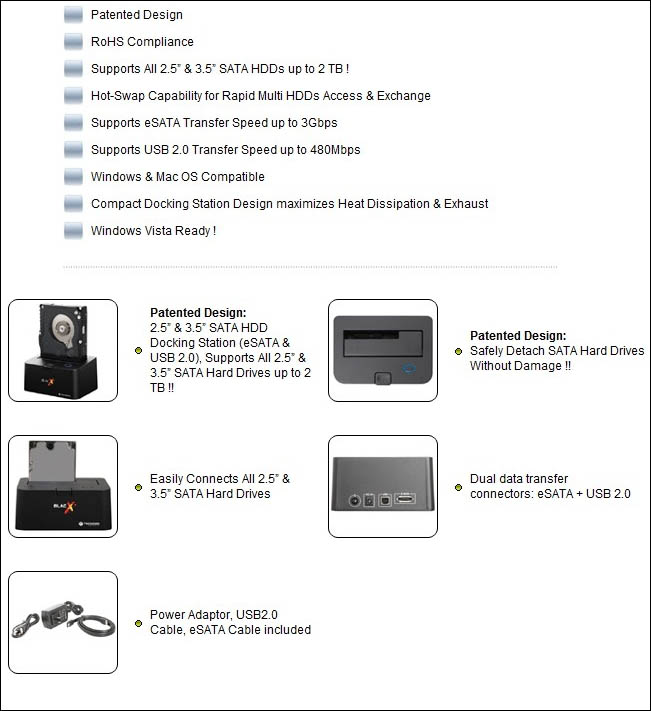
In order to optimize performance, the BlacX (ST0005U) offers USB 2.0 and eSATA connectors. In terms of data transfer speed, eSATA is rated at up to 3 Gb/sec, 300 MB/sec, whereas USB 2.0 offers a mere 480 Mb/sec, or 60 MB/sec. These are theoretical values, and it is rare that hard drives reach such transfer speeds because of hardware limitations. Nevertheless, modern SATA hard drives will exceed the bandwidth offered by USB 2.0, resulting in a bottleneck. Therefore, the eSATA connector of the BlacX allows users to fully maximize the performance of their hard drives, seeing as the eSATA connector is basically the same as an internal SATA connector. Asides from the increased transfer speed over USB 2.0, eSATA also supports S.M.A.R.T. and other features commonly found on SATA, such as temperature monitoring and hard drive name recognition.
Another interesting feature of the BlacX is the hot swap capability, which is available by SATA design. It allows for removal of the hard drive from the BlacX without the need of a power down or a software input, such as using “Safely Remove Hardware” in Windows. It is needless to say that the hot swap capability adds great convenience in quickly accessing numerous hard drives.
Link: Specifications
Packaging and Contents
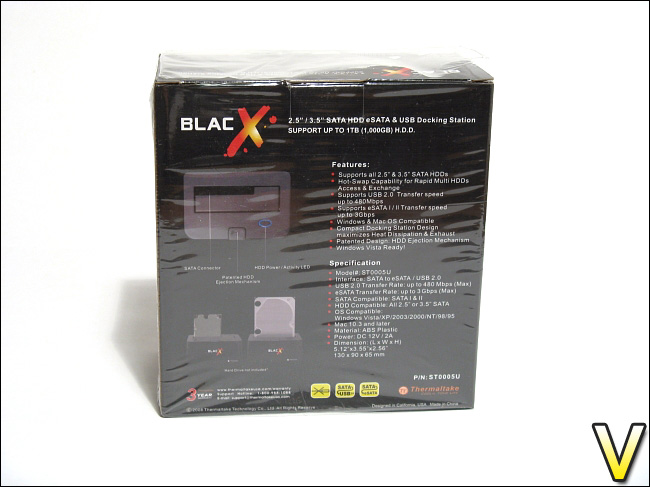
The Thermaltake BlacX HDD docking station comes in a modest-sized black box wrapped in thin plastic. The usage of colours and graphics are at a minimum, giving the product a professional look. The front of the box gives a nice image of the product, along with a quick enumeration of features, such as hard drive support, operating system support and supported connectors. The box states a long 3 year warranty with the product. Such a long warranty period clearly shows that Thermaltake backs the quality of their product. Furthermore, the packaging indicates that the BlacX is limited to hard drives below 1TB. If you recall previously, Thermaltake’s website stated something different; it mentioned support of SATA hard drives up to 2TB. Consequently, it seems as though the BlacX may be compatible with much larger hard drives than indicated. The back of the box describes the features and specifications of the BlacX in more detail, along with some images of how the product functions. In exception to supported hard drive capacities, this information is identical to what can be found on Thermaltake’s website.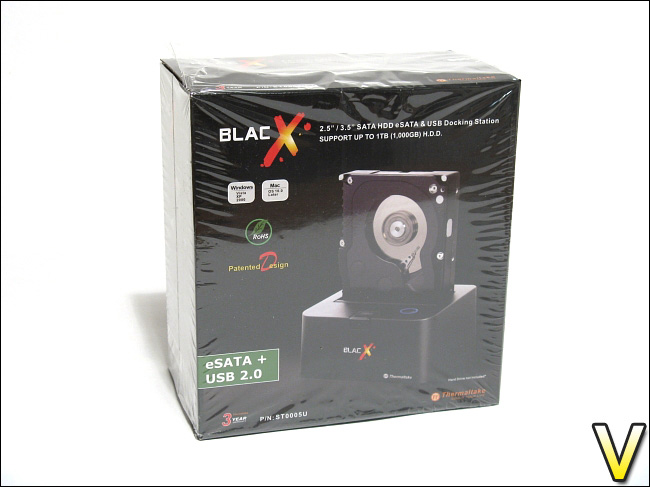
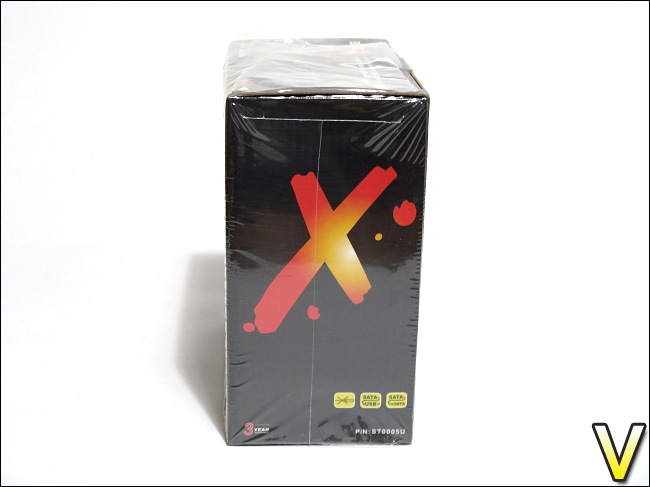
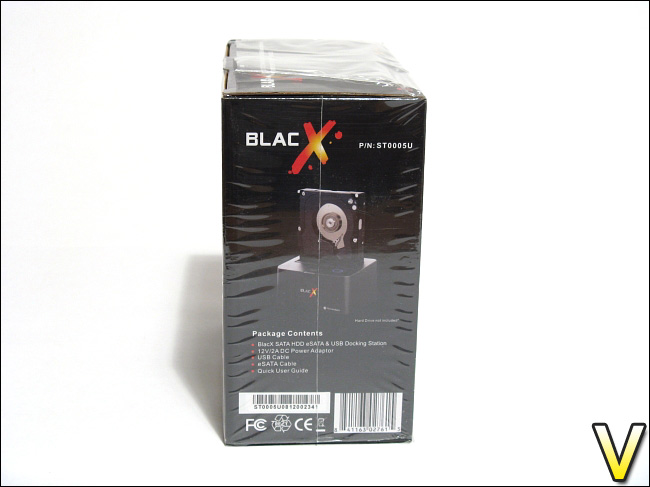
The right and left sides of the packaging retains the clean look of the overall package, with a simple logo of the product and a list of the package contents. It states that the package includes the hard drive dock itself, a USB connector, an eSATA connector, a manual and a power adapter.
Opening the packaging is straight-forward; asides from the plastic, a carton fold holds the top lid in place. The BlacX HDD dock station and the other accessories are individually sealed in plastic. A minimum of Styrofoam is used in the packaging and its purpose is to simply separate the BlacX from the accessories. Five accessories are included with the docking station:
– a user manual;
– some documentation on how to setup the BlacX;
– a 6 feet power adapter;
– a 3 feet USB connector;
– and a thick 26 AWG, 3 feet eSATA connector.
The BlacX includes all the accessories you would need to fully enjoy the product. Some might have preferred if a SATA to eSATA bracket was included, but most modern motherboards now include an eSATA port on its rear I/O panel. The user manual and the documentation of the BlacX are available for download on Thermaltake USA’s website:
Link: Manual and documentation of the BlacX
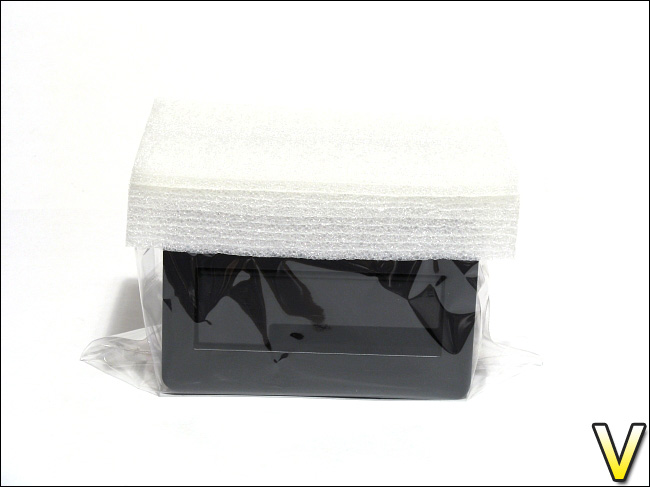
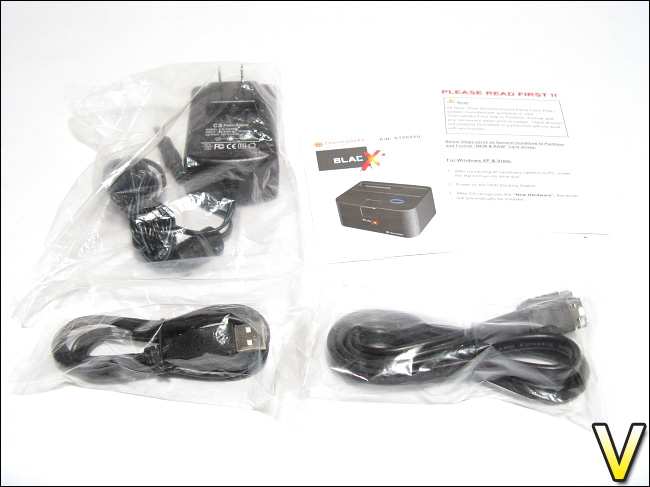
Overall, the usage of packing material of the Thermaltake BlacX is at a minimum. The size of the box is near perfect seeing as it fits the docking station and the accessories snugly without unused space. The plastic wrapping of the box was not necessary in terms of protecting the product. Furthermore, individually plastic-wrapped accessories seem to not have been necessary either, seeing as they were well secured in the box already.
Overall Look
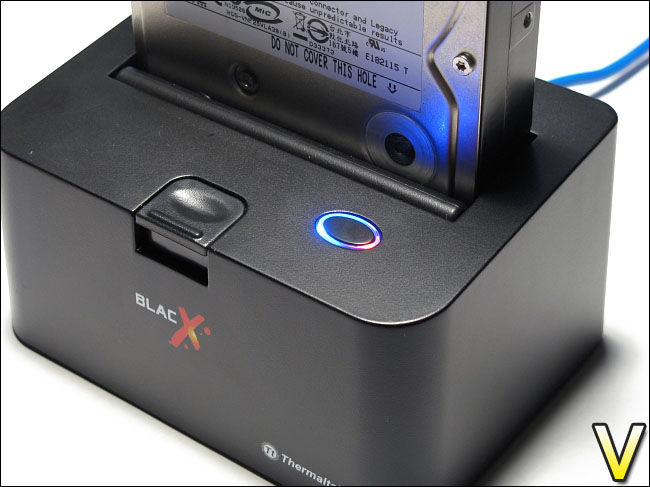
The Thermaltake BlacX HDD docking station, as like the packaging, has a fairly serious look. The product is an overall smooth matte black finish and almost no graphics are used other than the BlacX and Thermaltake logos found at the front. Thanks to its matte finish, the dock station is not a fingerprint magnet. The top has a slight decreasing incline from back to front.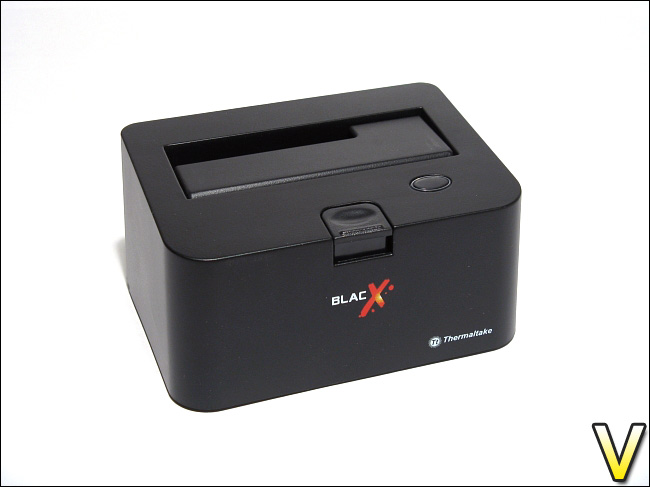
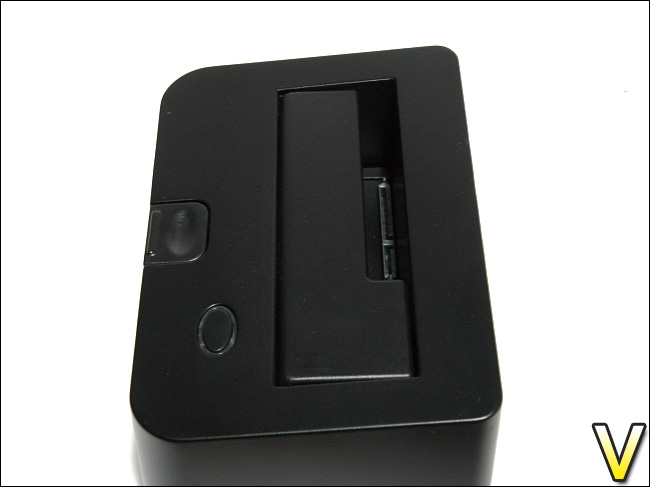
Other than having a rectangular shape, the BlacX has a top cover that can be lowered. By default, the cover has an opening that allows for the usage of a 2.5” hard drive, but once lowered it will allow the installation of a 3.5” hard drive. The BlacX only supports one hard installed at a time. The BlacX also has a small button at the top front. The center of the button is slightly lowered and there is a small protruding stripe, which helps fingers to grip it tightly. It acts as a lever and, once depressed, it will raise two small tabs inside the hard drive slot to release the hard drive from the connectors. Note that the small tabs do not raise the hard drive enough to make it tip over and fall. Although manually removing the hard drive from the BlacX with a hand is not difficult, the small lever facilitates the process.
The depth of the slot for the hard drive is about 1 ½ feet, or 3 cm, which is more than sufficient to secure the hard drive. At the top of the BlacX, a small oval shape can be seen, under which two LED are found. This gives indication on the status and activity of the hard drive.
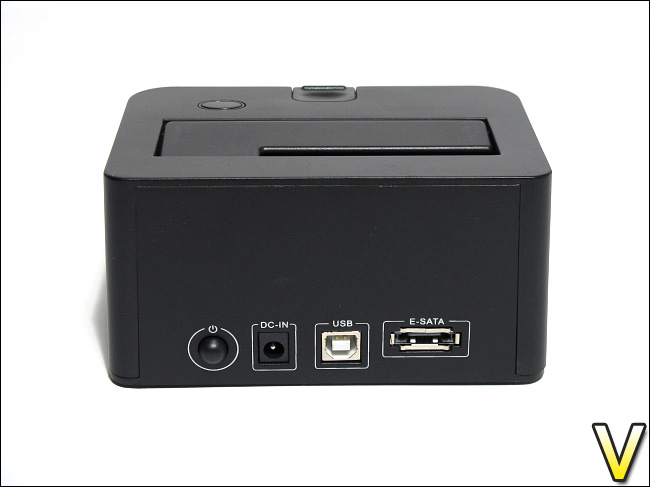
At the rear of the BlacX, three ports can be found: power, USB and e-SATA. There is also a small circular power button. It clicks when it is depressed. When the button is depressed, the BlacX will be set to the powered mode. Depressing the button again will release it from its locked position and it will return to its initial state: powered off mode.
Closer Look
The power adapter included with the BlacX is rated at 12V and 2A. Its model is CS-12002000. It does not have a ground plug and, in comparison to other power adapters, it is quite small. Its cord is fairly thin and should be easy enough to route through tight corners or small holes. It has a generous length of approximately 6 feet. The coaxial power connector has an inside diameter of about 2.1 mm and an outside diameter of about 5.4 mm, which is fairly standard for these connectors.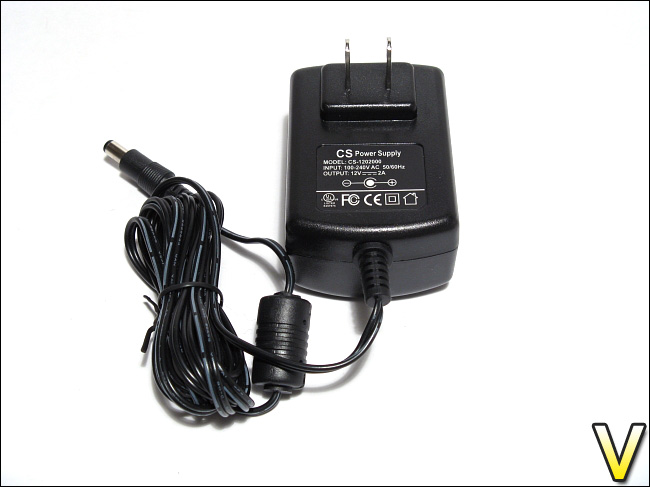
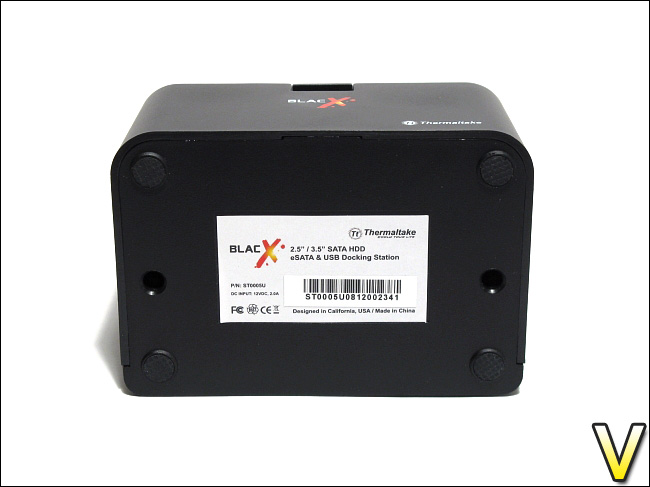
At the bottom of the BlacX, a small white label gives information on the docking station, such as the UPC code, the model number and its features. Four small rubber feet are located at each corner. These help reduce the vibration caused by an installed hard drive to be transferred to the surface the BlacX is placed on. Their overall vibration dampening is quite good, but larger rubber or silicone feet would have been preferable. They also grip wooden surfaces, such as a desk, very well.
Installation and Drivers
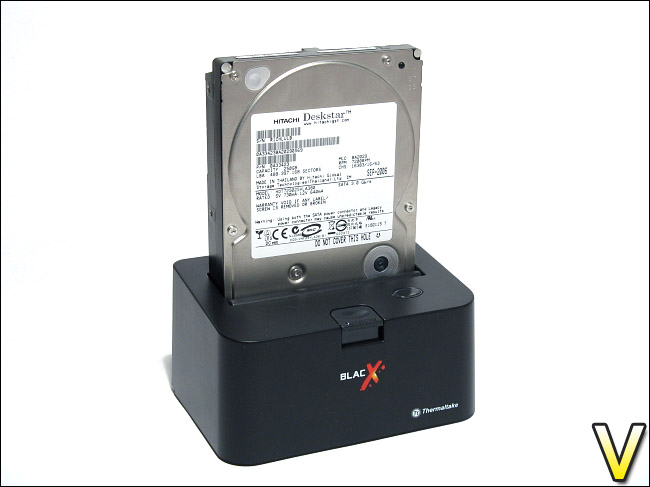
Installation of the Thermaltake BlacX HDD docking station is highly straightforward; the hard drive is simply slid into the top opening of the BlacX with the SATA and power connectors facing down. Little effort is needed to connect the hard drive to the BlacX. The depth of the opening is about 1 ½ feet, or 3 cm, which is more than sufficient to hold the hard drive snugly. At this point, the BlacX will be plugged to a power source and to a computer, using either the USB 2.0 or eSATA connectors. If the USB 2.0 connector is used, the BlacX will be recognized as a “USB Mass Storage Device”, and the required drivers will be automatically installed by the operating sytem. The drivers for Windows XP and Vista (32 bit and 64 bit) are available for download on Thermaltake USA:Link: BlacX Driver File
If the eSATA connector is used, the installed hard drive will be recognized as a normal disk drive, and the required AHCI drivers will be installed, which will then require a reboot of the operating system. If the installed hard drive was not previously formatted, which is the case of a newly purchased hard drive, it will need a format through Windows’ Disk Management. The latter can be accessed by running “diskmgmt.msc”. Thermaltake has written a quick tutorial on how to achieve a format:
Link: HDD setup
Once the BlacX is powered on, the status LED will glow blue. The light is not bright enough to blind you, but it is bright enough to be seen at a distance.
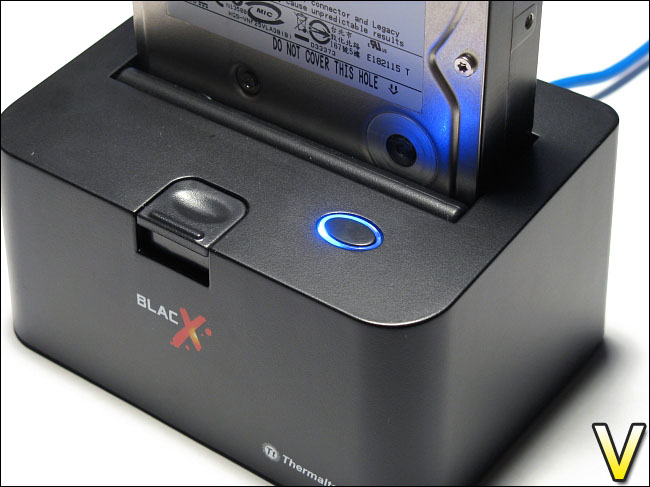
When the hard drive is being accessed, an additional LED will shine red, indicating hard drive activity. These activity LED are highly welcomed, even though hard drive activity can be easily heard by the hard drive’s seek noise.
Test System and Testing Methodology
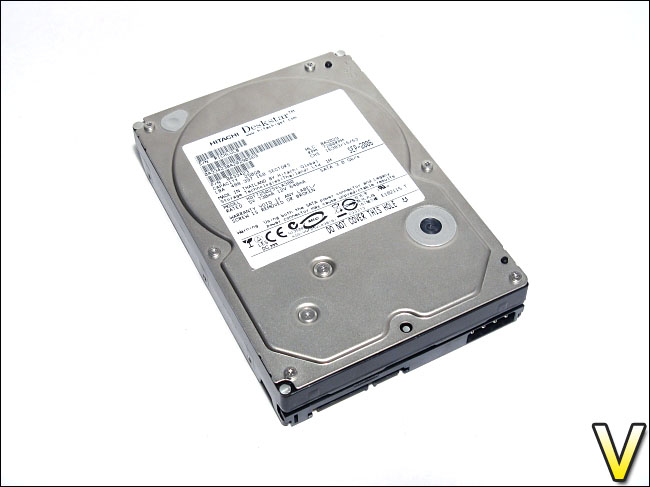
Testing MethodologyIn order to determine the Thermaltake BlacX HDD dock station’s performance, the benchmarks of two software will be used: HD Tune and HD Tach. Both tests will measure the read performance of the BlacX using the USB 2.0 and eSATA connector. The BlacX will be attached to the given ports on the I/O panel of the Gigabyte GA-MA78GM-S2H motherboard. The BlacX’s results will be compared to the transfer speeds of the hard drive installed using an internal SATA port. The hard drive that will be used for testing is the Hitachi DeskStar T7K500 HDT725025VLAT80 250GB, a fairly modest 7200RPM hard drive.
Benchmarks
– Test 1: Read performance in HD Tune 2.55
– Test 2: Read performance in HD Tach 3.0.4.0 (Long Bench with 32mb zones)
– Hard Drive Tested: Hitachi DeskStar T7K500 HDT725025VLAT80 250GB SATA2 7200RPM 8MB 8.5ms 3.5IN
Test Setup
– CPU: AMD Athlon X2 5000+ Black Edition @ 2.6 GHz 1.15V
– Motherboard: Gigabyte GA-MA78GM-S2H 780G
– RAM: Corsair XMS2 TWIN2X4096-6400C5 PC2-6400 2x2GB
– Case: Antec NSK3480 mATX
– Power supply: Antec EarthWatts 380W
– CPU cooler: Noctua NH-U12P with Noctua NF-P12 @ 5V
– Case fan: Noctua NF-P12 @ 5V
– Hard drive 1: Western Digital Caviar SE16 WD6400AAKS 640GB
– Hard drive 2: Hitachi DeskStar T7K500 HDT725025VLAT80 250GB
– DVD Drive: LG GH22NS30 DVD Writer
– OS: Windows Vista Ultimate SP1 64bit
– Mouse pad: QPAD|UC Large
– Monitor: Dell E207WFP 20” TN
Ambient Temperature: 25C
Test Results: HD Tune and HD Tach
Test 1: HD Tune 2.55Read performance
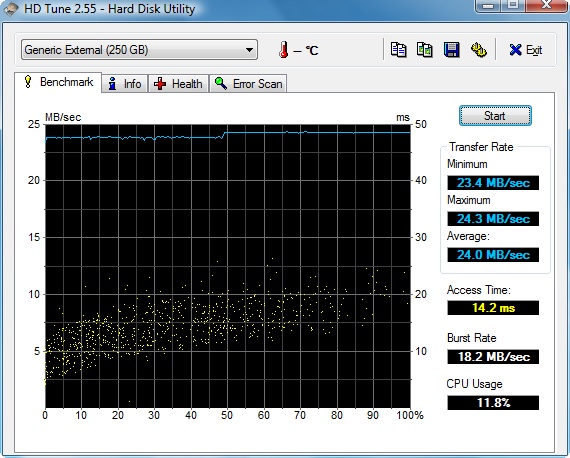
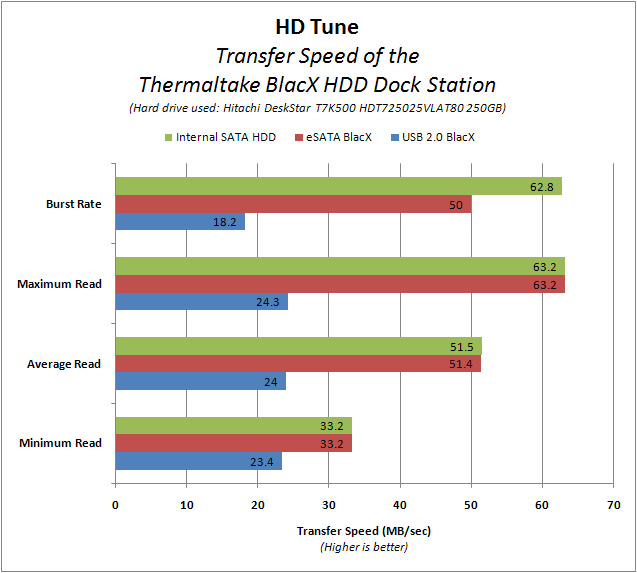
When using the USB 2.0 port, the BlacX had a respectable 24.0 MB/sec average transfer speed with a minimum of 23.4 MB/sec and a maximum of 24.3 MB/sec. The burst rate was at 18.2 MB/sec. These results are fairly common for USB 2.0, even though the latter is rated to have a maximum transfer speed of 480 Mbps, or 60 MB/sec. By glancing at the horizontal slope of the HD Tune graph, it becomes obvious that the USB 2.0 port is a bottleneck. Note that when using the USB 2.0 port, the hard drive is recognized as a “Generic External” and no temperature monitoring is available.
USB 2.0 Performance
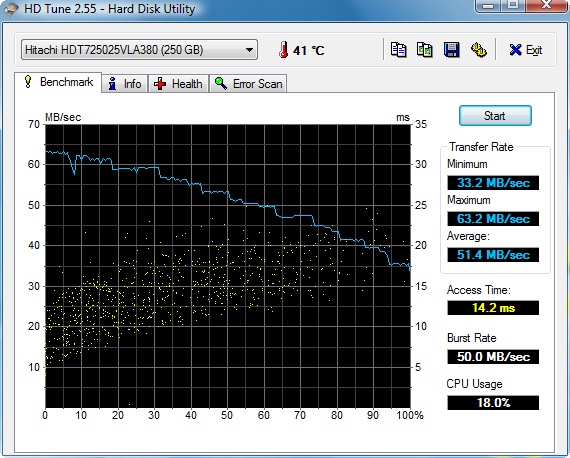
Using the eSATA port of the BlacX gave much more respectable results. The average transfer peed was 51.4 MB/sec, a drastic 114% increase over the USB 2.0. The maximum transfer speed was 63.2 MB/sec and the minimum transfer speed was 33.2 MB/sec. The access times for both USB 2.0 and eSATA were 14.2 ms. Note that the temperature monitoring and hard drive name recognition is available when using the eSATA port.
eSATA Performance
Test 2: HD Tach 3.0.4.0
Read performance (Long Bench with 32mb zones)
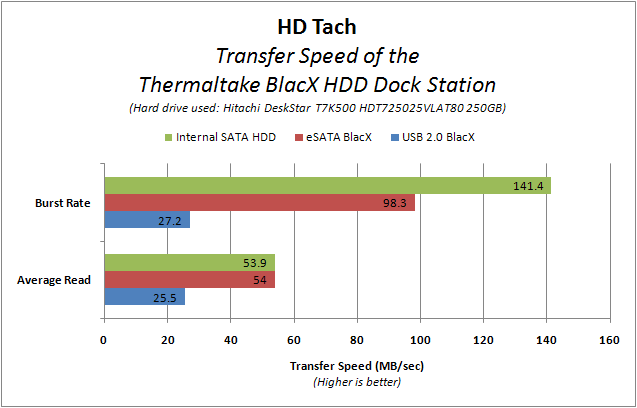
The results of the HD Tach long bench were slightly better than that of HD Tune’s benchmark. Using the USB 2.0 port, the BlacX had an average read transfer rate of 25.5 MB/sec, 6.25% better than HD Tune’s benchmark, and a burst speed of 27.2 MB/sec. The USB 2.0 port is no doubt limiting the performance of the BlacX.
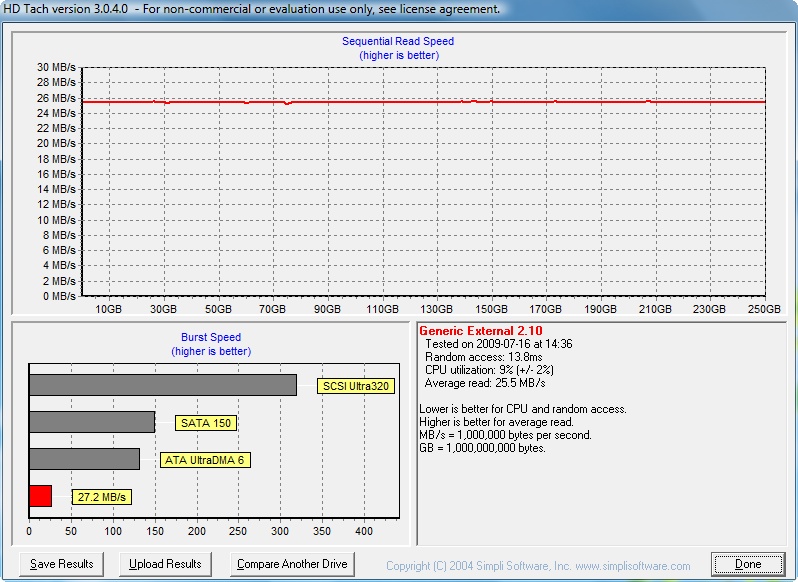
USB 2.0 Performance
Once again, the eSATA gave additional bandwidth for the BlacX compared to USB 2.0. An average read speed of 54.0 MB/sec was recorded along with a burst speed of 98.3 MB/sec. The random access time for USB 2.0 was 13.8 ms, whereas for eSATA it was 13.5 ms. As it can be determined, eSATA provides many additional advantages over USB 2.0, including an increase in transfer speed and temperature monitoring.
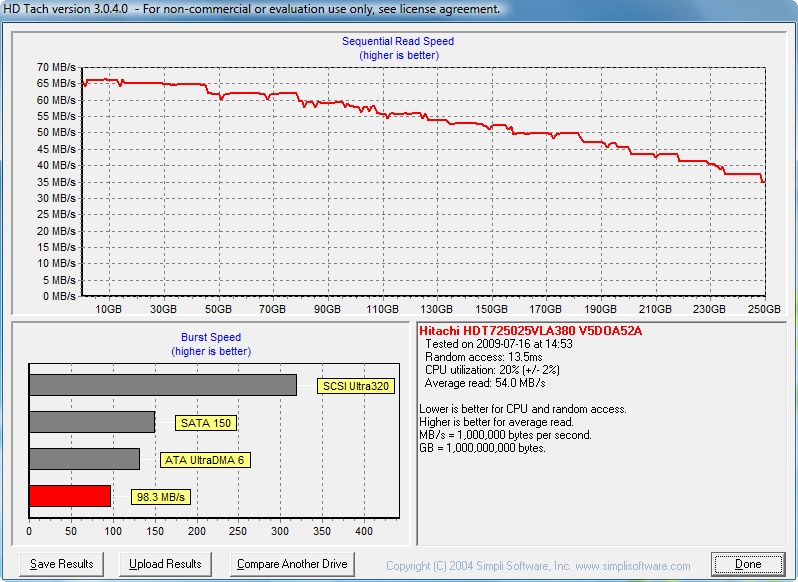
eSATA Performance
Overall Usage
A summary of benchmarks and a comparison to an internal SATA connector
From the two benchmarks of HD Tune and HD Tach, we see that when the BlacX works at USB 2.0, the transfer speed suffers greatly and hits a wall. On the other hand, eSATA gives results much closer to an internal SATA connector, in the exception of the burst rate. Otherwise, eSATA and internal SATA performance are identical.
In terms of convenience, the BlacX HDD docking station met all expectation. Hot swap capability worked as described; installing and removing hard drives could not have been easier. This product is indeed a top pick for users with many hard drives on hand.
Noise and Temperature
In terms of noise, the BlacX fared pretty well. Given the fairly open design of the BlacX, seek noise of an installed hard drive can be easily heard. This downfall is obviously a trade-off for the convenient installation of the hard drive into the BlacX.
To dampen vibration, Thermaltake has included four small rubber feet below the BlacX. Their effect is moderate, however. Vibration could be heard or felt across the desk at times, although the Hitachi T7K500 HDT725025VLAT80 does vibrate a lot. Thermaltake should integrate more anti-vibration features into the dock, such as lining the slot for the hard drive with rubber or silicone, or using larger feet.
The BlacX covers approximately 1 ½ feet, or 3 cm, of an installed hard drive. As such, an installed hard drive has a lot of space to breathe. In order to stay cool, the hard drive will have to take advantage of the room’s air circulation, seeing as it is passively cooled. Obviously, with such a design, this may become problematic for hard drives that run hot, such as the Hitachi DeskStar T7K500 HDT725025VLAT80 hard drive used in this review. After five consecutive long benchmark of HD Tach, the hard drive reached a temperature of 41ºC. In comparison, when the hard drive is installed in the bottom chamber of the Antec NSK3480, it had a temperature of 38ºC.
It would have been preferable if Thermaltake enhanced the air circulation around the hard drive. Adding ventilation holes at the bottom of the dock station to allow air to rise across the hard drive might have helped a bit.
Conclusion
Looking at the design of the BlacX hard drive docking station, it can be deduced that Thermaltake had one thing in mind: to fill the gap left between external hard drive enclosures and hot swap caddies. Both of the latter have annoyances: external enclosures, especially those that are not tool-less, make removing and installing multiple hard drives tedious, whereas hot swap caddies must be installed into a computer case. Taking only the advantages of the enclosure and the caddy, Thermaltake has produced the BlacX: it is light and portable, it is an external device, and it supports hot swap capability.Throughout testing, it became evident that the BlacX is a worthy product to own. When connected using the eSATA port, the BlacX provided transfer speeds nearly identical to if the hard drive was connected to internal SATA port. Accessing and removing hard drives from the BlacX is a joy, thanks to its fairly open-design and a convenient eject button.
Although it is suggested to sale for $64.99 USD in retail stores, the BlacX (ST0005U) can be easily found for approximately $40 USD. This puts the HDD docking station at a moderate price in comparison to other external enclosures and hot swap caddies. Nevertheless, given its features and its wonderful design, the Thermaltake BlacX is a worthwhile purchase.
Without a doubt, the Thermaltake BlacX hard drive docking station deserves Vortez-Hardware’s Gold award.
Pros
+ Adequate USB 2.0 performance; although it limits the performance of the installed hard drive
+ Convenient eject button and status LED; makes using the BlacX much easier
+ Excellent eSATA performance; similar to that of internal SATA
+ Good hardware support; eSATA and USB 2.0 connector support, and 2.5” and 3.5” hard drive support
+ Good value; although slightly more expensive than other product on the market, it provides good quality
+ Sturdy build; the dock station, as a whole, did not exhibit rattling when a hard drive was installed
Cons
– Adequate passive cooling; the hard drive must take advantage of natural air circulation to stay cool, which may not always be good
– Modest anti-vibration features; slightly small rubber feet may transfer vibrations to the surface upon which the BlacX is resting
To discuss this review please visit our forum.
