







AMD have worked tirelessly to allow multiple monitor Eyefinity configurations for your gaming pleasure allowing you to work smarter and frag more!
Product on Review: AMD Eyefinity Technology

Manufacturer and Sponsor: AMD
Street Price: Varied
As most enthusiasts will know, Eyefinity is not a new technology. One could even say it is not truly an AMD innovation as multiple screen setups have been in use in a variety of industries for quite a while now from stockbrokers to the military. This is mainly due to the productivity increases it allows (up to 50% according to some sources e.g. Microsoft). However, Multiple monitor setups only broke into the gaming fraternity in late 2009 with the Eyefinity capable AMD HD 5000 series. Eyefinity was the latest ‘must have’ technology but as with most new technologies, it was plagued with driver problems and game support from the outset. Also, thanks to the cost of multiple monitors, it was prohibitively expensive both to run from a power consumption perspective and to purchase the required hardware in the first place. Monitor choice was also key as you had to have the correct capable resolutions along with the right amount of display ports be it VGA, DVI, HDMI, DP or a combination thereof.
Fast-forward five years and today’s monitors are not only cheaper and more power efficient but with 5 years to mature, Eyefinity technology is a much more viable technology supported by a huge amount of game. As we will show it is also extremely easy to setup thanks to massive improvements to AMD’s Catalyst driver and software support, the latest of which allows the end user to incorporate mismatched screen sizes to create an Eyefinity arrangement.
Is Eyefinity for you? Only you can answer that we’re afraid but if you are looking to buy into this technology we hope this article will give you a fundamental understanding of what is required, how it works along with our own impressions of one of AMD’s key GPU/APU selling points. So go put the kettle on, sit back as we take you through the world of AMD Eyefinity.
AMD’s take on Eyefinity:
We are taking you beyond the boundaries of traditional PC displays. AMD Eyefinity technology expands the traditional limits of desktop computing by multiplying your screen area. With multiple monitors, games become more immersive, workstations become more useful and you become more productive (an average of 42% more productive according to one study).
Eyefinity Technology
In its most basic sense, Eyefinity is a fairly straightforward technology. The goal of a graphics card is to covert the coding, putting all the pixels together in the right order and then to send that information to your monitor through a pipeline. A Graphics card will have at least one pipeline otherwise no picture would be sent to the monitor. So how does a GPU send information to multiple displays – more pipelines of course! This in essence is what AMD have done with their range of graphics cards now encompassing up to 6 pipelines allowing up to 6 displays to be used at the same time. This is of course a very basic explanation and clearly there is more to the technology than this!
Getting the right info to the right screen, at the right time requires a controller otherwise your 6 screen display would be an epileptic’s nightmare with digital images mish-mashed and flashing across 6 screens making no sense whatsoever. To this end, an Output Crossbar is used to direct the pipelined images to the correct display output.
This, for the most part worked fine for displays that had matching resolutions. Most gamers will have upgraded their screens and with the old screens gathering dust it has fallen to AMD to enhance Eyefinity technology to allow gamers make use of these old screens by creating a modular Eyefinity setup. The 14.6 (beta) driver allows a few new options that allow the use of different sized screens to be coupled together and used as a true Eyefinity setup. We cover these new features more in-depth on the next page.
Of course, multiple display screen technology has been around for well over a decade now but before Eyefinity this technology comprised of just two displays being used. AMD are not the only company to furnish gamers with multi-monitor capabilities either. To a lesser extent Intel and Matrox also allow Multi-monitor use but it is AMD’s biggest rival, NVIDIA, who have their own technology called NVIDIA Surround which is perhaps the biggest competitor to Eyefinity (which we will also be reviewing soon). AMD are however the only company which allows multi-monitor (3+) setups from one GPU without the need for additional hardware or graphics cards.
What you will need
First and foremost you should consider what your use for Eyefinity will be. While our review focuses on gaming, you may simply need to increase your desktop real estate so to this end you will not need a very powerful GPU, just one which can support multiple screens. What you will need is an AMD branded card from the 5000 series upwards. You will also (obviously) require monitors.
Many gamers though may simply add further screens to old existing ones or indeed add old screens that are gathering dust to their shiny new ones. The good news here is that the screen sizes do not have to match. Obviously it will look a little odd having three (or even 6!) different screen sizes together but the end result will be that the overall image will be processed the same, giving you a bigger picture as most common resolutions cater for.
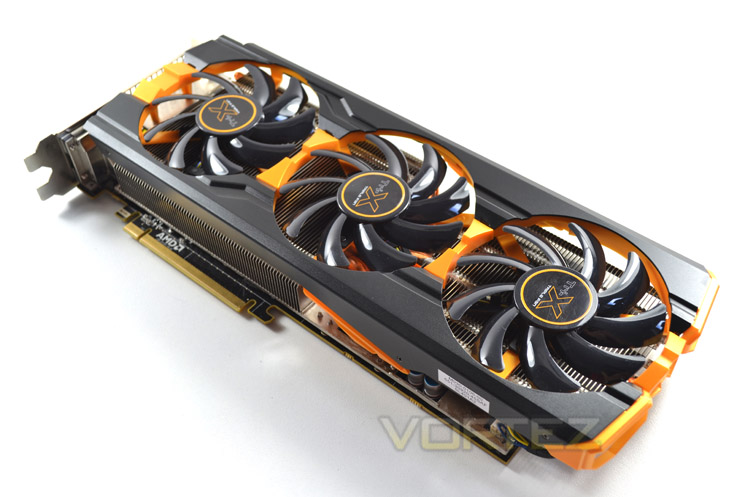
Matching the monitors to your graphics cards performance is a decision which will either make or break your Eyefinity setup. The choice is pretty much limitless, especially now AMD afford the luxury or mixing and matching screen sizes so your decision will depend greatly on your requirements and existing inventory. If you are looking to game on 3+ screens with the settings dialled up you will clearly need a powerful graphics card. If you are looking at at investing into the latest 4K technology you will most certainly require the most powerful card from the range (Radeon 295×2) to get anywhere near respectable FPS. Going for multiple ‘common’ monitors with common resolutions used such as 3x 1920x1080p, will still require some beefy GPU performance. ALL of AMDs mid-high range cards are Eyefinity compatible these days but you would do well to consider that you will need to strike a balance between the performance of the card and the performance output required. Less we forget, a resolution of 6400×1080 is a huge amount of pixels to render and hardly what can be described as your average resolution! We chose the R9-290X as our test subject as while it isn’t the performance leader, (that falls to the R9-295X2), it should have ample power to accommodate our needs.
Adaptors and Dongles
Do you need then? This depends entirely on the amount of screens and/or the type of ports available on those screens compared to the output ports on the GPU. The most common port is the VGA port, next to the now widely used DVI. Then consider HDMI and DisplayPort. Most modern screens will have a combination of these ports negating the need for additional dongles and adaptors so it is worth researching what ports your prospective screens use before purchasing. Inevitably, older screens may require additional adaptors to be purchased should they not have the required port.
Review Setup
First, the basics: Like you, we love the feeling when we hit the ‘buy now’ button and eagerly await delivery of your shiny new hardware. It is however easy to overlook the small but important preparation required for Eyefinity. Before you even begin to consider where to place the monitors you will need to ensure you have the means to power them. By this I mean the inevitable use of power extension sockets. With surge protection now much cheaper than yesteryear it wouldn’t make sense to buy a cheap extension lead. It is vitally important you do not overload a socket so please bear this in mind when you are hooking all of your PC equipment to one socket! Next you will need to consider where your PC will be positioned in relation to your chosen area for the screens. We say this because most monitor screens (if you are lucky) will only come supplied with a VGA or DVI cable and even then they are rarely longer than 1.5M long which could prove troublesome if your PC is in such a position that requires longer leads than this or indeed you do not want to hook your monitors up via DVI and prefer DisplayPort instead in which case you will likely need to purchase additional cables. So while you are buying new cables it may be worth investing in some 3m cables for flexibility.
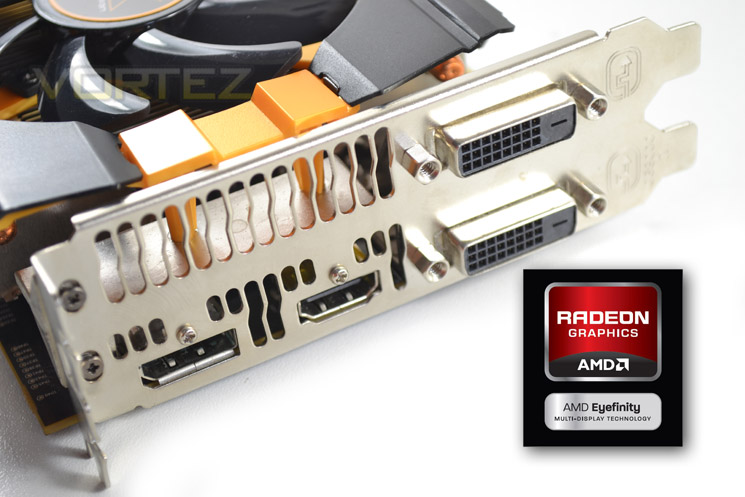
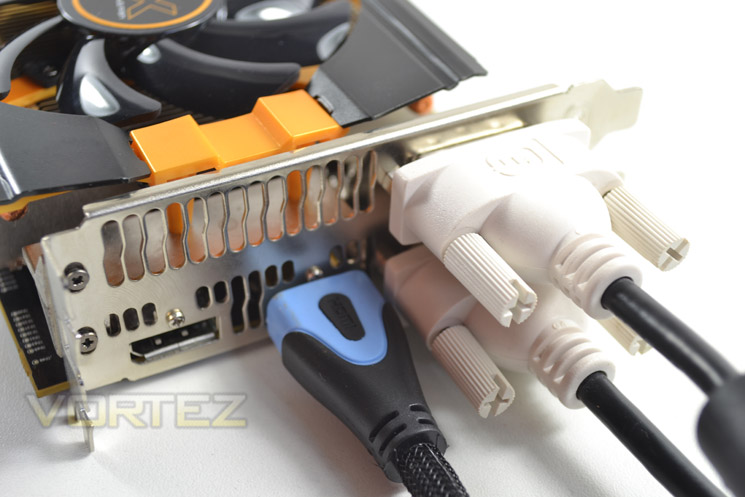
For our setup we used an R9-290X GPU that has the standard array of ports found on most mid/high range AMD GPUs including twin DVI ports, a HDMI port and a display port. Some GPU’s will have more or less than this compliment of ports which will have a large bearing on what dongles/adaptors/cables you will require. For example the R9-295×2 has a single DVI port but four mini Display ports and thus ideally you would want all three monitors to have DisplayPort functionality. Most GPU’s come supplied with basic adaptors such as VGA to DVI adaptor and maybe DVI to HDMI but few have HDMI-DisplayPort so it is worth checking that what you have available is what will be required and therefore will be compatible with your chosen monitors. We would certainly advocate using the same ports where possible for ease of use but for most of us this is not possible, especially if you are using different monitors from different manufacturers (as in our case) which will invariably have a different selection of ports from one manufacturer to another hence why we chose to use the R9-290X. We opted to use both DVI ports on the R9-290X along with HDMI which we connected up to the screens without any issues save for cable length (again, something worth checking). We did find that one of the screens was not detected until Windows had fully booted up while the other two screens showed the boot process so it is worth waiting until you’re in windows with the driver fully installed before problem solving.
Configuration & Setup
Setting up Eyefinity was, in years gone by, a seemingly impossible task. With so many variables to compete with AMD was regularly chastised for having a broken technology. Years of driver development has now seen setting up Eyefinity evolve into a very simple task.
Using the latest Catalyst driver and Control Centre (14.6) it is simply a means of clicking on the Eyefinity tab and then being walked through a step-by-step configuration.
The traditional method of creating an Eyefinity user group is as follows:
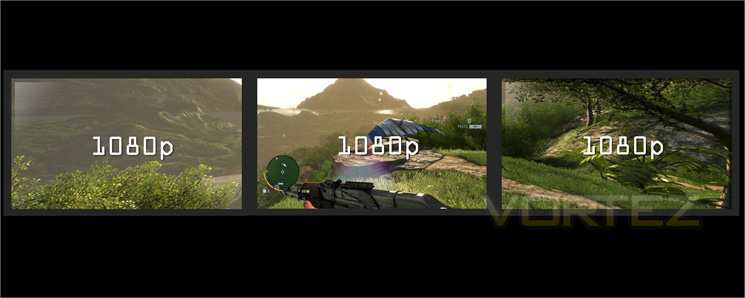
3 screens of equal dimensions bunched together to create a single large display. AMD however understand that many of us have upgraded our displays with the old ones now gathering dust. Thanks to the new CCC we can use these old screens to expand the real estate of the new one thus:
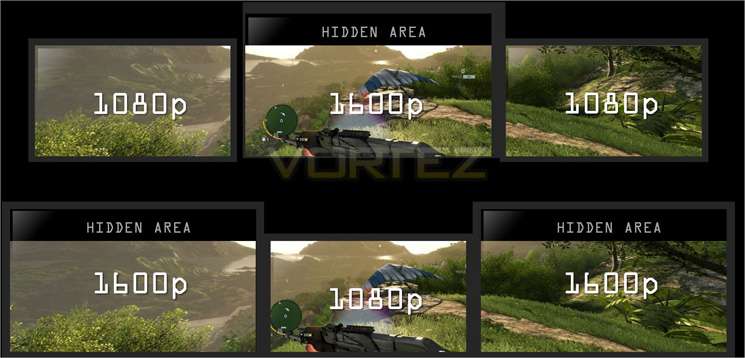
So you no longer need 3 screens of equal resolutions or size to create a believable/realistic Eyefinity setup. The process of creating such a configuration using mixed screens is similar to the previous Eyefinity configuration however there are a few new items which we have included below:
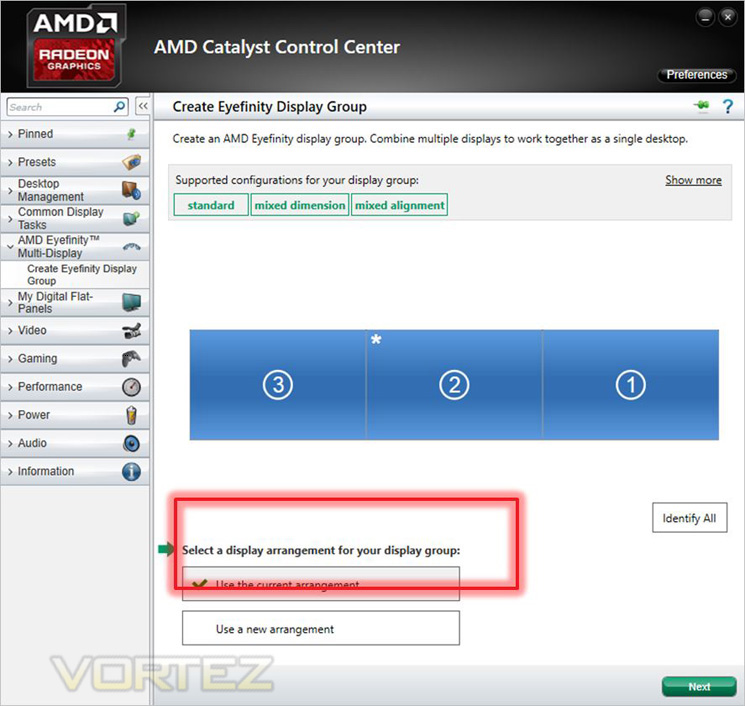
As previous, the configuration software takes you through the basics such as screen positioning.
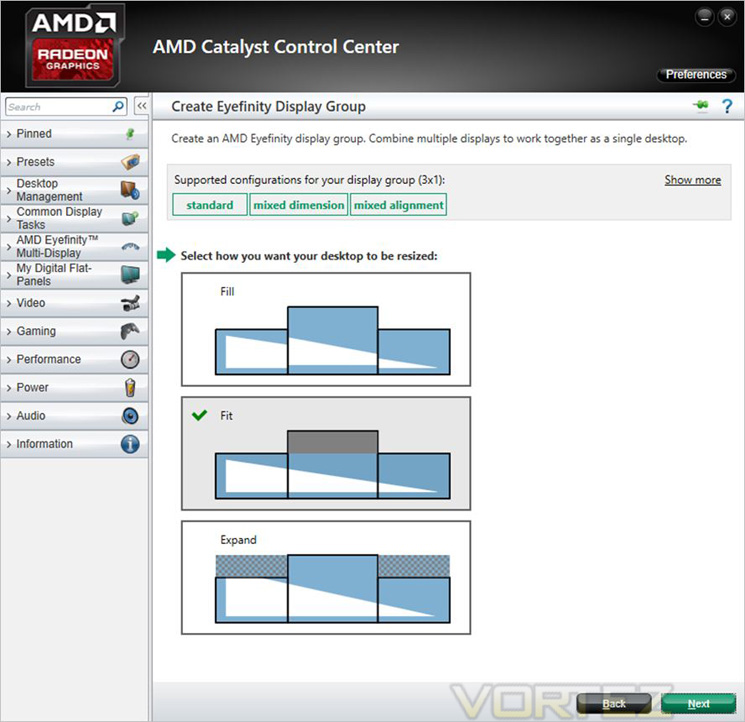
Then we can start making adjustments for the modular screen setup by telling our graphics card how we want the screens to display. We have 3 options here: Fill, fit or expand. ‘Fill’ is the traditional method (and one which we still prefer – more on this later).
‘Fit’ will basically changes your largest height screen to the lowest height of the three, in effect chopping the top or bottom (or both) to make the screen look linear with the remaining two screens. We can see the advantages of this as it keeps the perspective of the three screens linear however most, if not all will have the largest screen in the centre which will be the focal point of the gamer, not the sides. Personally, we would prefer more real estate on the centre screen.
Then we have ‘expand’ which works opposite to fit by having the monitors acting as windows into the game surface.
We would recommend having a play with all three as what suits one gamer will not suit another. We felt that ‘Fit’ looked odd, as if the image was ‘squashed’. Of course this wasn’t the case but this is how it appeared due to the cropping involved. Expand worked very well but it also highlighted the fact we were using odd height screens. So then, despite this new feature set we still preferred the Fill option which felt more natural. We can see the benefits of both Fit and Expand though but this will obviously be dependent on your own screens and your own perception of what looks and feels right to you. Indeed, we have had this discussion internally and we couldn’t agree on what was best as each of us liked different setups! AMD are to be commended therefore for giving the end user this option as with this type of setup there clearly is not ‘one size fits all’.
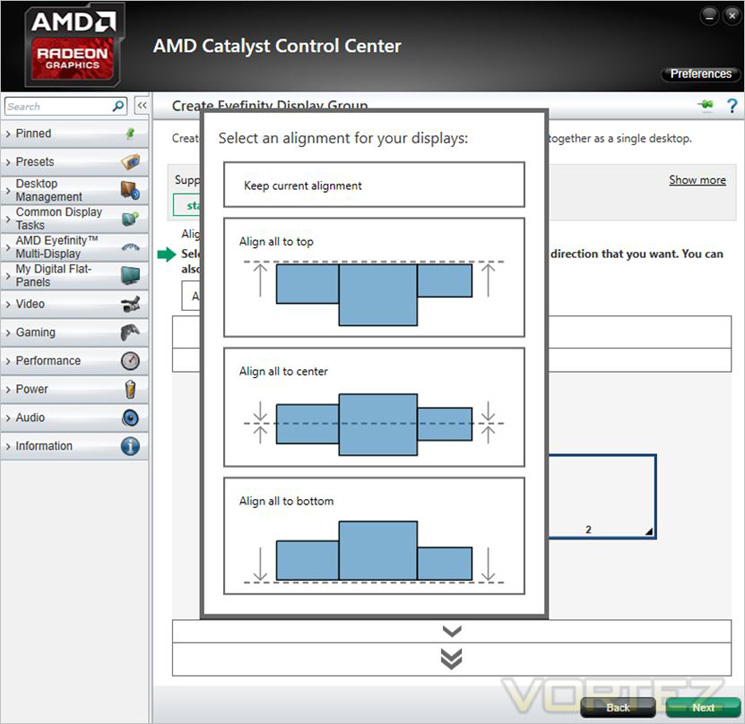
The tweaking does not end there though. Screen alignment is crucial to getting that realistic feel and again, the method of solving this is very simple via use of the CCC.
There are of course further advanced options to fine tune your setup. Perhaps the most pertinent of which is the bezel compensation function. Anyone who has switched to multiple screens will tell you that this is a key function to ensuring smooth operation be it in desktop or gaming mode. The last thing you want is your crosshair or cursor jumping from one screen to the next or indeed having screens slightly misaligned. The bezel compensation and alignment function eradicates these problems by a simple means of lining up a Scalene triangle to ensure both the hypotenuse and adjacent sides line up correctly as so:
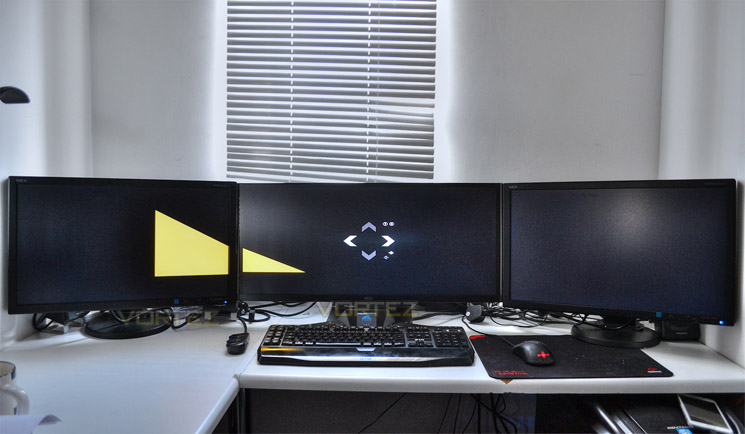
With that done and after having lots of fun trying out numerous desktops it was time to get back to work and run some benchmarks to so how much pressure we could put on the Sapphire R9-290X…
Test Setup & Methodology
There is no getting around the fact that to run Eyefinity for gaming purposes (yes there are others!), you are going to need a powerful setup. Our Eyefinity arrangement will be running at a resolution of 5760×1080 so it stands to reason that at this huge resolution, a powerful graphics card will be required. That said, if you are running displays with odd resolutions such as the one used today, it stands to reason that you are not a millionaire and do not have the very best equipment available otherwise you would have gone and bought 3×30″ 4K screens right? So then, we reached a middle ground (of sorts) and decided to run the R9-290X courtesy of Sapphire which is a much friendlier card on the pocket yet has sufficient grunt to run Eyefinity. Of course we didn’t want to be CPU bottle necked so we opted to use our GPU test setup as the foundation for our test rig:

Click to enlarge
Eyefinity Test Setup
Monitors: 1 x AOC Q2963PM & 2 x NEC MultiSync E231W
GPU: Sapphire Tri-X R9-290X
Motherboard: ASUS P9X79 Pro
CPU: Intel Core i7-3960X Extreme Edition @ 4.5GHz
RAM – 16GB (4x4GB) Corsair Vengeance (Red) DDR3 @ 1866MHz 9-10-9-27
Power Supply – Thortech Thunderbolt Plus 1200W
Hard Drive – Kingston HyperX 240GB
Cooler – Corsair H100
GPU: Sapphire Tri-X R9-290X
Motherboard: ASUS P9X79 Pro
CPU: Intel Core i7-3960X Extreme Edition @ 4.5GHz
RAM – 16GB (4x4GB) Corsair Vengeance (Red) DDR3 @ 1866MHz 9-10-9-27
Power Supply – Thortech Thunderbolt Plus 1200W
Hard Drive – Kingston HyperX 240GB
Cooler – Corsair H100
For benchmarking we will be using a modern selection of demanding, modern titles that will push our setup yet hopefully give us a good overview of what benefits Eyefinity has to offer each genre:
Battlefield 4
Thief
Company of Heroes 2
GRID: 2
Throughout the tests we used a resolution of 6400×1080 along with accompanying comparisons of both 2560×1600 and 1920×1080 to assess the performance hit you can expect by running Eyefinity. This was achieved by having two of the monitors hooked up via DVI with the centre screen running off HDMI. Not all of AMD’s range have multiple mini-DP ports so we thought it important to attempt to replicate what you at home may encounter by running a combination of ports, to a combination of screens. While it is safe to say in an ideal situation you will be running a R9-295×2 with 3 matching screens all hooked up by DisplayPorts for the easiest of configurations, we understand that the vast majority of Eyefinity setups are bastardised configurations which usually results in the most problems which, after all, is what we are here to assess.
Desktop Productivity
Before we get to what is, the primary attraction of Eyefinity: gaming, we thought it would be useful to add a few notes on how we found the Desktop experience of running Eyefinity.
In it’s most basic sense there are just two forms of desktop real estate afforded by Eyefinity: Extended or multiple monitor. That is you can either have one large screen (made up of up to 6 smaller screens) or you can have each monitor setup as a single entity. We feel most users will have Eyefinity as a single large screen and drag a window to each screen as per below:
CLICK TO ENLARGE!
We couldn’t say productivity went up by any specific measurable amount as you can only really concentrate on one screen at any one time but instead of minimising and maximising windows on a single screen, a simple twitch of the eyes is all that is required to switch from one application to another, be it MS Word, Photoshop or a movie so in that respect it was very useful.
It takes some familiarisation though so be warned. First and foremost having such a long desktop with no increase in height leads your brain to perceive items to be ‘squashed’. Obviously this isn’t the case but having so much width can play tricks on the mind. You could if your screens allow (and are matched), run Eyefinity in Portrait mode which would give you greater height at the expense of width but this setup doesn’t look nearly as good and the screen bezels become much more of a hindrance. Running 6 screens will only exasperate this issue as instead of having the bezels to each side of the centre screen, there will be one bezel directly in your line of sight whether you go for portrait or landscape mode. This isn’t, of course, any fault of AMD’s it is just a physical limitation of current display technology and until screens no longer have any bezel at all, black lines are something the Eyefinity user will have to endure. Below are a few desktop backgrounds to show the effect Bezels may have on your enjoyment of a three screen arrangement:
CLICK TO ENLARGE!
CLICK TO ENLARGE!
CLICK TO ENLARGE!
While in use, we felt that having multiple monitors were more of a gimmick than an enhancement to productivity. An expansion of one’s e-peen if you will but going back to a single screen setup after having 3 desktops proved more difficult that we expected after enjoying the expanse of Eyefinity for a week so much so, my 2560×1600 30″ screen seemed decidedly restrictive – something I never thought I would hear myself say!
Gaming
This is perhaps the greatest attraction of Eyefinity. Why have one screen when you can have three? Indeed, Eyefinity now allows you to run multiple screens of varying resolutions so the cost of creating such a setup is reduced making it a much more attractive proposition.
First Person Shooter
First up we fired off a few rounds in the ever popular Battlefield series, specifically Battlefield 4. As expected we were quite literally blown away. With the larger main screen set at centre and the two smaller 1920×1080 screens angled slightly inwards to the sides we got a real sense of being ‘in the game’. Cast your eyes to either side of the main screen and things get a little disorientating in quick movement as the angles are such that you brain can’t quite keep up because the scene seem to be stretched somewhat and falling away from you ever so slightly. However, your main focus will be on the centre screen and once your eyes and brain become accustomed to the 3 screen setup you soon begin to realise just how well it all works when put together.
Bezels/black lines soon become unnoticeable in the thick of the action which only adds to the realism and should you have a decent surround sound system or a good set of headphones, you will quickly lose yourself in game for many hours.
Real Time Strategy
For this test we played a few online battles against real human opponents in the very popular Company of Heroes 2 game. You would think that having three screens would give you a massive advantage thanks to the extra real estate afforded however this isn’t the case. Fog of War and the fact the way the landscape is angled just looks a little odd. Sure, if you are simply focussing on the centre screen it does feel good but with RTS games you tend not to concentrate solely on the centre screen with a crosshair, you will look around the whole of your desktop and for us at least, we found this a little too distracting leading to our games not being awful but not being as enjoyable as we had hoped after the thrills of FPS.
Simulation
Not a true simulation, more of an arcade racer but GRID: 2 was loaded up and from the off it soon became apparent that if we were going to show piece the merits of Eyefinity, a racing simulation would be our gaming genre of choice.
The game looked simply divine. Sit yourself in a bucket seat and grab a steering wheel a set of pedals and a gear stick and you would swear you are driving through the streets of Chicago in a stupidly fast sports car. The perspective was nigh on perfect and felt so good we lost a good amount of hours playing this game when we should have been writing this review!
Third person/Stealth Shooter
Being that Thief is so popular we gave it a whirl and was surprised at how good it felt. As with Battlefield 4, the game drew us in so that our perspective was drawn to the centre screen with accompanying screens serving to widen our view.
Synthetic Benchmarking
While it is hardly ever going to be used for benchmarking, we couldn’t resist a quick blast of Unigine’s Heaven 4.0. Scores were of course miserably low due to the stupidly high resolution but it does serve as a show-piece when the mates come around for a beer!
Benchmarks
To test the performance impact we ran four of today’s most popular games from a variety of genres. Each test was run five times with the lowest and highest scores omitted with the average FPS taken from the remaining three scores.
Note: 6400×1080 resolution was tested without bezel correction employed
As you can see, with the increase in resolution from 1920×1080, through 2560×1600 and onto our Eyefinity setup of 6400×1080 the FPS dropped almost in a linear fashion with all of the games played. As expected, some sacrifices of AA or image quality will have to be reduced if you are to enjoy anywhere near the performance of your current configuration. Either that or you need to consider investing in Crossfire. Truth be told we did not experience much slowdown or indeed any stutter while using the Eyefinity setup and although some tearing was apparent in some scenes it was barely noticeable. IF you are a fan of extremely high image quality we would certainly recommend the most powerful GPU setup you can afford as Eyefinity certainly has a big hit on performance. However, with 4K resolutions now becoming a realisation it stands to reason that regardless of whether you run Eyefinity or not, ‘eye candy’ will inevitably take a hit with the new 4K screens let alone Eyefinity.
Conclusion
It is clear that AMD’s Eyefinity technology has come a long way. From initial setup to enjoying the huge landscape arrangement, using Eyefinity was a pleasure. It is worth noting at this point that you will need to do a little research to ensure you have the correct amount of cables/adaptors available that match both your GPU outputs and VDU input. The last thing you want is to have some shiny new screens with no means of connecting them!
Having that extra real estate made doing those everyday tasks pleasurable with the only limitation being my ability to multi-task! We are often asked why CPUs have multiple cores when you only ever really use one of two programs at any one time (but with programs running in the background of course). Well, Eyefinity certainly takes care of that question allowing multiple programs to run on each desktop rather than minimising/maximising to gain access to the correct window. Of course, multi-core CPUs have much greater uses than Eyefinity but it is nice to visually appreciate the programs running next to one another and of course, more efficient.
Eyefinity though is aimed primarily at gamers, allowing multiple smaller screens to be placed together to make one large screen. Previously this could only be achieved with any viable success through matching each screen size however as we have shown today, screen size is irrelevant as you can have screens of varying shape and size to make up one big display. This will provide the end user an unparalleled gaming experience. While it is fair to say it does not suit every gaming genre, it will for the most part enhance both visual perception and the feeling that you are ‘in-the-game’.
We have been hesitant in the past to advocate Eyefinity, not because we were never fans of the technology but because both the cost and teething problems meant it was only for those who didn’t mind playing the role of a guinea pig. Indeed, many still write Eyefinity off as a being a bug ridden, e-peen enhancing technology reserved for those with more money than sense. We were still not sold even upon setting the system up, despite being pleased with how easy it was considering the different monitor sizes we used. We can only imagine the same ease of use regardless of the screen size you choose to use. Our only advice is to be mindful of your cable choice before purchase as something as simple as this could mean the difference between pleasure and frustration at your purchase. Once our visual perception was acclimated by a few hours into gaming, we were however hooked and after having a play for a couple of weeks, we will certainly be sad to see the Eyefinity setup go. Time to invest in an Eyefinity setup ourselves? You bet ya! It really is that good these days. We can wholeheartedly recommend this technology and with the price of monitors dropping all of the time, there has never been a better time to invest.
In summary
If you have the GPU grunt available, we can wholeheartedly recommend Eyefinity. It matters not if you have odd sized screens because Eyefinity solves many of the issues that once plagued the multi-screen gamer be it cost, configuration or performance.
Pros
+ Ultimate visual gaming experience
+ Easy to follow software setup
+ Multiple port availablity
+ Modular approach to adding screens of varying sizes
+ E-peen value!
Cons
– GPU Performance takes a large hit
– Additional purchase of dongles/cabling may be required
+ Ultimate visual gaming experience
+ Easy to follow software setup
+ Multiple port availablity
+ Modular approach to adding screens of varying sizes
+ E-peen value!
Cons
– GPU Performance takes a large hit
– Additional purchase of dongles/cabling may be required
Click here for an explanation of our awards at Vortez.net.


