"Protection, no matter what" is a very bold claim from Drobo. They also reckon the 5N2 is as easy to understand and use as a traffic light, let’s see how easy it really is.

Product on Review: Drobo 5N2
Manufacturer: Drobo
Street Price: £456.99 / $499.99
Due to the importance of the data in our lives, products like the Drobo 5N2 are increasing in popularity. They’re an easy way to store large amounts of data securely, however, perhaps the most important feature for some is the fact that data is held on-site, where you can see it.
Today we’re looking at the Drobo 5N2, a 5-bay NAS system that claims to be as difficult to understand as a traffic light.
Featuring a system called BeyondRAID, the 5N2 can experience a drive failure across two of the disks without losing any of your important data – extremely important if your data is invaluable.
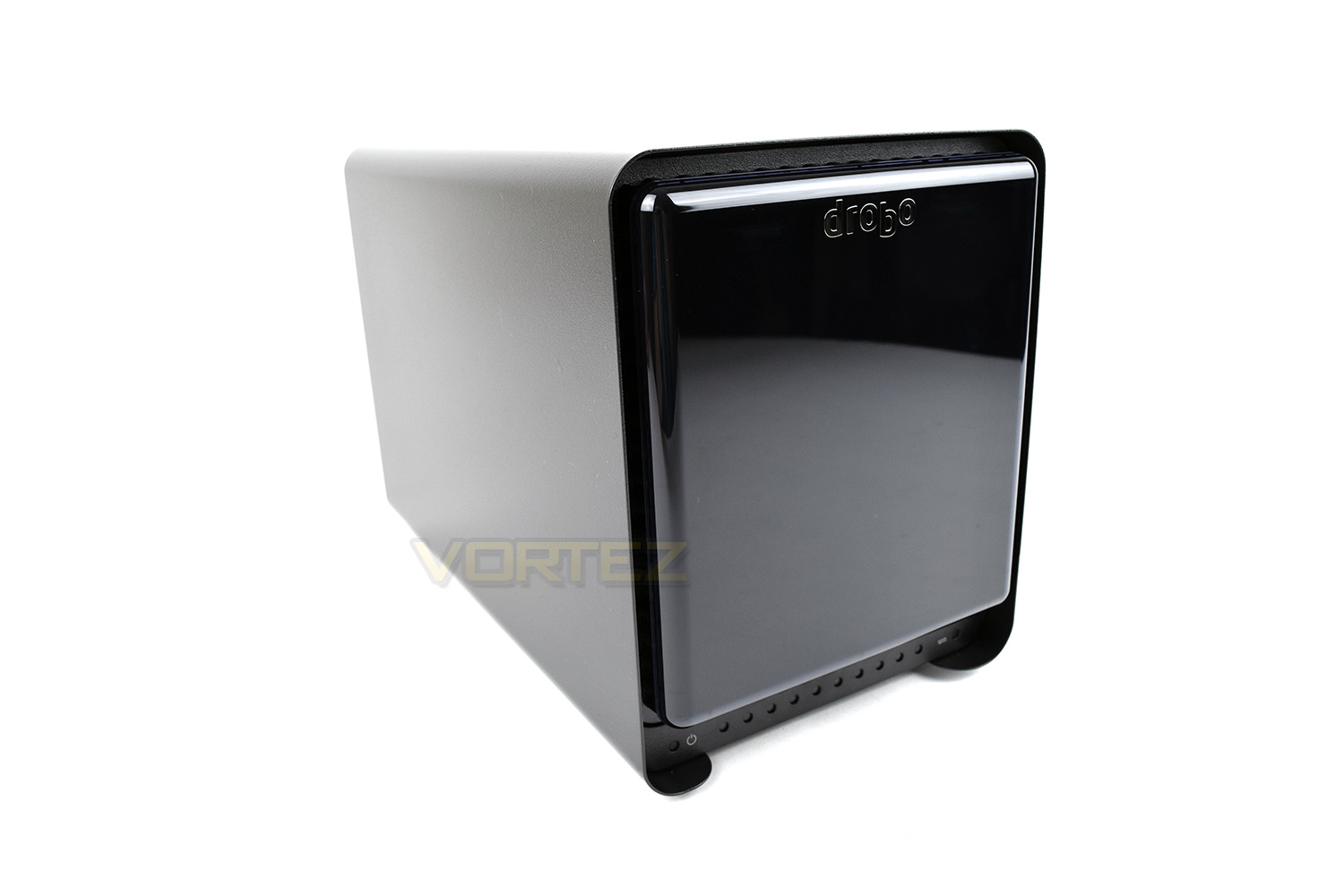
Alongside the BeyondRAID, we also see improved speeds via an upgraded CPU and port bonding.
Read on to find out how the latest iteration copes with our tests.
Drobo on the 5N2:
The latest generation 5 Bay NAS, the Drobo 5N2 delivers an unparalleled user experience for data sharing, secure backup, remote access and disaster recovery solutions. The 5N2 is the fastest, network attached Drobo available to prosumers and provides up to 2x performance boost with an upgraded processor and port bonding option. The 5N2 is built with Drobo’s patented BeyondRAID™ technology to meet the demanding data storage requirements of connected home users, media professionals and small businesses. The expanded functionality includes technology features of Drobo’s enterprise level products, such as DroboDR for disaster recovery backup. By implementing a level of automation usually preserved for more expensive solutions, and still maintaining the award-winning simplicity found in all Drobos, the 5N2 is the easiest to use NAS on the market.
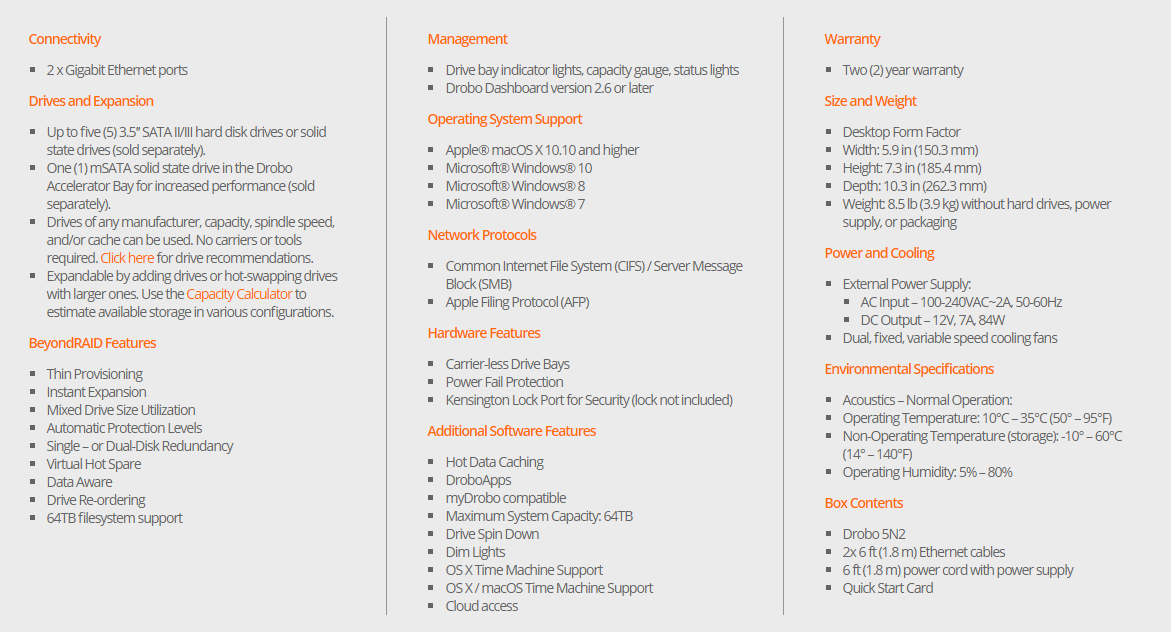
Technical Specifications
Packaging, Bundle & First Look
The white box is massive when compared to the item inside, though this does generally mean decent protection in transit. The front of the box keeps things simple with a nice big illustration of the 5N2.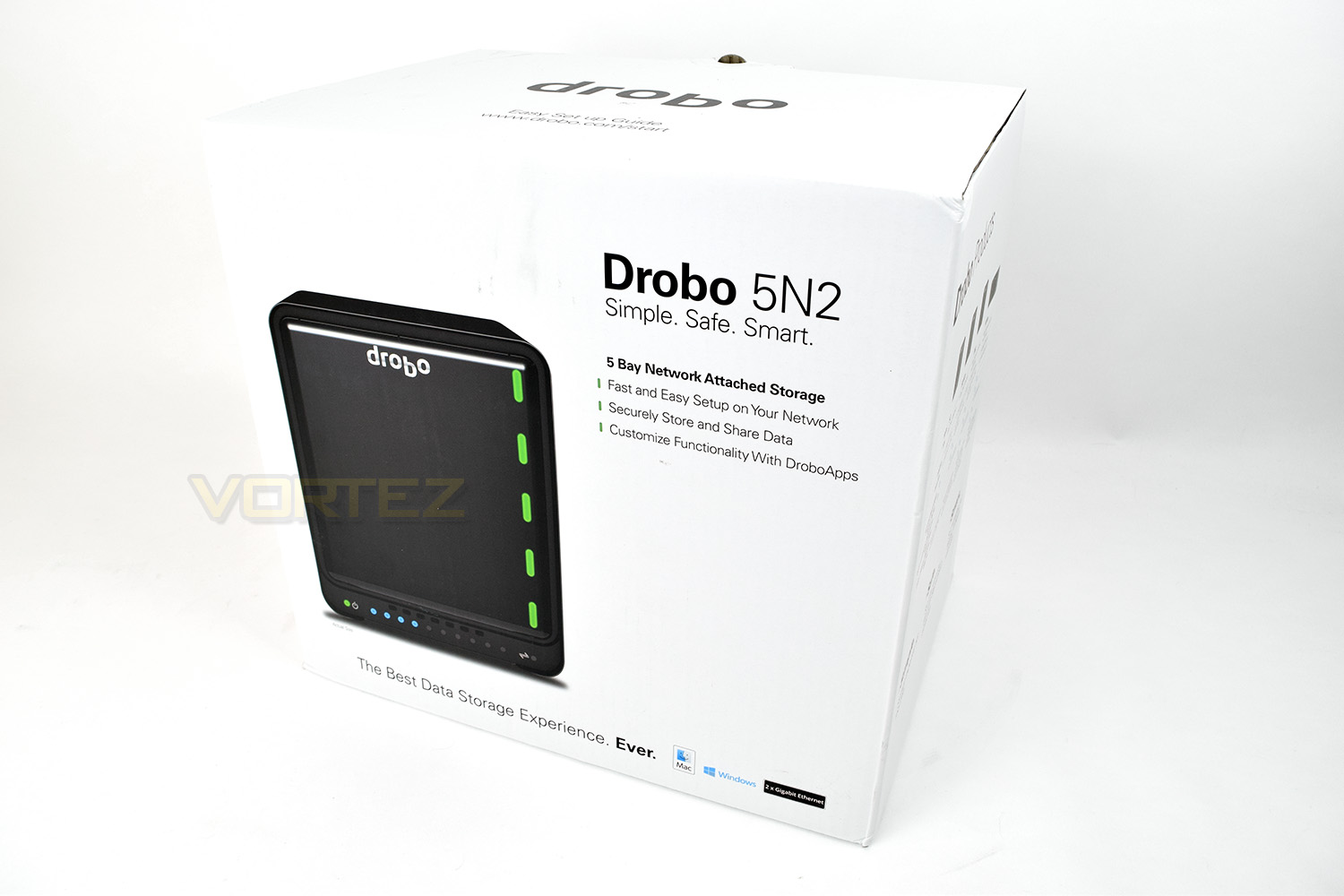
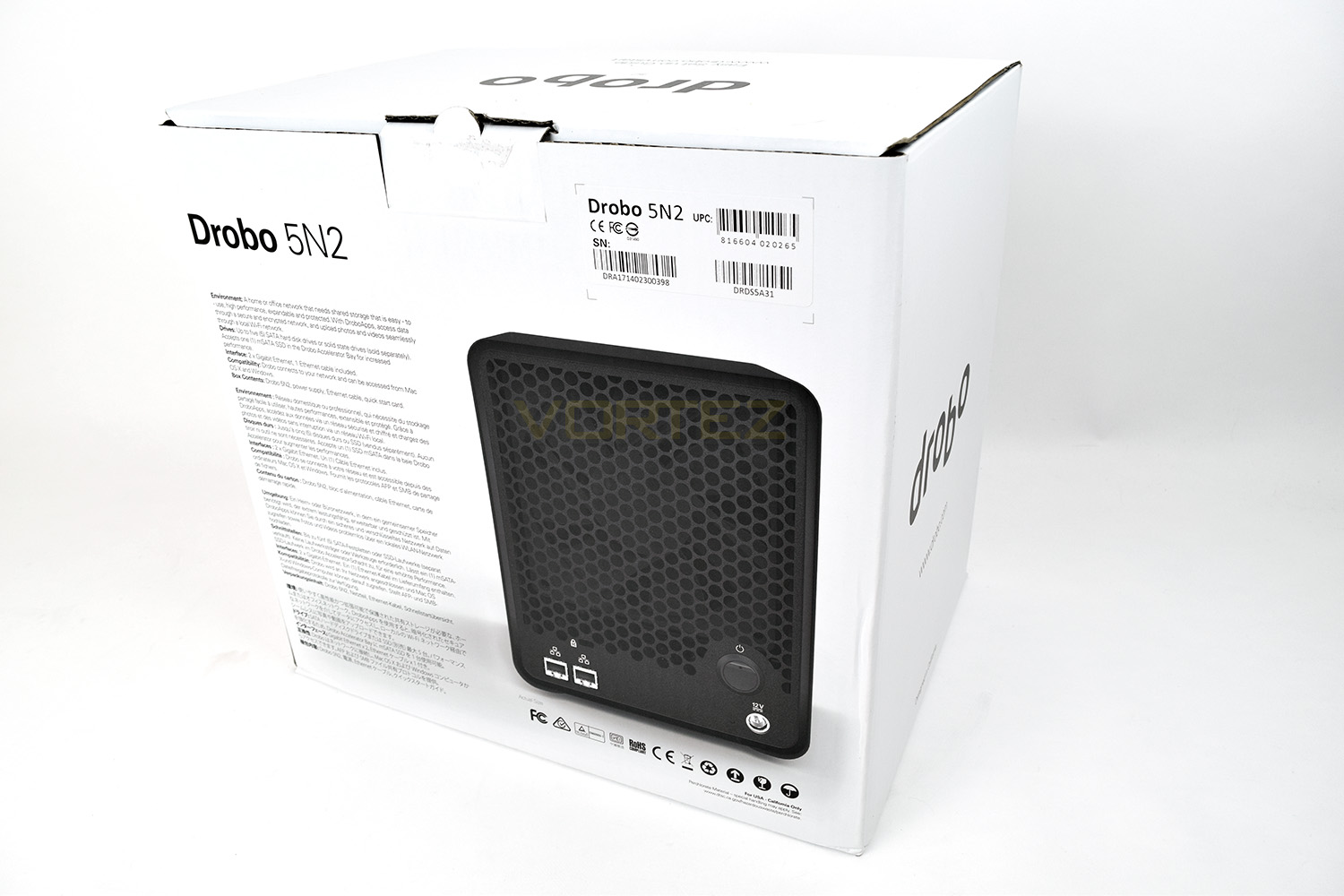
The rear of the packaging gives you much more information relating to specific features and an image of the rear section.
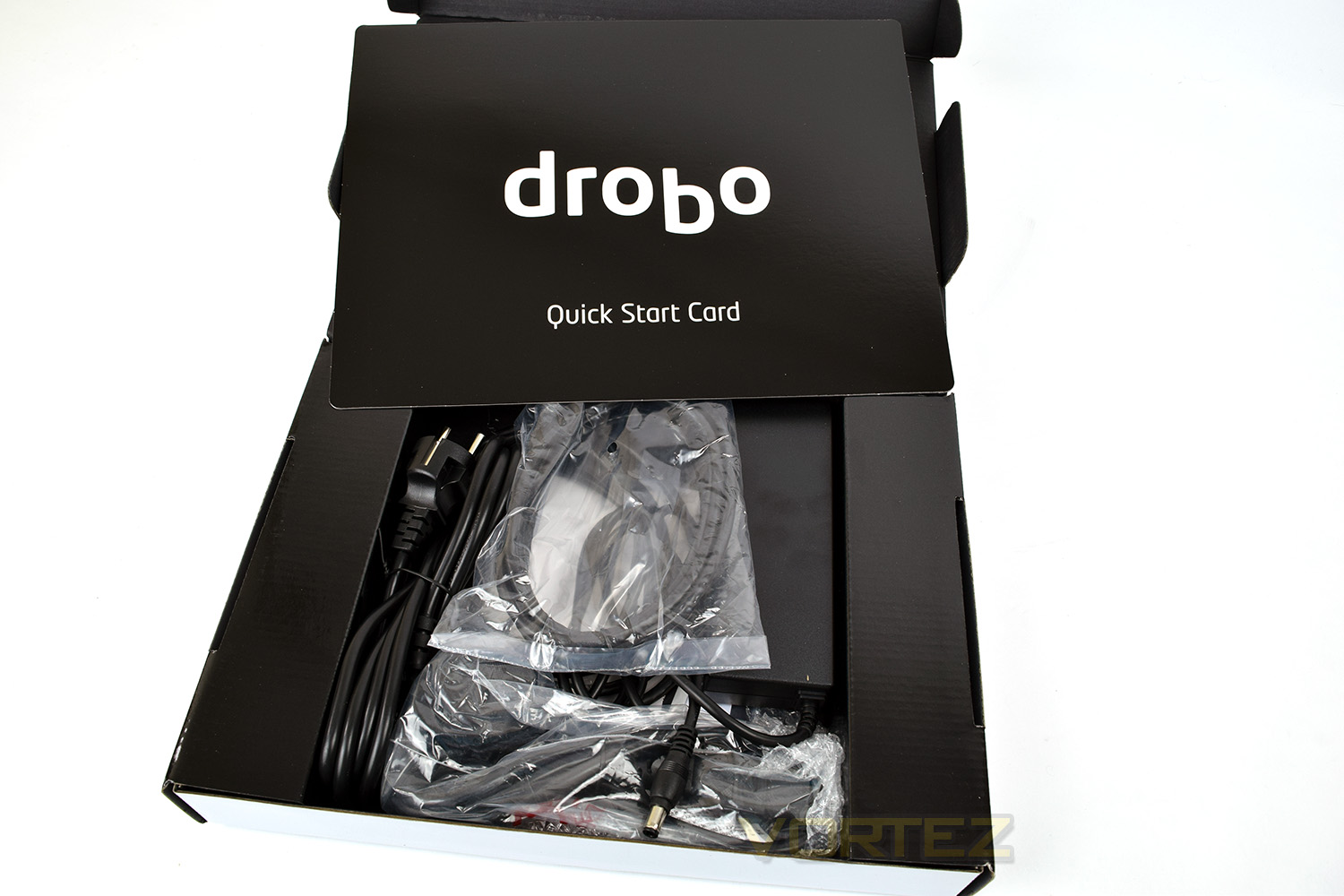
Opening up the box reveals a polite “Hello” from Drobo – within the first box are the following:
2x RJ45 connection cables
1x Drobo sticker
1x Drobo Quick Start Guide
1x Power adaptor
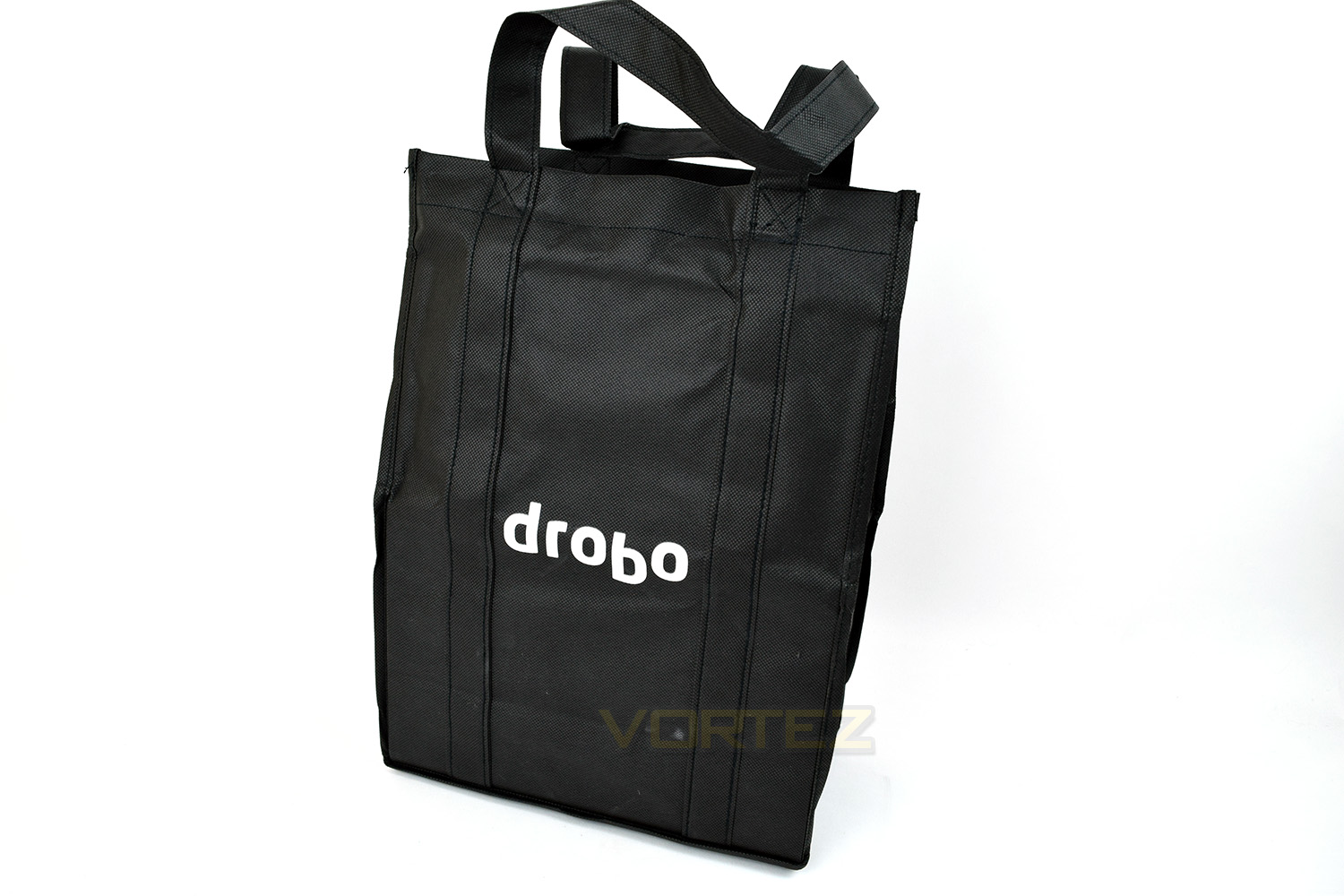
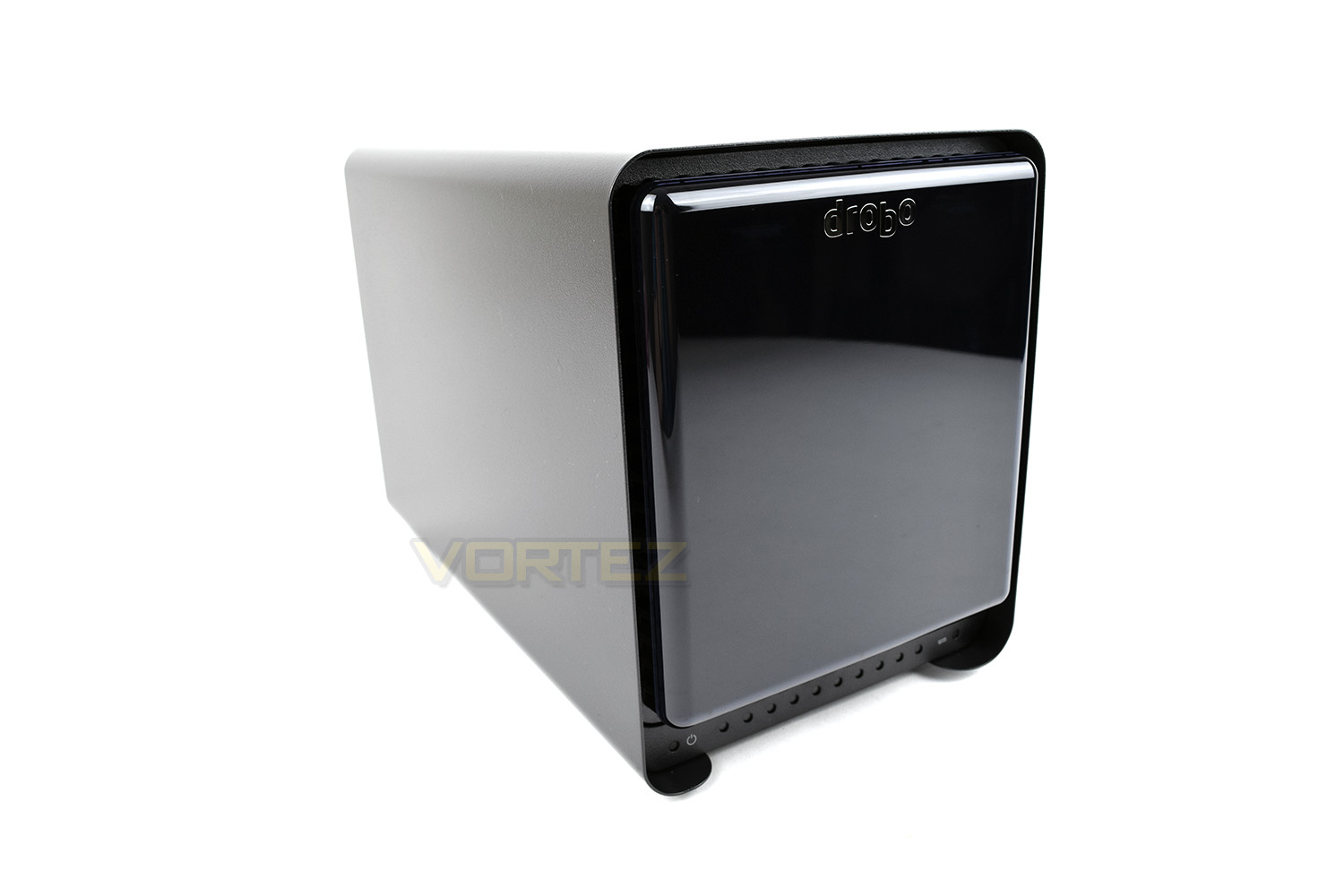
The Drobo, once removed from it’s shopping bag looks incrtedibly sleek, we love the glossy front, held in place by magnets (don’t worry, they won’t ruin your HDDs!)
Closer Look
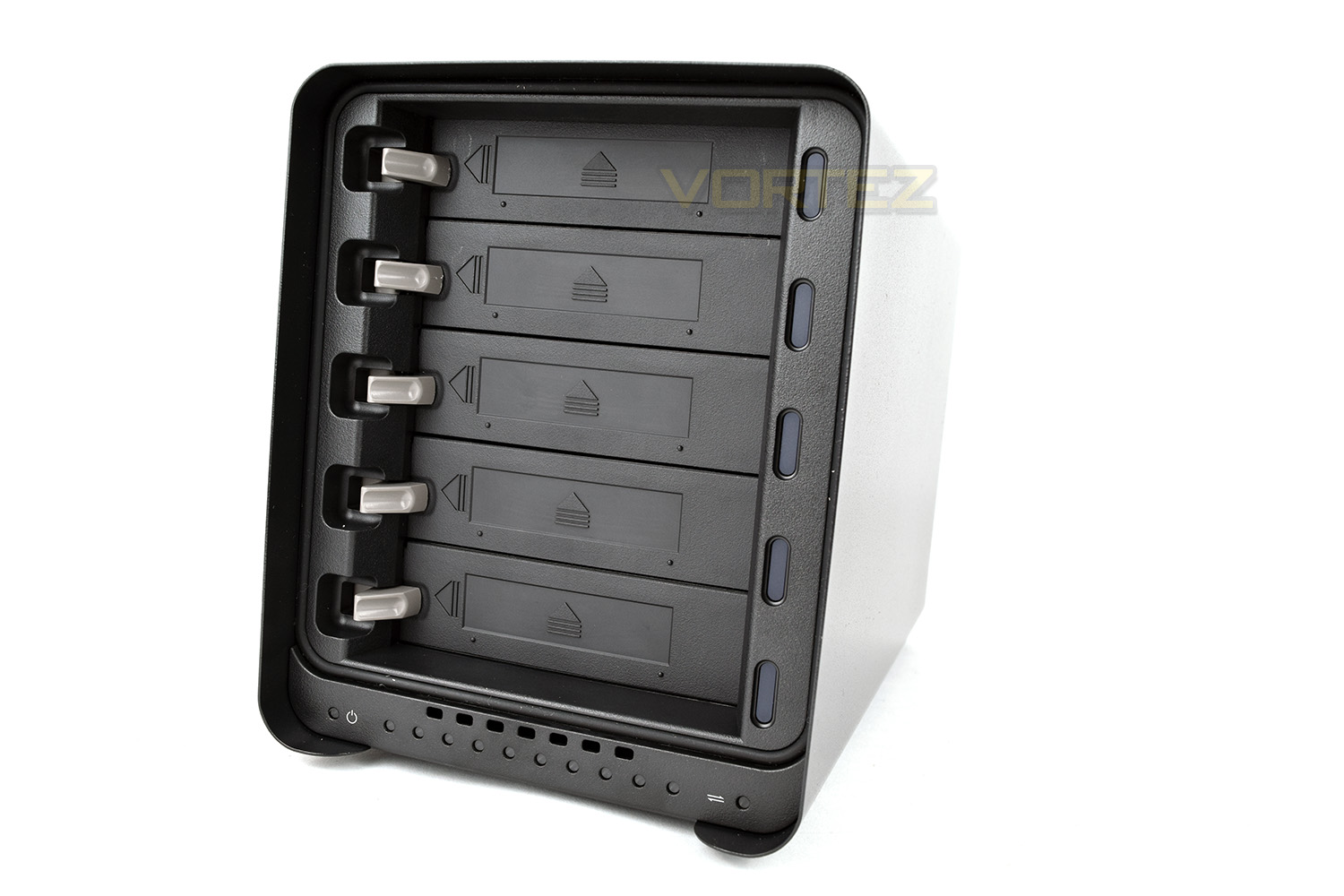
The 5N2 is a very curvy, voluptuous enclosure, finished in a gun-metal colour. The front is a glossy panel which is removed to reveal the HDD enclosures.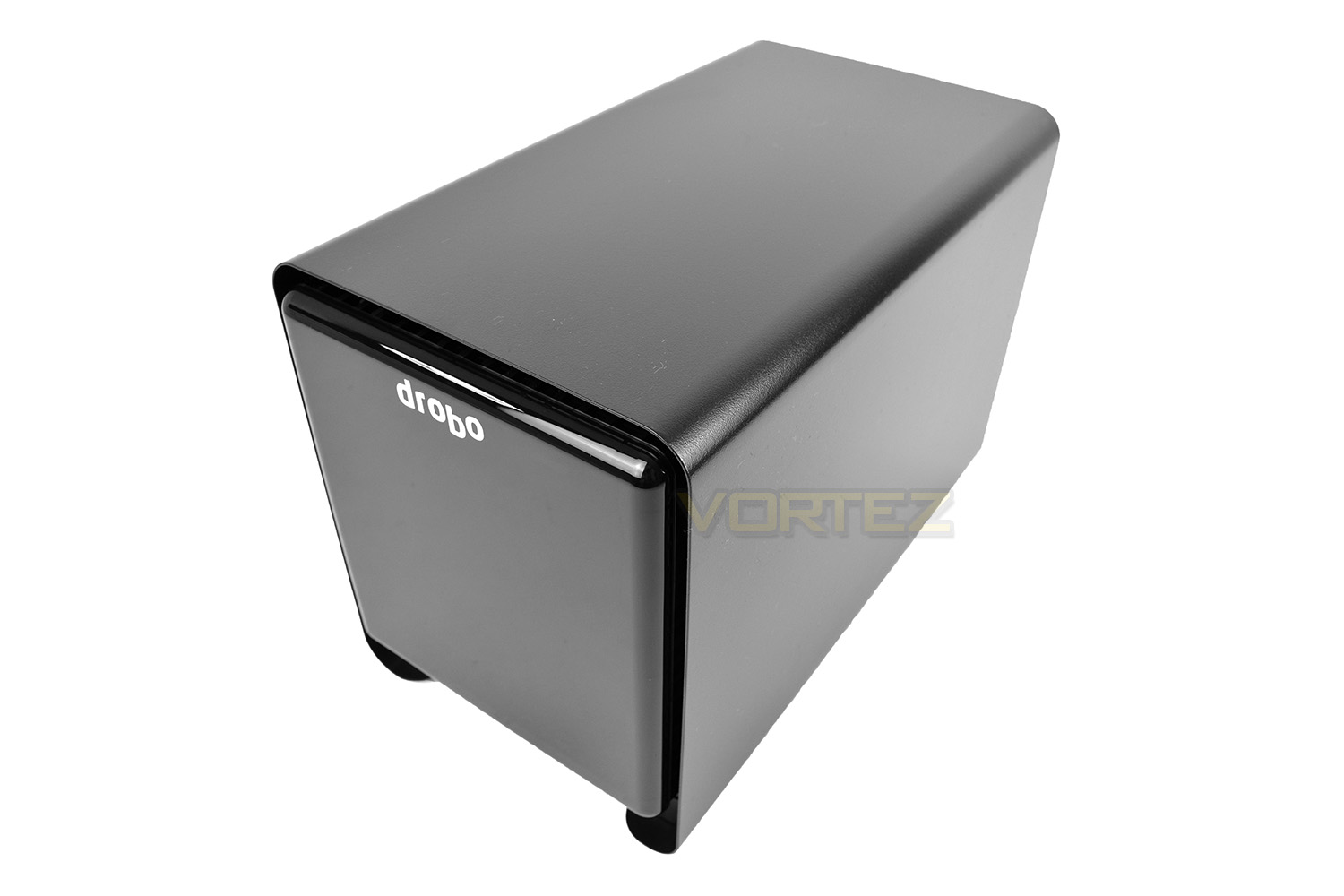
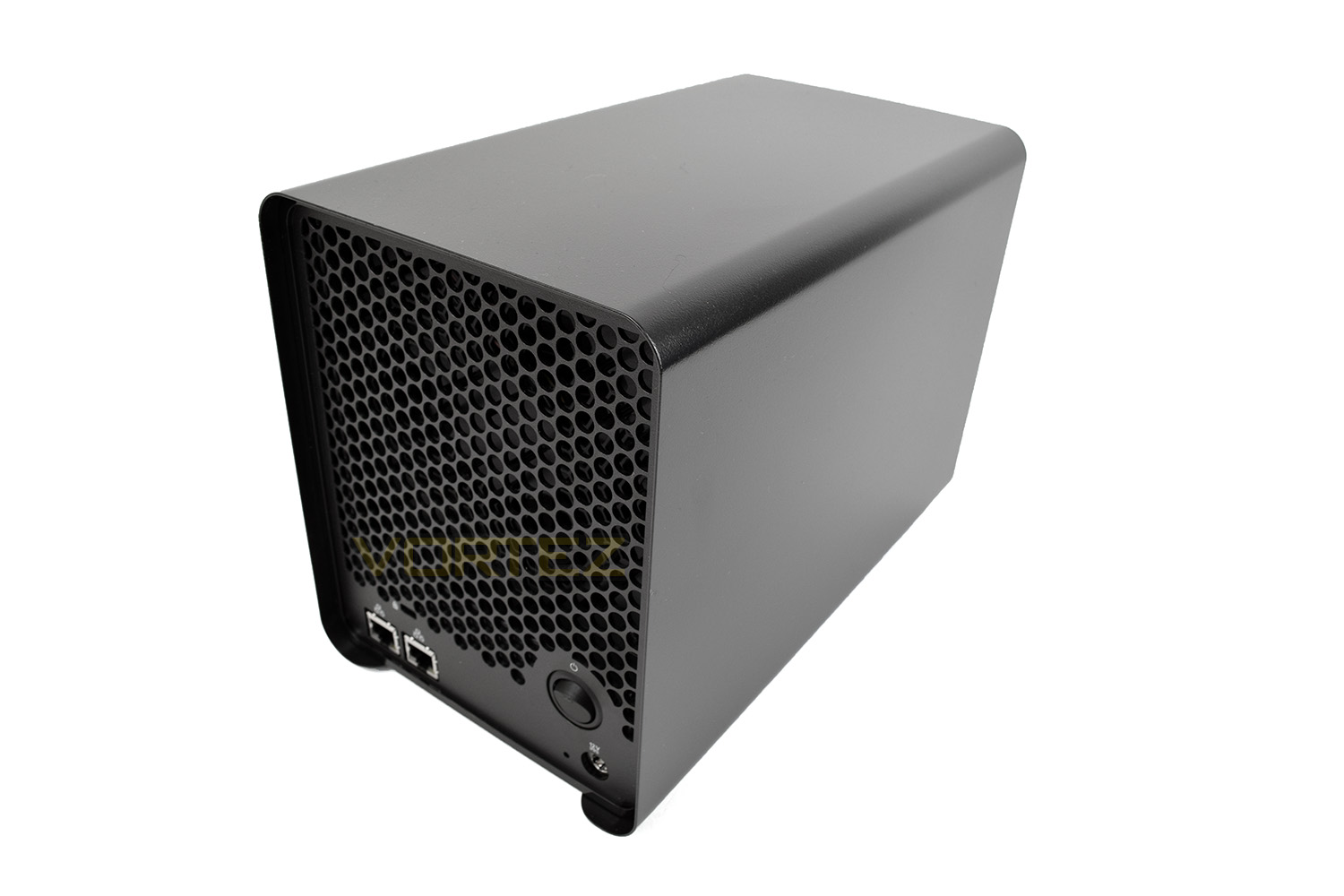
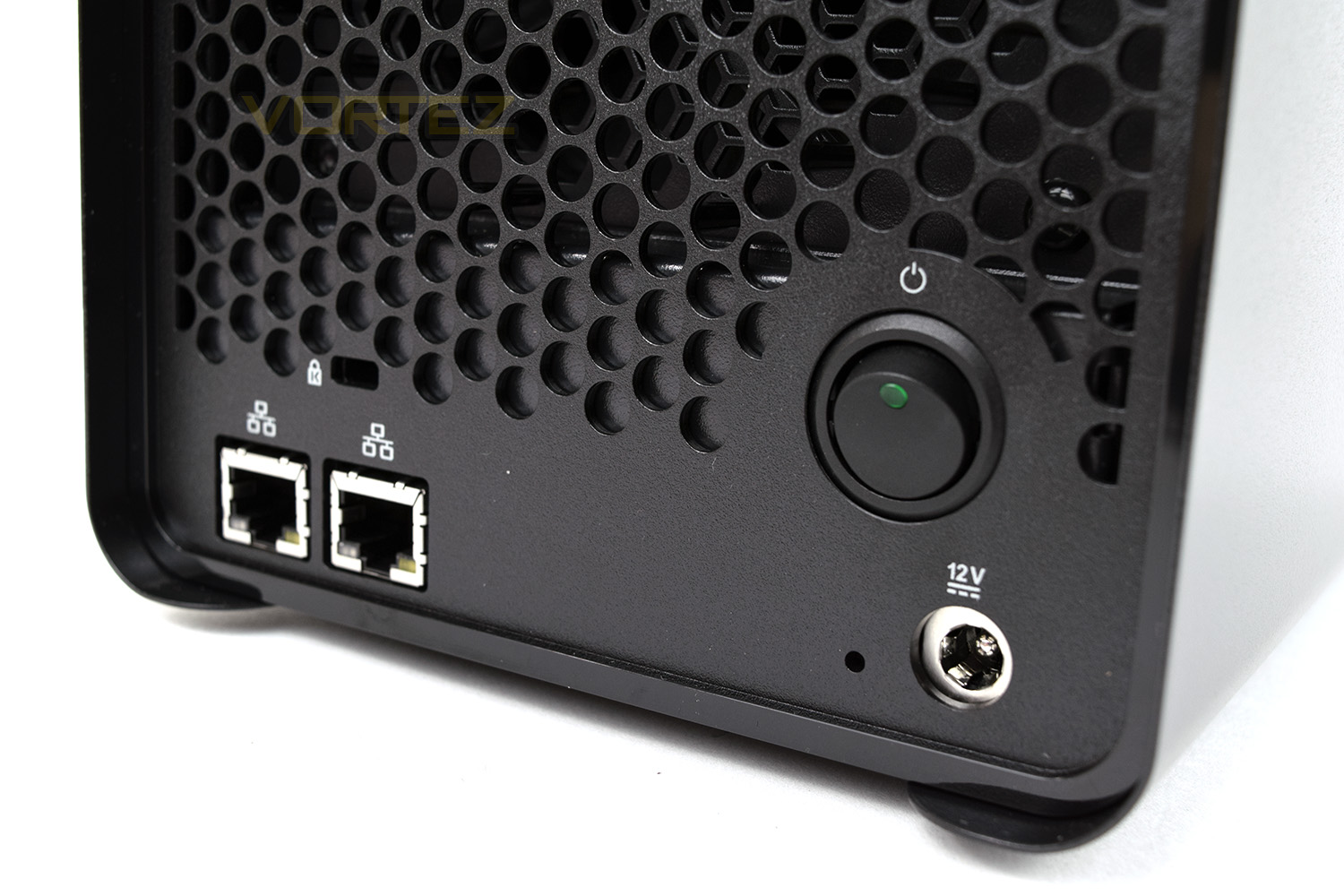
The rear of the Drobo features a rounded honeycomb design, through which the 120mm fan can pull air across the HDDs and out of the back. There’s also a power switch and two RJ45 ports, which can be bonded for increased performance.
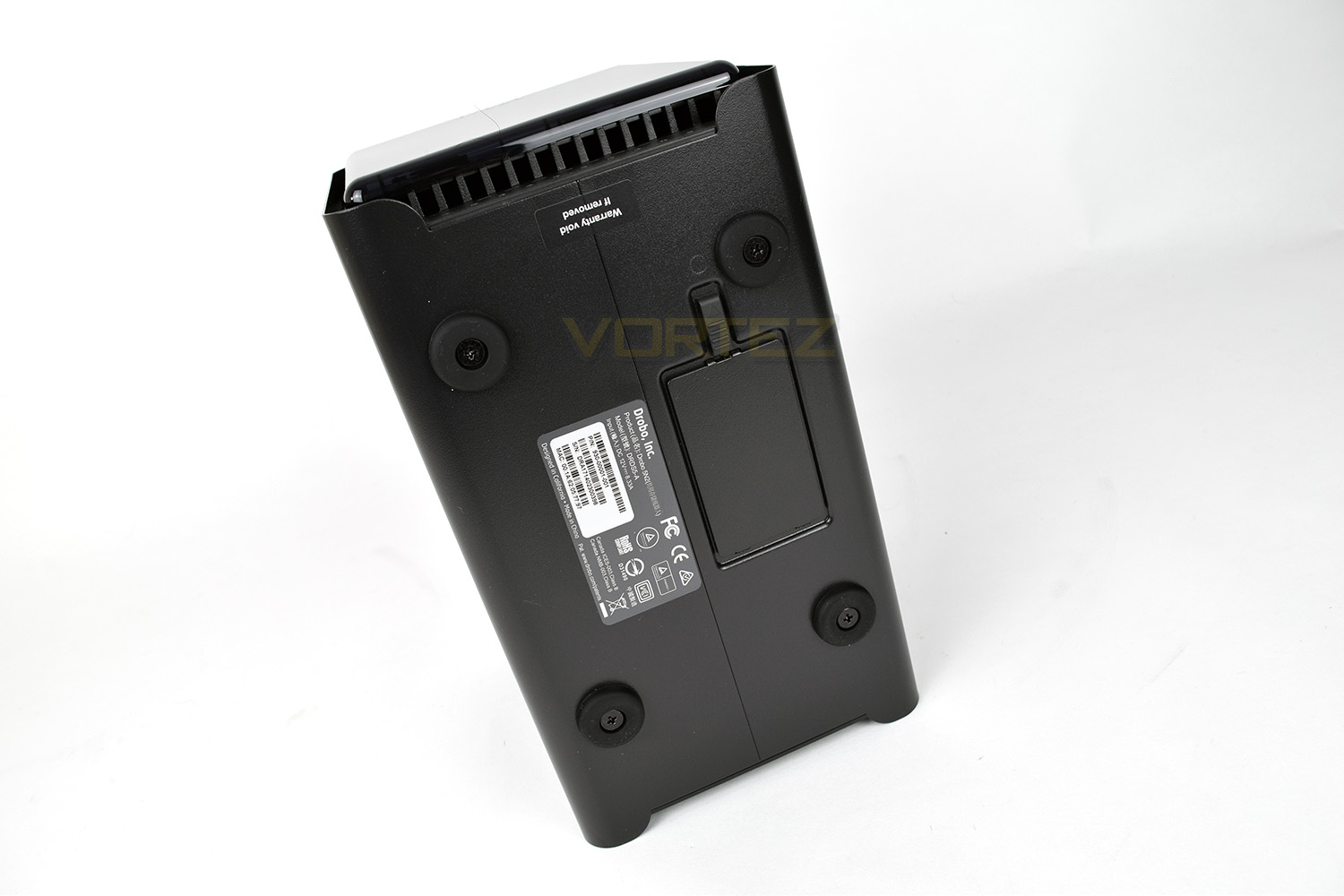
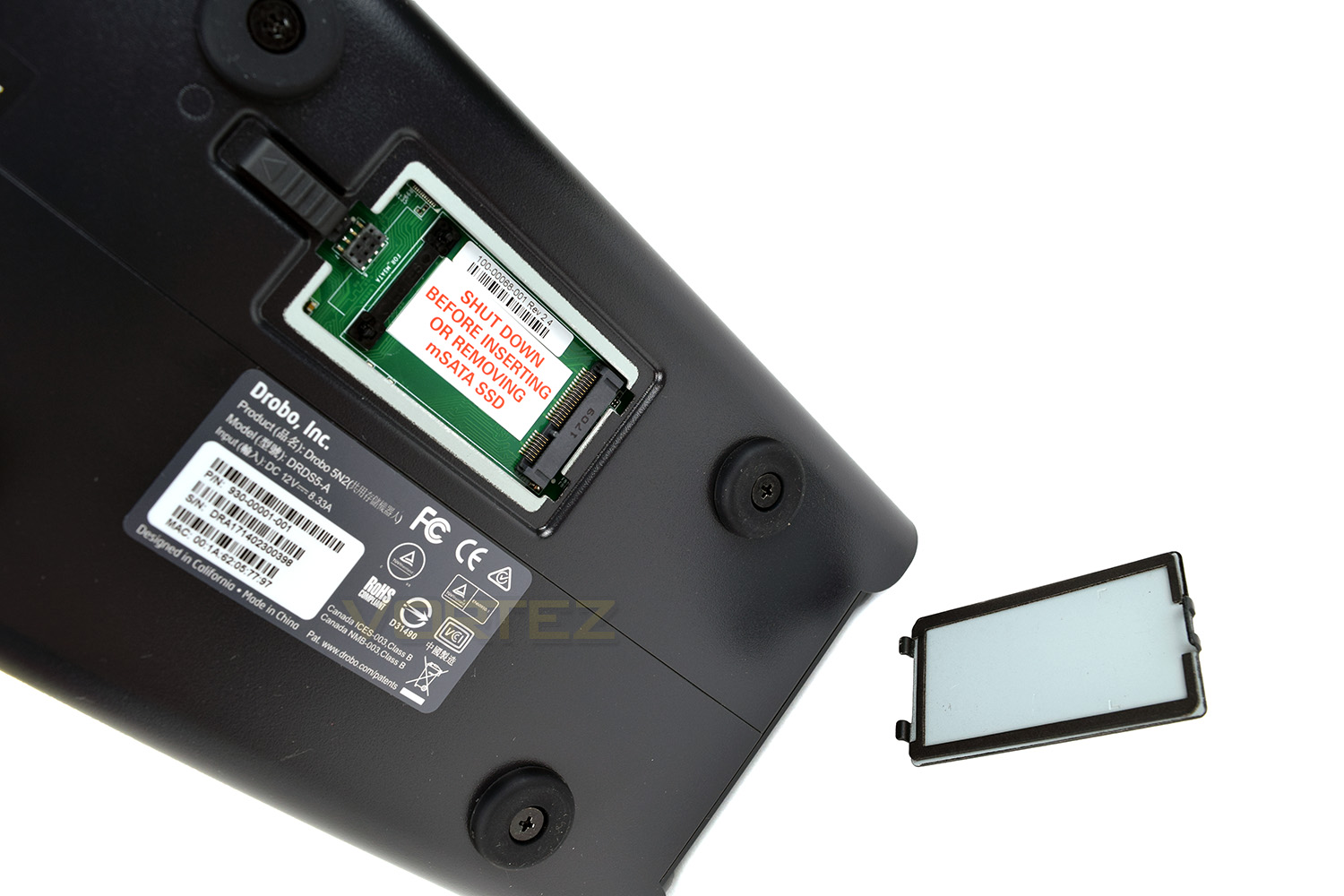
The underside houses 4 large rubber feet to minimise any vibrations or shock, along with a slow for the acceleration drive, within which you’re supposed to place an mSATA drive to increase the performance of frequently requested files.
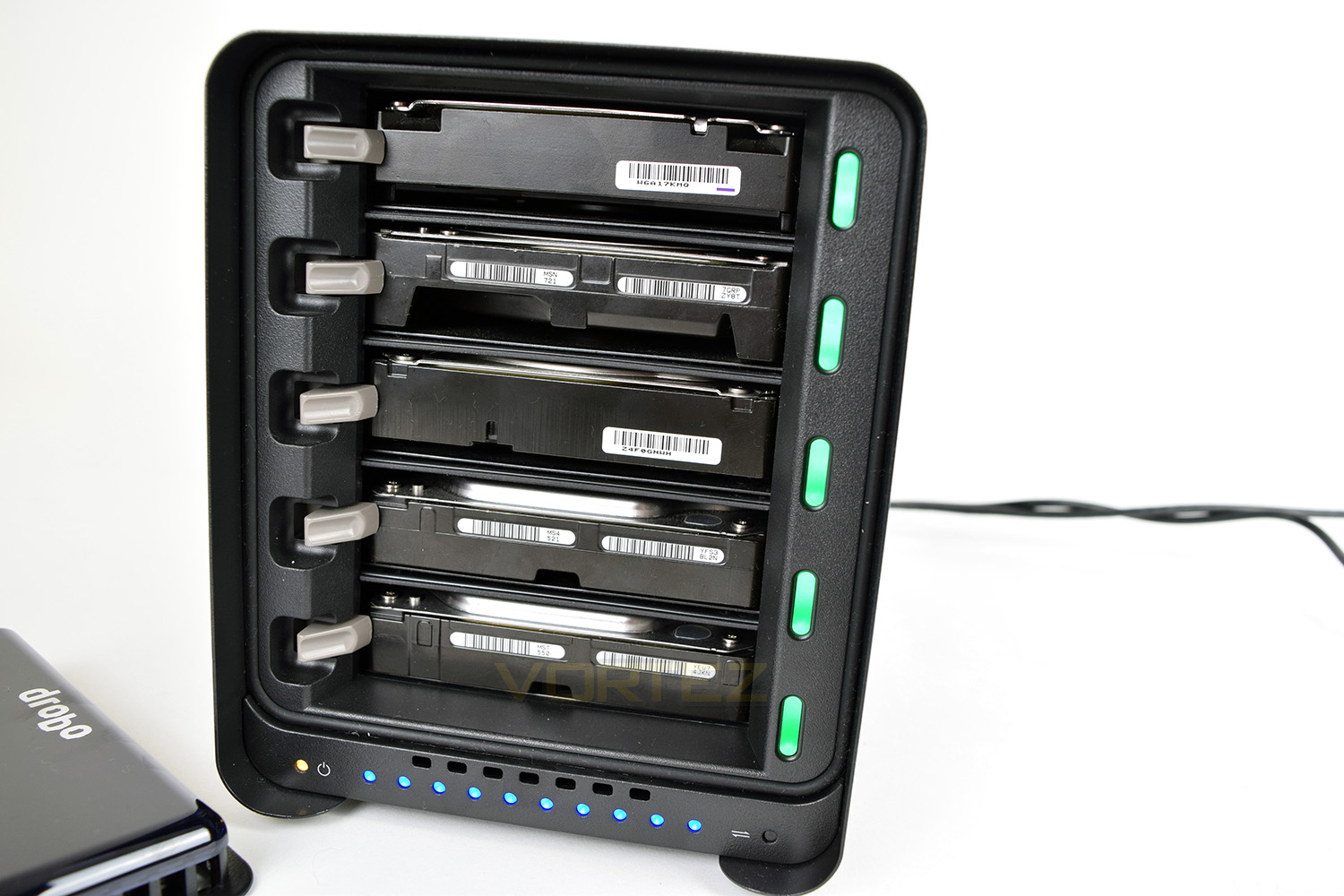
The lighting system on the front is as simple as it’s possible to be, each drive bay has its own LED which will display green, amber or red. Along with those LEDs, you will also see a row of blue LEDs across the bottom to show current data usage.
HDD Installation
Installing the HDDs into the Drobo 5N2 is an incredibly simple process. You ensure the top of the HDD (generally the side with the sticker on) is facing upwards, line it up with one of the 5 bays, and push it all the way backwards.It’s recommended to install Drobo Dashboard onto your PC or Mac and installing any drives you wish to use before switching on the Drobo 5N2. At which point, the network should detect your NAS and begin the setup process.
Also, please ensure the front panel is put back into place in the correct orientation. Placing it back incorrectly will block the coloured lights on the front.
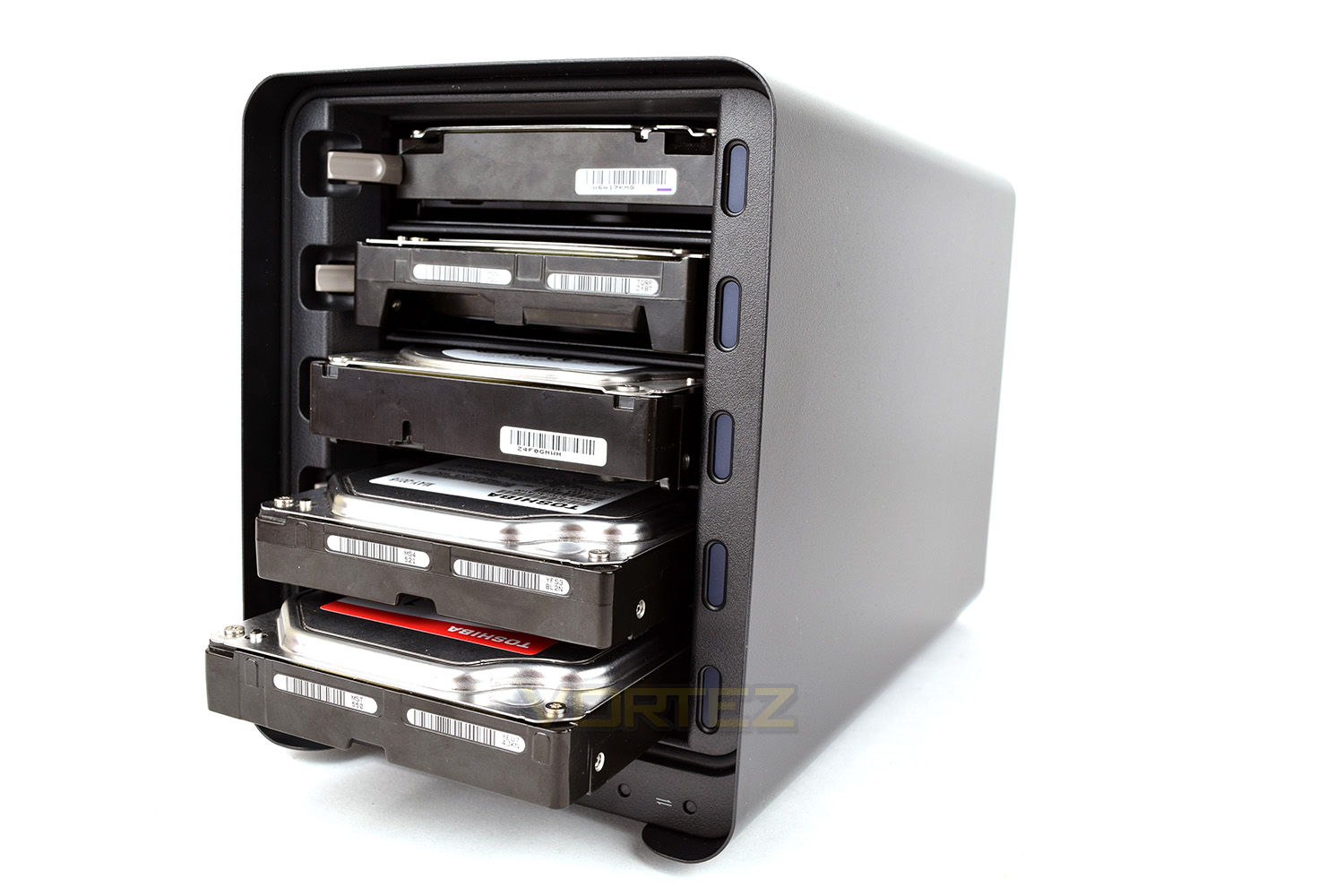
Due to the BeyondRAID feature, it’s entirely possible to install multiple different drives of different brands and different sizes. We installed the following: 1TB, 1TB, 2TB, 3TB and 4TB with no issues at all. Despite setting up the RAID with those HDDs, the BeyondRAID software allows you to remove your smallest HDD and replace with a larger HDD, all without any interaction with the Drobo 5N2 software. The machine will do all of the heavy lifting and juggle your files around.
It’s also possible to move from a dual disk redundancy to single disk, and vice versa, without rebuilding the RAID array – we believe this is the only NAS brand capable of such a feat.
Configuring Drobo 5N2
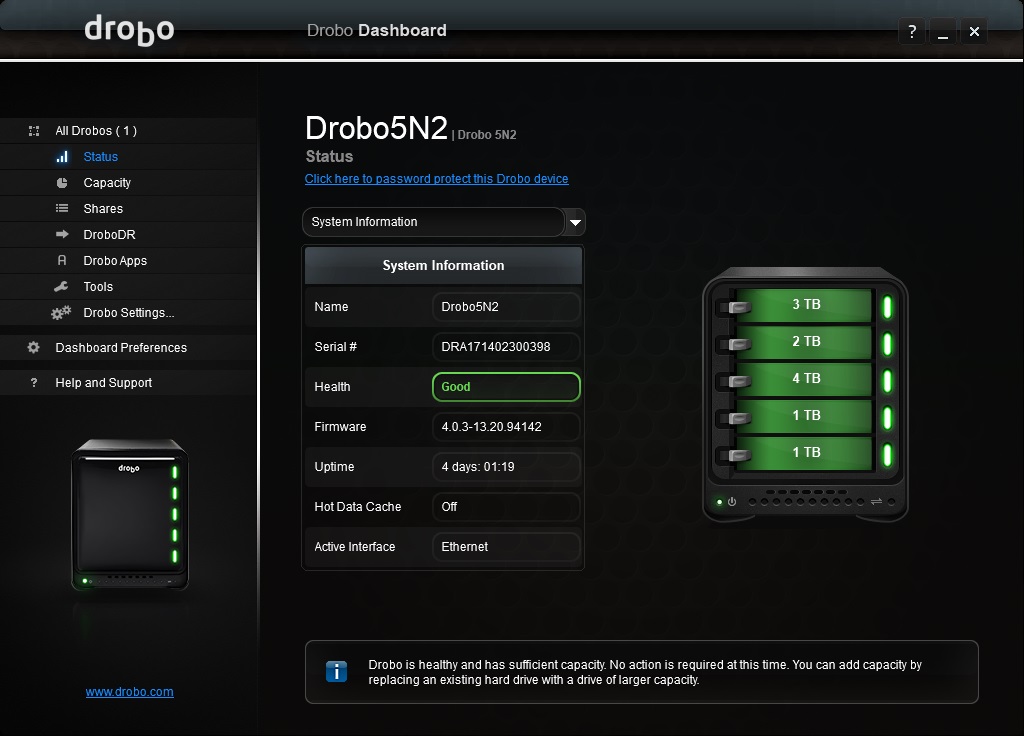
Once the Drobo has “done its thing” and set up the HDDs within your file system, you’re then free to configure settings within the Drobo Dashboard.Firstly, it’s worth checking that all 5 of the lights on the front of the Drobo are showing as a solid green with no flashing, this indicates everything is working as it should – it’s also possible to check this via the software.
The first landing screen of the Drobo Dashboard is used to select which Drobo you would like to configure, in the event of several being available on the network. This page displays the health and status of your data.
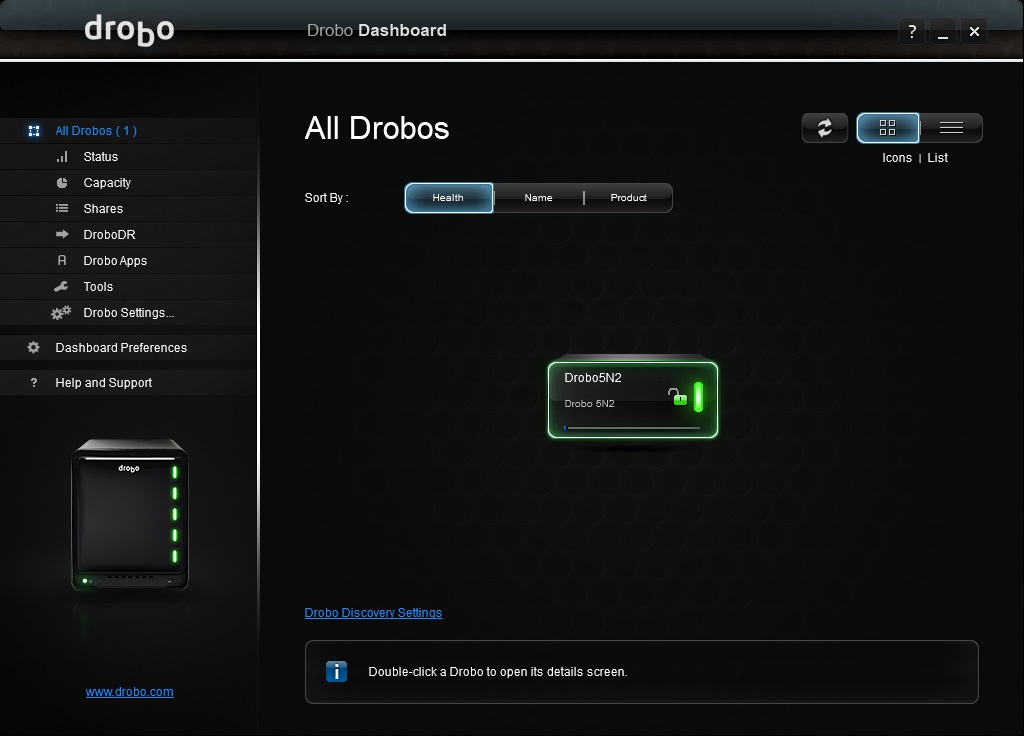
You can then click onto the Drobo of your choice to check individual drive health, including individual drive up-time, serial numbers and firmware.
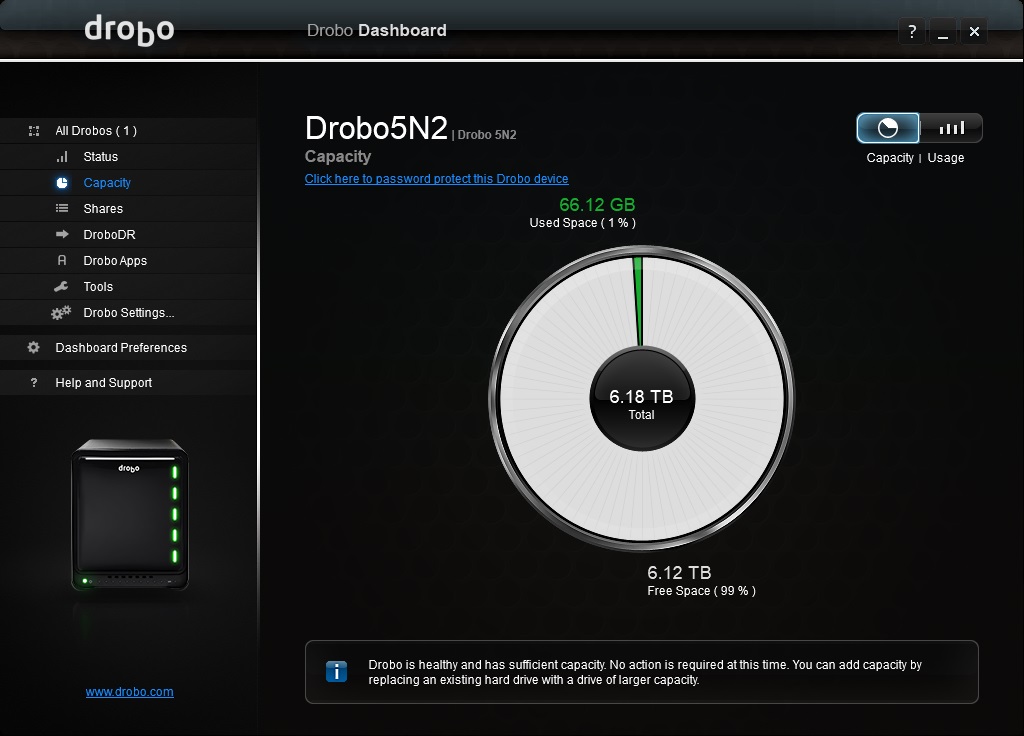
Capacity is possibly most important, in terms of ensuring your NAS is ready to use. This page shows exactly how much has been used, in both GB and percentage.
The following screen is where things start to get a little more complicated, yet compared to other NAS enclosures, we feel this process has been simplified almost as much as possible. Specifics are presented to the user in a clear and concise manner – providing you have a relatively basic grasp on technology, these configurations will be easy and straight forwards.
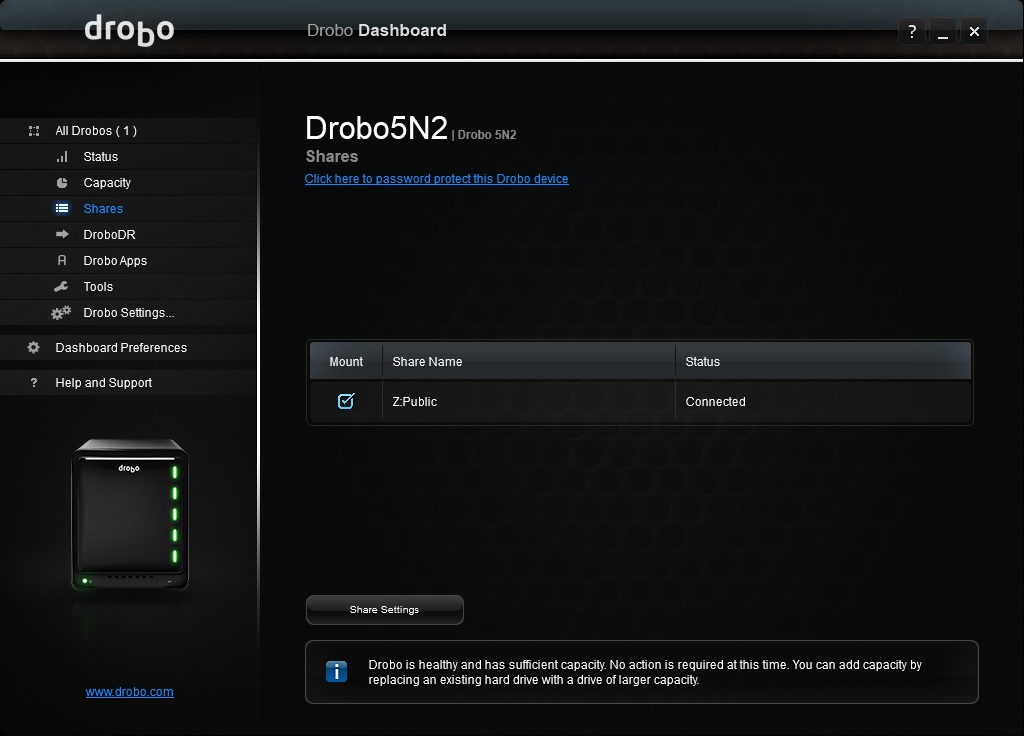
Perhaps one of the most important features is the Drobo Disaster Recover, or DroboDR for short. This feature configures the 5N2 to automatically make an offsite copy of your data. Even if there was a fire, or some other kind of serious incident, your data would be perfectly safe in another location. Unfortunately, we don’t have a second Drobo device to test this feature but we have it on good authority that this process is as simple as the rest.
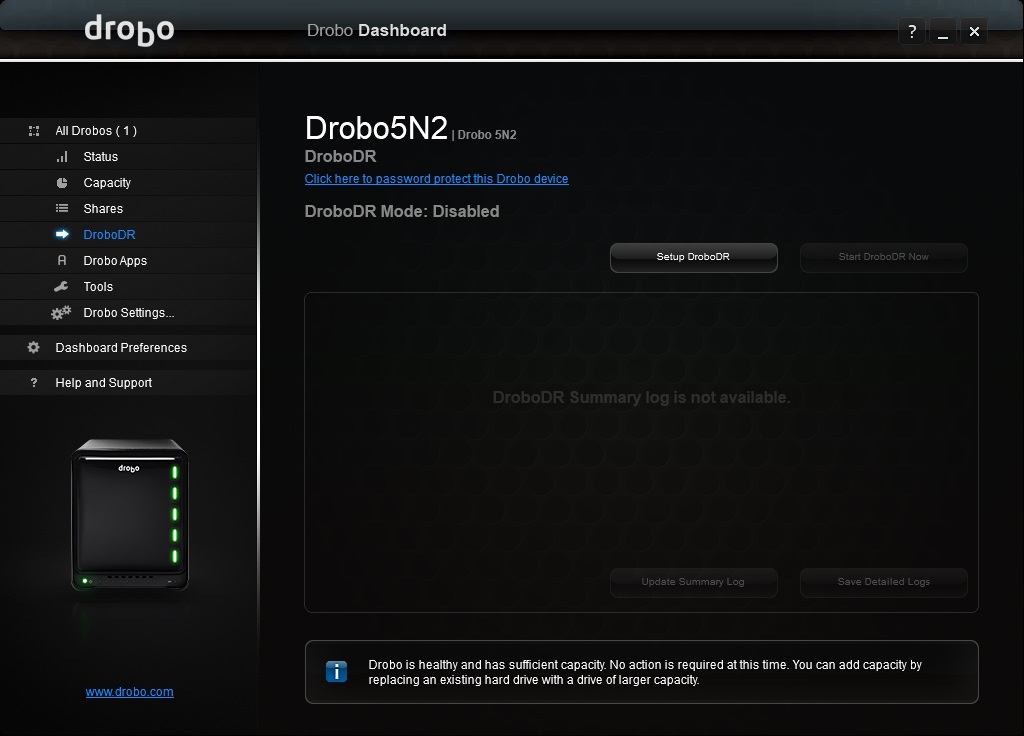
Configuring Drobo 5N2 (Continued)
Almost common-place within the industry now is the inclusion of applications within the NAS operating system itself. Drobo provide a “store” of tested and trusted applications, though no cost is incurred with the included apps. Due to the range and extent of the apps available, it’s probably best for you to look at the application store.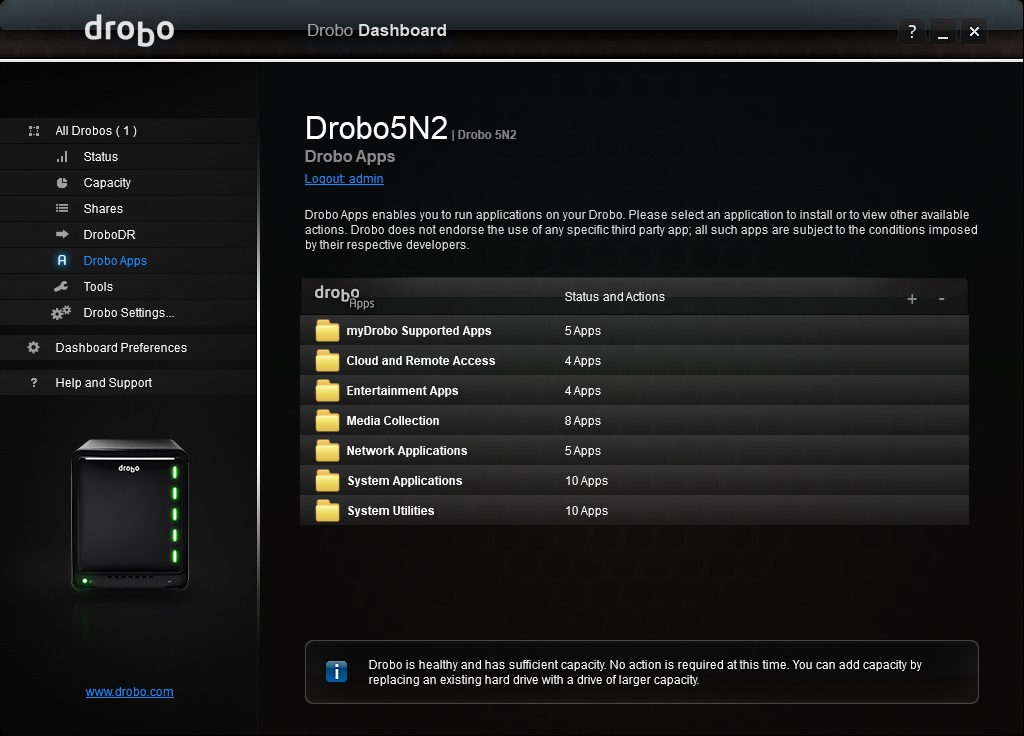
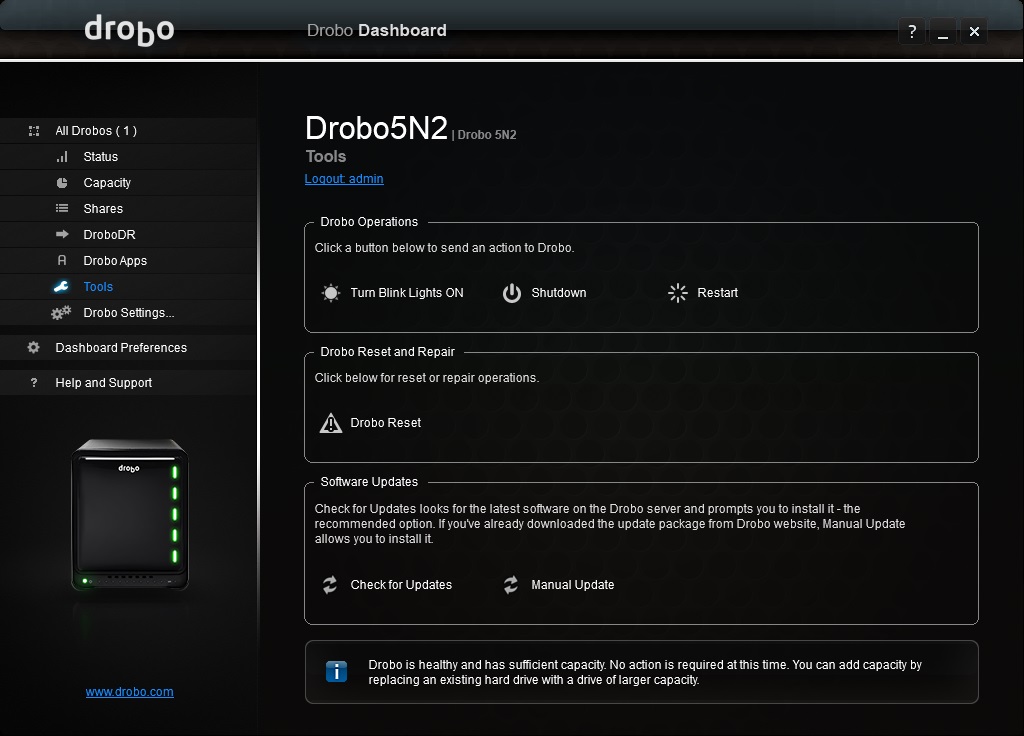
The Tools tab allows you to perform system-level tasks, such as shutting down the NAS or updating the software.
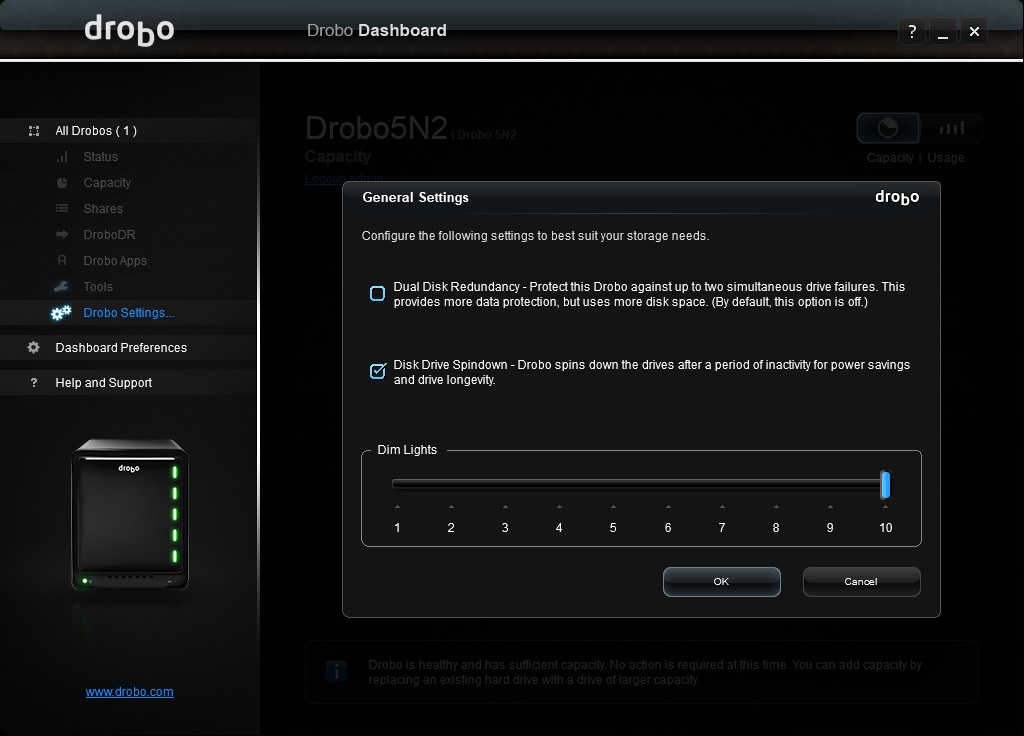
Within Drobo Settings, there are four sub-menus which control various features. Within the General Settings tab you can enable Dual Disk Redundancy, part of the BeyondRAID feature set. There’s also the ability to enable power saving features and to dim the lights.
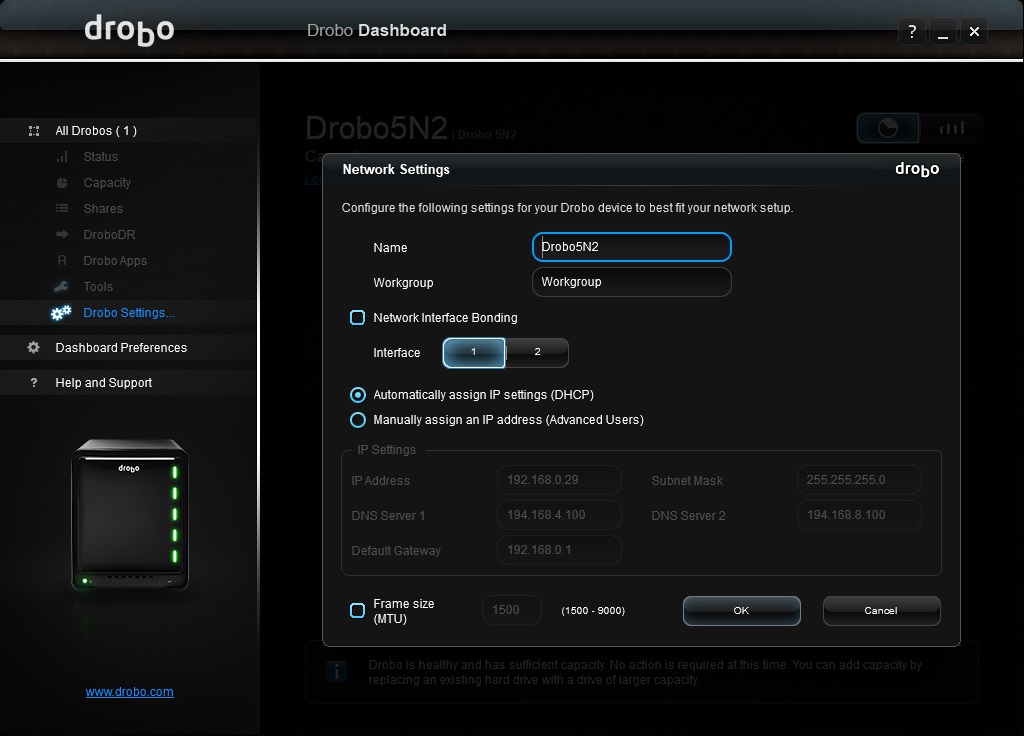
Within Network Settings, port bonding can be enabled by ticking a box, names can be given and specific IP addresses assigned, if you know what you’re doing.
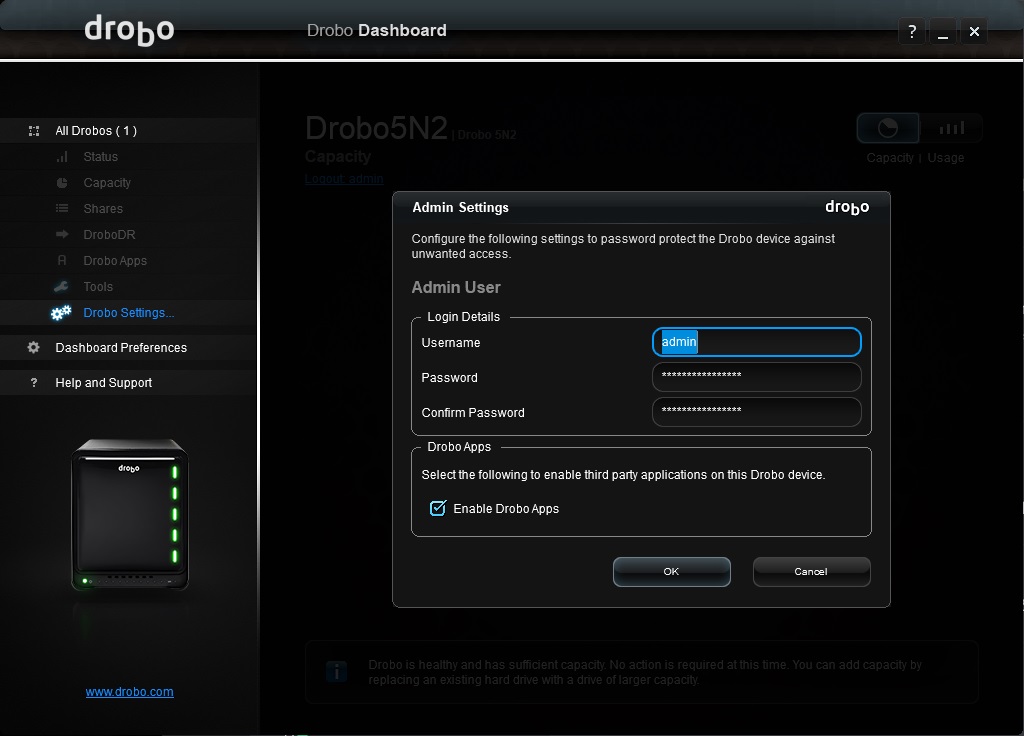
Admin Settings is where to adjust access passwords, especially important if you decide to access data off-site. You can also limit the use of Drobo Apps, if you don’t plan to use them at all.
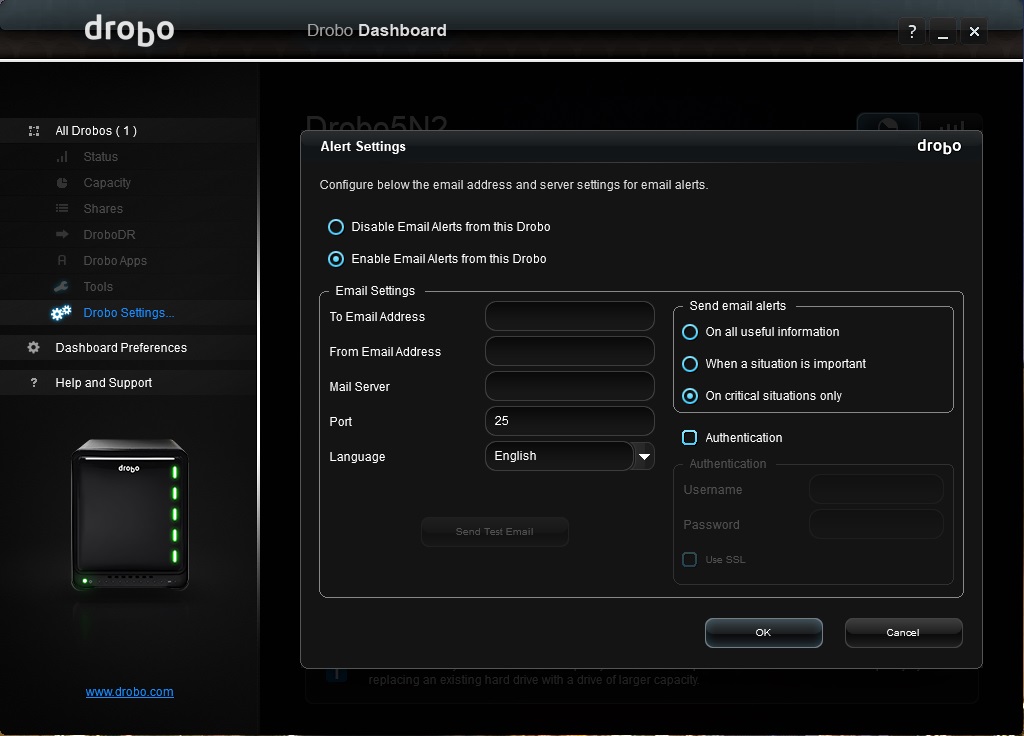
Finally, Alerts can be configured based on specific events occurring. An example being a drive failure or capacity running low – the Drobo will send an email address to you as soon as an event occurs.
NAS Performance
Now we take a look at performance figures across a 1gbps networkTest System
CPU: Intel Core i5 6600K
Motherboard: MSI Z270 Gaming M7
Graphics: EVGA GTX 1070 SC
Memory: 16GB CORSAIR Vengeance LPX 3200MHz DDR4
SAMSUNG SM961 256GB NVMe
PSU: Enermax Modu82+
OS: Microsoft Windows 10 Pro 64-Bit
Motherboard: MSI Z270 Gaming M7
Graphics: EVGA GTX 1070 SC
Memory: 16GB CORSAIR Vengeance LPX 3200MHz DDR4
SAMSUNG SM961 256GB NVMe
PSU: Enermax Modu82+
OS: Microsoft Windows 10 Pro 64-Bit
To test the performance of the NAS drive over the Gigabit network we first mount the NAS as a local drive within Windows, to allow applications direct access to the drives.
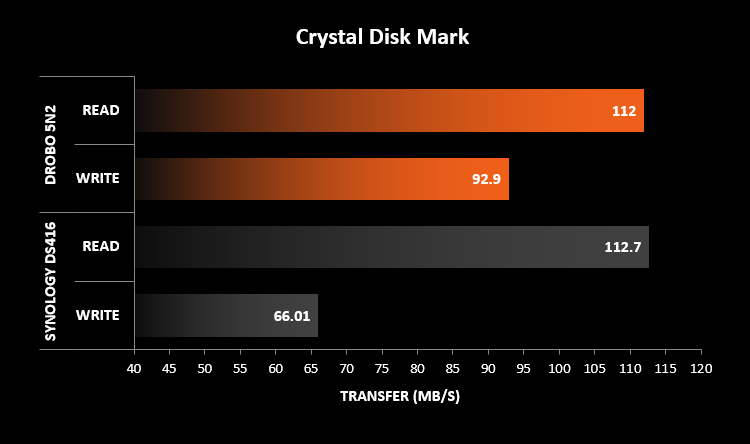
Crystal Disk Mark:
CrystalDiskMark is an essential and handy tool when users want a quick idea of raw input performance. It can also be used to test all the drives on your system including removable disks like USB flash drives and external hard drives.
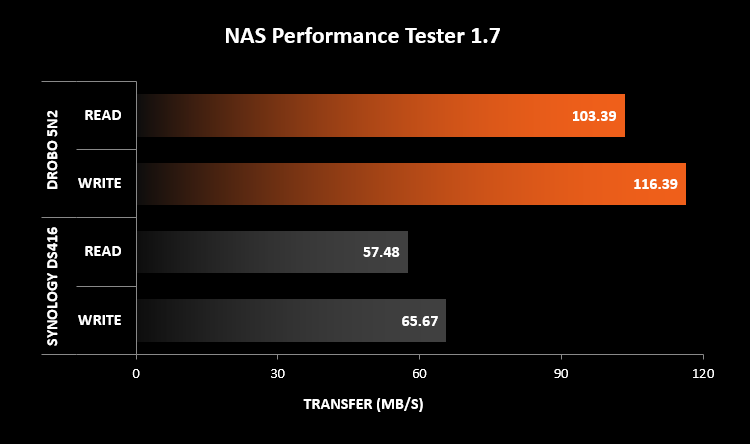
NAS Performance Tester 1.7:
This free utility benchmarks the read and write performance in megabytes per second of network attached storage connected through SMB/CIFS network shares.
Data Protection Mode
After conversing with Drobo to be made aware of features within the software, Data Protection was always top of the list. We were asked to conduct a data transfer test during normal operating conditions. Then, once the time was measured, we conducted the exact same test, however, just seconds before we began copying the files, we removed two of the HDDs from the Drobo and timed the results.We chose to use Paladins, from Steam. This game’s directory folder takes up 9.33GB of disk space, across 97 folders, within which 2,095 files, of all different types and sizes, are held.
The initial test returned a time of 2:25 which translates to around 64MB/s. We then deleted the data from the drives and primed ourselves to run the test a second time, however, as mentioned, two of the drives were removed a couple of seconds earlier.
During this test, performance was hindered considerably, but your workflow wouldn’t have to come to a complete halt. The exact same test took 6:37 to complete, which equates to roughly 23MB/s. We feel that is a perfectly respectable time due to the turmoil we’d just caused the machine.
It’s also worth mentioning the disco. The Drobo 5N2 turned into a mini disco, every light on the front went crazy, trying to attract the attention of the user to a dual-disk failure, possibly the worst case scenario for a device of this kind.
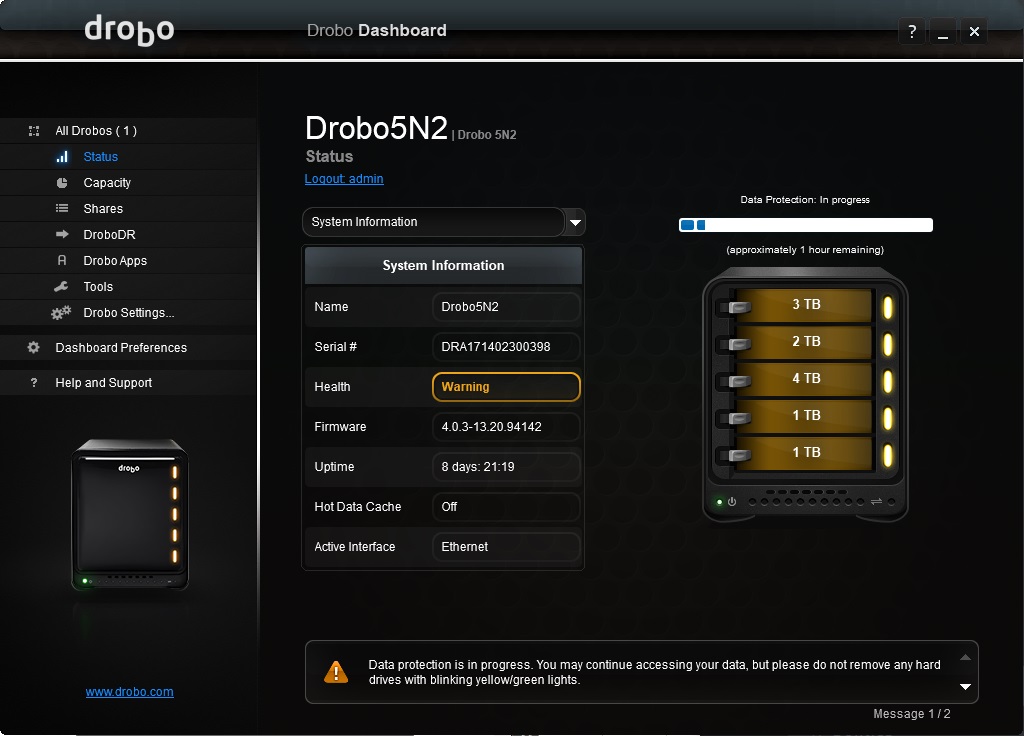
Further to the test above, we thought we’d give the Drobo a day from hell. After re-inserting the drives and allowing it to reinitiate the recovery of the RAID system, we decided to rip the power cord out of the back. Luckily, the Drobo 5N2 features a built in battery, capable of providing roughly a minute of power.
During this little experiment, the Drobo booted back up, figured things out and carried on with the RAID rebuild. There was no input required from the user, at all. It did everything it needed to, on its own.
Truly impressive.
Conclusion
During the introduction, we mentioned Drobo’s claims of the 5N2 being “as difficult to understand as a traffic light.” – it turns out they’re correct, in every way possible. Yes, there are options for people who understand networking and want to set things up exactly as they want it, but for your Average Joe who wants to store some photographs and possibly back up a couple of games, it’s ideal.The setup process required such a little amount of input that it’s barely worth mentioning. Likewise, the ease of use in general was unexpected, to say the least. Following the traffic light system on the front while allowing the 5N2 to do everything in the background will give you 99% of the functionality without any of the fuss.
The BeyondRAID feature impressed us hugely, the ability for two drives to fail, at the same time, yet still remain in a useable state is incredible. The read and write performance suffered, but that’s to be expected; we would feel as though we were doing it an injustice by marking it down for that.
Being able to add capacity after setting up the initial RAID array is brilliant – removing the smallest drive and replacing with a larger one without any of the associated hassle.
There’s only really one downside to the Drobo 5N2. That is the noise it generates while being accessed. With 5 drives spinning inside the device the noise was noticeable in another room. This is more than likely down to the way the drives are held within the device. Perhaps implementing some kind of cages for the drives to be suspended within could dampen the vibrations and sound somewhat. If you plan to have the device nearby, this might be worth considering.
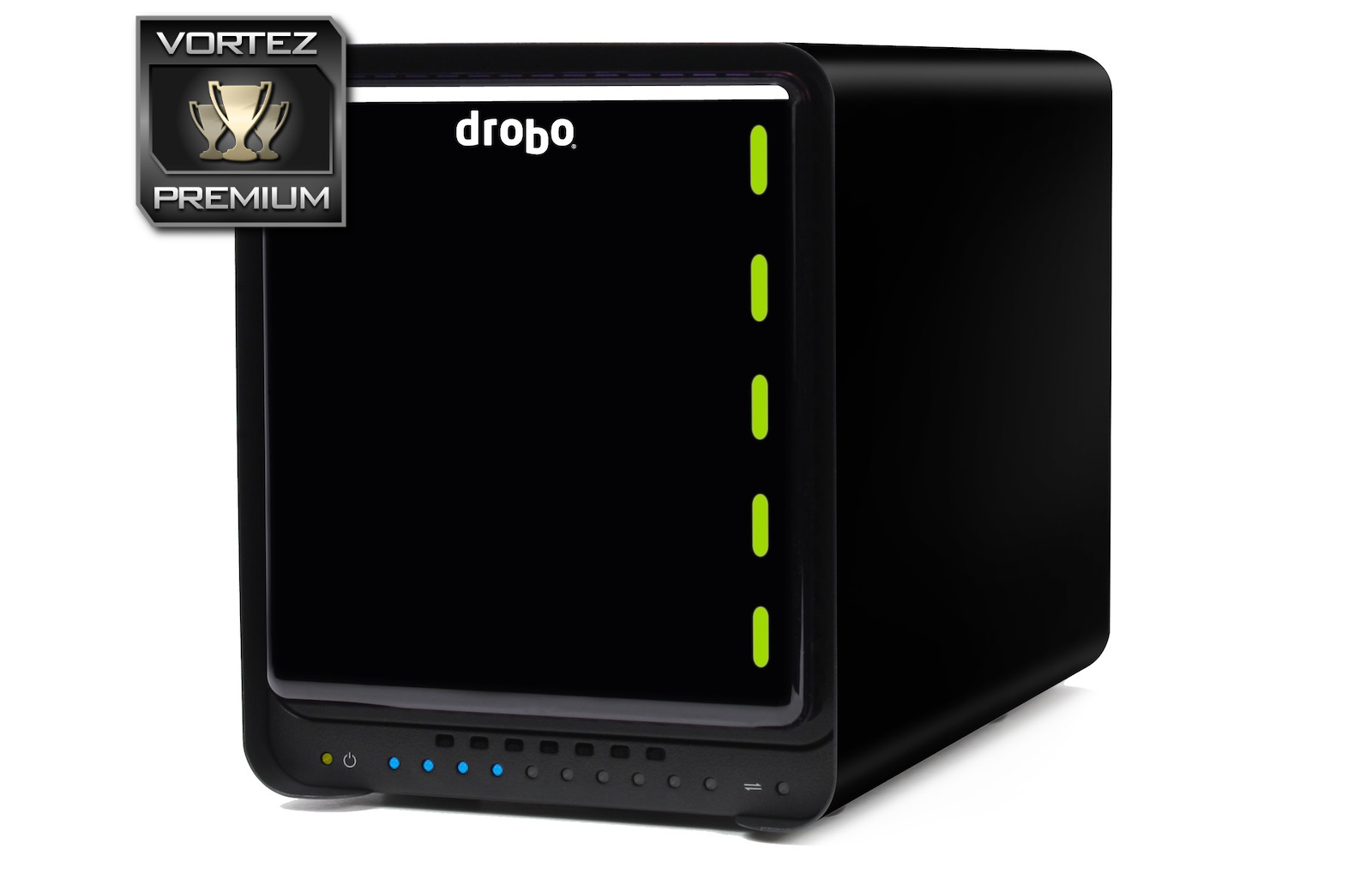
Require an easy to use NAS storage? The Drobo 5N2 will fit your bill perfectly. Dual disk redundancy that’s as difficult to understand as a traffic light. A true blessing.
Pros
+ BeyondRAID is incredible
+ Dual disk redundancy
+ Looks great
+ Easy to understand and use
+ Up to 64TB of total storage
+ mSATA acceleration for improved performance
+ Built in battery
+ 2.5″ & 3.5″ drive support
+ Add in drives over time to increase capacity
+ Toggle between single and dual-disk redundancy without breaking the RAID
Neutral
+- App store isn’t as well equipped as other brands
Cons
– Pricey
– Noisy
+ BeyondRAID is incredible
+ Dual disk redundancy
+ Looks great
+ Easy to understand and use
+ Up to 64TB of total storage
+ mSATA acceleration for improved performance
+ Built in battery
+ 2.5″ & 3.5″ drive support
+ Add in drives over time to increase capacity
+ Toggle between single and dual-disk redundancy without breaking the RAID
Neutral
+- App store isn’t as well equipped as other brands
Cons
– Pricey
– Noisy
Click here for an explanation of our awards at Vortez.net.
Stay connected with Vortez social media pages: