Das Keyboard has set out to evolve how we interact and use our keyboards with their X50Q, but do they succeed?

Product on Review: Das Keyboard X50Q
Manufacturer: Das Keyboard
Street Price: £189.95 GBP / $199.00 US / $299.00 AUS
Das Keyboard was founded in Austin Texas back in 2005, and was born out of the drive for personal improvement. The founder Daniel Guermeur created a totally blank keyboard to help increase his own typing speed and accuracy, the result, he managed to double his typing speed after just a few weeks of use. After further testing and improvement he sought the opinion of his friends and colleagues who were mesmerised by the experience the first creation offered, thus Das Keyboard was created. Now we are fast approaching 2019, and Das Keyboard is still going strong.
Today we will be taking a look at their latest offering which is the X50Q. This isn’t a mechanical keyboard as you know it and offers a feature that we have never come across before. What Das Keyboard has done is to use their experience to blend mobile esque notifications with this keyboard and their QSoftware suite. This may not sound groundbreaking, but this is a – as far as we are aware, is the first of its kind, making it a big deal and potentially a new feature that we could see become more mainstream in the near future.
New features aside let’s look at the gaming and in-use aspect of the Das Keyboard and it puts on a good show, it uses Omron made Gamma Zulu switches which offer an industry first 100 Million key press lifespan, that is double what most other mechanical switches offer. The X50Q also offers full N-key rollover with 100% anti-ghosting as well as a volume control knob, RGB and a whole host of other features. The question is, can Das Keyboard successfully merge the new with old to create a coherent user experience? Let’s find out.
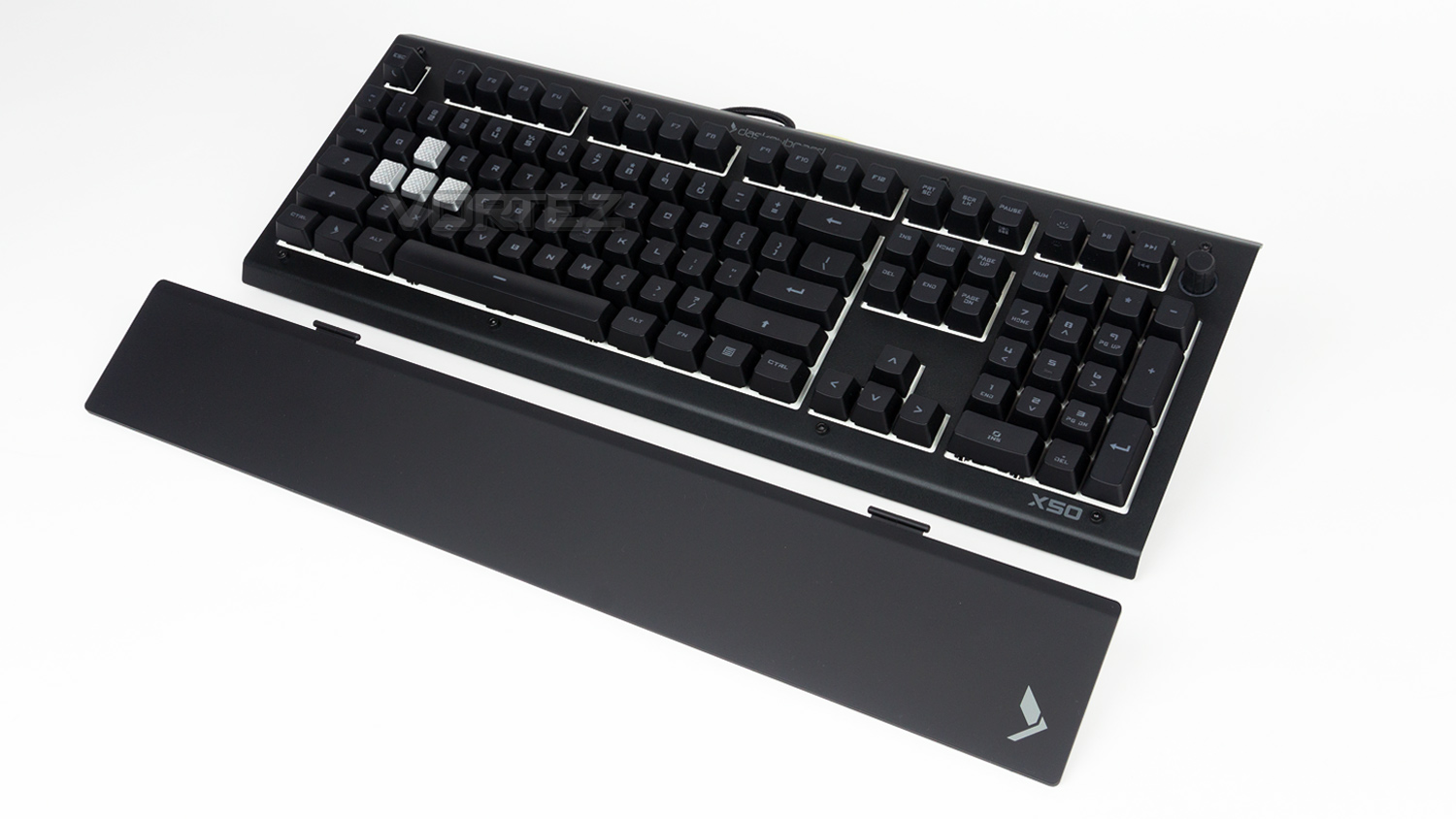
Das Keyboard on the X50Q:
The Das Keyboard X50Q is the world’s first Smart Gaming Keyboard. Push your information straight to your keyboard to create a visual dashboard. The X50Q is an edgy crossover keyboard that makes it the ultimate computing tool for the champion gamer and ace professional alike. It debuts the world’s most advanced mechanical Gamma Zulu switches with ultra-quick, responsive feedback. 2x brighter RGB+ with 16.8M Colors. It is a revolutionary smart, cloud-enabled, open API, RGB mechanical keyboard.
Technical Specifications
Keyboard
Format – Full-size
Interface – Wired USB 2.0
N-key rollover with 100% anti-ghosting
RGB lighting
Volume control knob
Keycap material – ABS
Top panel – Anodised Aluminium
Switches
Switches – Omron Gamma Zulu
Variant – Soft tactile
Lifespan – 100 million keystrokes
Crosspoint contacts – 2
Actuation distance – 1.5mm
Actuation force – 45g
Travel distance – 3.5mm
Dimensions & Weight
Dimensions – 451mm (L) x 167mm (W) x 32.45mm (H)
17.77” (L) x 6.57” (W) x 1.28” (H)
Dimensions with rest – 451mm (L) x 233.8mm (W) x 32.45mm (H)
17.77” (L) x 9.21” (W) x 1.28” (H)
Weight – 1.55kg / 3.5lbs
Cable – 2m / 6.5ft
Available layouts
104 US, 105 UK, 105 DE, 105 NO
System requirements
Spare USB 2.0 / 3.0 port
Windows – 10, 8.1, 8, 7
Mac – OSX
Linux
Internet connection
Format – Full-size
Interface – Wired USB 2.0
N-key rollover with 100% anti-ghosting
RGB lighting
Volume control knob
Keycap material – ABS
Top panel – Anodised Aluminium
Switches
Switches – Omron Gamma Zulu
Variant – Soft tactile
Lifespan – 100 million keystrokes
Crosspoint contacts – 2
Actuation distance – 1.5mm
Actuation force – 45g
Travel distance – 3.5mm
Dimensions & Weight
Dimensions – 451mm (L) x 167mm (W) x 32.45mm (H)
17.77” (L) x 6.57” (W) x 1.28” (H)
Dimensions with rest – 451mm (L) x 233.8mm (W) x 32.45mm (H)
17.77” (L) x 9.21” (W) x 1.28” (H)
Weight – 1.55kg / 3.5lbs
Cable – 2m / 6.5ft
Available layouts
104 US, 105 UK, 105 DE, 105 NO
System requirements
Spare USB 2.0 / 3.0 port
Windows – 10, 8.1, 8, 7
Mac – OSX
Linux
Internet connection
Packaging & First Look
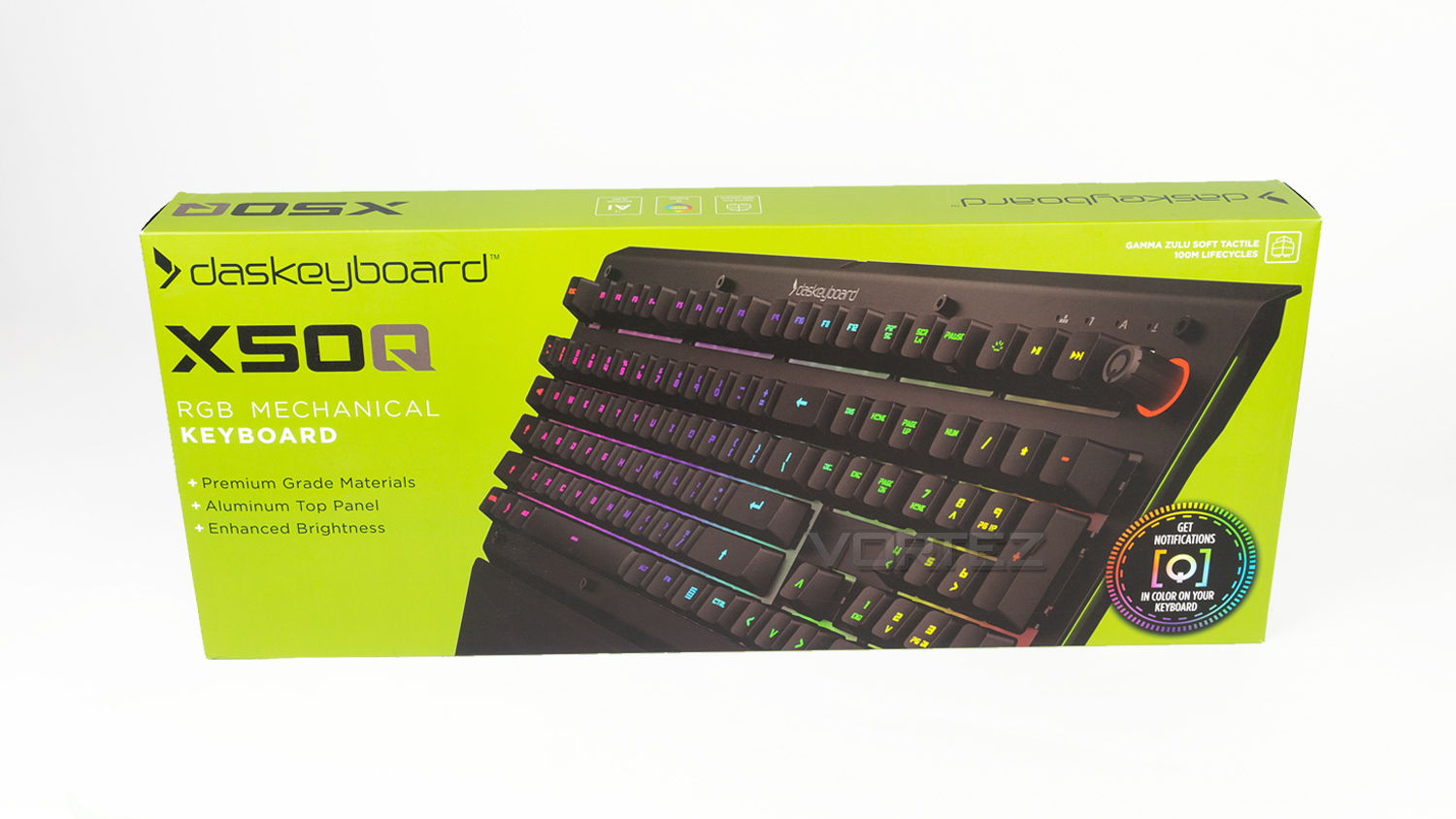
The Das Keyboard X50Q comes in a sturdy box that is quite vibrant. The front features an image of the keyboard with some information and features of the X50Q. Its well laid out and not too full of text.
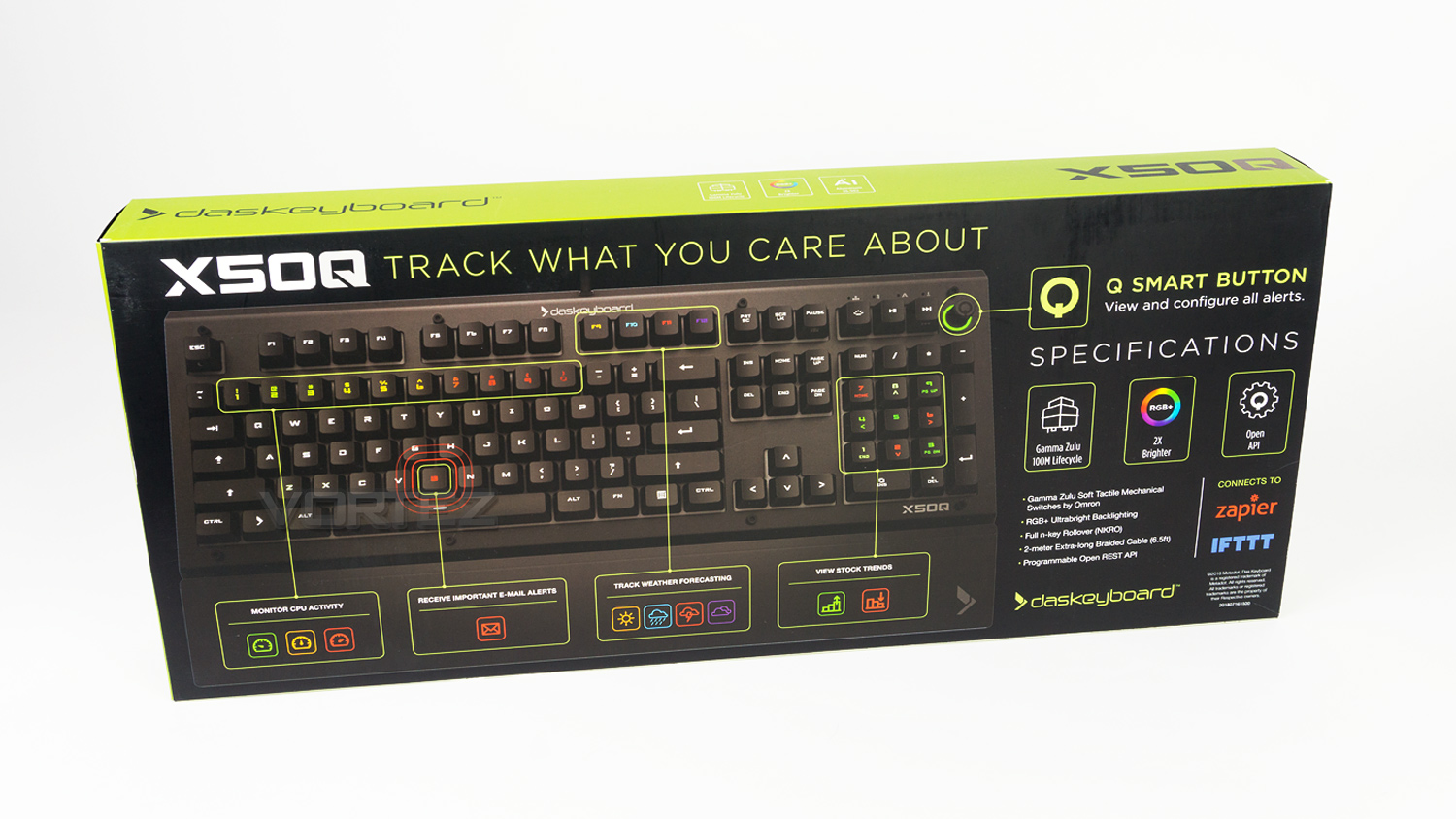
The rear is black and showcases the keyboard with some of the smart features on offer as well as a few specifications.
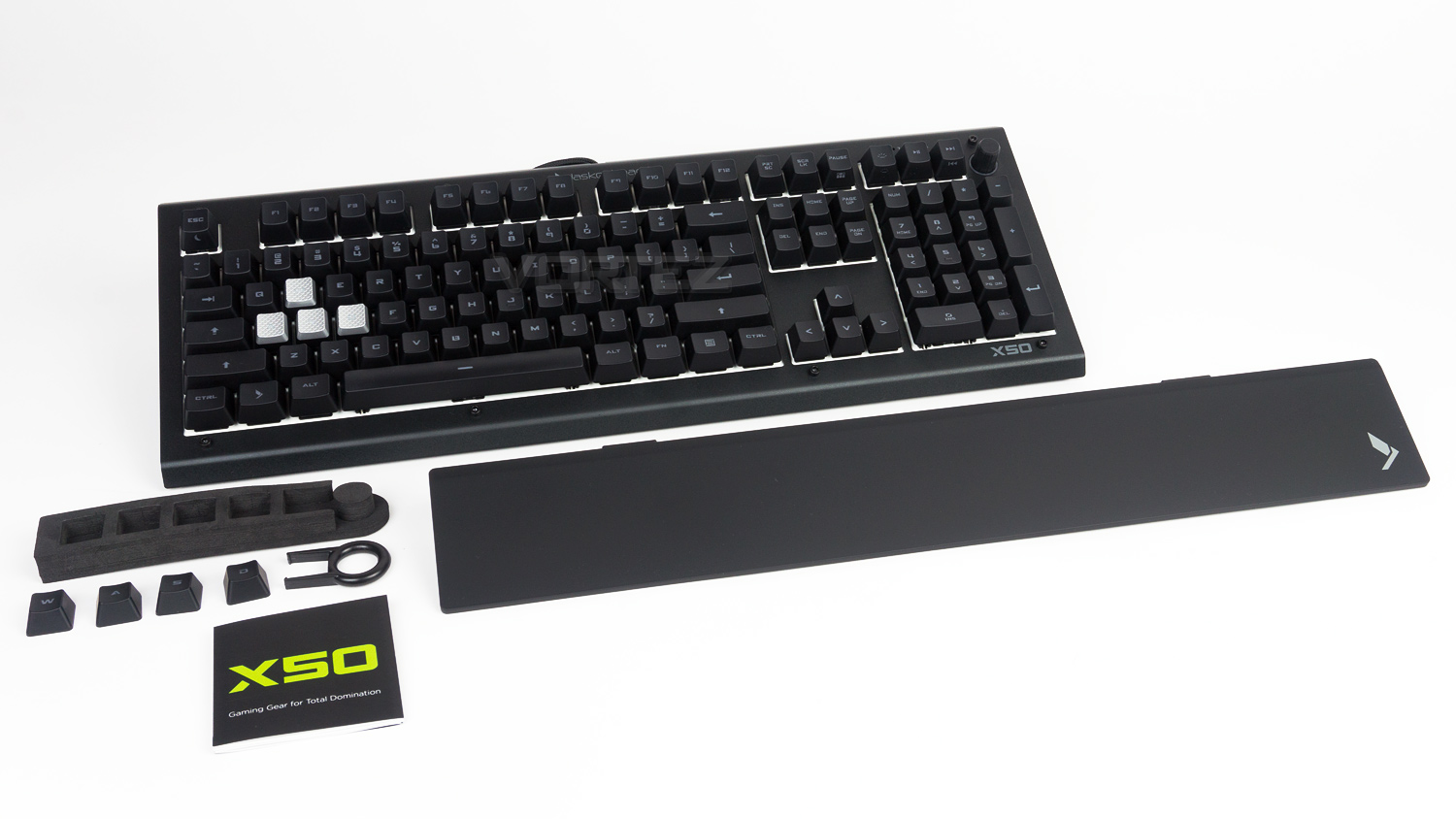
With the X50Q there is a bundled palm rest, keycap puller, replacement WASD keycaps and the documentation. The WASD keycaps and the keycap puller arrive in a foam block that has a plastic hard plastic sleeve, this is great for keeping them safe when not in use.
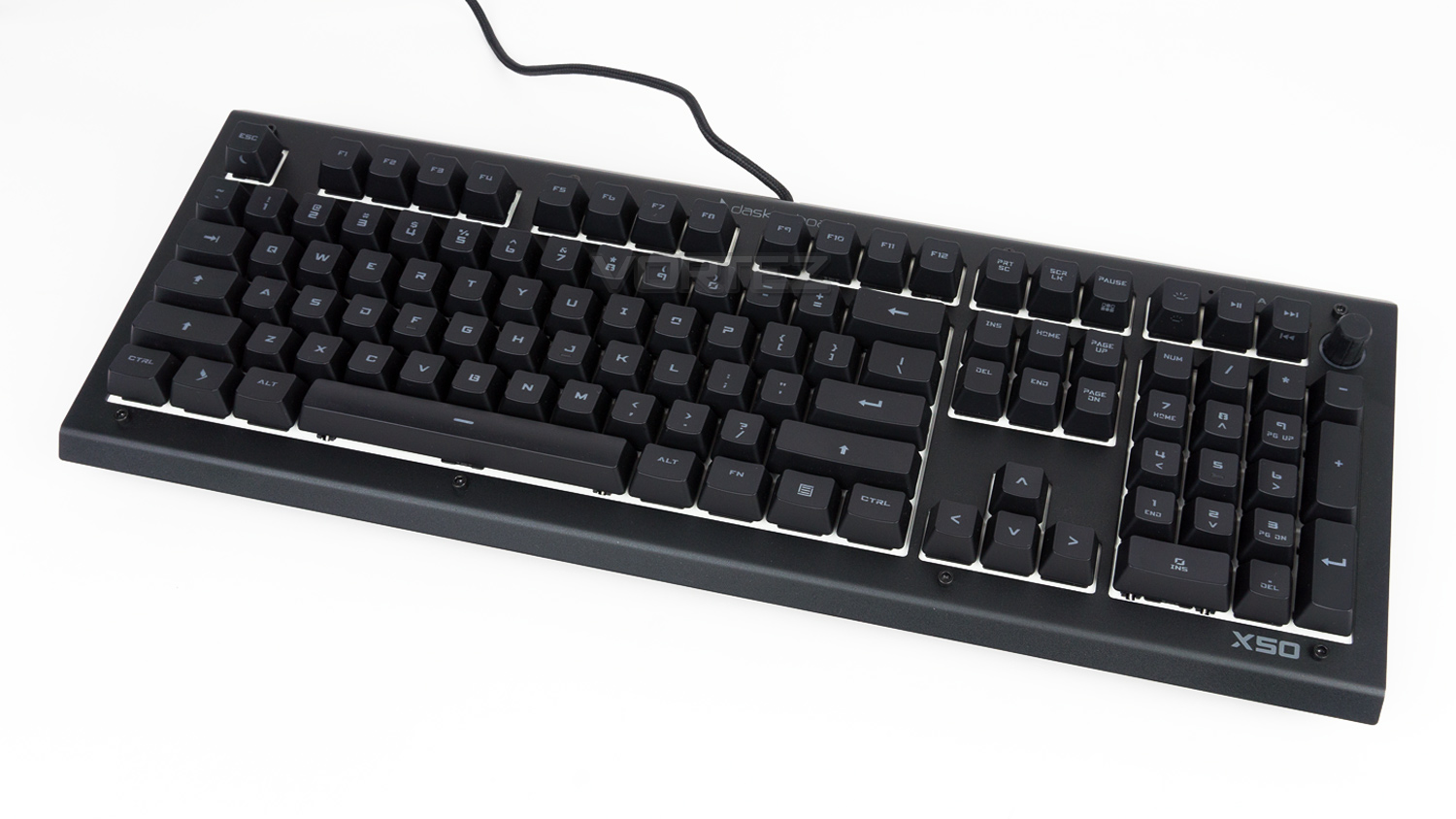
The X50Q takes a more professional approach with the dark black Anodised Aluminium top plate, deep black keycaps and subtle branding so it would definitely not look out of place in a high-end modern office or minimalist home setup.
Closer Look
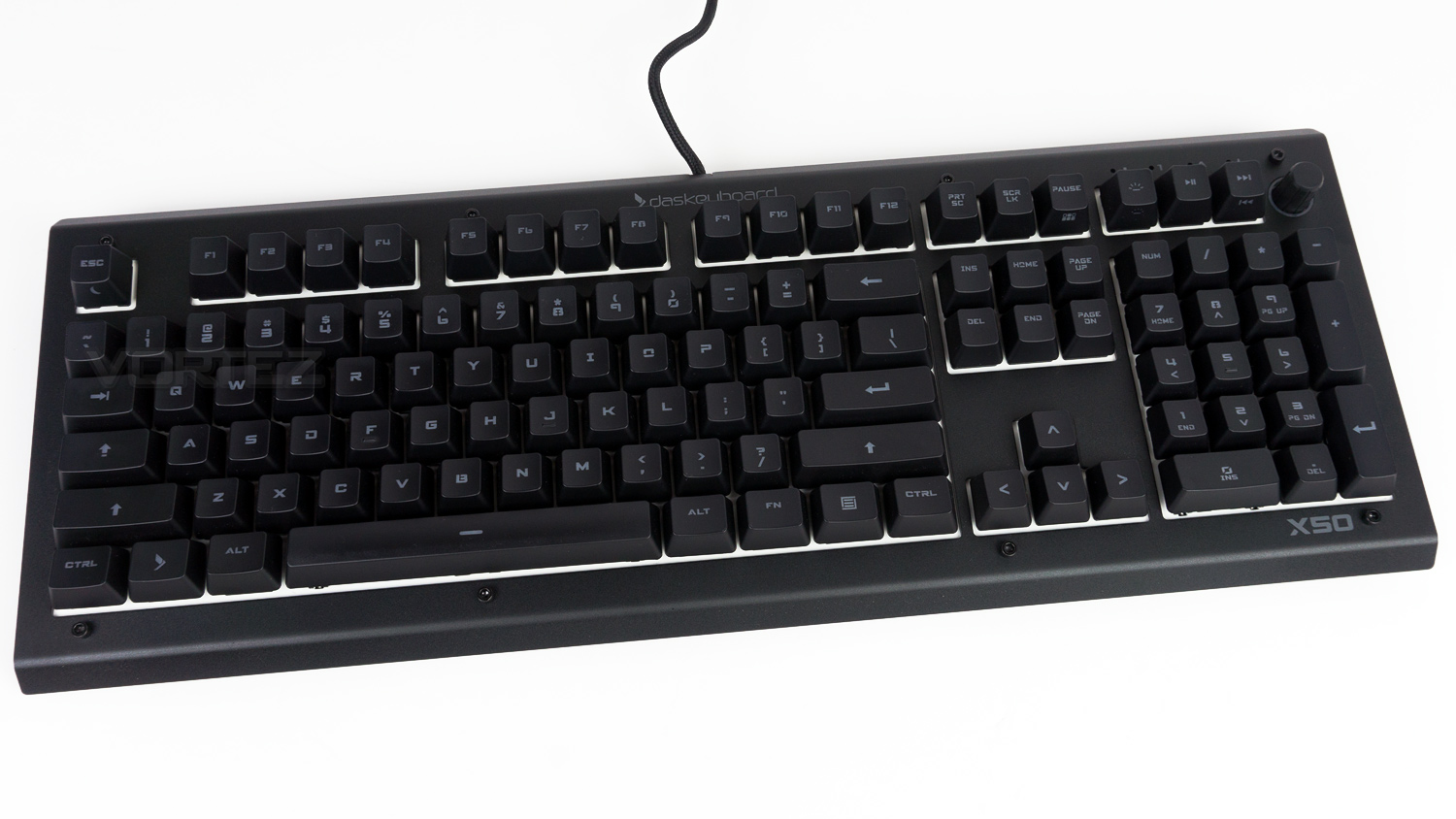
The Das Keyboard X50Q is a very large full-sized keyboard as it measures in at 451mm (L) x 167mm (W) x 32.45mm (H), this means that if you are tight for space, this may be a stretch too big to accommodate. Keep in mind that the dimensions are without the included wrist rest.
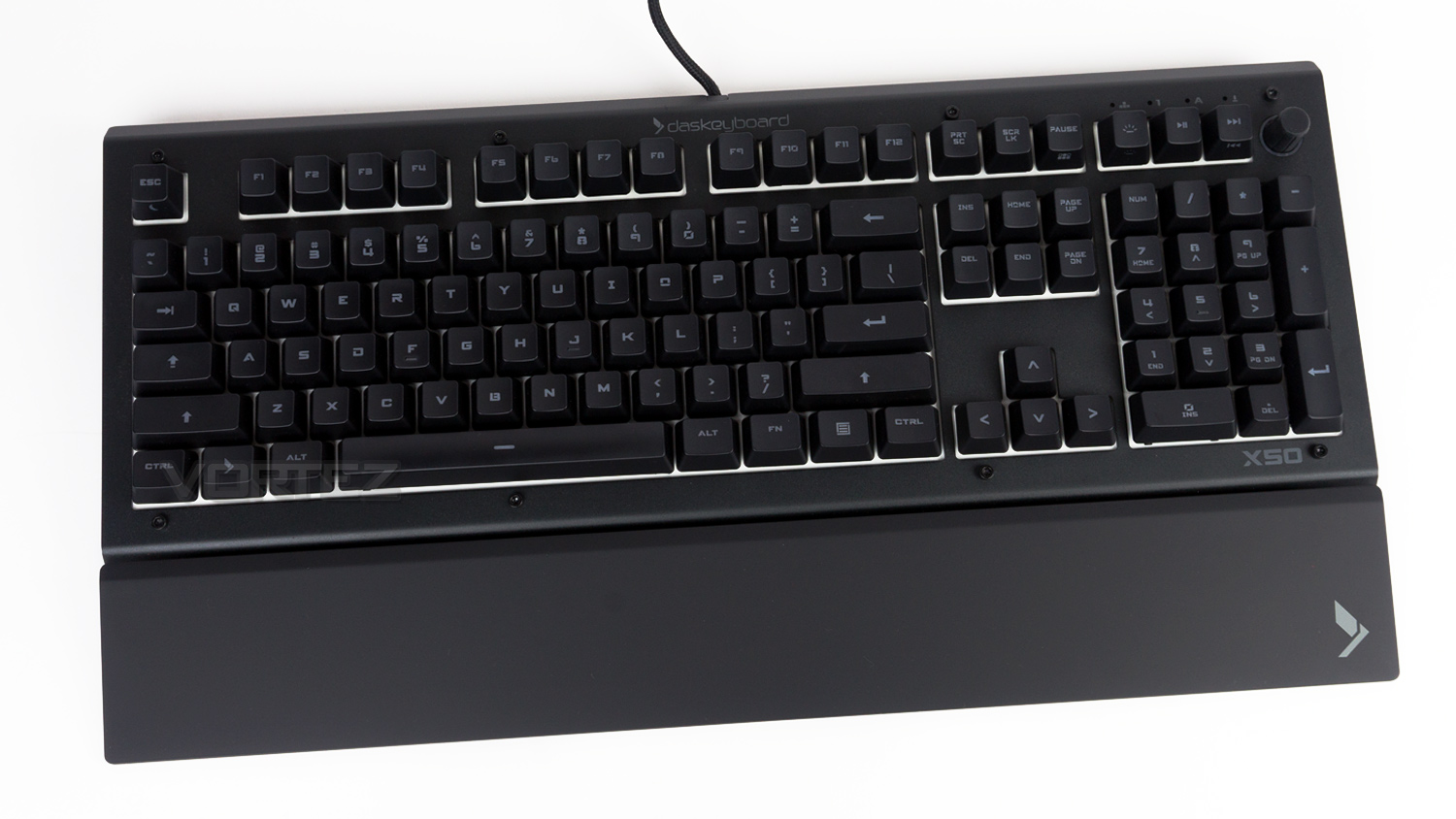
Adding the wrist rest does increase the width to 233.8mm and makes this one of the larger full-sized keyboards we’ve tested.
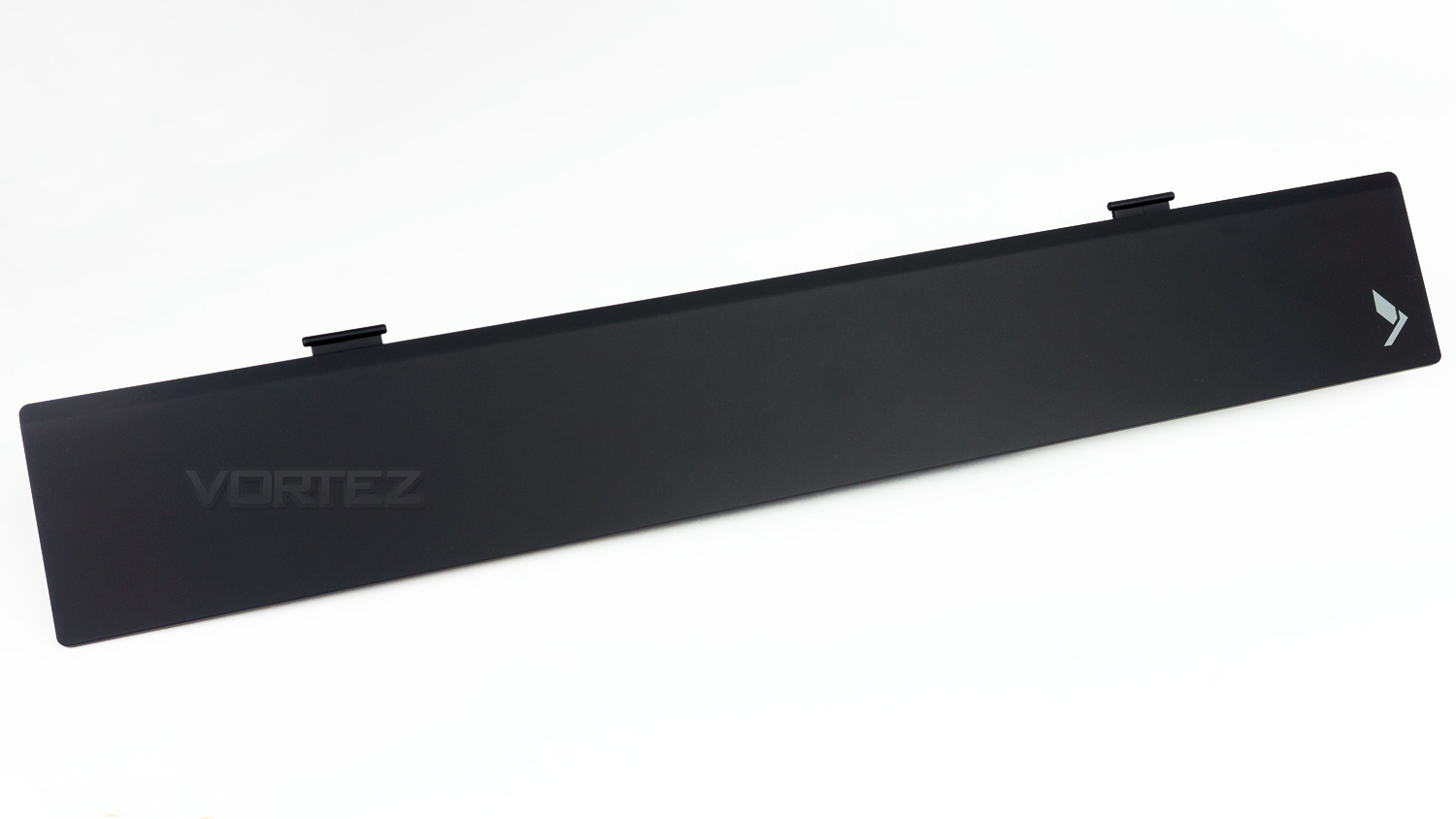
The wrist rest is nicely angled and comfortable thanks to the soft touch, smooth coating to the surface. The rest also features some subtle branding in the form of the Das Keyboard logo. It does have a downside though, and that is the fact it marks quite easily and also prominently shows up any grease or sweat from your skin. It’s also not the easiest to clean as you have to be careful to not damage the surface.
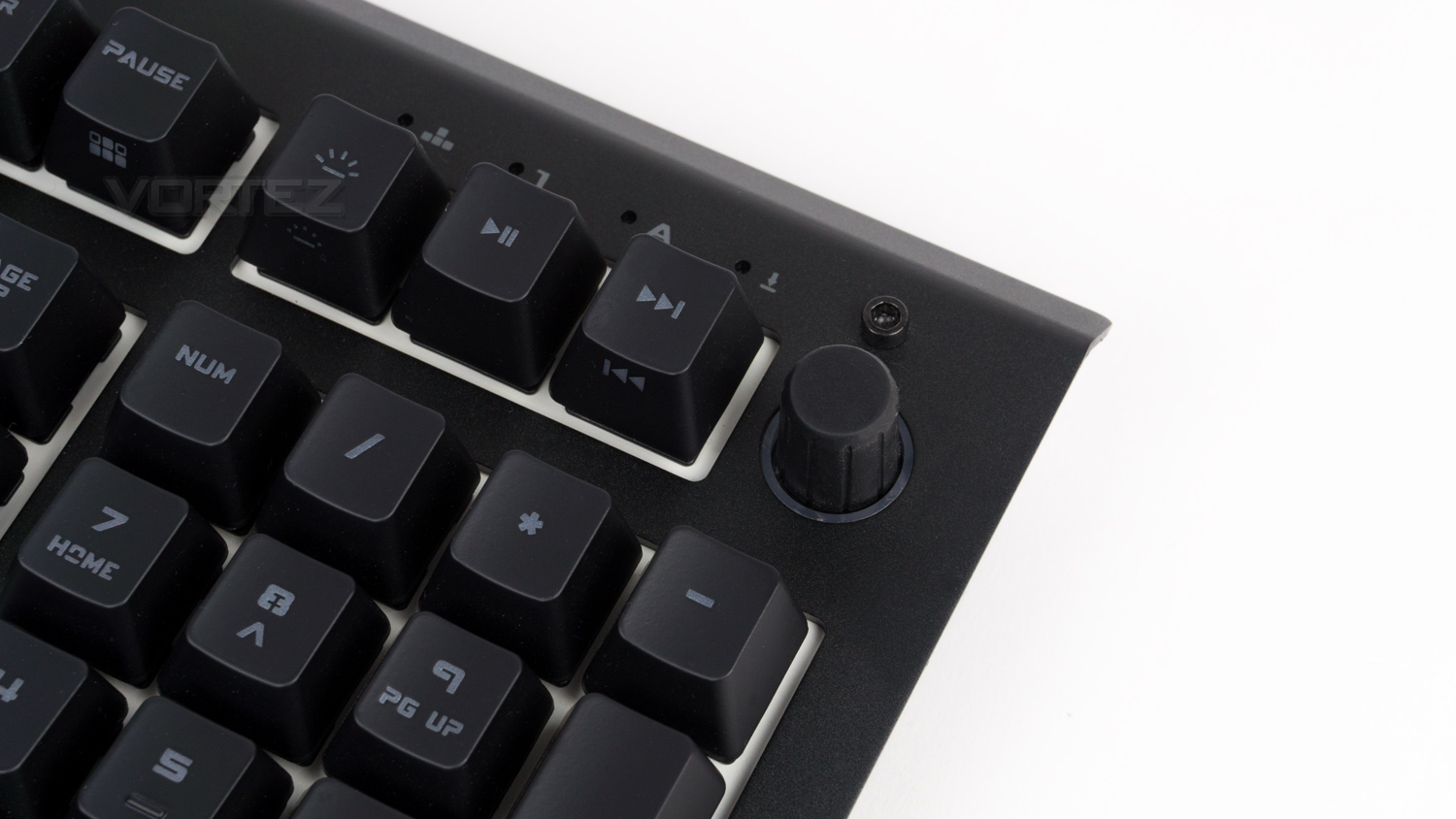
Located in the top right corner of the X50Q is the volume knob, this also doubles as a button which can be pressed to bring up notifications – we will cover this in a later portion of the review. In terms of build and feel the volume knob is good. Its coated in a soft touch rubber which feels nice, but there is a little play to it. One more issue we have to address is that the knob only adjusts the volume in increments of four so it isn’t the most accurate we’ve come across. On a more positive note, the action is smooth, and you can feel when the volume changes.
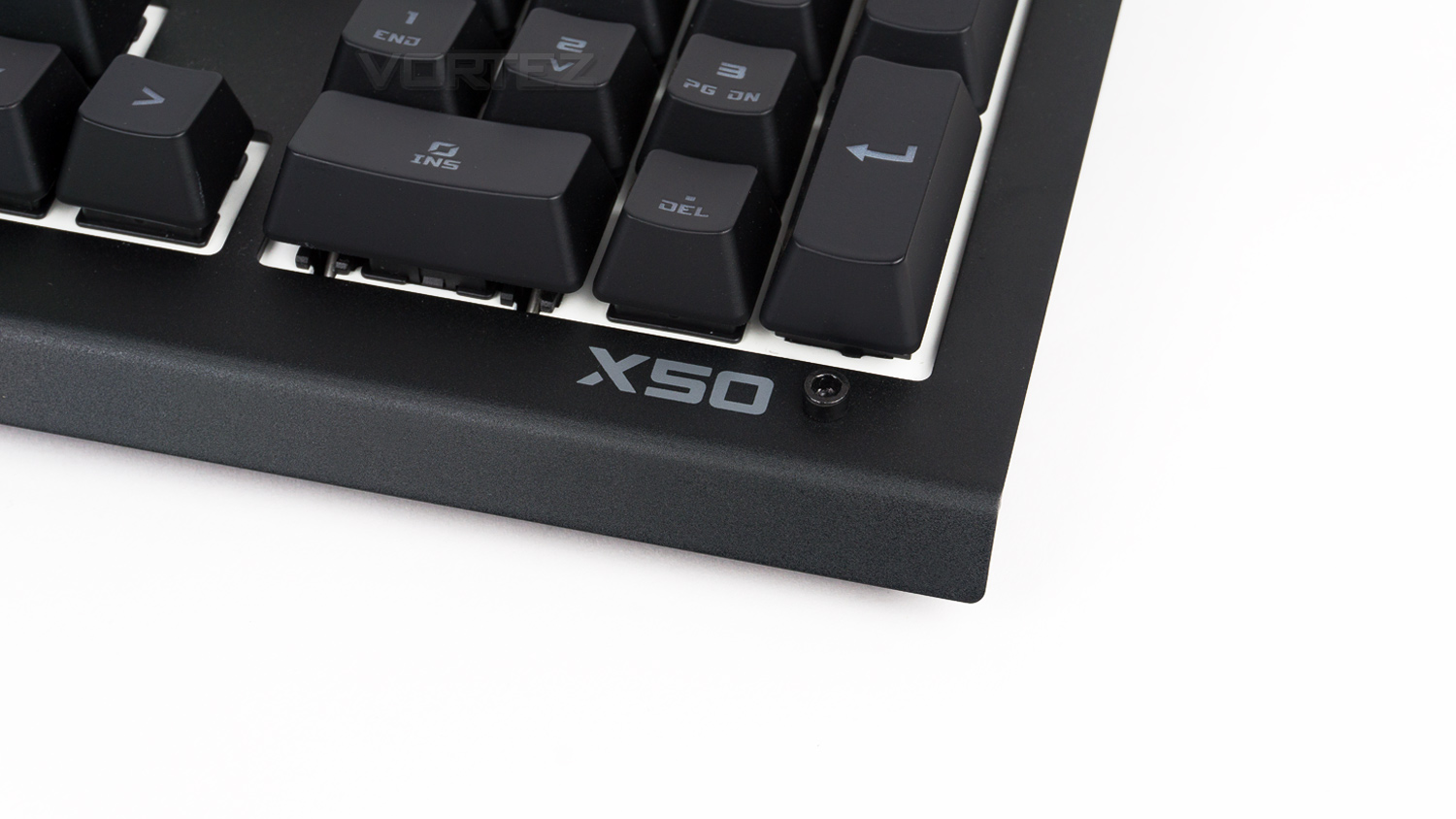
At the bottom right of the keyboard, there is a subtle bit branding which takes the shape of the model number. We like that its colour neutral which fits nicely with the rest of the keyboard. One thing we aren’t overly keen on is the exposed hex key screw heads, and we would have preferred if these were flush with the top plate.
Closer Look (Continued)
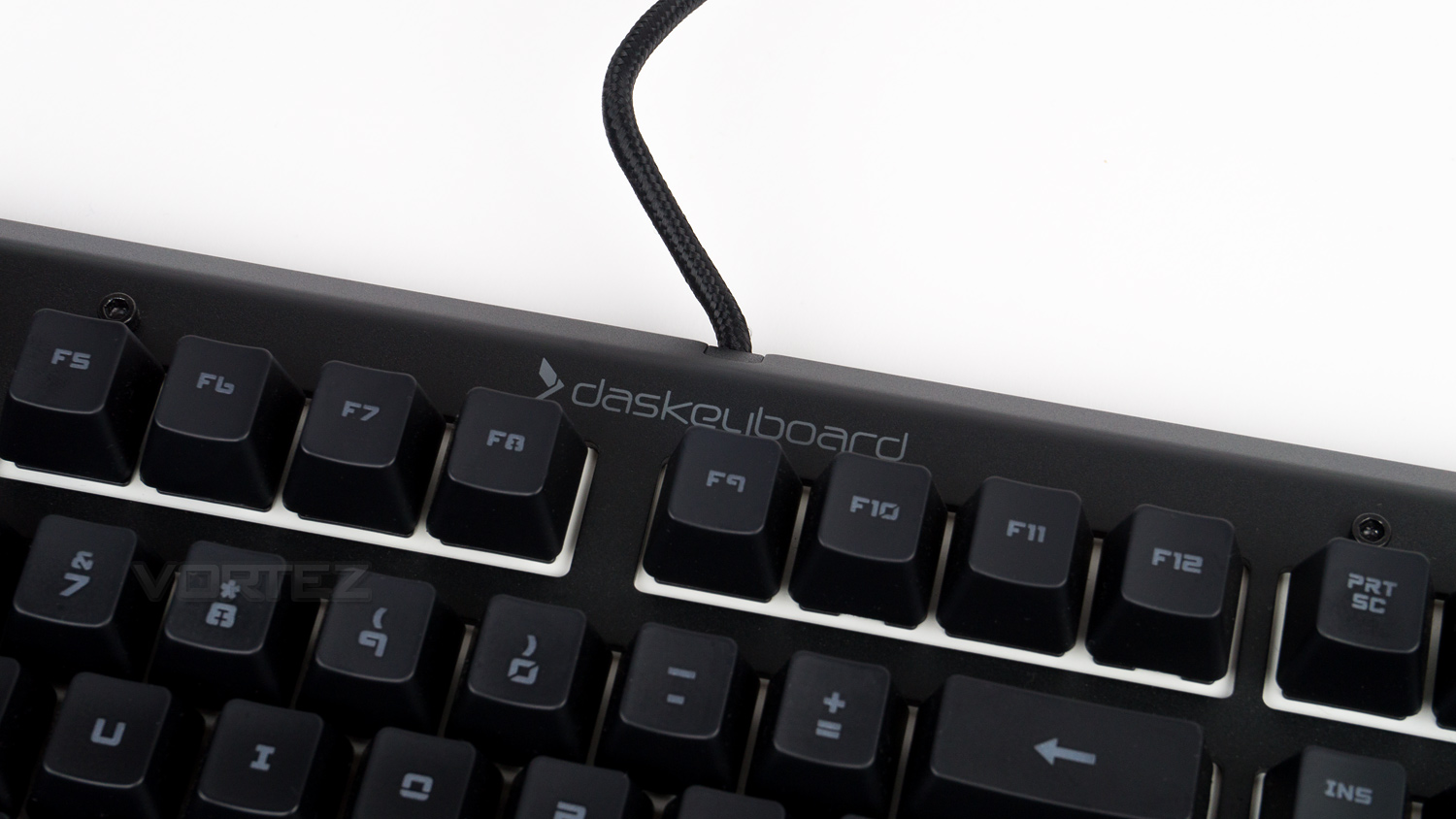
Top centre of the keyboard features the Das Keyboard name which is again very subtly done.
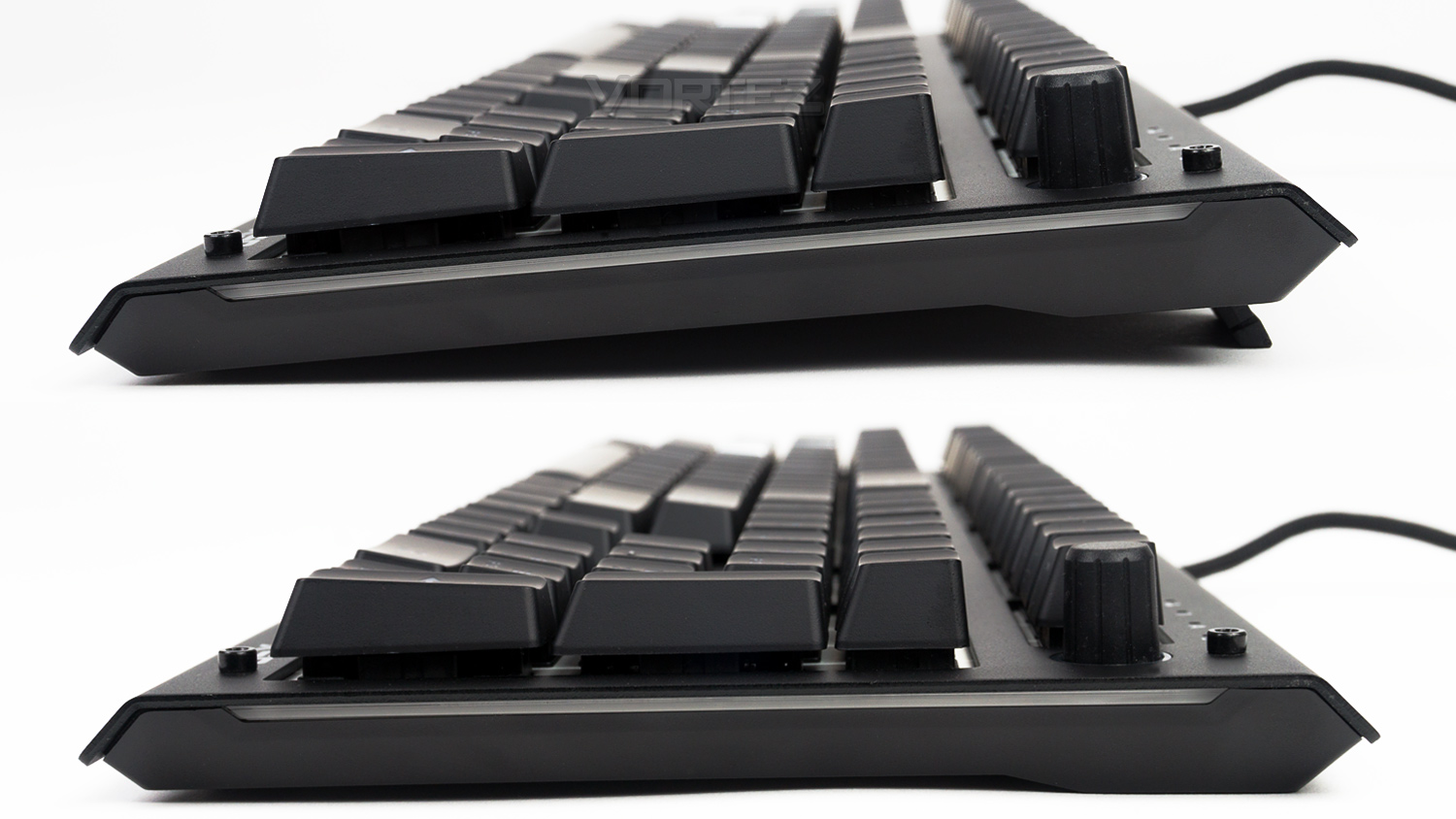
At the side of the keyboard, there is a slight overhang of the top plate which helps to hide away the side illumination strip. You can also see the nature of the keyboard in both its raised and lowered position. When lowered the keyboard does have a very slight downward angle, utilising the raiser feet does provide a small amount of lift (approximately 8mm) which does help with this.
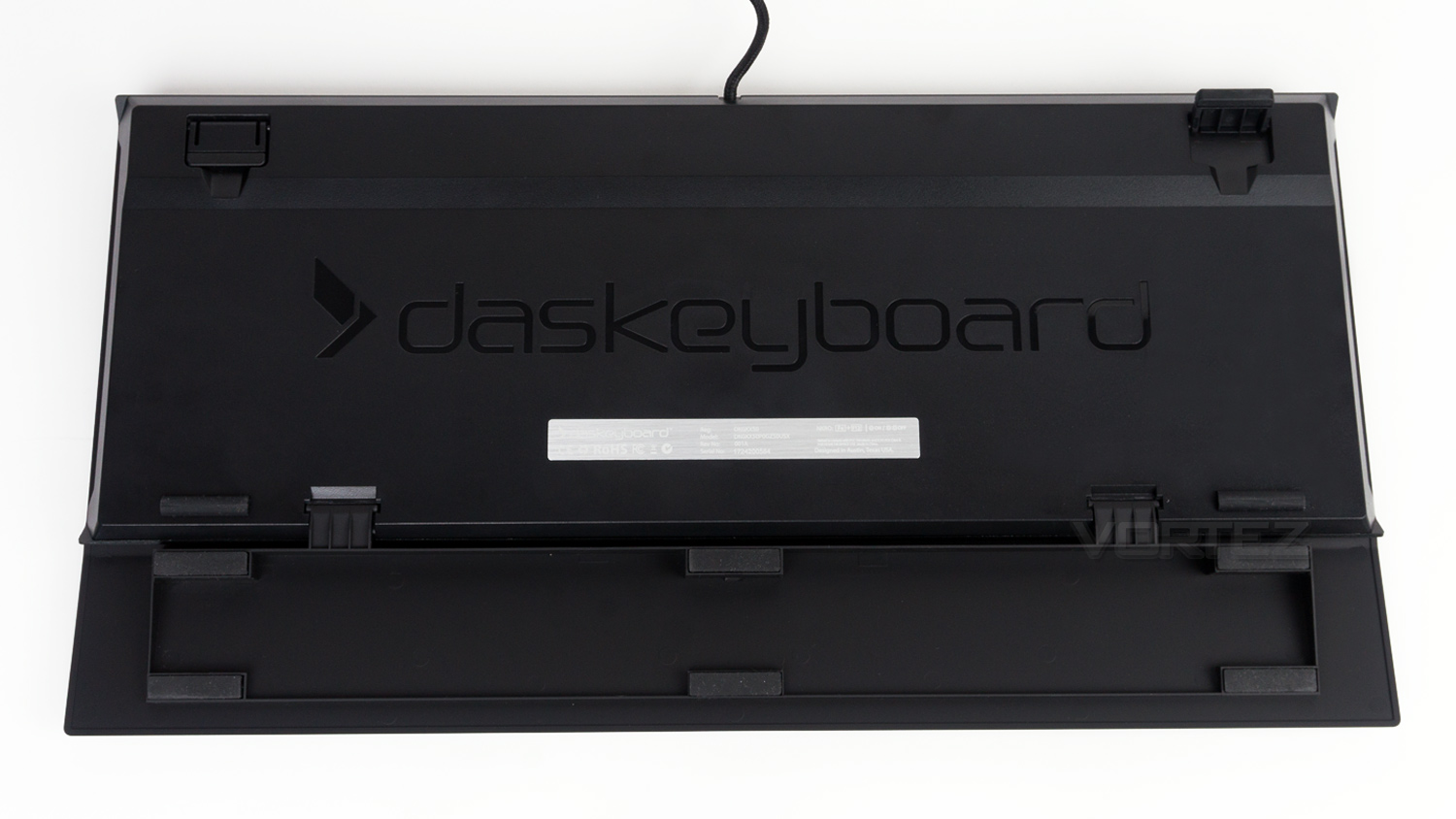
The underside of the X50Q is pretty plain and features the Das Keyboard name in very large text. We do like the small metal plaque which adds a touch of class, but its a feature that can’t be appreciated on a daily basis due to where it is. There are also four rubber feet located on the underside of the keyboard, this increases to ten if you utilise the wrist rest.
Software
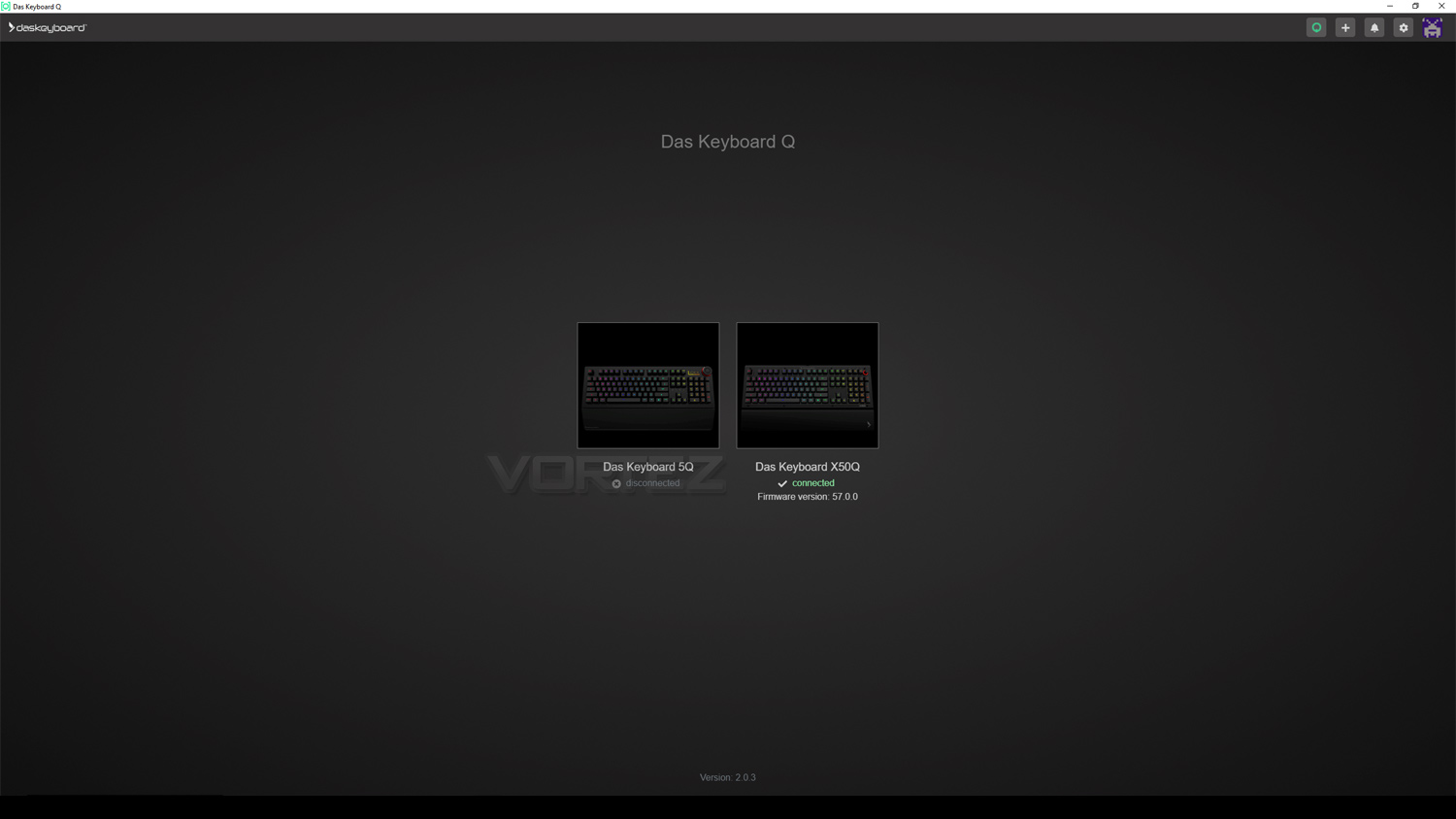
Das Keyboard has created their Q Desktop software to allow its users to fully customise how the keyboard looks and works. At present, the software is compatible with their X50Q and 5Q keyboard.
What the Q Desktop software does is allow its users to add functions that you couldn’t on an ordinary mechanical keyboard, we mentioned this briefly in the introduction, but essentially the suite gives you access to enable your keyboard to receive notifications from a variety of different sources. Some of the built-in features include having any key light up whenever someone mentions you in a tweet, or if you’ve just got an email, or even notify you if your favourite Twitch streamer has gone live. These are just a few of the basic features that it can do, but if you want, you can delve much deeper and add even more complex notifications.
How it works – The basics
Firstly you have to download the software which can be found on the product page; the next step is to then install the software and create an account. For this, you’ll need to create an account for both the Q suite and for IFTTT. What we would advise at this stage is to use the same email address for both as that way the two services can communicate easier. Once you’ve made an account for the services you then can begin to add the different functions, the video below shows you the basics on how to set up these additions which are called Applets. Within the software there are around 70 different forms of notification that can be received, these include Twitter, Twitch, BMW, Gmail, Youtube and Nest just to name a few. What you do have to keep in mind is that you will need to grant permission for both the Q Desktop software and IFTTT to gather your notifications so this can work, but if that is something you don’t wish to do, then this part of the software will not work to its full potential, and you’ll only get notifications from services that don’t need permissions.
Once you’ve got familiarised with how to add Applets you can then go to IFTTT’s website, log in and access hundreds more Applets to further customise the notifications on your keyboard, so if there isn’t one already done, you can select from the Applets there or even create your own. This adds to the customisation factor and allows you to tailor the keyboard to exactly how you want it.
To create a custom Applet you need to head over to IFTT’s site and log in. You’ll then go to the section marked `My Applets’ and then press `New Applet’. Once there you’ll select the +this link to begin the process. Next, you choose a service you want to use, for this example we’ll pick YouTube. Bear in mind that some of these functions will only work in the US. Here there are five presets triggers to choose from and you can also suggest your own if you want to recommend one. We selected the trigger for notifications, but you can pick whichever suits you best, once done you’ll then be presented with a list of your subscriptions or something different if that is what you have selected.
After that is completed you’ll be directed to a page that shows an icon of the trigger you selected with the words if (logo) then +that, what you want to do is select +that and choose an action service. Next, you want to search for Das Keyboard Q and pick that, this will allow what you have set to be synced to your keyboard. Then select create a signal zone and fill in the on-screen selection tool making sure to select the X50Q at the end. After completion click `Create Action’ then `Finish’ and it should pop up in the `My Setup’ area of the Q Desktop software after a few hours.
Performance Testing
Setup & Observations
Setting up the Das Keyboard X50Q is like any other until you get to the software side of things. Getting going with the software requires a touch more work than your traditional suite as it can do things that other software packages can’t. We have gone over this on the previous page in more detail, but once you invested a bit of time to perform the initial setup, it works great.
As most of us have to type on a daily basis, it is important that the keyboard you pick is comfortable and good for typing, and the X50Q scores well on both fronts. The layout is spacious, familiar and there is a well-judged amount of key spacing that makes typing quickly quite easy. The keys also have a very nice soft touch coating that feels great to type on, plus they don’t seem to show up fingerprint grease that easily which is a bonus. However, after heavier use, it will start to appear, but it is very easy to remove and doesn’t stain as some other finishes can. As for the comfort, the X50Q performs very well as the angle of the height isn’t too steep and lets your hands sit in a position that feels nice. The wrist rest though is good in ways and not so good in others. The angle of it is great and the soft touch coating feels smooth against your wrists it just lacks any sort of padding which would have been nice at the price point and helped further enhance the comfort. Another omission is the macro keys, but like with any other keyboard, macros can be set but require them to be programmed to keys with existing functions rather than a blank template. One final feature that isn’t included is a USB pass-through, at the price point of £189 ($199 US / $299 AUS) we had have liked to have seen at least a 2.0 port present as some of their older offerings do have this feature and to the higher 3.0 standard.
In regards to the design and build Das Keyboard has done a stellar job; the overall construction is super solid, and everything feels extremely well put together. The top plate is one solid piece of Aluminium that has been Anodised and formed to wrap over the top and bottom edges of the keyboard. If we were to pick a minute issue with this part of the keyboard, the left and right edges do feel a bit rough and could have done with some smoothing. Every other aspect though is top-notch – well almost. One other thing we aren’t a fan of is the exposed hex key screws, we understand why they are needed, yet we wish they sat flush with the top plate rather than protruding as they do. The keycaps feel great and like mentioned already are very good, they don’t shift around much and are very well planted. If you try, there is a bit of play in them, but this isn’t apparent when typing. As for the wrist rest it is plastic and does has some flex, of course when in-use you don’t notice the flex, but it does detract from the overall quality somewhat. However, it does have a high-quality soft-touch coating, so it’s a bit of a mixed bag.
The final observation we observed was with the notifications, these work great, though they do require some time to get everything set up just right. We have covered how to set this system up so we won’t cover that again, but we will go over how it performs, and it does work very well. When getting a notification your chosen key either blinks or flashes or even changes colour letting you know you have something that needs to be checked, this is brilliant as if you’re in the middle of writing you can see if something important has happened. For example, if an email has just arrived, or if a parcel you ordered has been dispatched and honestly so much more than it would take pages to even mention them all. This is superb as you don’t need to keep all these services running and you can focus on your work or other tasks. Also great is the fact that you can check the software to see the exactly what the notification is before deciding whether to open up Twitter or check your email for example. If you don’t wish to see your notifications you can switch them off by going into the software suite and selecting quiet mode, then you can really focus on your work or get some gaming done, or simply to chill out without the notifications flashing at you.
One addition we would like to see is the ability to quickly turn off notifications without having to use the software, maybe in the form of a key combination so you could quickly turn off the notifications without having to stop what you’re doing and check the software. Das Keyboard has tried to address this with a button mounted under the volume dial, but that still has to fire up the software in order to stop the notification from flashing. Overall though the system works brilliantly and does set this keyboard apart from the competition as no other offers anything like this.
Performance
Das Keyboard hasn’t gone down the traditional Cherry MX route which is refreshing to see, but is it a decision that pays off? Well the X50Q uses Omron made Gamma Zulu soft tactile switches that have an incredible lifespan of up to 100 million keystrokes, this is double than what Cherry offer and 30 million more than the Romer-G used in Logitech keyboards. So if you want a switch that will last, these should be right at the top of your list. As for specifications the Gamma Zulu switches have an actuation distance of 1.5mm which is on par with the Romer-G tactile and Linear, the actuation force 45g which again is identical to the Romer-G’s and the maximum travel distance of the Gamma Zulu is 3.5mm instead of 3.0mm.
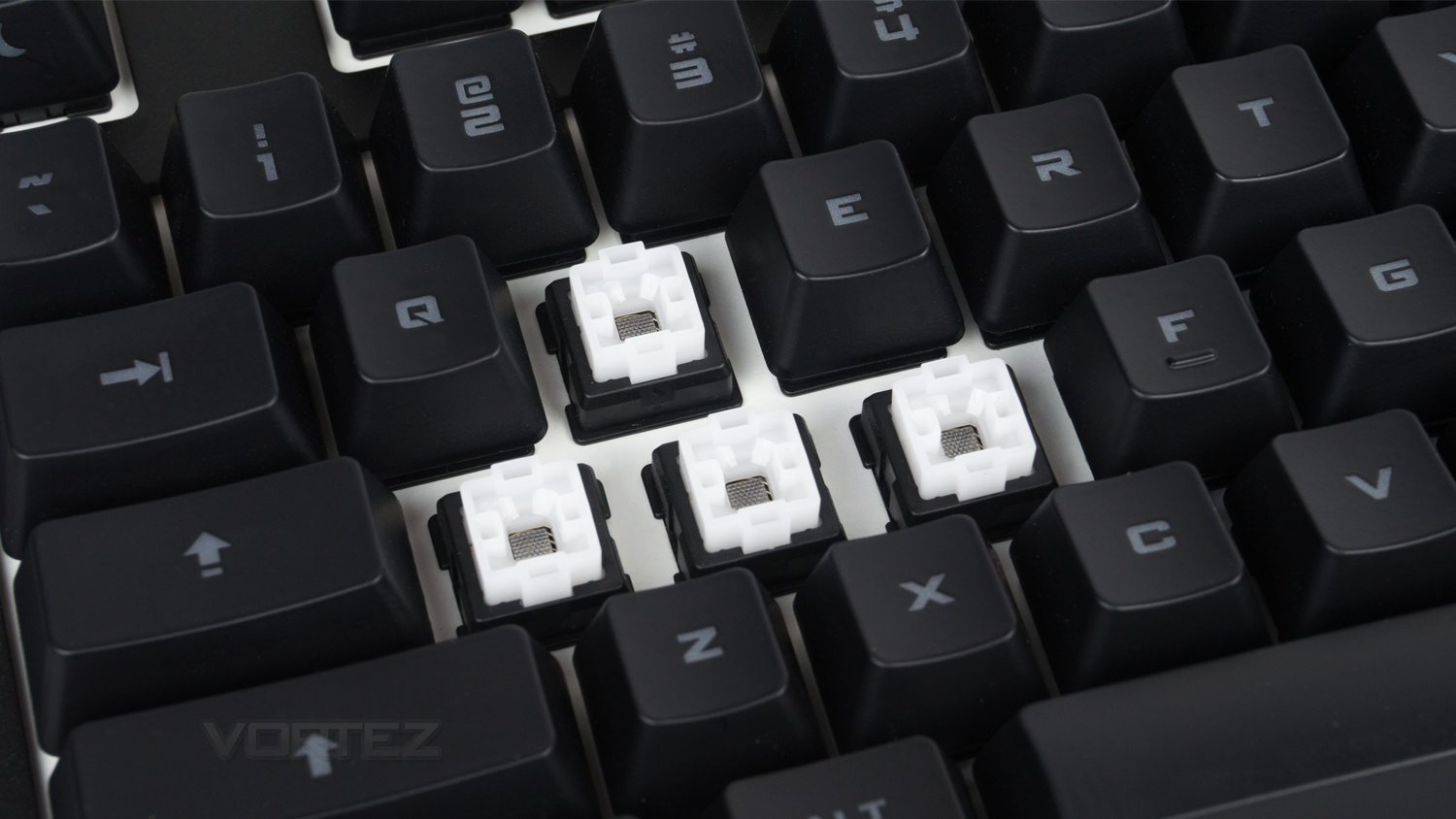
The reason why we keep referring to the Romer-G switch is because of a few interesting bits of information. As the Gamma Zulu and Romer-G are both developed by Omron – in the same factory no less, they so strike a remarkable resemblance. The only real visual difference between the two is that the Romer-G’s have a blue switch housing whereas the Gamma Zulu has a black housing, other than that they look identical. But do they perform the same? Well, in a nutshell, sort of. When compared to the Romer-G Tactile they have similar characteristics yet Gamma Zulu feels a touch more resistive, not as smooth and a hair slower than the Romer-G. The Gamma Zulu aren’t bad as such – they are in fact pretty great, they just aren’t as polished as the Romer-G are. The Romer-G Tactile also have a slightly more noticeable tactile bump whereas the Gamma Zulu’s is a touch more subtle. The difference isn’t massive, but it is noticeable. Keep in mind though that the Romer-G has been in development longer than the Gamma Zulu and its because of this, that the Romer-G are slightly better.
Taking the Romer-G off the table for a moment and focusing on the Gamma Zulu, and they are great switches in their own right. The travel is smooth, and they do have a very subtle tactile bump which is nice as the feel strikes a good balance between linear and tactile. As for speed they are quick and do cope extremely well for competitive titles, FPS shooters and other eSports titles, though they aren’t the fastest we’ve ever encountered, they do manage to keep pace just nicely. For solo adventures they are pretty great too as the posses a control that some Cherry MX do not, this broadens their appeal as the performance isn’t just one-sided meaning they are great for multiple genres, rather than just a set few. In terms of audible output, they don’t have the same mechanical click as some Cherry switches, and they are equally as quiet as the Romer-G. They do still have a mechanical sound, but it isn’t overbearing and would be great for those that stream or for those that record gaming YouTube videos.
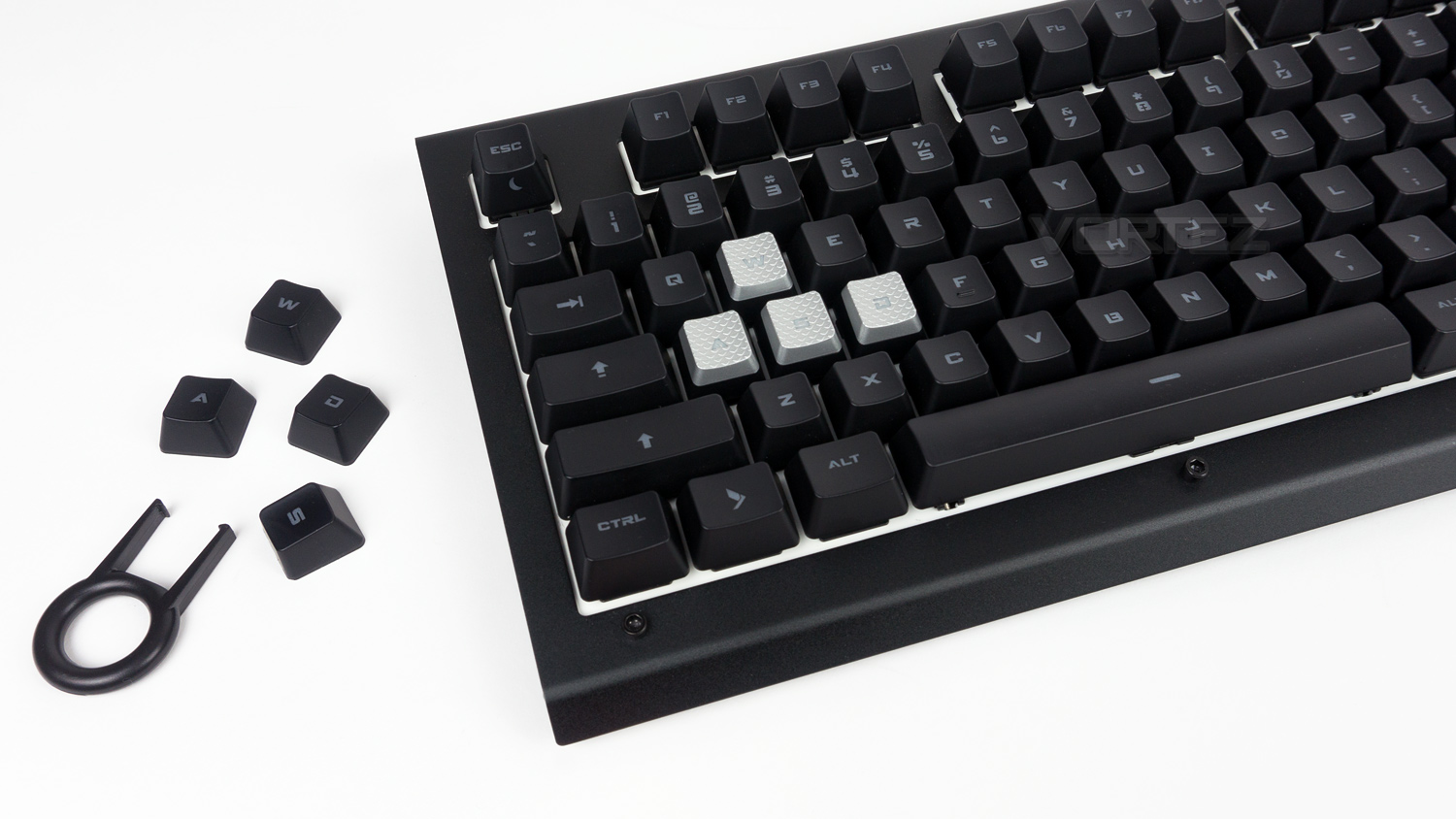
Included with the X50Q is set of four replacement keycaps, these replace the WASD keys with a set that are textured and grippy. They don’t feel quite as premium as the standard keycaps, but the addition is welcomed. As for the in-use experience, they feel okay, they are a bit rough but do provide a different feel, though we still prefer the stock set.
RGB illumination
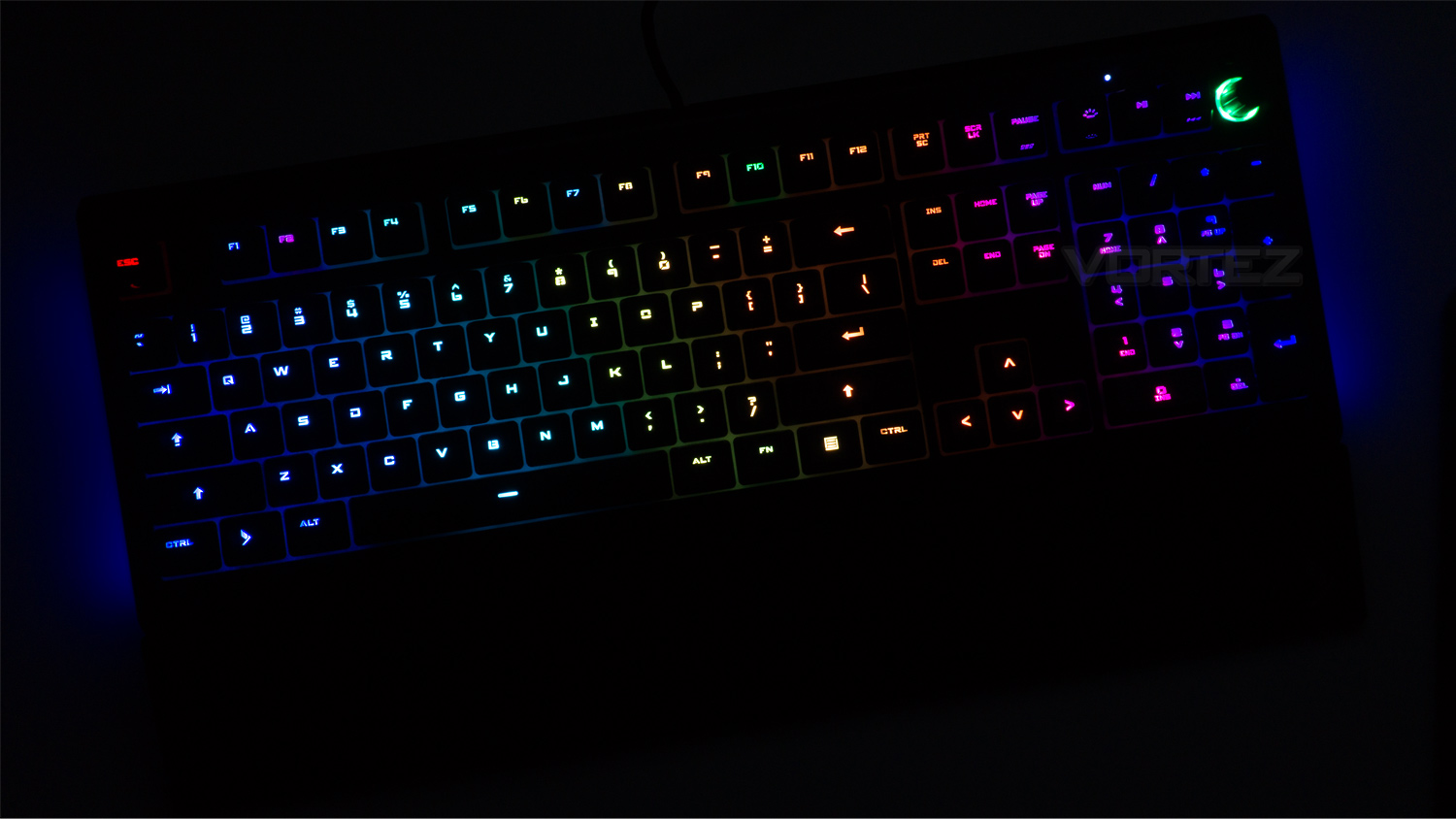
If you like your RGB, then Das Keyboard has done a pretty great job with their take on the feature that is loved or loathed. Starting with the software and the setup is quite basic in its approach, and Das Keyboard has gone a different way to the herd, by that we mean that have made the implementation their own which we appreciate – especially when done right. In total, the software displays eleven different lighting presets for different games and applications. If you don’t happen to like any of the pre-made schemes you are free to customise the effects and lighting as you see fit. As is there are three main zones to which you can add effects. First, there are the two sidebars which can be changed independently from one and other, the next is the main layout in which each key can be customised. We also like the two-step approach to their lighting configs, with this, you can set a passive effect and an active one. The passive is what you’ll all the time until you press a key, then the active effect kicks in and displays. For example, we have a white layout until a key is pressed then it turns blue and then back to white. That isn’t all though as you can add custom effects to each key on both the passive and active side. In some regards this customisation is far-ahead but others it does lag behind unless you’re willing to put in the work yourself.
As for the illumination its very good, the key text fill is brilliant as its vibrant, bright and isn’t patchy or spotty at all. Colours are nice too as the whites have a neutral hue meaning that they aren’t warm nor are they cool, they also have ample saturation so that they don’t look washed out. The light spill is very nice thanks to the white backing diffusion; this helps the colours mix smoothly and dissipates them really nicely to create a lovely fill. As for the effects they are also well done and look very nice, this is surprising – in a good way, as Das Keyboard hasn’t been in the RGB game long and they have already made effects superior to some of the offerings already out there. Though not the best in the business, we can expect them to improve even more as time goes on.
Conclusion
Das Keyboard had one goal when creating the X50Q and that was to create the world’s first smart gaming keyboard, and they have succeeded. The smart features are what sets this apart from every other keyboard on the market – well aside from their own 5Q which is a substantial premium over this one. That aside the X50Q is a truly different take on the gaming keyboard and it does really work, the smart features are integrated so well that you wouldn’t think this was a first generation product. We won’t go into massive detail again, but having the ability for your keyboard to notify you is a fantastic feature and an evolutionary step in the right direction as it helps drag the keyboard further into the 21st century. What it does is allow you to quickly see if you’ve had an important email, or if someone has tagged you in a tweet or if your favourite streamer has gone live. This doesn’t sound like much, but it really helps you keep on top of everything that is going on without being distracted. This isn’t all it can do as you can keep track of your stocks or see when a parcel has dispatched or you can delve even deeper into the customisation and have it do much more than simply keep you up-to-date with social media and the likes. In this review, we barely scratched the surface of what it can do and if you carry out your own further research into IFTTT and what that offers then you’ll see what we mean.
It also gets a lot right on the design, build and performance front. The design is very classy and would fit very nicely in a modern home setup or even in an office. The build is top-notch too thanks to the solid Aluminium top plate, the robust chassis and substantial feeling keycaps. Comfort is another strong suit, and although it doesn’t offer the pinnacle performance, it is very usable for day-to-day use, or if you have to write for long periods of time or even for those extended gaming sessions. In terms of gaming performance, the Gamma Zulu switches perform very well as they are fast, have a nice subtle tactile feedback and are quiet. However, it’s not all positive as the X50Q does fall short in some places. One prime example is the lack of a USB pass-through, on an almost £200 keyboard you’d expect to see this feature, but it isn’t there. Also missing are dedicated macro keys which would have really made sense and added to what this keyboard is already capable of. On the plus side, the RGB is brilliant as the main lighting is nice and vibrant, the colour spill is great, and the effects are highly customisable. Also, the X50Q does have a volume control knob which works very well and is a welcomed feature. This also doubles as a quick toggle to see your notifications and heightens that experience even more.
Now to the tough question, is it worth £189 (£199 US/ $299 AUS) well that would be up to you, we think that it does offer everything a traditional mechanical keyboard does and then adds even more bells and whistles, so in that regard, yes. It gets almost everything right, but like with most products there are some shortfalls, though in the X50Q’s case, the positives really do outweigh the negatives. So, we aren’t saying “go out and buy one” as the price tag is steep making this more a considered purchase, but if you think that this could help you improve upon your work-flow, help with day-to-day use or for keeping you up-to-date when gaming or otherwise occupied, then the price tag can be justified as no other offering on the market can do what the X50Q can – again with the exception of the Das Keyboard 5Q which is quite a bit more expensive. So although the price tag stops it from being a must buy, it is a product that deserves to have close attention paid to it as it offers that familiar mechanical gaming experience that people love and then adds so much more.
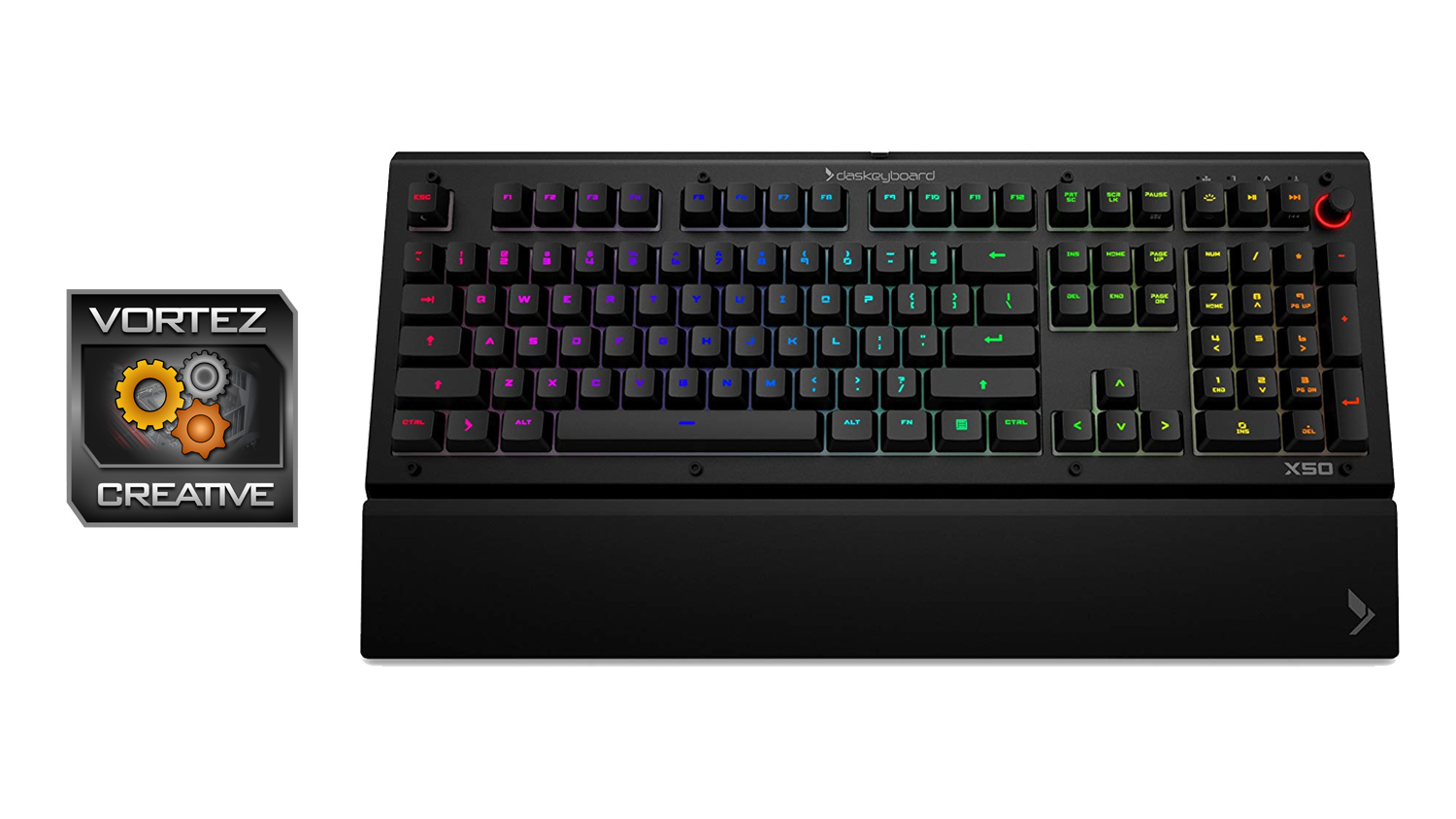
What Das Keyboard has achieved with their X50Q is pretty amazing, and a step in the right direction as the performance is great, and the smart features blend seamlessly with both work and play.
Pros
+ Classy design
+ Solid build quality
+ Comfortable for both gaming and day-to-day use
+ Smart features work superbly
+ Brilliant Gamma Zulu switches
+ Dedicated volume control with dual functionality
+ Simple to use software
+Strong RGB integration
Neutral
+- Pricey
Cons
– No USB pass-through
– No macro dedicated macro keys
+ Classy design
+ Solid build quality
+ Comfortable for both gaming and day-to-day use
+ Smart features work superbly
+ Brilliant Gamma Zulu switches
+ Dedicated volume control with dual functionality
+ Simple to use software
+Strong RGB integration
Neutral
+- Pricey
Cons
– No USB pass-through
– No macro dedicated macro keys
Click here for an explanation of our awards at Vortez.net.
Stay connected with the Vortez Social Media pages:
Join in with the discussions on Discord