







ARCTIC takes a plunge into gaming peripherals with their M551 laser gaming mouse.
Product on Review: ARCTIC M551 Laser Gaming Mouse Review
Manufacturer and Sponsor: Arctic Cooling
MSRP: 17,90 € / US$ 24.95

Over the years, PC gaming has become progressively popular to the point that even casual computer users find themselves playing them. To meet this growing trend, many companies have released peripherals specifically designed for gaming to give users an edge over these activities.
Recently, ARCTIC, better known for their computer cooling products, has joined the gaming peripheral craze (Press Release: Link) by announcing two gaming mice: the ARCTIC M551 and the M571. The former will be discussed in this review.
Combining precision and comfort, the ARCTIC M551 claims to offer smooth and quick movements. Does it really have what it takes to be a gaming mouse? Read on as we explore this curious mouse.
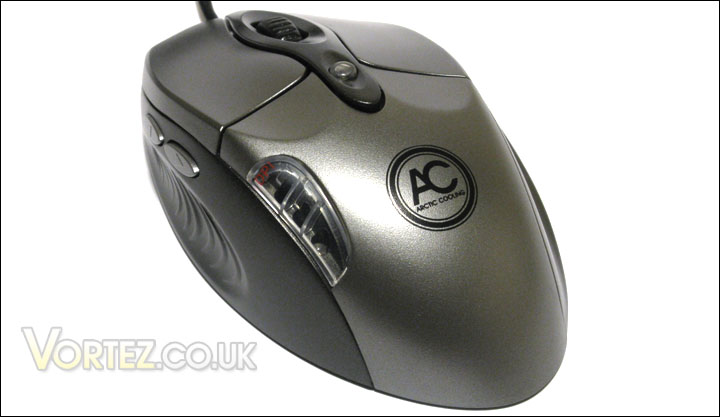
Arctic M551 Laser Gaming Mouse
About Arctic Cooling: Link
| Who we are? ARCTIC COOLING is a privately owned company founded in 2001 with headquarters in Switzerland, offices in Hong Kong and the USA and production facilities in Asia. The ARCTIC COOLING team consists of international highly educated people with business, technical and communicational skills. The attitude to work is based on Swiss principles of innovative spirit and high standards of workmanship for which it is recognized internationally. This striving for excellence is integrated in all processes as a matter of course. ARCTIC COOLING´s core competencies are multifarious including systematic noise reduction,copper and aluminum heatsink development, customization of thermal solutions, as well as designing quiet fans. More recently quiet and cool PC Cases and Power Supplies have been developed. |
Features and Specifications
ARCTIC announced the ARCTIC M551 back on June 22th, 2010. The ARCTIC M551 is one of two gaming mice that the company currently offers.
Notable features are an adjustable mouse sensitivity of up-to 2400 DPI, resistant surface coating, ergonomic right-hand design and availability in white or black colours.
Features: Link
| A mouse works like a computer user’s fingertips, so it should be quick, precise, comfortable and high-quality to help them slide freely on screen. ARCTIC M551 that incorporates all these attributes along with highly functional features. Main Features – Laser engine for absolute accuracy – even on glass – Ultra-high sensitivity – 800 / 1600 / 2400 dpi – Ergonomic design maximizes comfort for a long game play – Smooth, low resistance movements by slick gliding feet – Back and forth thumb buttons for easy navigation – Coated cord eliminates line clustering |
Specifications: Link
| Sensitivity: 800 / 1,600 / 2,400 dpi Tracking Engine: Laser Connector: USB Typical power input: 0.15 W Cable: 1.8 m Ø 2.8 mm Dimensions: 119 (L) x 80 (W) x 41 (H) mm Weight: 160 g Manufacturer code M551-D (black): AMM5511-01000-A01 EAN-Code M551-D (black): 0872767003064 Manufacturer code M551-L (white): AMM5510-01000-A01 EAN-Code M551-L (white): 0872767003071 |
Packaging and Overall Look
The packaging of the ARCTIC M551 is typical of the company. It uses the usual colours of black, grey and white. There is a large clear plastic window to let consumers examine the mouse. A few features are listed in front of the packaging.
The front of the packaging
At the back, a more detailed listing of features can be found in several languages. There is also a small table for the specifications. This information can be found on ARCTIC’s website.
The back of the packaging
In terms of accessories, ARCTIC has included a short manual (User Manual: Link) and a small sticker of the company. The manual is written in several languages. It explains the thumb buttons and the DPI button. It also lists the different LED colours of the DPI setting.
Unfortunately, the ARCTIC M551 does not come with an adjustable weight system or additional mouse feet.
The user manual and the ARCTIC sticker
Overall, the packaging of the ARCTIC M551 is minimal on material and excellent in presentation. It would have been preferred if ARCTIC bundled extra accessories with their product, such as extra mouse feet.
The ARCTIC M551
Closer Look (Part 1)
The ARCTIC M551 is available in two different colours: black and white. The black variant of this mouse will be reviewed.
The ARCTIC M551 has an ergonomic shape designed for the right hand. Because of that, thumb buttons are situated on the left side. There is also a large plastic edge on the right upon which the fourth and fifth fingers can rest.
The mouse has a total of six buttons. The right and left buttons are slightly depressed compared to the rest of the mouse to allow the fingers to snugly rest upon them.
The mouse is overall grey with off-black at the left, right and bottom sides of the mouse. There is a large ARCTIC COOLING logo near the back the mouse.
The ARCTIC M551
The ARCTIC M551 has five oval-shaped mouse feet. They offer very low resistance and glide across many surfaces easily. Unfortunately, ARCTIC has not provided any extra mouse feet. As such, if these mouse feet worn out, you’ll have to find new ones somewhere.
The bottom of the ARCTIC M551
On the left side of the ARCTIC M551, we can see two small thumb buttons. They are adequately spaced apart so that you will not press the wrong button. There are large plastic notches that allow your thumb to grip the mouse better. These notches work more or less well because they do not have a rubbery feel to them.
The left side of the ARCTIC M551
Because the ARCTIC M551 was designed for right-handed users, there are no buttons on the right side of the mouse. Instead, there is a large plastic edge where the fourth and fifth fingers can rest upon, enhancing overall comfort when using this mouse. There is unfortunately no rubberized surface here, either.
The right side of the ARCTIC M551
The back of the ARCTIC M551 shows the particular shape of the mouse which was designed for right-handed users. There is a large ARCTIC COOLING logo at the back of the mouse.
The back of the ARCTIC M551
Closer Look (Part 2)
At the front of the ARCTIC M551, we can see the two large separate right and left buttons.
The scroll mouse wheel has a rubbery feel. It has notches and lightly clicks with a small tactile feedback. The clicking is very dull and, honestly, it sounds poorly constructed. The sound is soft and not intrusive, however. I like it regardless.
The front of the ARCTIC M551
As it was mentioned earlier, the two thumb buttons are located on the left side of the mouse. There is also a large plastic window that has three different LEDs beneath it. Each LED will indicate the current sensitivity of the mouse. As it will be discussed later, the mouse has three DPI settings: 800, 1600 and 2400.
One thing that you will notice for the picture below is how the left button is depressed compared to the mouse’s overall shape. This allows the second finger to snugly grip the button. You will also notice how there is a raised plastic section between the scroll button and the DPI button. Unfortunately, if your index is not raised enough (and with the current left button design that promotes fingertip or palm grip, your index will probably be flushed with the mouse), your finger will most likely hook this part. It is obstructive and a poor design choice by ARCTIC.
The DPI button and two thumb buttons of the ARCTIC M551. Notice the raised plastic section between the DPI button and the scroll wheel.
The ARCTIC M551 features a long 6 feet or 180 cm USB cord. The connector is not gold-plated, but it does not matter that it isn’t. The cable is your typical plastic coated USB cord.
Instead of opting with the mesh cable design that is popular amongst many gaming mice, the ARCTIC M551 features a “coated cord (that) eliminates line clustering”, according to ARCTIC. I am unsure what this exactly means, because the cord itself feels like your typical USB cord.
The 6 feet/180 cm plastic coated USB cord
Size Comparison with Other Mice
In terms of size, the ARCTIC M551 is about the same as the Logitech G7 Wireless. This makes the ARCTIC mouse a good size for a gaming mouse.
There is one thing I noticed about it: although its length is about the same as the Logitech G7, the back of the ARCTIC M551 is narrower. Because of its narrow back, the ARCTIC mouse does not reach the palm uniformly and, as such, it does not fit snugly in the palm compared to the Logitech G7.
The length comparison (from left to right): Dell Bluetooth 5-Button Travel, ARCTIC M551, Logitech G7 Wireless
In terms of height, the ARCTIC M551 is slightly shorter. It is less inclined compared to the Logitech G7 too. The ARCTIC M551 is comfortable to grip for the right hand. I still the Logitech G7’s grip over ARCTIC’s mouse, however.
The height comparison (from left to right): Dell Bluetooth 5-Button Travel, ARCTIC M551, Logitech G7 Wireless
Driver and Software
The ARCTIC M551 comes with a short user manual that explains its buttons and the three DPI settings.
Download the User Manual: Link
As like many other gaming mice, the ARCTIC M551 features adjustable sensitivity via the DPI switch button. The three sensitivity settings are 800 DPI, 1600 DPI and 2400 DPI. Each setting is associated to a different coloured LED. The LED is quite bright, but it shines indirectly towards the user. Furthermore, your palm will most likely cover the LED, so it will never blind you.
The different DPI lights of the ARCTIC M551: green (800 DPI), blue (1600 DPI) and red (2400 DPI)
In terms of drivers, they are automatically installed by Windows 7 Ultimate. There is no software provided for the ARCTIC M551. Customization of the thumb buttons are not easily done, as such.
Test System and Testing Methodology
Testing Methodology
The mouse will be used for a few weeks under various situations, from gaming to image editing to general daily computing. The mouse’s tracking will be tested on various mouse surfaces, including cloth, wood and many more.
Test Setup: Portable Media Device
– Samsung YP-K3 2GB Black
Test Setup: Laptop 1
– HP EliteBook 6930p
– CPU: Intel Core2 Duo Processors P8400
Test Setup: Laptop 2
– Dell Inspiron 1545
Test Setup: Desktop
– CPU: AMD Athlon X2 5000+ Black Edition @ 2.6 GHz 1.15V
– Motherboard: Gigabyte GA-MA78GM-S2H 780G
– RAM: Corsair XMS2 TWIN2X4096-6400C5 PC2-6400 2x2GB
– Case: Antec NSK3480 mATX
– Power supply: Antec EarthWatts 380W
– CPU cooler: Noctua NH-U12P with Noctua NF-P12 @ 5V
– Case fan: Noctua NF-P12 @ 5V
– Hard drive 1: Western Digital Caviar SE16 WD6400AAKS 640GB
– Hard drive 2: Hitachi DeskStar T7K500 HDT725025VLAT80 250GB
– DVD Drive: LG GH22NS30 DVD Writer
– OS: Windows 7 Ultimate (x64)
– Mouse pad: QPAD|UC Large
– Monitor: Dell E207WFP 20” TN
Mouse Surfaces, Ergonomics and Usage
Mouse Surfaces
ARCTIC claims that the laser tracking engine allows the M551 to work on almost all surfaces, including glass. This is true and I found that the mouse worked on cloth, wood, granite and glass surfaces without trouble.
The five mouse feet offer very low resistance across any of the above surfaces. They allowed the mouse to glide effortlessly and, sometimes, I would even overshoot my movements on the QPAD|UC Large. The main problem wasn’t the excellent mouse feet, however. It was actually the low weight of the ARCTIC M551. I feel that ARCTIC should have included an adjustable weight system, as seen on many other gaming mice.
The ARCTIC M551 works on many different surfaces
Ergonomics
The ARCTIC M551 was designed for right-handed users. The overall shape fits the right hand very well. Two different grips work well with this mouse: fingertip grip and palm grip. I found that the fingertip grip worked best, though. This can be explained by the narrow back of the mouse that doesn’t let the mouse it fit snugly inside the palm. Claw grip is possible, but excessively uncomfortable.
The ARCTIC M551 has an overall matte plastic feel to the touch. Only the scroll wheel seems to have a rubberized surface. I would have liked if the sides of the M551 had more pronounced rubberized surfaces too. Thankfully, the ARCTIC M551 has a matte finish, so sweat stains will not appear easily.
The left side and the right side of the M551 both have grips for the fingers. They worked fairly well, but could easily be better with a rubberized surface.
As it was mentioned earlier in the review, there is an elevation of plastic between the DPI switch and the scroll wheel. When using a fingertip or palm grip, your index will most likely hook this elevation when trying to use the scroll wheel. Accessing the scroll wheel and the DPI switch is harder than it should be. ARCTIC could have done a better job with the design here.
Glide of the M551 is excellent, but the lightness of the mouse makes it less desirable.
Usage: Gaming and Daily Computing
Counter-Strike 1.6 is a popular and old first-person shooter that pits counter-terrorists versus terrorists. Quick movements are a must in this game because one bullet can mean the difference between winning and losing. The ARCTIC M551 worked quite well with its sensitivity at 2400 DPI. Glide was excellent, but it did take me some time to not overshoot my movements. No erratic movements were noticed with the mouse. Nevertheless, I noticed a huge problem: a long lift-off distance of more of about 1.5 cm. For anyone that has a tendency of lifting off the mouse to recenter it on the mouse pad, this is definitely not the mouse for you.
Although Warhammer 40,000: Dawn of War: Soulstorm has now been succeeded by Warhammer 40,000: Dawn of War II, I still prefer the former because of its larger battles. Games can last quite a while, and during testing I ended up playing straight for four hours. Because of that, mouse comfort becomes highly important. The ARCTIC M551 is quite comfortable with both fingertip and palm grips. I did find the back of the M551 slightly narrow, making the mouse difficult to fully fit in my palm.
The rest on the right for the fourth and fifth fingers was adequate, but it did not provide much area for the fingers to grip the mouse. The thumb grip was nice, but because it lacked a rubberized feel it was less desirable.
The ARCTIC M551 was designed for right-handed users
For everyday computing, the ARCTIC M551 was very good. Grip was comfortable, tracking performance was adequate and no erratic movements were noticed.
Conclusion
The ARCTIC M551 is one of the company’s first gaming mice. It features an ergonomic right-handed design, large buttons, three DPI settings and two thumb buttons. The mouse is also available in two different colours: black and white.
Through testing, the ARCTIC M551 performed admirably in various gaming situations. Comfort was adequate for long gaming sessions and the DPI switch proved to be quite useful. For the company’s first attempt at a gaming peripheral, it is not too bad.
The ARCTIC M551: a gaming mouse for the budget user
The ARCTIC M551 does have disadvantages, however. The lightness of the mouse makes it easy to overshoot movements because of its excellent low-resistance feet. The addition of an adjustable weight system would remedy this problem. Also, the ARCTIC M551 has elevated plastic around the scroll wheel and the DPI switch, making these buttons difficult to access unless you uncomfortably raise your index. The ARCTIC M551 has a narrow back, making it less comfortable than it should for a palm grip. Lastly, the ARCTIC M551 has a very large lift-off distance, which is abnormal for a gaming mouse. For anyone that has a tendency of lifting their mouse off the surface, this is not the mouse for you.
With more and more companies joining the gaming peripheral business, budget gaming mice have become a competitive area. With its skimp accessories, no customization software, and various design quirks, the M551 does not offer much over its competition. Although the ARCTIC M551, priced at 17,90 € or US$ 24.95, is amongst the more inexpensive mouse, its value is offset by the previously mentioned disadvantages.
With all of this in mind, the ARCTIC M551 is given the Vortez Bronze Award.
+ Adequate sensitivity of 2400 DPI
+ Attractive design
+ Available in black or white
+ Large and comfortable grip for fingertip grip
+ Low-resistance mouse feet
+ Two thumb buttons and DPI switch with LED indicator
Cons
– Large lift-off distance
– Narrow back makes palm grip less comfortable
– No software for customization
– Raised plastic around scroll wheel and DPI switch makes these hard to access
– Sensitivity of 2400 DPI is low amongst top gaming mice
– Skimp accessories
– Too light with no adjustable weight system

