The latest release in Corsairs Ironclaw Gaming Mouse line up features a host of quality of life updates, and also introduces wireless connectivity to the line up, all while only costing a tiny bit more. We ask if the design changes made truly improve upon the previous iteration.
Product on Review: Corsair Ironclaw RGB Wireless
Manufacturer: Corsair
Street Price: £69.99 GBP / $79.99 USD / $129.99 AUD
Corsair have recently released updated versions of their Ironclaw & Glaive line up of mice and the subject of this review is the Ironclaw RGB Wireless Gaming Mouse.
Featuring 3 connectivity options, a custom Pixart PMW3391 optical sensor rated at 18,000 CPI & an extra 3 programmable buttons, an increase to 3 on-board profiles & 3 Zone RGB instead of just the one certainly seem to justify the increase in price.
Corsair are also claiming that they’ve managed to squeeze up to 30 hours of battery life into the battery, which is an impressive feat considering that number increases if you can live with connecting via Bluetooth rather than the 2.4Ghz Slipstream option & disabling the lighting.
Corsair on the Ironclaw RGB Wireless:
The CORSAIR IRONCLAW RGB WIRELESS Gaming Mouse combines a native 18,000 DPI optical sensor with a comfortable palm grip, connecting to your PC via hyper-fast, sub-1ms SLIPSTREAM CORSAIR WIRELESS TECHNOLOGY, Bluetooth or USB wired connection.
Technical Specifications
Wireless Connectivity – Hyper-fast, sub-1ms 2.4GHz Slipstream Corsair Wireless Technology, Bluetooth 4.2 +LE
Wired Connectivity – USB 2.0 Type-A
Battery Charging – Charges via USB to computer
Battery Type – Built-in lithium-polymer, rechargeable
Battery Life – 2.4GHz Slipstream: Up to 16 hours with standard lighting, 24 hours without backlighting.
Bluetooth: Up to 30 hours with standard lighting, 50 hours without backlighting.
Sensor – Pixart PMW3391, Optical
Sensor – Resolution, 100 – 18,000 DPA, with 1 DPA steps.
Sensor – Maximum acceleration – Up to 50G
Sensor – Maximum speed – Up to 400 IPS
Onboard Profiles – 3
Backlight – 3-Zone RGB
Buttons – 10
USB Report Rate – 1000Hz
Colour – Black
Mouse feet – PTFE
Cable – 1.8m / 6 ft, braided, fixed
Dimensions – 130.0 (L) x 80.0 (W) x 45.0 (H) mm / 5.12” (L) x 3.15” (W) x 1.77” (H)
Weight – (w/o cable & accessories) – 130g / 0.29 lbs
Warranty – Two Years
Wired Connectivity – USB 2.0 Type-A
Battery Charging – Charges via USB to computer
Battery Type – Built-in lithium-polymer, rechargeable
Battery Life – 2.4GHz Slipstream: Up to 16 hours with standard lighting, 24 hours without backlighting.
Bluetooth: Up to 30 hours with standard lighting, 50 hours without backlighting.
Sensor – Pixart PMW3391, Optical
Sensor – Resolution, 100 – 18,000 DPA, with 1 DPA steps.
Sensor – Maximum acceleration – Up to 50G
Sensor – Maximum speed – Up to 400 IPS
Onboard Profiles – 3
Backlight – 3-Zone RGB
Buttons – 10
USB Report Rate – 1000Hz
Colour – Black
Mouse feet – PTFE
Cable – 1.8m / 6 ft, braided, fixed
Dimensions – 130.0 (L) x 80.0 (W) x 45.0 (H) mm / 5.12” (L) x 3.15” (W) x 1.77” (H)
Weight – (w/o cable & accessories) – 130g / 0.29 lbs
Warranty – Two Years
Packaging & First Look
Taking a look at the front of the box and we can see that Corsair haven’t deviated from their usual branding style of yellow with bold black lettering.On the boxes’ right hand side we get a side profile shot of the mouse, and not a lot else.
Turning the box round to look at the rear, and we’re given a 6 item list of unique selling points in multiple different languages.
The left hand side of the box has Corsairs’ slogan for this particular mouse on, Win Without Wires.
In side the box we get a warranty guide as well as a quick start guide and a nice braided charging cable, which does double as an extension lead for the wireless adapter.
Removing the mouse from it’s protective packaging and we get our first look at the wireless adapter & a closer look at the mouse itself.
Closer Look
Taking a look at the front of the mouse we can see the first of the RGB zones, and the strange, at least to us decision to include a shiny strip of plastic just where your palm rests, making it a magnet for palm prints.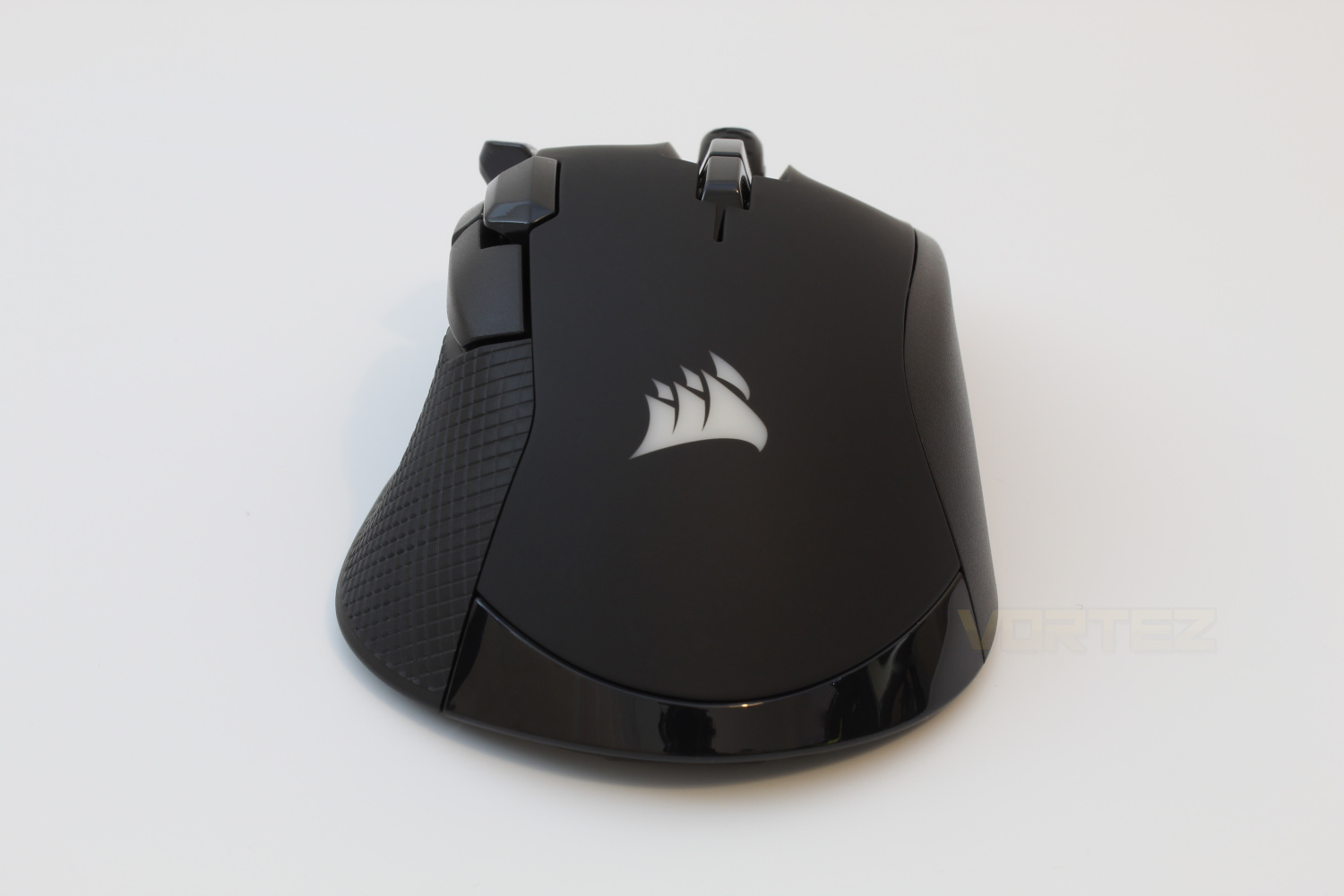
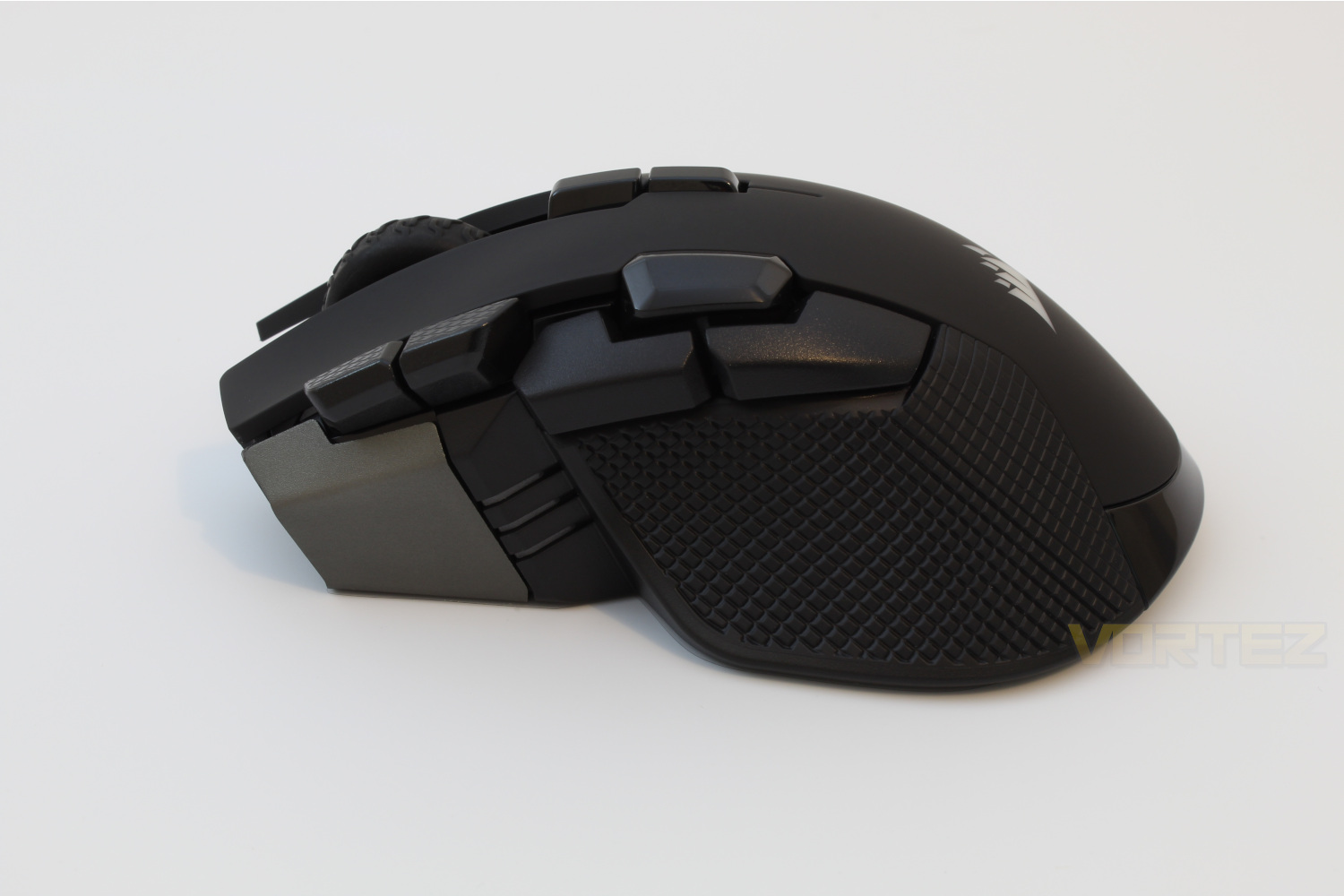
On the left hand side of the mouse we get a look at the DPI indicator, along with 5 programmable buttons and a textured plastic panel to aid grip.
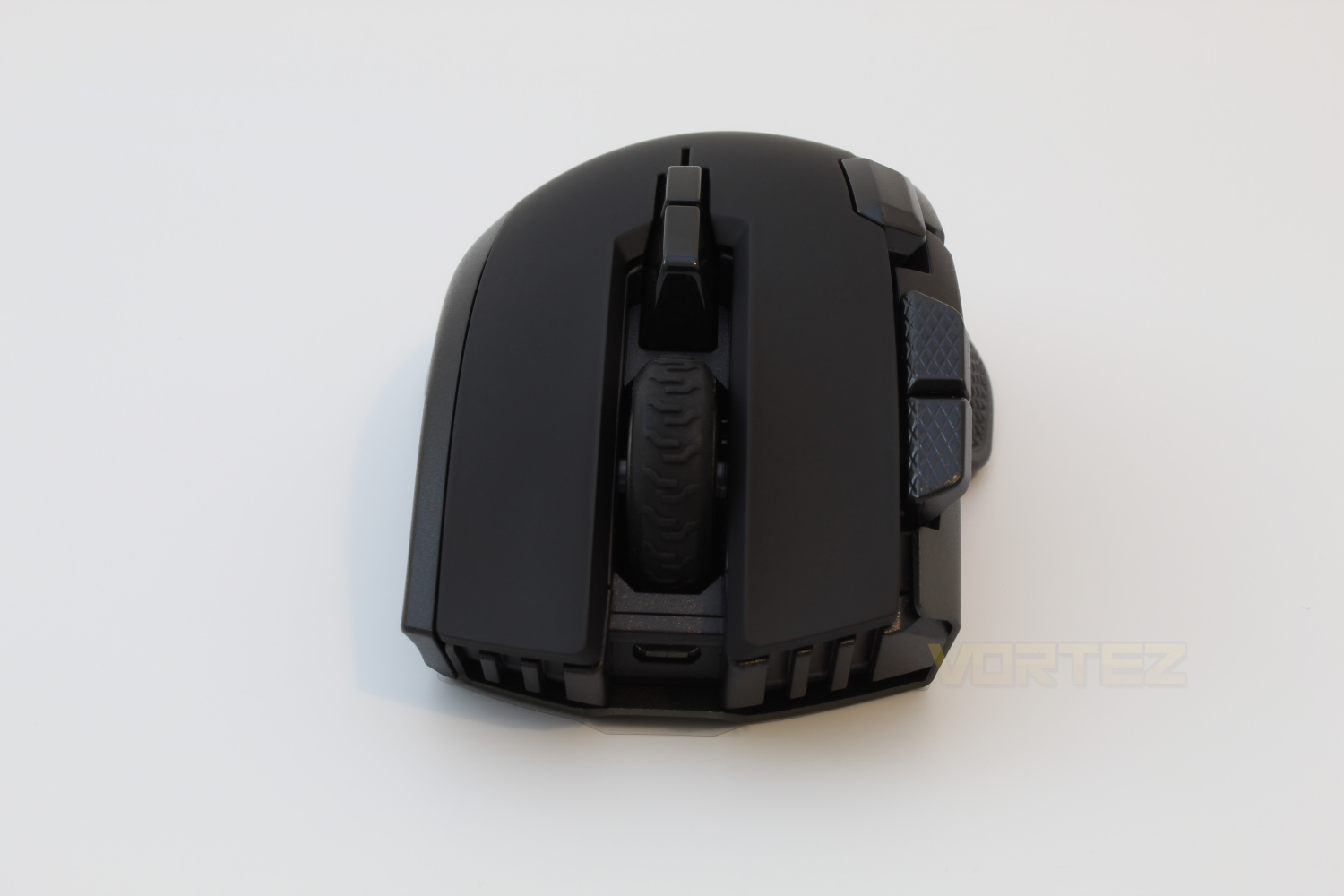
Moving round to the back of the mouse and we see the Micro-USB charging port, there are also 3 slits situated on each side of the port which act as the 2nd RGB zone, the third being the scroll wheel.
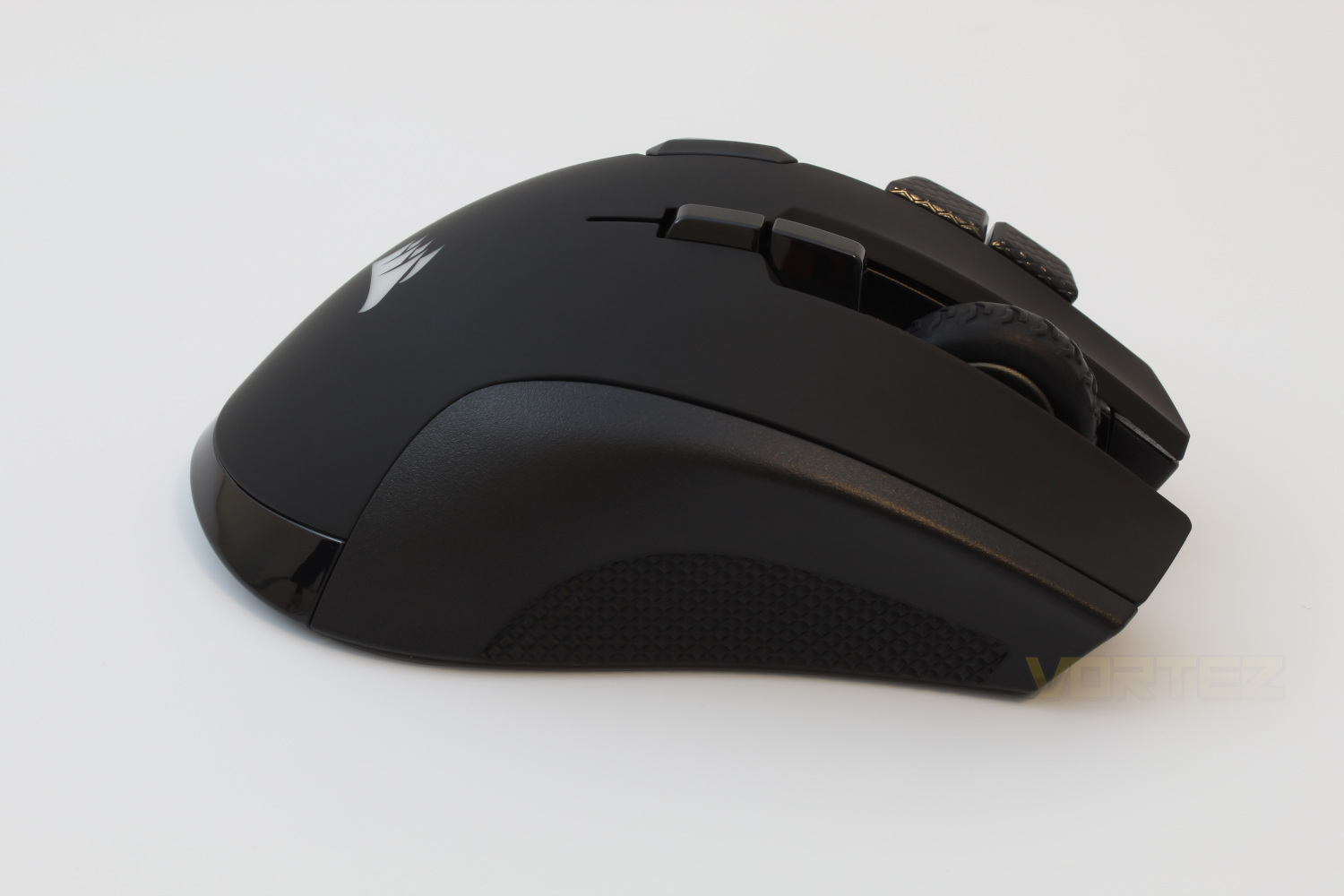
The right hand side of the mouse, as always is pretty featureless, featuring only a textured grip pad here.
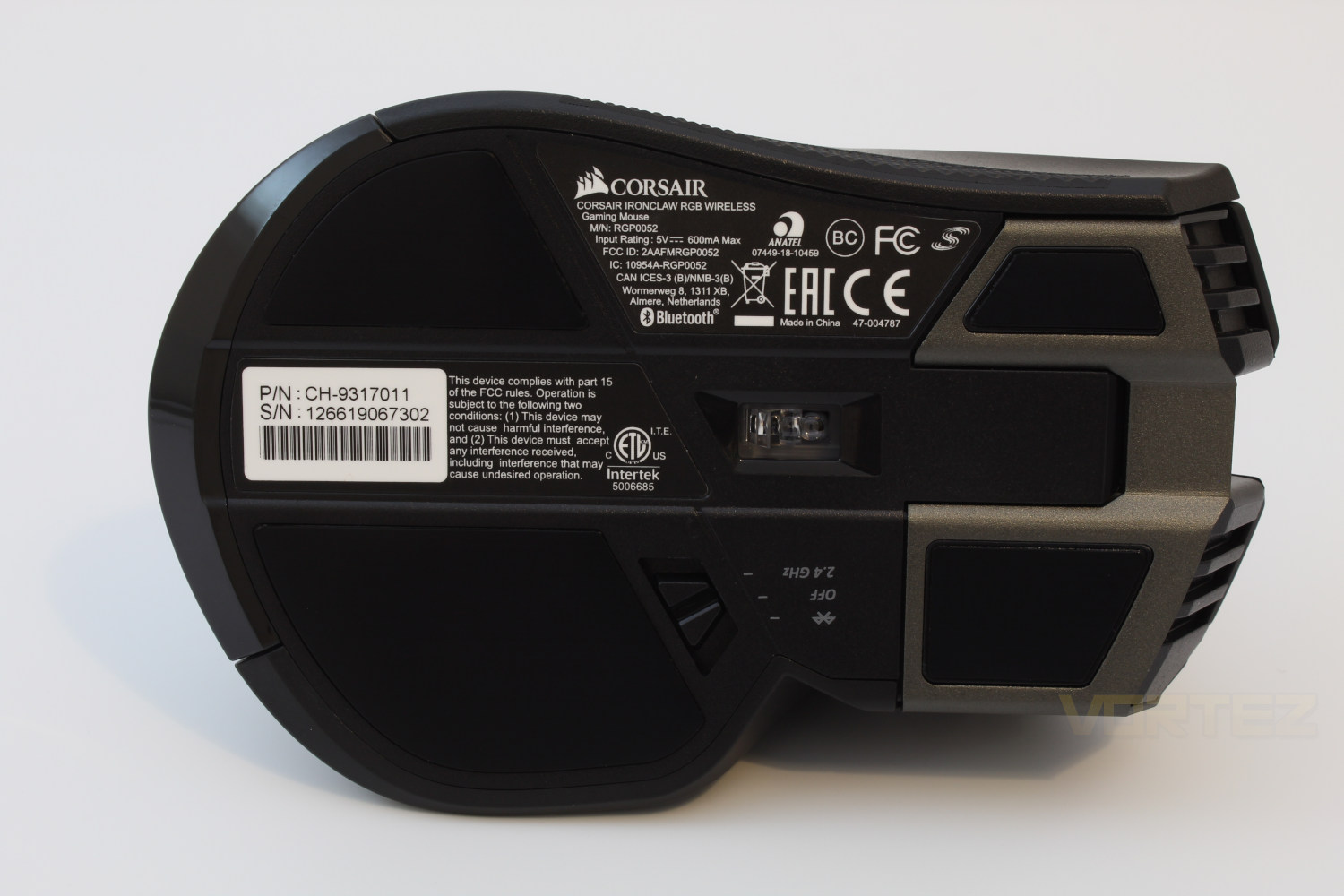
Underneath the mouse and we get our first look at the custom Pixart PMW3391 sensor along with the wireless connectivity mode switch. The sensor is rated up to 18,000 CPI, though to utilise it that high would require that you be a super human.
Software
The Corsair Ironclaw RGB Wireless utilises Corsair’s iCUE software, which if you’ve never used before is fairly easy to get to grips with, our favourite feature included for this mouse is a battery indicator that is in the system tray, this really helped us keep an eye on when we would need to charge up the mouse, however you can use the mouse in wired mode so it doesn’t you need to stop playing mid-game.A video demonstration of the software is available below.
Performance Testing
The first thing that strikes us by the Iron Claw RGB Wireless, is it’s sheer size, this is a mouse meant for people with big hands, which will be a problem if you’re not used to bulky mice.Even with the mouse being a gargantuan size the left side of it looks very cramped due to the additional 3 programmable buttons, however there is only one button that initially caused us trouble which is the middle of the 3 buttons that is facing upwards. By default this is set to be a “sniper” DPI toggle, we eventually figured out that the easiest way to use it is by rolling over it with the middle of your index finger. Unfortunately the button is too high to be used as a thumb button.
Despite the size & weight of the mouse it is surprisingly comfortable to use and we found that we suffered from no cramp issues which again surprised us with how close the thumb buttons are located to each other.
We found that even using the mouse on the 2.4GHz wireless setting didn’t drain the battery much so it certainly seems that the battery life claims of up to 30 hours with RGB lighting enabled are spot on, we also used the mouse in wired mode for a while and found that even with the cable attached it doesn’t affect the movement or overall usability of the mouse.
We did attempt to use the Bluetooth mode for gaming however the higher latency made it untenable for this use case, however if you will be using it for general usage, for example while travelling it will do the job.
Conclusion
Overall the Corsair Ironclaw RGB Wireless is a good purchase, the bulky size & it’s weight will inevitably put some people off and is more suitable to those of us who use a palm style grip however we found that it was suited to our large hands.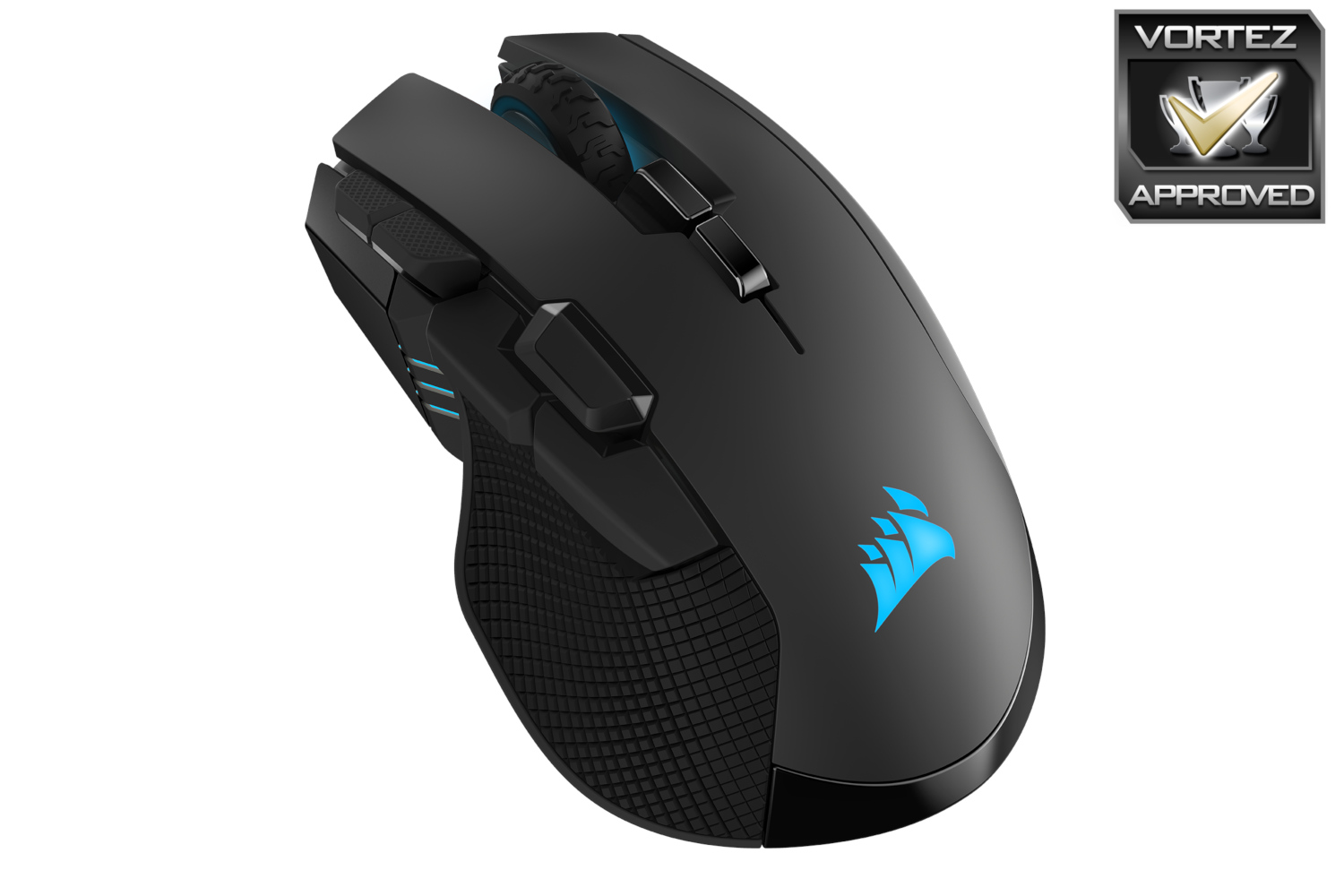
The thumb button would be better situated below rather than above the forward & back buttons, as this would allow you to use it as a thumb button rather than having to roll your index finger onto it.
The mouse itself is very comfortable to use, and the build quality is good as you’d expect from a mouse in this price range. The inclusion of 3 separate onboard profiles is a good point, and we found ourselves using all 3 for various games & applications.
The battery life is great on this mouse, we’ve used it for over a week with solid use and while it’s on it’s last legs now, this is a great feature.
We’d recommend the Corsair Ironclaw RGB Wireless if you have larger hands, although if wireless is not totally necessary for you, there is the option of foregoing this and saving some cash on the non-wireless model.
The Corsair Ironclaw RGB wireless gets the thumbs up from us for it’s great battery life and great ergonomic design.
Pros
+Connectivity options
+Comfortable
+Build quality
+Battery life
Cons
-Thumb button positioning
+Connectivity options
+Comfortable
+Build quality
+Battery life
Cons
-Thumb button positioning
Click here for an explanation of our awards at Vortez.net.
Stay connected with the Vortez Social Media pages:
Join in with the discussions on Discord