Corsair are perhaps the most well-established company within today’s gaming peripherals market; using their expertise within the keyboard sector, today they release the Corsair K83 Wireless Entertainment Keyboard, useful for using your PC on the sofa or your smartphone.

Product on Review: Corsair K83 Wireless
Manufacturer: Corsair
Street Price: £99.99 / $99.99
Corsair are no stranger to the keyboard market, offering a keyboard for almost any budget and use-case; starting at around £50 and going all the way up to £195 for the Platinum K95. Something new to Corsair’s portfolio are wireless keyboards, most likely brought on by improving battery technologies paired with improved wireless transmission performance. We’ve already seen the Corsair K63 wireless mechanical keyboard but today we look at something with a slightly different goal in mind.
The Corsair K83 Wireless Entertainment keyboard pairs a wireless keyboard with a wireless trackpad to form a single device capable of full control over your PC. The keyboard can be used in wired mode, as a standard desktop keyboard or wirelessly if you wish to sit on the sofa and use your PC through your TV.
A refined style and sturdy build are the order of play, with a brushed aluminium fascia and contoured keycaps with a matched colour theme. The K83 Wireless also offers white LED backlit keys for ease of use in dimly lit rooms.
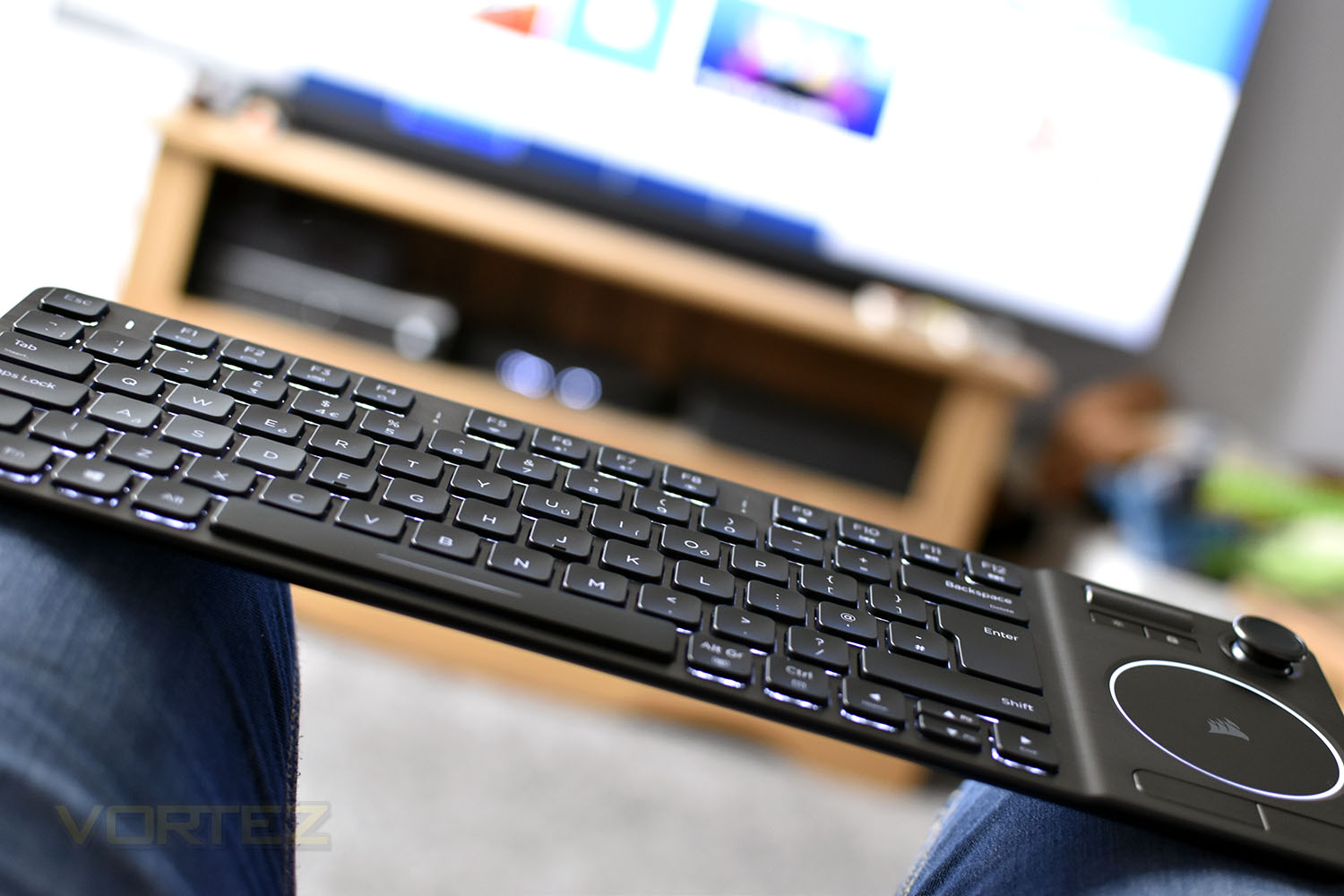
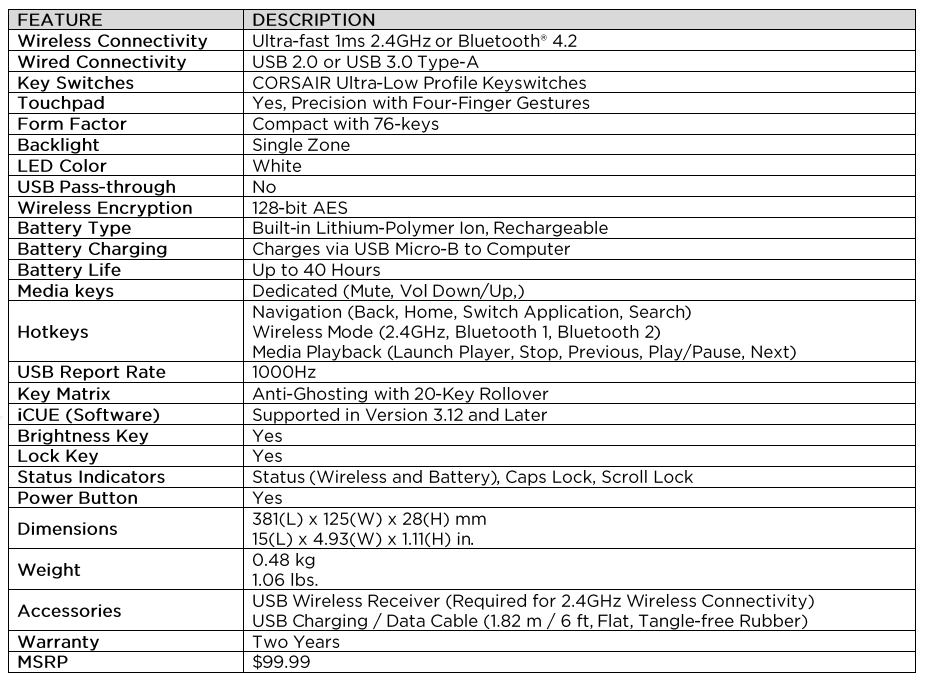
Wireless communication can be achieved using the included USB adaptor, offering 128-bit AES encryption, or via a low-latency Bluetooth wireless connection. Battery life is claimed to be up to 40 hours without backlighting and 18 hours with.
An intuitive joystick with click buttons can be used to play games or for browsing menus, we’ll be sure to check that out in detail.
Everything seems to be in check, with a good claimed battery life and premium design features, but how does it fair in the real world? Let’s find out.
Corsair on the K83 Wireless:
The K83 Wireless Entertainment Keyboard offers the latest in living room media control. Refined aluminium design with white backlighting looks stunning and even in the dark. An integrated touchpad and joystick make navigating menus and playing games smooth and intuitive, while comfort-contoured keycaps make typing on your couch as easy as your desktop. Connect to your living room PC, compatible smart TV and streaming media player, with a choice of ultra-fast 2.4GHz wireless or low-latency Bluetooth wireless. The K83 Wireless is ready whenever you decide to press play with up to 40 continious hours of USB rechargeable battery life. Combining stylish design with the latest in multi-function control, the K83 Wireless gives you a front row seat to your living room entertainment.
Technical Specifications
Packaging & Bundle
This may not strictly belong within Corsair’s gaming keyboard category but it still carries the usual bright yellow colour scheme. The front shows a detailed picture of the keyboard and some basic details.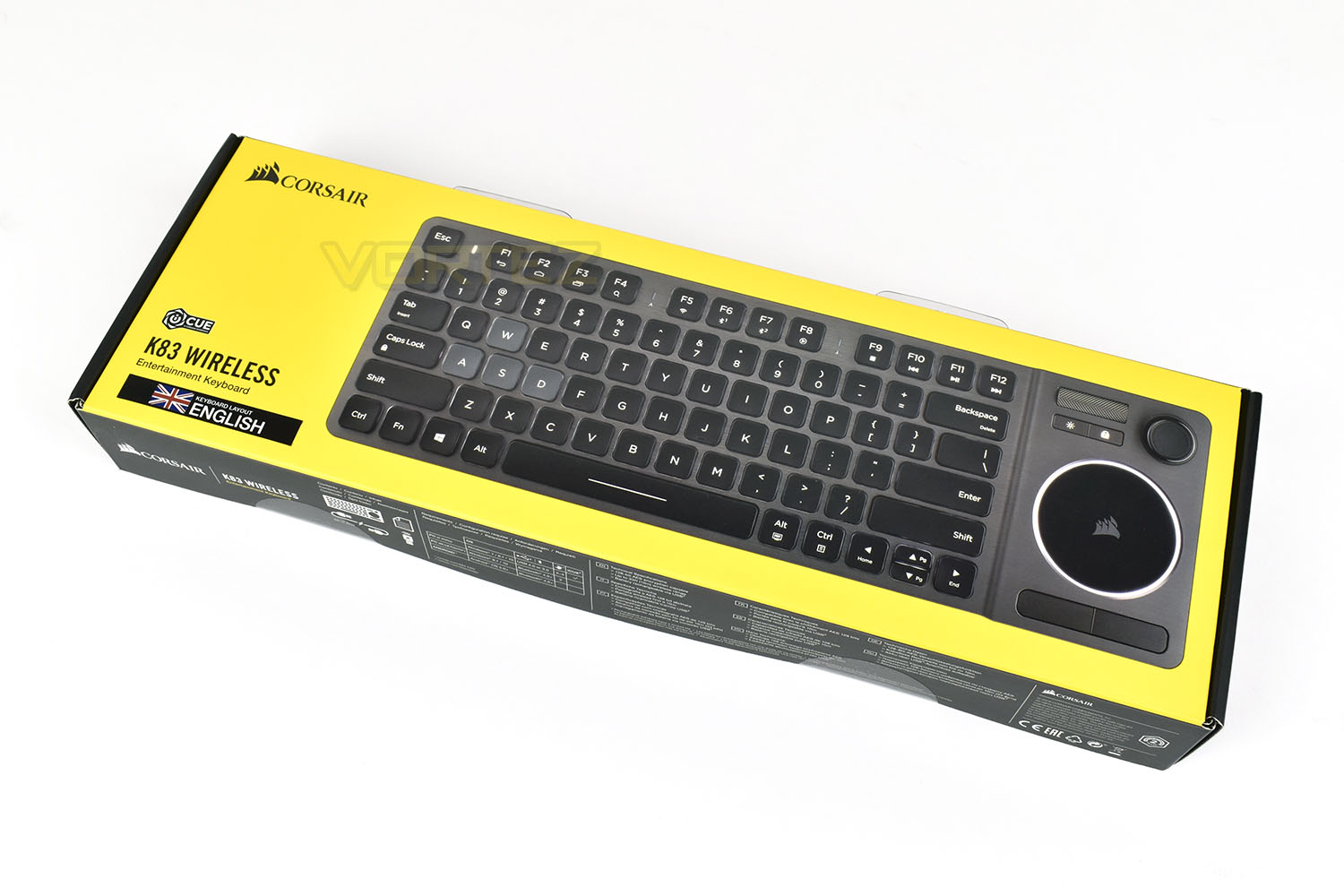
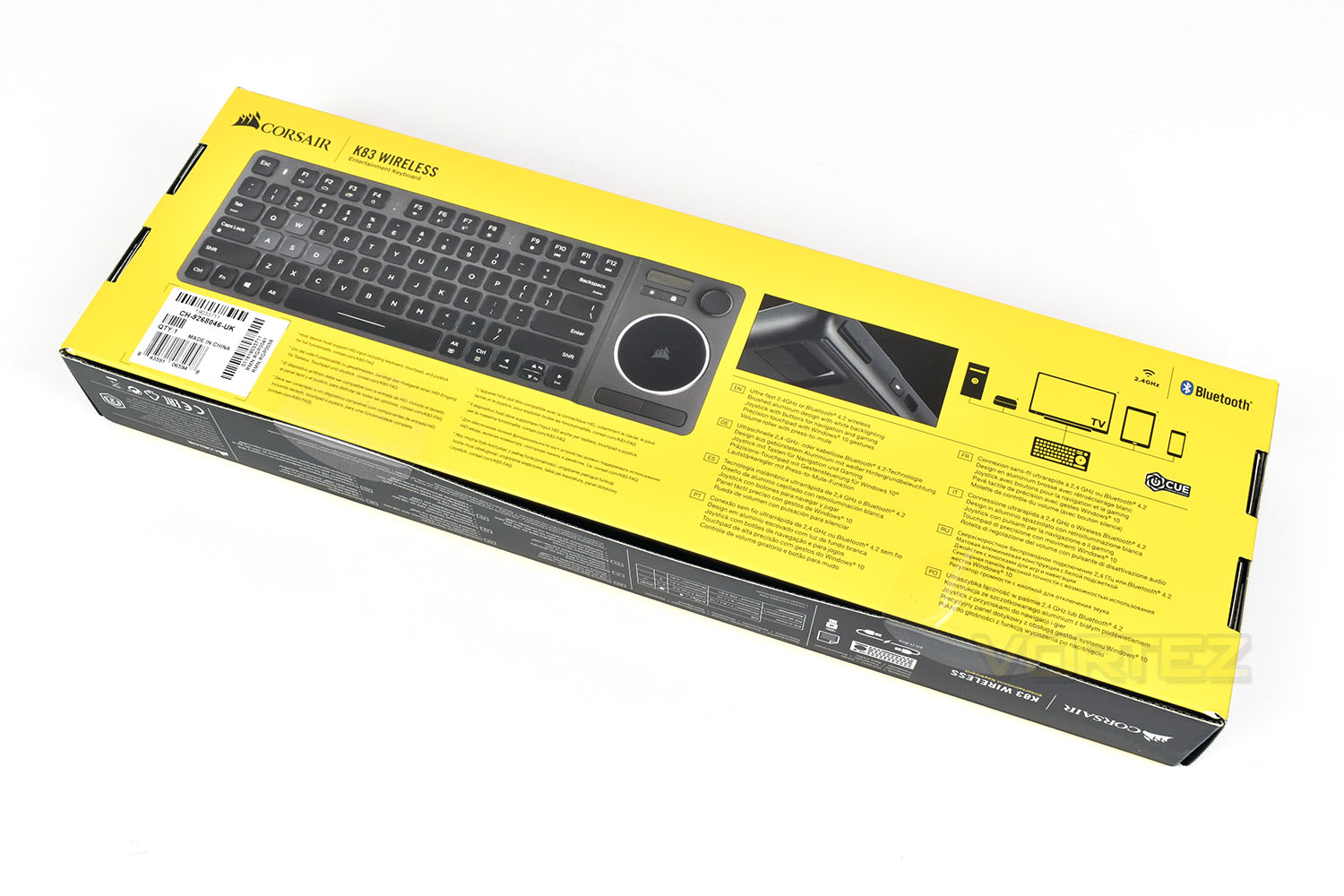
The reverse side shows the same image of the keyboard along with a much more detailed introduction to the feature list, there’s also a basic diagram demonstrating the connectivity possibilities of the K83.
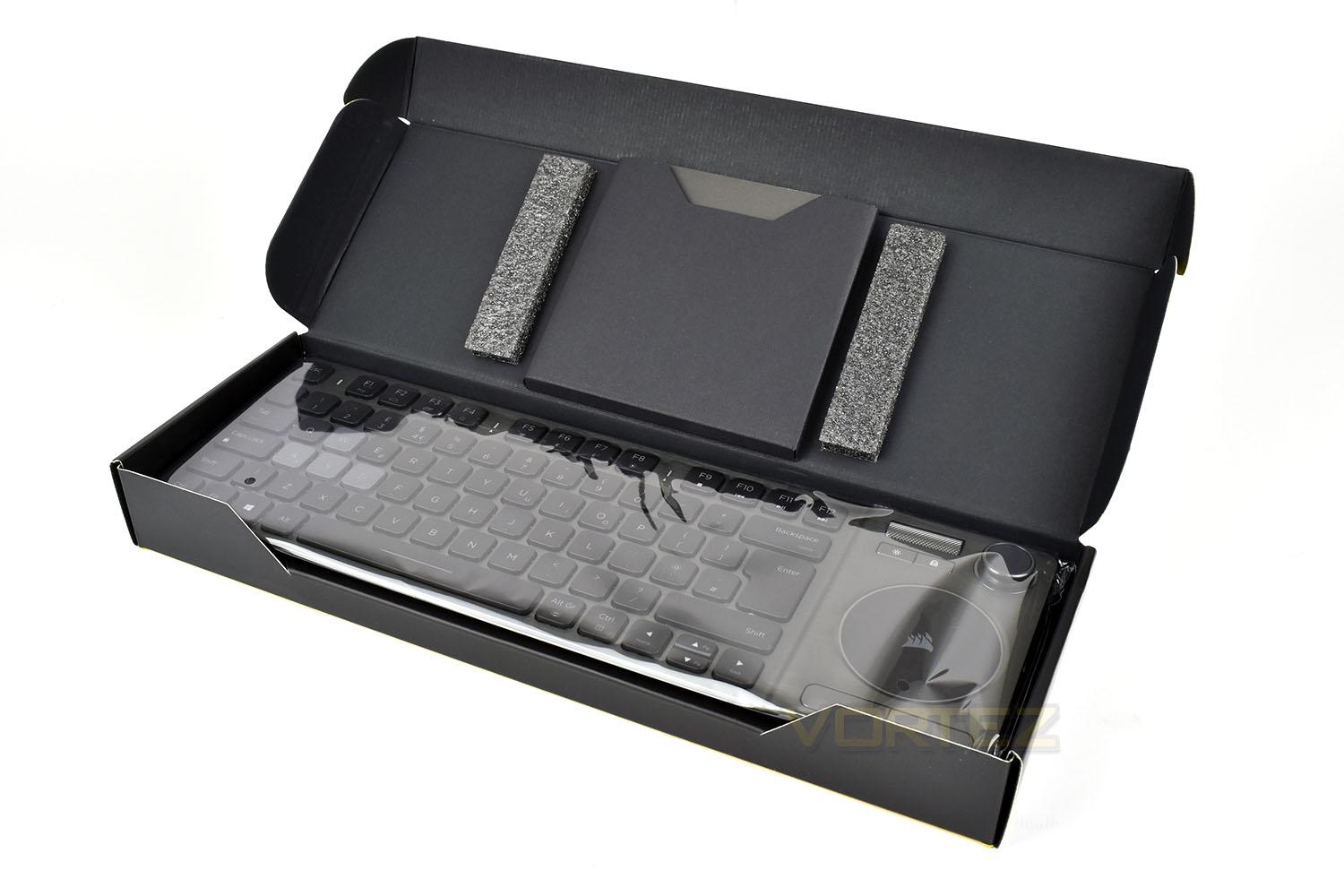
Traditionally of Corsair, their keyboards are held in place securely by foam padding and thick plastic packaging so that when you open it up, it’s as fresh as possible.
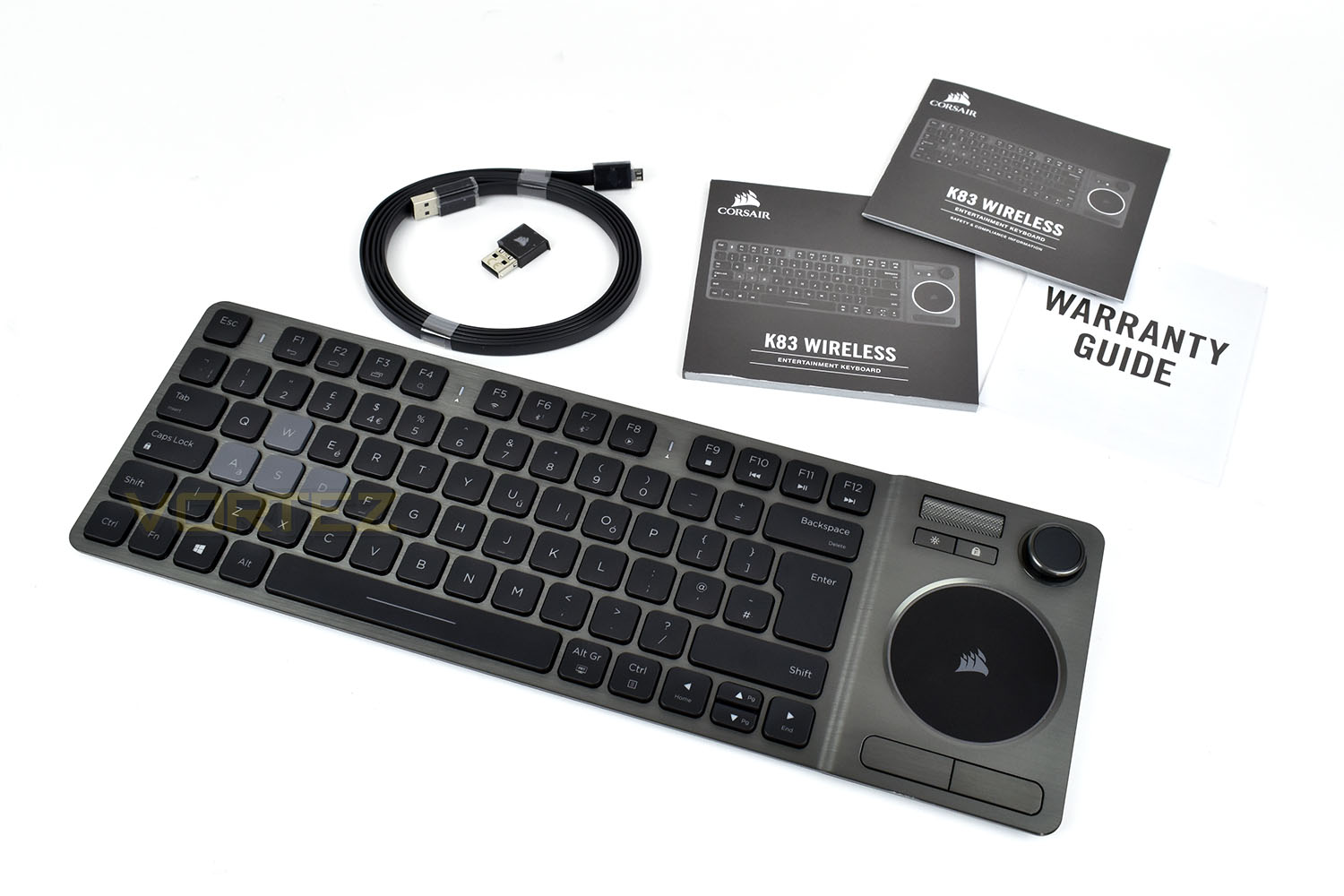
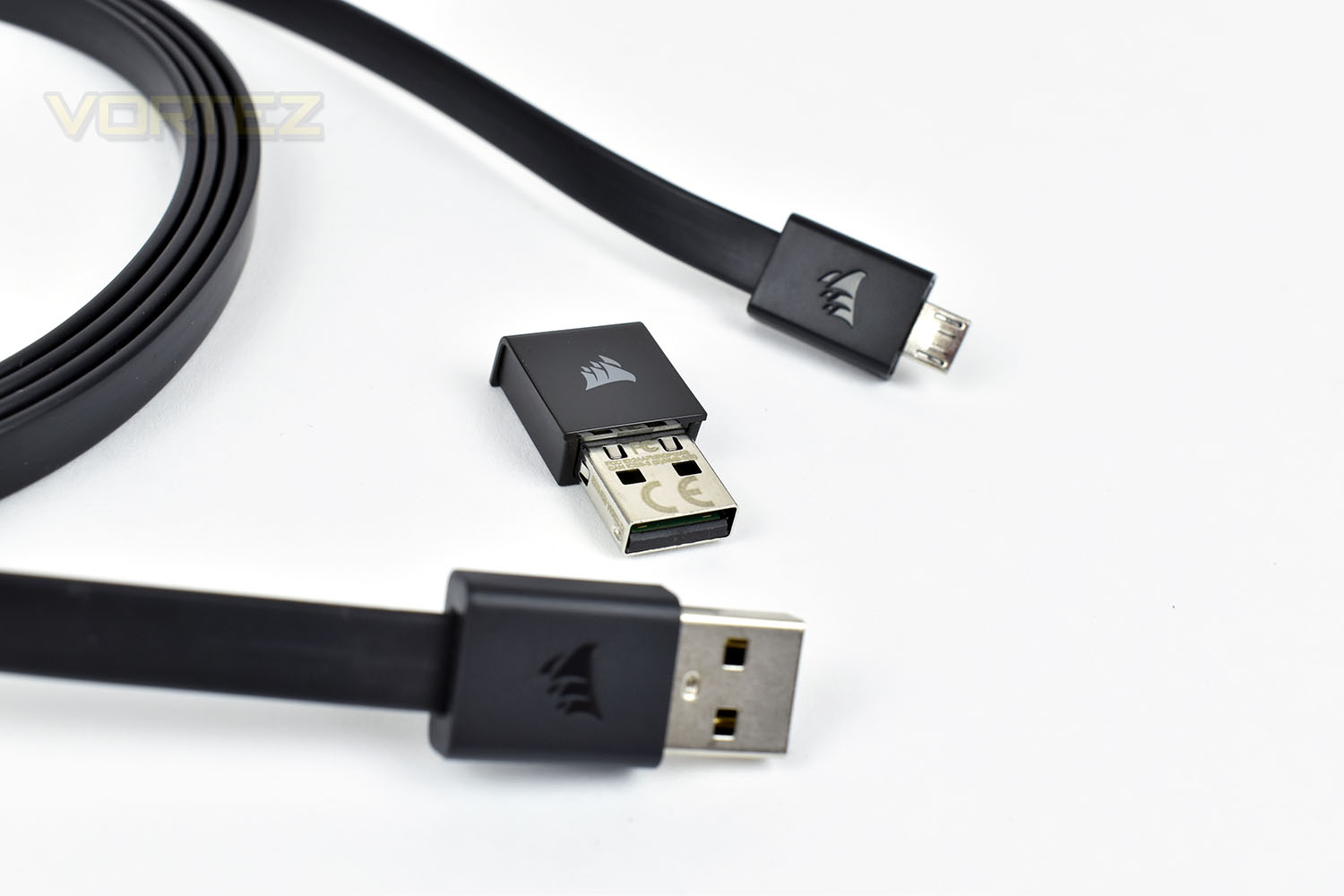
Alongside the K83 Wireless is a warranty guide, instruction manual and setup booklet. As well as that, there’s a 1.82M flat, tangle-free, Micro-USB charging cable and a small USB wireless adaptor for the 2.4GHz connectivity.
Closer Look
Kicking off with an overview, the keyboard looks stylish with the crisp lines and smooth textures. The front of the keyboard is made from aircraft grade aluminium with large, carefully designed keycaps to enable comfortable typing on the sofa. The round trackpad is located on the right, with independent left and right click.The keyboard weighs a tiny 480g and measures 380mm x 125mm x 28mm.
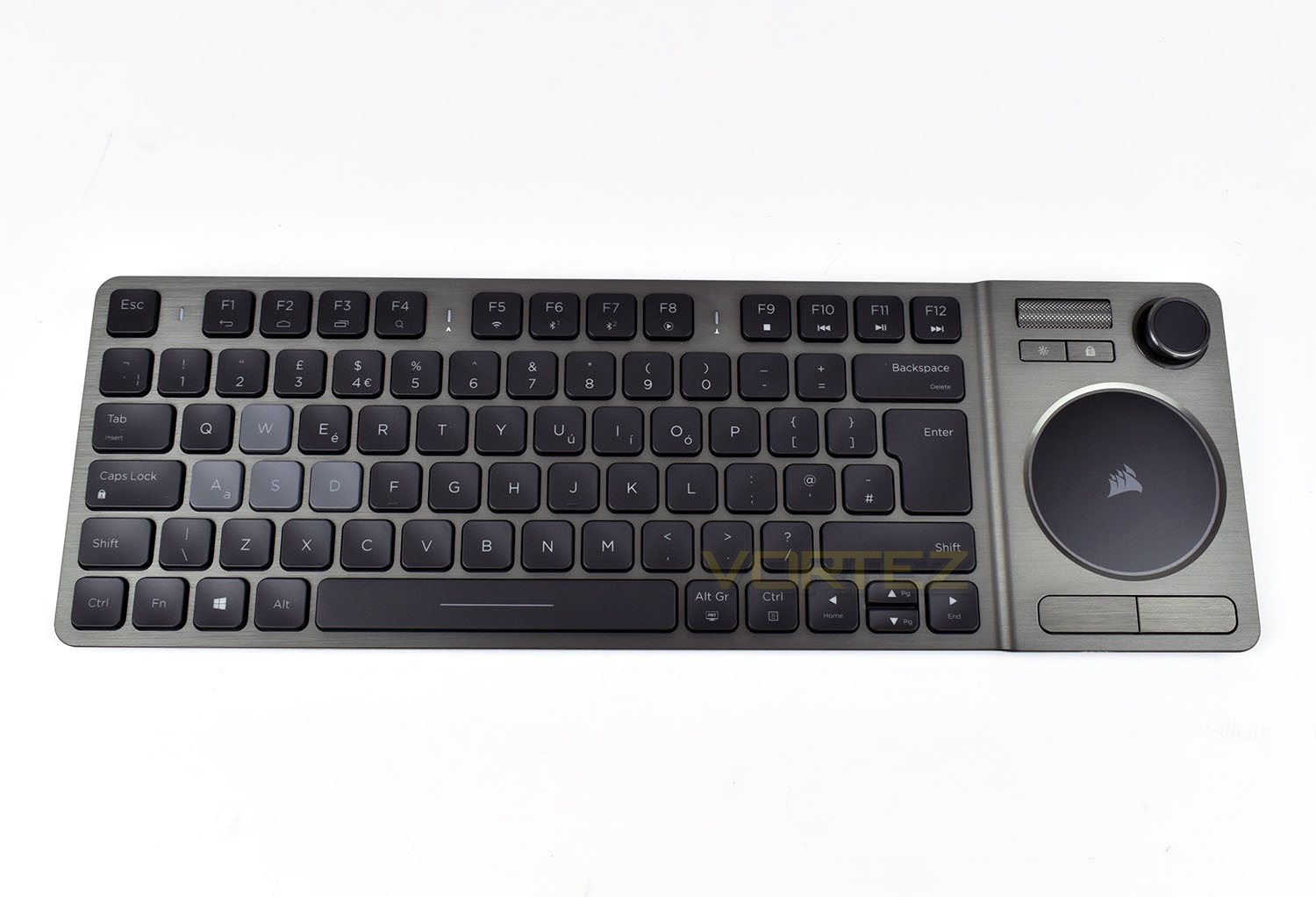
Due to a design choice of minimising the keyboard’s overall footprint, certain functions have been moved to the F-row along the top, with a toggle switch that changes the default action of the entire row between the traditional F1-12 or their indicated 2nd use.
Functions, from left to right, are:
• F1 – Back
• F2 – Launch Browser/Home Screen
• F3 – Switch Application
• F4 – Search
• F5 – 2.4GHz Wireless Mode
• F6/F7 – Bluetooth Mode 1 or 2 (With the ability to store two separate devices)
• F8 – Launch Media Player
• F9/F12 – Media Functions
Separating the keys along the top row are a trio of LEDs. The first LED, starting on the left, is used to indicate things like battery life, charging status, connectivity and so on. The second and third LEDs are for CAPS lock and Scroll Lock.
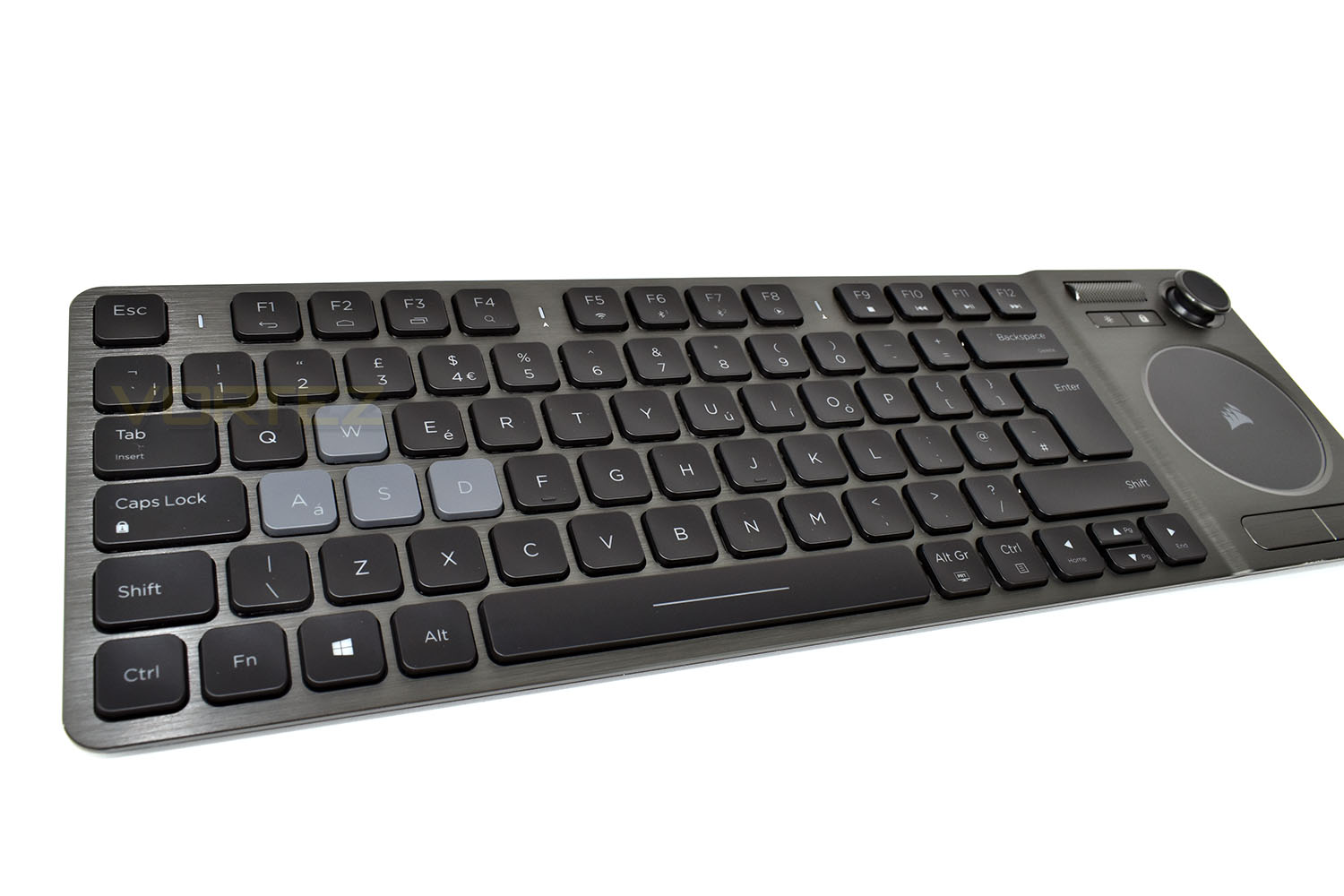
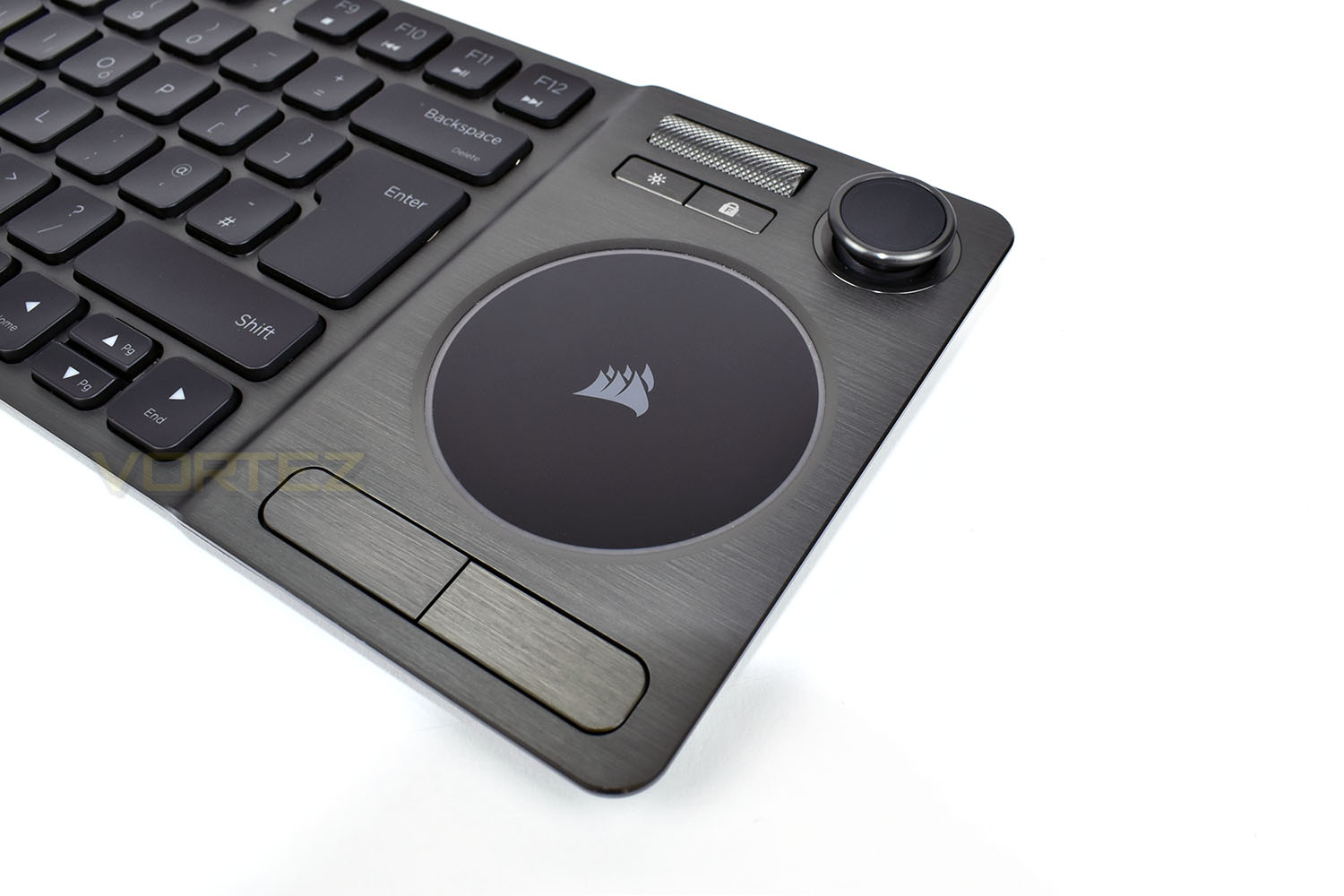
Focussing on the right edge of the keyboard, we have the large, circular trackpad; that’s an unusual shape for a trackpad with them usually always being rectangular in shape, though it certainly looks good! Below the trackpad are two fully independent buttons for right and left click. Then looking above the trackpad, on the left we have a volume roller, with a depress feature for mute. Below the volume wheel we have an LED backlight button, toggling between off, dim and bright.
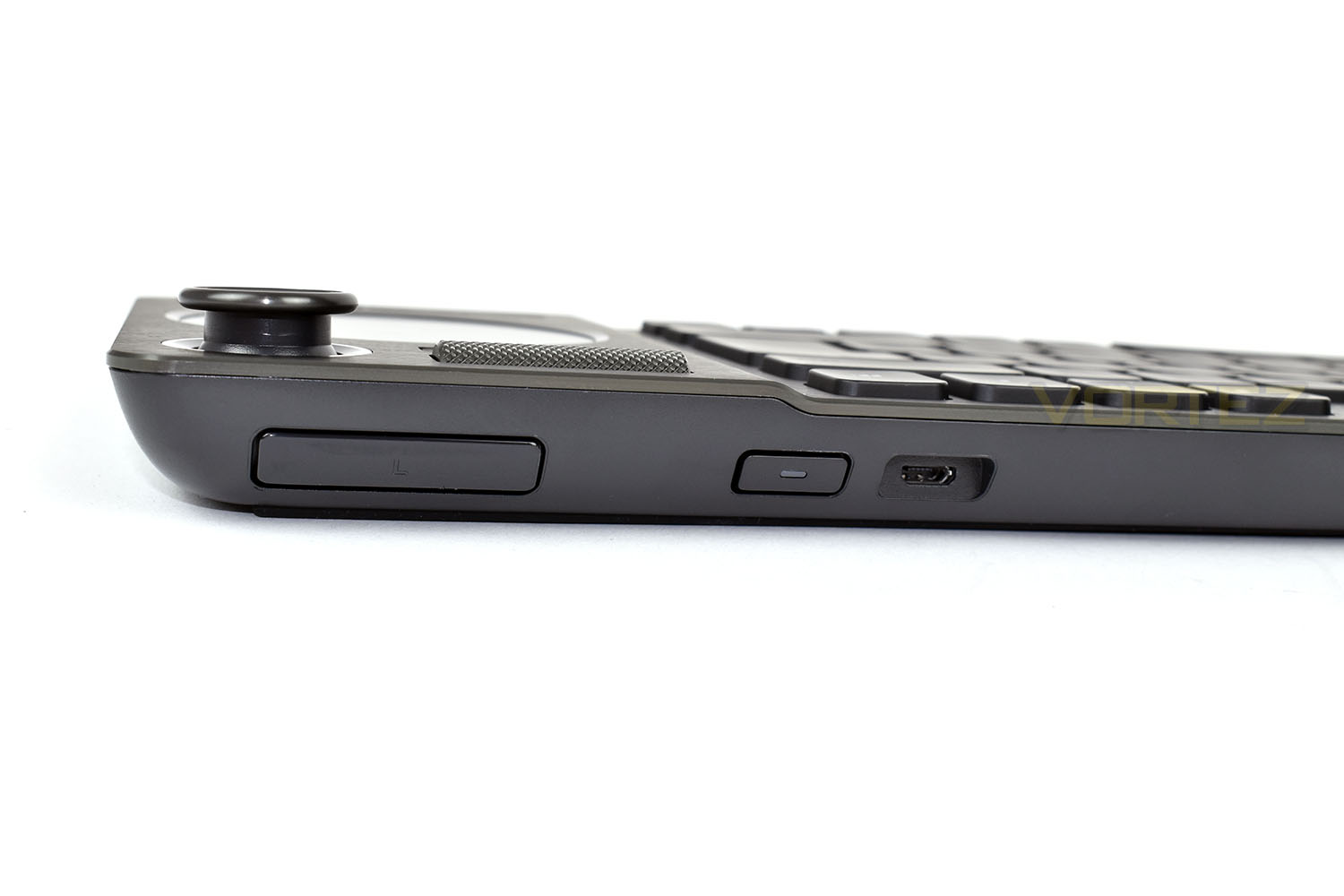
Finally, and quite importantly, in the very top-right is a joystick, similar to what you would find on your gaming console controller, that can be used for navigating menus or even for gaming, if you wish. Designed to work in tandem with that joystick are a couple of buttons which we’ll touch on next.
One button is on the top of the keyboard, just behind the joystick itself, marked “L”. While we’re here, you may take note of the power button and the Micro USB charging/data port.
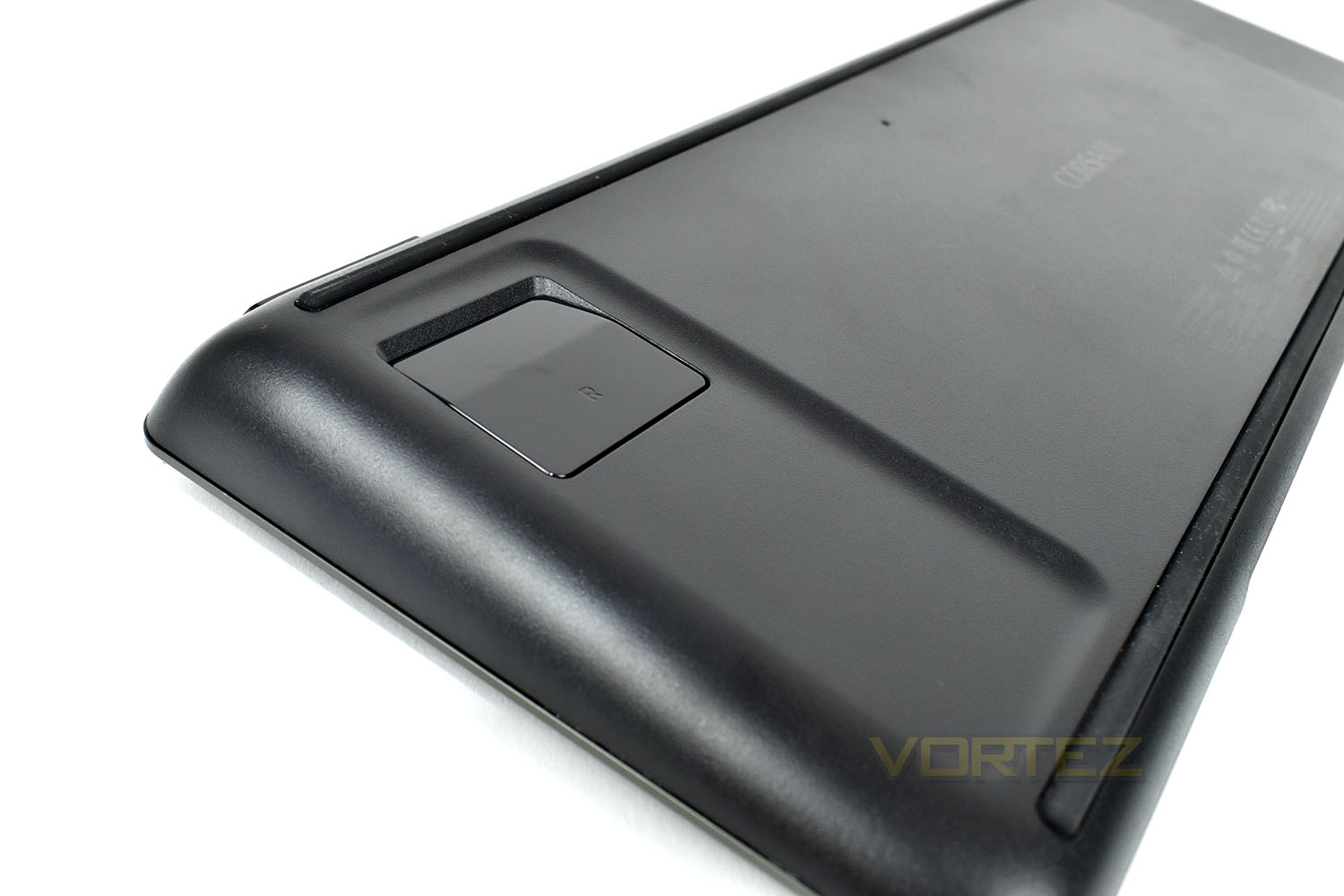
The other button is located on the bottom of the K83, with the idea of wrapping your hand around this area to create a controller-like experience.
Closer Look (Continued)
As the joystick might suggest, the K83 has also been designed with some gaming in mind, the WASD keys have been given a different colour, helping to highlight them when gaming, the keys themselves feel identical, however.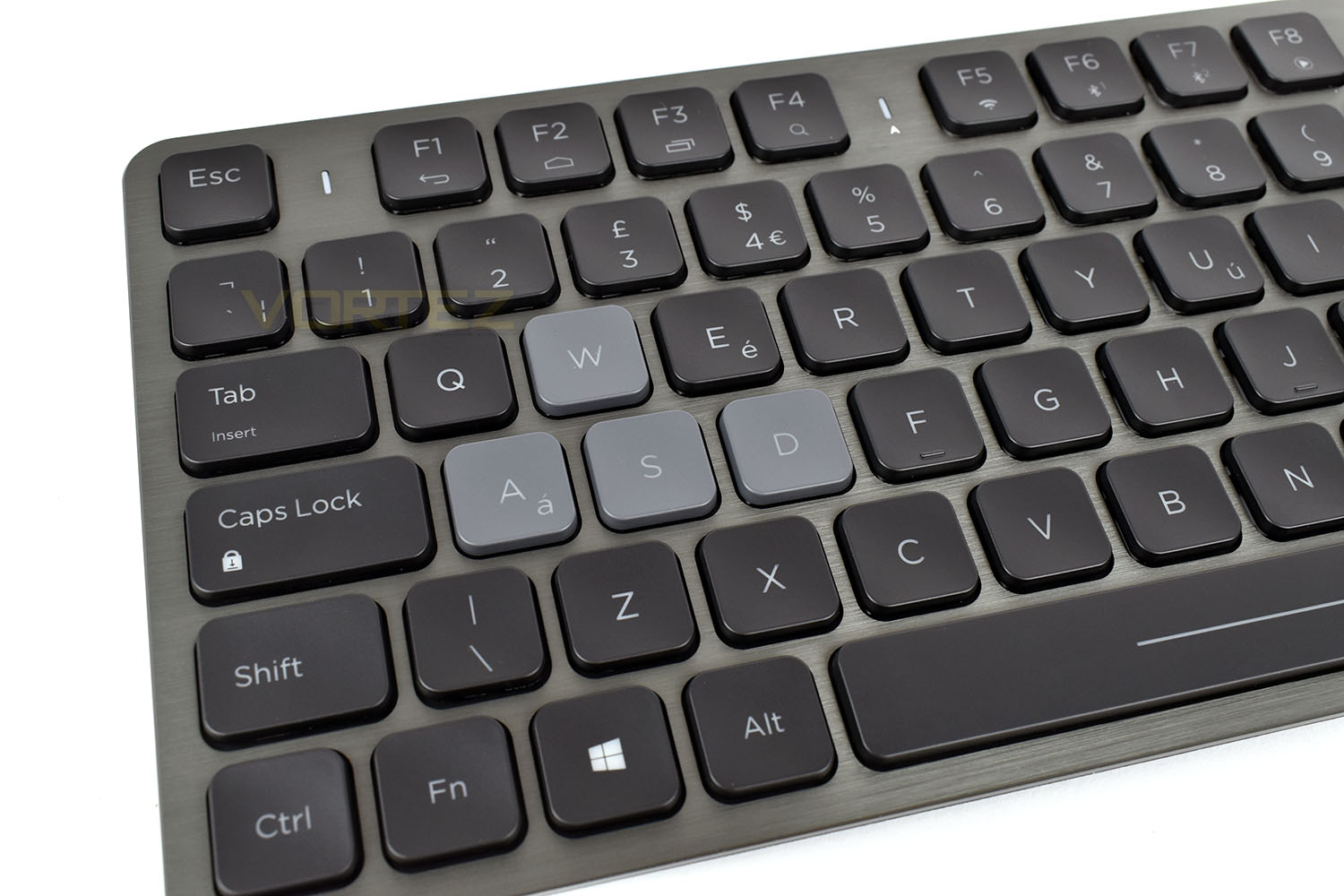
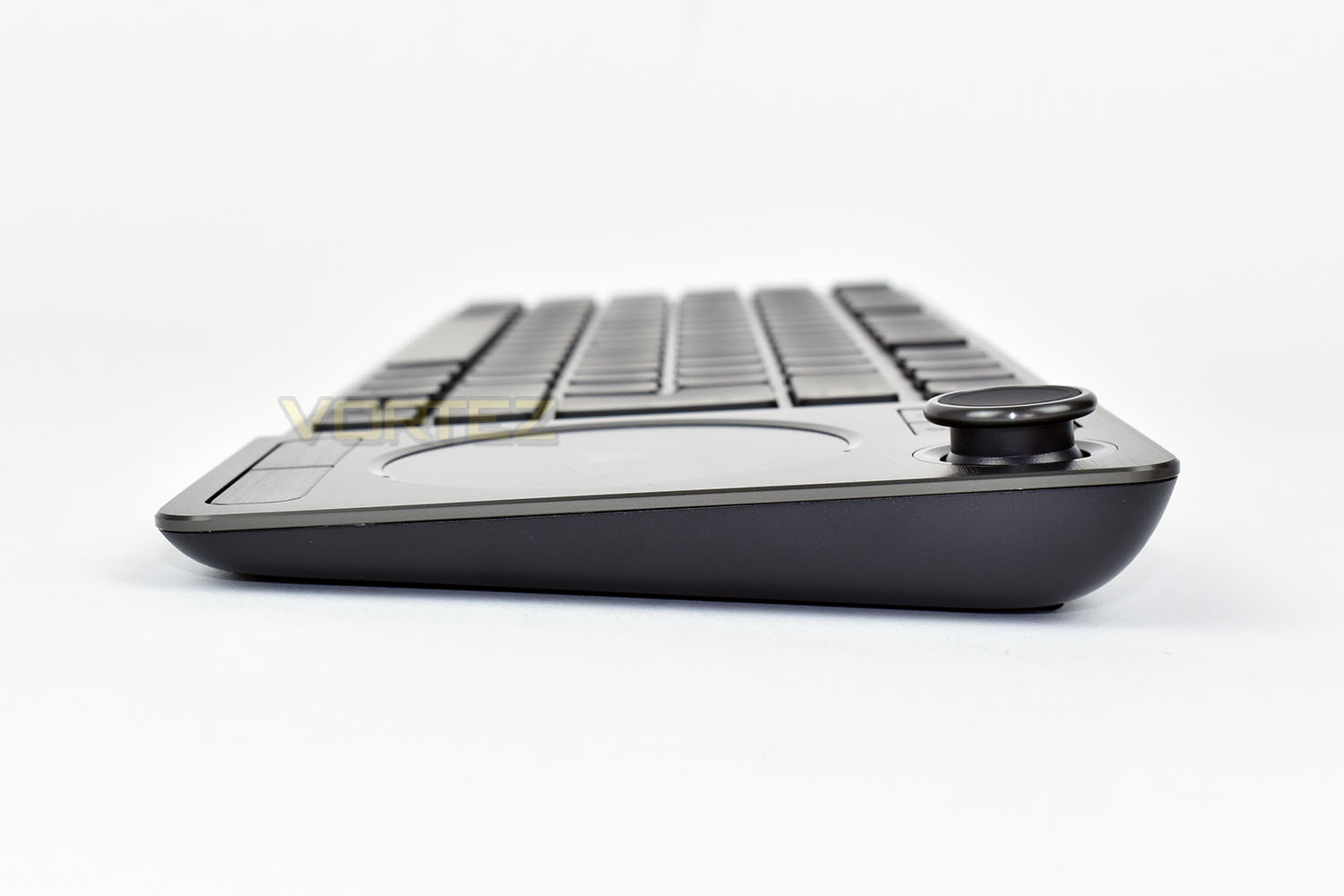
The side profile of the keyboard definitely lends itself towards an angled user experience, using the wedge shape to rest on your lap while sat on the sofa. The thin end measures 9mm from the desk with the top end stacking up at 23mm.
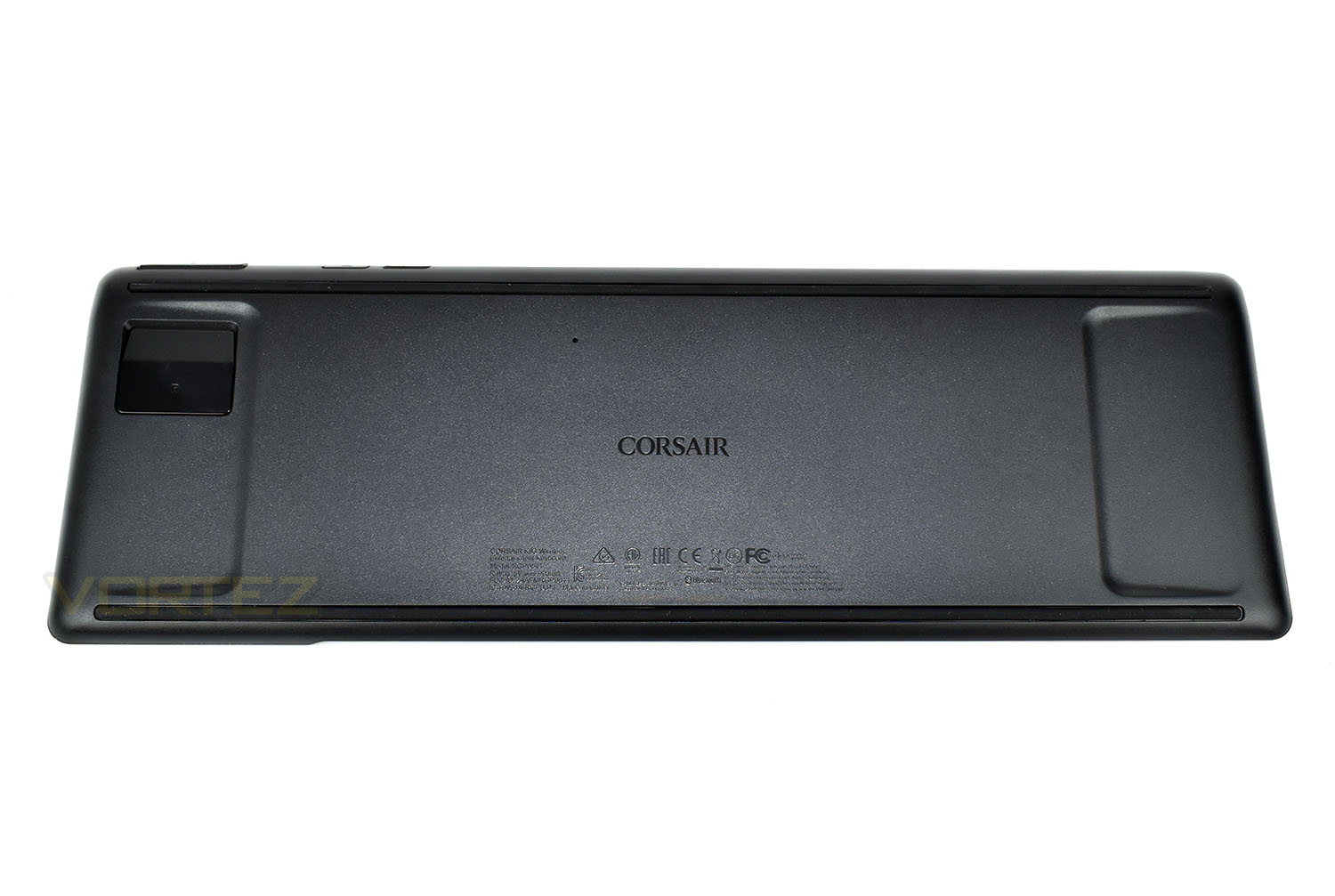
Flipping the keyboard onto its front, the back is very basic. You get some recessed sections at each end to help improve grip when holding the keyboard and a long, thin rubber strip across the top and bottom provide traction when used on a desk or hard surface.
Last but not least is the USB receiver, used for the 2.4GHz transmission, as well as the connections on the 1.82M flat Micro-USB cable.
Software
There’s no RGB lighting to contend with, only white LEDs, so in absence of that, we’ll move straight onto the iCUE software, check out the video below:Performance Testing
With the K83 Wireless being touted as suitable for multiple devices, we’ll focus on them separately, helping you to find the information you want and also giving a clear definition between experiences, if there are any differences.Windows
Connecting up the keyboard to our Windows 10 based PC was as easy as can be, we plugged the USB adaptor into the front of our case and let Corsair’s iCUE do the rest. The keyboard, once turned on, found the connection straight away and with a small “da-ding” from the operating system, everything was good to go.
Firstly, the trackpad, which was a little overly-grippy for our liking, seeming to require a little more effort to move the cursor around than a trackpad that you’d usually find on a laptop. The default speed was also far too slow for everyday desktop use so we went ahead and bumped that up to 75%. From there, things were much better, finding the trackpad to be incredibly accurate and with it supporting Windows 10 Gesture Control, allowing things like two fingers on the trackpad for scrolling, or three fingers, swiping right or left to switch between open programs, it was surprisingly useful as a productivity tool. Obviously, there’s a small learning curve but the few we used, we learned very quickly.
The buttons below the trackpad, for right and left click, were awkwardly placed; largely due to the unusual use of a circular trackpad and the large spacing between the trackpad and the buttons. Typically on a laptop, the buttons would be directly below the trackpad, if not actually built into it, so to have them placed where they were just didn’t suit us at all, whether we were using the keyboard on a desk or a sofa.
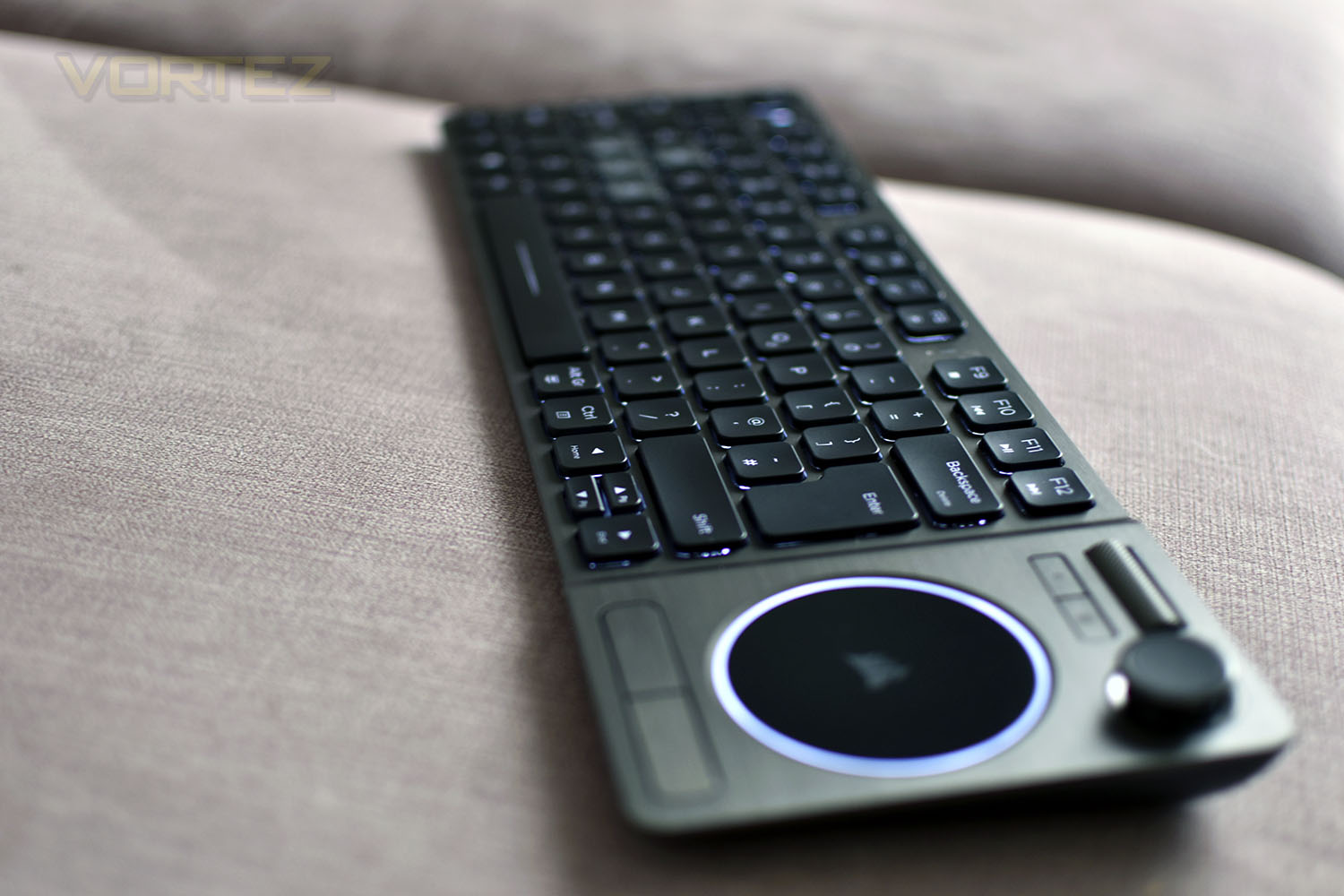
Moving onto the keyboard itself, the keys feel incredibly similar to that of an Apple Magic Keyboard, which in itself is no insult, they lack any real tactile feedback, but with the relative lightweight design of the keyboard, we applaud Corsair on the overall feel and spacing, it’s genuinely fantastic to type on as an entertainment keyboard. Having said that, if you were planning to buy this for typing up large projects or to use as a daily driver, we’d recommend you looked elsewhere with your £99/$99.
Switching to gaming, we decided to give it a go without using a separate mouse, relying entirely on the K83. Things didn’t quite go to plan, if we’re honest. Battlefield V, Borderlands 2 and War Thunder are three games we like to test with, so we stuck with that. We firstly toyed with the idea of using the trackpad but we would require three hands for this to work with the FPS games, but something like Cities: Skylines or The Sims would work perfectly. Instead, we switched to using the analog stick and the buttons on the top and back, this works reasonably well, considering what it is, but it’s absolutely not to be confused as a replacement for an actual mouse and mousemat. This is very akin to trying to use a console controller against players using KB+M, the disadvantage is just too great. We also found the button on the bottom of the keyboard was awkward to press and wasn’t positioned where we would like it. Overall, in terms of gaming, the keyboard would be great for lounging on the sofa to play something slow paced like Civilisation or Two Point Hospital, but fast paced games are almost undoubtedly out of the equation.
The backlighting, while being restricted to white only, can be toggled through four different settings, but you’re limited to only three at first. You can have off, dim or medium. Then, through the iCUE software, you can unlock the brightest setting. Corsair have most likely locked this away because of the impact on battery life, and with it being plenty bright enough on the 2nd setting anyway.
Mobile phone (Samsung Galaxy S9)
Pairing with a phone was a simple process, you press and hold Fn + F6 (or F7, as the keyboard can store two separate Bluetooth profiles) and then search for the keyboard via your phone’s Bluetooth menu. Pairing is then a simple case of entering the six digit code on the screen and hitting enter.
Once set up, we were provided with a mouse cursor and a keyboard to use with our Android phone. If you can then connect your phone up to a monitor or TV, you can be provided with a useable workstation with decent processing power.
While it’s a little gimmicky and cool to set up the first time, we couldn’t really see a proper use for it, however, you may very well find one.
Smart TV (Samsung QE65Q7F)
The keyboard can also be easily paired with compatible Smart TVs, our Samsung Q7F found and paired with the K83 in a matter of moments and allowed us to use YouTube with ease, along with switching through compatible apps. The cursor didn’t work, however, which would’ve been great, but we believe that’s probably a limitation of the TV software instead of the keyboard.
Conclusion
The Corsair K83 provides you with a stylish, robust, easy-to-use keyboard option that can be paired up to your computer, TV or smartphone with ease, however, it’s not the be all and end all of keyboards.The key spacing is just about perfect, we found it easy to type on with a lovely feel, especially considering its lightweight design of under 500g, and the inclusion of the trackpad and analog stick made browsing the web a dream.
Build quality was solid, there’s very little flex despite the thin profile; the aluminium fascia did its job well there. The keys are solid and show little to no sideways movement, however, the volume roller didn’t have the typical Corsair-like feel, it spins too easily and the push-to-mute didn’t work every time.
Battery life was never an issue for us. We didn’t actually manage to get through a single full charge while testing it and we’ve had it here for a few weeks. Even when the battery does come round to needing a charge, the included tangle-free cable was of a high quality and lengthy enough to allow you to use the keyboard while it charges.
At £99 in the UK and $99 in the US, the K83 isn’t exactly cheap, and there are more affordable alternatives from large online retailers, but they don’t offer the same refined experience you can expect from Corsair. The value of the keyboard is reliant upon its extended functionality and wide connectivity; if you can make the most of its comprehensive design it will seem cheap at twice the price.
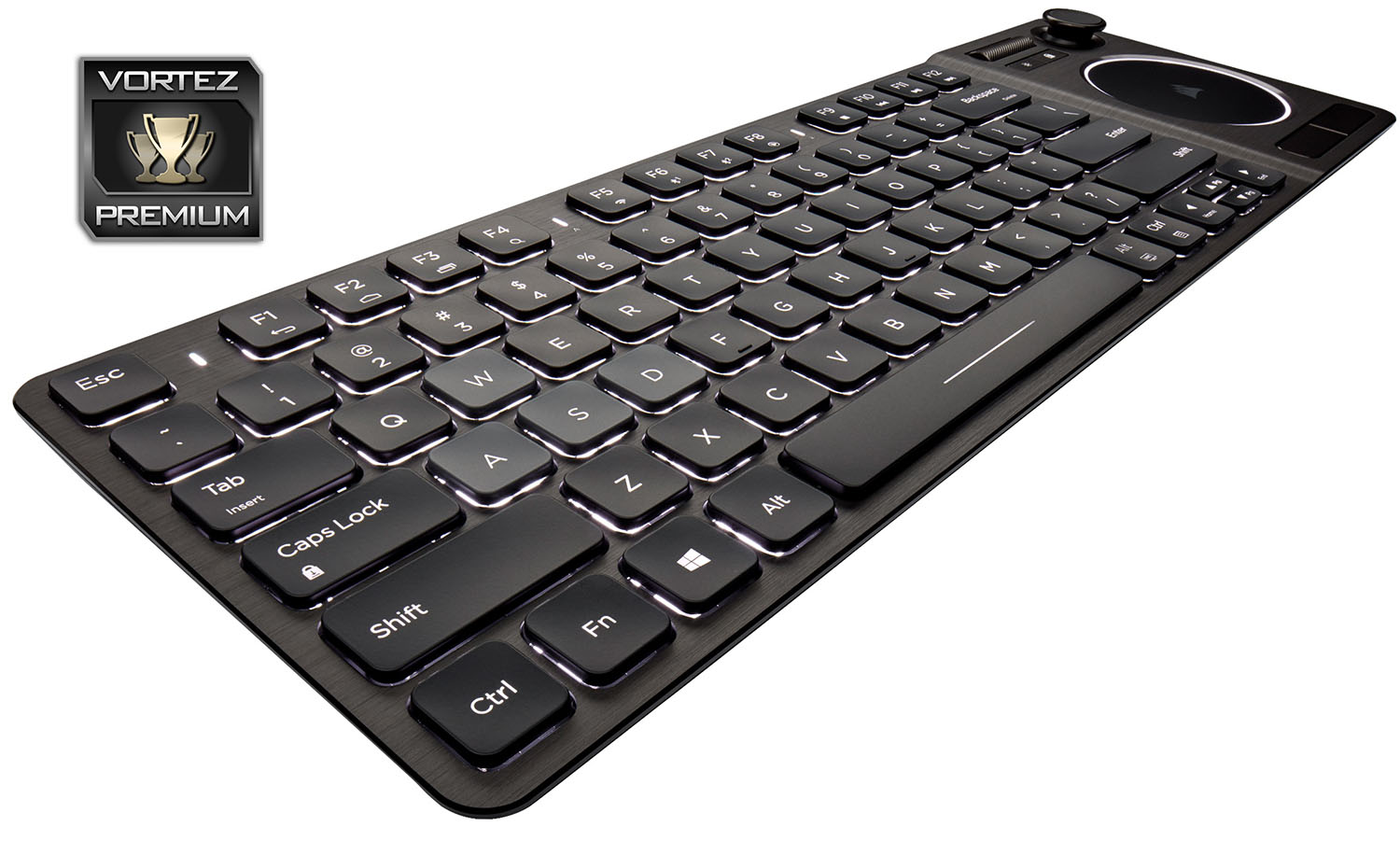
Overall, the flexibility the K83 Wireless offers goes a long way to increasing its appeal; if you have a use for a wireless keyboard, this one won’t leave you disappointed.
Pros
+ Solid build quality
+ Works with a range of products
+ Low-latency 2.4GHz or Bluetooth
+ Looks fantastic
+ Good battery life
+ Typing was great
+ Lightweight
Cons
– Awkward right and left click on the trackpad
– Circular trackpad
– Odd bumper button placements
– Pricey
+ Solid build quality
+ Works with a range of products
+ Low-latency 2.4GHz or Bluetooth
+ Looks fantastic
+ Good battery life
+ Typing was great
+ Lightweight
Cons
– Awkward right and left click on the trackpad
– Circular trackpad
– Odd bumper button placements
– Pricey
Click here for an explanation of our awards at Vortez.net.
Stay connected with the Vortez Social Media pages:
Join in with the discussions on Discord