Mice are a very personal peripheral so when GIGABYTE have sent us what appears to be their Jack of all trades gaming mouse!
Product on Review : GIGABYTE M8600 Wireless Macro Gaming MouseManufacturer and Sponsor : GIGABYTE
Street Price: £79.99 inc. VAT (GBP)

Back in November 2010 we had a taste of things to come when we reviewed the GIGABYTE AIVIA K8100. Its aggressive, angular styling set it apart from the gaming keyboard field and thus the trend continues with GIGABYTEs latest creation, the AIVIA M8600 Wireless Macro Gaming Mouse.
GIGABYTE are perhaps not the first name that springs to mind when thinking of gaming peripherals rather they are more commonly associated with motherboards and graphics cards but like their competitors, they are dipping their peripheral (pun intended) toes into other areas that have previously been left to the Roccat, Logitech, Razer and SteelSeries of this world. A bold move maybe but one which could be fruitful if the quality we are accustomed to in their hardware releases is transferred to this alien area.
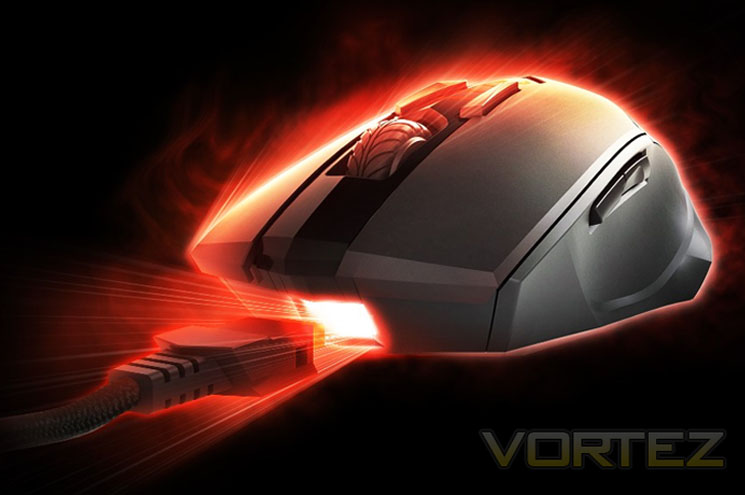
What makes the move even braver is the fact that this mouse is anything but a budget entry. Tipping the scales at a costly £80 it is right up there with some very stiff competition. Granted wireless gaming mice are never a cheap option and not normally as advanced as wired gaming mice so to price the AIVIA M8600 so high is begging the questions ‘What’s so special about it?’ ‘Can it compete with the best mice out there?’ ‘Is it worth it?’ – Questions I will seek to answer by the end of this review.
About GIGABYTE
Technology has moved beyond machines and circuitry. It is the foundation of modern life and has become an integral part of how we learn, share, and create with others in an interconnected world.
With over 20 years of manufacturing knowledge, GIGABYTE thrives on delivering the latest technology to users around the globe. We develop, test, and manufacture a wide range of products following strict quality and environmental control standards.
Our reputation as a pioneer in motherboard innovation has allowed us to diversify our product range to include graphics cards, notebooks, desktop PCs, PC components, cellular phones, server and datacenter solutions, and more.
Technology has moved beyond machines and circuitry. It is the foundation of modern life and has become an integral part of how we learn, share, and create with others in an interconnected world.
With over 20 years of manufacturing knowledge, GIGABYTE thrives on delivering the latest technology to users around the globe. We develop, test, and manufacture a wide range of products following strict quality and environmental control standards.
Our reputation as a pioneer in motherboard innovation has allowed us to diversify our product range to include graphics cards, notebooks, desktop PCs, PC components, cellular phones, server and datacenter solutions, and more.
Let’s take a look at the specification and features of today’s review sample…
Specification & Features
Features
GamePlay™ Wireless Technology
Full-speed 1000Hz polling rate / response time at 1ms
Smart wireless gaming mode and power saving mode
GHOST™ Engine with 32KB onboard memory
Advanced GHOST™ Macro Engine enables editing and storing up to 70 macros on the 32KB onboard memory.
Long-lasting Li-ion battery
Continuous battery life of over 50hrs for a single Li-ion battery. An extra battery ensures a 100-hour nonstop gaming experience.
QSBS™ (quick-swap battery changing system) technology
This patent pending technology allows for Instant battery changing under 2 seconds, as fast as reloading a gun!
Multi-functional Charging Dock
Charging dock for both mouse and Li-ion batteries also doubles as wireless receiver.
Twin-eye Gaming Laser Engine
Based on state of fthe art laser technology, the twin-eye gaming sensor features high precision, low power, and ultra-fast performance.
Dual Mode Functionality
Wireless mode gives freedom for gaming. Wired mode provides extra
fast charging capabilities as well as enabling editing the onboard macros.
Specification
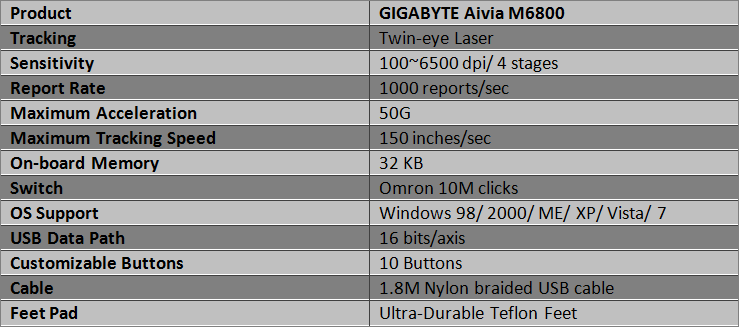
The first thing that jumped out at me from the specifications was the 10 buttons (custamisable). While there are not actually ten buttons (there are 9 including the mouse wheel), not all buttons are customisable. There are however ten customisable ways in which some of the buttons operate. The DPI is is enough for even the most sensitive needy of gamers (upto 6500) with a maximum acceleration of 50G and a tracking speed of 150″ per second it looks to have all the right specs in place. My one area of concern would be the Phillips twin-eye laser which has been a little hit and miss with some mice due to problems with lift-off tracking so it will be interesting to see if the problems have been rectified with this mouse.
Let’s take a look at the overall packaging and contents though before going into greater detail…
Packaging & First Look
Product Packaging
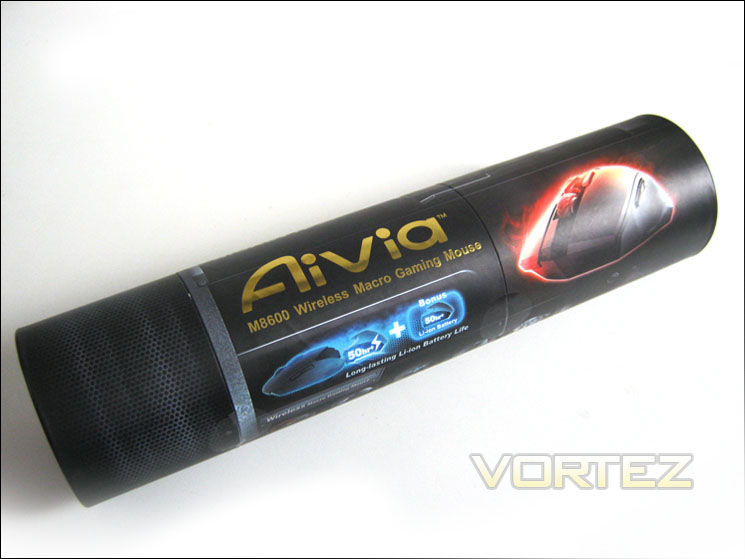
Unusually for a mouse, the product arrives in a cylinder rather than a box. The tube is however very sturdy and eye catching with a picture of both the mouse and product title in embossed gold. The main features of the mouse are also displayed on the matt black package design.
Package Contents
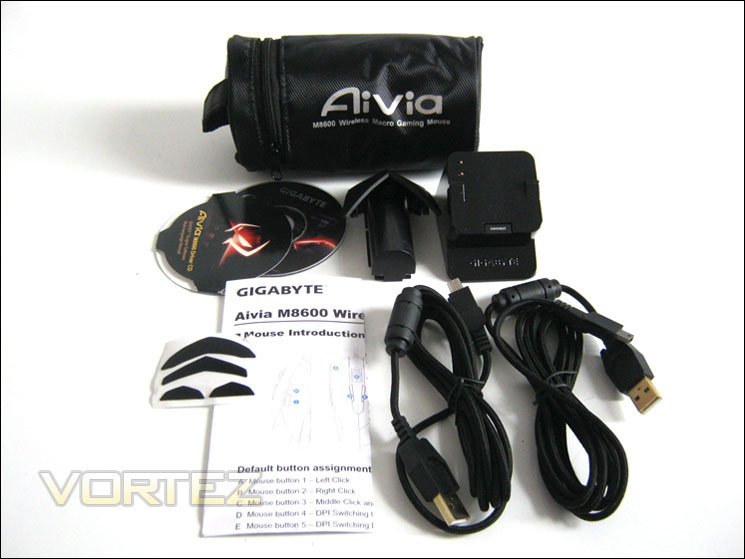
The cylinder is split into two separate compartments, the uppermost holding the mouse and the lower segment holding the charger, and spare battery. You will notice two gold plated and braided USB cables, one is for the charger and the other is to connect the mouse to the PC should you wish to use it as a wired mouse rather than wireless. A mini CD contains the driver/utility software which we will examine later and a spare set of Teflon feet along with the user manual round off a very complete accessory list. Note that there is also a padded pouch which can be used to transport your rodent and accessories to a LAN party which was a thoughtful inclusion.
Aivia M8600 First Look
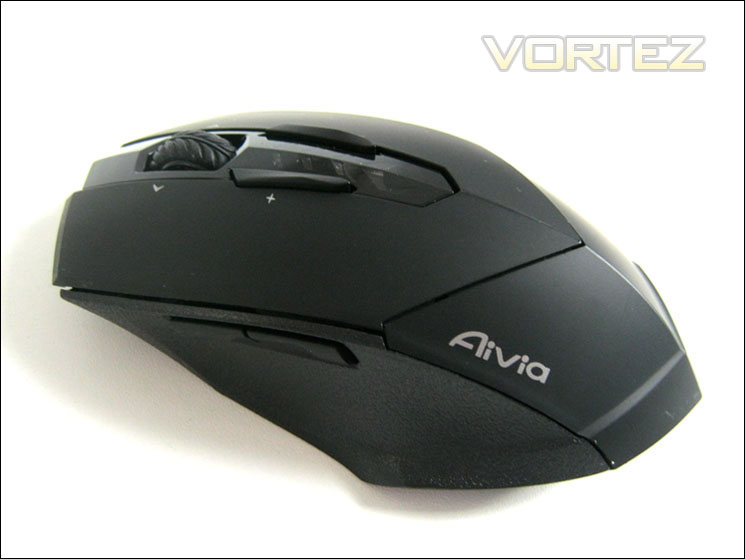
Here we get to see the Aivia M8600 mouse for the first time. First impressions are good with the aggressive styling carried over from the Aivia K8100 keyboard. How this translates ergonomically remains to be seen but there is no doubting that GIGABYTE has granted their designers the freedom to express themselves.
Top Down View
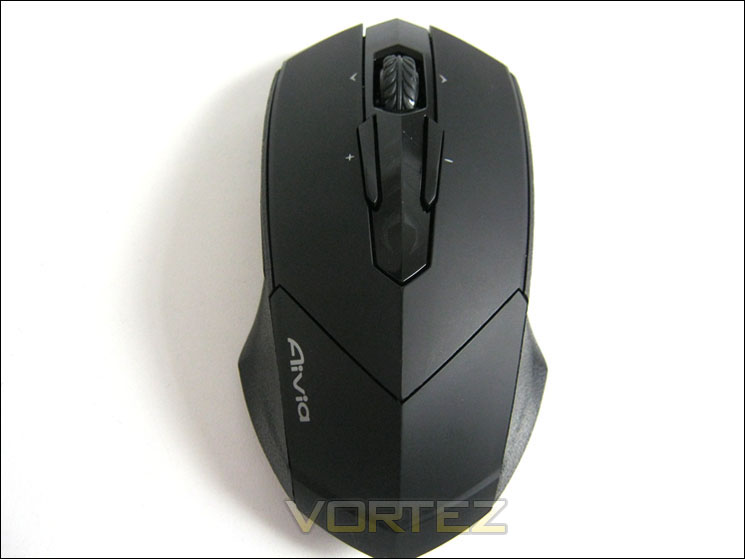
From a top down view, we can see that this mouse is not the widest of mice out on the market, indeed it could be described as being quite slim. While the mouse does get a little more girth towards the wheel area, the rear of the mouse is much slimmer than most mice if you exclude the base. Interestingly, GIGABYTE has opted not to smooth off the palm area of the mouse instead leaving a very pronounced ridge along the spine.
Left Profile
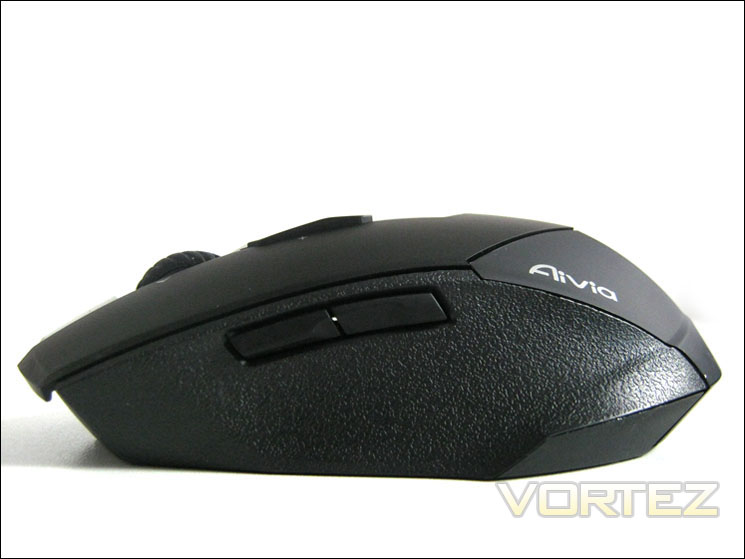
From this angle the mouse actually looks quite streamlined save for the overhanging mouse 1 and 2 buttons. Only the bulky wheel and the DPI buttons to the rear spoil the aerodynamic profile. The Aivia M8600 features a total of 9 buttons, most of which are configurable via software which we will cover later in the review. In brief, there are the main mouse 1 and 2 buttons, two further buttons to both the right and left sides of the mouse and the two CPI +/- buttons. The mouse wheel is also clickable along with left and right tilt detection.
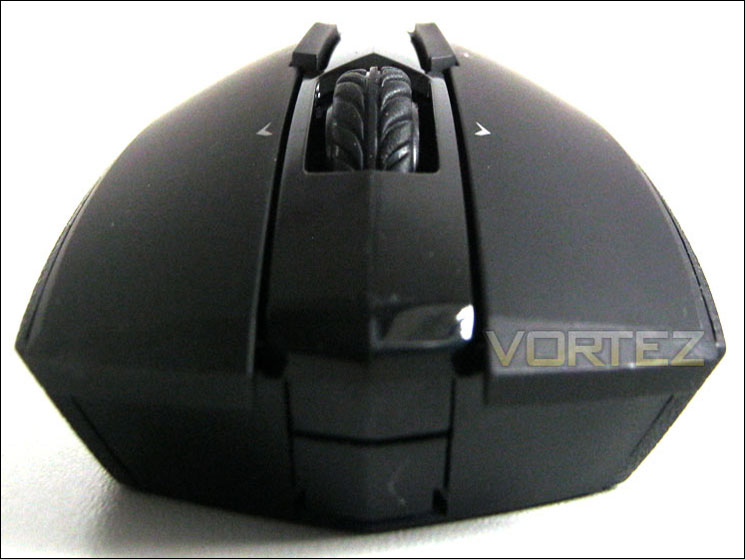
Mouse Front
The mouse wheel resembles a, er, wheel! Well a tyre to be more precise which is much wider than most mice we have tested yet as you would expect slip free. The two DPI adjustment buttons are a little too pronounced for my tastes which may be an issue for those who favour the palm grip. Those who rest the full length of their fingers across the mouse will certainly catch the buttons during gameplay as the second knuckle has a nasty habit of knocking one of the buttons which is less than ideal. For most though the quick and easy access to DPI adjustment will be a God send in the heat of battle. You will either love this feature or hate it.
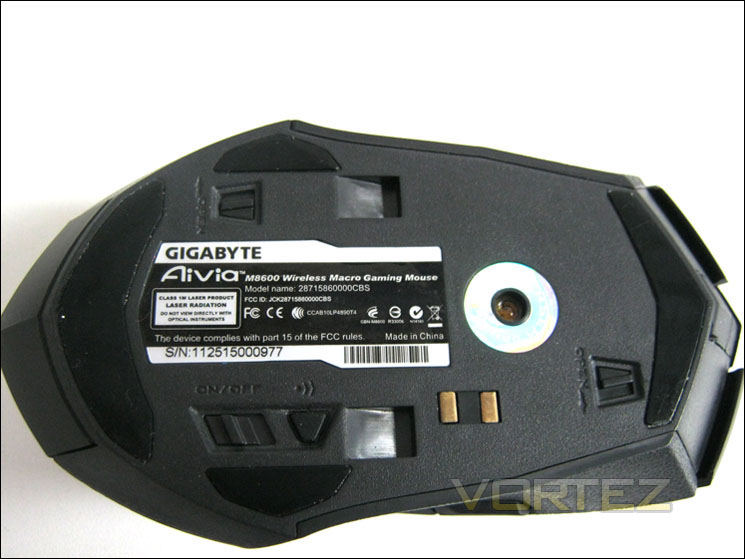
Mouse Base
Flipping the mouse over, we can see that its belly is awash with switches. In the picture above the top most switch is for the battery release. Right-most is the cable lock/release switch and towards the bottom of the mouse are the on/off switch and wireless connect button. The mouse is pre-fitted with four glide pads but should these wear out GIGABYTE have thoughtfully included a spare set.
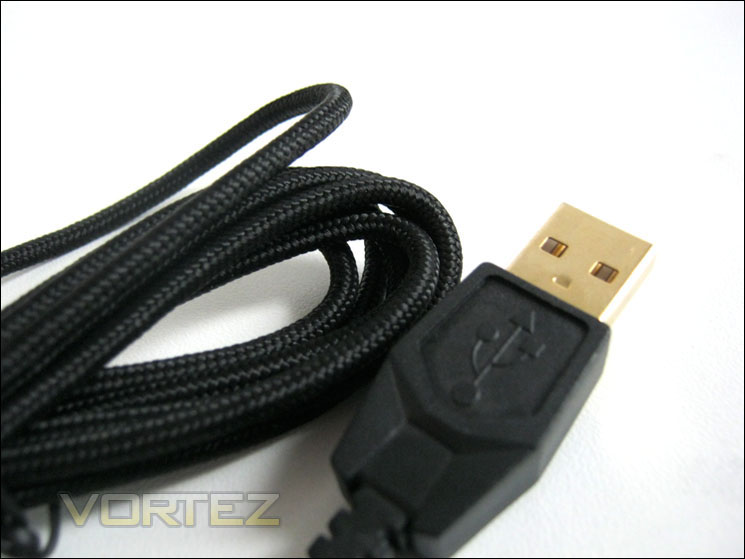
USB Connector
As with most high-end peripherals, the USB connector is gold plated which supposedly enhances the connection and durability but in all honesty I have yet to have a standard steel USB plug fail me. I can see the point of high end analogue audio having this feature but other than keeping up appearances I don’t believe having the USB gold plated has any tangible benefit other than for aesthetics. I’m a big fan of braided cables and thus I am happy to report the GIGABYTE Aivia M8600 does not disappoint with both USB cables being fully braided.
Let’s examine this rodent in closer detail…
Closer Look
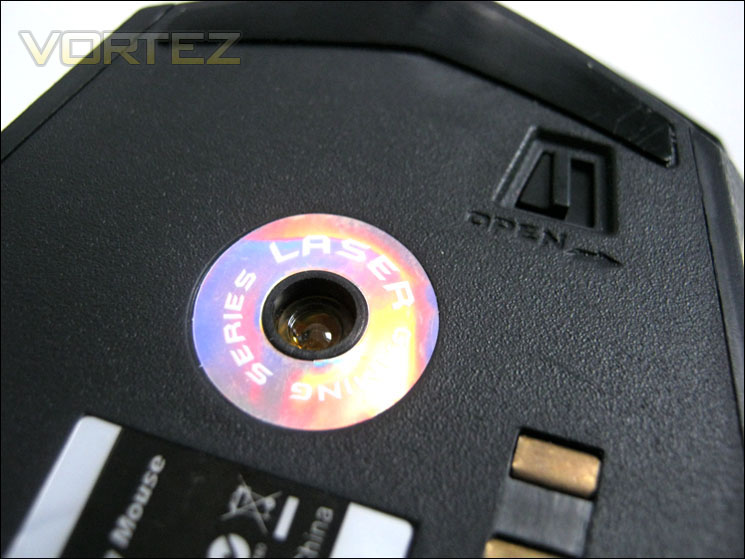
Phillips Twin-Eye Laser
The Aivia M8600 uses the popular Phillips Twin-Eye laser sensor with a maximum CPI of 6400. There are reportedly problems with this sensor regarding lift off on the Z-axis which can cause the cursor to jump approximately 150 pixels which would obviously become problematic during a game if you are the type to lift the mouse up slightly. However, during my time testing this mouse I found no such issues.
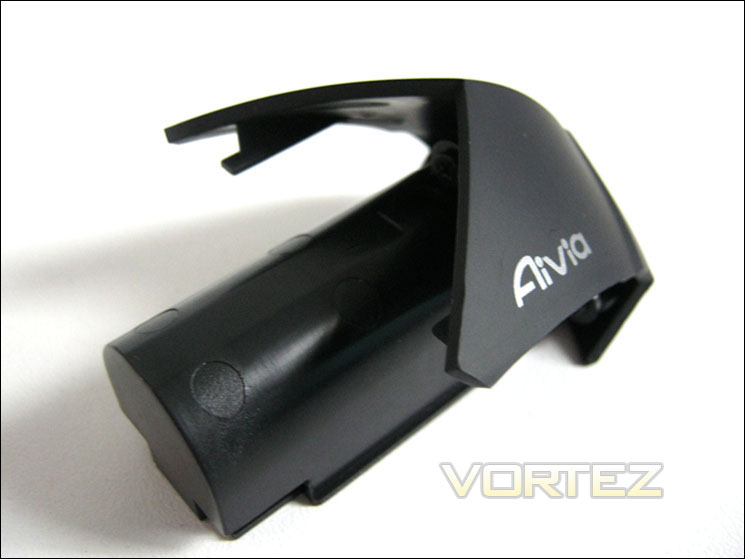
Back-up Battery
The battery itself becomes part of the mouse once clicked into place and adds a fair amount of bulk to the overall weight of the product. What was pleasing to see was that GIGABYTE had included a second spare back-up battery. The battery is a neat design and loads into the mouse like the magazine of a gun with a safety catch releasing the battery which GIGABYTE optimistically claim can be done in 2 seconds. It’s a quick method for sure but in my old age with deteriorating dexterity, I managed a personal best of just over 6 seconds.
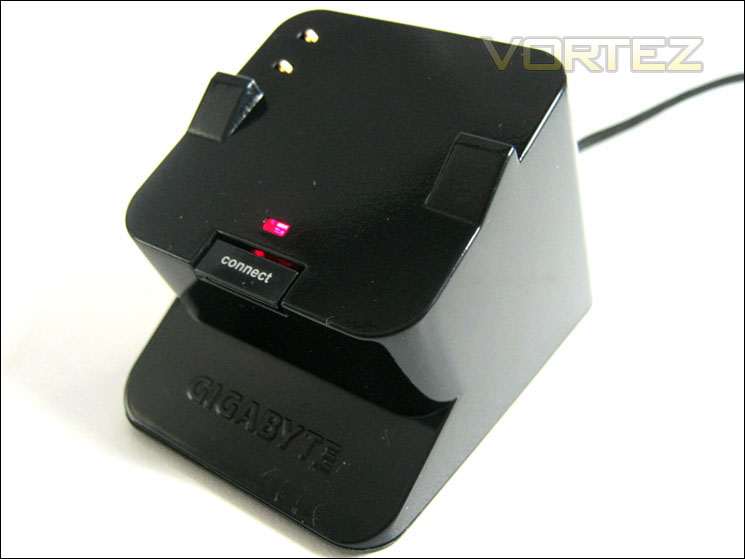
Docking Station
The docking station is relatively small in comparison to the mouse and also discreet enough to hide on your desktop. The dual function LED will signify whether it is charging (red) or charge complete (green). My one gripe is that it doesn’t really fall in line with the aesthetics of the mouse being a mirrored gloss finish as opposed to the matt black stealth look of the mouse.
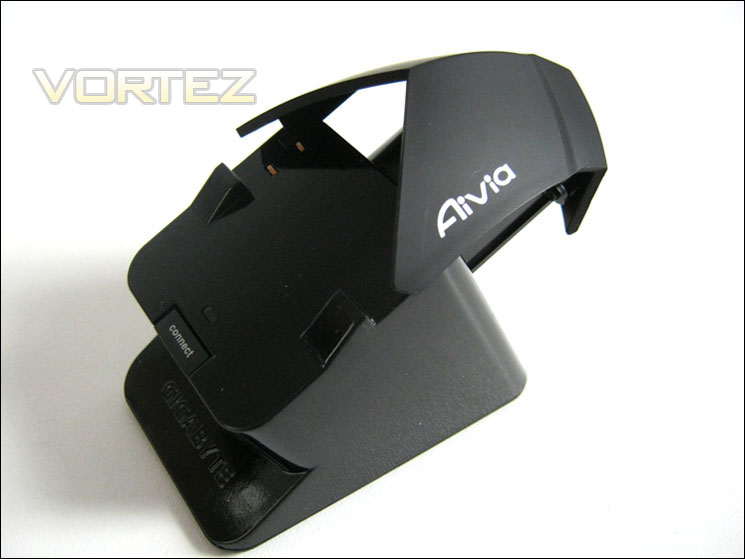
Alternative Battery Charging
There are three charging modes for the batteries. It will charge by placing the mouse on the docking station, by simply using the mouse in its wired state or as you can see above, slotting the battery into the rear of the docking station/charger. It is clear that GIGABYTE have placed a lot of effort into this design as it is both very flexible and user friendly. Unfortunately though, both batteries cannot be charged simultaneously on the docking station as with the mouse docked, you cannot insert the second battery into the rear of the docking station.
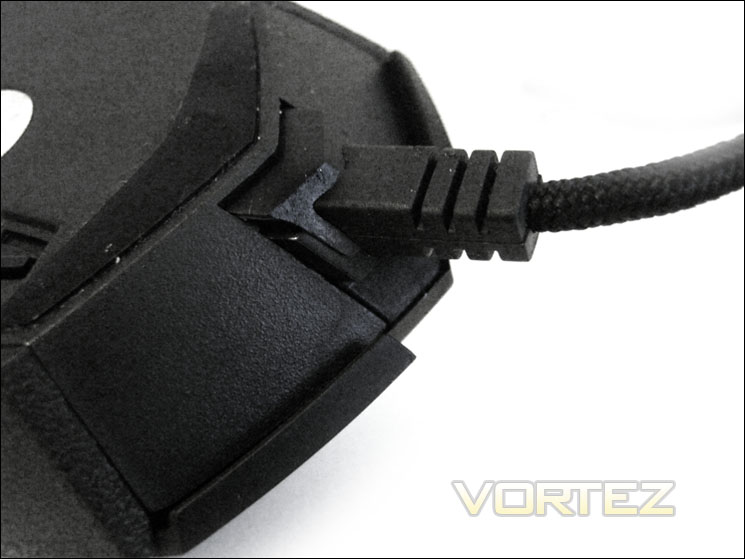
Wired Capability
As mentioned above, one of the unique features of the M8600 is the ability to use it as a normal ‘wired’ mouse. This is done by using the stealth slot at the front of the mouse. Using this feature allows you to charge both the battery that is in-situ as well as the spare which can be left to charge in the docking station. This situation is ideal for those long gaming sessions meaning there is no interruption to your gaming, waiting for your mouse to charge back up.
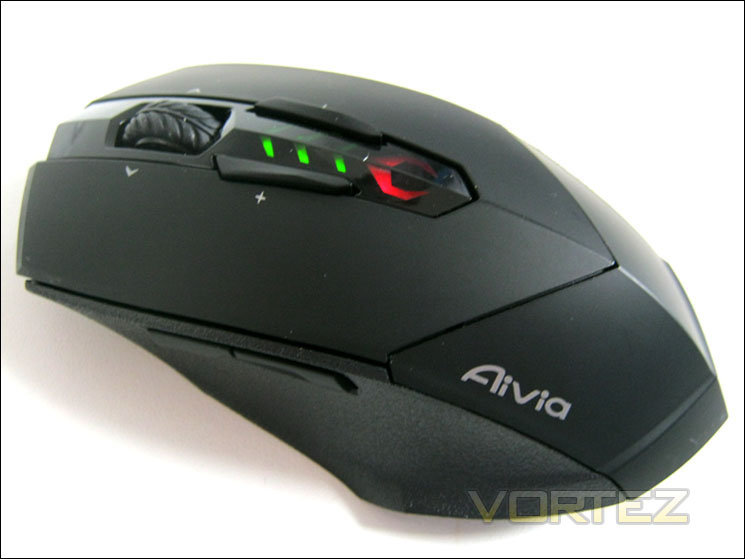
Like the vast majority of peripherals that hold aloft the ‘gaming’ tag herald, the GIGABYTE Aivia M8600 has a set of lights. There are three chevrons which illuminate red (CPI setting) or green (battery charge remaining). The large emblem below the chevrons indicates which profile is currently loaded and the colour of this can be modified using the software based utility included with the package which we will investigate next…
Ghost Engine (Software)
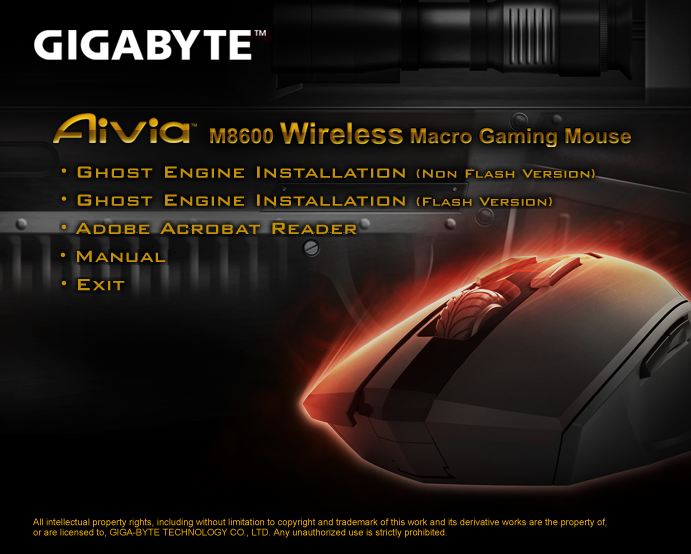
Hailing from the ‘GHOST’ series of mice, the GIGABYTE Aivia M8600 is treated to a similar software front end whereby you are given the option of either a Flash or non-Flash installation. Once the software is installed a quick reboot is called for to enable the driver level software of the program to operate correctly. The mouse does however work perfectly fine in both wired and wireless scenarios without any software installation but you will need the software utility to take advantage of the many features the mouse has to offer.
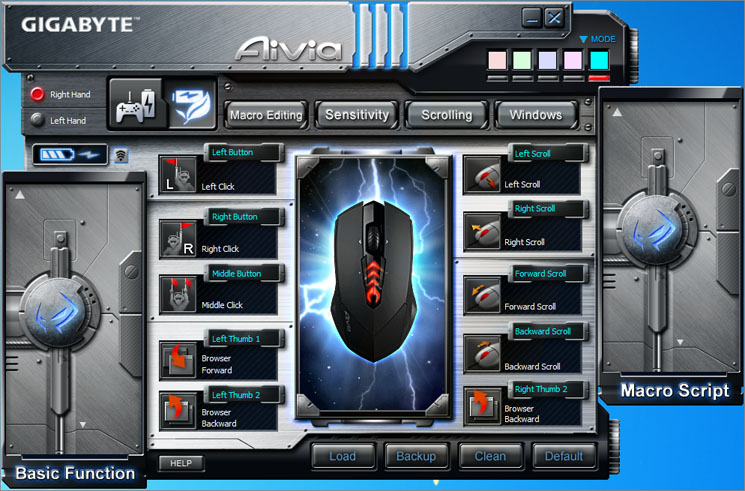
The front-end of the utility looks to be very intimidating with lots of buttons to configure, even in wireless mode (above) there are many options available. As you can identify by the leaf and battery icons towards the top left of the menu, the mouse is currently in wireless and power saving mode. This will certainly help to optimise battery life as the mouse will be placed into standby after a short period of time. If however you want to use the mouse in game then switching to Gaming Mode will extend the amount of time the mouse will be powered up without any activity before going to sleep. Obviously, if the mouse is plugged in, it will not go into sleep mode at all.
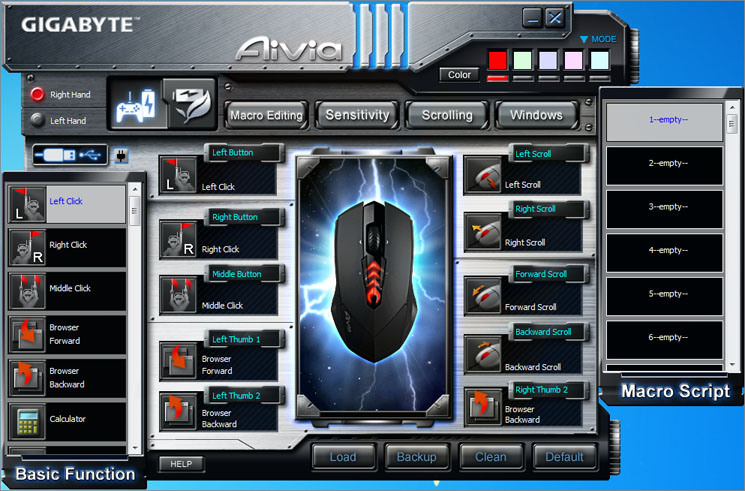
It is worth pointing out that should you wish to have a play around with the full feature set of the GHOST software, you will need to use the mouse in the wired state. Note the differences between the two screenshots above.
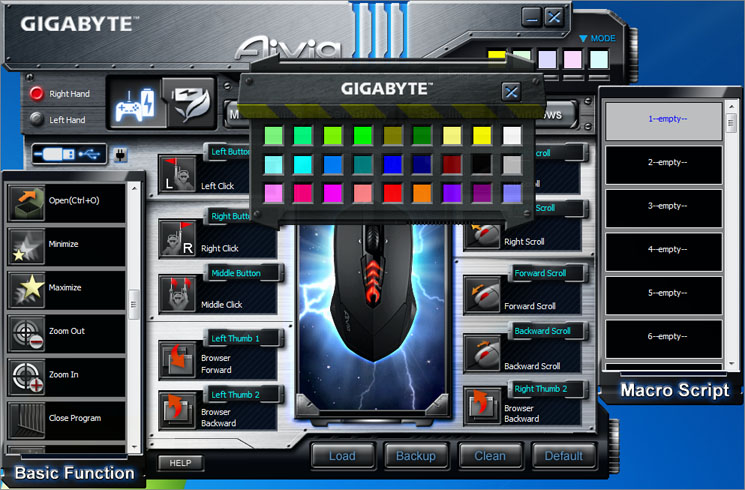
Being symmetrical, the Aivia M8600 can be used by both left and right handed people and GIGABYTE have allowed for this by adding a button in the GHOST software which will quickly alternate between left and right hand mode. Perhaps less useful but nonetheless welcome is the ability to change the GHOST icon on the mouse to one of 27 predetermined colours (black being off). Unfortunately, the chevron colours cannot be changed.
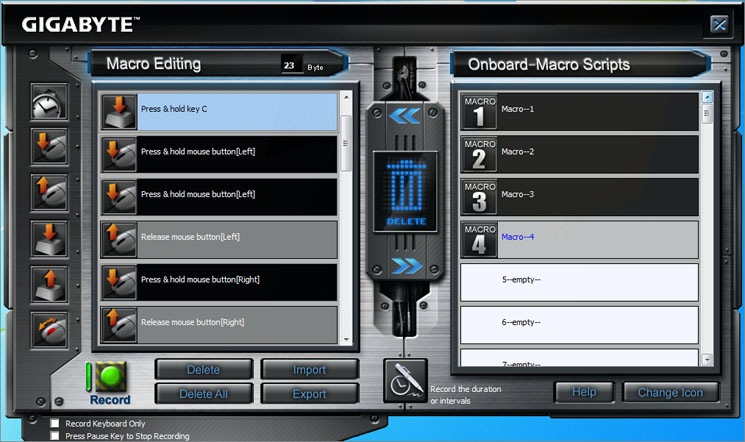
One of the best features of the GHOST software though is to programme the mouse with an array of macro settings. You can either chose one of the many predefined macro scripts such as cut and paste which will ease the burden of windows short-cuts or you can write your own using a very intuitive drag and drop system. You just drag the icon you want to into the macro editing window, set the execute function then drag that newly created macro onto which ever button you would like to use to initiate that macro. You can even set the amount of delay between each key/mouse press or conversely ignore mouse presses and just have keyboard macro scripts. Once you have all of your scripts setup the way you prefer you can back them up for retrieval later or share them with a friend/forum.
Writing macro scripts can however be confusing at the best of times and while the GHOST software is relatively easy to use, it does take a little getting used to but perseverance will prove fruitful if you are a fan of macro scripts.
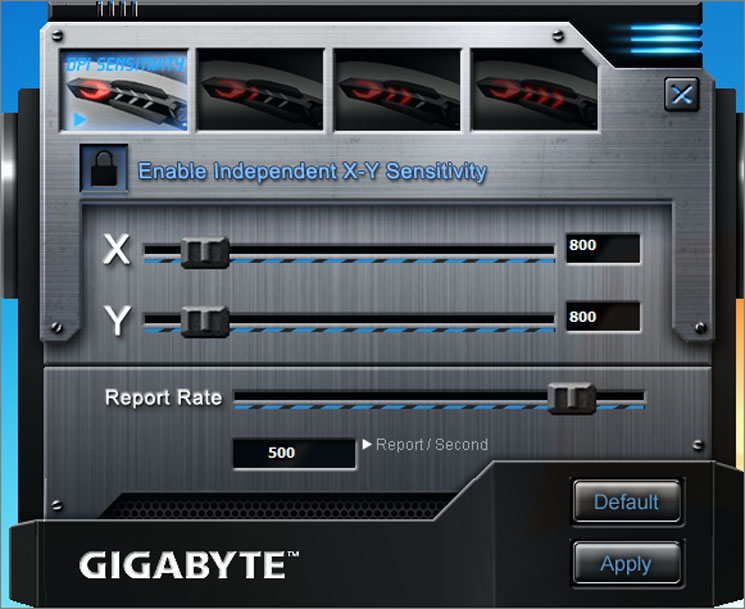
The next tab along from Macro Editing is the Sensitivity tab. As the name suggests this is where you can alter the sensitivity of both the X and Y axis from 100-6600 DPI. The polling rate can also be adjusted here from 125-1000 but I do not see why anyone would purposely want a mouse to lag so setting this to anything less than the maximum would be counter productive in my view. Each setup can also be linked to one of four profiles signified by the chevron pictures above the 3 main sliders.
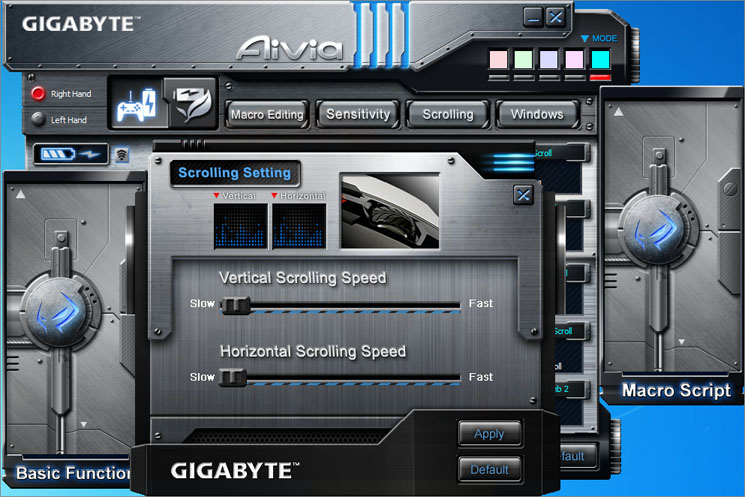
The third tab is for setting the aptly named Scrolling Speed. Sadly, there was no indication of how slow of fast each setting was so this would need to be used on a trial and error basis. A little indication of 3, 6 or 10 lines would have been infinitely more useful instead of the pretty (but useless) coloured vertical and horizontal charts.
The final tab is simply a link to the mouse properties within the Windows operating system.
Conclusion
When the GIGABYTE Aivia M8600 Macro Gaming mouse landed on the office desk, I was impressed by the packaging which left no stone unturned. Spare battery – check, Spare feet – check, robust box – check, in fact this is the one area where I have absolutely no complaints. Unfortunately for the Aivia M8600, it is the only area.
Aesthetically, the mouse is very good looking. Its aggressive styling is matched by the stealth like black angular features of the mouse. All was going so well until I powered it on. Sadly, the LEDs are of a very poor design and despite my best efforts in the excellent GHOST software, I could not find any colour that looked right unless it was either red or green due to the inability to match the colour of the sensitivity/charge chevrons. Worse still was that some of the colours were simply two LEDs together to try and emulate that colour such as magenta (red/blue) which looked like both a red and blue LED – not magenta!
I could forgive the poor aesthetics if the ergonomics worked. Sadly this is where things rapidly go downhill. When you first hold the mouse you will notice how heavy it is. Batteries are heavy so GIGABYTE cannot be solely to blame here, especially as they say the mouse is capable of over 100 hours use without a recharge which I was unable to refute. The weight would not be such a problem if the mouse could be comfortably manoeuvred for extended lengths of time though which sadly it cannot. What I find unacceptable is for a mouse to cost in excess of £80 that has not an ounce of rubber anywhere other than the scroll wheel. The plastic textured sides are nothing but a cheap imitation of what should have been there – rubber. I can appreciate GIGABYTE may have been wanting to keep the weight down by using lighter plastics but was there really any point if the mouse is impractical to use?
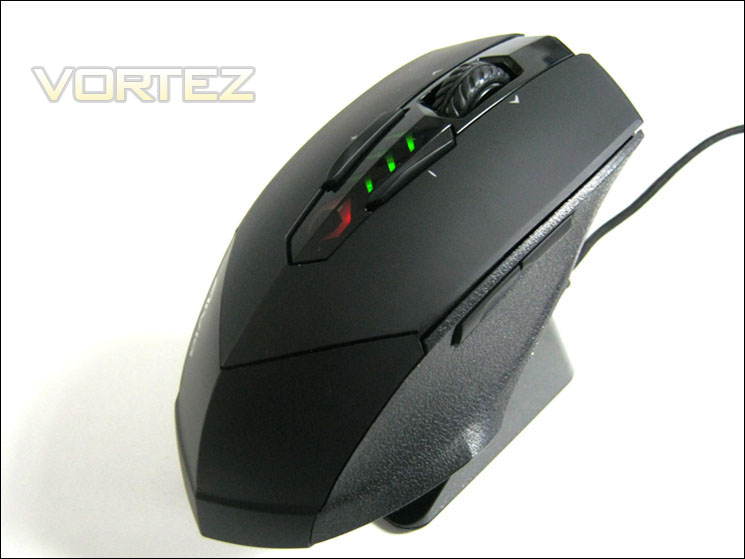
To make matters worse, after a few days use I noticed that the large gaps in the mouse’s frame starting to show signs of being filled up with dead skin, such was the poor ergonomics and overall design quality of the mouse. The M8600’s one saving grace is the fantastic GHOST software. While it too has its faults, it is easy to use and makes the mouse very customisable by setting up macro scripts and altering scroll speed along with the (poor) LED lighting. Sadly, this is not enough to bring the GIGABYTE Aivia M8600 back from the brink as a mouse that is customisable but inherently uncomfortable is no use to man or beast. All this is before I even begin to talk about the £80 it will cost you to bag one of these mice! I would find it very hard to justify that price or recommend this mouse as even though it has the feature set, there are better wireless and wired choices around for a almost half that price.
To summarise; GIGABYTE have set out to create a mouse in the guise of ‘one size fits all’ a jack of all trades if you like but have ultimately failed as rather than suiting everyone, it doesn’t really suit anyone and especially in my case, was quite uncomfortable to use for any lengthy period which is a shame as I had high hopes for this mouse and hailing from GIGABYTE, I expected much better both in terms of quality and usability. So, with this in mind I am reluctant to give out any award on this occasion and thus its back to the drawing board with this one I’m afraid GIGABYTE.
Pros:
+Class leading packaging
+Good Looking (unpowered)
+4 Profiles
+Spare Battery
+Long Life Battery
+Alternative Charging Methods
+User friendly GHOST software
Cons
-Uncomfortable for both right or left handers
-Uncomfortable for ‘claw’ and ‘palm’ grips
-Cheap Looking (powered)
-Poor ergonomics
-Very Heavy
-Poor LED quality
-Stiff Mouse Wheel
+Class leading packaging
+Good Looking (unpowered)
+4 Profiles
+Spare Battery
+Long Life Battery
+Alternative Charging Methods
+User friendly GHOST software
Cons
-Uncomfortable for both right or left handers
-Uncomfortable for ‘claw’ and ‘palm’ grips
-Cheap Looking (powered)
-Poor ergonomics
-Very Heavy
-Poor LED quality
-Stiff Mouse Wheel

Click here for an explanation of our awards at Vortez.net. Thanks to GIGABYTE for providing todays review sample.