Gigabyte have revised their popular X58-UD3R motherboard so let’s see how it stacks up against the competition.
Product on Review: Gigabyte GA-X58A-UD3R (Rev 2.0)
Manufacturer and Sponsor: Gigabyte
MSRP: Not listed
Street Price: £143.55
Gigabyte have always been a prominent player in the motherboard segment along with ASUS and MSI as tier one manufacturers. Their popularity soared back in the socket LGA775 days when Intel released their P35/X38 chipsets. Their vast range of high performance and highly overclockable boards grounded them as a firm solution for enthusiasts round the world. Two generations of chipsets later on and Gigabyte have still retained this competitive attitude to deliver an array of mouth watering feature-packed motherboards. One of the philosophies they seem to champion themselves on is their ability to target a range of audiences with their sheer selection of boards to choose from, from budget entry level products to the ultra high end solutions across all the chipsets. Today, we have their newly revised GA-X58-UD3R motherboard which is aimed at the budget conscious enthusiast at a cost of under £150.
Many of Gigabyte’s initially released X58 motherboards have gone through several transitions over the last two years to accommodate new features and to provide better performance. The most notable change came in the form of USB3.0 and SATA 6.0Gbps support. When first released, the UD3R moniker represented the company’s budget alternative to those wanting to jump onto the X58 bandwagon. The problem was the 4 memory slot design often discouraged people from buying it for future expansion purposes. In response, Gigabyte have streamlined their budget segment and with the addition of the latest features, created the GA-X58A-UD3R where the second ‘A’ denotes USB3.0 and SATA 6.0Gbps compliance. On a similar note, the ‘UD’ abbreviation represents their Ultra Durable design throughout their product line up. Furthermore, they have revised the board with a much better VRM circuitry with 12 phase PWM design on the CPU for superior overclocking. Other than that, we can expect to see many of Gigabyte’s innovative features such as the 2 oz copper PCB, extra USB power, 3-way graphics card support and a rich application suite to manage the motherboard from a user friendly windows environment. In essence, it has the making of a high end motherboard with a few cost cutting compromises to appeal to a budget minded audience.
A bit about Gigabyte:
Technology has moved beyond machines and circuitry. It is the foundation of modern life and has become an integral part of how we learn, share, and create with others in an interconnected world.
With over 20 years of manufacturing knowledge, GIGABYTE thrives on delivering the latest technology to users around the globe. We develop, test, and manufacture a wide range of products following strict quality and environmental control standards.
Our reputation as a pioneer in motherboard innovation has allowed us to diversify our product range to include graphics cards, notebooks, desktop PCs, PC components, cellular phones, server and data centre solutions, and more.
Spirit of Innovation
GIGABYTE was founded in 1986 in a small lab by four young engineers passionate to make their mark on the industry. GIGABYTE remains dedicated to the core belief of improving the lives of our users by manufacturing products that are high-performing, reliable, and of excellent quality. Here are some of GIGABYTE’s innovation highlights:
-USB 3.0
-Ultra Durable Technology
-GPU Gauntlet sorting
-Docking Netbook
Technology has moved beyond machines and circuitry. It is the foundation of modern life and has become an integral part of how we learn, share, and create with others in an interconnected world.
With over 20 years of manufacturing knowledge, GIGABYTE thrives on delivering the latest technology to users around the globe. We develop, test, and manufacture a wide range of products following strict quality and environmental control standards.
Our reputation as a pioneer in motherboard innovation has allowed us to diversify our product range to include graphics cards, notebooks, desktop PCs, PC components, cellular phones, server and data centre solutions, and more.
Spirit of Innovation
GIGABYTE was founded in 1986 in a small lab by four young engineers passionate to make their mark on the industry. GIGABYTE remains dedicated to the core belief of improving the lives of our users by manufacturing products that are high-performing, reliable, and of excellent quality. Here are some of GIGABYTE’s innovation highlights:
-USB 3.0
-Ultra Durable Technology
-GPU Gauntlet sorting
-Docking Netbook
We have to mention that the market this board fall under has become very fierce over the past year and the recently reviewed and highly acclaimed ASUS P6X5
 -E will prove to be the Gigabyte’s toughest competition.
Specifications
| CPU -Support for an Intel® Core™ i7 series processor in the LGA1366 package -L3 cache varies with CPU Chipset -North Bridge: Intel® X58 Express Chipset -South Bridge: Intel® ICH10R QPI 4.8GT/s, 6.4GT/s Memory -6 x 1.5V DDR3 DIMM sockets supporting up to 24 GB of system memory(Note 1) -Dual/3 channel memory architecture -Support for DDR3 2200/1333/1066/800 MHz memory modules -Support for non-ECC memory modules -Support for Extreme Memory Profile (XMP) memory modules Expansion Slots -2 x PCI Express x16 slots, running at x16 (PCIEX16_1/PCIEX16_2) -2 x PCI Express x16 slot, running at x8 (PCIEX8_1/PCIEX8_2) (The PCIEX16_1, PCIEX16_2, -PCIEX8_1 and PCIEX8_2 slots conform to PCI Express 2.0 standard.) -2 x PCI Express x1 slots -1 x PCI slot Multi-GPU Support -Support for 2-Way/3-Way ATI CrossFireX™/NVIDIA SLI technology Storage Intel® ICH10R Southbridge -6 x SATA 3.0 Gb/s ports (SATA2_0, SATA2_1, SATA2_2, SATA2_3, SATA2_4, SATA2_5) supporting up to 6 SATA 3Gb/s devices -Support for SATA RAID 0, RAID 1, RAID 5, and RAID 10 Marvell® 9128 PCIe SATA 6Gb/s controller – 2 x SATA 6.0 Gb/s ports (GSATA3_6, GSATA3_7) supporting up to 2 SATA 6Gb/s devices – Support for SATA RAID 0, and RAID 1 Gigabyte SATA2 chip -1 x IDE connector supporting ATA-133/100/66/33 and up to 2 IDE devices -2 x SATA 3.0 Gb/s connectors (GSATA2_8, GSATA2_9) supporting up to 2 SATA 3Gb/s devices -Support for SATA RAID 0, RAID 1, and JBOD JMicron JMB362 chip -2 x eSATA 3.0 Gb/s connectors (eSATA/USB Combo) on the back panel supporting up to 2 SATA 3Gb/s devices -Support for SATA RAID 0, RAID 1, and JBOD iTE IT8720 chip -1 x floppy disk drive connector supporting up to 1 floppy disk drive LAN – 1 x Realtek RTL8111E chip (10/100/1000Mbit) Audio -Realtek ALC889 codec -High Definition Audio -2/4/5.1/7.1-channel -Support for Dolby® Home Theatre -Support for S/PDIF In/Out -Support for CD In IEEE 1394 -T.I. TSB43AB23 chip -Up to 3 IEEE 1394a ports (2 on the back panel, 1 via the IEEE 1394a bracket connected to the internal IEEE 1394a header) USB NEC® USB 3.0 controller – Up to 2 USB 3.0/2.0 ports on the back panel Intel® ICH10R Southbridge -Up to 10 USB 2.0/1.1 ports (6 on the back panel, including 2 eSATA/USB Combo, 4 via the USB brackets connected to the internal USB headers) Back Panel I/O Ports 1 x PS/2 keyboard port 1 x PS/2 mouse port 1 x coaxial S/PDIF Out connector 1 x optical S/PDIF Out connector 1 x clearing CMOS button 2 x IEEE 1394a ports 4 x USB 2.0/1.1 ports 2 x USB 3.0 ports 2 x eSATA/USB Combo connectors 1 x RJ-45 port 6 x audio jacks (Centre/Subwoofer Speaker Out/Rear Speaker Out/ Side Speaker Out/Line In/Line Out/Microphone) H/W Monitoring -System voltage detection -CPU/North Bridge temperature detection -CPU/System/Power fan speed detection -CPU overheating warning -CPU fan fail warning -CPU/System fan speed control Bundled Software Norton Internet Security (OEM version) Other Special Features Support for @BIOS Support for Q-Flash Support for Xpress BIOS Rescue Support for Download Centre Support for Xpress Install Support for Xpress Recovery2 Support for EasyTune (Note 5) Support for Dynamic Energy Saver™ 2 Support for Smart 6™ Support for Auto Green Support for eXtreme Hard Drive Support for ON/OFF Charge Support for Q-Share Form Factor ATX Form Factor: 12 inch x 10.6 inch ( 30.5 cm x 24.4 cm ) |
The motherboard boasts some impressive specifications and we can see that Gigabyte have added a lot of their own innovations to it, namely their additional SATA2 chip for extra SATA 3.0Gbps and IDE connectors. It’s surprising to see these legacy connectors when Intel have officially stopped supporting them but Gigabyte know that some people still rely on IDE hard drives and floppy drives, so having them onboard will no doubt attract customers.
The main question is how does this board differ to the previous revision or even the more costly UD5 variant? Apart from the superior VRM circuitry, there doesn’t seem to be any difference between the two revisions of the GA-X58A-UD3R. The 12 chokes surrounding the CPU instead of 8 is indicative of the upgraded motherboard. The layout of the board is also slightly different but no significant changes have been made to internal connectors or components. The heatsink design remains unchanged. Compared to the UD5, it becomes quite clear that the UD3R is a step behind, albeit not significantly. The UD5 sports a 2 heat pipe chipset cooling system and a bigger Southbridge heatsink. The layouts of both boards are very similar but the UD5’s has been altered slightly to accommodate an onboard Power and Reset button, and 16 phase PWM power (the 1st revision of the GA-X58A-UD5 had a 12 phase design). The other notable addition is an extra Ethernet port at the back panel. Nonetheless the revised UD3R is much cheaper and excellently positioned in Gigabyte’s line up.
Features
A few words from Gigabyte about their product:
| Based on the Intel® X58 chipset, the GIGABYTE GA-X58A-UD3R delivers all the killer next generation features that gaming enthusiasts and power users have been waiting for including GIGABYTE’s 333 Onboard Acceleration features with support for USB 3.0, Serial-ATA Revision 3.0 (6Gbps) and a 3x USB Power Boost, as well as multi-GPU support for NVIDIA 3-Way SLI™ and ATI CrossFireX™ and support for Intel’s high performance processors offering a high level of future CPU headroom for users wanting to maintain cutting-edge levels of performance. With the memory controller integrated directly into the processor die, the GIGABYTE GA-X58A-UD3R also supports triple channel DDR3 memory for blazing fast memory performance. |
Gigabyte GA-X58A-UD3R Obtains USB3.0 Motherboard Certification Officially The GIGABYTE motherboards support the latest generation SuperSpeed USB 3.0 technology made possible through an onboard NEC uPD720200 host controller. With superfast transfer rates of up to 5 Gbps, users are able to experience an almost a 10x improvement over USB 2.0. Additionally, backwards compatibility with USB 2.0 assures users of long term use of their legacy USB 2.0 devices. The onboard NEC SuperSpeed USB 3.0 technology also provides new power management features that include increased maximum bus power and device current draw to better accommodate power-hungry devices. SATA 6Gbps Support Yet another onboard feature of GIGABYTE X58A motherboards are Marvell’s new SE9128 chips for high-speed SATA Revision 3.0 compatibility, delivering superfast 6Gbps link speeds for twice the data transfer rates of SATA Revision 2.0 (3 Gbps). When used in RAID 0 (Stripe) mode, GIGABYTE X58A series motherboards offer even faster data transfer rates of up to 4x the speed of current SATA interfaces. 3x USB Power Boost GIGABYTE motherboards feature a 3x USB power boost, delivering greater compatibility and extra power for USB devices. GIGABYTE’s unique USB power design is also able to efficiently regulate output over the full voltage range, which greatly enhances USB device compatibility. In addition, dedicated lower resistance fuses ensure lower voltage drops, and provide more stable and plentiful power delivery. On/Off Charge Support GIGABYTE On/Off Charge technology that enables faster iPhone, iPad and iPod Touch charging. A derivative of GIGABYTE’s highly acclaimed 3x USB Power feature, On/Off Charge technology allows iPhone, iPad and iPod touch devices to draw more current from GIGABYTE motherboard USB ports than standard USB ports allow, with the added benefit that the PC can be on, in standby mode or even off. For more info, check Gigabyte’s dedicated micro-site. Dynamic Energy Saver 2 GIGABYTE Dynamic Energy Saver™ 2 incorporates a host of intelligent features that use a proprietary hardware and software design to considerably enhance PC system energy efficiency, Reduce power consumption and deliver optimized auto-phase-switching for the CPU, Memory, Chipset, VGA, HDD, and fans with a simple click of button. Cloud OC GIGABYTE Cloud OC is a free overclocking application that facilitates PC overclocking through any web browsing capable device such as a smart phone, iPad, iPhone, Netbooks or notebook PC. Being browser based it connects via wireless Internet, Bluetooth or through an Ethernet cable and its many functions are categorized into three tabs: Tuner, System Info and Control. For more info, check Gigabyte’s dedicated micro-site. Hotkey OC GIGABYTE Hotkey OC allows users to create and save various profiles that can be adopted for different benchmarks. Hotkey OC then allows users to jump between these profiles on the fly so that the best profile for each segment within the benchmark can be used to optimize scores and boost overall performance. So, for example, when running 3DMark 06 the 1st profile might be optimized for graphics and can be used for the first two graphics tests, then the next two tests can utilize the 2nd profile which might be optimized for CPU tests, and one could jump back to the 1st profile again for the final two graphics (shader) tests. For more info, check Gigabyte’s dedicated micro-site. Smart 6 – A Smarter way for PC system Management GIGABYTE Smart 6™ is designed with user-friendliness in mind, and offers a combination of 6 innovative software utilities that provide easier and smarter PC system management. Smart 6™ allows you to speed up system performance, reduce boot-up time, manage a secure platform and recover previous system settings easily with a click of the mouse button. AutoGreen – Greening your PC via Bluetooth cellphone AutoGreen technology can automatically save power for you simply by your Bluetooth cell phone when you are away from your computer. Note: GIGABYTE motherboards do not include a Bluetooth® receiver; the addition of a 3rd party Bluetooth receiver is required. XHD (eXtreme HardDrive)-Accelerating hard drive performance with ease Accelerating system performance is made easy with the user friendly GIGABYTE eXtreme Hard Drive (X.H.D). GIGABYTE eXtreme Hard Drive (X.H.D) provides a quick and easy way to boost your hard drive performance simply by adding another hard drive. Multi-display support with 3 way CrossFireX and 3 way SLI™ Flexible graphics capabilities – Up to 3 VGA cards are supported for either 3 way CrossFireX™ or 3 way SLI™ action, delivering the ultimate in graphics performance for gaming enthusiasts who demand the highest frame rates without compromising on resolution. Ultra Durable 3 GIGABYTE Ultra Durable 3 design, featuring 2 ounces of copper for both the Power and Ground layers which dramatically lowers system temperature by delivering a more efficient spreading of heat from critical areas of the motherboard such as the CPU power zone throughout the entire PCB. GIGABYTE’s Ultra Durable 3 also lowers the PCB impedance by 50%, which helps to reduce electrical waste and further lowers component temperatures. A 2oz Copper layer design also provides improved signal quality and lower EMI (Electromagnetic Interference), providing better system stability and allowing for greater margins for overclocking. For more info, check Gigabyte’s dedicated micro-site. Benefits of 2 oz Copper PCB • Cooler than traditional motherboards • Enhanced durability • Improved energy efficiency • Greater margins for overclocking Easytune6 DualBIOS – Patented Dual Hardware BIOS Protection Hardware OverVoltage Control IC – Enabling Extreme Overclocking OV-Alert LED Visible Overclocking & Temperature Reminder Onboard Quick Switches |
The list of features is nearly endless on the Gigabyte motherboard and this is the trend manufacturers have taken these days to differentiate their products from others. The most notable selling point are the 333 Onboard Acceleration for USB 3.0, SATA III and USB Power 3x, and Gigabyte’s much respected Ultra Durable 3 design that have formed the basis for their overclocking prowess.
Innovation can be said to be in Gigabyte’s blood and one of the most impressive feature I have found is the Cloud OC software that similarly to ASUS’s RC TweakIT, allows user to remotely overclock and monitor their motherboard. The advantage it has over the ASUS system is that Cloud OC isn’t restricted to just their high end boards and furthermore it can be used through web browsers on any other systems! More on that later…
Packaging and Content
Front of the box
One way to describe the box is busy. Gigabyte have boldly printed the motherboard’s model name on the front and the side in their customary blue and orange colour, the highlighted orange to display the Ultra Durable 3 innovation. The cardboard packaging is mostly white in colour with illustrations and small icons to depict many of the unique features that users can expect from the board. So on the corner we can see the 2 oz copper PCB peeling away and at the base, 3 way Crossfire and SLI support is listed. The fact that the board uses a 12 phase PWM power circuitry is also displayed. We already know that the UD3R packs a lot of features and Gigabyte are shying away at showcasing this on their packaging.
Power of 333
Three is a recurring theme on the motherboard and the front of the box clearly emphasises this. Thanks to the onboard NEC and Marvell controllers, the motherboard is USB 3.0 and SATA III compliant. A nifty feature is the 3x USB power and ON/OFF charge that caters for those with iPads (if you own one, go stand in a corner). The advantage of the ON/OFF charge over traditional USB ports is that they can be used to charge devices even with the system turned off (not at mains obviously).
Back of the box and features
The back of the box is crammed full of information yet again. The purpose here is to give a brief description of the features listed at the front. Again, Gigabyte uses illustrations and graphs to give a visually striking packaging. Potential buyers looking at the box in a shop will know exactly what to expect from the motherboard. We will cover the features in greater details throughout the review.
Opening the box
Lifting open the lid, we come to the inside. A cardboard cut out separates the bundle from the motherboard beneath. Everything is nicely laid out so users won’t miss any of the bundled extras.
The motherboard hidden away
And below the upper compartment, the motherboard is wrapped in an anti-static bag. The packaging is very secure overall and suffered no damage in transit.
The bundle
Included in the box are:
– 1 x GA-X58-UD3R motherboard
– 1 x IDE Cable
– 4 x Serial ATA 3Gb/s cables
– 1 x I/O Shield
– 1 x 2-Way SLI bridge connector
– 1 x 3-Way SLI bridge connector
– Stickers
All the components are packaged either in plastic wrappers or anti-static bags for extra security. My one complaint is that Gigabyte merely had a post it note to hide the LGA1366 socket pins rather than a dedicated cover but thankfully they arrived intact. They further continue advertising the USB3.0 support through the use of the sticker on the expansion slot and this is easily removable without leaving behind any residue (The same cannot be said for the Biostar T-Power X58). An ATI Crossfire bridge cable is omitted but generally this is bundled with the graphics card unlike the SLI ones. Of the 4 bundled SATA cables, 2 have a right angled end connector. The choice of blue matches the rest of the motherboard but I would have preferred to see more cables available. Two complimentary stickers are provided.
The documentations
In terms of documentations, there is the obligatory manual and driver disc, a quick start manual in French, a multilingual installation guidebook and the Smart6 user manual.
Closer Look: The Motherboard

The Gigabyte GA-X58A-UD3R
The GA-X58A-UD3R is dominated by the cool blue and white colour scheme that most would have grown accustomed to by now. The blue PCB may not be as menacing as the more popular black ones that are flooding the market but it distinguishes Gigabyte from the competition. It’s certainly good to see a company adhering to their own philosophy of innovation and uniqueness. As with most motherboards, the motherboard measures 12 inches x 9.6 inches ( 30.5 cm x 24.4 cm), complying to the standard ATX form factor. The key selling point of the Gigabyte motherboards, as the company constantly reminded us on the packaging, is its Ultra Durable 3 design. The board uses 2oz of copper in the power and ground layers of the PCB to dissipate heat more efficiently and reduce impedance by 50%. The 2oz of copper also promises to improve signal quality and lower electromagnetic interference. Those come together to create a more durable and efficient board that is bound to open the overclocking headroom.
The motherboard straight up
If the box wasn’t already a visual spectacle, then the board is certainly colourful factoring in the I/O plate, chrome finished heatsinks and the various onboard components. The board itself is very well laid out and all the components, DIMM slots, SATA ports and expansion slots are where we would expect them to be placed. Similarly to the ASUS P6X5
-E, the socket is centrally positioned relative to the DIMM slots to minimize the distance between the CPU and the RAM for lower latencies. Hopefully, the results later on will reflect this. The back of the motherboard
On the back of the motherboard, we can see the LGA1366 socket retention backplate. This has a reflective gun metal grey finish for further appeal. The X58 chipset heatsink is fairly large so requires a support bar for security and additional pressure. The other heatsinks use push pins instead. Whilst not ideal, it helps reduce costs. It’s also not dissimilar to ASUS’s implementation on their value motherboard.
The I/O panel
There is a wide range of connectors at the back. Going from left to right, there is the:
-PS/2 mouse port (green)
-PS/2 keyboard port (purple)
-Optical S/PDIF Out port
-Coaxial S/PDIF Out port
-Clear CMOS switch
-IEEE 1394a port (yellow)
-USB 2.0/1.1 ports (yellow)
-eSATA/USB Combo connector (yellow)
-Mini IEEE 1394a port (yellow)
-USB 2.0/1.1 ports (yellow)
-eSATA/USB Combo connector (yellow)
-2 x USB 2.0 ports
-RJ-45 LAN port
-2 x USB 3.0/2.0 ports (blue)
-8 Channel Audio I/O ports
With a total of 8 USB ports on the back panel alone, users can plug in all the devices or peripherals they need. The main innovation here is the eSATA/USB combo ports, allowing for both types of interface to be used from the same port. The USB3.0 ports provide up to 10x more bandwidth than USB2.0 for a total of 5Gbps instead on 480Mbps. Another unique feature that Gigabyte are claiming is that their ports can deliver up to 3x more power for increased compatibility and stability with USB devices. The advantage is that external storage devices will not require an additional connection or power adapter to work. This is achieved through the onboard JMicron JMB362 chip. The audio comes from the Realtek onboard ALC889 8 channel high definition audio CODEC.
The NEC D720200F1 chip
Tucked away behind the I/O ports is the NEC D720200F1 chip that delivers USB 3.0 support to the board.
The 9 pin ATX CPU 12V power connector
The motherboard makes use of a single 8 pin ATX 12V power connector, which should provide adequate power for overclocking purposes. We can also take a closer look at the push pins used on the chipset cooler as mentioned before.
The motherboard chipset cooling
The chipset cooling is fairly impressive on initial looks. The heatsinks use a fin shaped aluminium design to dissipate heat from key components including the ICH10R chip, X58 chipset and the MOSFETs. To increase surface area, the fins branch out in different directions, adding to the visual appeal at the same time. All the heatsinks have the same gun metal grey finish, a true mark of quality over standard boards. A single heat pipe connects the X58 chipset heatsink to the leftmost MOSFET heatsink, both of which are covered by a blue metallic finished plate with the Gigabyte and Ultra Durable names. The Southbridge heatsink is a standalone low profile cooler that tries to maximise surface area using a similar fin design to the other heatsinks. One thing to note is that the heatsinks are low profile to ensure compatibility with the majority of CPU coolers including the Noctua NH-D14.
Closer Look: The Motherboard (Continued)
The CPU and RAM area
The CPU and RAM upper section of the motherboard is typical of most X58 motherboard. The standard 6 DIMM slots are present, supporting triple channel memory. It’s good to see that Gigabyte haven’t compromised on the number of slots like they did on the original X58-UD3R. The LGA1366 socket is positioned centrally so lower latencies can be expected. The Loates socket also has the gun metal finish.
The VRM & power circuitry
The UD3R uses a 12 power phase VRM circuitry and the 12 chokes surrounding the CPU area is representative of that. There are 2 more for the Northbridge and Southbridge while the memory has a dedicated 3 phase VRM. Surprisingly for a budget board, the power design is akin to the GA-X58-Extreme in Gigabyte’s original line up of motherboards and the more recent GA-X58A-UD5 (Rev 1.0) so excellent overclocking headroom can be expected. The power circuitry also forms part of the Ultra Durable 3 marketing. The motherboard uses Japanese Solid Capacitors boasting 50,000 hours of operation and the Ferrite core chokes ensure greater efficiency over iron core based chokes. Another feature are the Lower RDS MOSFETs for lower resistance, reduced power consumption and heat generation.
The onboard LEDs
On the edge of the motherboard, Gigabyte have implemented various LED indicators. On the right are the blue OC-Alert LEDs that indicate the level of CPU overclock from low to high. Next to it are the phase LEDs, indicating the number of power phases being used. Behind the 24pin motherboard ATX power connector are another set of LEDs for the NB and DDR phase levels, and the DDR voltage. On the other side of the DIMM slots are two more sets of LEDs for the CPU temperature (two levels) and CPU voltage (three levels). There is a last set of LEDs for the Northbridge temperatures but these are located next to the X58 chipset heatsink.
The SATA ports
The Gigabyte motherboard boasts an impressive 10 SATA ports, six of which are derived from the Intel ICH10R controller. These are easily recognisable by the blue colour and the SATA2_1-6 labels. The white ones immediately adjacent are labelled GSATA3_6/7, and operate at 6Gbps thanks to the Marvell 9128 controller. Although the controller supports RAID 0 and RAID 1, Gigabyte advise against using the former on SATA III SSDs. The last two white ones are standard SATA II ports that run from the Gigabyte SATA 2 controller. The latter is also responsible for legacy IDE support. The ports are all mounted horizontally for much better cable management and access.
The front panel headers
The usual array of front panel connectors can be found at the base of the motherboard. Starting from the bottom left, there is the front panel chassis headers. Rather than using the “Q-Connector” method ASUS have adopted, Gigabyte simply colour code and label their pins. The enclosed connector ensures that the cables don’t come loose or bent. Above that is an IDE connector supporting up to two IDE devices such as hard drives and optical drives. To the left of the front panel headers are three USB headers conforming to USB 2.0/1.1 standards. Each support 2 USB ports but an additional USB bracket may be required. The one in white has the ON/OFF charge feature which not only enables faster recharging of devises through the 3x USB Power feature, but also allows devices to be charged when the PC hibernates or shuts down. Next to those is a sole 4 pin fan header. One other 4 pin fan header is located at the top of the motherboard and two 3 pin headers on the right hand side. Lastly to the left is a legacy floppy disk drive connector for those who still have a use for one.
Dual BIOS system
In the corner, the UD3R has a dual BIOS system for protection. Their patented idea works by having one BIOS automatically recover data from the other should the latter crash or fail. This is a definitely an innovative idea that is normally reserved on higher end motherboards with competing manufacturers, so I’m glad Gigabyte have this on their lower end solutions. The BIOS chips are soldered to the PCB and thus cannot be removed unlike on ASUS motherboards.
The expansion slots
Finally we come to the expansion slots and Gigabyte have somehow made space for 7 slots. The top two are the PCIe x1 slots. It’s strange that Gigabyte even opted for the top one as devices would end up coinciding with the large Northbridge heatsink. Further down are 4 PCIe 2.0 x16 slots and a white PCI slot. The first and third PCIe 2.0 x16 slots operate at the full x16 link width while the second and fourth slots are limited to x8. However, in the situation that either of the last two are populated, the first and third slot will reduce to x8 link width respectively. Up to three cards are supported for SLI and CrossFireX, and for dual card configurations, the first and third PCIe x16 slots are recommended. Users have to be aware that installing a dual slot card in the bottom slot will potentially coincide with cables and that a case with 8 PCI brackets is required.
Test Setup
Graphics card – XFX HD5870 1024MBPower Supply – Enermax Revolution 85+ 850W
Hard Drive – Samsung F1 320GB
Western Digital Caviar WD3200AAKS 320GB
Drivers – ATI Catalyst 10.5
Cooler – Noctua NH-D14
CPU/Motherboard/RAM
CPU – Intel Core i7 920
RAM – 6GB (3x2GB) OCZ platinum DDR3 1333mhz
Motherboard – Biostar T-Power x58
CPU – Intel Core i7 920
RAM – 6GB (3x2GB) OCZ platinum DDR3 1333mhz
Motherboard – ASUS P6X58D-E
CPU – Intel Core i7 920
RAM – 6GB (3x2GB) OCZ platinum DDR3 1333mhz
Motherboard – Rampage III Gene
CPU – Intel Core i7 920
RAM – 6GB (3x2GB) OCZ platinum DDR3 1333mhz
Motherboard – Rampage III Formula
CPU – Intel Core i7 920
RAM – 6GB (3x2GB) OCZ platinum DDR3 1333mhz
Motherboard – Gigabyte GA-X58-UD3R (Rev. 2.0)
Benchmark Suite
Core Temp 0.99.5
LinX stress Test
PC Wizard
3DMark Vantage
3DMark 06
Cinebench 11.5
x264 HD Benchmark
SiSoftware Sandra
Everest 5.01.1700
Far Cry 2
Street Fighter IV
Batman: Arkham Asylum
BIOS
The Gigabyte motherboard uses an AWARD BIOS. Having only previously used AMI BIOS, this was a change but everything is neatly laid out. The main setup options are on the left hand side column under six different sub menus. Being an enthusiast grade motherboard, the first sub menu is one dedicated to overclocking, which Gigabyte have dubbed MB Intelligent Tweaker (M.I.T for short).
Going into the M.I.T menu, a number of sub menus are listed to tweak different components and aspects of the motherboard. This is an excellent way of categorizing the vast range of options that often plague overclocking oriented motherboards, especially for new users. At the bottom are listed some of the settings and key information such as CPU and DRAM voltage, and CPU temperature. The first option on the page leads to the status screen which displays all the system settings in greater depths. No further settings can be configured there. One complaint I have is that navigating the page is sluggish at times.
The second page leads to the Advanced Frequency screen where users can alter a range of options dedicated to the CPU such as the multiplier, BCLK, QPI and uncore clocks. On the right hand side, the screen displays the number of sub menus the user has currently entered thanks to the arrow indicators. Settings can be changed simply by using the +/- keys or by manually typing the desired number.
From the frequency screen, users can go deeper into the Advanced CPU Core Features menu where Intel power and thermal saving features can be enabled or disabled. I personally leave everything enabled to save power apart from Turbo mode which often renders my system unstable.
Going back to the M.I.T page, we can select the Advanced Memory Settings page where users can set the RAM speed and timings. To be able to change the timings, the appropriate DRAM Timing option has to be set to Expert and consequently each module can be independently tweaked.
Below the memory settings page, there is one reserved for the voltages and it’s immediately clear that there is a plethora of options here. Most people should only be concerned with the CPU Vcore, QPI/VTT voltage and the DRAM voltage to achieve a successful overclock. Load-line calibration takes into account VDroop and tries to minimise voltage fluctuations between idle and load operation.
BIOS (Continued)
From the main screen, users can access the standard CMOS features. Here, the hard drives and optical drives can be configured and most importantly, the time and date can be set.
The next sub menu contains some more advanced BIOS options. The boot device can be selected and a number of features can be enabled or disabled, such as the full screen Gigabyte logo on start-up.
As the name implies, the Integrated Peripherals page is where the onboard devices can be enabled or disabled. These include the SATA controllers, audio device and USB controllers.
The power management setup page is where users can configure how the PC can be turned on or off. Those wishing for their computer to go into S3 state rather than fully shut down can set the option here.
The PC Health screen allows users to monitor key voltages, voltage fluctuations on the power supply, temperatures and fan speeds. If required, it is possible to enable the warning systems which alert users of high temperatures or fan failure. The voltage readings are software based so shouldn’t be relied on for accurate measurements.
Finally, all the settings configured can be saved under 8 CMOS profiles. Overclockers will no doubt find it useful to save stable settings from which they can work from. To access the screen, simply press F11 and each individual profile can be named.
Software Bundle
There has been a growing trend for manufacturers to differentiate themselves from the competition by bundling unique software with their components. ASUS and Gigabyte are no different and over the next few pages, we will take a closer look as to what’s offered with the UD3R. The driver CD is presented in a nice, easy to follow GUI. The first tab lists the important chipset drivers and users can decide to install them all or select which drivers they want.
Scrolling down are more drivers for the USB and SATA controllers. The adjacent tab allows for each driver to be installed separately.
Under application software, there are three tabs for Gigabyte utilities, third-party software and applications specified for the UD3R. Utilities on the first tab are general ones that can be used to update the BIOS, find the latest version of other utilities or view more information about the motherboard. The most notable utility is EasyTune 6, which similarly to ASUS’s TurboV, enables users to overclock their motherboard in Windows rather than BIOS.
The next tab contains some applications to get new users going after installation such as Firefox and Adobe Acrobat Reader as well as Raid and Ethernet utilities.
The last tab is home to three Gigabyte specific software, Smart6, Dynamic Energy Saver 2 and Auto Green. Smart6 is an innovative tool that aims to combine 6 small programs to provide easy and smart PC system management. The program can be used to speed up boot time, manage and secure important files or passwords, and even control when the PC can be accessed. Dynamic Energy Saver 2 enhances system efficiency through reduced power consumption and auto-phase-switching for the CPU. It’s akin to ASUS’s EPU implementation and we will have a closer look over the next few pages.
Guides are provided for all the bundled applications. It is quite daunting having so many utilities to keep track of and my recommendation would have been for Gigabyte to incorporate a few of them into one application. It would also reduce the number of software users have to install on their brand new system just to take full advantage of the board’s capabilities.
EasyTune 6
EasyTune is a very handy application to keep track of system settings, frequencies and also allows for overclocking in a Windows environment as opposed to BIOS. This makes it ideal for new users who may not be comfortable with messing around in BIOS. Naturally BIOS is still the ideal tool for overclocking but EasyTune is innovative in that it allows for minor tweaks to be made without constantly restarting. The first screen is similar to the popular CPU-z and displays all the useful CPU and motherboard information such as clock speeds, supported instruction sets and motherboard version.
Moving on to the memory tab, the RAM settings are displayed with useful manufacturer information. Each module can be selected as well.
Tuner mode is where the system can be tweaked and overclocked. The initial screen is for automatic overclocking, dubbed “Quick Boost”, where users can overclock to the higher SKU speeds of the i7 940 and 965. Since the i7 920 being tested is multiplier locked, the increase in speed is achieved by automatically increasing the BCLK.
After Quick Boost, Easy or Advanced mode can be selected. Easy mode limits overclocking to jus the BCLK which doesn’t achieve much for higher overclocks due to voltages to take into consideration. Setting it to Advance mode unlocks memory and PCIe overclocking and for the voltages to be adjusted.
We can see that all the voltages are normally located in BIOS can be adjusted here. The main disadvantage of the application is that the tweaks made are not permanent or set in BIOS, so the tool should only be used for minor changes to determine system stability or for small overclocks. Only the ROG software on ASUS flagship motherboards have this ability.
The graphics tab even allows GPU overclocking and temperature/fan monitoring. Whilst useful to implement it into EasyTune, a true overclocking program such as MSI Afterburner is much better.
Smart Fan can be used to create a fan profile so that the speed adjusts in accordance to the CPU temperature.
The hardware monitoring tab can be used to set threshold temperatures and fan speeds at which the motherboard will alert the user if exceeded.
Dynamic Energy Saver 2
With greater emphasis on efficiency and low power consumption nowadays, many manufacturers have pushed their innovations to cater for this. Gigabyte’s attempt is through their Dynamic Energy Saver 2 utility. It manages power consumption in two ways, firstly through underclocking based on user configurations and secondly through their unique power phase switching method. The UI is very simplistic and user friendly relying on icons for greater appeal.
To enable the system, simply press the large Dynamic Energy 2 button and the while GUI will light up to mark this. At the top, the CPU power consumption is displayed and the amount of power saved for the given duration. The 12 gears represent the total phase power of the CPU, of which 4 is active in the above picture. There are 3 difference power saving levels. At level one, only the fans and CPU undergo the power saving.
Level 2 enables power saving on the VGA and HDD whilst level 3 enables it on the chipset and memory.
The advanced setting lets users configure the power saving features themselves. For the CPU, the BCLK can be reduced by up to 30% using the slider and this is synchronous with the memory clocks. Furthermore, under the VGA setting, the monitor can be make to turn off after a given time and the same with the hard drives. Users can choose which level to assign the settings to at the end.
Cloud OC
Those who have read my previous coverage on ASUS’s ROG Connect and RC TweakIT will know that I am a big fan of remote overclocking, not because of its gimmicky nature but because it proves invaluable for tweaking and monitoring settings when overclocking. My main complaint that it was reserved to the more expensive boards in their line up. Gigabyte on the other hand offer similar functionality on most of their latest motherboards and the feature is called Cloud OC. The name implies that it’s a remote tool and more importantly, it is not restricted to a particular device. Cloud OC is a solution that monitors the system remotely on web browsers from any devices, coming in useful when the main computer is running benchmarks or cannot be easily accessed.
Cloud OC Server
To run the application, both the system and the remote device must either have a Bluetooth or internet connection. The small Cloud OC Server utility prompts the user to input a password and generates the local IP on a WLAN/LAN connection or gives them the device name if connected via Bluetooth.
Cloud OC Login
Remotely, the IP can be input into a web browser on any device, whether it be a smart phone a laptop or another desktop. The user will then be greeted by the above screen where they have to login using the password set on the main system.
Cloud OC System Info
Proceeding on, the first screen is the system info tab listing all the clock speeds and fan speeds. A few details about the main machine is also given.
Cloud OC Tuner Frequency
The left tab is labelled tuner and as you can guess, it’s where the system can be overclocked. The first drop down bar is the frequency tuner allowing the BLCK, DRAM, CPU ratio and PCI-e clocks to be changed by simply using the +/- buttons.
Cloud OC Tuner Voltage
Going down, the voltage tuner has a long list of voltages that can be altered. The settings are the same as those found on EasyTune6. Simply pressing the “Set Frequency/Voltage” button applies all the changes in real time and remotely.
Cloud OC Control
The last “Control” tab gives users the ability to restart or power off the main system. The main difference with RC TweakIT is that user cannot used the application to remotely switch on the system as the Cloud OC Server must be switched on the main system.
The whole functionality is impressive and feels less restrictive that ASUS’s implementation but there is one significant disadvantage. The changes made are not permanently made to BIOS so it can only be used for minor tweaks when the system is running.
Overclocking
Boasting a 12 Phase VRM power circuitry, the GA-X58-UD3R has overclocking in mind. The additional cooling provided by the large heatsinks also help ease the process. To overclock, I relied on the traditional BIOS options and only used EasyTune to push further whilst testing stability.
Stock speed
At stock speed, the CPU ran at a slightly higher voltage than on the ASUS P6X58D-E at 1.152V instead of 1.144V under load. The motherboard coped well with memory overclocking managing to get 1600MHz at CAS 8 from the OCZ 1333MHz.
4GHz
Despite me not being used to the Award BIOS, it was easy to get a 4GHz clock speed out of the i7 920. Load-Line Calibration was set to level 2 to prevent voltage fluctuations and the CPU voltage to 1.325V which ended up as 1.312V in windows. The QPI/VTT voltage was also set to 1.35V for stability. Memory overclocking was excellent and 1600MHz ran stably on the RAM at CAS 8.
Max overclock
The maximum overclock attained disappointed me on this board. My first try was to lower the multiplier to 19x so I could increase the BCLK. Based on previous motherboard reviews, I knew my chip could manage a clock speed of around 4.2GHz and a BCLK of 221MHz but unfortunately, the GA-X58-UD3R limited me to 213MHz BCLK. Changing voltages, increasing the PCIe frequency and lower the CPU multiplier didn’t help achieve a higher BCLK as the motherboard simply wouldn’t boot. In the end I went back to a 20x multi and increased the BCLK from 200MHz to gain a maximum overclock and the final result was 4.12GHz, around 70MHz behind what was achieved on the ASUS motherboards. The memory ran on a 1:6 multiplier and was therefore set to 1236MHz at CAS 6.
Temperature
The chipset heatsinks did a tremendous job of keeping the motherboard cool during operation. The Northbridge X58 chipset didn’t exceed 52C under stress tests even with the CPU overclocked. The overall motherboard temperature was in the 30s.
Cinebench 11.5 & x264 HD Benchmark
Cinebench 11.5
Based on the MAXON animation software CINEMA 4D, Cinebench is a test suite that uses the system’s processing power to render a photorealistic 3D scene. This makes it an excellent benchmark to measure CPU and motherboard performances.
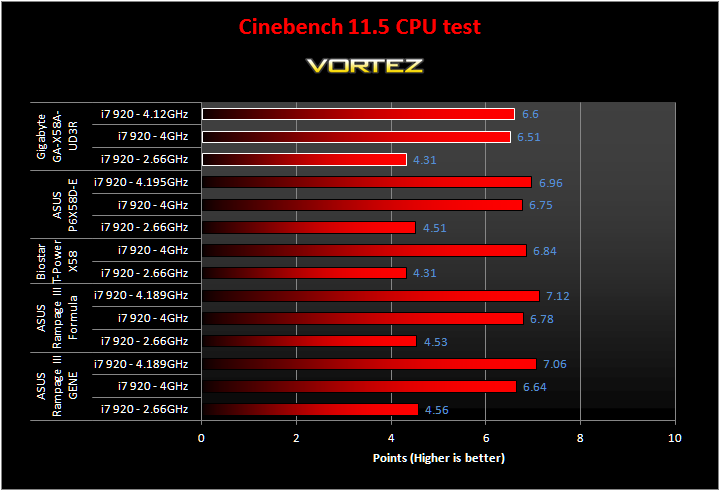
Performance on the Gigabyte board appears to be lacking compared to the competition. At stock speed, it was the same as the ageing Biostar T-Power X58 and overclocked, the results didn’t fare better. A disappointing start to the benchmark suite.
x264 HD Benchmark
The x264 HD Benchmark from Tech ARP is a useful benchmark that demonstrates the encoding performance of systems by encoding a short HD quality video clip into a high quality x264 video file. The test uses multiple cores efficiently to give a good representation of real world performance.
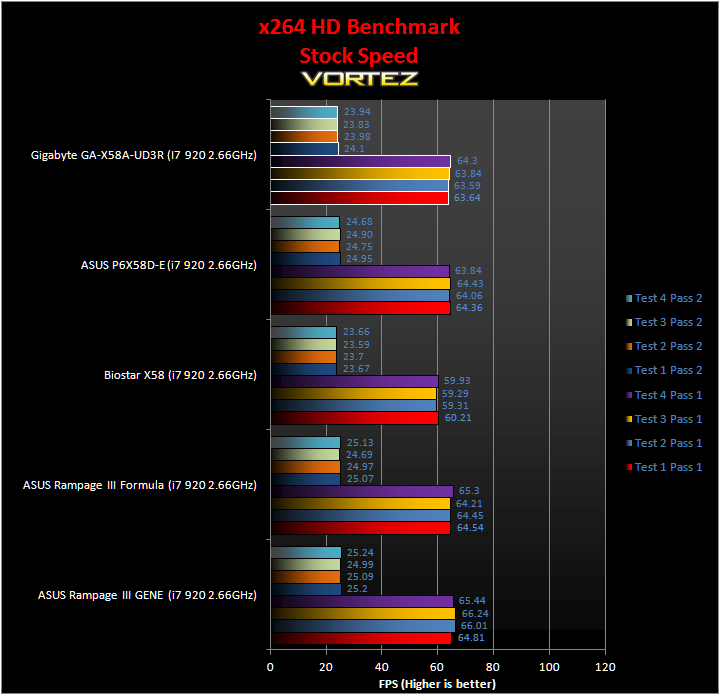
The Gigabyte performs quite well in the encoding test but it falls slightly short of its main rival, the ASUS P6X58D-E. The more expensive ASUS ROG boards are the best performers without doubt.
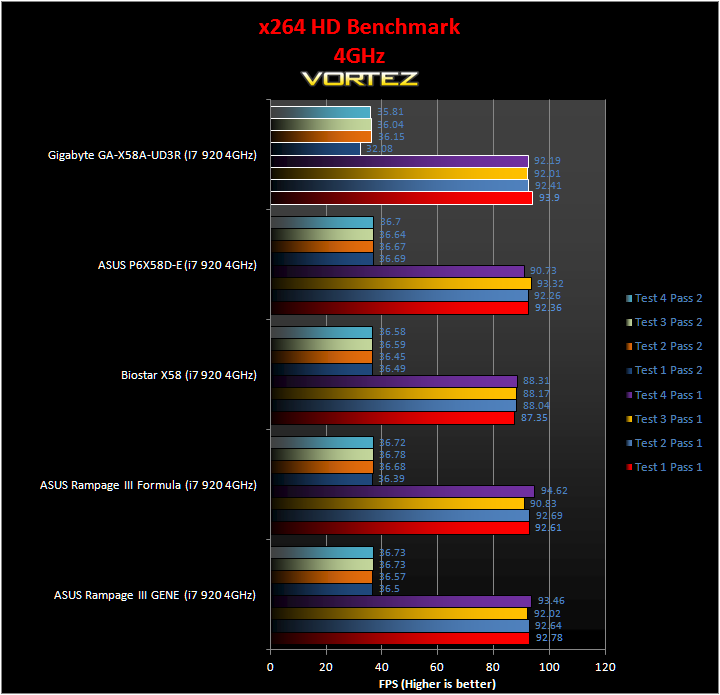
Overclocking to 4GHz, we see the Gigabyte generating excellent results. Apart form pass 2 on the first test, it held up well against its competitors.
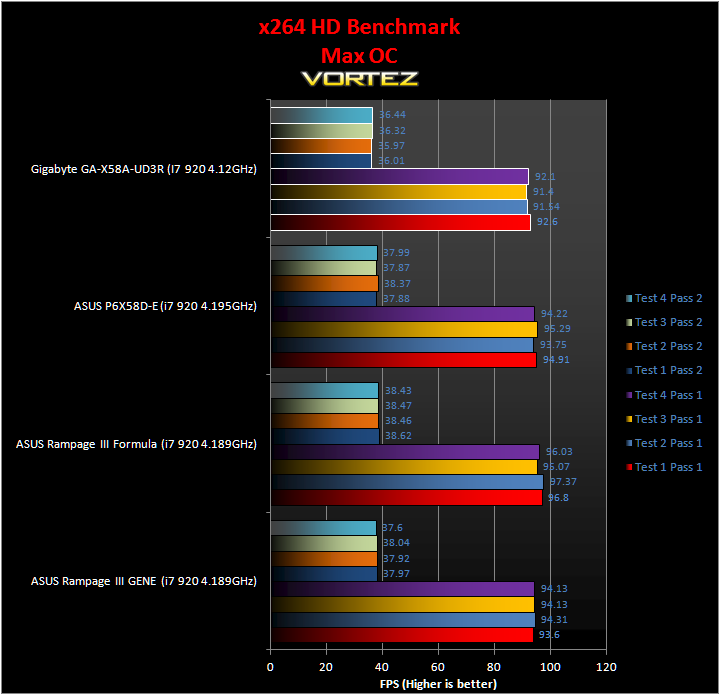
Fully overclocked, the Gigabyte cannot keep up due to its clock speed deficiency. Performance is also slightly lower than at 4GHz on pass 1 which could be due to lower memory speeds.
SiSoftware Sandra
SiSoftware Sandra is a Windows system analyzer that includes benchmarking, testing and listing modules. It tries to go beyond other utilities to show you more of what is really going on under the hood so comparisons can be drawn. With an array of CPU and memory tests, it is ideal in comparing the motherboard performance.
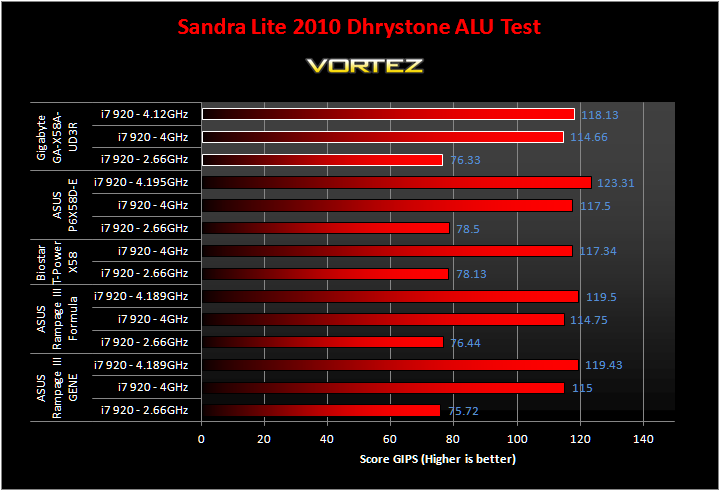
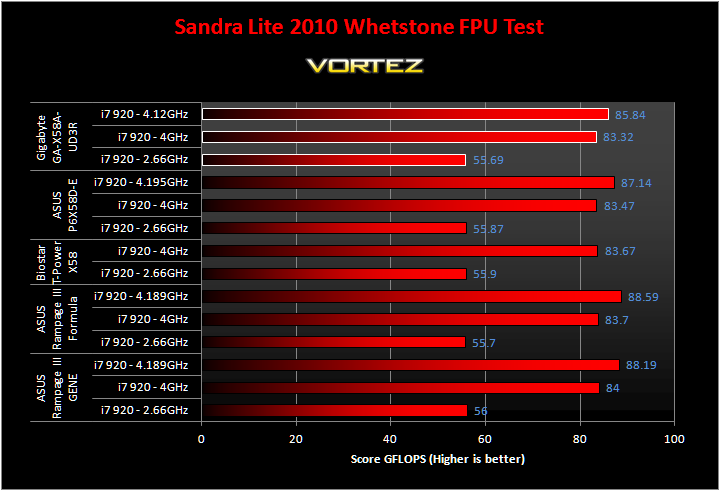
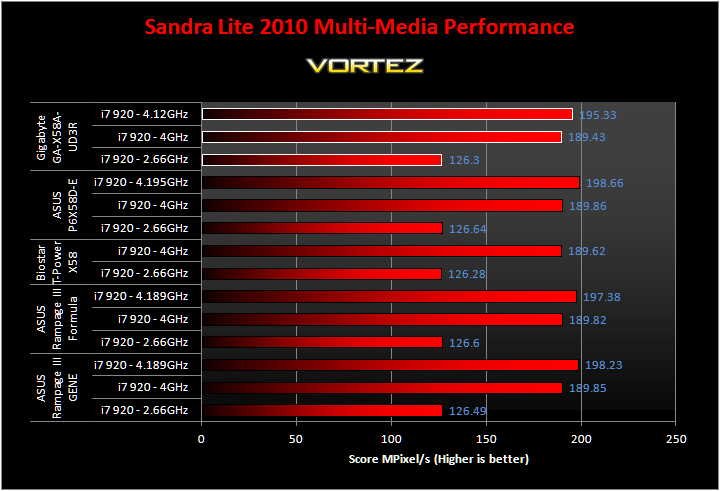
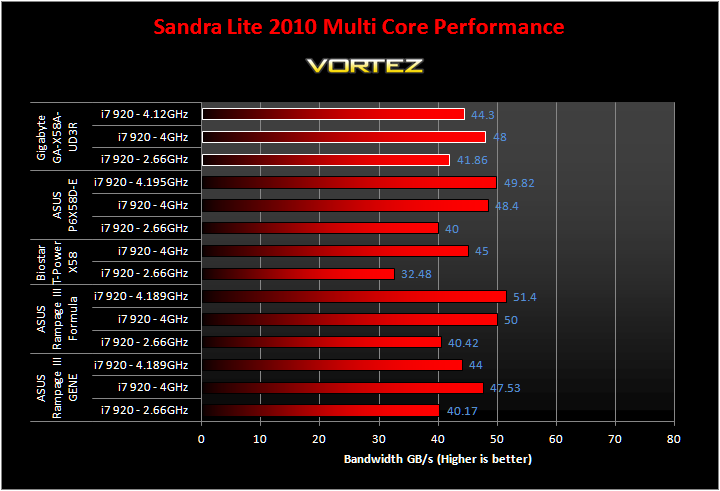
In the CPU intensive test, the Gigabyte performs quite well. The FPU and multi-media performance is in line with results from the other motherboards except at 4.12GHz due to the lower maximum overclock. The ALU performance was a bit disappointing and was unable to keep up with the other boards at all clock speeds. Multi-core performance was good until the maximum overclock was tested. For some reason, performance was worse than at 4GHz.
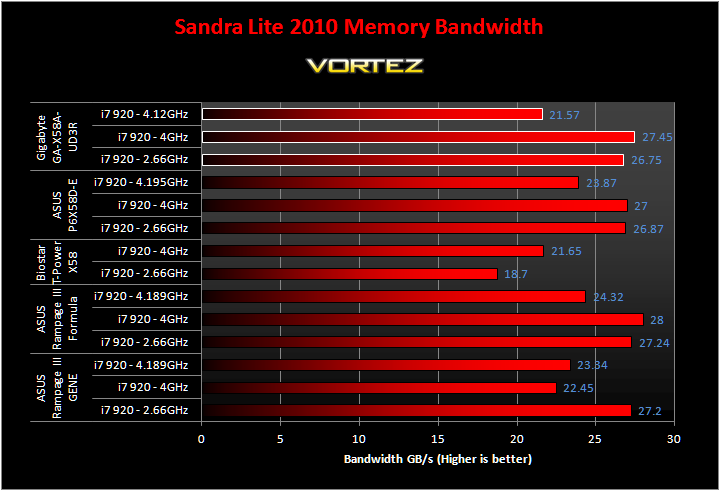
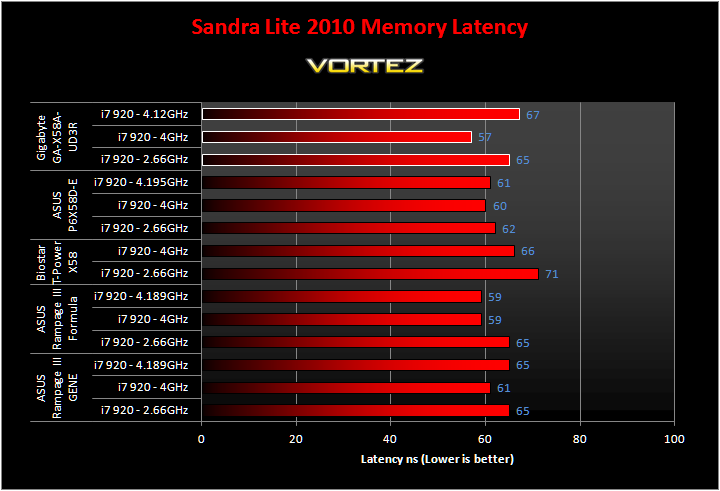
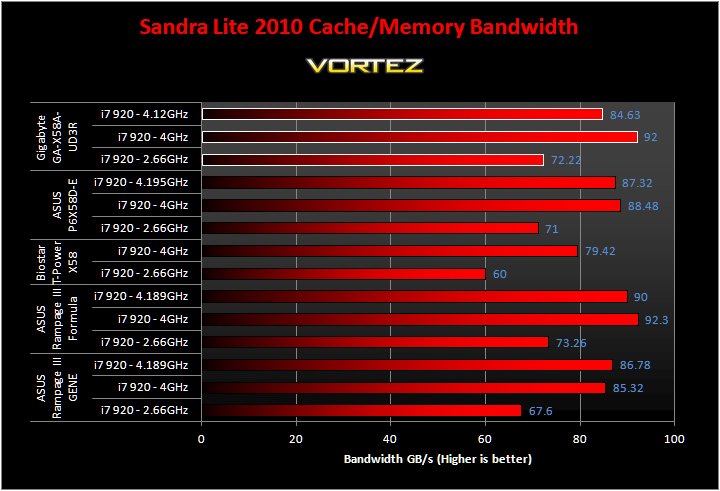
Memory performance was the Gigabyte’s strong point. It generated very high bandwidths, often exceeding the P6X58D-E, and memory latency was incredibly low with the CPU at 4GHz. The results when the CPU was at 4.12GHz were less impressive die to the lower memory speed.
Everest
Everest Ultimate is another useful computer diagnostic tool that provides the most up-to-date hardware information. It is home to a number of CPU and memory benchmarks, supporting all the latest motherboard chipsets and processors. Everest also provides accurate hardware monitoring capabilities that makes it a must have tool for system tweaking and maintenance.
Cache & Memory benchmark
Stock speed
ASUS P6X58D-E
Gigabyte GA-X58A-UD3R
The two boards perform very similarly for the most part with the Gigabyte providing slightly lower latencies on the memory. However its main downfall is it L3 Cache performance. We can also see that the memory was stable at slightly lower latencies on the Gigabyte board than the on the ASUS one.
Overclocked 4GHz
ASUS P6X58D-E
Gigabyte GA-X58A-UD3R
The performance is very different with both board running 4GHz CPUs. Although memory performance is lower on the Gigabyte despite running at a lower latency, L3 Cache bandwidth has improved dramatically. The results far exceed that of the ASUS motherboard and even the ROG boards.
Overclocked Max
ASUS P6X58D-E
Gigabyte GA-X58A-UD3R
It’s not surprising that with a lower clock speed on the both the CPU and memory, the Gigabyte has trouble keeping up with the ASUS board on memory, L1 Cache and L2 Cache bandwidth performance. What is astonishing is the clear lead it holds on the L3 Cache performance and the 1.0ns lower latency it generates.
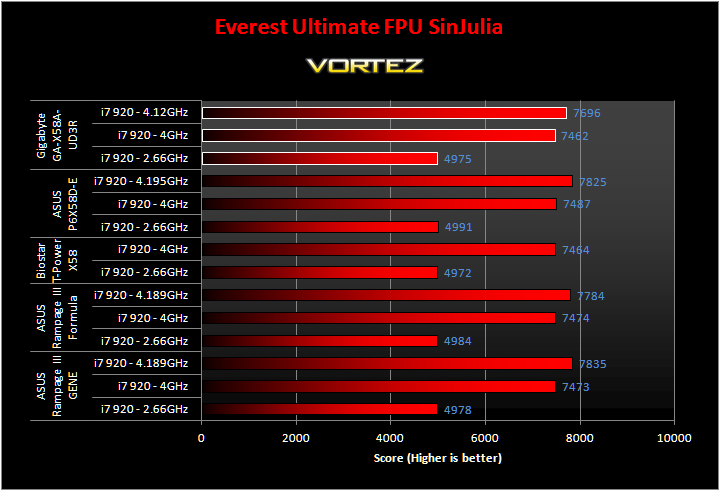
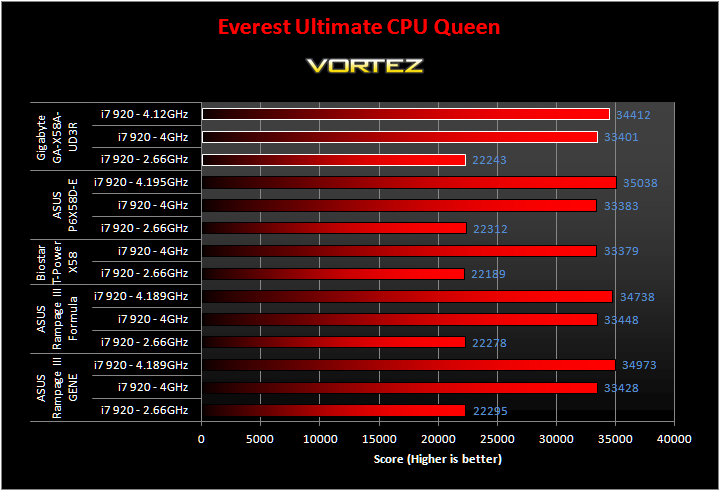
The Gigabyte performs well in the CPU tests making it undistinguishable from the other boards on test.
Far Cry 2
One of the most hyped games of 2008, Far Cry 2 had some big shoes to fill. It was built to be the next best thing since well… Far Cry I suppose. Combining an open-world game play with highly detailed graphics, physics and AI, what more could we possibly want? The game puts us in the body of a malaria inflicted mercenary hunting down the “Jackal” in the heart of Africa, in a bid to stop an ongoing conflict between two rival factions. The storyline can be hard to follow sometimes but I’m no game reviewer, so let’s concentrate on the graphics and performance. After all, we all need to know if our hardware will be able to handle the scorching savannah burning at the hands of our flamethrowers.
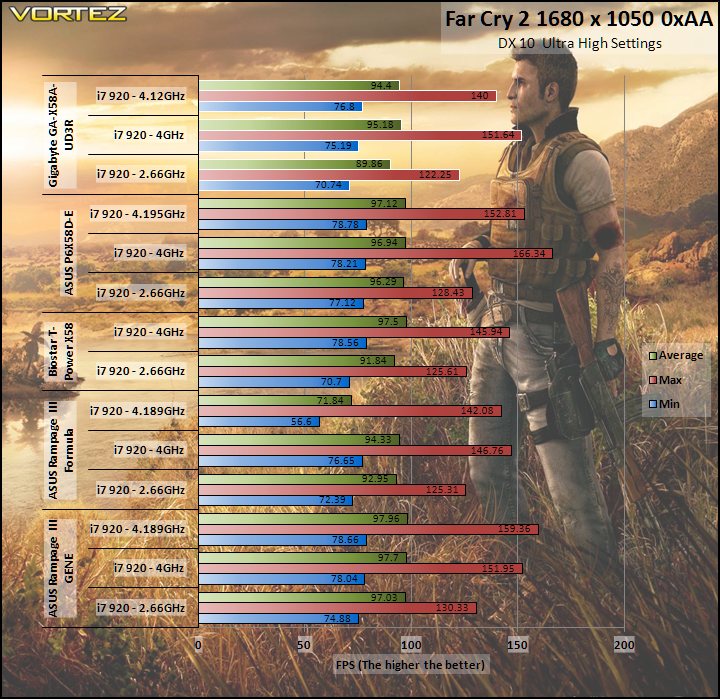
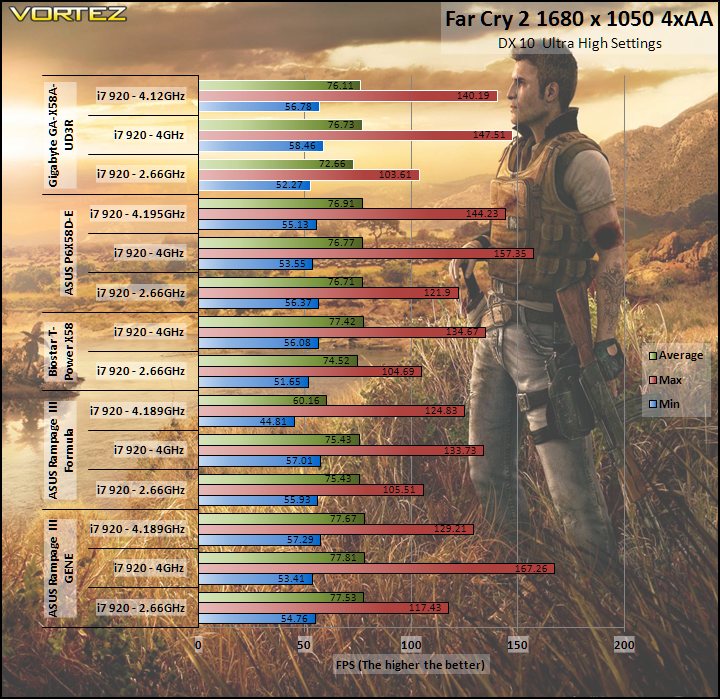
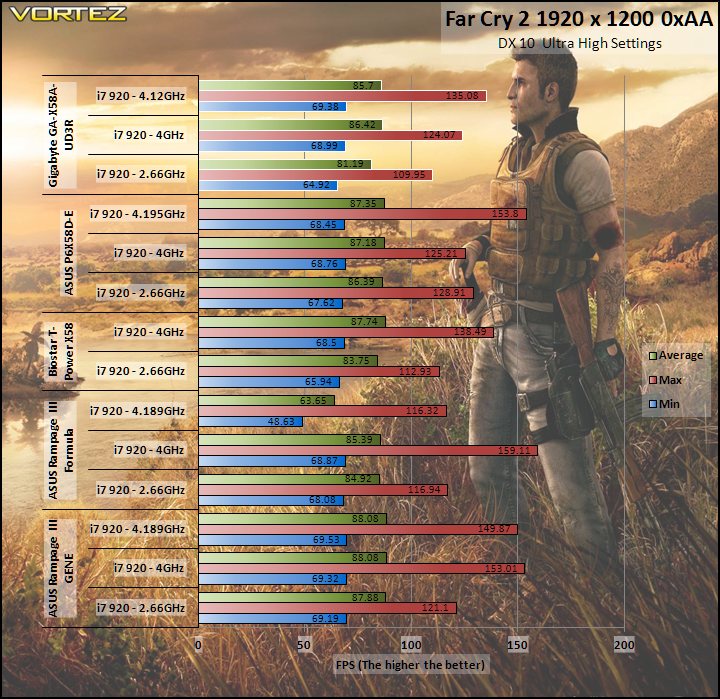
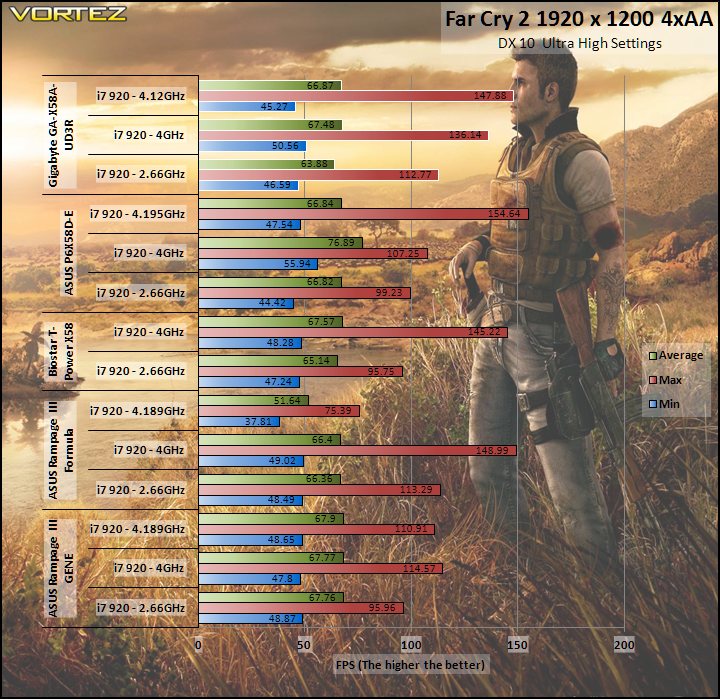
At stock speed, the Gigabyte falls behind the other motherboards by a few FPS. Normally results vary very little in gaming so it’s not welcoming to see this kind of drop in performance. Overclocking manages to rectify the problem but not enough for it to outperform its main rival, the P6X58D-E. Fully overclocked, there is a very marginal drop in FPS across all settings marking 4GHz to be the best compromise between clock speed and performance.
Street Fighter IV & Batman: Arkham Asylum
Street Fighter IV
Street Fighter is back in its 4th iteration and its bigger and better than ever. Combining fluid, fast based sparring with stunning artistic visuals, the game delivers tremendous game play. Be reacquainted with some of the most popular characters in video game history while you battle your way to the top, be it with Ryu or the mighty Bison. The game might be frustratingly hard in some cases but there’s nothing like the satisfaction of K.O’ing your opponent with a well stringed death bringing combo.
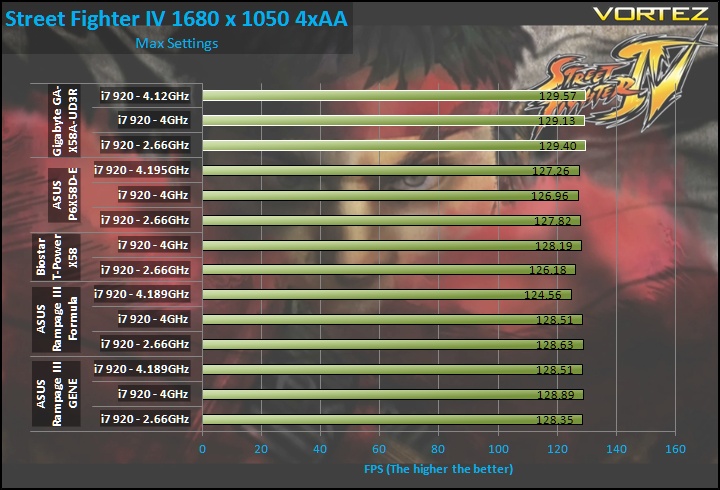
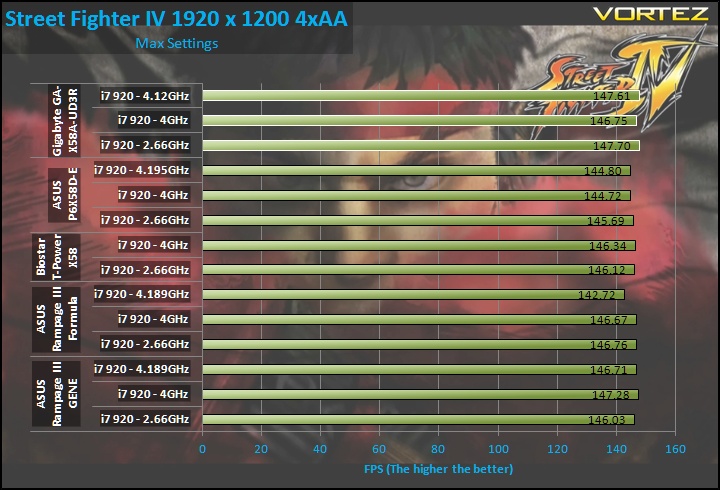
If Far Cry 2 didn’t put the Gigabyte under a good light, then Street Fighter IV will. A both settings, the Gigabyte performed very admirably and exceeded the P6X58D-E by 2-3 FPS. Overclocking has very little impact on performance as usual suggesting that the game is mostly GPU limited.
Batman: Arkham Asylum
The Dark Knight takes on his greatest challenge yet when he becomes trapped with all of his most dangerous villains inside the insane asylum of Gotham City – Arkham Asylum. The game exposes you to a unique, dark and atmospheric adventure that takes you to the depths of Arkham Asylum, Gotham’s psychiatric hospital for the criminally insane.
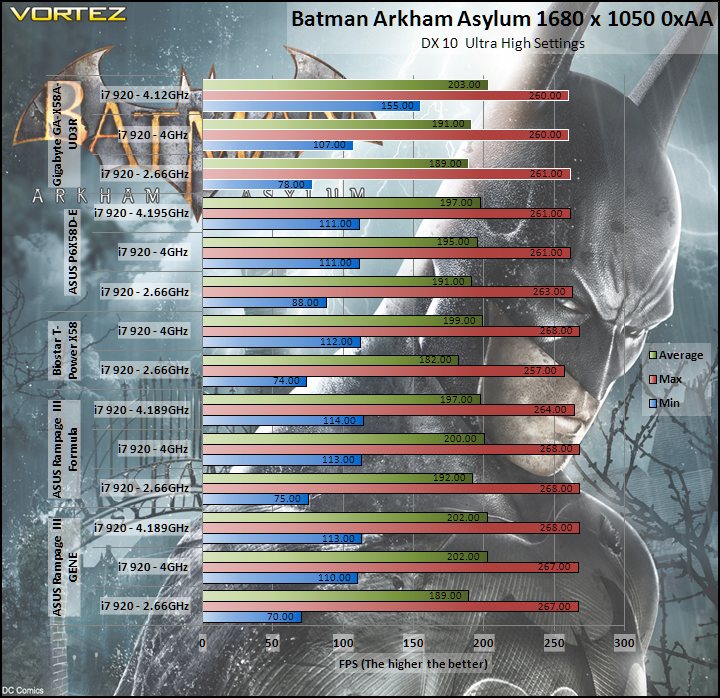
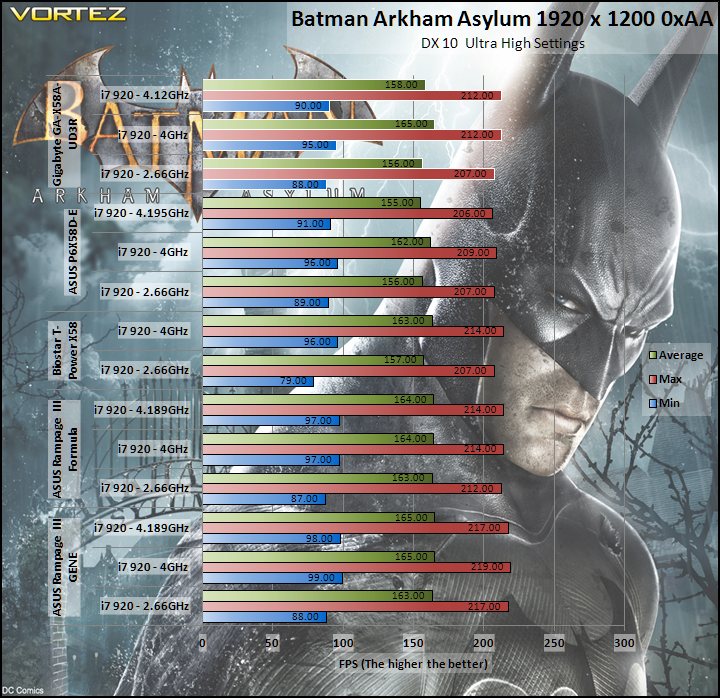
There is a fair bit of variation in the results here but focussing on the Gigabyte and the ASUS P6X58D-E, the former is the superior offering at high resolution. Even at 1680×1050, the two boards trade blows and ironically, the Gigabyte is the best performer at its maximum overclock despite the clock speed being lower than on the ASUS boards.
3DMark 06 & Vantage
3DMark06
Futuremark has been the testing ground for enthusiasts ever since their first release in 1999! While 2006 is long gone, it’s still very popular amongst benchers.
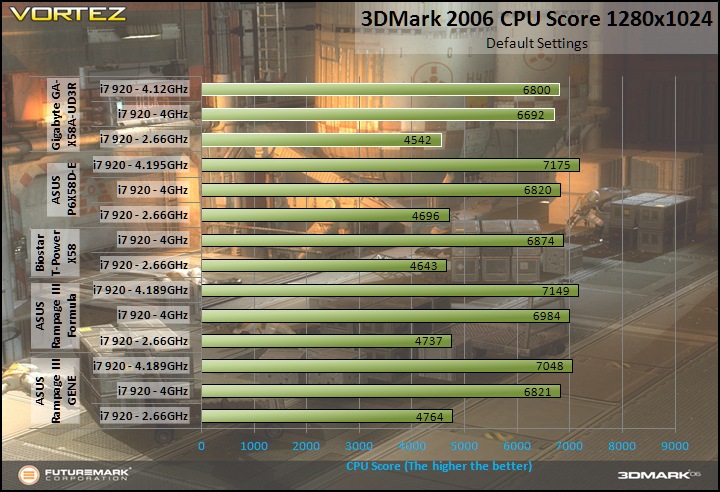
Again, CPU performance is lagging behind the other motherboards using the Gigabyte. Benchers would have to refrain from using this board if their aim is to get the highest scores at the lowest costs.
3DMark Vantage
This latest benchmark suite from Futuremark introduces DX 10 PhysX support. Despite being on the verge of DX 11 games arriving, Vantage is still the chosen benchmark amongst enthusiasts these days.
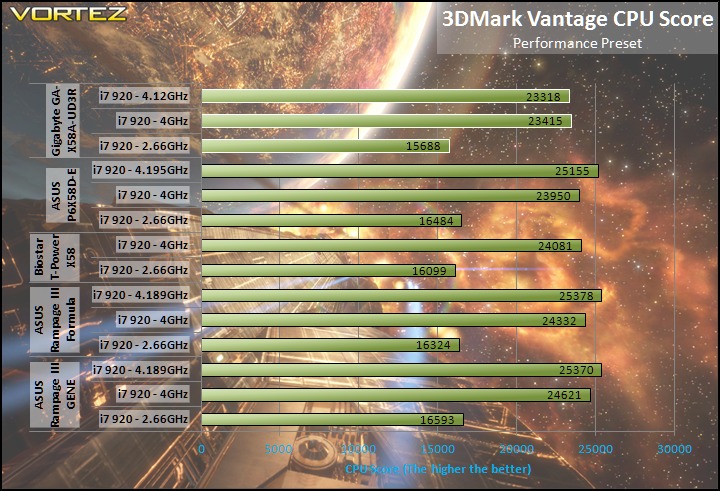
The same trend can be seen here. Gigabyte’s GA-X58A-UD3R cannot keep up with the ASUS and Biostar motherboards at all three clock speeds.
Power Consumption
Load power consumption was recorded by fully loading the system running LinX and MSI Kombustor simultaneously. The maximum power usage recorded was then assigned to the load power consumption, while the minimum recorded without loading the system was assigned to the idle consumption.
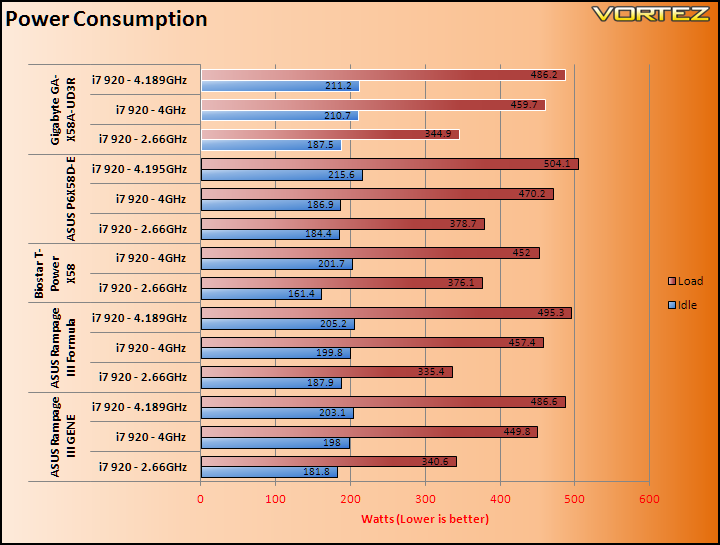
Gigabyte have strongly advertised their Ultra Durable 3 innovation with their all their latest motherboards and their claim is that with 2oz of copper in the PCB, power consumption can be made more efficient. Comparing it against the ASUS P6X58D-E, we can immediately see that their words hold true. At stock speed, it consumes over 30W less than its ASUS counterpart and at 4GHz, it consumes 10W less under load. At idle, power consumption is also very reasonable and Dynamic Energy Saver 2 contributes to this. Compared to the ROG motherboards, the Gigabyte isn’t as favourable but we have to remember that they also cost a lot more.
Conclusion
Gigabyte certainly offer a lot with the GA-X58A-UD3R in terms of features, innovations and user friendliness. On initial impression, you would be hard pressed to conclude that the board is in fact an entry-level X58 solution. Compared to the initial line-up of motherboards available on Nehalem’s release, the GA-X58A-UD3R is more akin to the high end offering at the time, with the additional benefit of USB 3.0 and SATA 6Gbps. Even now, it shares a lot of key features with its more expensive siblings such as the UD5 so the UD3R can be considered a bargain. Delivering 12 phase power on the CPU, a cooling system to match and the Ultra Durable 3 feature for greater efficiency, the motherboard holds great promise. For the most part, they keep that promise with a stable running system, excellent memory support and performance, and overclockability. Its key aspect is probably on the software side, bundled with a range of utilities to ease users through the overclocking process and to manage their system without the daunting task of entering BIOS. I was personally very impressed with the Cloud OC utility since it brings remote hardware overclocking and monitoring to the mainstream. My only complaint there was that settings weren’t applied permanently.
The motherboard wasn’t without its flaws and the last few pages made that clear. I was quite disappointed by the low CPU results on the multiple tests ran, both synthetic and real world benchmarks. Gaming performance was also lower than expected on Far Cry 2, although the other two games tested showed much better results. Another major negative was the board’s limited overclockability compared to its rivals. A maximum BCLK of 213MHz was lower than that achieved on the ASUS boards and as a result the maximum overclock attained was also lower.
On the whole, the feature filled GA-X58A-UD3R was a good motherboard that at around £140 is a bargain for anyone looking to go onto the X58 platform.
Pros
+Loaded with features
+Cloud OC
+Cool and efficient
+USB 3.0 and SATA III 6Gb/s
+Attractive finish and brilliant layout
+Decent performance
+Very well packaged
+Price
Cons
-Overclocking headroom
-Low CPU performance compared to the competition
I award Gigabyte’s GA-X58A-UD3R the Vortez Hardware Bronze and Amazing Value awards.
I would like to thank Gigabyte for providing this sample and for their patience. To discuss this article, please visit our forums.