NZXT have refreshed their Kraken range of all-in-one watercooling loops, offering us the 240mm version to review today. Is it worth shelling out for? Let’s have a look.

Product on Review: NZXT Kraken X53
Manufacturer: NZXT
Street Price: GBP £119.99 / USD $129.99
NZXT have been developing and refining their products for 16 years now, producing some of the most aesthetically pleasing computer cases and components that money can buy. Their Kraken range of AIO watercooling loops have been particularly successful due to their fancy mirrored lights design within the pump. Today we’re looking at the X53, their latest revision of the Kraken range with a 240mm radiator.
NZXT claim that the underlying performance of the cooler has been improved, through better temperature sensing, optimising the waterpump, and use of NZXT’s Aer P radiator fans.
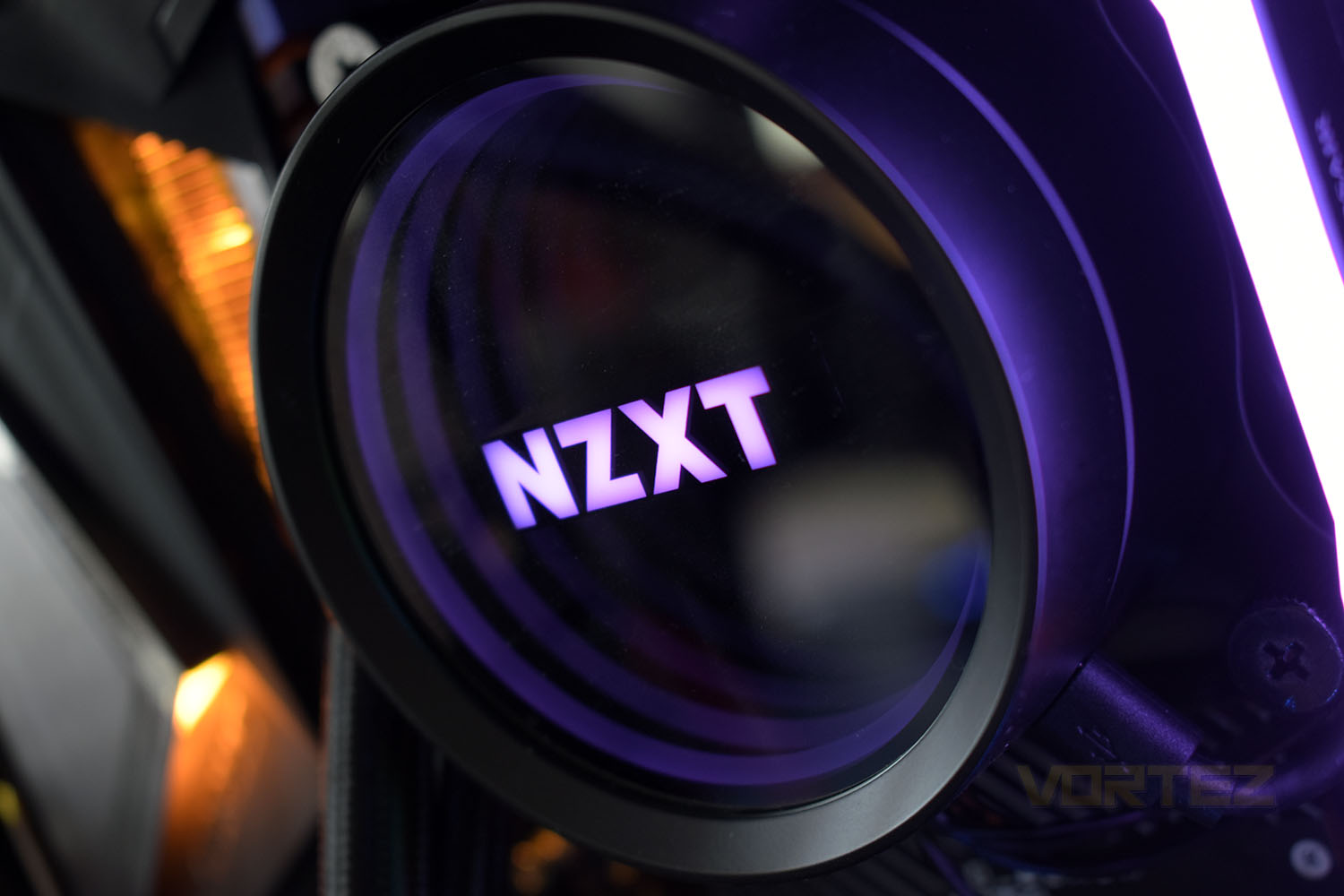
There’s also improvements to NZXT’s trademark infinity mirror ring, that’s 10% larger than previous iterations with CAM-powered, customisable RGB lighting effects. The front face can be rotated 360° to allow the pump to be orientated whichever way you like without needing to twist your head to read the NZXT branding in cases with tempered glass sides.
Backed with a 6-year warranty, NZXT are clearly confident in their build quality thanks to tougher, flexible hosing that provides durability and fluid-bearings within the included fans for a prolonged lifespan. Socket support is also good, with all of Intel and AMD’s mainstream sockets supported, with TR4 supported via a not-included bracket.
The latest revision is available in 3 radiator sizes, with 360mm, 280mm and 240mm, being the X73, X63 and X53 respectively. Today we’re looking at the Kraken X53, priced almost identically to several of CORSAIR’s 240mm offerings, who are arguably the one to beat in this segment.
Kraken on the X53:
The refreshed Kraken X Series is a must-have for any build, providing better cooling, stunning visual effects, and intuitive installation. You can fine-tune settings with CAM’s software interface, ensuring optimal performance in even the most intense gaming sessions.
Technical Specifications
Water Block
Dimensions(LxWxH): 80 x 80 x 55 mm
Material: Block: Copper, Housing: Plastic
Pump
Motor Speed & Power: 800 – 2,800 + 300 RPM, 12V DC, 0.3A
Radiator
Dimensions: 123 x 275 x 30mm
Material: Aluminum
Tube
Length: 400mm
Material: Ultra-low Evaporation Rubber with Nylon Braided Sleeve
Cap
Material: Plastic and brass
Rotation Orientation: 360° with 30° increments
HUE 2 Channel Output Voltage: 5V DC
HUE 2 Channel Output LED Qty.: Up to four LED strips – 10 LEDs per strip, Up to five Aer RGB fans, Up to six HUE 2 accessories
Fans
Aer P120
Quantity: 2
Dimension: 120 x 120 x 26mm
Speed: 500-2,000 + 300 RPM
Air Flow: 1 8 . 2 8 – 7 3 .1 1 C F M
Air Pressure: 0 .1 8 – 2 . 9 3 m m – H₂O
Noise: 21-36dBA
Bearing: Fluid Dynamic Bearing
Power Consumption: 12V DC, 0.32A, 3.84W
Connector: 4-pin PWM
Life: 60,000 hours / 6 Years
Warranty
6 Years
Compatible Socket & CPU
Intel Socket LGA 1151, 1150, 1155, 1156, 1366, 2011, 2011-3, 2066
Intel Core i9 / Core i7 / Core i5 / Core i3 / Pentium / Celeron
AMD Socket AM4, sTRX4*, TR4*(*Threadripper bracket not included)
AMD Ryzen 7 / Ryzen 5 / Ryzen 3 / Ryzen 9 / Threadripper
Dimensions(LxWxH): 80 x 80 x 55 mm
Material: Block: Copper, Housing: Plastic
Pump
Motor Speed & Power: 800 – 2,800 + 300 RPM, 12V DC, 0.3A
Radiator
Dimensions: 123 x 275 x 30mm
Material: Aluminum
Tube
Length: 400mm
Material: Ultra-low Evaporation Rubber with Nylon Braided Sleeve
Cap
Material: Plastic and brass
Rotation Orientation: 360° with 30° increments
HUE 2 Channel Output Voltage: 5V DC
HUE 2 Channel Output LED Qty.: Up to four LED strips – 10 LEDs per strip, Up to five Aer RGB fans, Up to six HUE 2 accessories
Fans
Aer P120
Quantity: 2
Dimension: 120 x 120 x 26mm
Speed: 500-2,000 + 300 RPM
Air Flow: 1 8 . 2 8 – 7 3 .1 1 C F M
Air Pressure: 0 .1 8 – 2 . 9 3 m m – H₂O
Noise: 21-36dBA
Bearing: Fluid Dynamic Bearing
Power Consumption: 12V DC, 0.32A, 3.84W
Connector: 4-pin PWM
Life: 60,000 hours / 6 Years
Warranty
6 Years
Compatible Socket & CPU
Intel Socket LGA 1151, 1150, 1155, 1156, 1366, 2011, 2011-3, 2066
Intel Core i9 / Core i7 / Core i5 / Core i3 / Pentium / Celeron
AMD Socket AM4, sTRX4*, TR4*(*Threadripper bracket not included)
AMD Ryzen 7 / Ryzen 5 / Ryzen 3 / Ryzen 9 / Threadripper
Packaging & Bundle
NZXT like to use a clean, clinical look to their packaging, with very little information on the front. The packaging does suit their product design well and shows off the product perfectly well.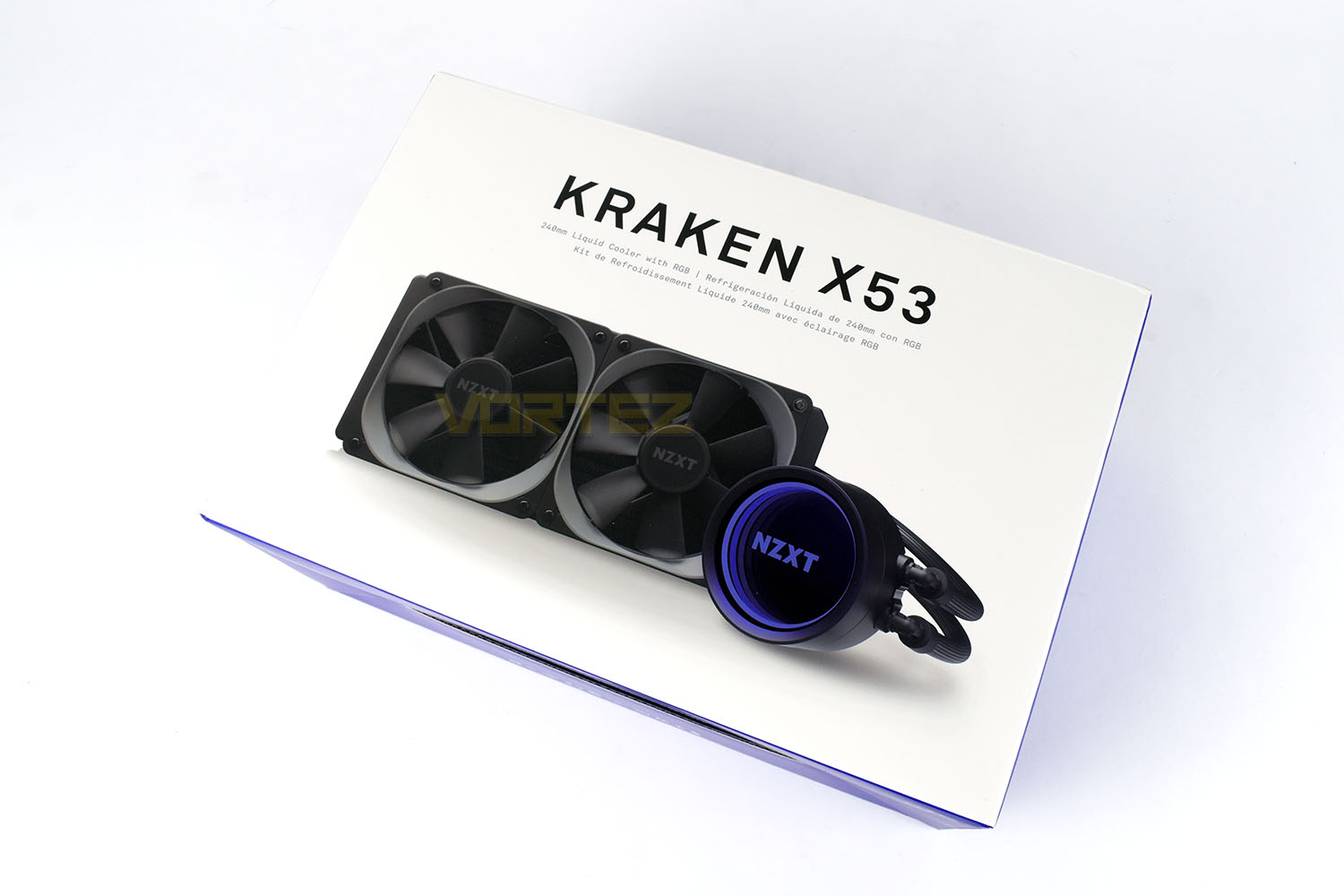
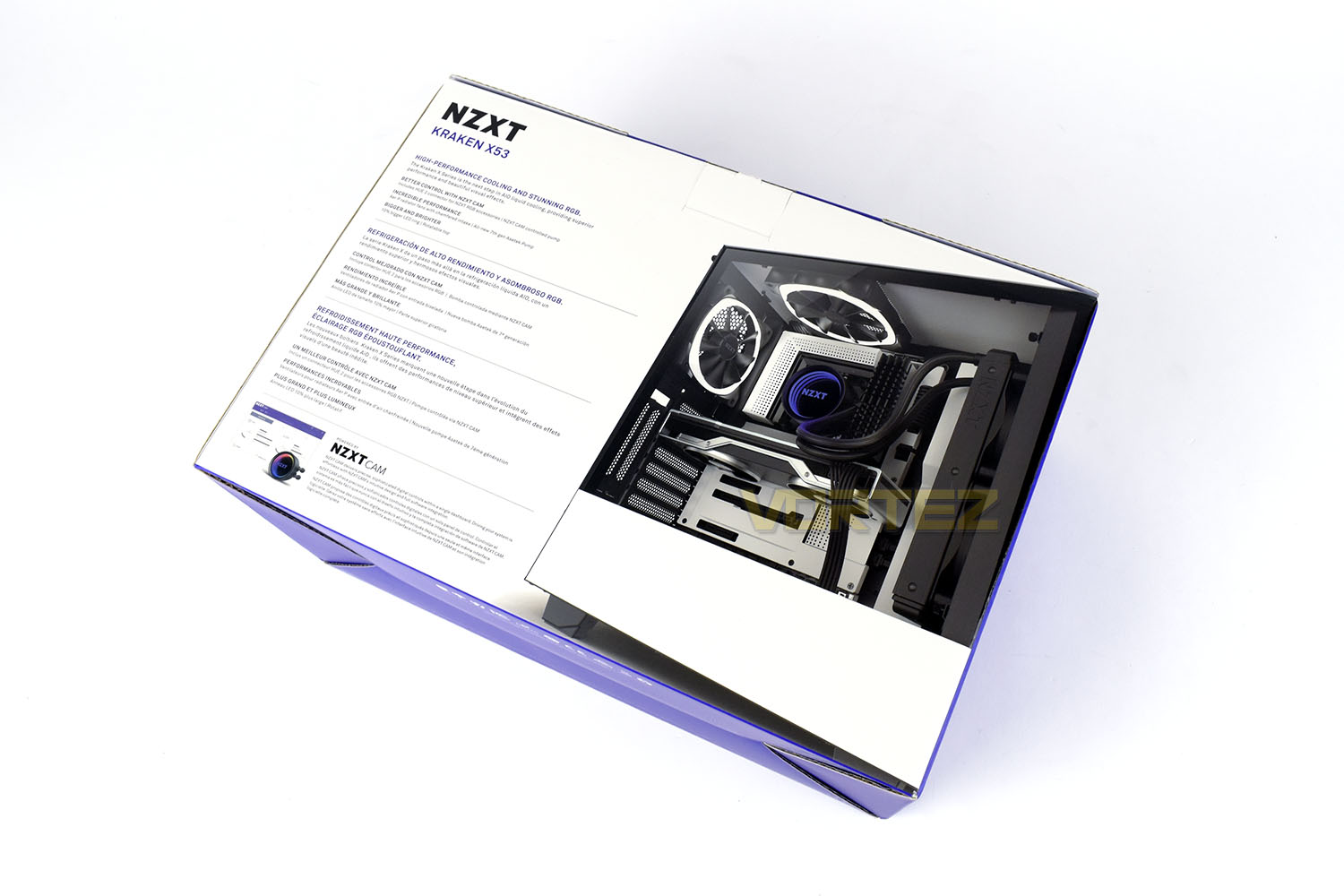
With the rear being almost void of any information whatsoever, you’d expect to see plenty on the reverse and that is the case, kind of. NZXT use a multi-lingual packaging which means that there’s a lot of text but not necessarily much for you to read in your chosen language. They do give the full specification breakdown on one side, with loads of features on the other though.
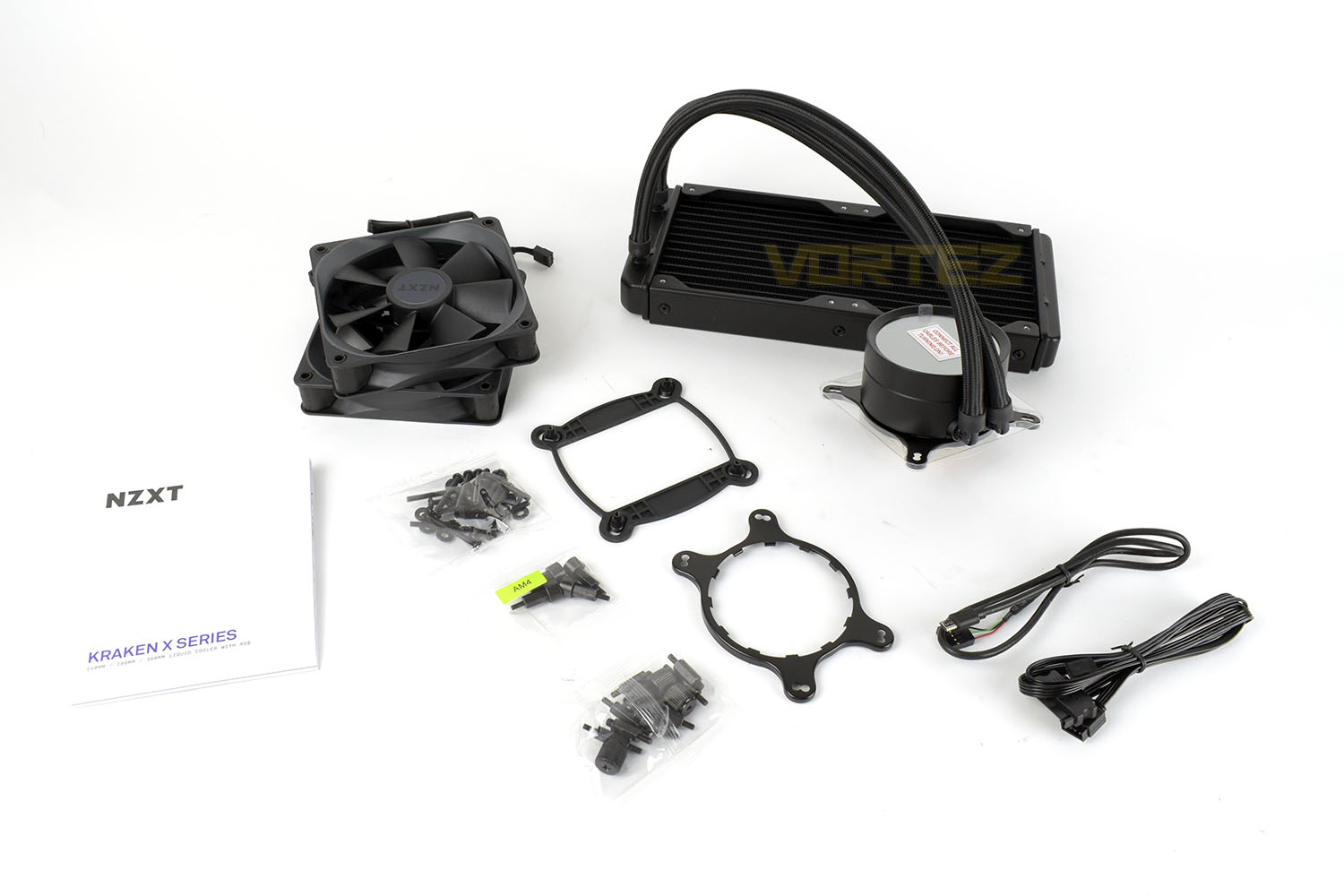
Included with the Kraken cooler is the relevant mounting hardware for both Intel and AMD, a pair of Aer P120 fans, a couple of cables to connect to the pump and an instruction booklet.
Closer Look
The pump housing is perfectly circular, with a mirrored front that provides NZXT’s trademark appearance. The front piece can be rotated a full 360° to ensure the NZXT branding is always square on.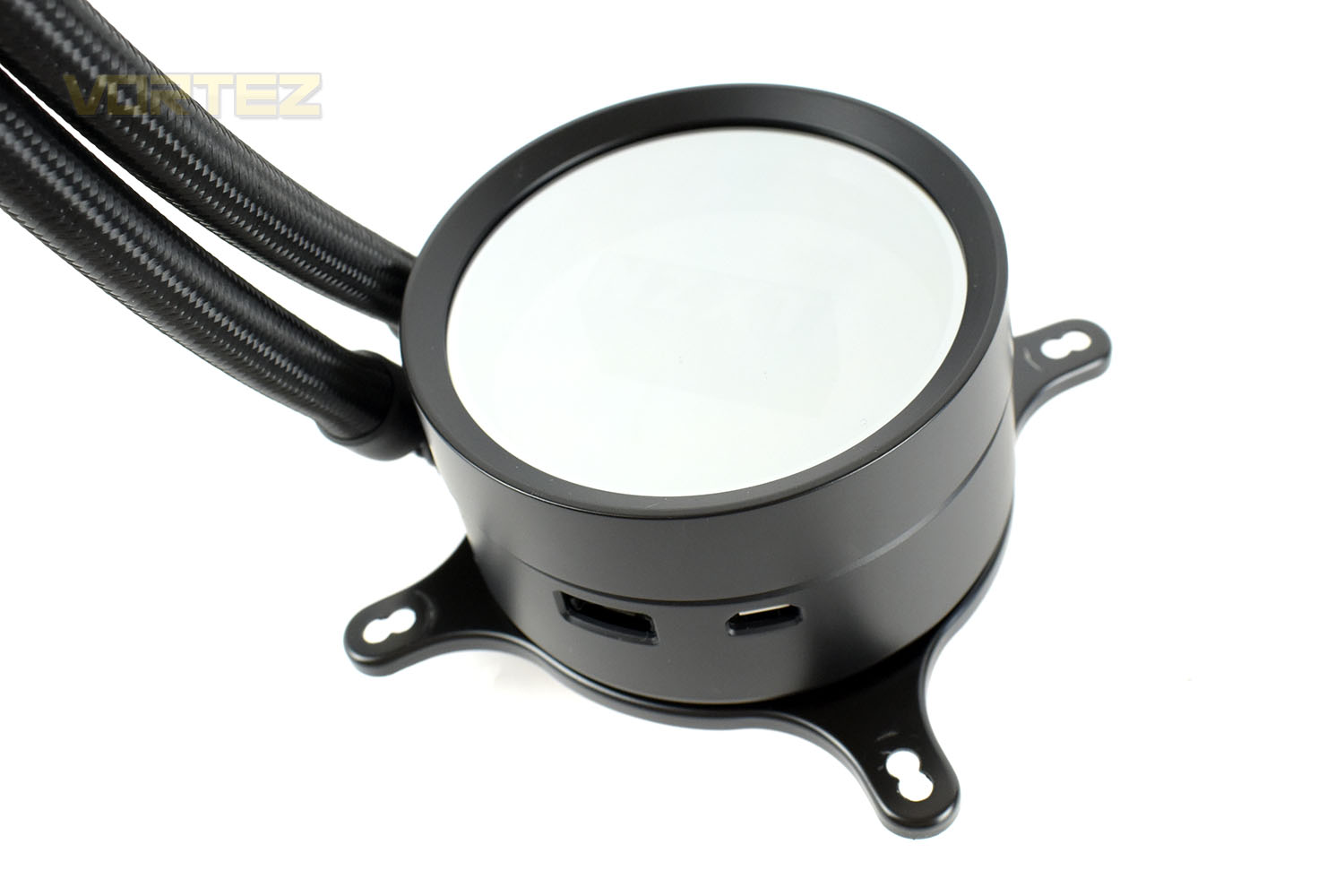
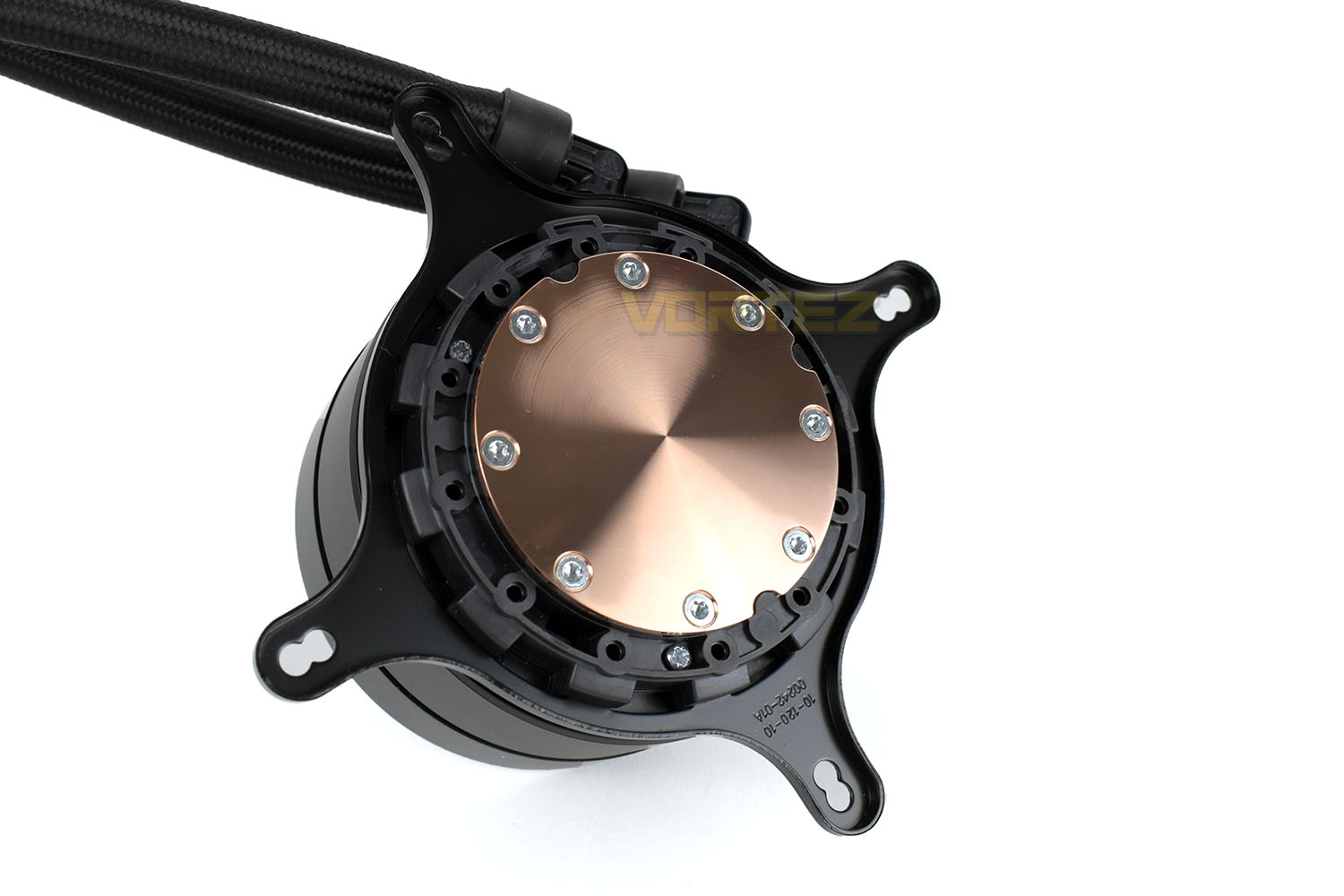
Measuring 53mm across the base, the copper coldplate arrives pre-applied with NZXT’s thermal paste. The cooler is delivered to you with Intel’s mounting system pre-installed but swapping out to the AMD system is a simple 2 second task.
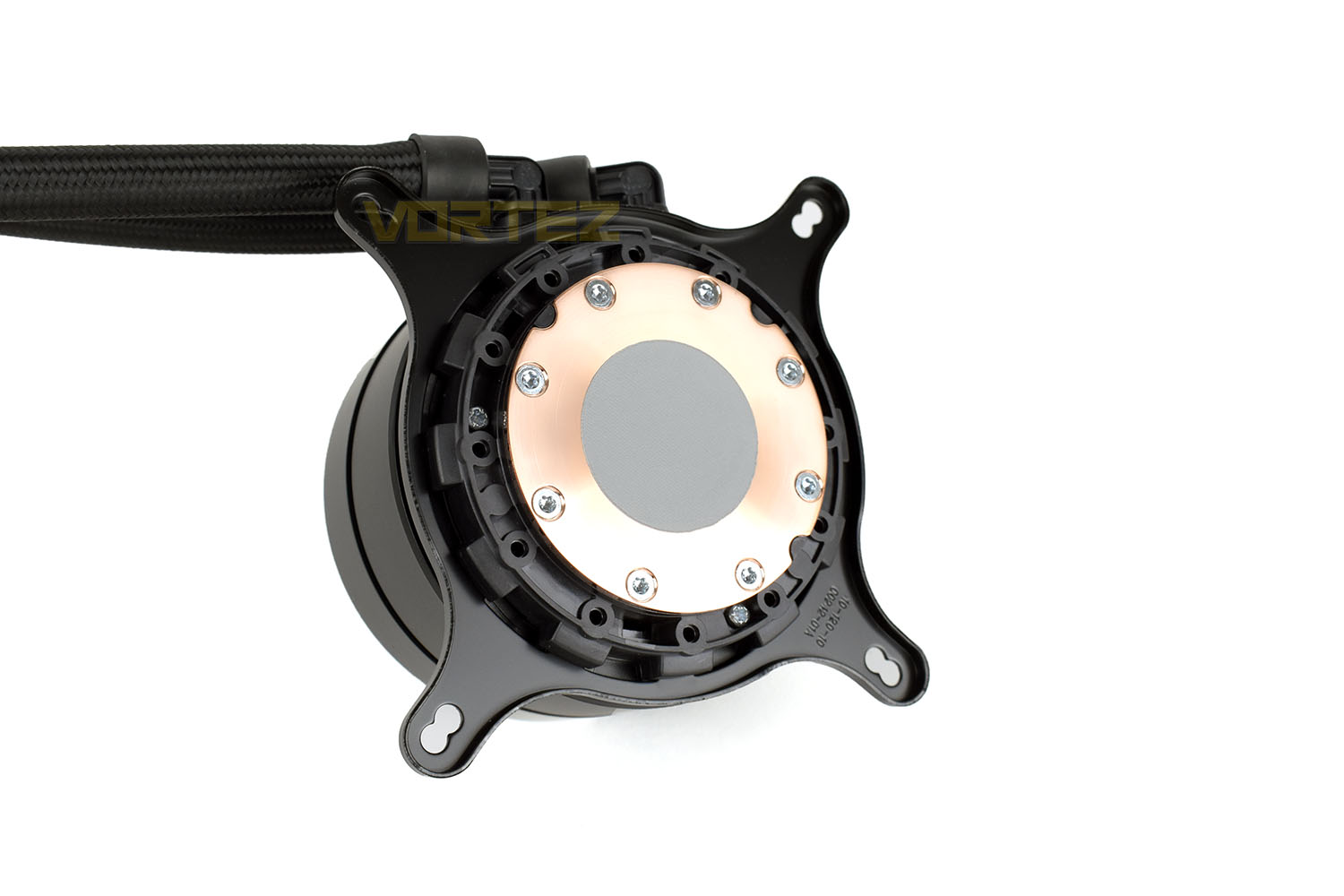
Removing the thermal paste, the machining on the copper looks beautiful. This is easily one of the smoothest coldplates we’ve seen so far, despite the appearance of grooves, they can’t be felt with the fingertip or fingernail.
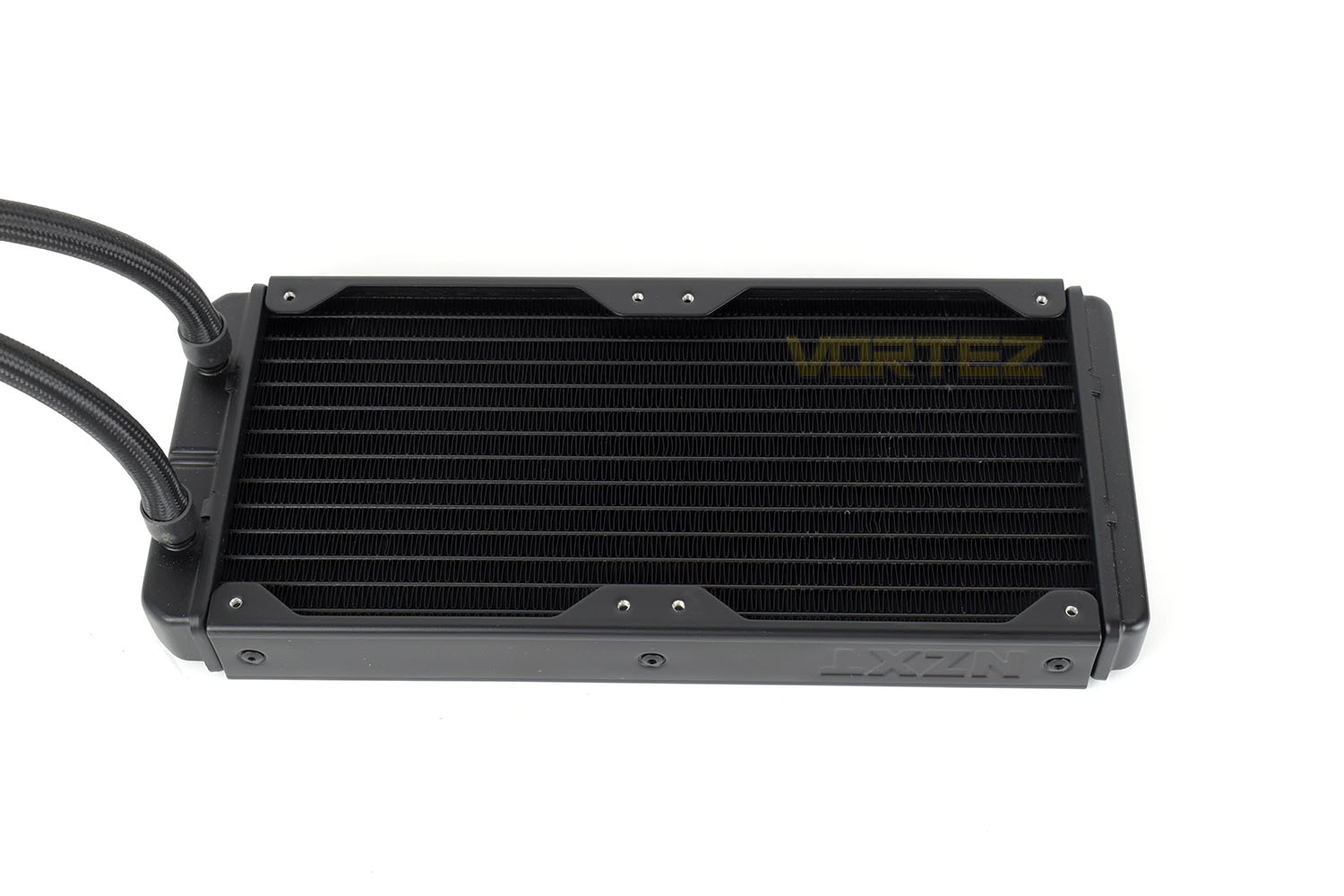
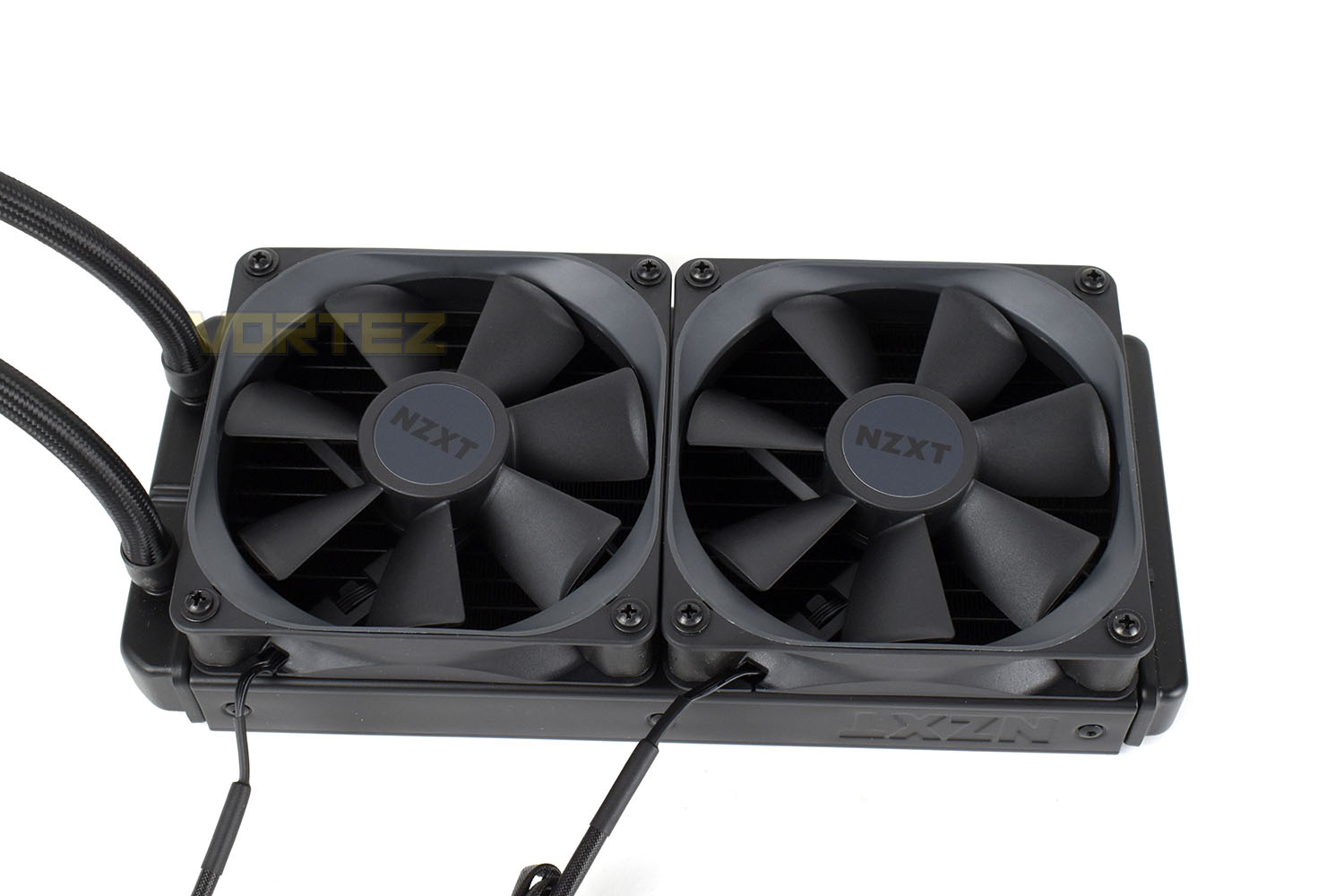
The Kraken X53 is equipped with a 240mm radiator at 25mm in thickness. The X63 and X73 land with 280mm or 360mm radiators if you need the increased cooling capacity.
NZXT bundle their new Kraken cooler with the Aer P120 fans, with 7 blades, 4-pin PWM connection and fluid bearings for quiet operation and a prolonged lifespan.
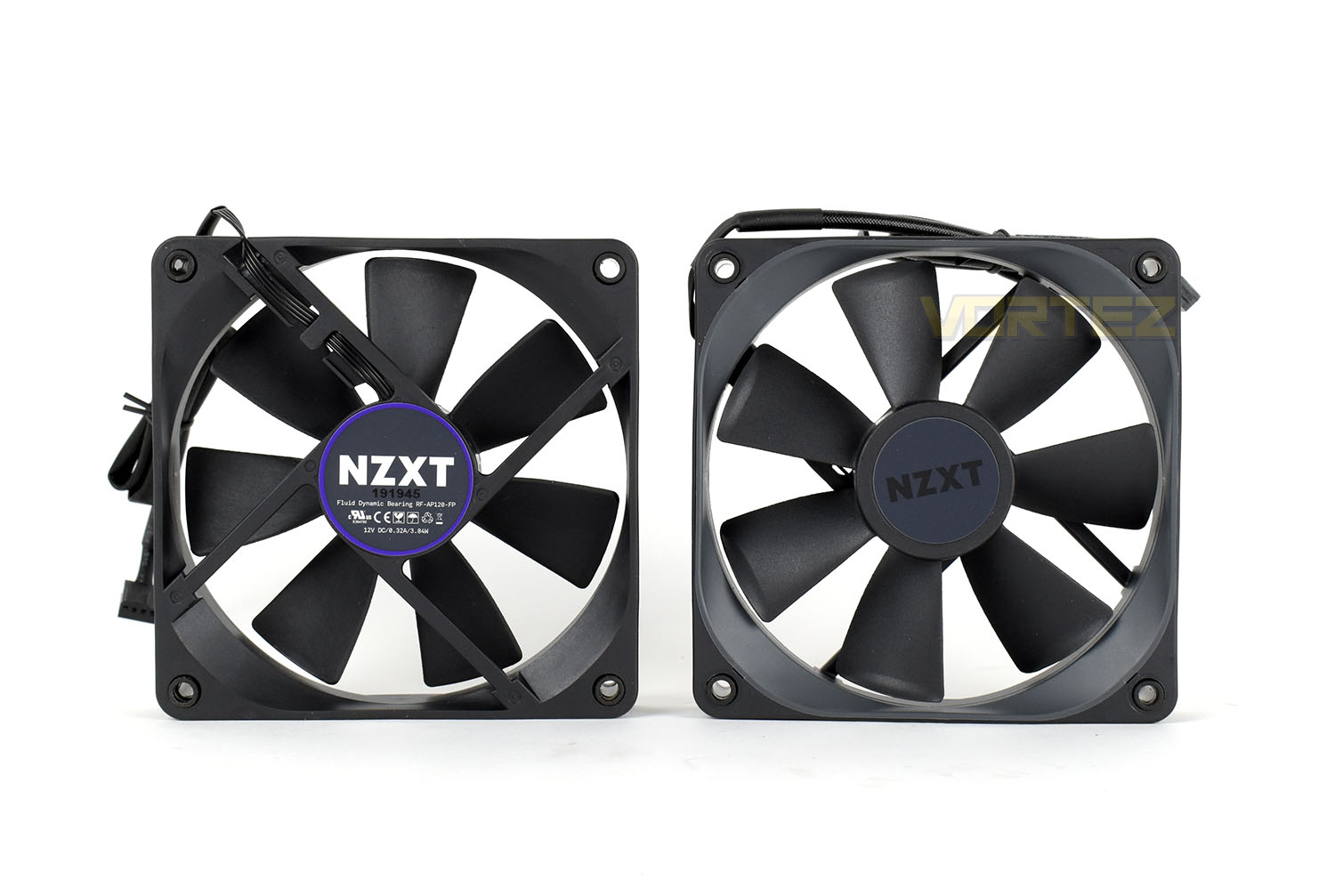
Strapping the fans to the radiator is a simple process with the included hardware but counter-sinking the fans would help installation into tighter cases, helping to remove a few millimetres by sitting the screwheads flush to the fan chassis.
Installation
Often the first step when installing any CPU AIO is to first install the radiator. This is the heaviest and often most awkward piece so to get that out of the way is best. This is done by the 8 smaller screws provided with the installation hardware.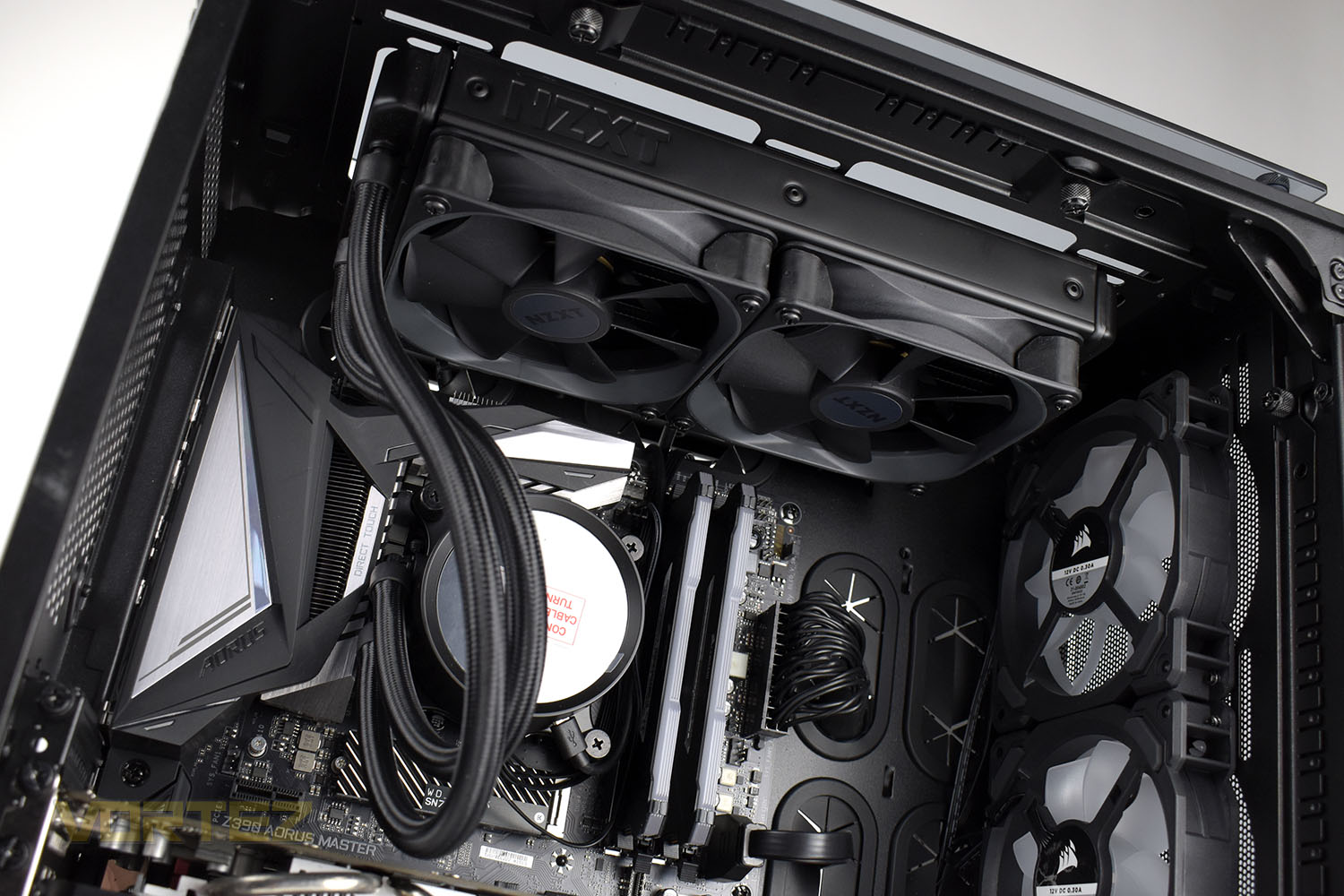
Next up is the backing plate and mounting screws. These install like any other AIO from a high-end manufacturer. We’ve also cleaned off NZXT’s pre-applied thermal paste and replaced it with Noctua’s NT-H1 for a fairer comparison between all coolers.
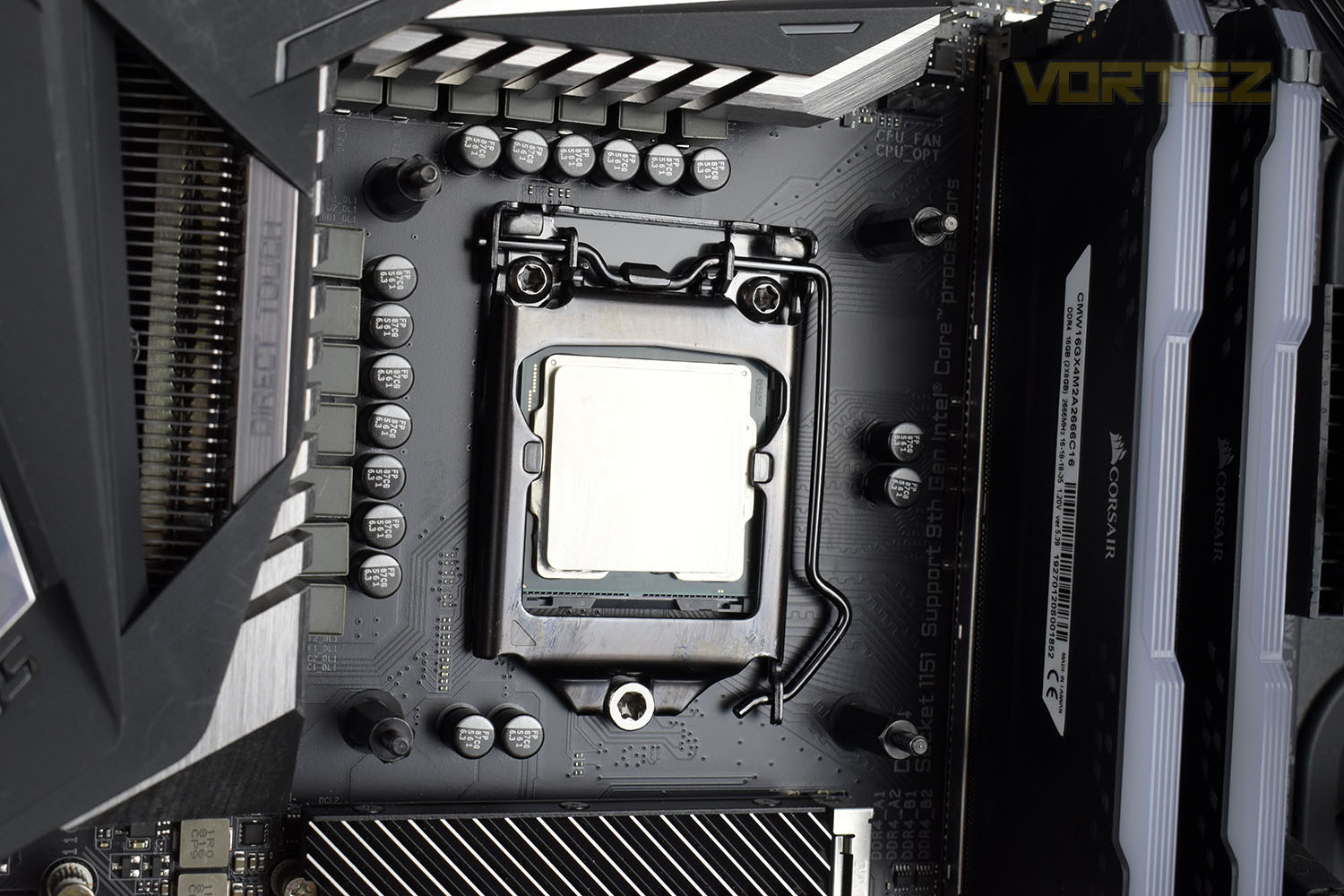
It’s then the simple task of installing the pump enclosure by lining up the four corners and squidging your thermal paste flat. The thumb screws are easy to turn, providing the VRM cooling on your motherboard isn’t too large; if it is, you can just use a screwdriver to nip them tight anyway.
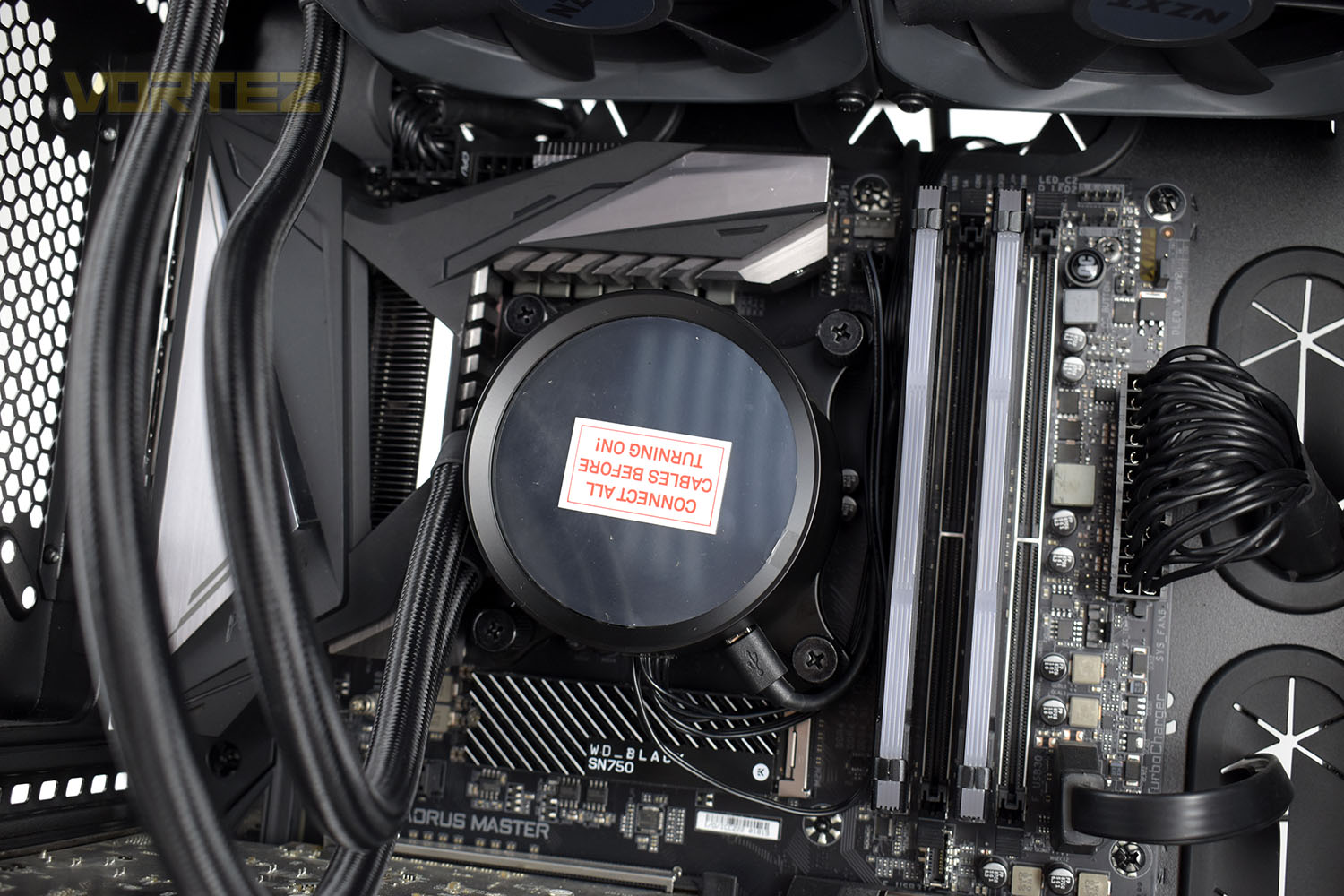
There’s a micro-USB and proprietary connection that need to be connected up to the pump to ensure the NZXT CAM software knows what’s going on and the pump itself can receive power from the SATA power connection.
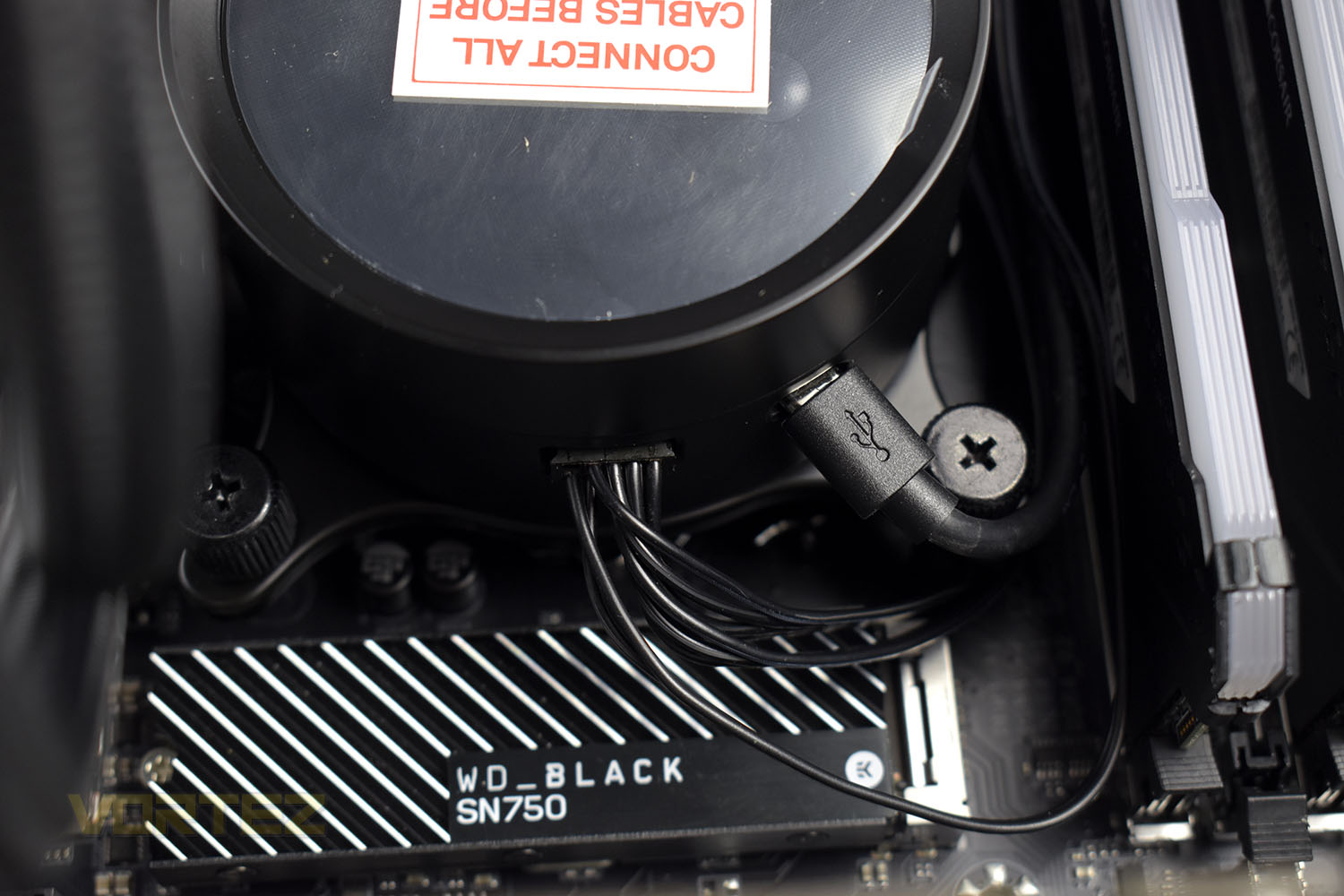
When it comes to connecting up their pair of Aer P120 cooling fans, things aren’t quite normal here. The fans have to be connected up individually to the motherboard, with no included fan splitter. Typically, the pump enclosure would project a pair/trio of PWM 4-pin connectors to allow the fans to be controlled from the software.
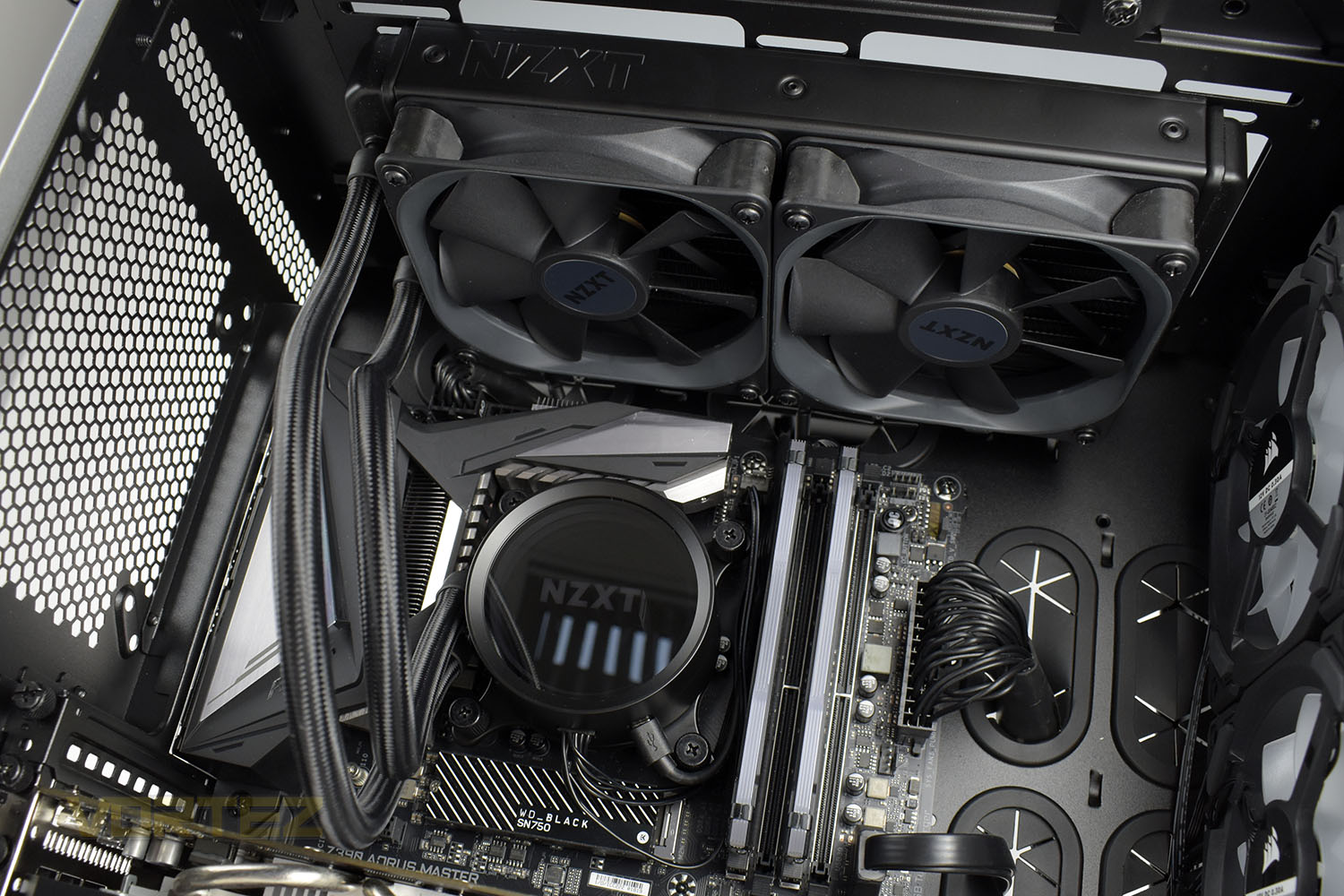
The finished product looks really slick with the dark theme inside our CORSAIR chassis.
Software
Below is a short demo video of the NZXT CAM software. As you can see, it’s relatively simple but isn’t very feature-rich. You may or may not like that, but that’s what it is.Test Setup & Methodology
Due to popular demand, we have retired the long-standing cooling rig that we once used and replaced it with a shiny new system with an Intel Core i7 9700K at its heart. This should benefit you, the reader, in a couple of ways. The first being it can provide you with results on a CPU that is currently available to buy and secondly, the mounting instructions on our installation page will be far more relevant than the outgoing LGA 2066 was, with its pre-installed backplate.We perform two individual testing routines with each CPU cooler that we receive – temperatures and acoustics. The system used is as follows and all tests are performed at stock frequencies.
Processor – Intel Core i7 9700K
Motherboard – GIGABYTE Z390 AORUS MASTER
Memory – Corsair Vengeance RGB PRO 16GB – 2666MHz – C16
Video Card – XFX AMD Radeon RX560
Power Supply – Corsair RM650x
Storage Drive – Western Digital Black SN750 1TB NVMe SSD
Case – Corsair Crystal Series 280X RGB
Monitor ASUS ROG SWIFT PG278Q
Motherboard – GIGABYTE Z390 AORUS MASTER
Memory – Corsair Vengeance RGB PRO 16GB – 2666MHz – C16
Video Card – XFX AMD Radeon RX560
Power Supply – Corsair RM650x
Storage Drive – Western Digital Black SN750 1TB NVMe SSD
Case – Corsair Crystal Series 280X RGB
Monitor ASUS ROG SWIFT PG278Q
To keep our tests consistent, we always review CPU coolers as they come out of the box – with their factory cooling fans, as the manufacturer intended and as the consumer expects. It should, however, be noted that we do not use supplied thermal paste but instead, Noctua NT-H1 paste to, again, ensure consistency. The paste is applied and the CPU allowed to run for a couple of hours, at idle, to ensure any and all updates or processes are completed to give a true idle reading.
In the first test we record the idle and load temperatures across a 60 second period, with the results logged to file. This way we can provide you with an accurate average temperature over a longer period, instead of, for example, a maximum or minimum temperature. We believe this is the fairest possible method and most representative of what is going on as temperatures will fluctuate even with a consistent load on the CPU. We have three case fans on the front of the PC running with the door closed for this test.
We aim to measure acoustics with our second test, this time with the three case fans on the front disabled and all other ambient noise reduced to an absolute minimum. Our testing room measures around 25dB(A) without the system running. We measure the system acoustics for 60 seconds with the microphone in a set and unchanging position with the chassis door removed completely. An average is then taken across the 60 seconds.
Benchmarks – Thermal Results
For thermal results we have all case fans running and only a single 120mm fan on our Corsair H100i Pro RGB radiator. We then measure the thermal results at idle, both at 1000 RPM and maximum RPM: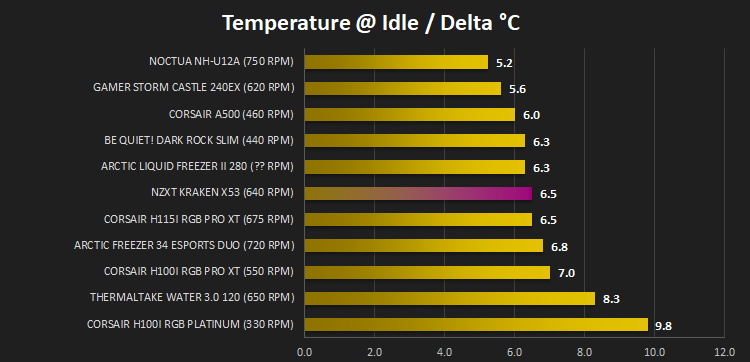
And then again after a 20 minute Stability Test within AIDA64:
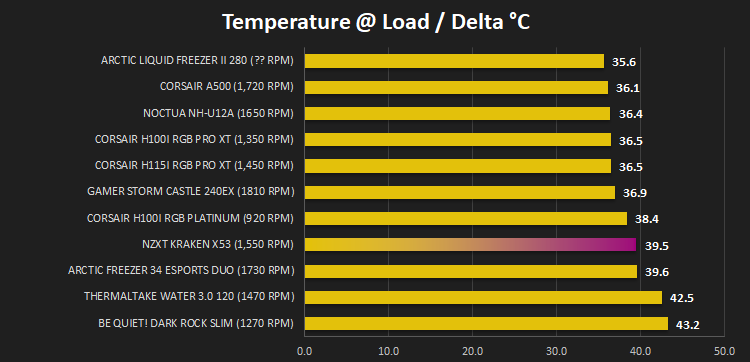
Benchmarks – Acoustic Results
For our acoustic results, all other fans in the case are disabled and the Corsair’s H100i Pro RGB’s pump is turned down to quiet (roughly 1100 RPM) and measure the fan noise at 1000 RPM, both as a case fan and as a radiator fan: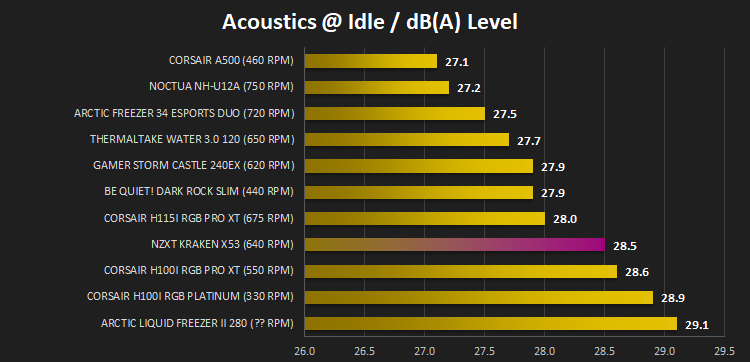
And then again at maximum RPM:
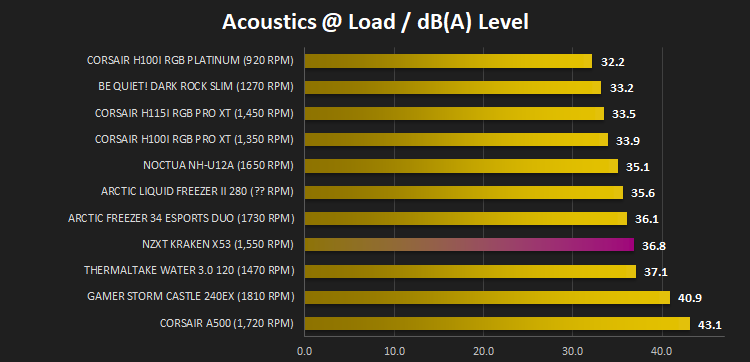
Conclusion
In a properly competitive market, where the difference between two coolers can be almost impossible to find without accurate measurements from expensive equipment, choosing which cooler to buy can often come down to aesthetics over performance, which is somewhere that the Kraken X53 excels.Performance, at the £120/$130 price tag, is there or there abouts with the CORSAIR iCUE H100i RGB PRO XT but the RGB lighting on the NZXT’s pump is arguably much cooler with the infinity ring design.
NZXT’s CAM software is a bit of a mixed bag. On the one hand, it’s great for keeping an eye on your system temperatures and fan speeds, but the choice not to control the two Aer P120 fans from the software is a missed trick. It would definitely be advantageous to add in different fan profiles.
Installation is as easy as any other AIO, with the mounting hardware feeling solid; we’d much prefer some fan connections to the cooling loop though. The cooler is also backed by a 6-year warranty that not many manufacturers can match; that’s something which gives any potential buyer a real peace-of-mind about the quality of the product as a whole.
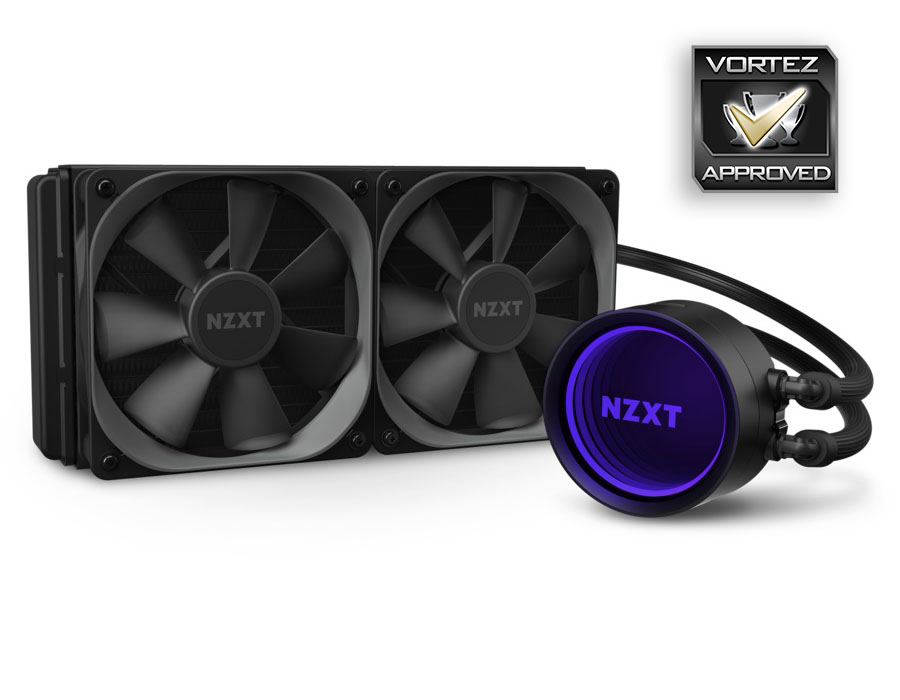
All-in-one watercooling loops have become much of a muchness, with little to set them apart but the NZXT offers something unique with the infinity mirror that looks fantastic.
Pros
+ Infinity mirror looks great
+ Decent cooling performance
+ Easy to install
Neutral
+- Price
Cons
– No fan control from the software
– Not quite as good as the CORSAIR alternative
+ Infinity mirror looks great
+ Decent cooling performance
+ Easy to install
Neutral
+- Price
Cons
– No fan control from the software
– Not quite as good as the CORSAIR alternative
Click here for an explanation of our awards at Vortez.net.
Stay connected with the Vortez Social Media pages: