A deluxe design from the definitive enthusiast peripheral brand, the Basilisk Ultimate seeks to be the one true wireless mouse for any gaming need. How does it shape up in today’s specialised ecosystem?

Product on Review: Basilisk Ultimate Wireless Gaming Mouse
Manufacturer: Razer
MSRP:
– US: $149.99/169.99 (excl Tax)
– UK: £149.99/169.99 (inc. V.A.T.)
– EU: €169.99/189.99 (inc. Tax)
Introduction
Peripherals specialist Razer have been a fixture of the enthusiast gaming market for years, bringing a wide variety of keyboards, mice and more to the hands of gamers that have been adapted to specific genres, styles or even the mechanics of individual titles. They are by nature a very experimental brand, always willing to push the envelope to hardware that defy normality in subtle or extravagant ways. In the past this has perhaps best been best exemplified in the Naga series but there are signs throughout their catalogue, not to mention the out-the-box concepts that often take centre stage at technology expos.
Today we’re looking at the Basilisk Ultimate, a wireless mouse that packs a few surprises within a relatively familiar frame. The Basilisk V2 core is a 2019 target specification and as a result just about predates the current trend of ultralight chassis, instead pushing a feature-rich design that’s oriented towards general gaming sensibilities rather than hyper-specialising for FPS, MOBA or MMO titles. And thanks to that, gamers with eclectic tastes can enjoy a mouse for any occasion.
The wireless component of the Basilisk Ultimate is made possible by Razer’s Hyperspeed technology. They’re aiming for 2.4GHz wireless mode that has an imperceptible latency profile which it’s claimed is significantly faster than the competition, and a specialised USB wireless dongle (or optional charging dock) handles the I/O. Much of the mouse’s 107g weight is due to an internal battery rated for up to 100hrs continuous use, chargeable via the supplied ‘Speedflex’ USB cable or dock. A cable that incidentally can also convert the mouse to fully wired operation if required in a pinch.
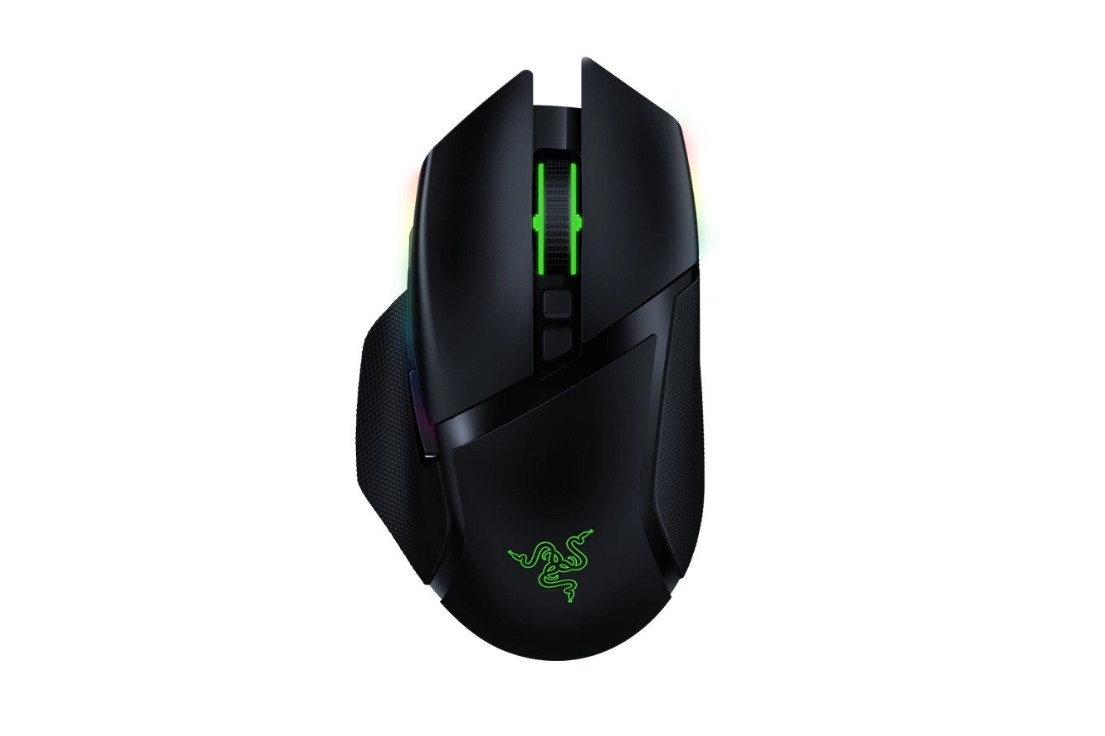
The sensor is another important aspect of the Basilisk Ultimate and Razer have pulled no punches by integrating a 20,000 dpi optical model they dub the FOCUS+. That’s high-end for any mouse specialisation, and relatively rare on a power-sipping wireless platform. The sensor is supported by 11 programmable buttons and on-board engine that supports 1000Hz polling and multiple limited profiles.
The final headline feature is support for Chroma RGB lighting. This unlocks a wide array of customisable lighting options that treats the mouse as having multiple lighting zones, allowing configuration that depends on profile or reacts to environmental factors. As a Chroma device these effects can also be linked to other compatible peripherals including Razer keyboards, 3rd party motherboard and component lighting, and even some ambient room lighting hardware.
At an MSRP* of $149.99 or $169.99 with the charging dock (£149.99/169.99 inc V.A.T. respectively in the UK) the Razer Basilisk Ultimate is certainly a considered purchase. Its closest competitor might be the Logitech G502 Lightspeed, a slightly more affordable unit, and SteelSeries have the Rival 605 Wireless a step down again. So have Razer carved out a place for themselves with the Basilisk Ultimate? Read on to find out more.
* At the time of writing the Basilisk Ultimate is available considerably below its MSRP, below £80 at some e-tailers.
Technical Specifications & Features
CONNECTIVITY:
– Razer HyperSpeed Wireless
– Wired (Speedflex Cable)
BATTERY LIFE:- Up to 100 Hours (Lighting disabled)
RGB LIGHTING:
– Razer Chroma RGB
– 14 Razer Chroma RGB Lighting Zones
SENSOR:- Optical
MAX SENSITIVITY (DPI):- 20000
MAX SPEED (IPS):- 650
MAX ACCELERATION (G):- 50
PROGRAMMABLE BUTTONS:- 11
SWITCH TYPE:- Optical
SWITCH LIFECYCLE:- 70 Million Clicks
ON-BOARD MEMORY PROFILES:- 5
MOUSE FEET:- 100% PTFE Mouse Feet
CABLE:- Razer Speedflex Cable (USB Type-A to Micro-USB)
TILT SCROLL WHEEL:- Yes
SIZES:
– Length x Grip Width x Height: 130 mm x 60 mm x 42 mm
WEIGHT:- 0.24 lbs / 107 g
DOCK COMPATIBILITY:- Yes (included optionally)
Optical Switches
Razer have moved to an optical switch design for the majority of premium mice and the Basilisk Ultimate is no exception. The housing of this switch is similar to that of mechanical predecessors which made it easier to retrofit into existing chassis, and it still makes use of a wafer spring within the mechanism. Actuation is performed by breaking a beam of light, eliminating specific electro-mechanical issues including debounce timings as well as reducing long-term wear.
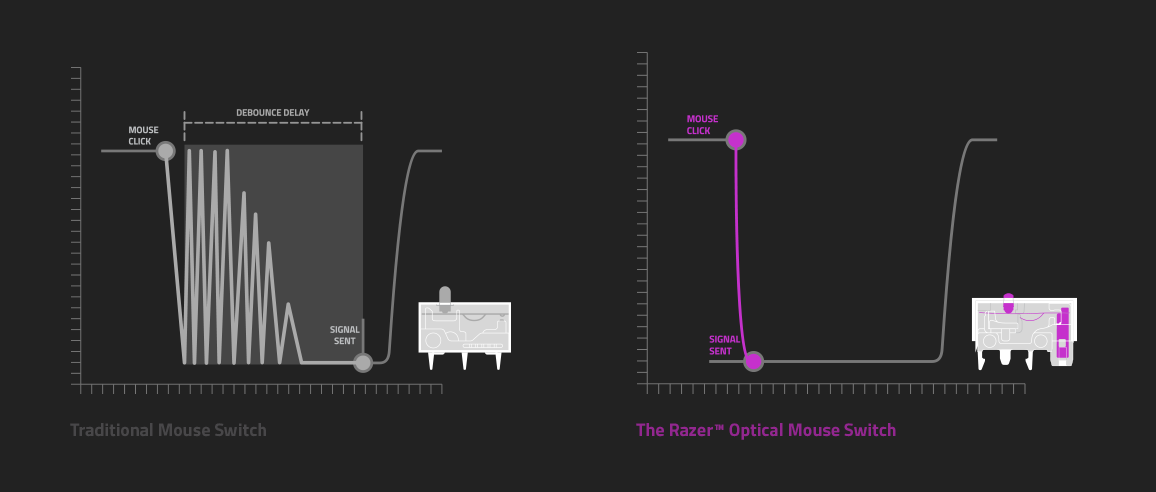
Auxiliary buttons – thumb, wheel and DPI selectors – all utilise more conventional compact mechanical switches.
Hyperspeed Wireless
Wireless mice have long been held to be too slow and unreliable for gaming, but in recent years this view-point is slowly shifting as the manufacturers set their engineers towards adapting the technology to more than just the convenience of a cable-free platform. Razer’s proprietary implementation is known as ‘Hyperspeed’, and tackles three pillars of development simultaneously.
The first is the issue of latency – the time between a button being pressed and that being registered by the system OS. At the time of the Basilisk Ultimate’s launch Razer claim that Hyperspeed has at least 25% faster transmission speed than competing gaming mice, basically on par with wired USB, and while the gap might have narrowed they’re no less robust in their published claims.
Wireless gaming also demands perfect transmission integrity with no fractional drop-outs, which Razer certainly identifies as an arrow in their quiver. Smart channel scanning and hopping in the 2.4GHz band is a large part of this.
The final factor in Hyperspeed’s hype is battery life – it does you no good as a gamer if the mouse runs out of charge mere moments into any gaming session. Hyperspeed is billed as more energy efficient than its predecessor, with the mouse running for days on a single charge (though wireless efficiency is only a part of that).
Razer Hyperspeed has been integrated into the majority of their wireless peripheral lineup at this point, including Deathadder mice and BlackWidow keyboards. Some models can also operate by using a single wireless dongle for multiple devices, although only a sub-set are supported right now.
DPI Toggle/Sensitivity Clutch Thumb Button
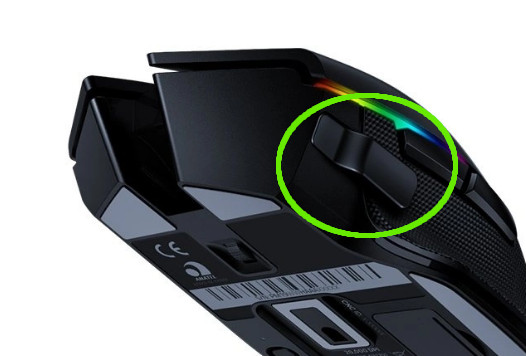
One fascinating innovation for the Basilisk Ultimate is a small removable button just forward of the thumb rest. It’s clipped in magnetically, and when not in use a small rubber cover can fit over over the housing and protect internal components.
By default it’s intended as a sensor DPI toggle, taking it down a notch to aid when aiming down sights in FPS games. It’s also fully remappable, meaning it can be used as an additional rebind for MOBAs and MMOs and a macro trigger in a host of other games and productivity software. With its addition the mouse is even more of a half-point between a full-on FPS and MOBA-oriented product like the Naga Hex, which itself featured an array of six thumb buttons.
Scroll-wheel tension adjuster
Another unique innovation, this time located on the floor of the mouse, is a wheel that adjusts the resistance – and clickiness – of the scroll wheel. All the way down and the wheel spins almost completely freely; turned up it has a strong tension and heavy click for each notch along the wheel. The mouse wheel button is quite sensitive so this adjuster can have a big impact on your day-to-day use of the mouse.
Charging Dock/Cable
Any mouse with an integrated battery needs an easy and convenient recharging method, and the Basilisk Ultimate has two.
Optionally, you can buy a package that includes a USB charging dock, onto which the mouse can sit when not in use. Two metal contacts on the base of the mouse connect to two pins on the dock, and the wireless dongle can be connected to the dock to reduce the distance between mouse and receiver.
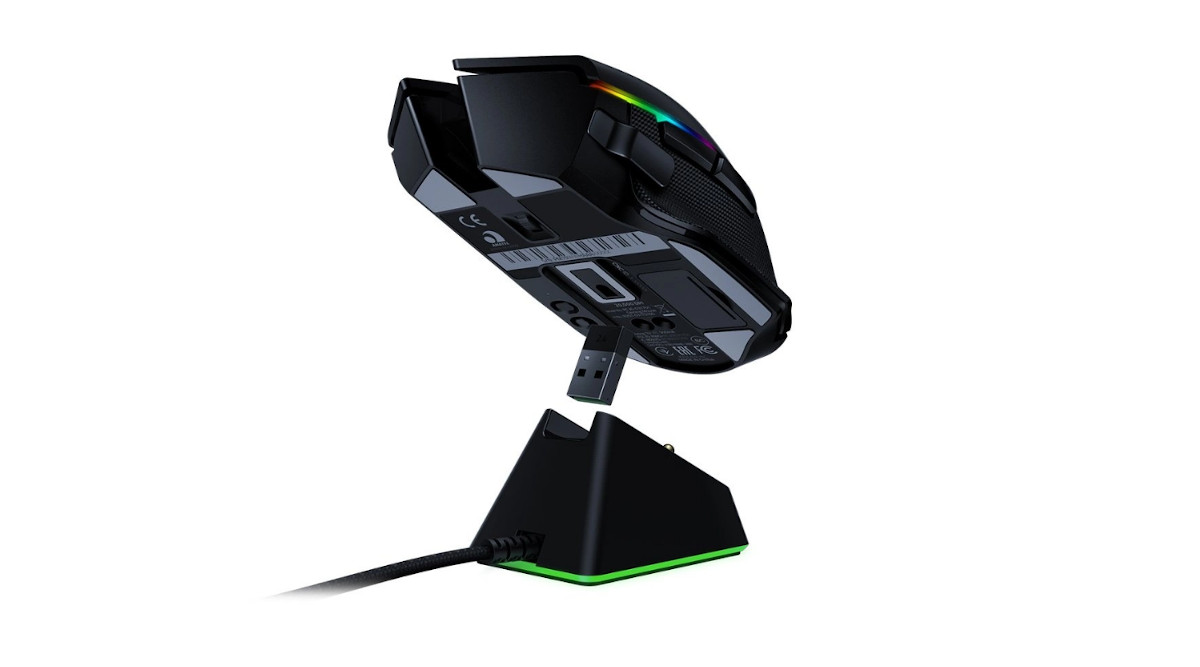
Razer Basilisk Ultimate with Dock
Alternatively, you can buy the mouse with a USB cable and small adapter for the wireless dongle. To charge the mouse you simply disconnect this dock and plug the cable directly into a micro-USB port in the front of the mouse, which will now switch to a wired mode and operate accordingly. To switch back, simply disconnect the mouse and re-attach the dock with receiver plugged in. Seamless stuff really.
Purchasing the dock makes a lot of sense if you’d prefer to run the mouse with continuously active RGB lighting, as the higher battery drain is more than mitigated by off-time spent charging. The wired option is perhaps best for those who find the lighting a secondary factor over battery longevity and don’t want to deal with the hassle of plugging it in every other evening. It’s also worth remembering that the dockless option is about $20 cheaper if price is a factor.
—
There’s certainly enough there for this Basilisk to justify the Ultimate tag, even before seeing it in the flesh. But we’ll hold our conclusions for now; build quality and actual performance is much more important than on-paper features.
Packaging and First Look
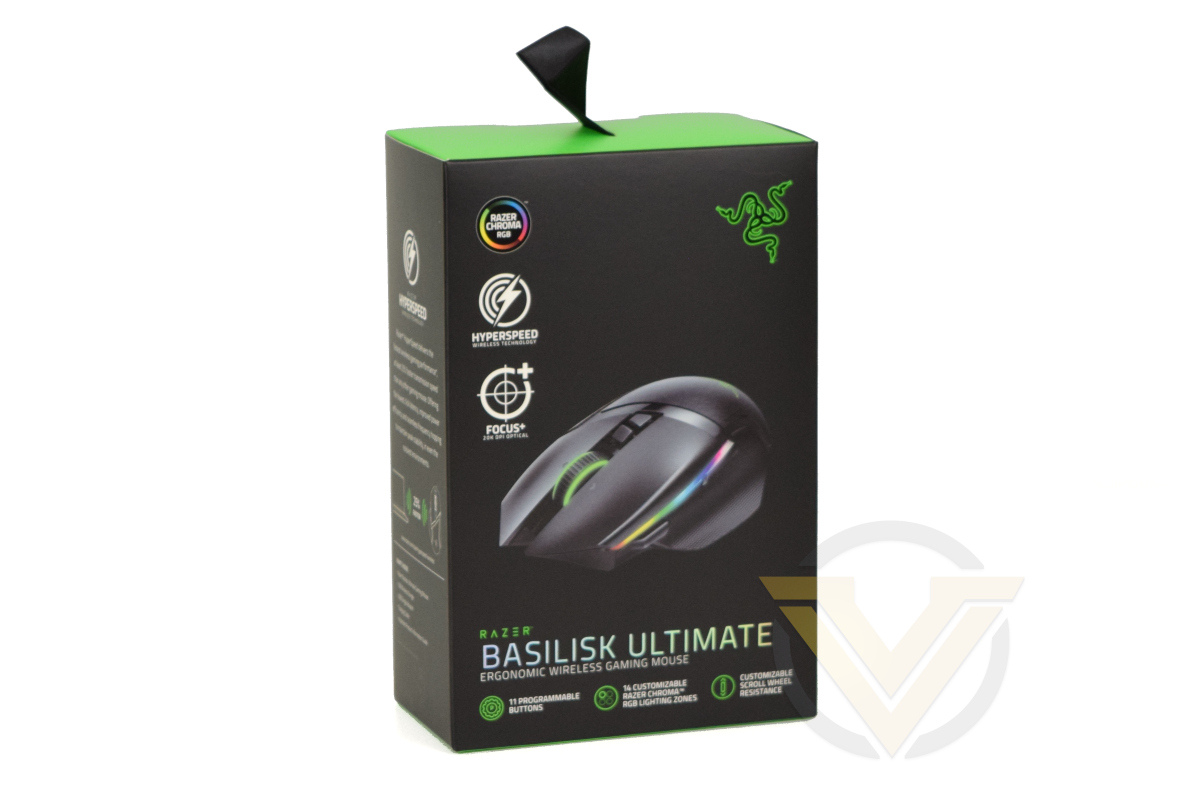
Peripheral manufacturers have each carved out their own recognisable liveries over the years, none more so than Razer who are now famous for their Black/Green colour-scheme. That’s present here, even if the Basilisk Ultimate’s box isn’t quite as opulent as the name suggests.
The front of this compact container showcases the aggressive styling of the Basilisk and its RGB highlights, appealing directly to today’s gamer aesthetic. Wireless technology and the 20K DPI optical sensor are both featured alongside the Chroma RGB lighting system, and the number of programmable buttons is part of the footnotes.
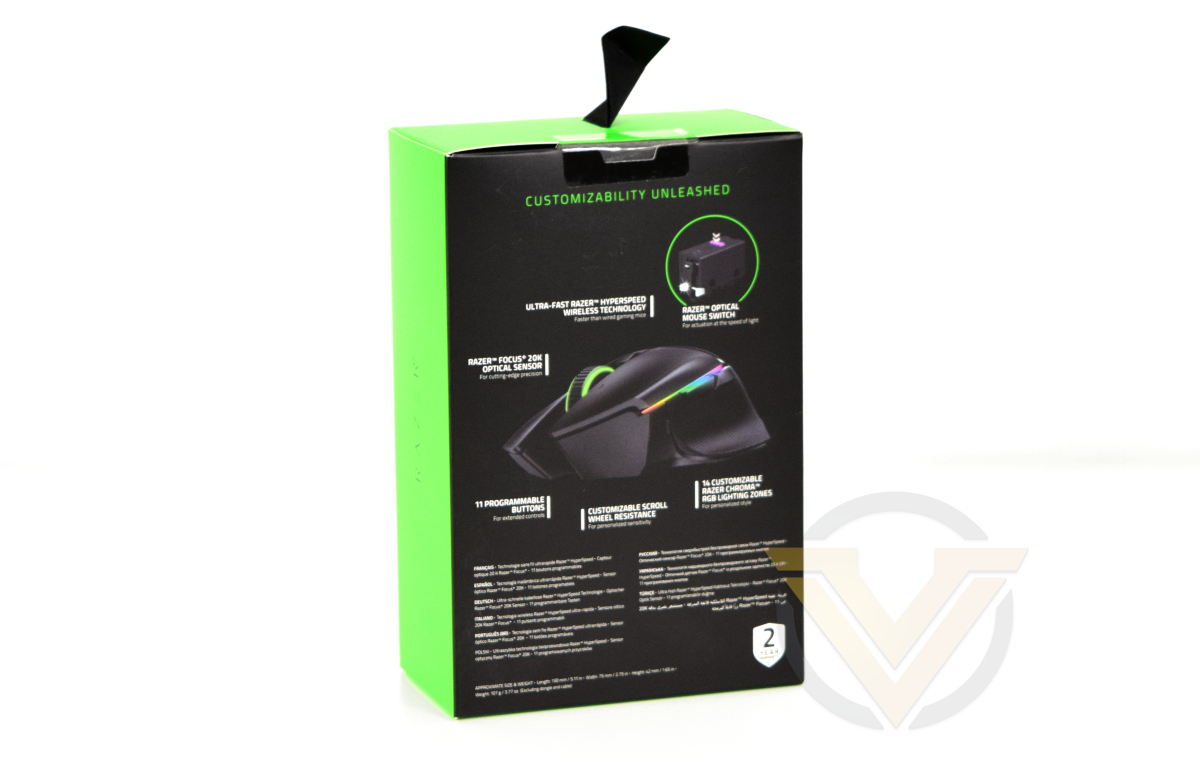
The rear is more thorough in spelling out this Basilisk’s differentiating features, and in that regard it’s also nice to see the button technology get an insert to itself. Approximate size and weight are in the fine print right at the bottom but more detailed technical information is reserved for the product page of Razer’s website.
The spine of the packaging breaks down both the Hyperspeed wireless technology and what’s inside the package. We should also relay that Razer have used a majority of recycled and recyclable materials for their packaging rather than a heavy amount of single-use plastics, but there’s probably more work that can be done in this area considering that the mouse is obscured from view until the package is unsealed and opened.
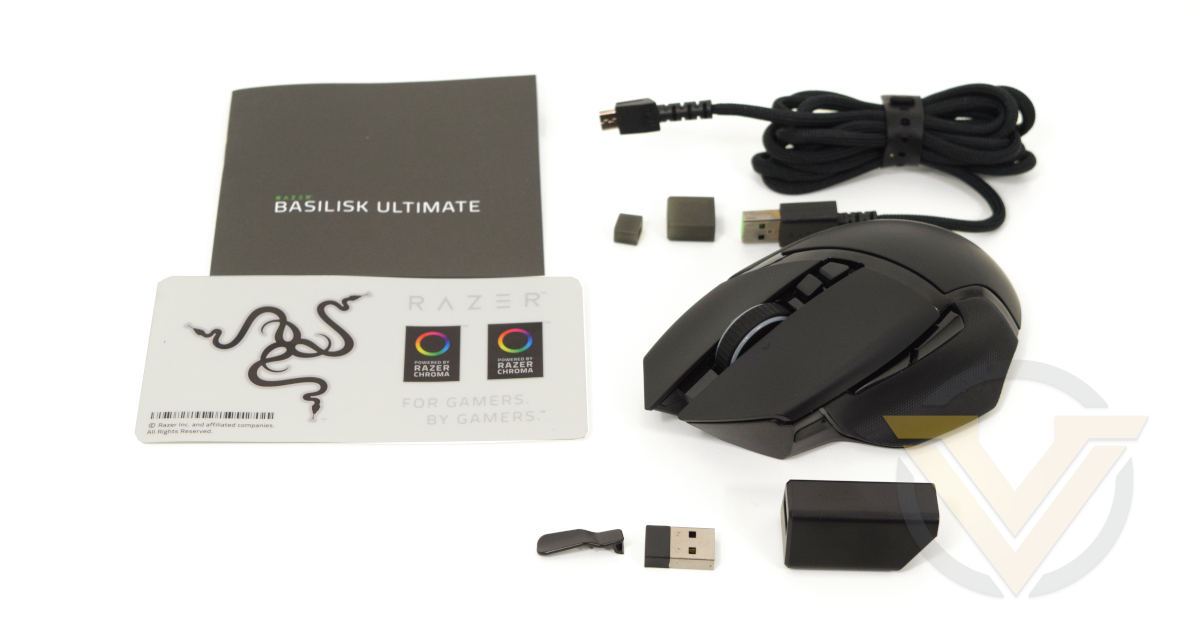
Inside we find the Razer Basilisk Ultimate mouse, a USB-A to micro-USB ‘Speedflex’ charging cable with braided sleeve, the USB wireless dongle, the dongle adapter, and some paperwork to help getting started.
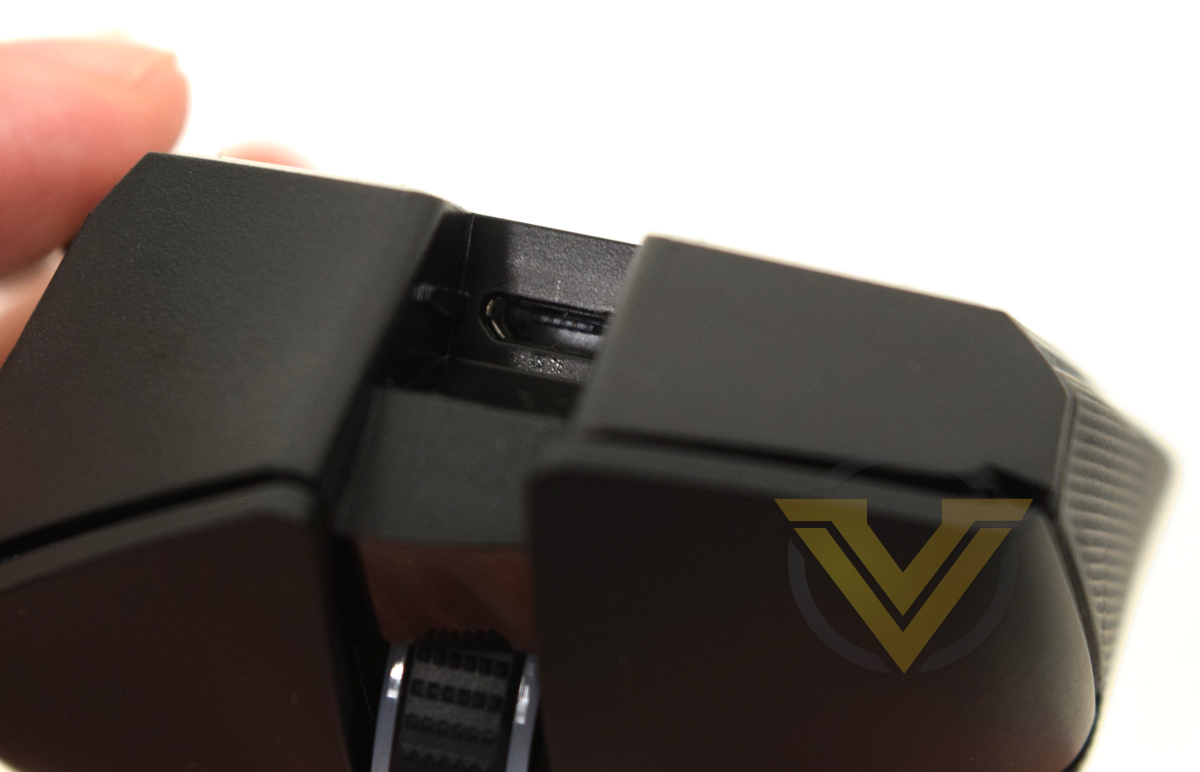
The micro-USB connector on the Speedflex charging cable is keyed to fit snugly in the port on the front of the mouse, ensuring that it doesn’t put any lateral pressure on the port if the mouse is used while connected. That’s a really smart decision which speaks for an accomplished design team.
Razer have kept the overall bundle tight with components that are necessary rather than laden it down with marginal extras, letting the product do the talking. There’s a lot to be commended in that approach, particularly when it reduces waste.
Closer Look
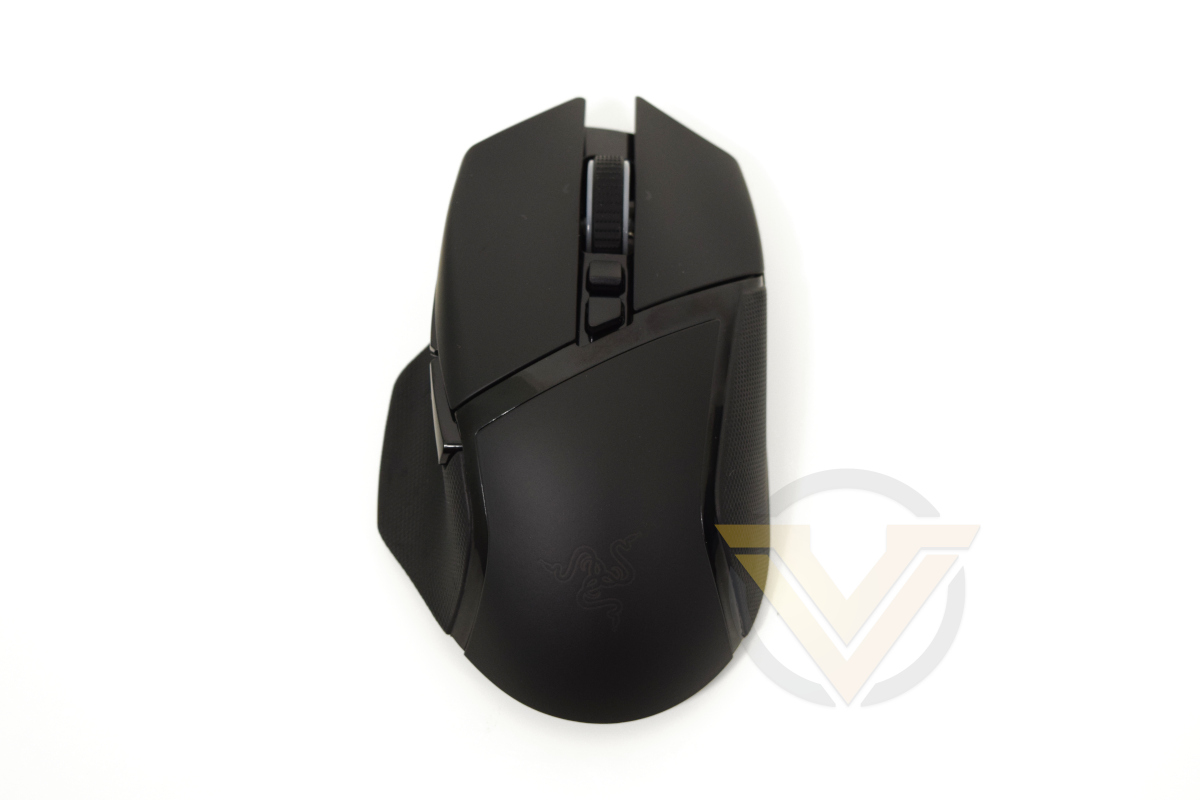
Our first top-down look at the Basilisk design shows a highly asymmetrical mouse oriented towards right-handed use. The shape is quite unlike that of other Razer mice in their present lineup due to both its sharp pronged front (that has echoes of the discontinued CM Storm Reaper of all mice) and oversized thumb rest, to the extent that you wouldn’t place it in the same family as the Viper, Deathadder and Naga were it not for the logo on the palm rest.
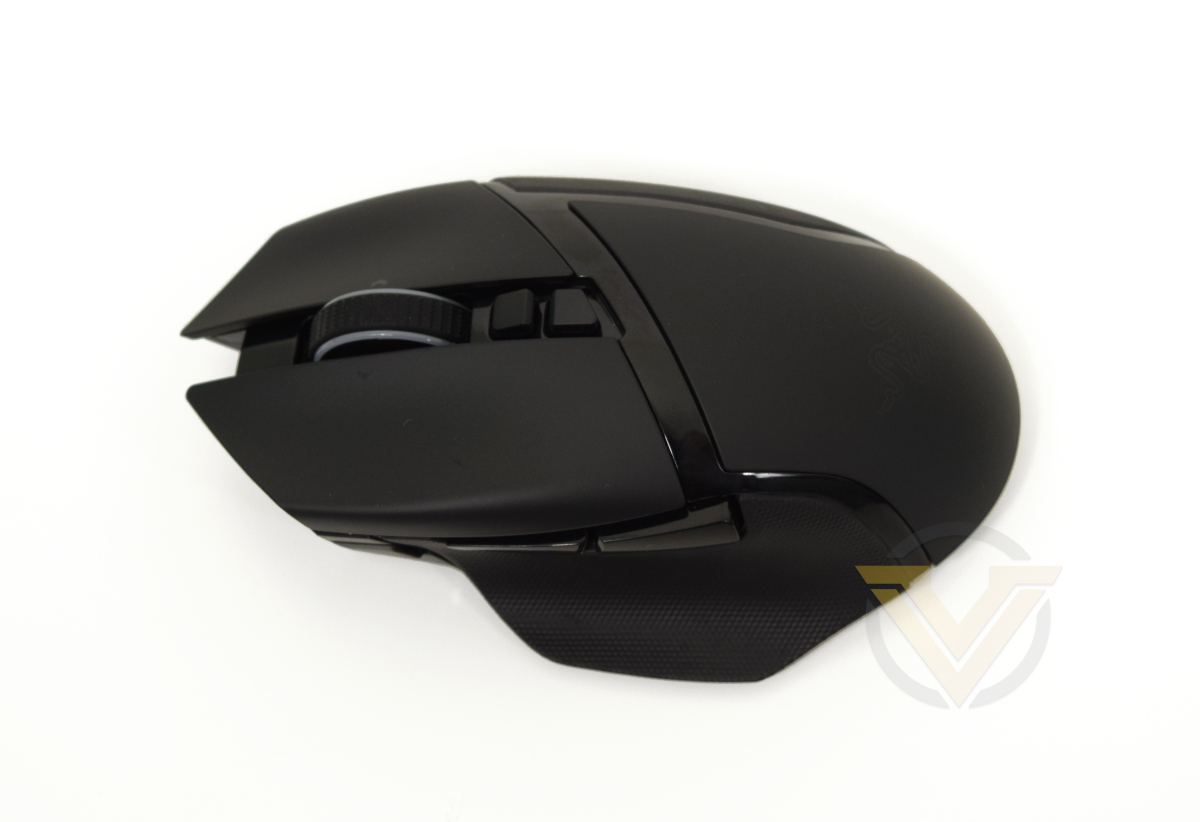
Most of the mouse exterior is finished in a black surface treatment that’s both relatively high-friction and offers a blank canvas for the lighting options present in four key zones. Either side of the mouse has a heavily textured and rubberised finish for an even grippier finish, necessary due to the weight of the Basilisk.
Although a long mouse, much of its length is in the angled teeth at the front. Both cross-sectional profiles are gentle curves rather than the aggressive fall-off we saw with the SteelSeries PRIME recently; it therefore feels comfortable in hand straight out of the box.
At 107g the Basilisk Ultimate is on the heavier side of mice recently reviewed but lighter than Razer’s own Naga Pro and the previously mentioned Logitech G502 Lightspeed. A large portion of that weight will be in the battery and associated structural requirements, but the mouse is nonetheless well balanced at the mid-point between the two buttons just below the mouse wheel.
As for the wheel, it’s a 4-directional design with button press, giving the user five bindable ‘buttons’ to assign. The two buttons below the wheel are ostensibly for DPI level cycling, but can also be re-bound independently and may be most suitable for productivity (word processor/spreadsheet manipulation etc.). A glossy black stripe then finishes off the aesthetics when viewed from above.
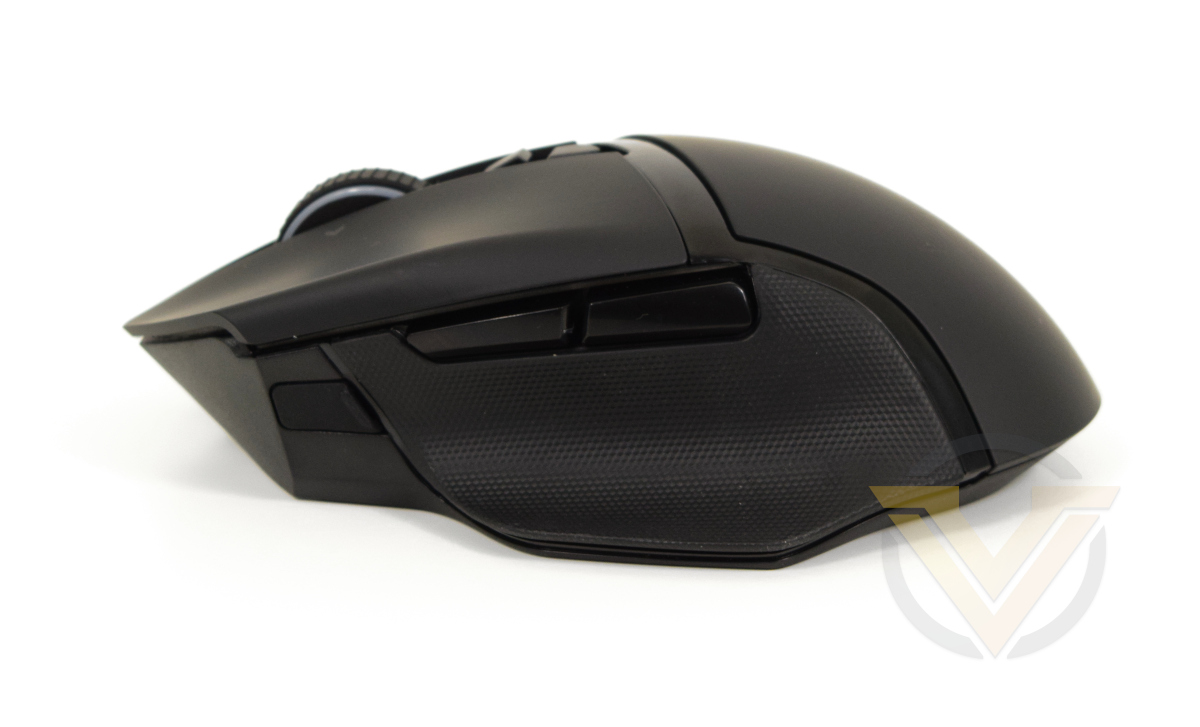
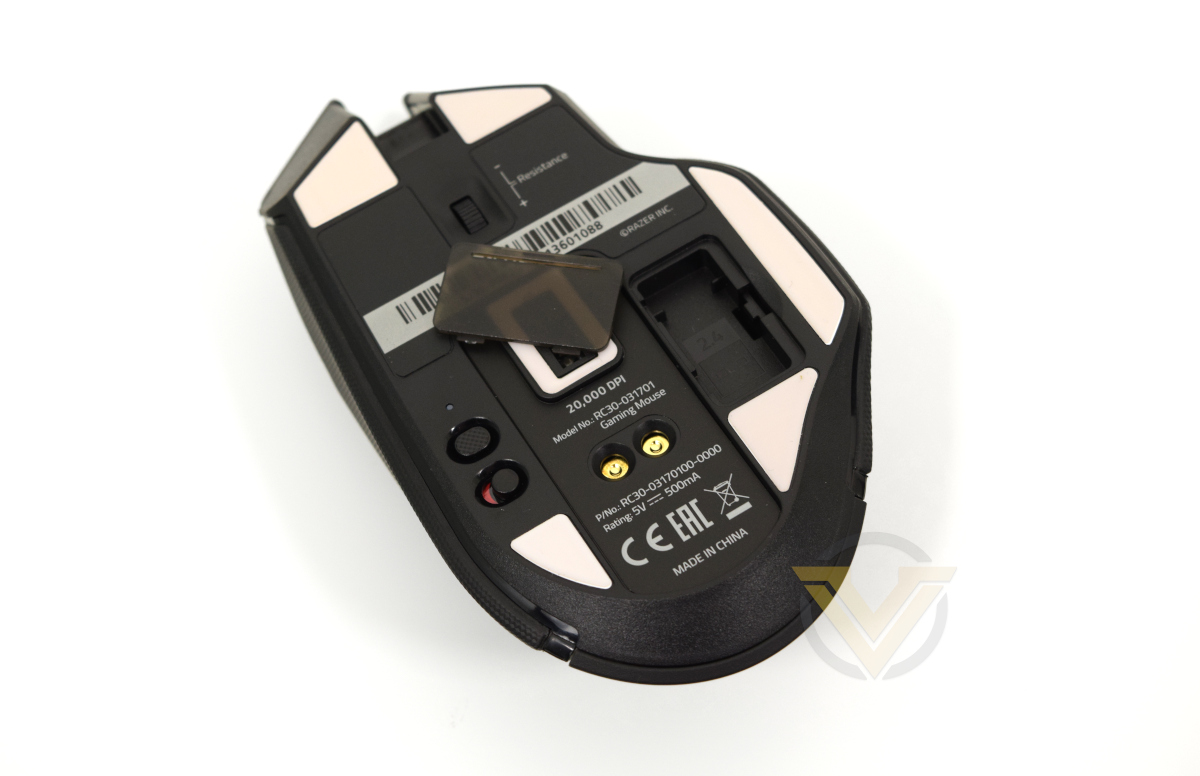
The left side serves up an interesting view. The two main thumb buttons sit on top of the thumb rest, protruding a little from the chassis. Towards the front is a small rubber cap underneath which is a docking point for the DPI Toggle thumb button; this button latches in magnetically and can be removed easily if not required. Users with a grip that biases towards the rear may find reaching the button a bit of a stretch, but traditional claw grips and some forward-biased palm grips should have less of a problem.
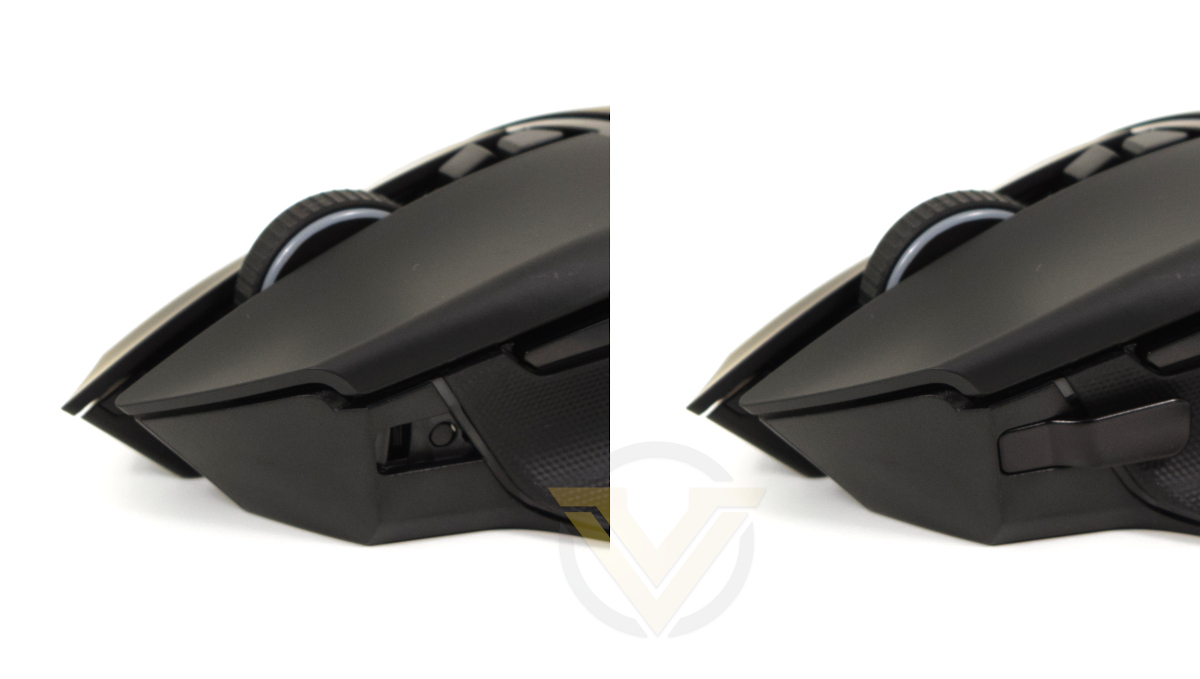
A micro-USB port is located at the front with a keyed entryway that will only be suitable for the bundled SpeedFlex cable. The cable’s soft braid reduces some of the inherent tension, putting little force on the mouse or the wireless adaptor when connected to either.
Flipping the mouse over reveals a feature-heavy base. Six white low-friction raised zones will help it to slide on the mousing surfaces, with one surrounding the centrally located sensor. At the top is the scroll wheel tension adjuster, and to the right is a covered alcove to store the wireless USB receiver when not in use. Below the sensor are two contacts for docked charging, present in both SKUs bundled with and without the dock. Finally, to the left is both a profile cycling button and wireless on-off switch; the mouse will still work in wired mode even when set to the off position.
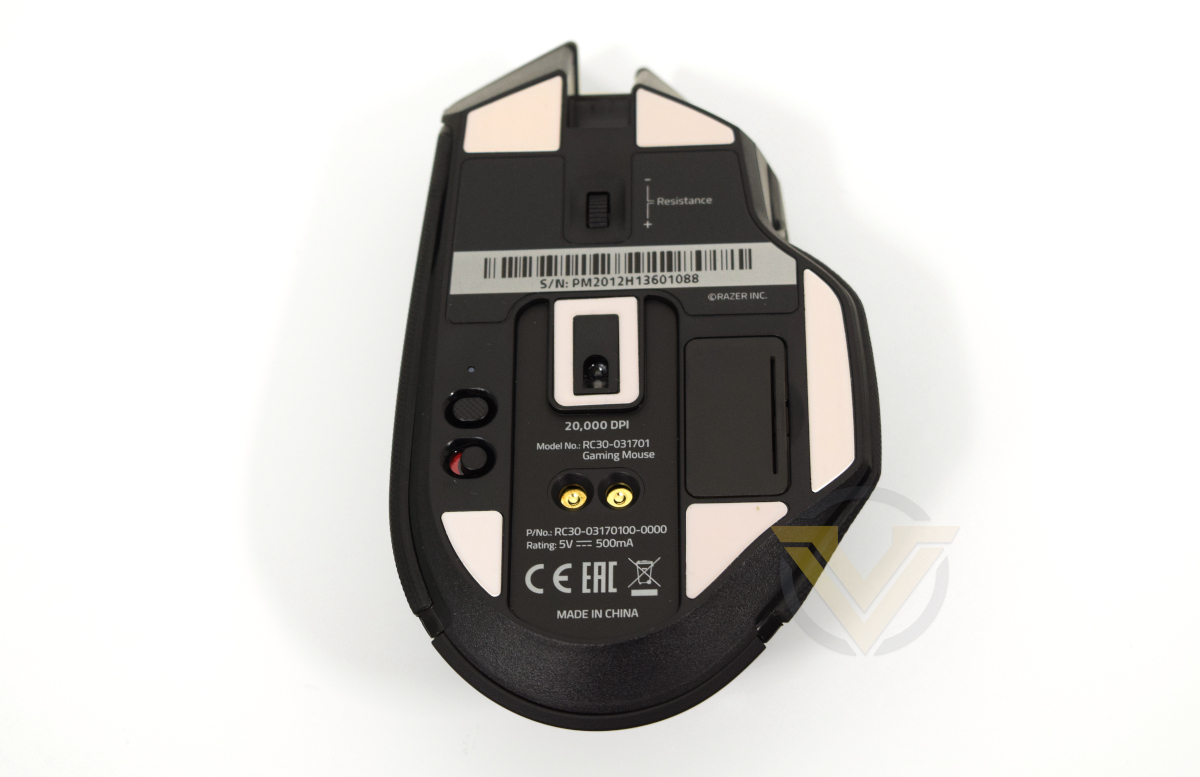
Overall, the Basilisk Ultimate is an impressive piece of kit at first blush. The features go above and beyond what you expect from a standard wireless mouse, including mechanical customisation not found anywhere else. The trade-off is in weight and size, with larger hands perhaps most able to best use all of its features.
Software
Upon running the Basilisk Ultimate’s unified driver package you’ll be prompted to install three different utilities: Razer Cortex, Razer Central, and Razer Synapse. Only the latter is necessary to manage the mouse, others are optional and add marginal functionality.
Razer Cortex is one of an increasing number of bundled apps that will detect and manage your installed games. It also offers generalised performance optimisations for resource-hungry apps and games using a system they’re calling ‘Boost’ that can be automatically launched alongside a game, disabling superfluous system resource hogs at the same time.
Cortex’s optimisation controls are pretty granular and may be worth investigating if your system is in need of a little more oomph to get comfortable frame rates. That said, we experienced some minor issues with video stuttering in Chrome when running alongside a game with optimisations enabled, indicating that multitasking with Cortex is not desirable.
Razer Synapse is the unified configuration app. for Razer peripherals, encompassing sensor settings, button bindings and macros while also linking the Chroma lighting studio. Synapse also manages linked modules for 3rd party software integration such as Amazon Alexa, Nanoleaf and Philips HUE.
Razer Central brings it all together, integrating it all into the system tray and providing a framework for monitoring software updates and notifications. To use Central to its fullest you’ll need a Razer ID but effectively all of the baked-in hardware capabilities of each peripheral is available without a login.
Cortex and 3rd Party modules are beyond the scope of this review. We’ll be focussing on Synapse as it pertains to the Basilisk Ultimate.
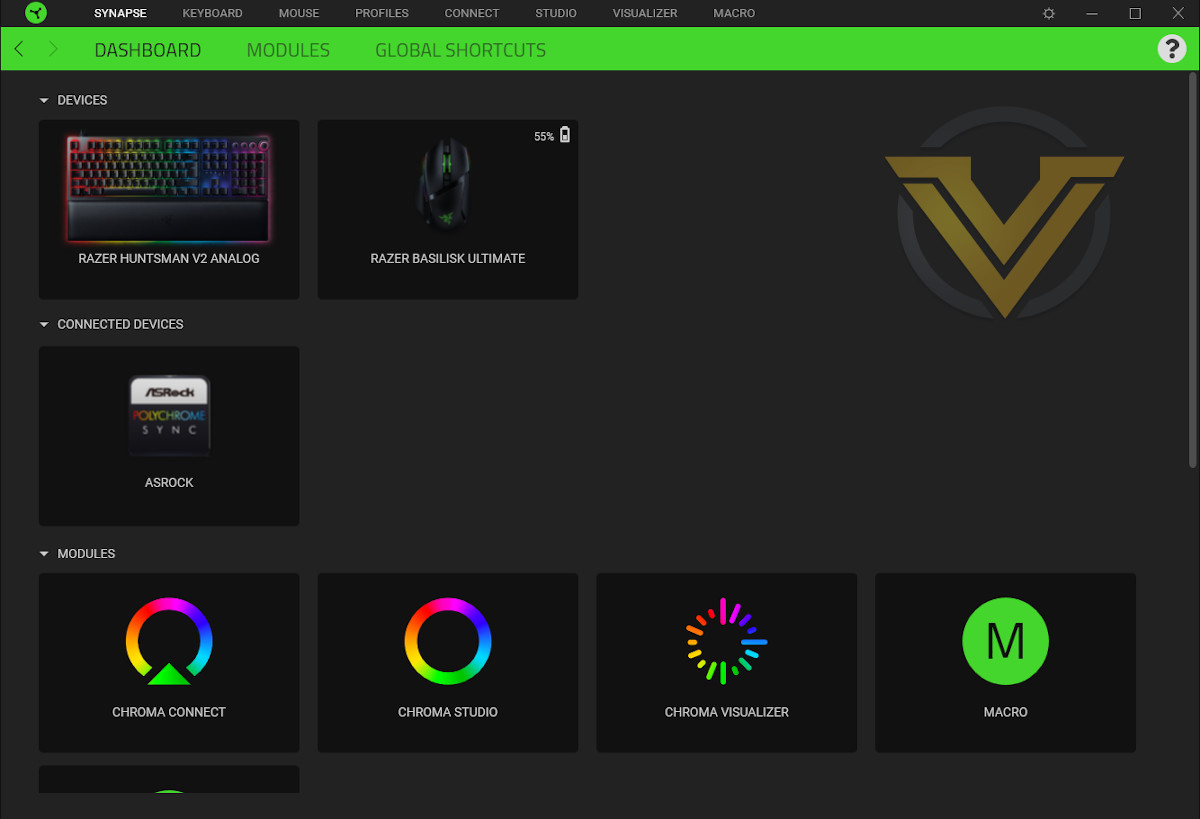
Upon launching Synapse you’ll be presented with the Dashboard where you can select the peripheral you want to manage, Module you wish to launch, or online service you’d like to take advantage of (e.g. product registration, support, or the Razer Silver & Gold rewards program). Any third party Chroma Connect compatible devices connected to your system will also be shown here, for example an ASRock motherboard with RGB support in the above image.

From this page you can also configure Global Shortcuts, keyboard and mouse shortcuts that will persist across all device profiles. Key functionality such as profile cycling is the obvious one to highlight, but other aspects including DPI Sensitivity Clutch levels, macros and more are all aspects of the hardware that can be made consistent whatever the active profile.
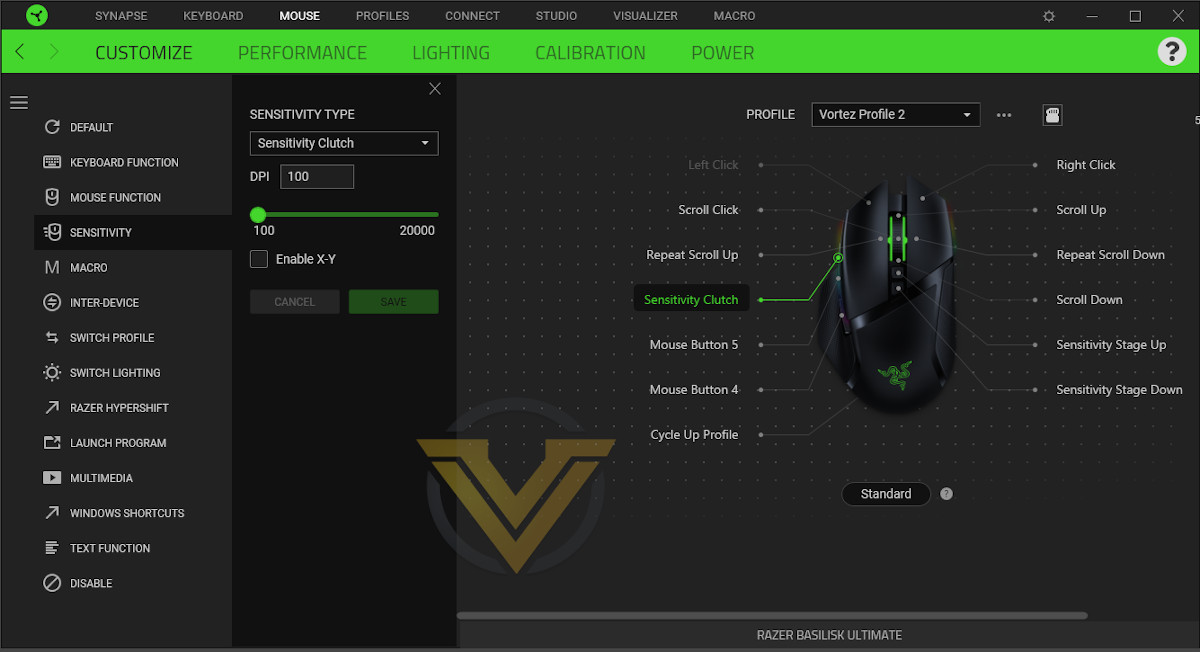
Clicking on a given device or the tab option at the top of the window brings you to its configuration page. The Basilisk Ultimate has five config. groups, split as separate tabs, which you can tinker with on a per-profile bases:
Performance sets key configuration parameters including DPI Stages and polling rate.
Lighting gets a tab to itself, with links to more advanced effects available through Chroma Studio.
Calibration helps you to calibrate the mouse sensor to your mouse mat(s), ensuring optimum mousing.
Power defines the threshold at which Low Battery Mode is active and sleep state timer.
Customising each button binding is simple. Clicking on each opens up a sidebar listing the wide variety of available options including keyboard/mouse defaults, macros and wider device settings including lighting schema.
The DPI Toggle button is here listed as the Sensitivity Clutch, and it has its own default binding and setting section. As with all the buttons here it’s of course fully bindable to other functionality.
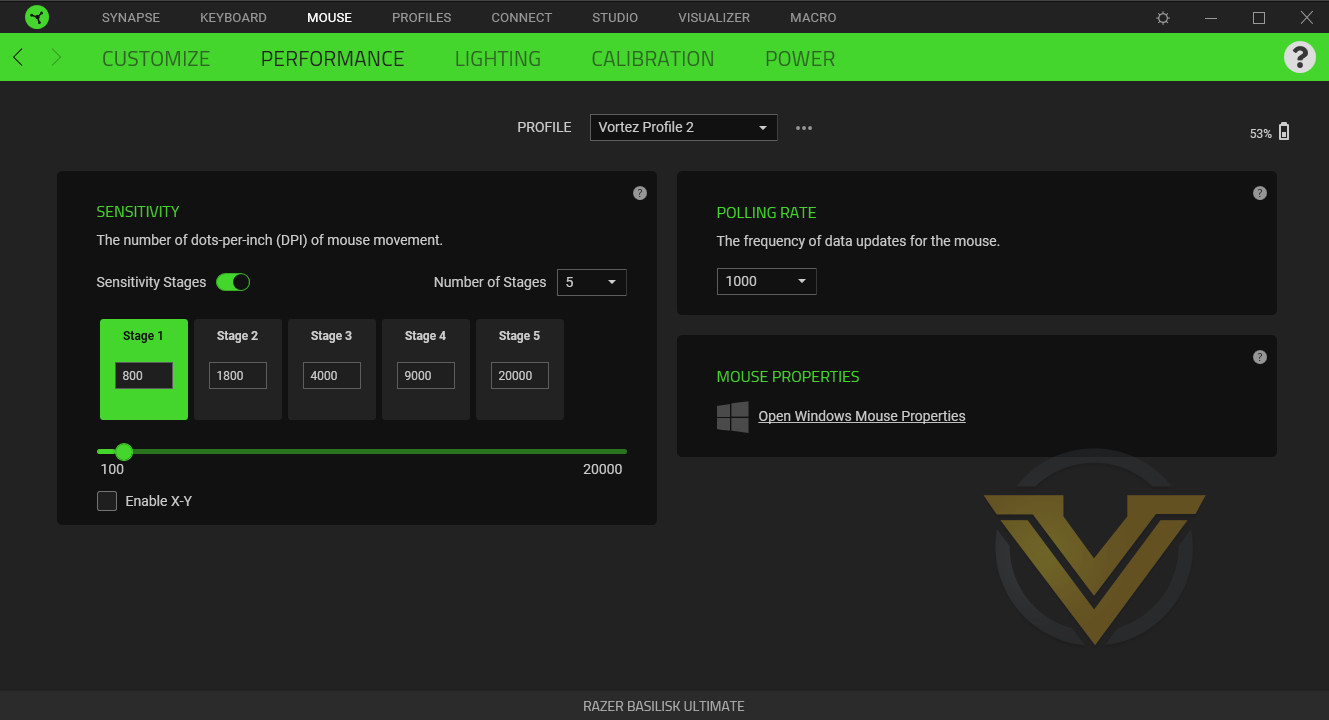
The Performance tab is perhaps the second most important as it specifies the number of DPI stages and their sensitivity on a per-profile basis, but you shouldn’t discount the Lighting and Power tabs. Note also that the Calibration tab allows you to set a manual lift-off distance which might be valuable in some instances.
Razer Hypershift
HyperShift is an optional modifier that triggers alternative behaviour for each button, similar to a keyboard’s Shift key. MMO gamers in particular will seek to take advantage of this feature as they clamour for more viable button assignments to accommodate an ever-growing list of skills. To view the HyperShift bindings click the button below the model of the mouse labelled ‘Standard’.
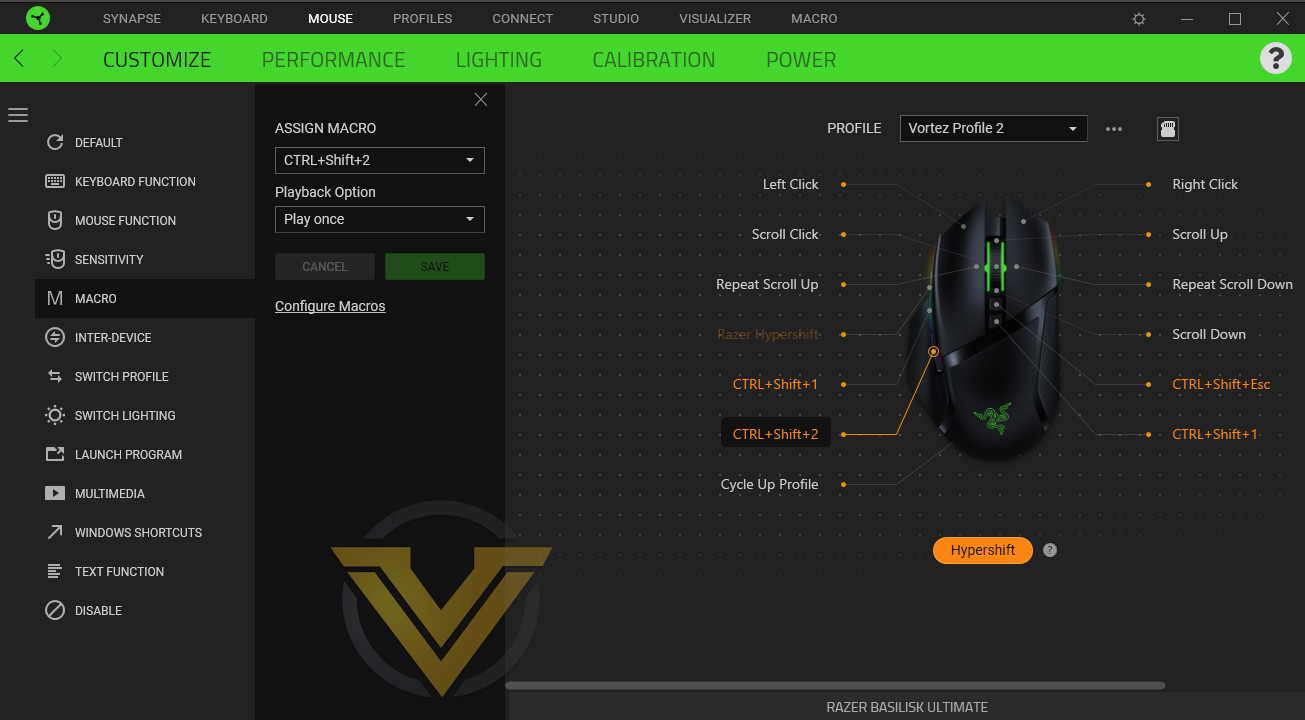
By using HyperShift to its fullest you unlock 11 additional binds (the LMB optional keybind becomes available in this mode), doubling the total available. HyperShift can also be triggered across compatible devices, i.e. activating it on the mouse can make it apply to keyboard shortcuts and visa versa. The default behaviour of each button is unchanged so you don’t have to go through the hassle of making new assignments for each available slot, just the ones you wish to modify.
Macros

Macro creation and editing is handled solely on the Macro page with a master list of each available to the user. Macros can be recorded here, with each keystroke and button press sequence stored ready for later adjustments, or specific actions can be inserted including text strings and even Run Commands.
Once stored, the UI will also indicate how many bindings the Macro is stored to on a given device, and what those devices are. This is an excellent troubleshooting feature we can’t recall seeing elsewhere that will make hunting down rogue keybinds far easier than might otherwise be the case.
—
Razer’s approach to software customisation is almost utilitarian, prioritising function over fancy UI elements made in furtherance of ‘the brand’. Because of this Synapse is straightforward to use without any key feature being hidden away behind a menu or at the end of a long scrolled list. Overall it’s a credit to the manufacturer.
Lighting
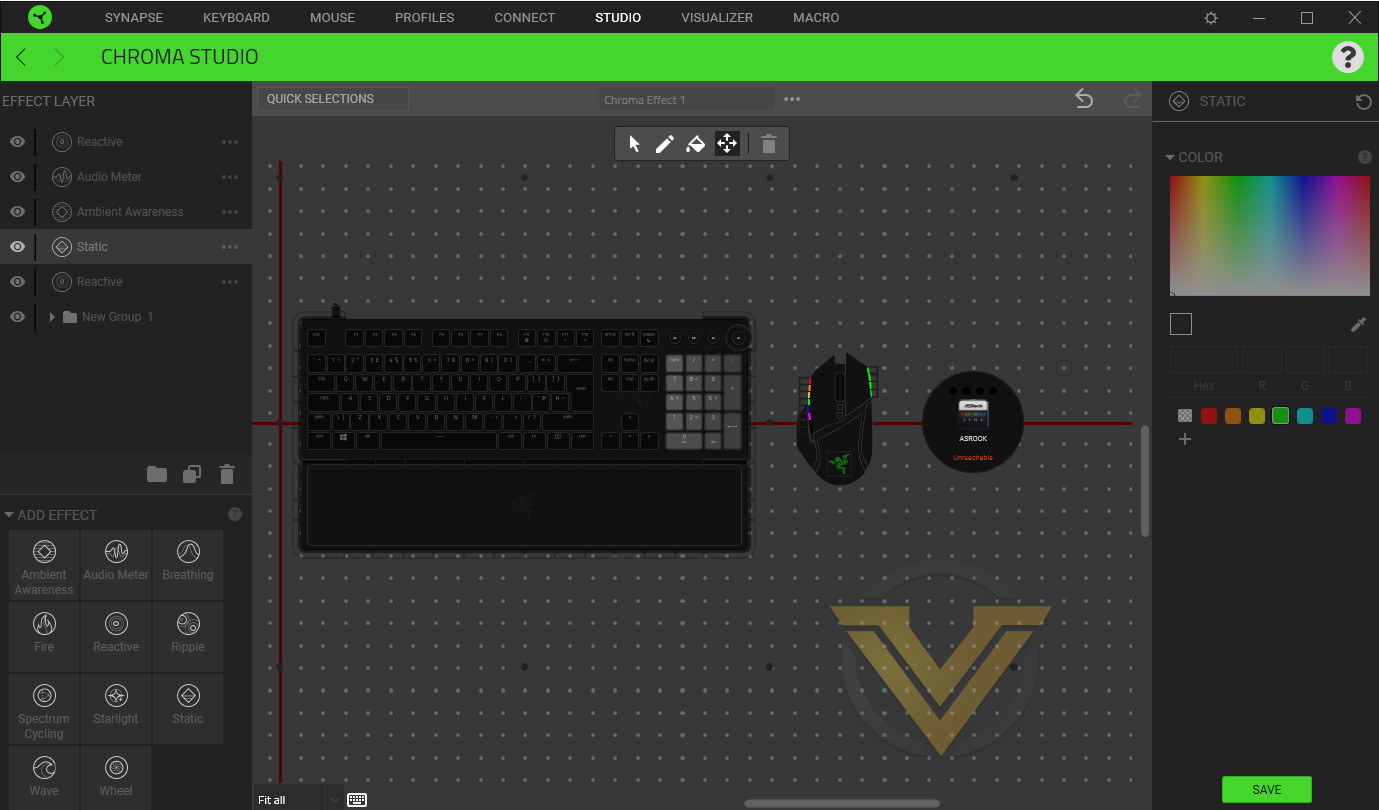
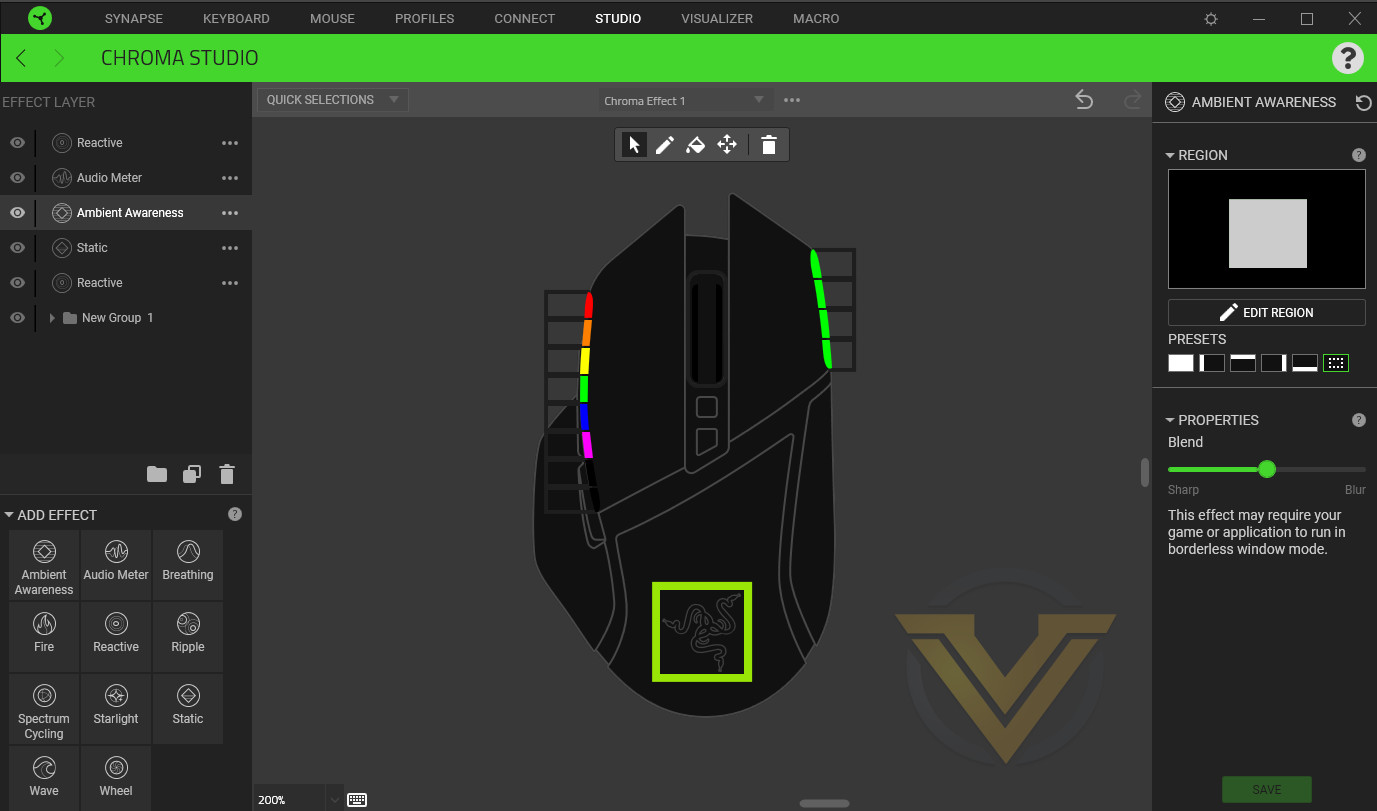
It will be no surprise to learn that RGB lighting on Razer peripherals almost entirely relies on the Chroma Studio configuration module, so your success in crafting the perfect effect for you will depend on how well you can gel with this utility. Chroma Studio is accessible through the Synapse app alongside the Visualiser discussed below.
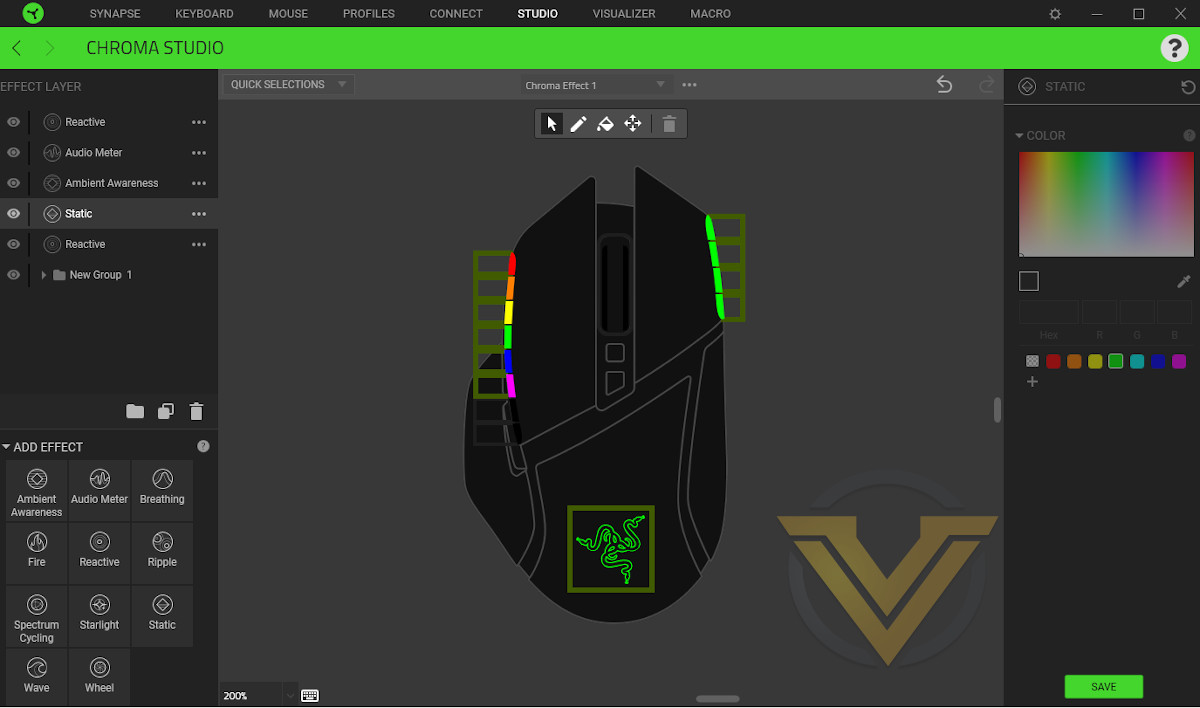
The Basilisk Ultimate has fourteen discrete lighting zones grouped into four separate regions: a Left Strip below the left mouse button (8 zones), mouse wheel, Razer logo, and Right Strip below the right mouse button (4 zones). The nature of the diffusion panels through which the LEDs shine mean that adjacent lighting zones will tend to bleed into each other rather than appear as discrete blocks as indicated in the software.
Like many other approaches Razer Chroma constructs a full effects package by utilising layered effects and transparencies, allowing complex schemes to be built up using simple building-blocks. Less common is the distribution of community profiles to inspire other creators and get some tips on how to create a particularly perplexing effect.
We’ve hooked up two devices to Chroma Studio: the Basilisk Ultimate and the Huntsman V2, both of which are fully Chroma compatible. The Studio has also detected a third compatible device, our ASRock B450 motherboard which is currently disabled. All are displayed simultaneously in the studio software in a central section referred to as the ‘Canvas’ rather than requiring independent configuration, at a stroke removing the guesswork that often goes into lighting profiles linked across multiple devices. Hardware can be positioned anywhere on the canvas, also helping with timing specific effects so they appear contiguous across regions in space. The preview is updated in real-time, and applied to the devices when you save it to the current profile.
Razer add an additional aspect to the layering system through groups that help to organise more complex effects across a wider range of devices. The value of this feature multiplies when you consider the enormous range of components that are now chroma compatible, up to and including wall and room lighting, and will also aid in integrating new devices into an established Chroma setup.
Chroma offers 12 different lighting effects that can be applied to a selection of lighting zones for each layer, each with individual configuration options.
Audio Meter:- Pulsing lighting for the layer with colour and intensity that adapts to the current audio. Disabled when no sound is being played by the selected sound device.
Breathing
Fire:- Flickering fire effect oscillating between a ‘hot’ and ‘cold’ colour. Less intensity the higher you go up the canvas.
Reactive:- Flash a keyboard key when it is pressed, or with mouse buttons flash all zones of the mouse.
Ripple:- A ripple of colour (or spectrum of colour) pulses outward, centered on a key or mouse button pressed.
Spectrum Cycling:- cycle through a spectrum of colour. The spectrum can be edited to shift through preferred colour schemes.
Starlight:- Briefly illuminates a lighting zone in the selected area before decaying back to background.
Static:- A static colour scheme
Wave:- A wave of light pulses across the selected lighting zones, with spectra reflecting the peaks and troughs of the wave. The angle of this wave can be adjusted; 90 degrees – i.e. left-to-right – is the default.
Wheel:- A spiral of colour rotates around a centre-point (that you can define on the canvas). Spectra, direction and rotation speed can all be adjusted as desired.
Chroma Visualizer
Separate to the Chroma Studio is the Chroma Visualizer. This standalone lighting scheme places an equaliser effect over connected Chroma devices that reacts to audio played through a specified audio device, and the Visualiser can be activated when only specific applications are launched (such as a favourite game or music player).
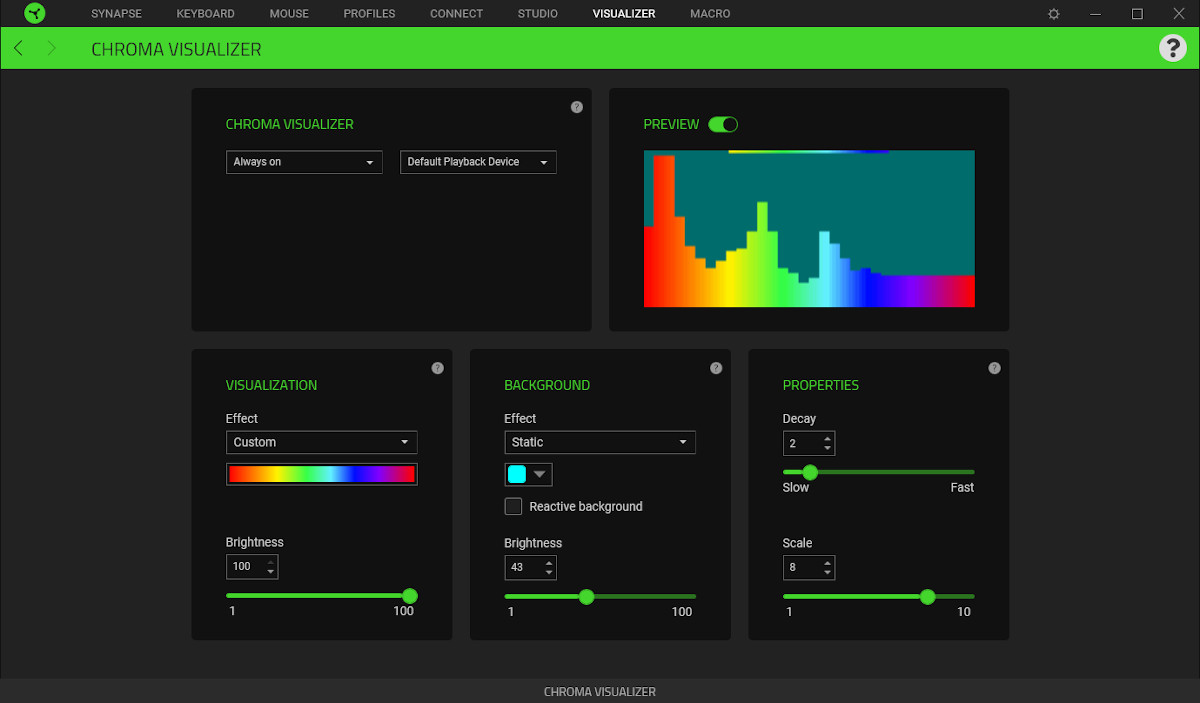
In the Visualizer settings you’re able to configure the colours of both the equaliser bars and the background, using pre-baked colour spectrums and effects such as Wave and Spectrum Cycling. Properties such as decay (the rate at which the equaliser bars fall) and scale (the height of the bars for a given frequency amplitude) can also be altered.
It’s a simple but effective lighting scheme that we can well imagine sees a lot of use in demo rooms and at LAN parties, where something fast needs to be set up that isn’t the run-of-the-mill cycling wave effect. Otherwise, it seems a little out of place as a standalone feature of the software without also making it available as an additional layer effect.
—
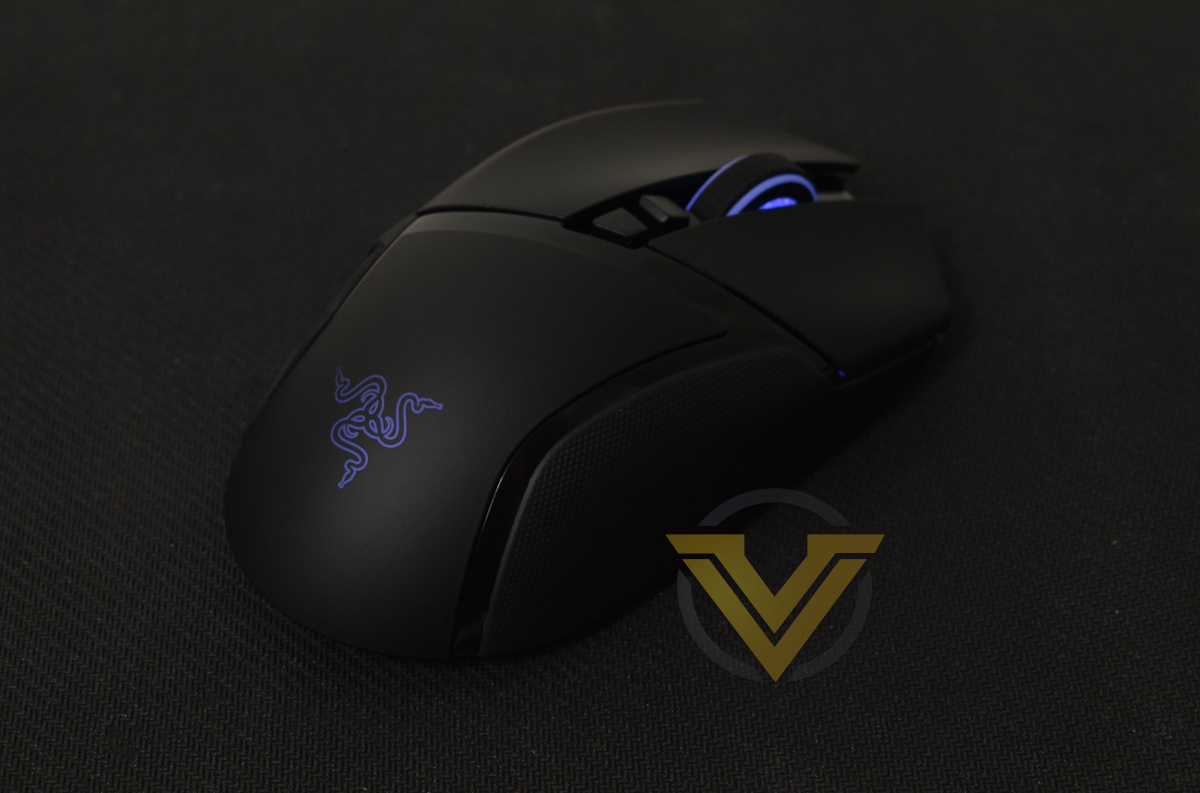
While other lighting systems may offer more baked-in effects and have slightly gentler learning curves, the Chroma system and especially its Chroma Studio workspace acts as a force-multiplier like no other, linking each supported device for a far more dynamic and immersive experience than would be available elsewhere. The Canvas approach in particular is excellent and should be adopted by other manufacturers seeking to give users the tools they need to create room-wide effects that aren’t limited to single or dual devices.
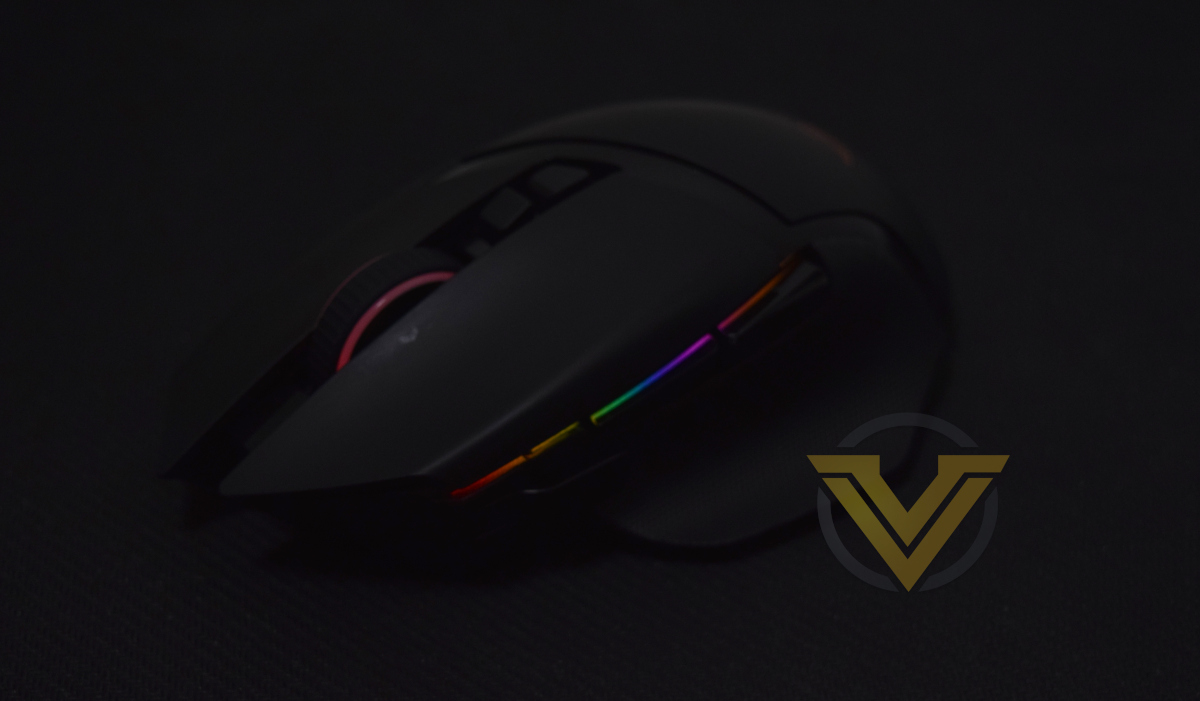
That being said, this plethora of options spoils the Basilisk Ultimate. Setting up a dynamic and unique lighting profile is straightforward enough, and the lighting hardware is certainly bright and vibrant in each zone, but being covered by your hand 90% of the time does its capabilities a disservice. Because of that, more niche use cases of the Chroma system, such as triggering some lighting effects based on certain mouse conditions such as DPI level or when specific buttons are pushed, would be welcome additions to the base install.
Performance
Once again we spent a customary two weeks with the Razer Basilisk Ultimate, giving us time to test it in as part of our day-to-day workflow and tease out any idiosyncrasies along the way. That’s particularly handy with mice like this which have a handful of unique features that wouldn’t be part of a normal use cycle.
After a series of mice that weighed no more than 80g appearing on our test bench, the Basilisk Ultimate changed things up with a 107g mass. Wireless mice tend to be on the heavier side, particularly ones with integrated rechargeable batteries, but it’s still a factor to bear in mind when selecting a performance gaming mouse. Either way, if anything the Basilisk weighs more than it feels due to factors including balance, shape and the grippiness of its sides.
Despite being relatively large in overall dimensions, the shape of the Basilisk means that much of its length forward of the mouse wheel is superfluous, making it fit smaller hands slightly better than would otherwise be the case. Nonetheless, the DPI Toggle button is a fraction further forward than is comfortable for those with smaller hands using a palm grip, interfering just slightly with using it as frequently as you might like.
In testing we utilised the small adapter for the USB receiver, positioning such that it would be within 50cm of the mouse at all times. This made sense given that we were expecting to need to charge the mouse irregularly, but may differ from your personal setup.
Initial impressions were, it’s fair to say, mixed. The mouse was comfortable to use thanks to a well-crafted shape, but it did take longer to adapt to the weight due to transitioning from a <70g FPS mouse. LMB and RMB clicks were immediately responsive and very similar in feel to each other with almost immediate actuation. Thumb/Side buttons were very good, with perhaps just a touch more post-actuation travel than we would like. And the first installation and set-up was smooth and without problems despite this being a wireless mouse.
Perhaps the only source of significant awkwardness in general use was the middle mouse button. Configuring the tension correctly such that simply scrolling the wheel quickly didn’t also accidentally lead to pressing this button was far more tricky than expected, and we weren’t ever able to get it in a perfect position for all use-cases. Instead we tended to adjust it for each game and have a set position for general work and web surfing.
Over time we noticed that the LMB and RMB both began to exhibit a slight wobble and undesirable pre-actuation travel where they sat on their respective buttons. That might develop into a cause for concern, but it didn’t become a problem during our time with the mouse.
Once installed the optional DPI Toggle button has a very consistent feel and is held in place fairly securely. A long pre-travel to actuation is to be expected given its design, and there is a slight lateral springiness that didn’t become an issue during use.
We also do have a word of warning: be very careful with the cover for the wireless receiver. It will break easily if mishandled, potentially causing mousing issues until replaced.
After a few days with the mouse we were relieved to conclude that there were no serious issues with the sensor, which was at that point tracking perfectly. Other recently reviewed mice had specific problems with a subset of mousemats, but the Razer Focus+ sensor operated without problems throughout our time with the Basilisk Ultimate.
Gaming
This time around we brought in a trio of titles to put the Basilisk through its paces in three key arenas. For fast-paced FPS we opted for 2016’s DOOM; MMOs were once again catered for by World of Warcraft’s Shadowlands expansion; and Diablo 3 was our ARPG of choice.
In contrast to recent reviews the FPS genre was where the Basilisk was least suited, chiefly by virtue of its weight. Button responsiveness was spot on and the sensor never skipped a beat, but the weight of the mouse and drag over our fabric mouse-mat added significantly to arm and shoulder fatigue over longer play sessions. Hard surface mouse-mats will likely be less of an issue due to lower friction, but they’re out of vogue right now.
A lack of slow-paced sections in DOOM in particular meant that the DPI Toggle button didn’t quite get the work-out it needed. We did dabble a little in Apex Legends where in theory it could shine the most, and as a ‘sniper mode’ DPI reduction toggle it certainly helped in making shots more accurate. That being said, it was a stretch to position the thumb so it could be used reliably, requiring an adjustment to a forward-bias claw grip rather than a more relaxed palm grip.
Diablo 3, like many ARPGs, gives the LMB and RMB specifically a thorough work-out in a very short space of time. In particular it relies on a consistent response from these buttons, reliable timings, and stability in the button when being fully pressed for an extended time. Operating at high DPI reduces travel distances involved, but sensor accuracy is no less important.
For this title the Basilisk Ultimate performed admirably, with no failures or significant problems. The weight of the mouse is once again a concern, focussed around the wrist rather than elbow and shoulder in terms of fatigue, but anecdotally it seemed to be less of a problem than operating with an FPS and not significantly different from some mid-range ~75g mice.
Finally, we come to WoW. Here we’re testing out a variety of aspects, particularly the auxiliary buttons and Synapse software capabilities. Core aspects of the mouse are again great, but it gets really interesting when we look beyond these features.
Scroll wheels are increasingly a part of minute-by-minute gameplay and it was very difficult to reach a point where we were comfortable with its tension. An initial tendency to make it as high as possible had the effect of making the middle button very easy to accidentally press, which is clearly going to be a problem when it’s also an active keybind. Too shallow and it feels imprecise, and ironically becomes more easy to accidentally spin when you’re pressing the wheel’s button.
The left and right bindable ‘lean’ buttons for the wheel are useful additions that are much more easy to use than we expected at first, and make excellent locations for binding commonly used skills without worrying about pressing other buttons at the same time. They’re in contrast to the DPI Level Up/Down buttons which much less accessible and less suitable for frequent use.
The two main thumb buttons are very good, with little pre-travel for actuation, independent movement, and not too much travel post-actuation. They’re not the best we’ve used, but they are high on the list. The DPI Toggle button is a great addition for WoW and MMOs in particular as it offers another easily accessible bindable button for in-game actions and skills. With three buttons in this zone the Basilisk Ultimate is half-way to the Razer Naga Hex, but in a shape and layout that’s also appropriate for FPS gaming. The button however required a slight modification to our preferred grip to use effectively, if less so than in Apex.
HyperShift of course really comes into its own in MMOs, effectively doubling the number of active assignments. Once again bringing the DPI Toggle button a little closer to the center of the thumb pad would make it a touch easier to use as the HyperShift toggle, and in our view it’s the most obvious button to bind this functionality to. However, if you’re using a Razer keyboard, it would be more appropriate to utilise one of the many available keys around the WASD zone as the HyperShift toggle to give you full freedom on your mousing hand and all available keybinds.
Battery Life
Razer claim a battery life of up to 100hrs of continuous use for the Basilisk Ultimate on one charge. That tallies well with our experience, where for two weeks of heavy (but not continuous) daily use just one recharge was necessary with default settings and illumination disabled. A projected battery life of ~92 hours on default settings is a window we’re very happy with for a wireless mouse with integrated battery.
Activating the RGB lighting however absolutely tanks battery life, leading to it last just two working days of heavy use before low power modes are activated (degrading sensor performance) and the battery is almost fully depleted. A nightly charging policy would be best in that situation, which would be greatly aided by the use of the Docked version of this mouse. We projected that it would fully deplete within 27hrs of heavy use with RGB lighting enabled.
Power profiles can be adjusted in the Synapse software, setting criteria for entry to a wireless sleep mode and a threshold at which a generalised Low Power Mode is activated. This low power mode is indicated on the mouse by the wheel LED flashing red.
Overall Summary
It’s exceptionally difficult to find fault with the Basilisk Ultimate as a general-purpose mouse for both work and play. Customisation options are broad, battery life is good, software operates as expected, and construction and build quality serve all masters. Only the weight may prove to be an issue for many users, and generally only those transitioning from a much lighter weight mouse.
If there’s one thing we’d appreciate most it’s adding a read-out of current mouse wheel tension to Synapse (if possible). Should users go down the route of different tensions for each application/game genre, it would make finding and setting preferred levels much easier.
Conclusion
In a world of increasingly specialised mice, Razer’s Basilisk Ultimate harks back to an era of generalised design with premium or unique features setting it apart from its peers. The question is how well it can perform in each of its multi-faceted roles, and whether there is still space for this ethos within the current market landscape.
From a pure performance perspective the Basilisk Ultimate does well is most arenas but without excelling in any one aspect. It’s good for FPS games, MMOs and ARPGs alike – perhaps best suited for MMOs in fact – and offers a feature set that can be exploited everywhere including in productivity applications. The Synapse software is an aid to this rather than a hindrance, and has done much to dispel its very early reputation of being a detriment to the overall package.
Latency and battery life will always be a concern for wireless mice, but we are pleased to note that the Basilisk Ultimate doesn’t suffer from the former and has ample amounts of the latter. One slight concern will be the RGB lighting as it drains power significantly, requiring an orderly approach to ensuring that you keep the mouse charged; the docked version of the Basilisk Ultimate may well be the most appropriate option in that instance.
In a pinch the Basilisk also operates flawlessly as a wired mouse when connected via the supplied Speedflex cable, giving you piece of mind over exclusively docked charging alternatives.
Wireless range is also very good. Although we maintained a 50cm range in general use cases, the signal 3-4m out was also sufficient for gaming without dropouts or added latency and should be more than adequate for living room gaming.
For all its positives, one should continue to bear in mind that the Basilisk Ultimate is a heavy mouse by today’s standards. It, like other deluxe wireless mice, is a hefty design made necessary by its large battery and additional features. That will be expressed in a longer time to adapt from lightweight wired alternatives, and perhaps more fatigue in extended gaming sessions.
With that weight come some of the design idiosyncrasies that Razer is famous for. Adjustable wheel tension at first appeared to be a strange option but its value soon became clear – we can’t imagine that there’s a perfect tension for these mouse wheels for all situations, so adjustable tension is the next best thing. We’d still like some sort of software readout for the tension level though, just to make trail-and-error customisation a little easier.
The DPI Toggle button is another excellent addition, and not just as an aid to aiming down sights in FPS titles. Every bindable button in easy reach has value when playing hotkey laden MMOs, so an extra one in a prime zone really pushes the mouse ahead of some alternatives.
Small niggles persist, including a slight pre-actuation wobble in the LMB and more friction on the mouse ‘skates’ than we’d like, but nothing even close to insurmountable.
So finally we come to the price. At an MSRP of £149.99 this model it’s undoubtedly on the expensive side, but that MSRP hasn’t budged since its release in 2019. Street pricing however has changed significantly, with the mouse available from popular UK e-tailers for as little at £75 at the time of writing. We’re much more positively inclined towards it at less than £100, but below £80 it instinctively feels like an absolute steal for a mouse of excellent quality backed by a strong software ecosystem. Nonetheless it’s generally not our policy to give awards based on pricing outside of MSRP.
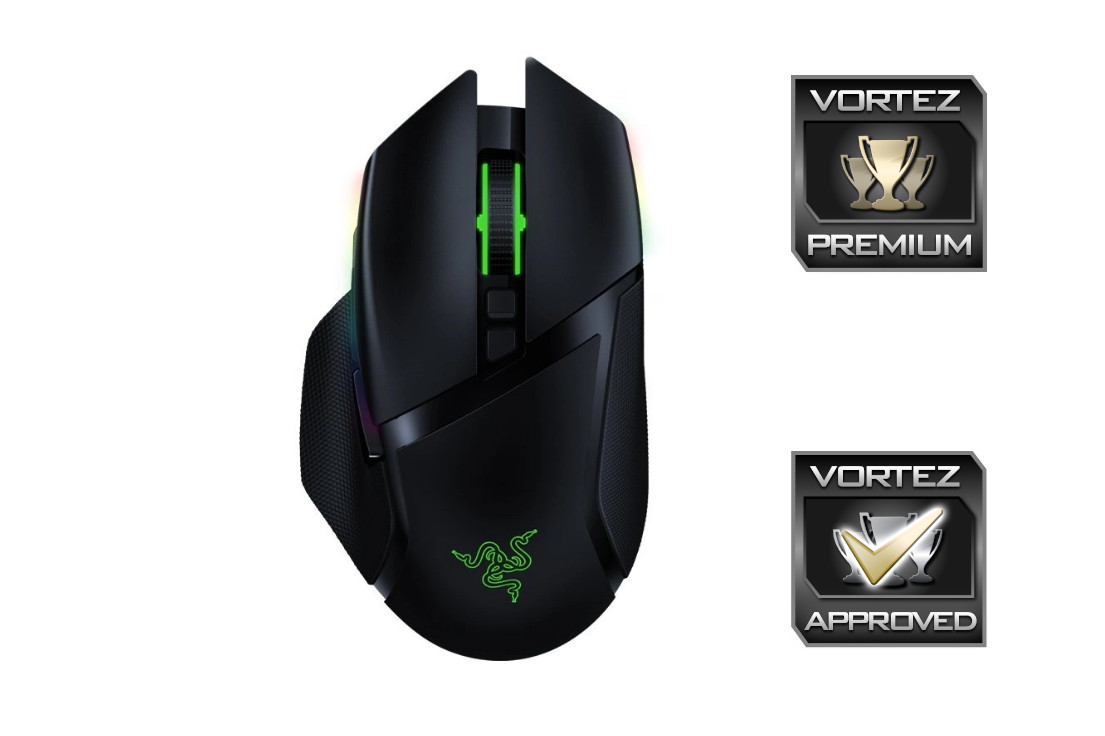
Razer’s Basilisk Ultimate is the ultimate expression of a workhorse gaming mouse, suitable for a huge range of game genres thanks to unique adaptations and made complete with excellent wireless comms and RGB lighting. Available with and without a charging dock, it’s a truly Premium option for gamers with eclectic gaming tastes in need of an adaptable design for work and play.
+ Comfortable Ergonomic Shape
+ Excellent HyperSpeed Wireless
+ No perceptible latency
+ Error-free optical sensor tracking
+ Flexible design elements
+ Customisable features
+ Vibrant RGB lighting
+ Part of the growing Razer Chroma ecosystem
Cons
– Weight
– Restrictive battery life when RGB is enabled
– Difficult to configure mouse wheel optimally
Click here for an explanation of our awards at Vortez.net.
Stay connected with the Vortez Social Media pages:
Join in with the discussions on Discord