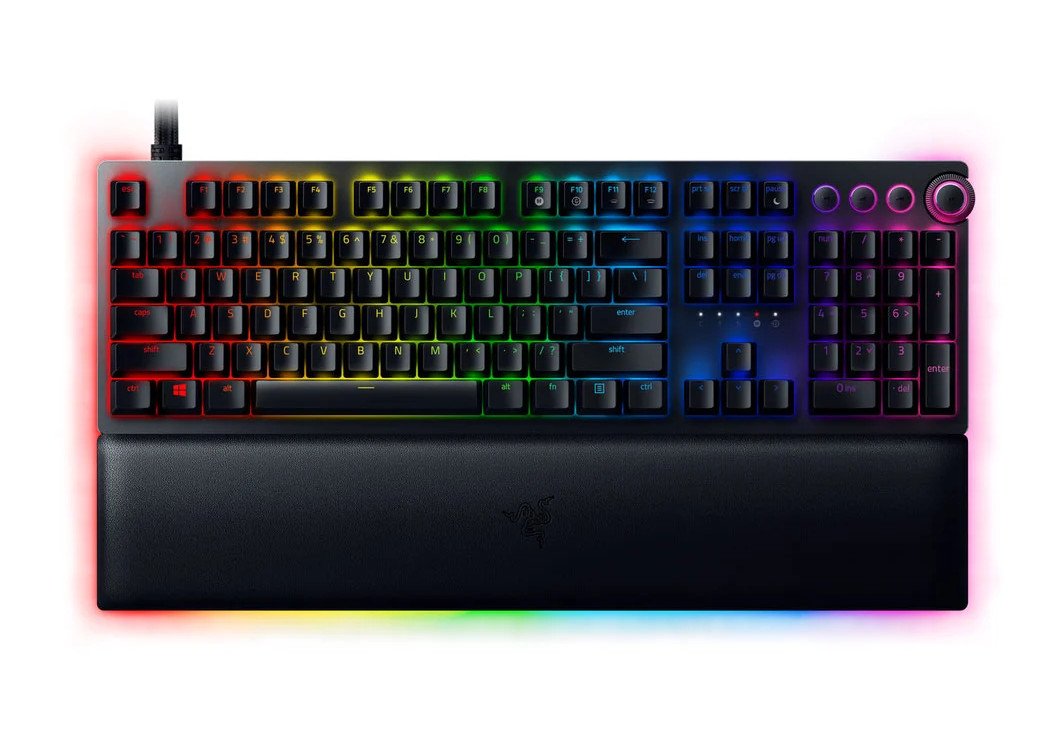
Razer’s premium mechanical keyboard gains their analog optical switch design, but with optical switches now commonplace does the additional twist of analog feedback add much to the mixture?

Product on Review: Huntsman V2 Analog
Manufacturer: Razer
MSRP:
– US: $249.99 (excl Tax)
– UK: £249.99 (inc. V.A.T.)
– EU: €269.99 (inc. Tax)
Introduction
It’s always illuminating to see a manufacturer’s range evolve from one generation to the next, and time often gives you that space needed to appreciate the changes. Razer recently recalibrated our baseline of what makes an excellent premium gaming mouse with the Basilisk Ultimate, so it’s appropriate that our next investigation is into the realms of allied peripherals. Enter the Huntsman V2 Analog, a 2021 model keyboard that evolves the core benefits of optical mechanical switches, layers on further advanced features, and plays its part as a leader in the new pantheon of the manufacturer’s mightily impressive peripheral catalogue.
Optical mechanical switches have been a part of the keyboard landscape for a relatively short period but they’re starting to make their presence known in the upper echelons the market. Last year Corsair launched the K100 RGB, their flagship model with brand new OPX optical switches; other manufacturers have been dabbling with similar implementations for a few years, with mixed results.
The switch design might be relatively costly to produce compared to mechanical competitors that are churned out by the million every day but the advantages are significant. Longevity, particularly under heavy usage conditions, benefits from a lack of metal-on-metal actuation, and debounce dynamics are greatly simplified by the use of calibrated optical sensors. By driving up durability beyond 50 million keypresses while maintaining long-term reliability, the optical mechanical switch becomes an excellent tool for gaming. That being said, Razer goes still further with the Huntsman V2 Analog.
This Huntsman might not be the first keyboard to leverage an analog switch – Steelseries’ Apex Pro has an analog switch type that relies on Hall effect rather than optical sensors – but it might be the most accomplished. Through complex interactions of software and hardware you can set your own actuation points (in a range of fast 1.5mm to slow 3.6mm), have multiple actuation points for multiple bindable functions, or even emulate an analog controller with continuous pressure feedback. For reference, Corsair’s K100 has conventional actuation and no analog control.
All this added capability will mean that the Huntsman V2 Analog will also be a stern test of your dexterity if you want to use it to its fullest. No more mashing the keys, just controlled pressure for a precise response; pretty much the opposite of how keyboards tend to be treated.
Rounding off the package are the other aspects that have become core to premium keyboards: remappable media keys, USB pass-through, per-key and underglow RGB lighting, and a plush wrist-rest. Plus, in the Huntsman V2’s case even that detachable wrist-rest has customisable edge lighting.
This SKU sits firmly at the upper band of the premium consumer segment with an MSRP of $250/£250. To put that into perspective the K100 RGB is priced at a more modest $229/£229, the Apex Pro is $199, and their own Huntsman Elite (a similar SKU with non-analog optical switches) comes in at $199. However, the added functionality of the Huntsman V2 Analog makes you question whether direct comparisons can even be made.
Technical Specifications
Layout:- UK, full keyset
Lighting:- Razer Chroma RGB customizable backlighting with 16.8 million color options
Onboard Memory:- Hybrid onboard storage – up to 5 keybinding profiles
Switch Actuation Pressure:- 54g (1.5mm); 74g (3.5mm)
Dedicated Media Keys:- Yes
Passthrough:- USB 3.0 Passthrough
Connectivity:
– Wired – USB-C
– Wired – USB-A 3.0 (via adapter)
Keycaps:- Razer Doubleshot PBT Keycaps
Wrist Rest:- Yes (detachable)
Dimensions:
– Length :- 446mm
– Width :- 231mm (with wrist rest) / 141mm (without wrist rest)
– Height :- 45mm
Weight:- 1.67kg (with wrist rest) / 1.23kg (without wrist rest)
Features Summary:
– Underglow lighting
– Magnetic plush leatherette wrist rest
– Multi-functional digital dial with 4 media keys
– Fully programmable keys with on-the-fly macro recording
– N-key roll-over with anti-ghosting
– Gaming mode option
– Braided Fibre Cable
– 1000 Hz USB Polling
– Aluminium matte top plat
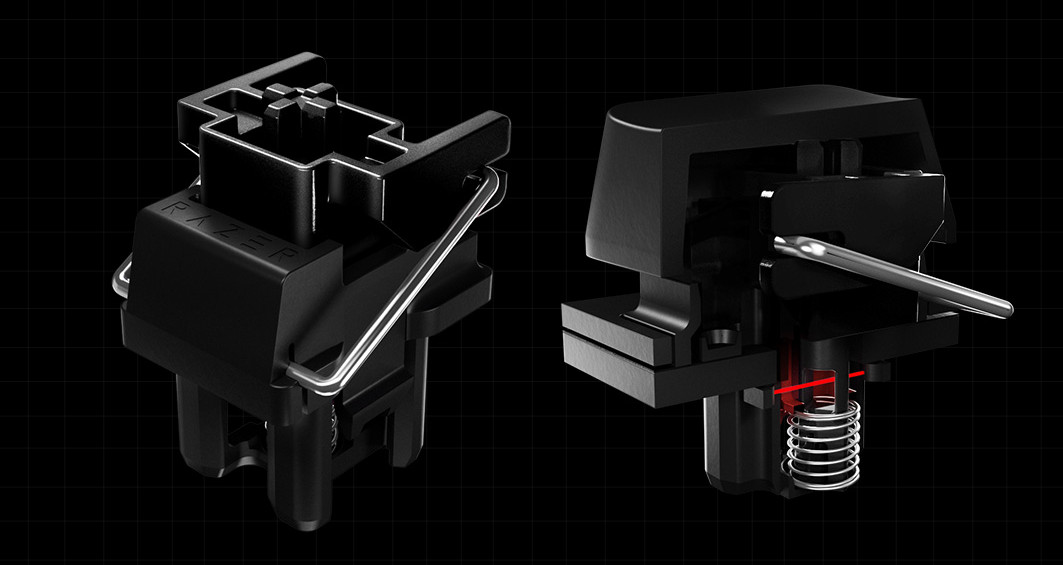
The Huntsman v2 Analog’s killer innovation is the Razer Analog Optical Switch, a linear design that not only allows for pressure-measuring actuation but also a touch of RGB customisation at the same time. It’s no simple redesign of common mechanical mechanisms, but rather a whole different beast altogether. Coupled with PBT doubleshot keycaps, they represent the most premium aspect of the peripheral through high-end customisation not seen elsewhere in this combination.
Razer Analog Optical Switches have a required force of 54g for the minimum actuation distance (1.5mm) up to 74g for the full movement range (3.6mm), making them a little heavier than Cherry’s MX Red. The minimum travel distance is also a little longer than the MX Speed’s 1.2mm. They’re a relatively close analogue to MX Black switches in overall feel, i.e. a stiff linear experience.
Integrated stabilisers are an interesting inclusion but likely necessitated by the shape of the stem. They add a little rattle to the switch (which you can clearly hear if you lift and shake the keyboard) but nothing outrageous.
The distance by which the switch has been pressed is measured through a light sensor that tracks the amount of light hitting it rather than a simple binary detected/not detected. Once calibrated in-house the light sensor reading correlates directly to a stroke distance travelled.
Adjustable Actuation
With distance reporting available it’s possible to adjust the actuation distance, from a fast 1.5mm to a more leisurely 3.6mm on a per-key basis (the norm for an MX Red linear switch is ~2mm). This allows the sensitivity of a particular keystroke to be adjusted for what’s appropriate for a particular function, for example you might want very sensitive movement keys but relatively heavy skill keys to prevent you from ‘fat-fingering’ them. When typing, actuation closer to the mid-point might be more appropriate to reduce both errors and typing fatigue.
Dual Actuation
Why have just one actuation point when you can have two? These analog optical switches can be set up to register one key at an initial actuation point, and then another at a second point further down the stroke. Razer offer the example of (in an FPS title) switching to a grenade at the initial point and then throwing the grenade when bottomed out, but it could also be used for multiple potions in an ARPG like Path of Exile or different but related skills in MOBAs or slower paced MMOs. Its value as a flexible and customisable feature is determined by the dexterity of your fingers and the game in question.
Dual Actuation requires Synapse software, but can be stored on a per-profile basis.
Analog Actuation
Did you ever play old flight sims like Star Wars: Tie Fighter on your keyboard and rue not owning a joystick, or a driving sim without a wheel? Okay so you may not be knocking on 40, or and have a plethora of game controllers to hand, but that doesn’t mean that this analog switch isn’t a marvel.
With its fully configurable array of analog switches the Huntsman v2 Analog can be set up to respond like an analog input similar to a joystick, with a stronger input registered the further you press down the switch. By judicious configuration of the keys you can simulate a 360-degree range of movement, or configure sensitive steering controls through your keyboard alone.
Specialised HOTAS and wheel systems will certainly be more effective for pure flying and driving sims, but this system comes into its own when a title switches from one viewpoint and control mode to the other. A fine example is open-world juggernaut Grand Theft Auto V, where third-person antics are joined by vehicular gameplay and it would be great to enable smooth transitioning between the two with just one set of input devices. Keyboard profiles can be used to quickly switch between keyboard and simulated analog joystick/gamepad configurations.
Indeed, analog actuation currently operates effectively only when a game supports simultaneous keyboard and game controller inputs, putting a slight damper on the feature’s allure. The list of supported games is sure to grow however as PC games become ever more complex and multi-disciplinary.
As with Dual Actuation, Analog Actuation also requires that the Synapse software be installed.
USB 3 Passthrough
Keyboards produced by Razer’s competitors typically offer only USB 2.0 passthrough at best from their keyboards, even as part of their premium designs. The Huntsman V2 Analog in contrast offers full USB 3.0 speeds to a port on the keyboard’s left side which is ideal for quick removable storage.
Plush Edge-lit Wrist-rest
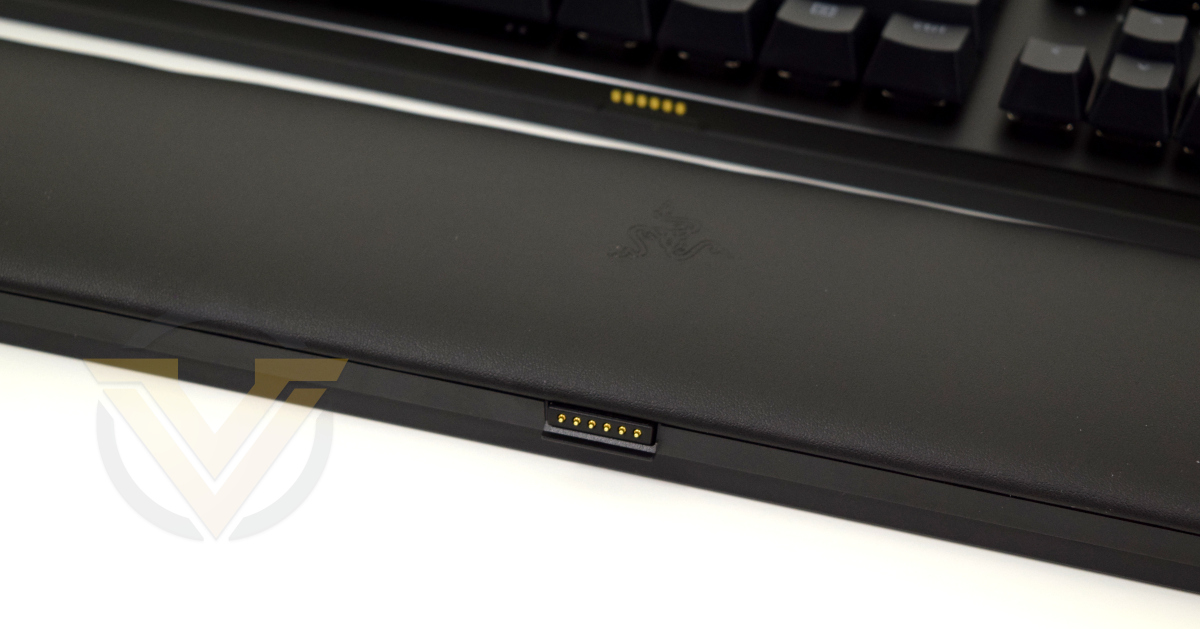
The Razer Huntsman also arrives with a detachable wrist-rest, but it’s not held in place by simple clips. Instead two magnets marry the upper edge with the bottom edge of the keyboard, holding it securely in place with the help of large rubber feet on its base. Six electrical contacts allow illumination and control of underglow edge lighting around the wrist-rest that is identical to that around the keyboard itself, meaning that any lighting effect isn’t interrupted or undermined by the addition of the wrist-rest.
Packaging and First Look
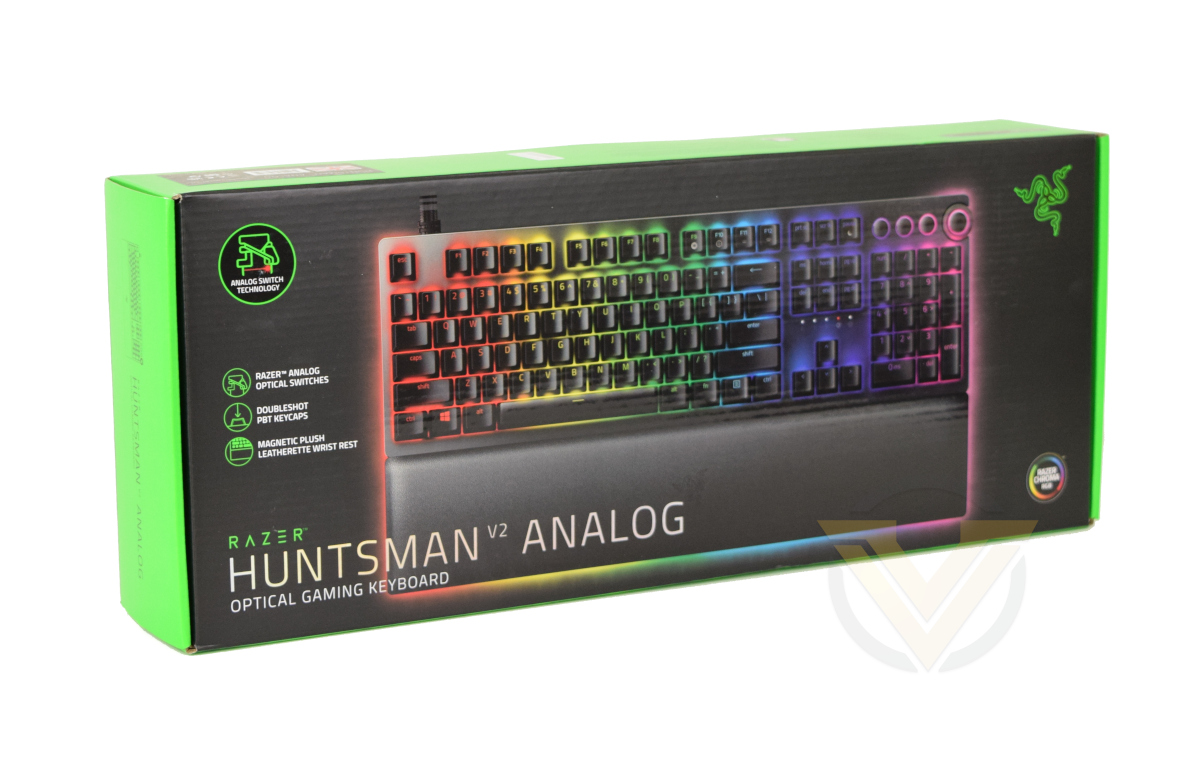
Just like the Basilisk Ultimate, Razer have decked out the Huntsman V2 Analog’s packaging with their familiar black and green livery. This colour-scheme frames a top-down shot of the keyboard on the front of the box that highlights the RGB lighting and not much else. A short list to the left emphasises less visible aspects: the PBT doubleshot keycaps, magnetic wrist-rest and (most importantly) analog switches.
While the front image is of the keyboard with its US layout SKU, the box’s top edge spells out the layout inside (in this instance English (UK)). In addition to this info. Razer also spell out technical aspects on this section including physical dimensions, product requirements and what’s included with the package.
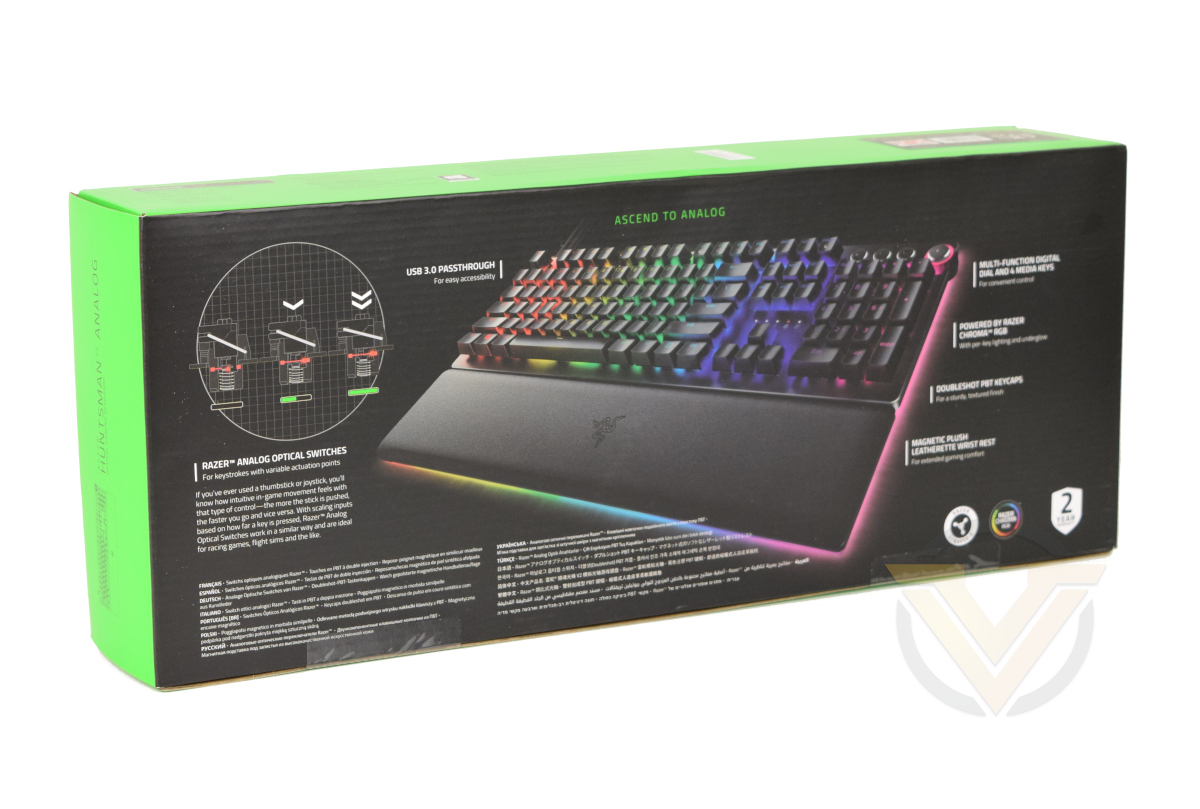
The rear more thoroughly discusses the analog switches – their advantages etc. – while also echoing the features mentioned on the front. There’s not a huge amount here to get your teeth stuck into, but it’s a marked amount more detail than some manufacturers are including these days. As always, more information is available on the keyboard product page.
The majority of the packaging, internal and external, is recyclable cardboard. A small amount of plastics and foam protect the keyboard and accessories in transit from scratches and heavier impacts, and the keyboard’s plastic cover can also be reused as a dust barrier.
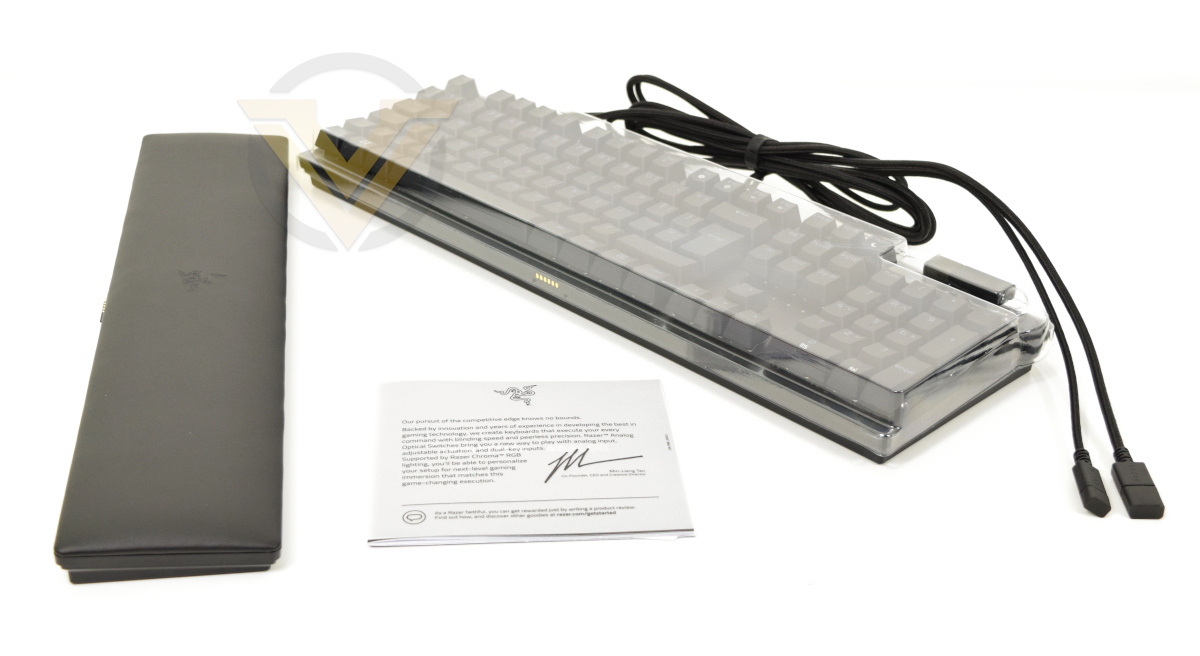
And here’s our first look at the Huntsman V2 Analog. While it’s a full-sized design its dimensions are somewhat compact; the one nod to extravagance beyond the conventional rectangular frame is the digital dial at the top-right. The K100 RGB – its direct competitor from Corsair – by contrast adds macro keys and an entire raised bar at the top that integrates media functions and their iCue multi-function dial.
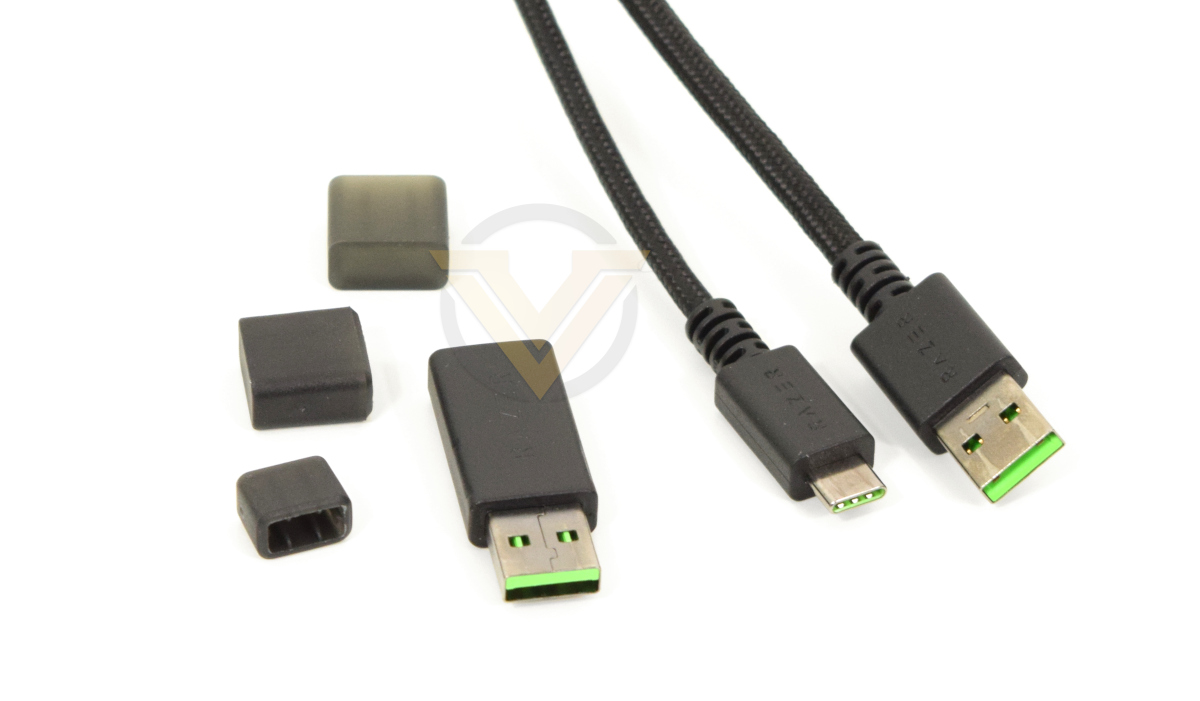
USB-C and USB-A (Passthrough) connectors, alongside the Type-C to Type-A adapter
Included among the accessories are the wrist-rest and a USB 3.0 Type-A to Type-C adapter. A quick-start guide is also an obligatory part of the bundle but overall Razer have been very restrained with their additions over what’s absolutely necessary. They don’t even ship the keyboard with a keycap puller.
Closer Look
Switching our focus specifically to the keyboard, it’s important to once again reinforce that this is a standard full-sized keyboard layout in the main. Barring the four media keys and digital dial there’s nothing you’ll see that differs from the majority of other keyboards on the market.
The frame itself is identical to the latest Razer Blackwidow and Huntsman models. An aluminium top-piece sits on a plastic frame that gives it light-weight rigidity and a smooth and classy matte black finish. From an aesthetic point of view the look is quite dissimilar to the brushed anodised aluminium popular with the competition.
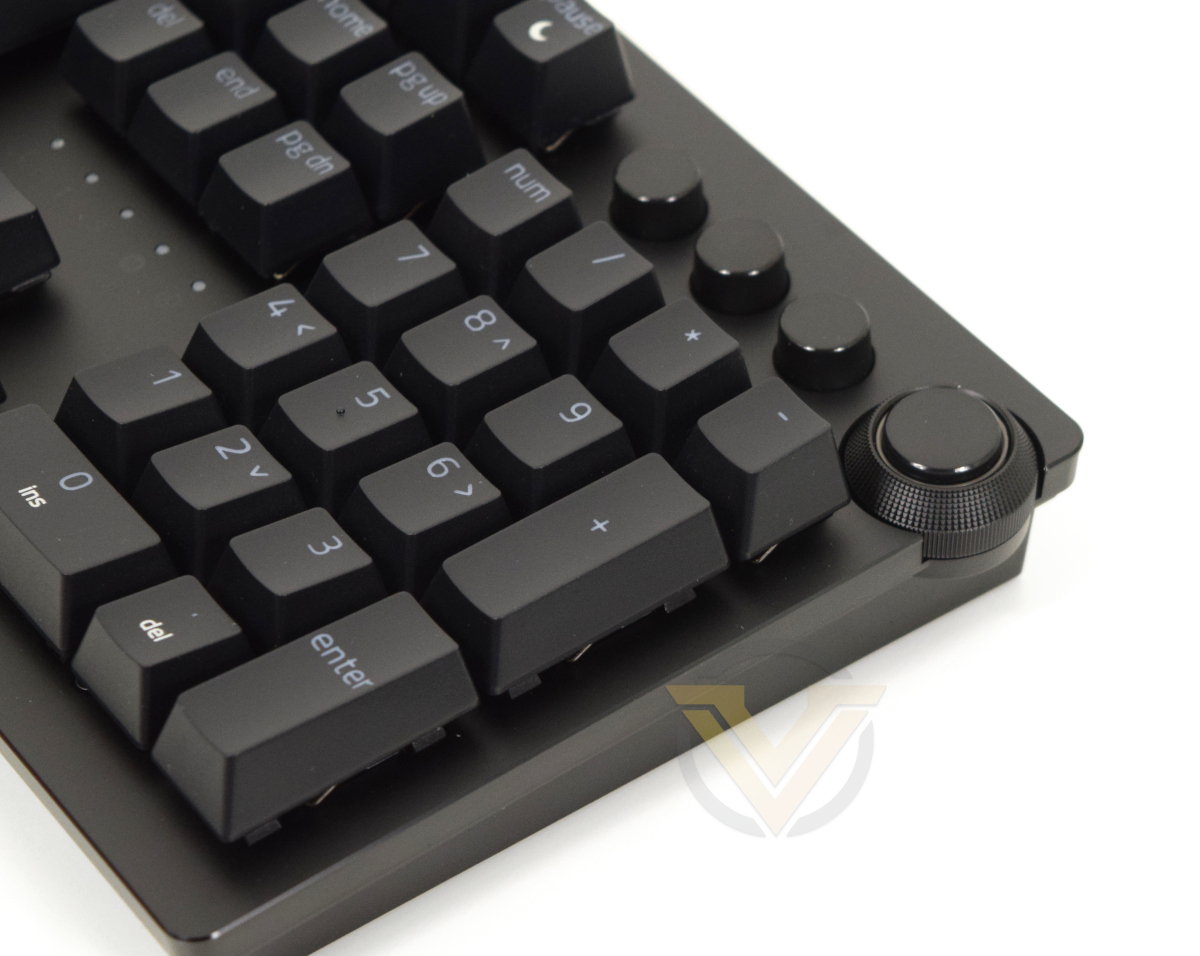
Located at the top-right and sitting just above the number pad are those media keys. Rewind, Play/Pause and Forward buttons are extremely shallow buttons, much more so than you’d expect given their size. The Mute button by contrast has a more pronounced click, while the dial around it has only subtle notches and otherwise spins freely. None of these buttons have illumination shining through their keycap, and so the icon on each can be hard to make out in average to poor room lighting.
By including a set of dedicated media keys most of the Function keys (F1-F12) retain their single use. F9-F12 are exceptions, serving as Live Macro Recording, Game Mode, LED Brightness Up and LED Brightness Down respectively when combined with the fn key on the bottom row. The Pause key has similar dual-functionality, doubling as a quick system sleep shortcut.
Just below the HOME/END block are five indicator LEDs for modes the keyboard can be in. From left to right they are: Capslock, Numlock, Scrolllock, Macro Record and Game Mode. The first four are self-explanatory; Game Mode explicitly disables the Windows key and optionally Alt-F4 and Alt-Tab interactions through software. A label is etched into the aluminium below each LED, but these are so faint as to be almost invisible without a lot of ambient light.
Arial is the font for the majority of the keys, lowercase Arial for the non-alphanumerics. It’s an interesting choice that we can’t say we’re a fan of, but it’s very much a personal preference.
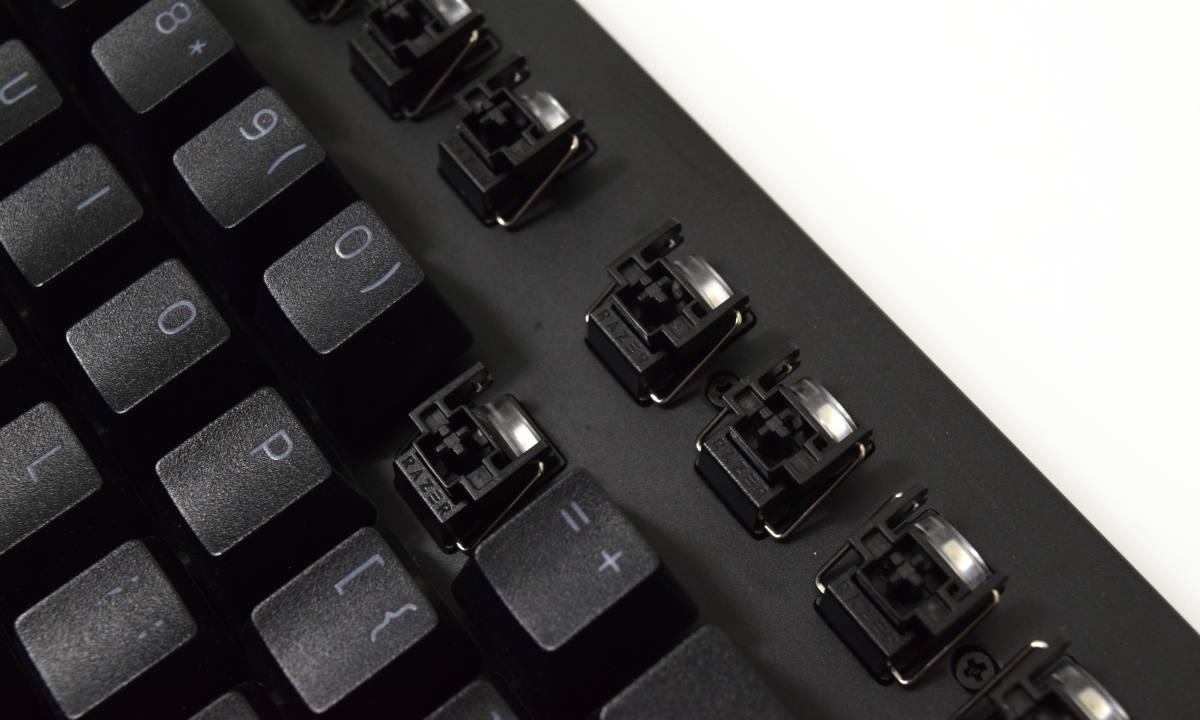
Removing the keycaps exposes the analog optical switch. It’s bordered on two sides by a metal stabilizer, while the central stem is a cross identical to the Cherry MX style. Topping it is the LED, which is covered by a transparent plastic cap.
The switch body, including the stabilizers, is fractionally larger than that of a Cherry MX switch. Furthermore the Razer keycap sidewalls are thinner than those on some 3rd party keycaps (such as those on the K100 RGB). As a result these keys might get stuck when fully depressed if an incompatible keycaps set are used due to the tighter tolerances, though the caps Razer supply are of course without issue.
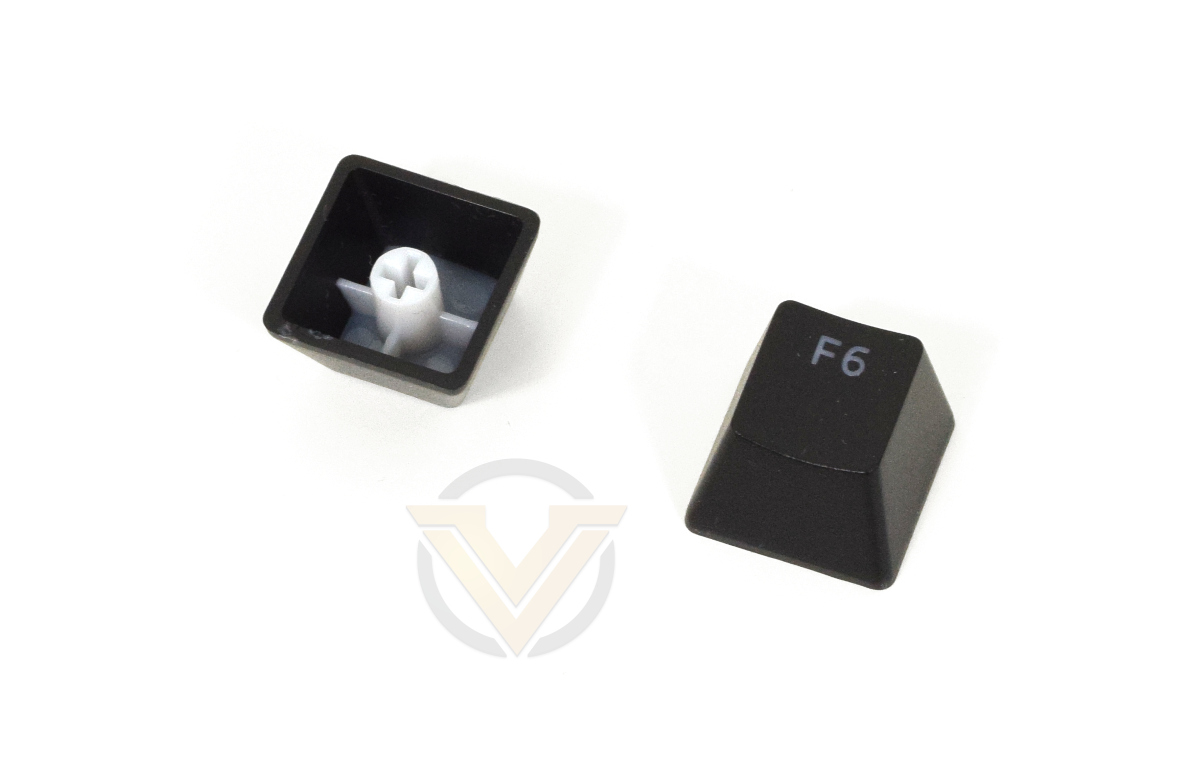
Each keycap is made with a PBT Doubleshot process, making the surface more durable and pick up grime less readily. The keys make a satisfying clunk when pressed rather than the more high pitched clatter common to mechanical keyboards with lighter switches.
When all the keycaps are removed there is unrestricted access to the frame, making cleaning between the switches easy. That’s another definite plus to this design.
Closer Look (2)
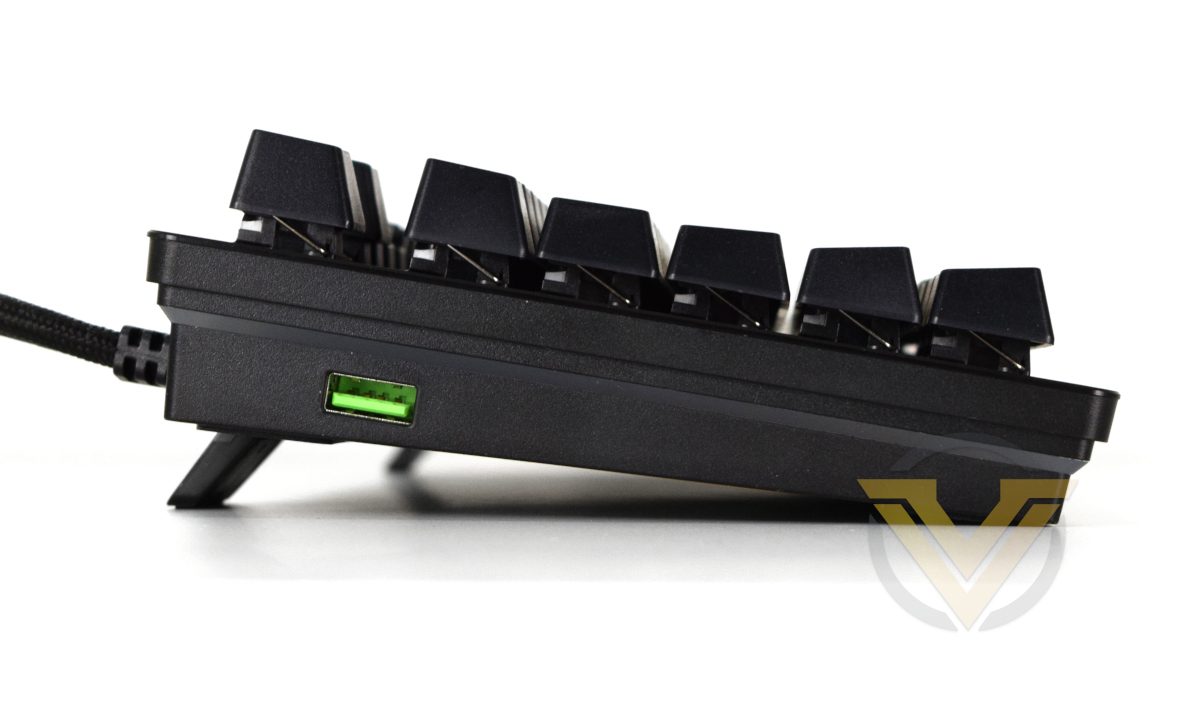
Looking at the keyboard edge-on gives some idea of the maximum elevation possible thanks to a pair of extendable feet.
Also visible on this edge is the USB 3.0 pass-through port. It’s a good location – easy to access, not obscured behind the keyboard – so should potentially find a lot of use. A translucent strip of plastic bisects the side walls on the left, right and bottom edges as part of the underglow RGB illumination.
The back of the keyboard meanwhile is unadorned apart from a reinforced cable entry/exit point. There’s a subtle lip around the frame where the aluminium face-plate meets the plastic base, but it’s been nicely smoothed off.
Both cables – the main USB 3.0 Type-A and USB Type-C – have a braided sleeve that will improve long-term durability as well as make it appear just a bit more pleasing to the eye. These cables are very stiff so you’ll want to give them plenty of slack if possible. Remember also that a Type-C to Type-A adapter is included with the keyboard if your motherboard back panel doesn’t include a USB Type-C port.
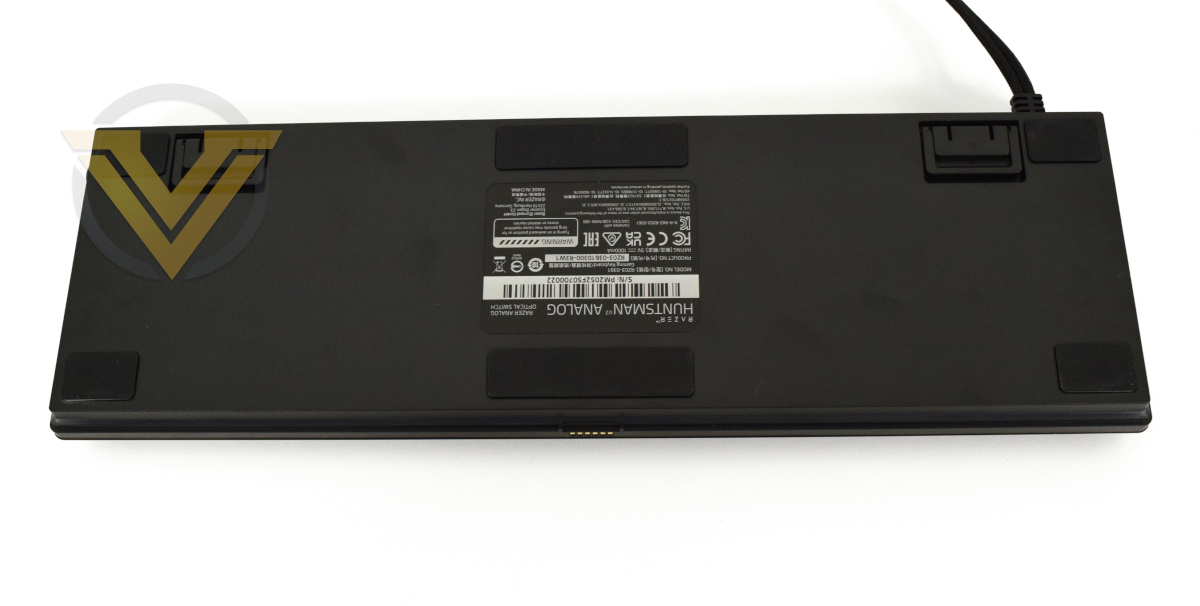
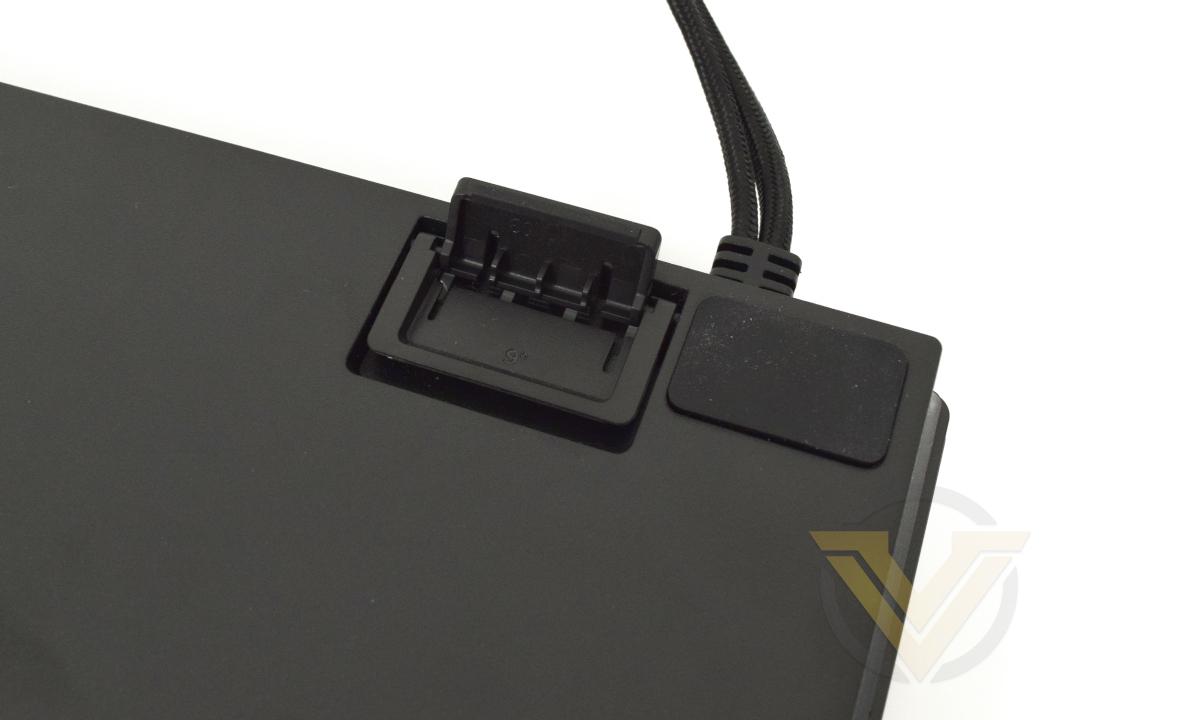
The base of the keyboard is a straightforward combination of six oversized rubberised pads, two extendable feet that flip out for either half of full-height elevation, and the label that details model- and serial-number alongside compliance information.
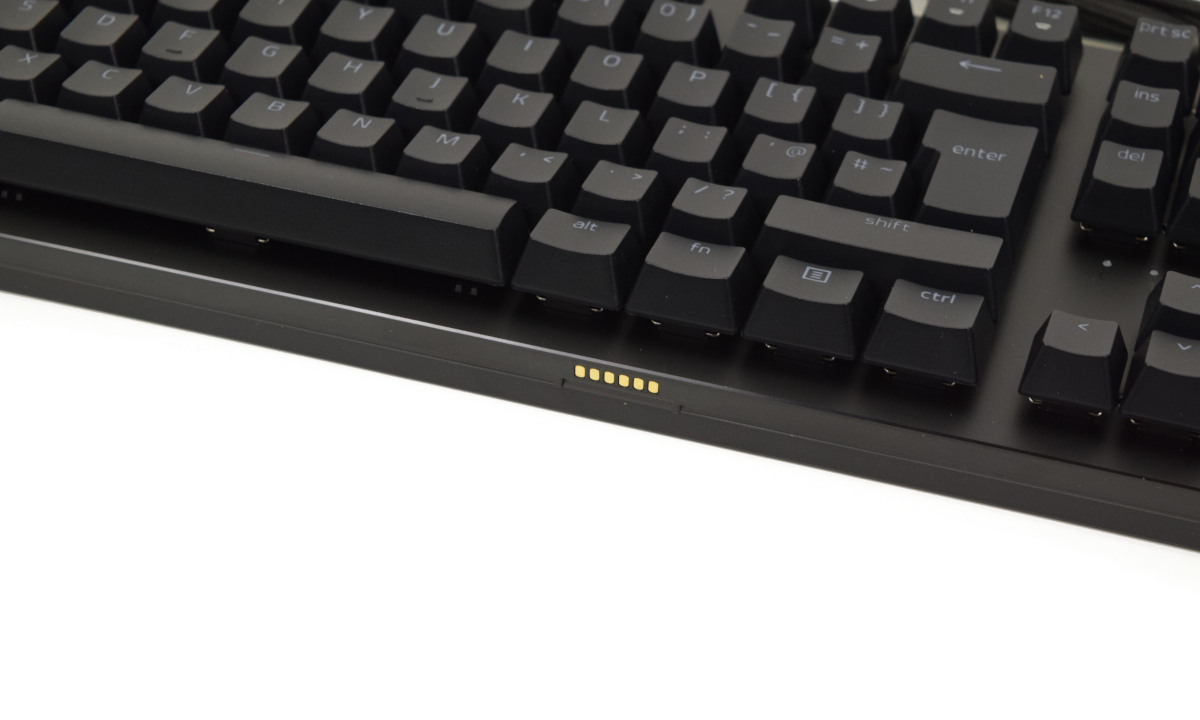
Finally, the front of the keyboard is where it meets the wrist-rest. Six electrical contacts are centrally located while two plastic prongs help to hold the rest in place once attached. They marry up with a plastic lip that sits under the corresponding metal contacts on the rest, ensuring that there is no lateral movement.
Overall, the keyboard is very well appointed with no obvious weak points. Slightly more tactile feedback from the media keys would be appreciated, especially if they’re used more regularly and in other roles as rebindable keys, but otherwise it looks and feels of high quality. The only omission compared to premium grade competitors are dedicated macro keys but that may be outweighed by Razer’s Hypershift software functionality.
Software
We familiarised ourselves with Razer’s software suite in our recent review of the Razer Basilisk Ultimate, but it’s still worth going over some familiar ground. When setting up the Huntsman V2 Analog you can optionally download three different Razer utilities:
Razer Synapse – the unified configuration app for Razer peripherals, encompassing hardware settings and Chroma lighting setup.
Razer Central – brings the utilities together, integrating them into the system tray and providing a framework for monitoring software updates and notifications.
Strictly speaking only Razer Synapse is required to utilise the hardware to its fullest extent, but you may wish to install other components as you deem necessary. As its the config. utility we’ll be drilling down into Razer Synapse here.
—
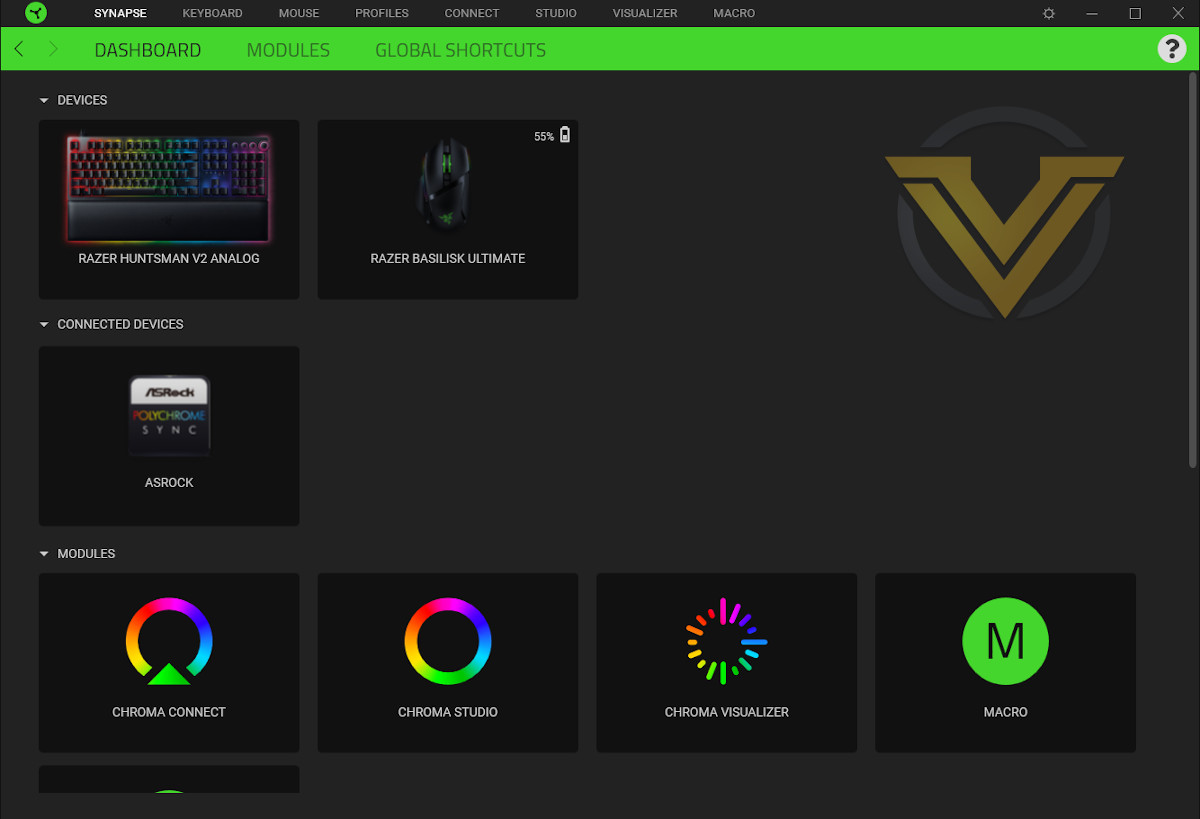
Upon launching Synapse you’ll be presented with the Dashboard where the peripheral to be managed, Module you wish to launch, or online service you’d like to take advantage of (e.g. product registration, support, or the Razer Silver & Gold rewards program). Any third party Chroma Connect compatible devices connected to the system will also be shown here, for example an ASRock motherboard with RGB support in the above image.

From this page you can also configure Global Shortcuts, keyboard and mouse shortcuts that will persist across all device profiles. Key functionality such as profile cycling is the obvious feature to highlight, but other factors important to day-to-day usage including Windows Shortcut proxies, macros, lighting and more are all aspects of the hardware that can be made consistent whatever the active profile.
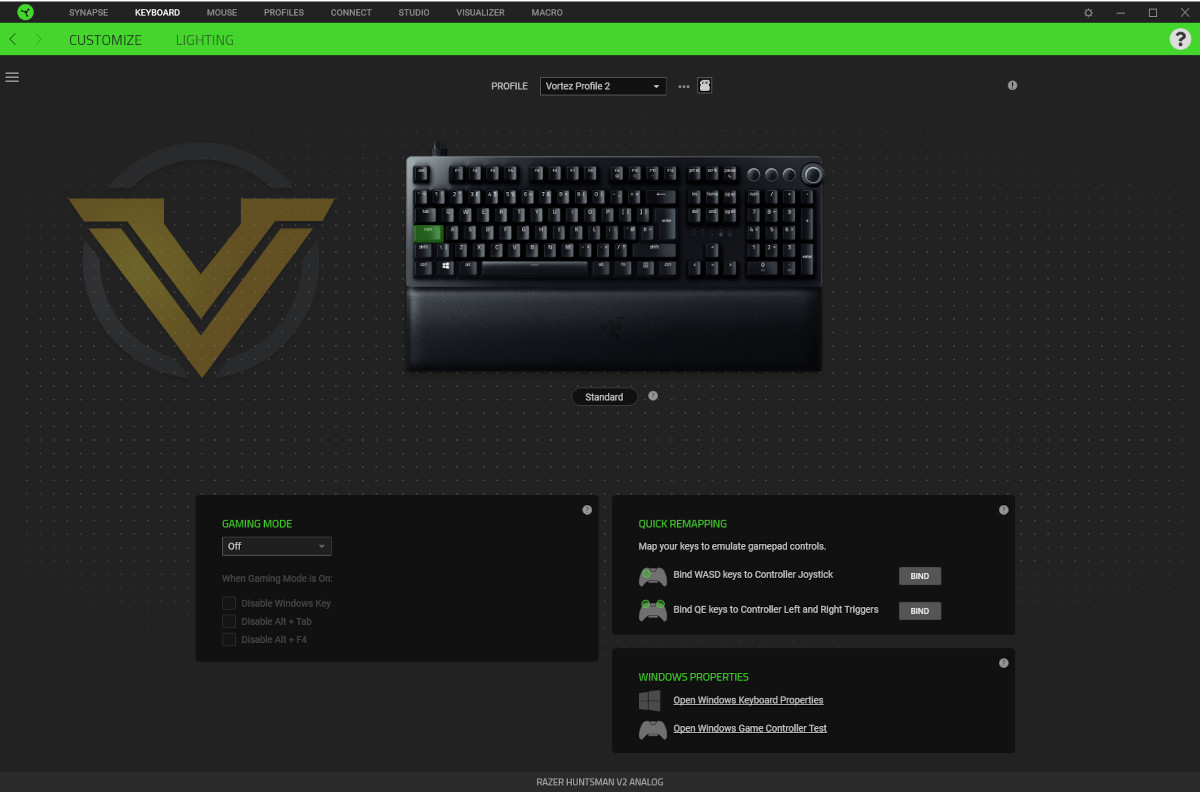
Clicking on a given device or the tab option at the top of the window brings you to its configuration page. The Huntsman V2 Analog has only two config. groups, split as separate tabs, which you can tinker with on a per-profile basis.
Customising the Huntsman V2 Analog
The Customise Tab is where you set up every keybind on the keyboard, no matter how trivial or complex. As a result it’s dense with information and settings, and can be quite daunting to approach at first. Becoming familiar with a simplified version, particularly through a Razer mouse, can ease the learning curve significantly.
Simply clicking on any key brings up its unique settings tab, from which you can select behaviour. Setting ‘W’ to Default for instance maintains its standard behaviour, but setting it to Macro lets you assign a predefined macro and playback options including how many times it repeats. The options available differ according to which behaviour you select, and any key that is not set to Default will be highlighted in green on the keyboard preview.
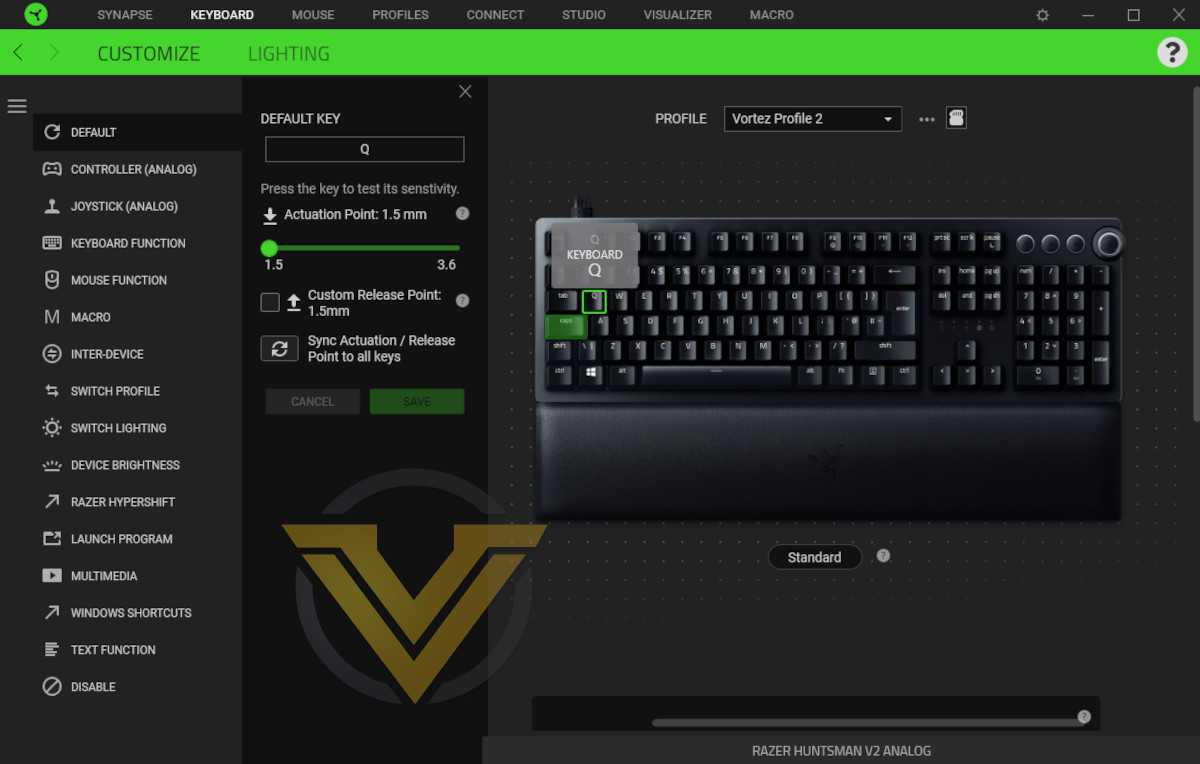
Unique to the Huntsman V2 Analog is an option common to all behaviour categories: setting a custom actuation point. By default each key is set to 1.5mm actuation, but a slider can adjust that all the way up to 3.6mm. Pressing the key in question while a category tab is open will fill the bar with a light green, showing the current depth the key is being pushed to. Once a custom actuation is finalised you can also choose to apply that actuation depth across the whole of the keyboard if desired.
Dual Actuation
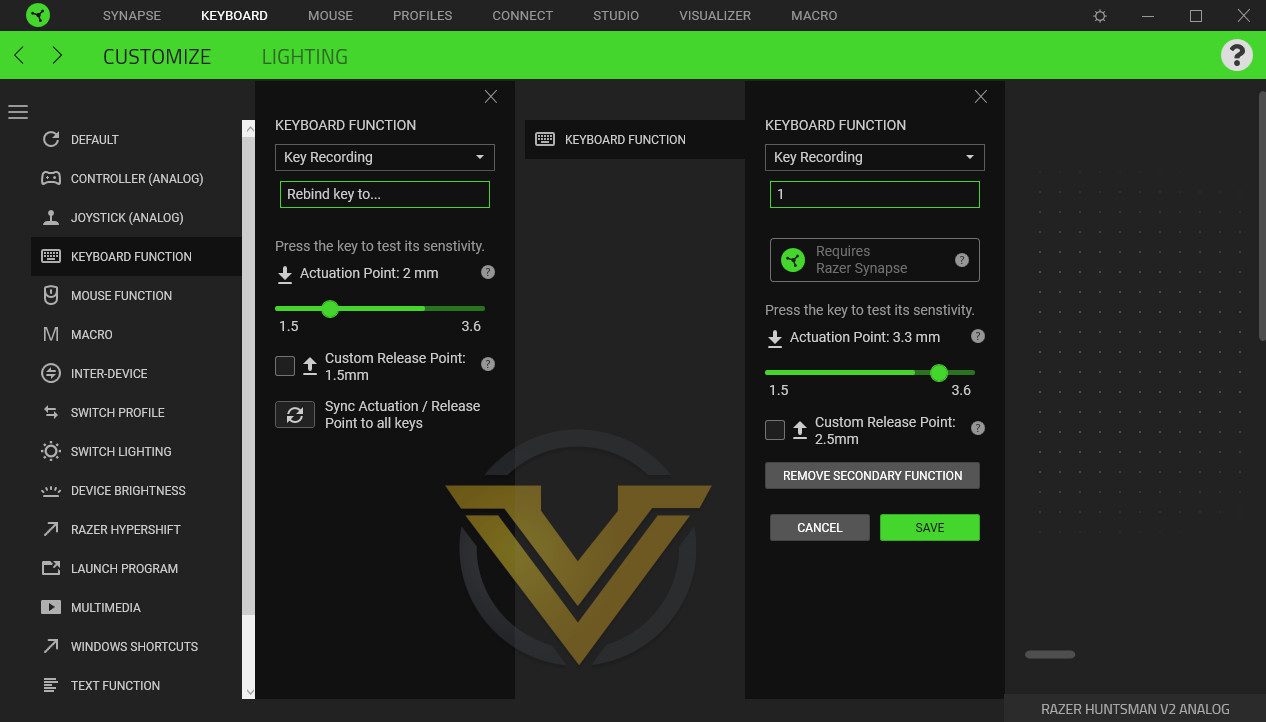
While a key’s behaviour is set to the Keyboard Function option, it’s possible to add a secondary function that will trigger once the keypress reaches a second, deeper level. This can be an alphanumeric, function or symbol keystroke, but not more complex instructions such as a macro.
The secondary actuation point needs to be at least 1mm deeper than the primary actuation and will require the Synapse software to register.
Analog Setup
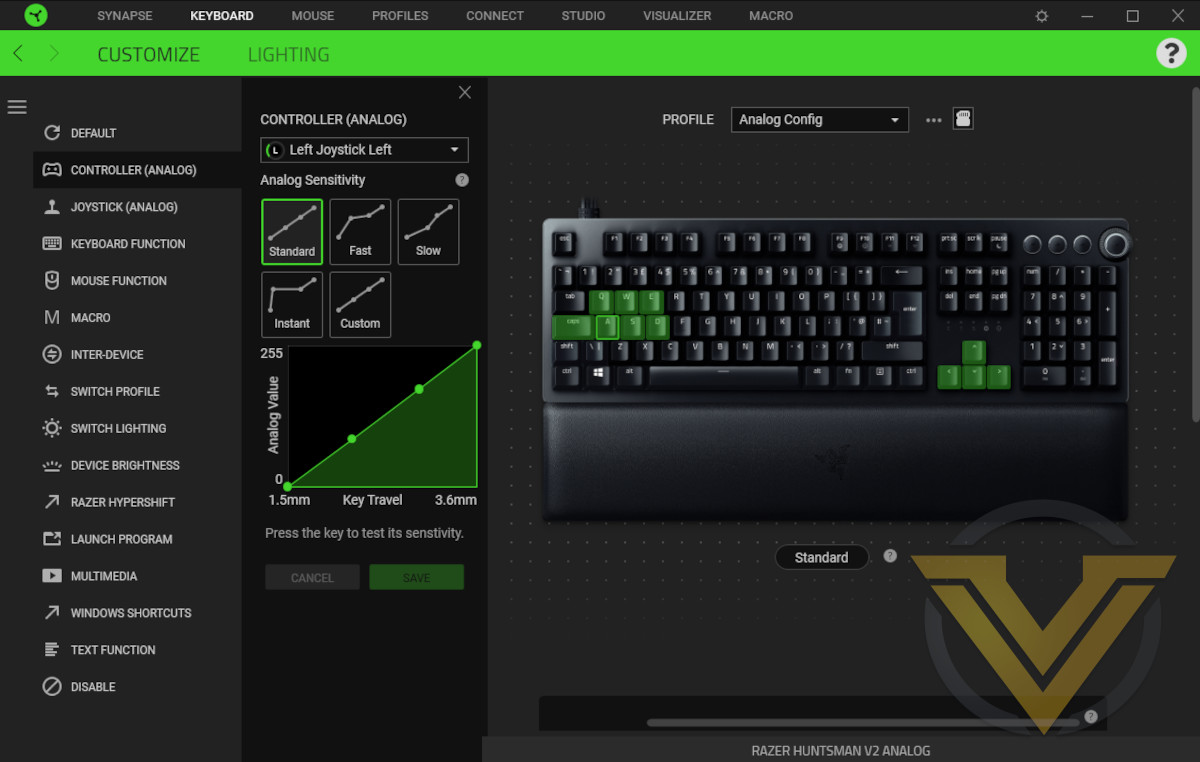
Two additional behaviours that can be applied to each key are Controller (Analog) and Joystick (Analog).
Controller (Analog) presents not only conventional XBOX controller button and D-Pad bindings. Trigger and cardinal thumbstick bindings are also available, including predefined and custom sensitivity profiles. Amplitude levels from 0-255 can be set across the 1.5mm – 3.6mm keystroke, giving you fine control comparable with those on an analog controller.
Joystick (Analog) takes a different tack by binding keystrokes to either either buttons or a joystick direction. Joystick cardinal, ordinal and z-axis are all available as bindable directions, as is roll in either direction about the x, y and z axis.
Keyboard Profiles can be used to quickly switch between Controller and Keyboard bindings in-game, greatly improving flexibility where this sort of hybrid input style can be leveraged such as the modern open world genre. Titles need to be compatible with simultaneous keyboard and controller input to utilise this feature.
A small section below the Huntsman’s image on the Customisation page allows the binding of standard controller features (analog cardinal directions and analog triggers) to recommended keys ({W,A,S,D} and [Q,E} respectively).
Razer Hypershift
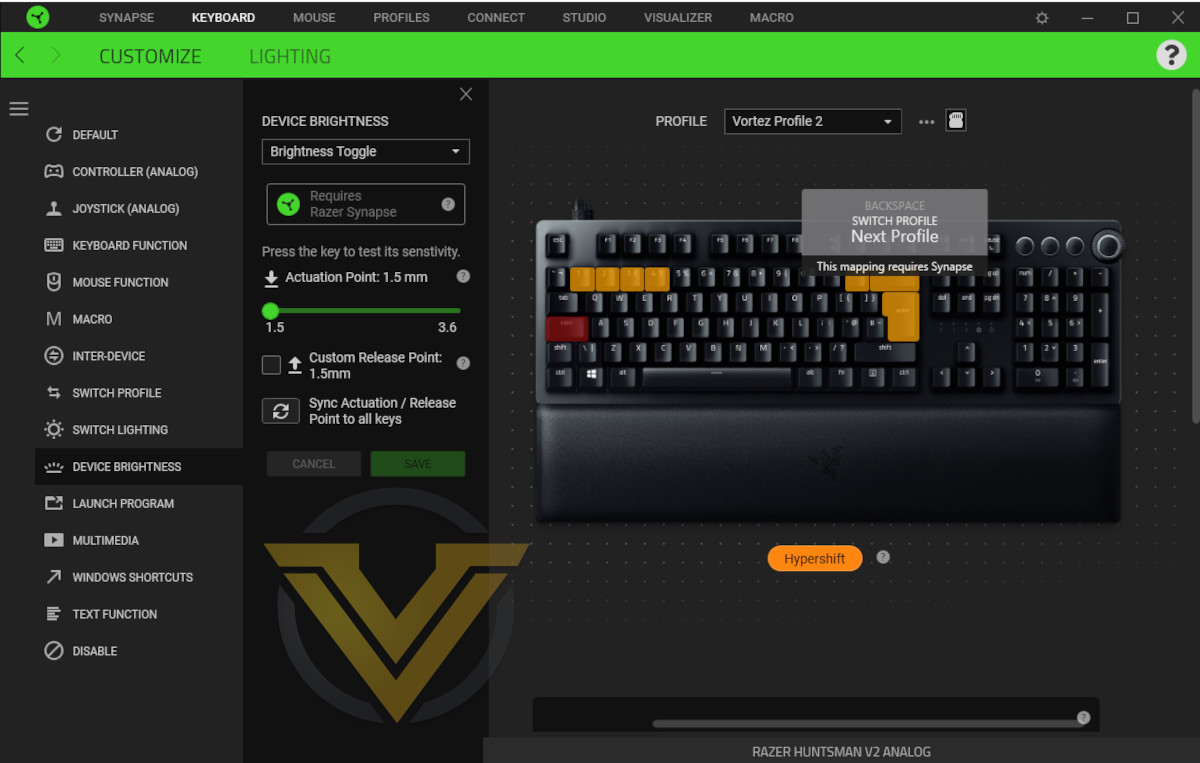
HyperShift is an optional modifier that triggers alternative behaviour for each keystroke, similar to a Shift key, but also extends to buttons across other Razer peripherals attached to the PC. MMO gamers in particular will seek to take advantage of this feature as they clamour for more viable button assignments to accommodate an ever-growing list of skills. To view the HyperShift bindings click the button below the model of the keyboard labelled Standard.
One way of using HyperShift to its fullest is by leveraging it alongside a compatible Razer gaming mouse such as the Basilisk Ultimate. By doing so the total bindings available on that mouse effectively double, at a stroke turning an conventional 9-button selection into something akin to a specialised MMO mouse. HyperShift can also be triggered on the keyboard itself of course, with sufficient practise turning normally redundant keys like the left Caps Lock into an additional modifier for any bindable in-game function.
Macros
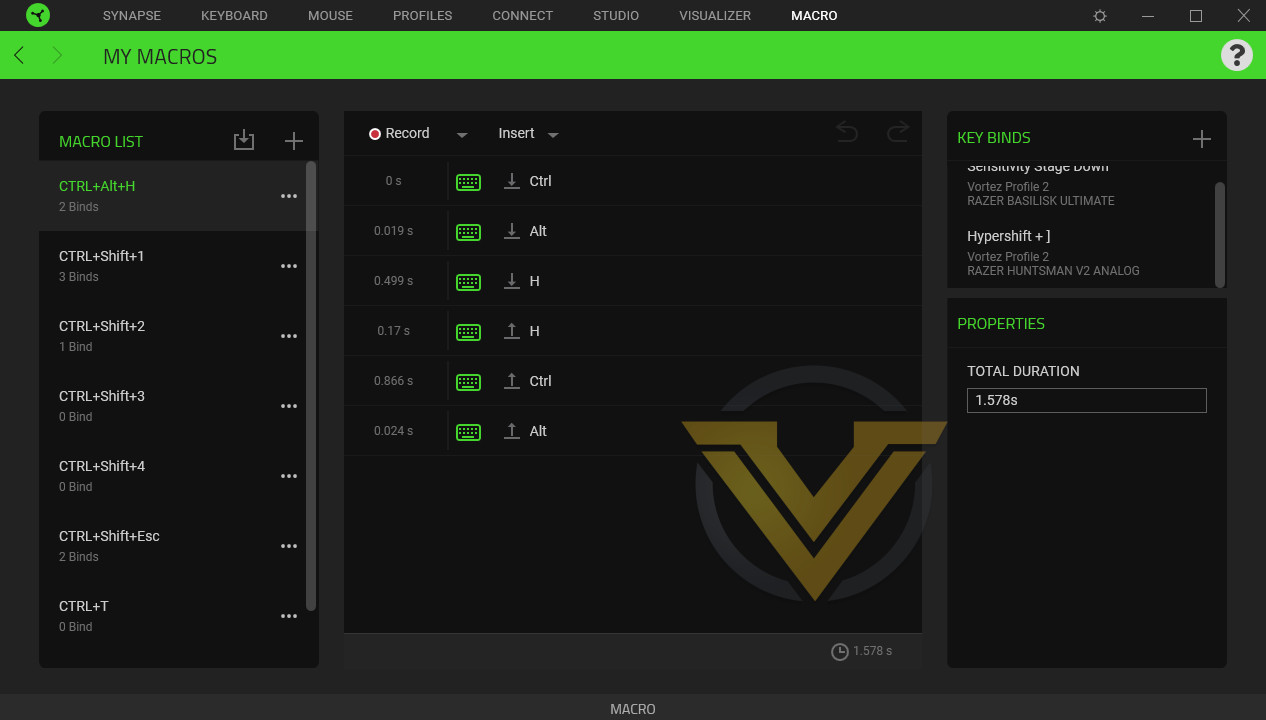
Macro creation and editing is handled solely on the Macro page with a master list of each available to the user. Macros can be recorded here, with each keystroke and button press sequence stored for later editing, or specific actions can be inserted including text strings and even Run Commands.
Once stored, the UI will also indicate how many bindings the Macro is stored to on a given device, and what those devices are. This is an excellent troubleshooting feature we can’t recall seeing elsewhere that will make hunting down rogue keybinds far easier than might otherwise be the case.
And More
Located in the main Customisation window, Gaming Mode can be defined to selectively disable other default Windows behaviour beyond the Windows Menu key. Gaming Mode is enabled using the fn+F10 keyboard shortcut and status is demoted by the right-most indicator LED.
All in all, the software has a higher learning curve than with a Razer mouse, mainly because it crams so much functionality into the single Customisation tab. That being said, all the required functionality is there if you dig for it, and you’re handsomely rewarded if you persevere and tease out all its idiosyncrasies.
Lighting
It will be no surprise to learn that RGB lighting on Razer peripherals almost entirely relies on the Chroma Studio configuration software, so your success in crafting the perfect effect for you will depend on how well you can gel with this utility. The utility can be found in Synapse by clicking the Studio tab at the top menu bar.The Huntsman V2 Analog has dozens of RGB lighting zones broadly grouped into eight separate regions distributed across the keyboard:
Alphabet encompasses the entirety of the main keyset (1-10, A-Z, Tab, Capslock, Return etc.), 52 keys in total;
Number Rows is just 1-10;
Functions are the Function keys, F1-F12;
Multimedia is the multimedia section at the top-right of the keyboard consisting of a glow around each button;
And Underglow is the border around the keyboard (including the wrist-rest if attached).
Each lighting zone can be configured individually or as part of a chohesive zone. The nature of the underglow effect has LEDs shining through a diffusion layer, and so adjacent lighting zones will tend to bleed into each other rather than appear as discrete blocks as indicated in the software.
Like many other approaches, Razer Chroma builds up a full effects package by utilising layered effects and transparencies, allowing complex schemes to be assembled using simple building-blocks. Less common is the distribution of community profiles to inspire other creators and get some tips on how to create tricky, themed or otherwise unusual effects.
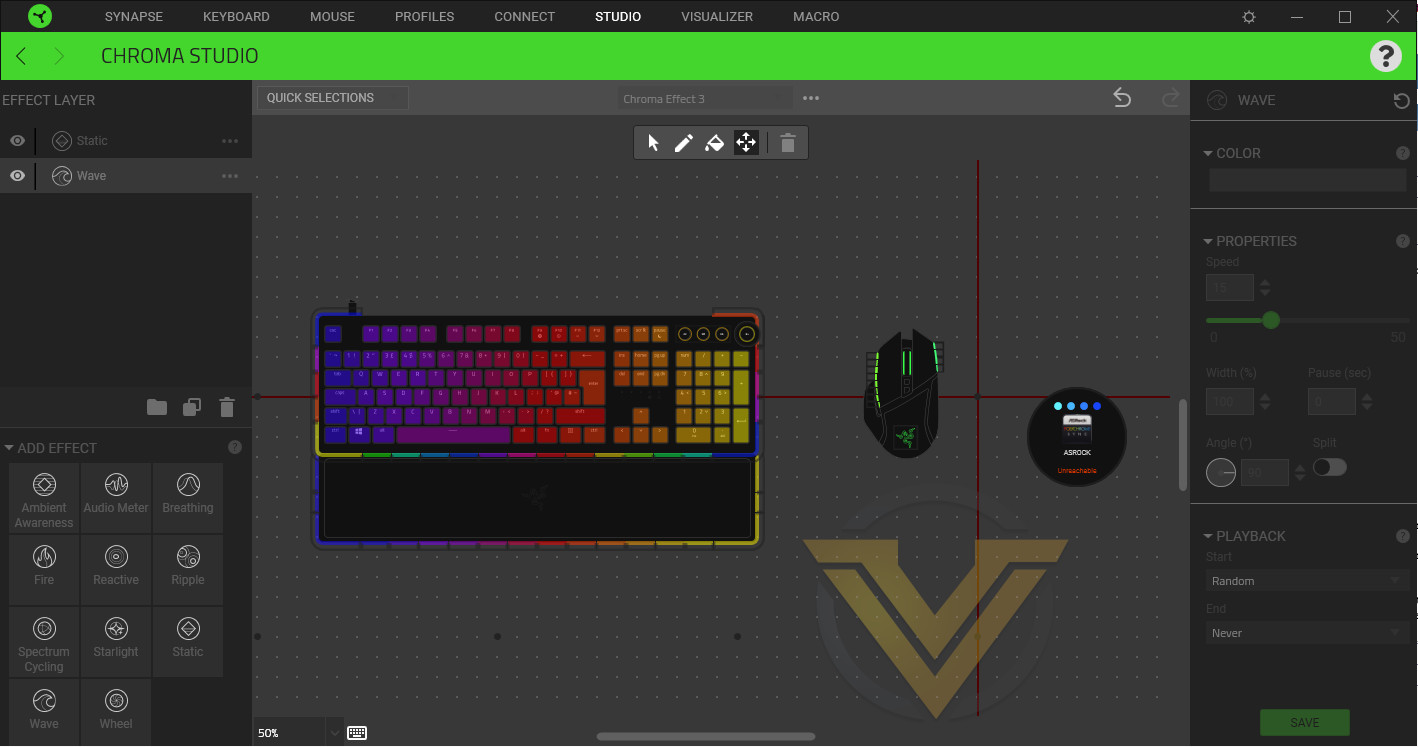
We’ve hooked up two devices to Chroma Studio: the Basilisk Ultimate and the Huntsman V2, both of which are fully Chroma compatible. Both are displayed simultaneously in the studio software in a central section referred to as the ‘Canvas’ rather than requiring independent configuration, at a stroke removing the guesswork that often goes into lighting profiles linked across multiple devices. Hardware can be positioned anywhere on the canvas, also helping with timing specific effects so they appear contiguous across regions in space. The preview is updated in real-time, and applied to the devices when you save it to the current profile.
Razer add an additional aspect to the layering system through groups that help to organise more complex effects across a wider range of devices. The value of this feature multiplies when you consider the enormous range of components that are now Chroma compatible, up to and including wall and room lighting, and will also aid in integrating new devices into an established Chroma setup.
Chroma offers 12 different lighting effects that can be applied to a selection of lighting zones for each layer, each with individual configuration options.
Audio Meter:- Pulsing lighting for the layer with colour and intensity that adapts to the current audio. Disabled when no sound is being played by the selected sound device.
Breathing
Fire:- Flickering fire effect oscillating between a ‘hot’ and ‘cold’ colour. Less intensity the higher you go up the canvas.
Reactive:- Flash a keyboard key when it is pressed, or with mouse buttons flash all zones of the mouse.
Ripple:- A ripple of colour (or spectrum of colour) pulses outward, centred on a key or mouse button pressed.
Spectrum Cycling:- cycle through a spectrum of colour. The spectrum can be edited to shift through preferred colour schemes.
Starlight:- Briefly illuminates a lighting zone in the selected area before decaying back to background.
Static:- A static colour scheme
Wave:- A wave of light pulses across the selected lighting zones, with spectra reflecting the peaks and troughs of the wave. The angle of this wave can be adjusted; 90 degrees – i.e. left-to-right – is the default.
Wheel:- A spiral of colour rotates around a centre-point (that you can define on the canvas). Spectra, direction and rotation speed can all be adjusted as desired.
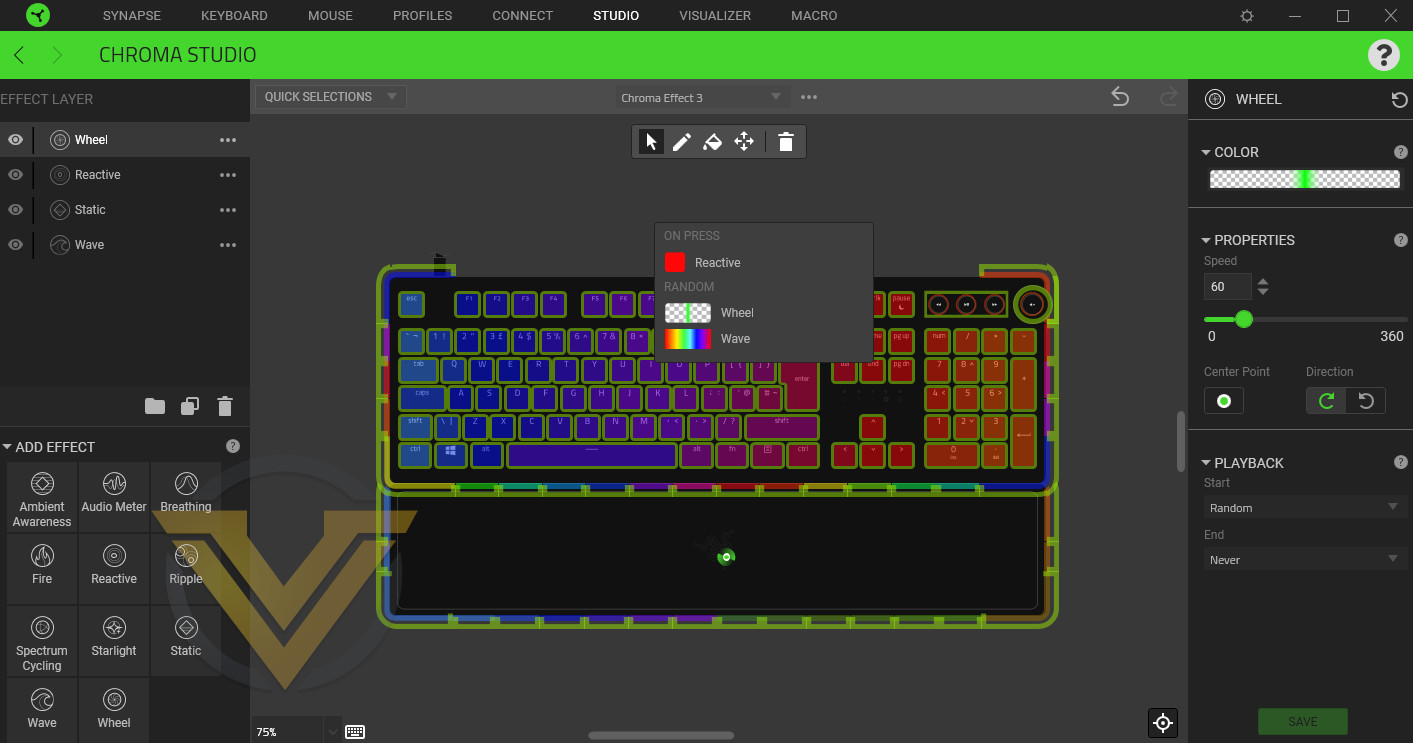
Hovering over a lighting zone will show all each layer affecting the zone and how it triggers, demonstrating how the overall effect is assembled from their constituent parts.
One feature we’d love to see added to the Studio is the ability to set up ‘dummy’ devices on the canvas, helping to create effects prior to the purchase of new Razer or compatible 3rd party hardware (particularly complex devices such as Nanoleaf arrays).
Chroma Visualizer
Separate from the Chroma Studio is the Chroma Visualizer. This standalone lighting scheme places an equaliser effect over connected Chroma devices that reacts to audio played through a specified audio device, and the Visualiser can be activated when only specific applications are launched (such as a favourite game or music player).
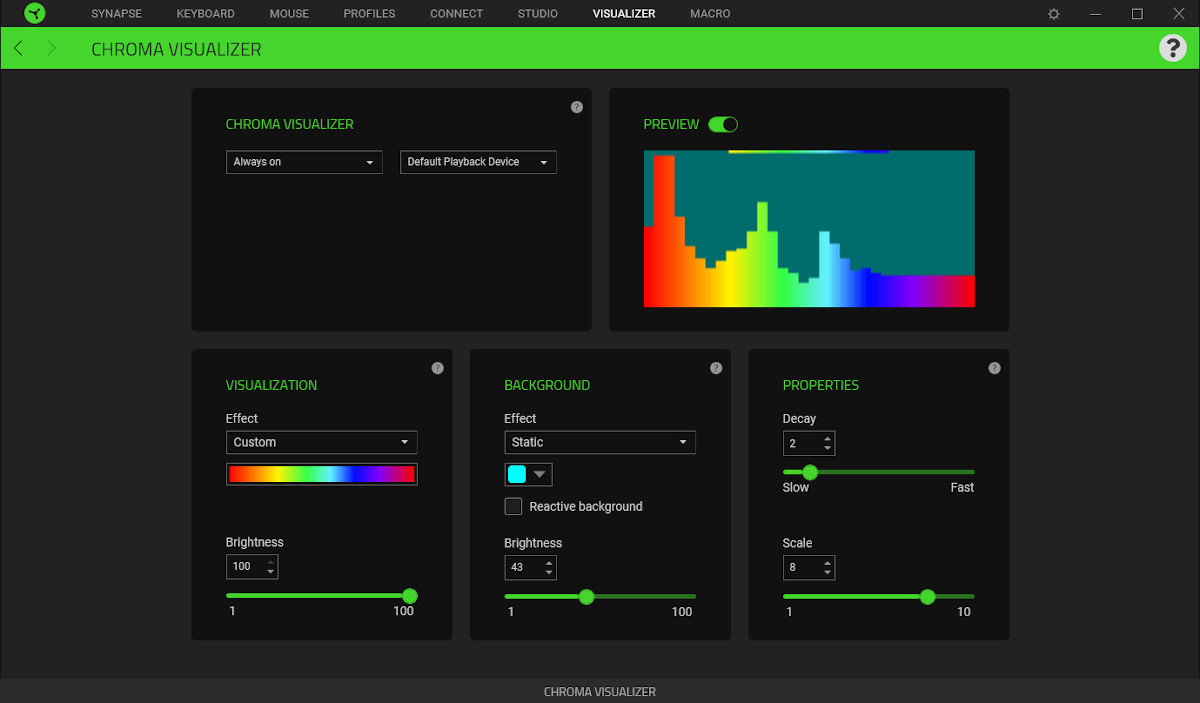
In the Visualizer settings you’re able to configure the colours of both the equaliser bars and the background, using pre-baked colour spectrums and effects such as Wave and Spectrum Cycling. Properties such as decay (the rate at which the equaliser bars fall) and scale (the height of the bars for a given frequency amplitude) can also be altered.
It’s a simple but effective lighting scheme that we can well imagine sees a lot of use in demo rooms and at LAN parties where something fast needs to be set up that isn’t the run-of-the-mill cycling wave effect. Otherwise, it seems a little out of place as a standalone feature of the software.
—
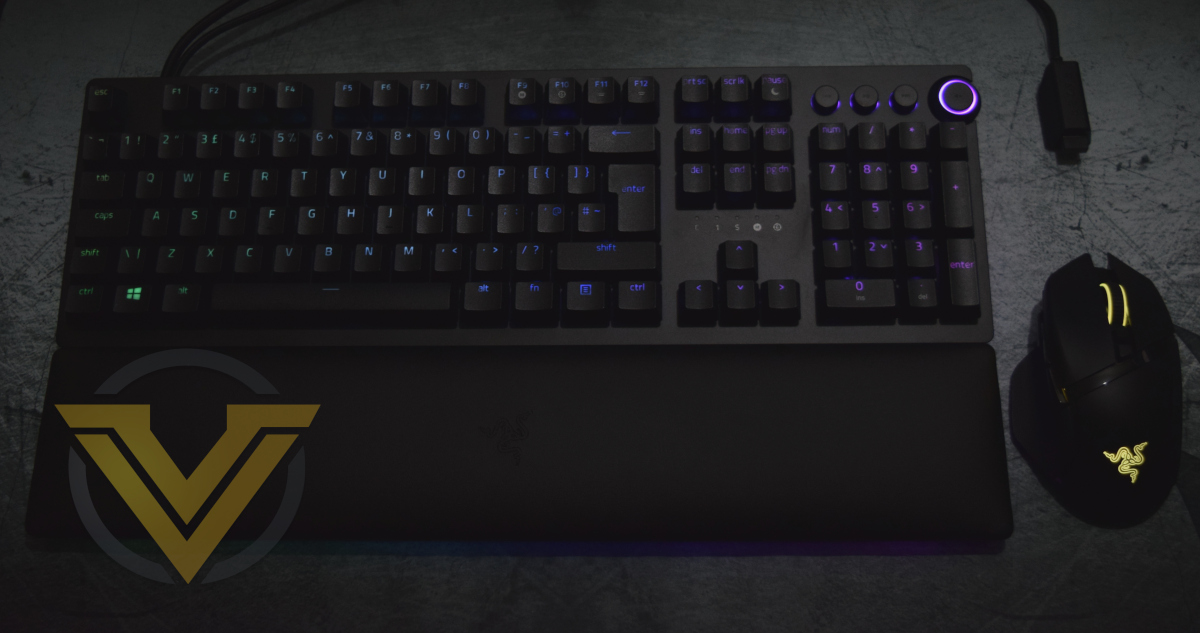
While other lighting systems may offer more baked-in effects and have slightly gentler learning curves, the Chroma system and especially its Chroma Studio workspace acts as a force-multiplier like no other, linking each supported device for a far more dynamic and immersive experience than would be available elsewhere. The Canvas approach in particular is excellent and should be adopted by other manufacturers seeking to give users the tools they need to create room-wide effects that aren’t limited to single or dual devices.
The Huntsman V2 Analog can make far greater use of Chroma’s functionality than the Basilisk Ultimate could alone. That being said, the illumination was a little dimmer than we were expecting even at 100% brightness levels, particularly as the light shines through the keycaps. The underglow lighting however was tailored to match the keys in luminosity and colour balance, but its unbroken nature makes it much more appealing.
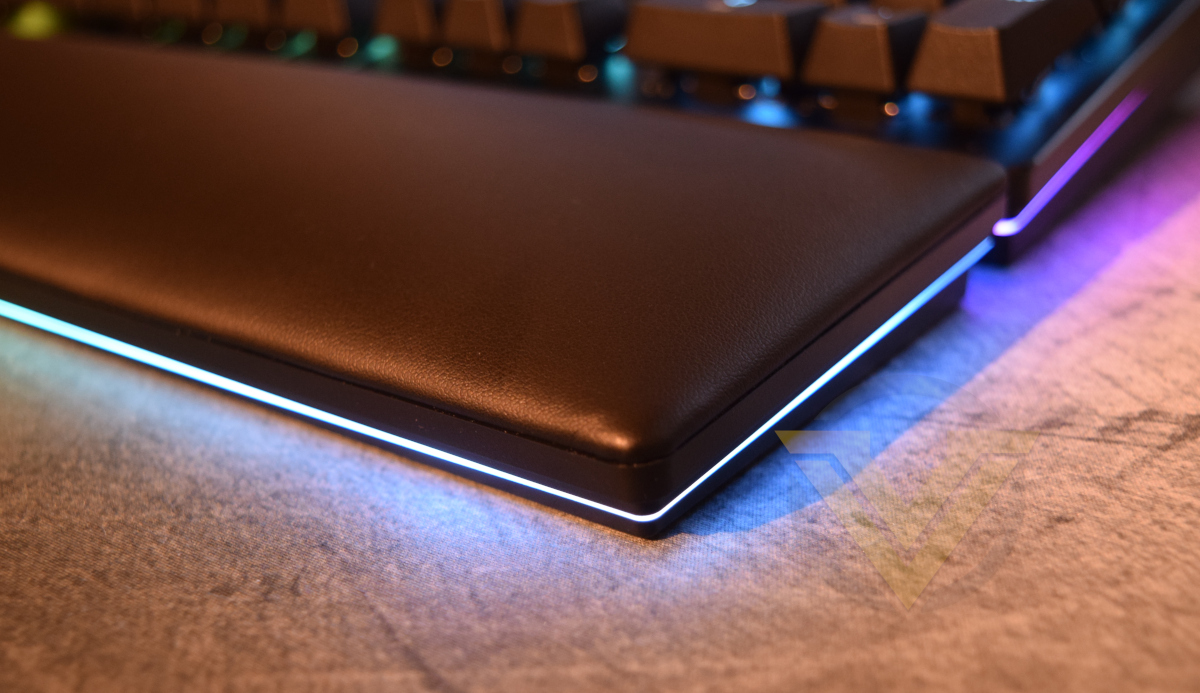
We also love the fact that the underglow lighting extends around the wrist-rest as well as the keyboard, a factor often overlooked by other manufacturers. Attaching and removing this rest also doesn’t break the software’s stride as it will apply the applicable lighting scheme to it if configured in that scheme (and not simply freeze or prompt the user in ‘confusion’).
Performance
There were no issues upon initial installation and setup for this keyboard, which is exactly what we’ve come to expect from competent manufacturers in this field. Lighting defaults to a pleasant rainbow effect; if desired, the on-board lighting controls can adjust brightness to turn it off or max if out without delving into software.
On-board macro recording and assignment is explicitly spelled out in the user guide and is relatively pain-free, but the additional visual aid of an editor UI helps with the process. Synapse is more intuitive and flexible, but quick and dirty live macro recording is still sometimes useful to have at your fingertips.
Rubberised feet and high-friction pads are now commonplace elements but we’re still pleased to see a keyboard that can stay rock-solid on a desk with no stability problems. A metal backplate and thick plastic frame means there’s no flex to the keyboard when striking keys, and a lot of force is needed to deform it to a significant degree.
Razer’s inclusion of six pads on the base of the wrist-rest might seem like overkill but it supports the wrist, and hence is the location where most forward force is likely to be exerted on the keyboard. Without the rest it’s noticeable how high the keyboard sits on the desk; 0.5cm higher* than the Corsair K100 RGB might not seem like much but it’s very apparent very quickly how much more of a stretch it is should your palm be resting directly on the desk. Using the rest was less awkward and in our experience much more comfortable.
Clean lines and curved edges are hallmarks of Razer’s gaming peripheral designs, including the BlackWidow and Huntsman ranges. Strangely enough it looks more aggressive than Corsair’s approach despite being less visually ostentatious, which may be down to something as minor as a matte vs brushed aluminium finish. It might be a little harder to get away with in a business environment, but possible if you only use subtle white lighting.
Razer’s optical switch has an actuation force similar (but not identical) to Cherry MX Black – heavier than MX Reds and Corsair OPX Optical. Long overall keystroke but variable actuation point means they can be configured to be fast (1.5mm), if not quite as fast as very short actuation switches. There’s no cushioning either around the switch or integrated into the housing, but heavier required force and relatively short actuation distance often has the somewhat paradoxical consequence of hitting the backplate with less force when bottoming out on a keystroke.
A lack of dedicated macro keys is at first blush a disappointment, impacting word processing, spreadsheet manipulation and other productivity workloads. That being said, Razer Hypershift can come in clutch by doubling the assignments possible over the keyboard, without even requiring the dual-actuation functionality of the analog switch.
Simply assigning Hypershift to a less-used but easily accessible key, such as CapsLock, adds dozens of potential hotkey, macro and string assignments over the whole keyset without impacting normal use. Even something as basic as HTML markup can be accelerated slightly using this method, without the time-sensitive aspect introduced by Hypershift’s use in gaming.
In-Game
From the outset gaming on the Huntsman was a supremely satisfying experience. Even at the point of our initial set-up, a quick blast in Apex Legends just felt natural, without the often painful feedback through the keystroke you can experience from bottoming out the stroke. We put that down to a combination of them being heavier switches than the common MX Red types and a keycap/switch base construction that doesn’t transmit quite so much force back up through the key.
With longer sessions in Apex some changes to actuation points were needed as the default 1.5mm proved to be a little too sensitive. Knocking it to 2mm across the whole keyboard was trivial and very quickly made a difference in our overall level of confidence with this new tool. As time went on the keys themselves remained consistent despite early heavy use, and the keyboard rigidity remained as resilient as it was on the day it was unboxed.
Switching to World of Warcraft, we changed up actuation levels in a profile specific to the game. Rather than keeping the whole keyset uniform, we kept WASD at minimum (1.5mm) but placed other keys around it – {Q, E, F, 1, 2, 3, 4} – at deeper levels of 2.7mm to minimise accidental actuation. We came to that figure after some experimentation, and generally found that it seemed to improve overall precision just a little, which might be enough for many. Once again developing muscle memory will tend to help, but such a setup can help to cut out those mistakes if you’re a little error-prone.
As it was with the Razer Basilisk Ultimate, the Synapse macro system is powerful and easily capable of more complex keystroke combinations. Just as important however is that creating and tuning macros is straightforward with the software, an aspect of keyboard products that isn’t always as easy as it should be. Gamers brand new to PC might need a little hand-holding, but more veteran users of performance keyboards/mice shouldn’t have any issues in the short-term.
Once again, Razer Hypershift did the business in WoW too. When used in tandem with the Basilisk Ultimate Hypershift it doubles the available assignments on the mouse, and even utilising it in a basic manner – adding Hypershift assignments to the three thumb buttons – makes a huge difference relatively quickly. Without a secondary Razer peripheral it doesn’t have nearly as much versatility (though more than on a mouse alone). It’s just a shame that Hypershift isn’t a feature that can be used with peripherals from non-Razer brands, but you can’t have everything.
Grinding Gear Games’ Path of Exile gave us an opportunity to subtly try out the keyboard’s dual-actuation function, but it proved to be more difficult to take advantage of than we realised. The fine motor control needed to push a key just enough for the minimum actuation point, but not so much that you hit the 2nd point a maximum of 2.1mm deeper, is much greater than anticipated. Relying on it for skills/abilities that you need to press almost by reflex doesn’t work out too well.
Combo abilities – two that will always want to be triggered sequentially – are a different matter. It’s a use-case that crops up infrequently, but the feature will seem invaluable when it does. Otherwise, it will be something to consider in games that you’ve invested hundreds of hours in, know like the back of your hand, and can appreciate niche criteria where it might shave off crucial fractions of a second.
The final feature is full analog functionality. We’ve used GTA V, a title that can handle keyboard + controller operation simultaneously, as our test bed admittedly because the list of titles with confirmed support is limited. Some other games superficially appeared to work, but odd behaviours did crop up from time to time (which we lay at the feet of the game rather than Razer’s software or driver).
Setup was as simple as creating a new profile and clicking the Quick Remapping toggle in the Synapse Customisation page. Acclimatising to the analog configuration was a strange experience though, and certainly took a lot longer. The fine control was difficult to get a handle on at first, but it might be easier for those most comfortable with a controller who have already developed some of the skills needed. Analog triggers worked too, but the default quick-remapping locations of Q and E probably won’t be that suitable if they’re bound to throttle and break.
The difference wasn’t huge, but it was clear that gun aiming and using vehicles at the same time was, if not strictly easier short term, at least more precise. It’s a little like trying to use a controller and mouse at the same time, with exactly the same initial awkwardness you might expect. Switching back from faux analog controller to standard keyboard could be done with simple profile cycling hotkeys so it need not require a break in gameplay.
—
Razer’s analog switch technology is fascinating, if nothing else due to the way it messes with your perception of input controllers. We’re looking forward to seeing it in action in casual space combat flight sims, where dissociated analog + mouse inputs can be a game changer. Mobile game ports built to utilise smartphone gyros could also see a benefit from adaptable analog controls that are a departure from both gamepads and joysticks. Otherwise, open world games in a modern setting are clearly its most natural fit.
So the Huntsman V2 Analog really does seem like a breath of fresh air in the peripheral market, with technology that opens up new ways of gaming on PC. Let’s tie things up.
*37.5mm vs 31.8mm measured from the base to the top of the space bar
Conclusion
It’s such a pleasure to find keyboards that market themselves as ‘premium models’ that live up to their boasts, rather than requiring allowances be made in the face of cut corners or reduced expectations. The Huntsman V2 Analog might not be perfect, but it is an exceptional piece of technology.
To begin with the fundamentals are all there – there’s effectively no flex in the keyboard, each key has a consistent stroke feel, and all the core functionality that you expect is present and accounted for. It doesn’t have game-specific adaptations such as dedicated macro keys, but there are built-in compensations. At no point in our testing did we wish for something that it didn’t have, just perhaps slightly more convenience from what it did.
Speaking of what it does have, Razer’s analog optical switches are very good even if you aren’t intending to use those switches’ full capabilities in the moment. They’ve chosen a slightly heavier spring force than MX Reds that very much meets our preferences, but also subtly feeds into the effectiveness of the analog aspects. If presented with these switch dynamics and a just regular optical design we’d likely embrace it as a model for daily use, they’re that good.
The Analog aspects of this switch however push the dial to 11. Simply configuring your own actuation point on a per-key basis really is a feature that’s almost revelatory, and absolutely should be the first aspect that any new owner experiments with.
Dual per-key actuation meanwhile is a little more complex, and harder to develop muscle-memory for. It’s powerful nonetheless, particularly when viewed through the lens of a game that gives you just enough leeway in reaction time to use effectively. It may sound like we’re not quite sold on it, but that’s more because we haven’t quite found its ideal partner yet.
Full analog control will be a touchy subject. Compatibility limitations will frustrate those interested, but we instinctively feel like the technology will have more application and wider adoption over time. This may be an early-adopter problem, where you have to take the position that now it’s been built, game developers will start to factor it into their plans. Either way, it’s a great addition to the general mayhem of GTA V, and we’re eager to see if it can be leveraged in Far Cry 6 (another open-world experience) this October.
Once again acting as a force multiplier is Razer Hypershift. We mentioned the feature in our recent review of the Razer Basilisk Ultimate and it’s an exceptional inclusion to the peripheral toolkit when a Razer keyboard and mouse are working in tandem. Simply bind it to CapLock and double-up the keybinds available on your mouse, in addition to every other key on the keyboard itself. Once again its utility is perhaps application specific, but in this instance possibly not as much as you think. If you do a lot of repetitive text input in your 9-5 we’d suggest investigating its potential.
Perhaps our greatest criticism is reserved for the lighting. Not in terms of the customisation toolset – the Chroma Studio remains one of the more powerful on the market and Razer Chroma itself is probably the most widely adopted system amongst 3rd party manufacturers. No, in this instance the LEDs as they shine through the keyboard are just a little dim and lacking in vibrancy at 100%, and the keycap manufacturing process has left the lighting uneven as it shines through the etched out lettering on each key. The edge/underglow lighting matches the keys – same colour as specified, but just a little lacking in brightness. Lowercase Arial is also not our favourite font, but that is really nit-picking.
That being said, the final touch of quality is the wrist-rest. Very comfortable, trivial to attach, extends the keyboards lighting and locked in place by oversized rubber pads; it’s exactly the style we’d pick were there freedom to choose.
The Razer Huntsman V2 Analog pushes gaming’s boundaries thanks to analog optical switches and a software suite that can use them to their fullest; if anything, it may be ahead of its time. Excellent build quality, a great feel to the switches, synergy with Razer mice through HyperShift and a highly customisable lighting system combine for a premium design that rewards those who can stretch to its hefty price tag.
+ Innovative analog switch design
+ Comprehensive software customisation
+ Excellent lighting software
+ Comfortable detachable wrist-rest
+ Strong synergy with other Razer peripherals
+ USB 3 passthrough
+ Could open up new possibilities for PC gaming through adaptable input systems
= Switch feels like heavier linear MX Blacks, not more common MX Reds.
= Pair with other products in the Razer ecosystem to use to its fullest.
Cons
– Price
– Lighting is slightly dim and uneven through keycaps
Click here for an explanation of our awards at Vortez.net.
Stay connected with the Vortez Social Media pages:
Join in with the discussions on Discord