







Thermaltake emerge with a new gaming division named Tt eSPORTS. We take a look at the Challenger Pro Gaming keyboard.
Product on Review: Tt eSPORTS Challenger Pro
Manufacturer and Sponsor: Tt eSPORTS
RRP: €55 @ CaseKing

Way back in March of this year Thermaltake launched a gaming division called Tt eSPORTS at CeBIT 2010. There we saw the introduction of some interesting gaming products, in particular it was the first sighting of the product we are going to take a look at today. The Challenger PRO is a gaming keyboard with a lot of features as we highlighted in the CeBIT report. As opposed to the standard Challenger keyboard it has larger memory capacity which ultimately means it can store more commands/macros and profiles. The Pro version also has backlight luminance, an extra USB port and removable keys.
Often the most overlooked of devices the keyboard is surely one of the most commonly used of all the components making up a system. With MMO gaming taking a strong hold within the gaming industry, keyboard designers have their work cut out to include as much functionality as possible on boards. Paramount to keyboard design is the ability to switch between profiles containing multiple macros. The Tt eSPORTS Challenger Pro has oodles of functionality so lets begin!
Since March we have been eagerly waiting to take a look at the Challenger Series and at long last Case King have come to the rescue and provided us with a sample. Thanks guys!
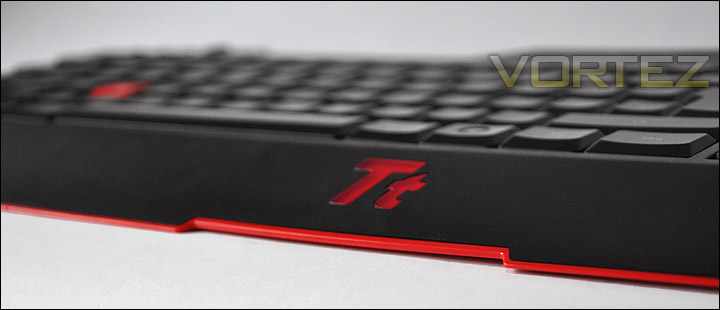
Tt eSPORTS Take:
Pioneering others, the CHALLENGER Series keyboards are designed with an extended cooling fan, which is the worldwide first exclusive cooling fan gaming keyboard to offer the most comfortable gaming environment. The clever design is to dry your sweaty hands caused by the rise of adrenaline, highlighting also your smart choice and characteristic. The Challenger Ultimate keyboard offers RBG backlight design, up to 14 Macro keys, and renders the most advanced anti-ghost key matrix up to 20 keys operation without interference. Up to 64KB onboard memory in 5 game profiles and 70 macro keys, the Challenger Ultimate keyboard also designed with 2 additional built-in Gold-plated USB ports for other gaming devices. Full customization GUI brings you joy of gaming achievement.
Interface
– USB2.0
Operational systems
– WindowsR 7/Vista/XP
Number of Macro keys
– 10
Number of Multimedia keys
– 6
2.0 USB port
– 2
Switch lifecycle
– 10 Millions
Cable length
– 2m
Body dimension (LxWxH)
– 505x 195x 27mm
Fan
Fan Speed
– 6,000 RPM(±15%)
Max. airflow
– 2.7CFM
Noise level
– 21.7dB
Rate voltage
– DC 5.0V
Life expectancy
– 50,000 HRS
Body dimension (LxWxH)
– 30x30x10mm
Packaging & Bundle
The Challenger Pro comes in a very nicely designed box. A great colour scheme and design work. The front actually lifts up to reveal further details. Within the box there quite a selection of bundled extras. Included we have the following.
– Challenger Pro Keyboard
– Small bag of individual red keys
– Larger bag with fan and detachable USB cable
– Instructions Manual
– Drivers CD
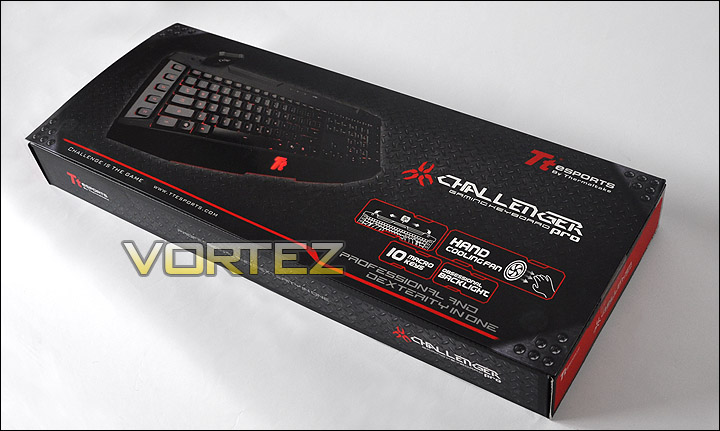
The Challenger Pro packaging is very attractive
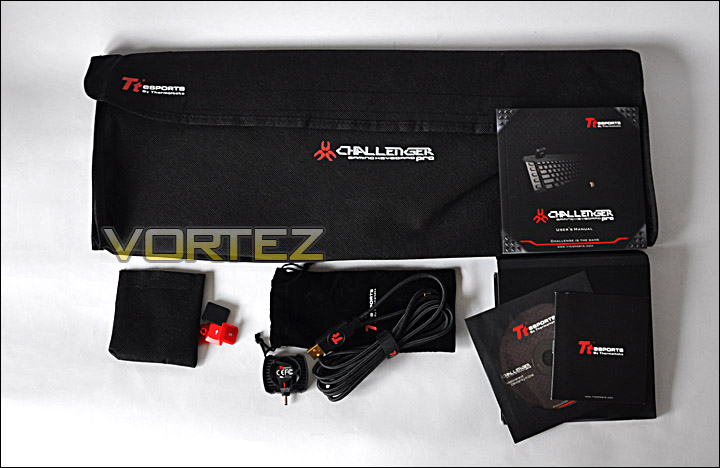
Quite a selection of included extras
With the Challenger Pro out of its protective fabric sleeve we can see the layout whilst being fairly standard has some additional buttons on the left and right sides. The board is also rather low in stature as are the keys which are flat when compared to the traditional keyboard.
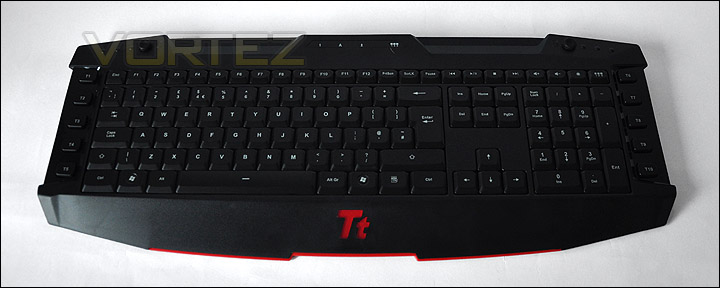
An overview of the Challenger Pro
Closer Look
Moving in for a closer look we see that the Challenger Pro has buttons along the left side T1-T5 and along the right hand side T6-T10 designated for macro programming.
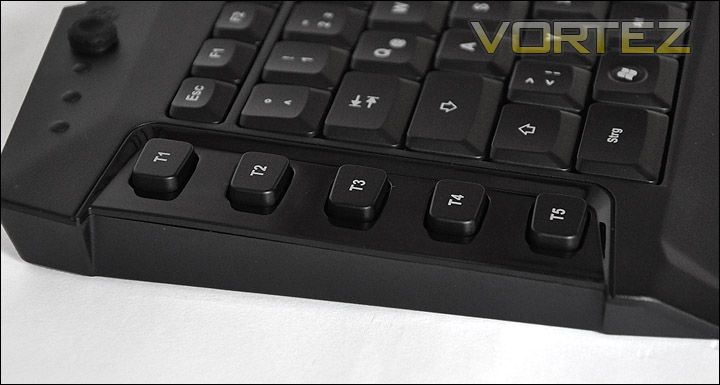
Macro buttons on the left side
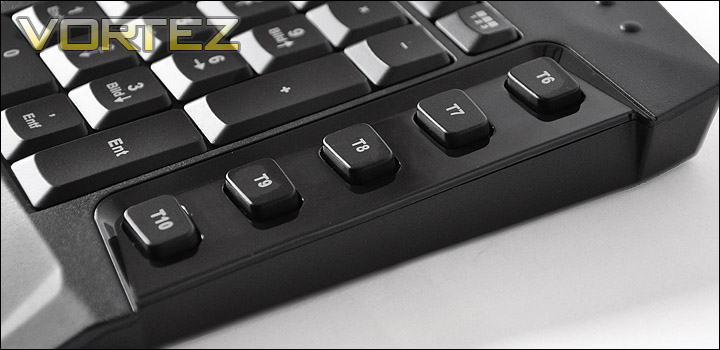
Macro buttons on the right side
Towards the top of the Challenger Pro are two circular rubber covers which pop off to reveal a socket. Bundled with the keyboard you may have noticed the inclusion of a small fan. These two sockets are here at the top are for plugging in this fan. The idea behind this is that whilst gaming you can ‘cool off’ your hands. It seems a bit of a gimmick to me, if you have problems with sweaty hands – then maybe a good suggestion is remove a layer? or go and see the doc?
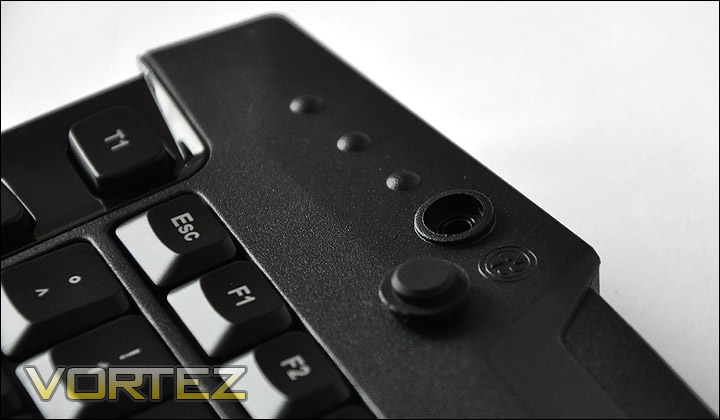
Circular rubber cover
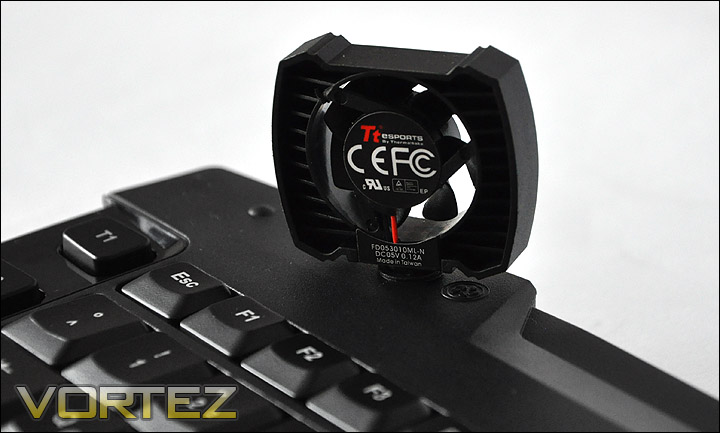
Tiny fan used for cooling sweaty gamer hands
Closer Look (Continued)
Also included within the bundle are some additional key pieces to allow you to swap out the black WASD keys for some red ones. In order to remove the keys there is a tool provided that allows you to pull each individual key off. Just push down until you hear a click and then pull up until the key lifts off. It does feel like you are going to break something but on all the keys that I removed nothing was damaged thankfully. Again, is this another gimmick? Sure enough it does highlight the WASD area, but do gamers look down at the keys when they are playing? I would suggest not, if they do then they aren’t going to last that long on the battlefield.
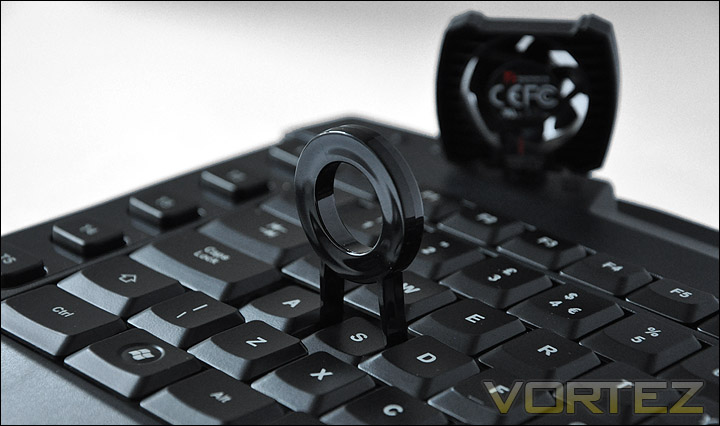
Using the key removal tool bundled with the keyboard
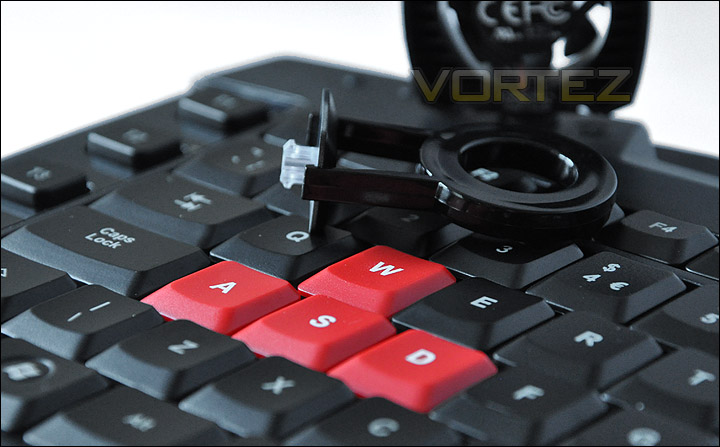
Now we have red WASD keys instead of black
The Challenger Pro has two additional USB ports that you can plug devices into – such as headset or even a gaming mouse. The keyboard itself doesn’t have a USB cable hot-wired into it though. Included within the package there is a USB cable. This cable has a mini-USB end that plugs directly into a port on the motherboard. Incidentally, the USB cable that plugs into your computer is gold-plated.
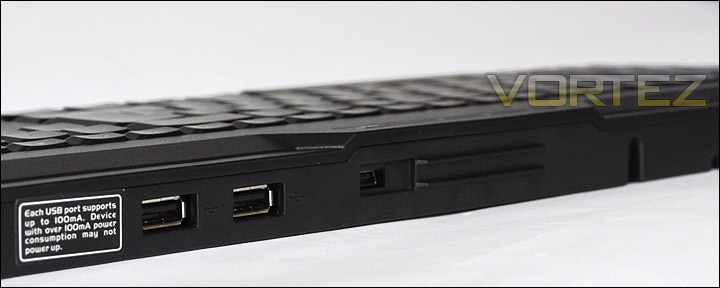
USB ports and mini-USB port
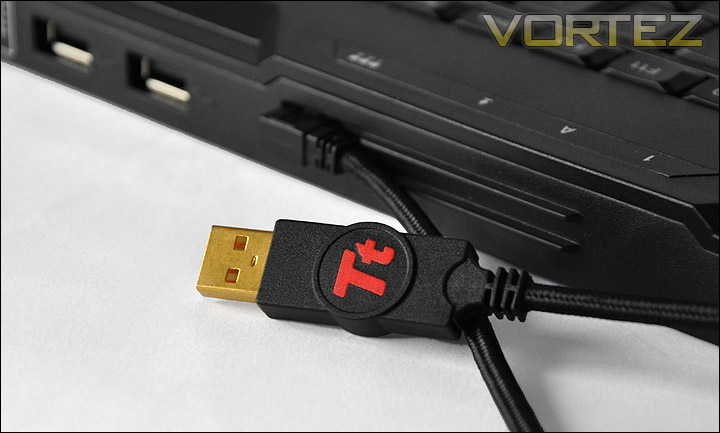
USB cable in – nicely embossed Tt emblem
On the underside of the Challenger Pro it has quite a solid structure there are two feet that extend out to give the keyboard a different elevation height. Around the top and bottom edges there are 4 rubber mounts that prevent the keyboard from slipping on shiny surfaces.
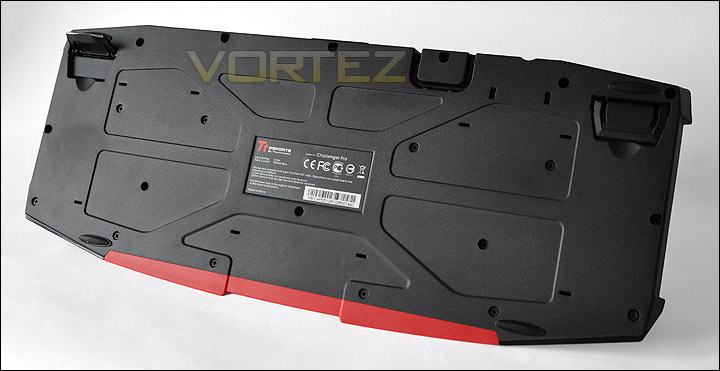
The underside of the Challenger Pro
Comparison & Testing
For comparison I thought it would be useful to compare the size of the Challenger Pro against a traditional keyboard – Dell Slimline. With a standard keyboard next to the Challenger Pro we can observe the overall size, height and spacing of keys etc.
Taking a look at the overall size of the keyboards we can see the Challenger Pro is significantly bigger. The keys are much tighter though in comparison to the Dell keyboard. The dell keyboard has bigger spaces between each key. The Challenger Pro also has a rest for the lower palms/wrists.
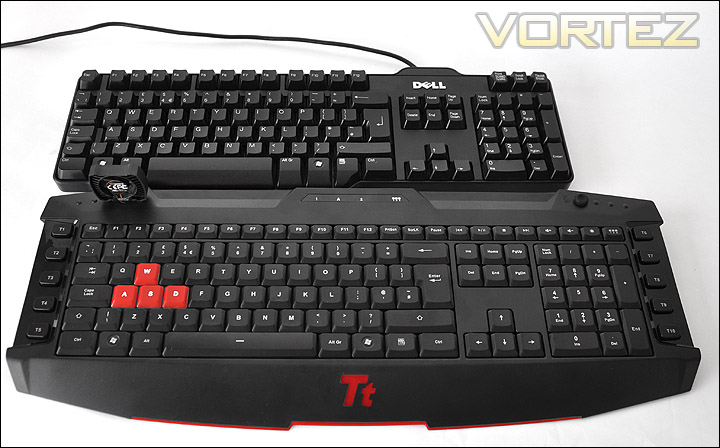
The Challenger Pro – Longer in overall size but tighter keys
The keys on the Challenger Pro are much shorter in height to the standard keyboard.
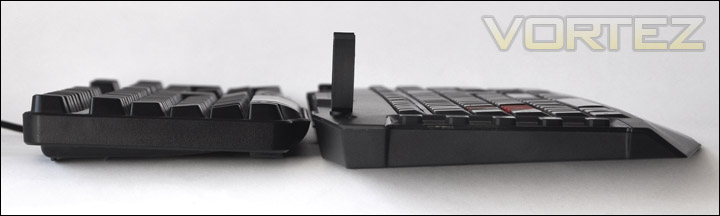
Height of keys are a lot shorter on the Challenger Pro
As I highlighted in the SteelSeries Shift review, the caps lock key is quite close to the “a” key. Using a standard keyboard on a daily basis I found it hard to adjust to the Shift but with the Challenger Pro this is further amplified because the keys are so tightly placed together. You can see below that on the standard keyboard the caps key is directly in line with the ‘tab’ key but with the Challenger Pro the caps key is much longer and hangs right over. When using this keyboard I was forever hitting the caps key instead of the “a”, because vowels are used frequently when typing emails, web addresses, communicated in IM and in-game. Unfortunately I initially struggled to adjust to this keyboard, after many hours of testing I was getting used to it more but it still presented problems with speed typing. Naturally I don’t look at the keyboard when typing but with the Challenger Pro I had to have my eyes looking at the board as I was forever making mistakes.
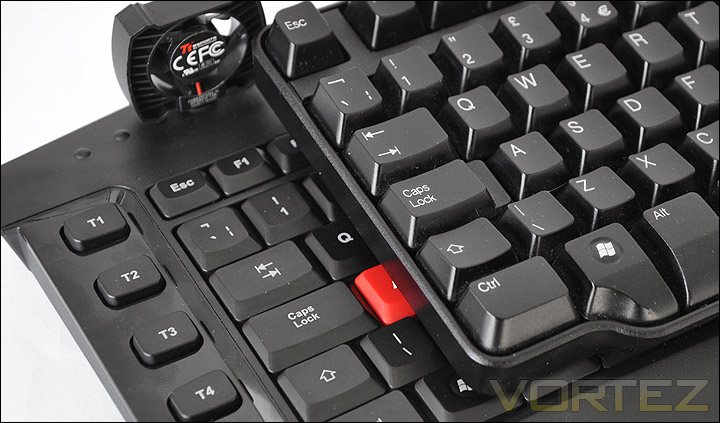
Caps key compared to a standard keyboard is very close to the ‘a’ key
Software
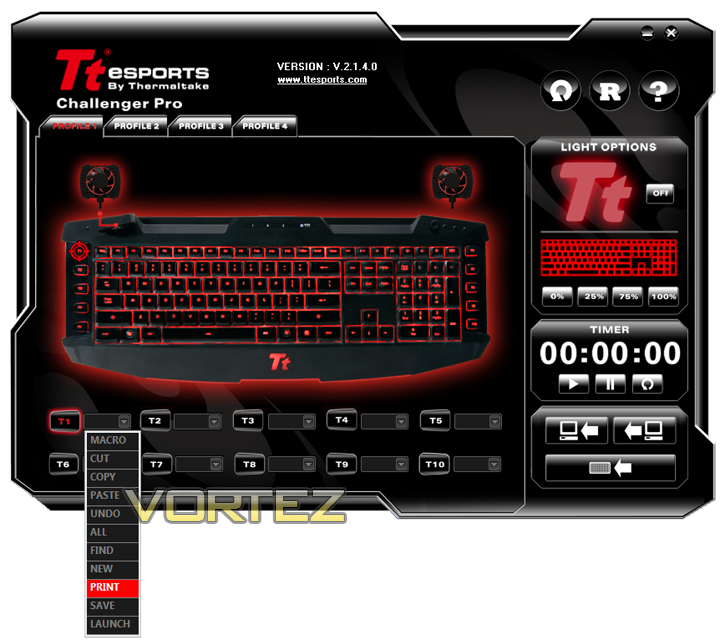
Along with the other included items there is a drivers CD with software to engage with the Challenger Pro. Installing takes a few minutes, as soon as the software is installed it reveals a GUI of customisation. Immediately noticeable along the top are 4 profiles that you can switch between. Switching to each profile is easy – there is a button above the numpad region that allows you to switch between each of the 4 profiles.
The keys that can be modified are the T buttons positioned on the left and right sides. You can either select from pre-defined commands as shown below or record a macro using the software and assign the macro to that button.
Other features that are available are the ability to turn the “Tt” logo light on or off and switch the backlight to 0% radiance all the way to 100% radiance. Not only can you control these lighting features within the software but there is a button above the numpad to change this also.
So all in all there are plenty of options to tailor the board to your needs and the software is very intuitive.
Powered Up (Lighting)
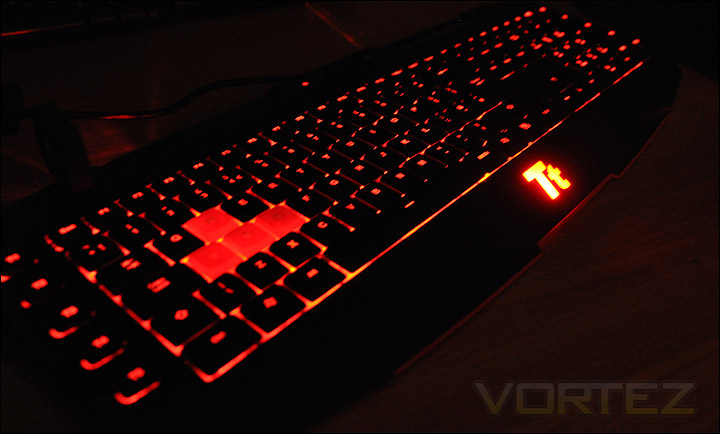
When the Challenger Pro is powered up via the USB cable we are greeted with a strong red luminance. The images below show the board with 100% radiance and the Tt logo lit. As you can see it gives the room a pleasant ambience.
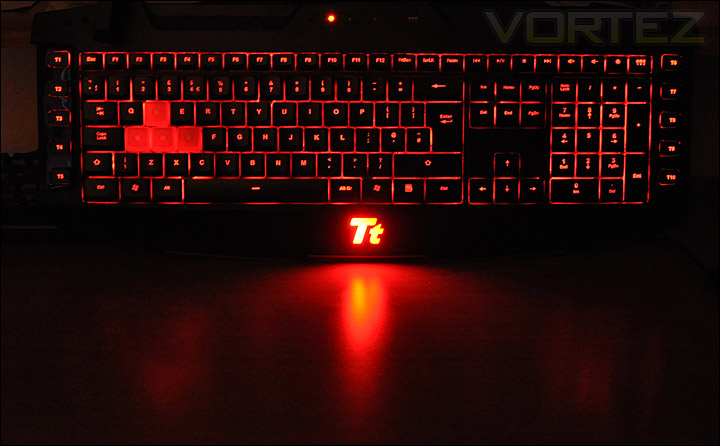
The Challenger Pro lit up
Conclusion
As the year draws to a close we have seen many companies taking on new ventures in an attempt to expand and maximise potential. Thermaltake have joined this movement by instigating Tt eSPORTS.
The Challenger Pro is a solid keyboard and it does look impressive both with and without lights. We have also seen that it comes with a goodly amount of bundled extras but I can’t help but think that some of these features that Thermaltake have included are a bit of a gimmick. I mean, a removable fan on a keyboard to keep your hands cool? What are they doing?! Imagine this going to the Dragon’s Den. They would just laugh. The option of switching the default black keys out for the red WASD keys is another strange feature. Is it really necessary for the gamer to know where the WASD keys are? If you are looking down at your keys whist gaming you aren’t going to last long.
The keys are very tightly placed together and as I have mentioned in the testing stages, showing the comparison towards a traditional keyboard layout and keyset – the Challenger Pro is difficult to make a transition to.
The Challenger Pro lacks the prowess and finesse of other keyboards in its league. The Logitech G11 or ROCCAT Arvo are both similarly priced boards but offer more flair and character.
At around £50 the Challenger Pro represents reasonable value for money. I just find it hard to take this new brand seriously when they are sticking fans onto keyboards for keeping your hands dry.
Pros
+ Looks stylish
+ Good build quality
+ Has plenty of included features
+ Easy to use software
Cons
– Silly gimmicks
– Lacks finesse
– Difficult to speed type on
+ Looks stylish
+ Good build quality
+ Has plenty of included features
+ Easy to use software
Cons
– Silly gimmicks
– Lacks finesse
– Difficult to speed type on

