With an attractive slim design, ARCTIC’s new keyboard makes great use of desk space and is a joy to type on.
Product on Review: ARCTIC K381 Multimedia Keyboard
Manufacturer and Sponsor: Arctic Cooling
MSRP: 17,45 € (excl. VAT) / US$ 24.95
Street Price: 17,45 € (excl. VAT) / US$ 24.95

On June 22nd 2010 (Press release: Link), ARCTIC entered the input device market with three different products: two mice and a keyboard. The keyboard was named the ARCTIC K381 and it sports a few interesting features.
In addition to its multimedia and office keys, the ARCTIC K381 has an ultra-slim design. The keyboard’s thickness ranges from 12 to 20 mm, which is a fraction of the thickness of typical keyboards. Its low-profile keys allow for a very short travel distance that should enhance comfort and typing speed.
Not only it is thin, the keyboard’s frame is kept to a minimum in order to make the ARCTIC K381 space efficient. For anyone looking to use desk space wisely, such as students with their textbook-cluttered desks, the ARCTIC K381 keyboard will no doubt be interesting. In the following review, it will be examined whether or not this keyboard is right for you.
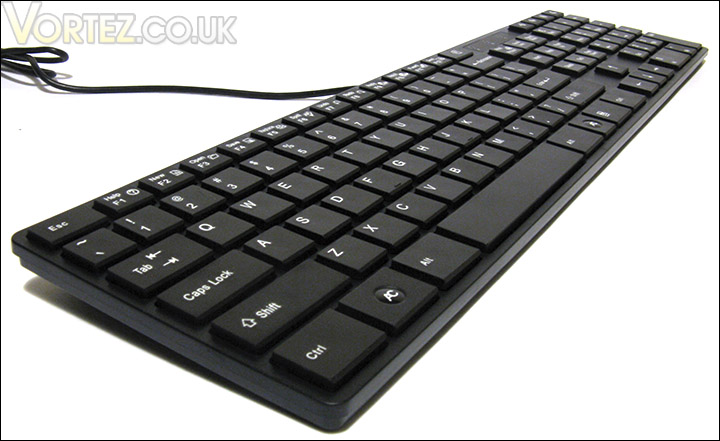
The ARCTIC K381 Multimedia Keyboard
About Arctic Cooling: Link
| Who we are? ARCTIC COOLING is a privately owned company founded in 2001 with headquarters in Switzerland, offices in Hong Kong and the USA and production facilities in Asia. The ARCTIC COOLING team consists of international highly educated people with business, technical and communicational skills. The attitude to work is based on Swiss principles of innovative spirit and high standards of workmanship for which it is recognized internationally. This striving for excellence is integrated in all processes as a matter of course. ARCTIC COOLING´s core competencies are multifarious including systematic noise reduction,copper and aluminum heatsink development, customization of thermal solutions, as well as designing quiet fans. More recently quiet and cool PC Cases and Power Supplies have been developed. What we do? ARCTIC COOLING is a leader in creating thermal cooling solutions for personal computer systems that enable CPU (Central Processing Unit), GPU (Graphic Processing Unit) and PC case cooling whilst reducing the noise level. Increased heat generated by modern computer systems has overwhelmed most existing cooler manufacturers in their efforts to keep pace with the demands in terms of noise level and cooling. The noise pollution caused by today´s IT systems has increased, severely affecting productivity in open office environments. ARCTIC COOLING has been working closely with globally recognized companies such as Inno3D, ECS, Galaxy, Sapphire, Powercolor and ATI. Through these partnerships ARCTIC COOLING has been able to adapt to the changing market requirements and has quickly developed the optimal solutions. ARCTIC COOLING combines the Swiss art of engineering to realize innovative cooling ideas. Thanks to the low labor cost in Asia, ARCTIC COOLING has consistently produced innovative solutions which lead the market in price / performance. Cooling solutions are created from the demand of our customers. Due to the continuous product development at ARCTIC COOLING the demands of end-users will always be satisfied. As a result of the head-start ARCTIC COOLING has in knowing end-user´s requirements, manufacturing possibilities and ARCTIC COOLING´s strong R&D, ARCTIC´s products will continue to be market leaders in cooling solutions and provide assemblers, computer hardware distributors and IT-technicians with innovative, virtually silent, cost-effective cooling solutions for CPU, GPU and PC-case worldwide. |
Features and Specifications
As far features and specifications go, it should be noted that the ARCTIC K381 multimedia keyboard has a slim design and a thin bezel. This makes the keyboard very space-efficient and much smaller than a typical keyboard.
As per features, the ARCTIC K381 sports low-profile keys with sharp and clear pressure points. This should make typing very comfortable because travel distance will kept to a minimum and tactile feedback will be adequate.
Furthermore, the ARCTIC K381 is offered in different layouts including US, French, Spanish, and many more. Without a doubt, ARCTIC hopes to please its international customers.
Although Microsoft and Logitech offer 3-year limited hardware warranty on most of their keyboards, ARCTIC only gives a 2-year limited hardware warranty. This should be more than enough for most users.
Features: Link
| Multi-Functional Keyboard with Comfort and Style The keyboard, K381, has an ultra-slim design. This makes it to be very space-efficient. The simplicity design of this keyboard embraces style, quality and functionality. Main features – 12 office function keys – one-touch access to different features – Keys for volume control and standby – Low-profile layout and key structure – perfect for comfortable typing – Low resistance switches allow continuous typing without fatigue – Sharp and clear pressure point – Save space with ultra-slim design Although the K381 is small and thin, it is embedded with 12 one-touch office function keys, including volume control, full-sized arrow keys, and numeric keypad. At just 12mm height (at the back 20mm), this extremely flat design gives the possibility to seat the heels of hand on the desk, offering great ergonomics and comfort. The keys are crisp and responsive and this offer typists to type on sharp and clear pressure points. The K381 is available in the following layouts: German, French, British, Spanish, Portuguese, Italian, and Polish (US Standard); all in black and white. These characteristics make the K381 to be suitable for everyday usage. |
Specifications: Link
Specification Sheet: Link
| – Connectivity: USB – Dimensions: 430 (L) x 115 (W) x 18 (H) mm – Weight: 555 g – Warranty: 2 years limited warranty Manufacturer code (US Standard, black): KBACO-K3811-GBF01 EAN-Code (US Standard, black): 0872767003354 Manufacturer code (US Standard, white): KBACO-K3810-GBF01 EAN-Code (US Standard, white): 0872767003415 |
Packaging and Contents
As like any other ARCTIC product on the market, the ARCTIC K381 keyboard is packaged in the colours of the company: black, grey and white. The front of packaging shows a large picture of the product with a list of features such as the 12 office keys, volume control keys and an ultra-slim design.
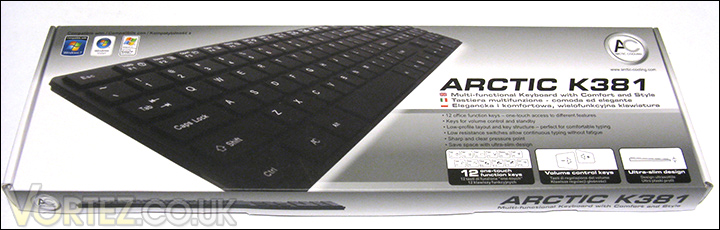
The ARCTIC K381’s packaging with a feature list
The back of the packaging gives further information on the features of the product. There is also a large image that shows the layout of the keyboard. The keyboard has an IBM/Windows (US) layout with a few modifications that will be explained a bit later in the review.
All in all, packaging at ARCTIC is very good. Packing material is kept to a minimum and information on the packaging is sufficient.
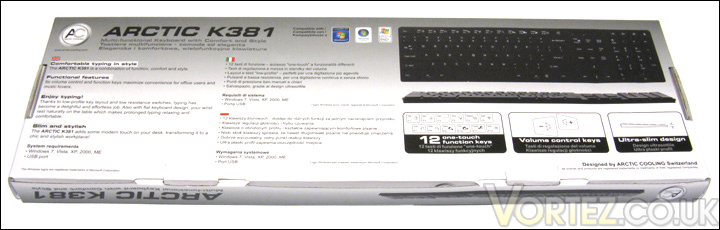
The back of the ARCTIC K381’s packaging with main features and a picture of the product
In terms of package contents, ARCTIC has included the bare minimum. The ARCTIC K381 multimedia keyboard is only bundled with the manual. The manual is concise and is written in various languages. It has diagrams that explain the 12 office keys that are enabled via the Fn key and the functions keys
No PS/2 to USB adapter is included with this keyboard.
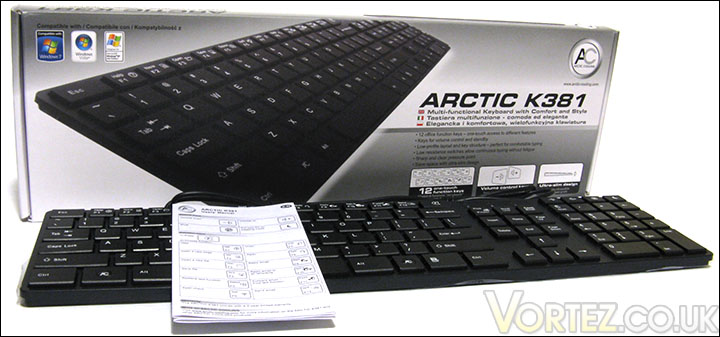
The contents of the product (from left to right): the ARCTIC K381 keyboard and the manual
Closer Look: ARCTIC K381 Multimedia Keyboard (Part 1)
The ARCTIC K381 is offered in two different colours: white and black. For this review, the black ARCTIC K381 keyboard was chosen. The overall finish of the ARCTIC K381 is matte (we will see later, the back of the keyboard is glossy). As it was mentioned earlier, the ARCTIC K381 has a slim design with almost no bezel. For anyone that has already seen an Apple keyboard, the ARCTIC K381 is very similar in terms of overall appearance.
In terms of connectivity, the ARCTIC K381 uses a 6-feet USB type A connector. The cable length is typical of any other desktop-grade keyboard.
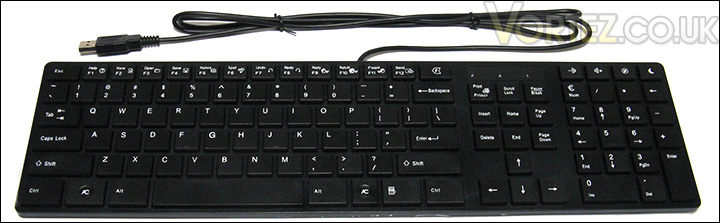
The ARCTIC K381
The ARCTIC K381 keyboard features low-profile keys in order to minimize the travel distance. According to Wikipedia (Link)The travel distance is the distance needed to push down a button for it to register correctly. This should enhance the overall comfort and typing speed.
Unfortunately, as per mentioned by ARCTIC, the keys have a sharp and clear pressure point. In other words, the keys are fairly strong and require a decent amount of force to be pushed downwards. This can make prolong use of the keyboard tiring.
The low-profile keys of the ARCTIC K381 provide a very short travel distance
The keys of the ARCTIC K381 can be removed fairly easily. With an uncovered key, it can be seen that the ARCTIC K381 uses a dome-switch or chiclet switch technology. As far as I know, this keyboard technology is fairly common in today’s market. This technology provides a good balance between comfort and reliability.
In terms of shape, the keys of the ARCTIC K381 are square and flat. Its corners are fairly sharp and they are quite unpleasant to the fingers. For those that type while keeping their fingers close to the keys, traveling from one key to another might hook the fingers. This happens to me sometimes when I am typing slowly.
Also, in order to depress the keys, your fingers must aim the center of the key. I have the tendency of hitting keys at its edges or corners. As such, the keys would get stuck if a more than usual pressure was not applied.
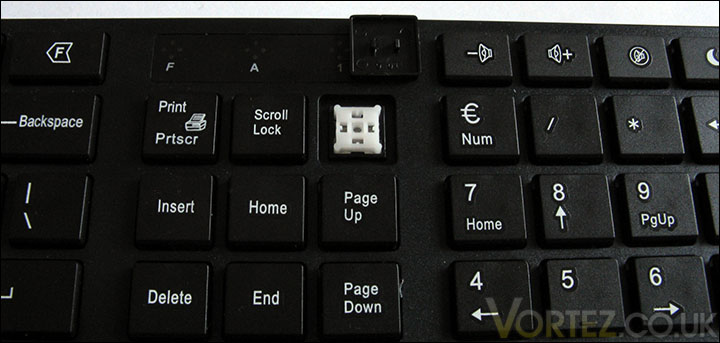
The ARCTIC K381 is a dome-switch or chicklet type keyboard
As it was mentioned, the ARCTIC K381 is offered in different layouts. The one in the picture below has an IBM/Windows US layout. The layout of the ARCTIC K381 is similar to a typical desktop keyboard albeit a few differences. Unfortunately, the function keys are grouped into one. I would have preferred if the function keys were separated in groups of four. This would make typing in low-light situations much easier.
In order to use the 12 custom office keys of the ARCTIC K381, the Fn modifier key must be enabled. These office keys range from the usual ones to custom ones such as Help (F1), Reply (F9), Reply all (F10) and Spell Check (F6).
Furthermore, there is no gap between the typewriter keys and the function keys. The Caps Lock key is also flushed with the rest of the keyboard rather than having its edge near the A key slightly inset.
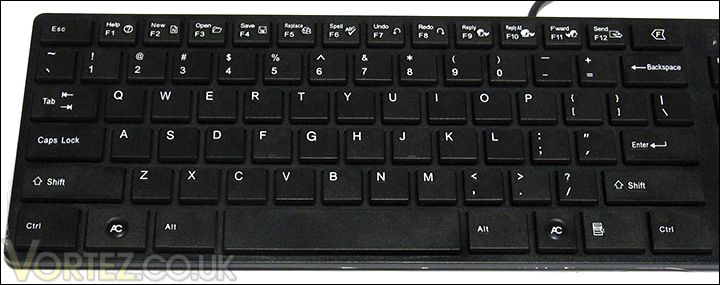
The function keys of the ARCTIC K381 are grouped together and can be modified by activating the Function key
Moving to the right of the keyboard, we see that the Insert key and its neighbouring keys are not aligned with the row of the backspace key. Initially, I found this quite troubling because I ended up pressing the Scroll Lock key instead of the Home key. I got used to this unorthodox layout after a few errors. Nevertheless, it would have been better if ARCTIC did not change the layout of these keys. If it were up to me, I would have moved the light indicators for the toggle keys to just above the cursor control keys, displacing the other keys towards the top. This layout would have eliminated the short but annoying adaptation period.
The numeric keypad is also slightly different from a conventional keyboard. The major difference is a smaller Plus sign key and the addition of the backspace key. I actually like this change. For anyone that uses the keypad daily, the inclusion of a backspace key is quite helpful.
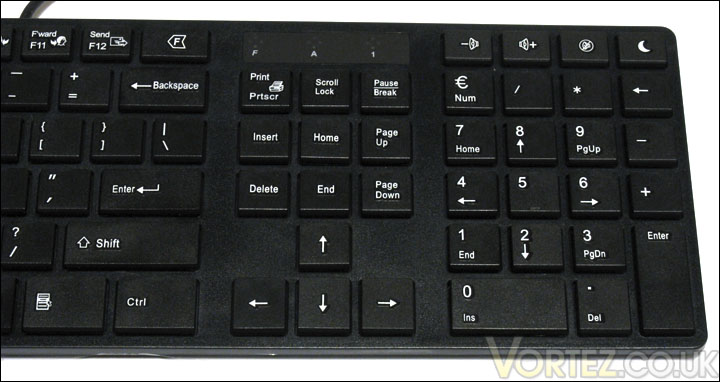
The insert button and its neighbouring keys are a row lower than on a typical IBM/Windows keyboard. The numeric keypad is slightly different from the conventional layout as well.
In addition to an unconventional layout, ARCTIC has replaced the Windows logo on the Windows key with the logo of the company. The change is quite corny, but it is an amusing one.
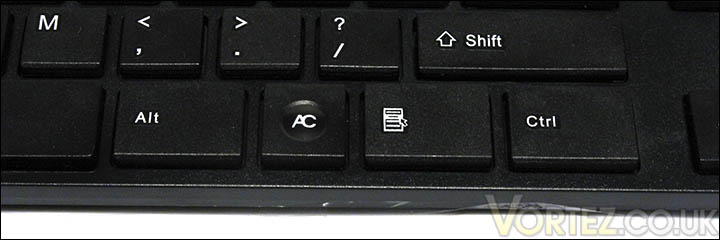
The ARCTIC K381 has a custom Arctic Cooling Windows key
Closer Look: ARCTIC K381 Multimedia Keyboard (Part 2)
Unlike the top of the keyboard that has a black matte finish, the back of the ARCTIC K381 keyboard has a full black glossy finish. Even though the finish is notorious for being a fingerprint magnet, the chances that you do dirty it is low because there is little reason to flip the keyboard over. Indeed, the ARCTIC K381 lacks adjustable feet to modify the tilt of the keyboard.
From the bottom of the keyboard, we can also see that the ARCTIC K381 lacks channels to drain liquids in case you spill a drink over the keyboard. In other words, this keyboard is not spill-resistant.
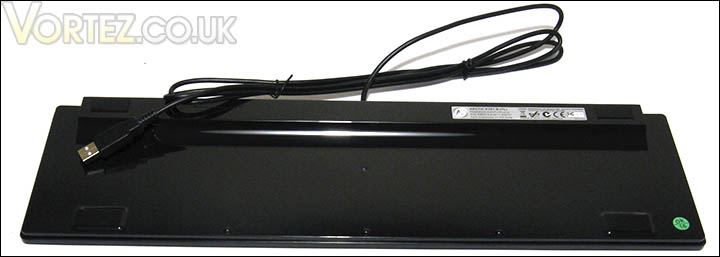
The back of the ARCTIC K381 has a glossy finish
The keyboard will not sit flat on the desk because it has a slight tilt of about10 degrees.
The ARCTIC K381 has four rubber feet. However, these feet do not keep the keyboard in place very well. The reason for this is because the keyboard’s tilt keeps the feet from being flush with the desk. Only a fraction of the rubber feet actually touches the desk. As such, the keyboard, when lightly pushed around, will move. This is a very poor design by ARCTIC
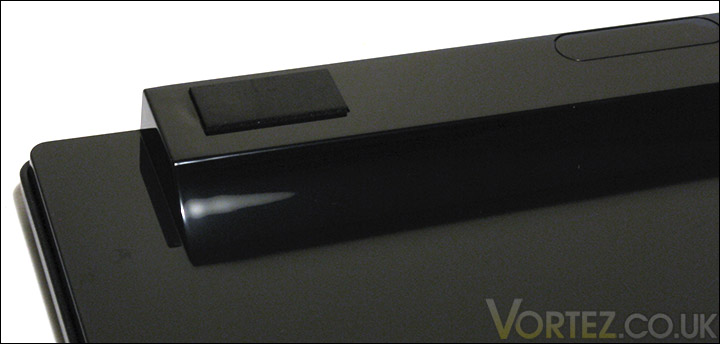
The ARCTIC K381 has four soft rubber feet that are not flush with the wooden surface of a desk. Because of this, the keyboard does not stay put on the desk when lightly pushed.
Light Indicators and Setup
The ARCTIC K381 multimedia keyboard has a 6-feet long USB cable. The keyboard is installed by plugging its USB cable into a vacant USB port of your system.
Once plugged, the required drivers will automatically be installed by Windows 7. The ARCTIC K381 has three light indicators that show the status of the following three toggle keys: Fn, Caps Lock, and Num Lock.
When sitting in front of the keyboard, the light indicators cannot be well seen. Each light indicator has four clear plastic rhombus through which the light shines out. However, the way that the LED is positioned, the light does not shine through these windows evenly. On a bright sunny day, it is quite difficult to see whether the locks are active or not. This is not to say that the light indicators are useless; they are still visible, but not as well as I would have liked.
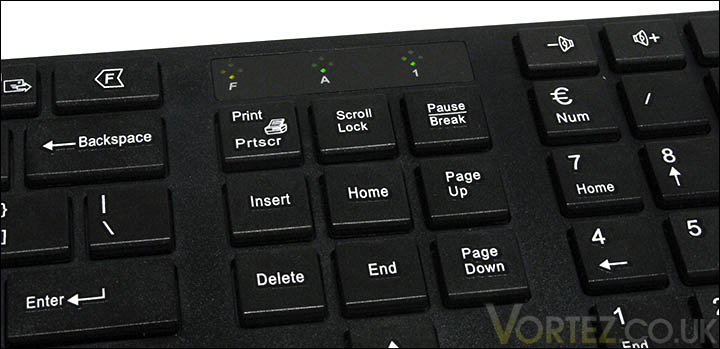
The ARCTIC K381 has light indicators for the Fn key, Caps Lock and Num lock.
The ARCTIC K381 does not come with any software. Therefore, its keys are not customizable. This is a shame, as I would have liked to modify the function keys. Nevertheless, for those that are adventurous, you could always use AutoHotKey (Link” rel=”nofollow”>404 Not Found) to create custom hotkeys..
Test System and Testing Methodology
Testing Methodology
The ARCTIC K381 multimedia keyboard will be used for 2 weeks on the desktop test setup. The keyboard will be tested for typing speed, gaming performance and overall comfort.
Benchmarks
– TypeRacer: TypeRacer – Test your typing speed and learn to type faster. Free typing game and competition. Way more fun than a typing tutor!
This benchmark will measure the average typing speed in words per minute (WPM).
Test Setup: Portable Media Device
– Samsung YP-K3 2GB Black
Test Setup: Laptop 1
– HP EliteBook 6930p
– CPU: Intel Core2 Duo Processors P8400
Test Setup: Laptop 2
– Dell Inspiron 1545
Test Setup: Desktop
– CPU: AMD Athlon X2 5000+ Black Edition @ 2.6 GHz 1.15V
– Motherboard: Gigabyte GA-MA78GM-S2H 780G
– RAM: Corsair XMS2 TWIN2X4096-6400C5 PC2-6400 2x2GB
– Case: Antec NSK3480 mATX
– Power supply: Antec EarthWatts 380W
– CPU cooler: Noctua NH-U12P with Noctua NF-P12 @ 5V
– Case fan: Noctua NF-P12 @ 5V
– Hard drive 1: Western Digital Caviar SE16 WD6400AAKS 640GB
– Hard drive 2: Hitachi DeskStar T7K500 HDT725025VLAT80 250GB
– DVD Drive: LG GH22NS30 DVD Writer
– OS: Windows 7 Ultimate (x64)
– Mouse pad: QPAD|UC Large
– Monitor: Dell E207WFP 20” TN
Test Results: Typing Speed and Gaming Performance
Typing Speed
In order to evaluate the typing speed, I will benchmark the ARCTIC K381 keyboard by using the website Type Racer (Link). My average words per minute speed (WPM) for 50 races was 78. This is in-line with other keyboards I have used in the past, such as the Microsoft Optical Desktop 4000 and the Logitech Internet Pro.
One thing that surprised me with the ARCTIC K381 was the maximum WPM speed that I was able to attain. With this keyboard, I was able to reach 100 WPM. My typing speed is very low compared to top typists on Type Racer, but that was a personal best. With other keyboards, the most I was ever able to reach, by memory, was 84 WPM.
I suspect that the low profile keys and the strong positive feedback from the keys allowed me to type much faster than usually. These low profile keys provide a very low travel distance, so very little time is needed to push these keys down for it to register. In a way, the ARCTIC K381 reminds me of a keyboard laptop.
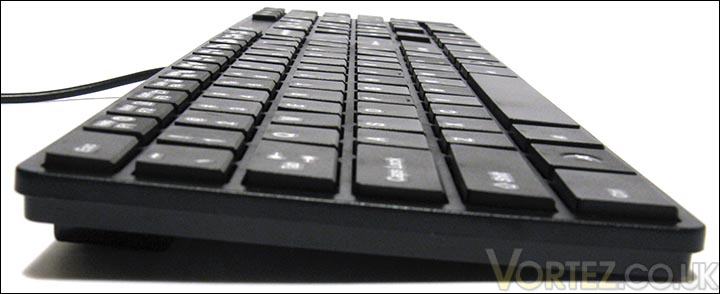
The low profile keys of the ARCTIC K381 provide a very short travel distance
It would have been nice if the tilt of the keyboard was adjustable. By design, the ARCTIC K381 has a tilt of around 10 degrees. I found the keyboard’s tilt quite comfortable, but I know other might want to change it. ARCTIC should have been it possible.
Gaming Performance
Four simultaneous keys can be pressed on the ARCTIC K381. This should be more than enough for the common person.
Playing Counter-Strike 1.6, I found the keyboard very responsive. The keys provided a strong tactile feedback so I knew when I had hit the key or not. Furthermore, low-profile keys did not require me to lift my fingers or push the keys downwards too much, making it possible for me to switch between WASD keys quickly.
I found that the ARCTIC K381 was more than adequate as a gaming keyboard. Obviously, for those that would like dedicated gaming keys or to customize the keys on the keyboard for in-game actions, you will need to look elsewhere. The ARCTIC K381 does not come with additional keys or software to allow this.
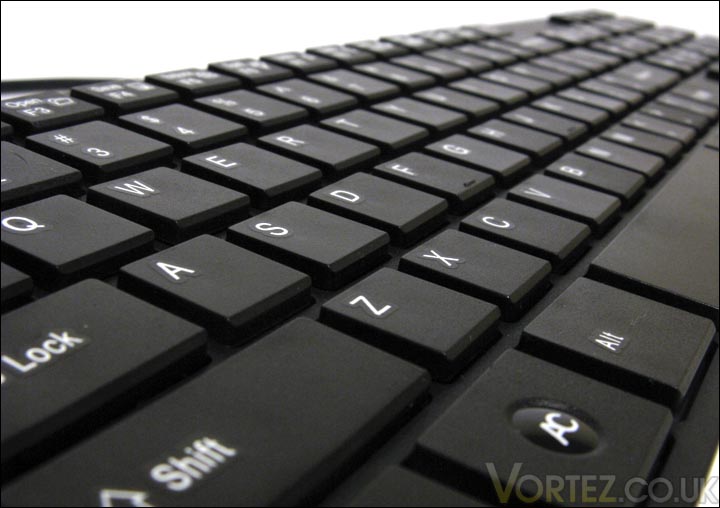
Four keys can be pressed on the ARCTIC K381. In a gaming situation such as Counter-Strike 1.6, those keys could be W (Move forward), D (Turn right), Shift (Walk) and R (Reload).
Test Results: Overall Comfort, and Keys and Layout
Overall Comfort
Initially, seeing as the ARCTIC K381 has low-profile keys and was built with office-usage in mind, I suspected that the keyboard’s keys were going to be very quiet, similar to those on some Logitech and Microsoft keyboards (example: Microsoft Wireless Keyboard 6000). Nevertheless, they were much noisier than I expected. The noise that it made was quite pleasing, still. It was just loud enough to let you know whether or not the key was properly pushed. I would not recommend using this keyboard in a quiet environment, though, as it can become quite distracting.
Asides from that, I was surprised by how much forced was needed to push the keys down. As of late, I have been using the Microsoft Wireless Keyboard 6000 during my studies. This keyboard has very soft keys that some people might criticize as being squishy. Personally, I find them quite comfortable because very little force is needed to push the keys down. This allows for prolong typing without fatigue.
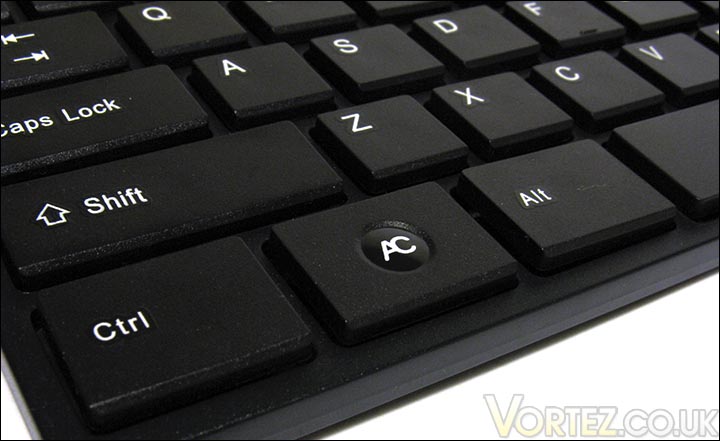
The ARCTIC K381 has square keys with corners that are unpleasant to fingers
Unlike the Microsoft Wireless Keyboard 6000, in order to type on the ARCTIC K381, I found myself aggressively striking the keys rather than lightly pushing them down. This had the major downside of tiring my fingers after prolong usage. Nevertheless, given the keys strong positive feedback, this allowed me to type much faster because I knew when I hit the keys properly. I would say that this is a trade-off (overall comfort for typing speed). It would be good for you to know what you like from a keyboard: strong keys or soft keys.
During the first week of testing, I actually struggled with the ARCTIC K381 because it was too much for my fingers to handle. I would periodically switch back to the Microsoft Wireless Keyboard 6000 whenever I got too tired. After the first week and onto the second week, however, I began to enjoy typing on the ARCTIC K381. The clear pressure point on the keys was very pleasing. Also, when I was quickly typing away, I grew fond of the satisfying clunking noise that the keys make.
Keys and Layout
In terms of keys, the ARCTIC K381 lacks many multimedia keys. It only has three volume control keys, which are conveniently positioned on the right-hand side. Keys dedicated to Play, Stop and Pause should have been available. The keys could have been placed on the left side as a new column of keys. This would only add a few centimetres of width to the keyboard. Shortcut keys to the default mail client, media player and messaging client would have been welcomed too.
The keys themselves are very easy to read.
As for the keyboard layout, it took me some time to get used to it. Adapting to the new alignment of the Insert and its neighbouring keys was a difficult one. I still believe that ARCTIC should have placed the light indicators for the toggle keys to just above the cursor keys.
One thing that I would not forgive ARCTIC for is not splitting the function keys into groups of four. I usually use F2 and F5 amongst others, and with all function keys being grouped together it is really difficult to quickly press on the right function key without looking. No doubt, some time would be needed for me to adapt to this new layout. Nevertheless, ARCTIC could have easily split the function keys into three groups.

The ARCTIC K381 does not have an adjustable tilt
All in all, I do like the overall slim-design of the ARCTIC K381. As a student, I usually have a textbook right in front of me on the desk. With very little desk space, my textbooks would usually hang over the front of the desk. The ARCTIC K381 is space-efficient and it allows me to clutter my desk with a few more textbooks!
As for ergonomics, the ARCTIC K381 does not feature a curved keyboard. Microsoft, as far as I know, have been featuring the comfort curve design on almost all of their newer keyboards. I have used a few of such keyboards and I found them quite comfortable. I would not say that such a design is deal-breaker, though. A regular keyboard layout like the one on the ARCTIC K381 is still very good and comfortable.
Conclusion
The ARCTIC K381 is a slim multimedia keyboard with low-profile keys. Its compact design allows for excellent usage of space on the desk, but it does so by sporting an unusual keyboard layout. From single grouped function keys to differently aligned key areas, the ARCTIC K381 takes some time to get used to.
Although the ARCTIC K381 is dubbed a multimedia keyboard, it lacks the keys to make it ideal for media usage. The multimedia keys that it has are the volume control keys. Missing keys include Play, Stop, Pause, Previous Track, and Next Track. The lack of multimedia keys is compensated by office keys, which are modified function keys. Unfortunately, these keys are not easily modifiable because of the lack of software. Furthermore, the ARCTIC K381 does not have keys for shortcuts to default system software, such as the mail client, the messaging client, the Internet browser, etc.
The ARCTIC K381 lacks the keys to make it an ideal multimedia keyboard. In an office environment, the K381 excels with its fast typing speed, its custom function keys and a minimalistic design to save desk space.
With low-profile keys that allow a short travel distance, users can type on this keyboard quickly. The strong tactile feedback gives off a pleasing sound and allows users to confidently type on this keyboard without error. Comfort when typing on this keyboard will vary from user to user. Its keys are strong, and they require a reasonable amount of force to be pushed down. From my experience, prolong typing can become tiring with this keyboard. For others, however, these keys might just be their cup of tea.
As for pricing, the ARCTIC K381 is a bargain at 17,45 € (excl. VAT) / US$ 24.95. Most budget keyboards have soft and quiet keys. For those looking for a keyboard with a slim design or with strong tactile feedback and satisfying noise, the ARCTIC K381 might just be for you.
In a nutshell, ARCTIC’s entry into the input device market is a welcomed one. The ARCTIC K381 is a decent keyboard with a neat slim design and great feeling keys.
The problem with the ARCTIC K381 is that it is directed towards a very specific user base. Compact design aside, this ARCTIC keyboard offers less than what is currently on the market. Although a comfortable and fast typing keyboard, the ARCTIC K381 has many quirks and lacks the features to give it an edge. With this in mind, the ARCTI K381 multimedia keyboard is given Vortez Hardware’s Bronze Award.
+ Available in different layouts
+ Four keys can be pressed simultaneously, making it adequate for gaming
+ Function key modifier and additional keys in the numeric pad
+ Comes in black or white
+ Good price
+ Low-profile keys provide low travel distance
+ Minimalistic design saves space
+ Strong tactile feedback
Cons
– Keys cannot be customized by the user
– Lack of macro and multimedia keys
– LED of the light indicators of the toggle keys are not well positioned
– Non-adjustable tilt
– Not a spill-resistant design
– Poor rubber feet design
– Typing can become tiring
– Unconventional keyboard layout including a single group of function keys