An all-in-one watercooling loop with a difference – the ASUS ROG Ryujin 240 with a 1.77" OLED screen and industrial-rated fans from Noctua.

Product on Review: ASUS ROG Ryujin 240
Manufacturer: ASUS
Street Price: GBP £189.98 / USD $219.99 / AU $ 379.00
ASUS are a big name within the technology sector, producing things like mobile phones, routers, monitors and motherboards. Some of these products come under ASUS’ elite brand, Republic of Gamers, one of which we take a look at today.
The ROG Ryujin 240 CPU cooler is the item on our testbench today. The Ryujin 240 comes equipped with, you guessed it, a 240mm cooling radiator, but the device is also available with a 360mm radiator if the extra heat capacity is required.
On an almost weekly basis we look at different all-in-one watercooling loops, some with RGB, some without, but nothing quite like the Ryujin we have here.
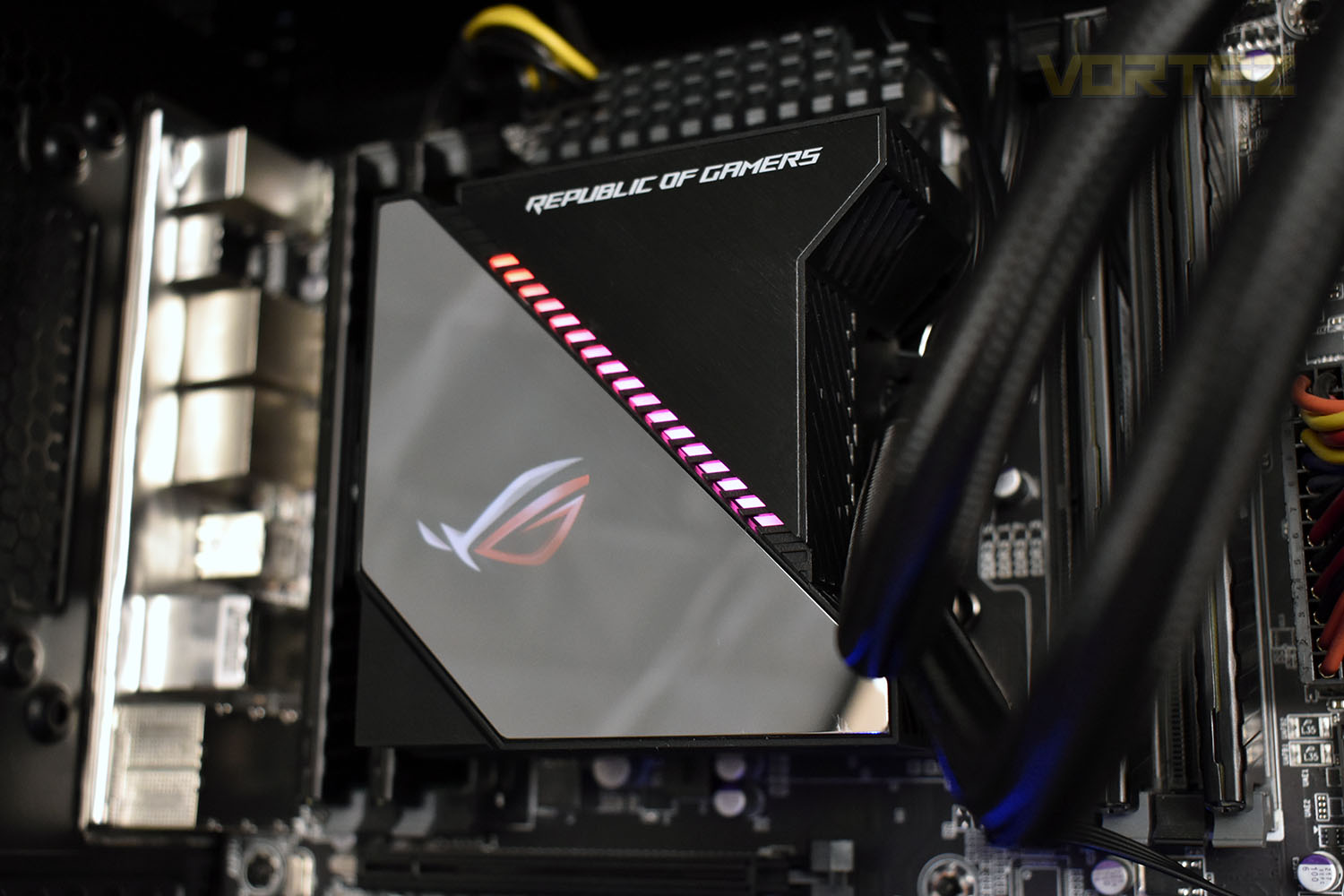
Starting with the radiator, ASUS, instead of going through the painstaking cost and effort of developing a 120mm fan, they’ve instead relied on the world-renowned expertise of Noctua and used their iPPC fans, with the i standing for Industrial. The pump housing plays residence to a pump-mounted fan, blowing air around the surrounding components for improved cooling.
Not only that, ASUS ROG, not wanting to be out-RGB’d by competitors, have implemented a 1.77” full-colour OLED display onto the waterblock as well as an addressable RGB strip.
These features, as you might have guessed, don’t come for free, with the Ryujin 240 asking almost £190 in the UK ($220 in the US and $380 in Australia), making this the most expensive CPU cooler we’ve tested, but is it worth it? Let’s take a look.
ASUS ROG on the Ryujin:
ROG Ryujin is the flagship all-in-one cooler for high-end builds designed to deliver the best thermal performance. Featuring Noctua Industrial PPC fans for cooler and quieter operation, plus an embedded fan in the pump housing for additional cooling to the VRM and M.2, ROG Ryujin keeps your system running its absolute best. Coupled with a LiveDash OLED that displays system stats or custom graphics and Aura Sync RGB lighting, ROG Ryujin is the ultimate thermal solution destined to become a vital part of your gaming rig.
Technical Specifications
Water Block
Water Block Dimension: 100 x 100 x 70 mm
Block Material (CPU plate): Copper
CPU Socket Support: Intel: LGA 115x,1366, 2011, 2011-3, 2066;AMD: AM4, TR4*
Radiator
Radiator Dimension: 272 x 122 x 27 mm
Radiator Material: Aluminum
Tube: Sleeved Rubber tube
Tube Length: 380 mm
Fan
Fan: 2 x Noctua NF-F12 industrialPPC 2000 PWM
Fan size: 2 Fan Slots (120mm)
Fan Dimension: 120 x 120 x 25 mm
Fan Speed: 450 ~ 2000 RPM +/- 10 %
Fan Static Pressure: 3.94 mmH2O
Fan Air Flow: 71.6 CFM / 121.8 m3h
Fan Noise: 29.7 dB(A)
Control Mode: PWM
Special Features
OLED Display: 1.77″ Full Color OLED
AURA Sync Support: Yes
Embedded FAN: Y
Embedded Fan Speed: 4800 RPM +/- 10 %
Embedded Fan Air Pressure: 3.23 mmH2O
Embedded Fan Air Flow: 19.41 CFM
Embedded Fan Noise: 31 dB(A)
Compatibility
Intel: LGA 1150, 1151, 1152, 1155, 1156, 1366, 2011, 2011-3, 2066
AMD: AM4, TR4*
Package Content
ROG RYUJIN 240 Liquid Cooler
Accesory Pack of Scews and brackets
2 x 120mm Noctua iPPC 2000 PWM Fan
Thermal compound (pre-applied)
Quick Start Guide
Warranty
Warranty: 3 years
Note
*The mounting bracket is bundled with TR4 CPU Package, not in the RYUJIN’s package
** JPG/GIF only accept 160 x 128 pixels resolution size lower than 1 MB. GIF files suggest remove transparent background and without complement frame to increase the successful rate of decoding
*** Hardware monitor and fan control is optimized for ASUS motherboards
**** for control radiator FAN from the Y-Cable and embedded fan on the pump, please install AI Suite III v3.00.26 or above version to support ROG AIO cooler
Water Block Dimension: 100 x 100 x 70 mm
Block Material (CPU plate): Copper
CPU Socket Support: Intel: LGA 115x,1366, 2011, 2011-3, 2066;AMD: AM4, TR4*
Radiator
Radiator Dimension: 272 x 122 x 27 mm
Radiator Material: Aluminum
Tube: Sleeved Rubber tube
Tube Length: 380 mm
Fan
Fan: 2 x Noctua NF-F12 industrialPPC 2000 PWM
Fan size: 2 Fan Slots (120mm)
Fan Dimension: 120 x 120 x 25 mm
Fan Speed: 450 ~ 2000 RPM +/- 10 %
Fan Static Pressure: 3.94 mmH2O
Fan Air Flow: 71.6 CFM / 121.8 m3h
Fan Noise: 29.7 dB(A)
Control Mode: PWM
Special Features
OLED Display: 1.77″ Full Color OLED
AURA Sync Support: Yes
Embedded FAN: Y
Embedded Fan Speed: 4800 RPM +/- 10 %
Embedded Fan Air Pressure: 3.23 mmH2O
Embedded Fan Air Flow: 19.41 CFM
Embedded Fan Noise: 31 dB(A)
Compatibility
Intel: LGA 1150, 1151, 1152, 1155, 1156, 1366, 2011, 2011-3, 2066
AMD: AM4, TR4*
Package Content
ROG RYUJIN 240 Liquid Cooler
Accesory Pack of Scews and brackets
2 x 120mm Noctua iPPC 2000 PWM Fan
Thermal compound (pre-applied)
Quick Start Guide
Warranty
Warranty: 3 years
Note
*The mounting bracket is bundled with TR4 CPU Package, not in the RYUJIN’s package
** JPG/GIF only accept 160 x 128 pixels resolution size lower than 1 MB. GIF files suggest remove transparent background and without complement frame to increase the successful rate of decoding
*** Hardware monitor and fan control is optimized for ASUS motherboards
**** for control radiator FAN from the Y-Cable and embedded fan on the pump, please install AI Suite III v3.00.26 or above version to support ROG AIO cooler
Packaging & Bundle
The Ryujin 240 lands in a large box with a prominent black and red theme. The image on the front shows the addressable RGB strip on the pump enclosure but not the OLED screen.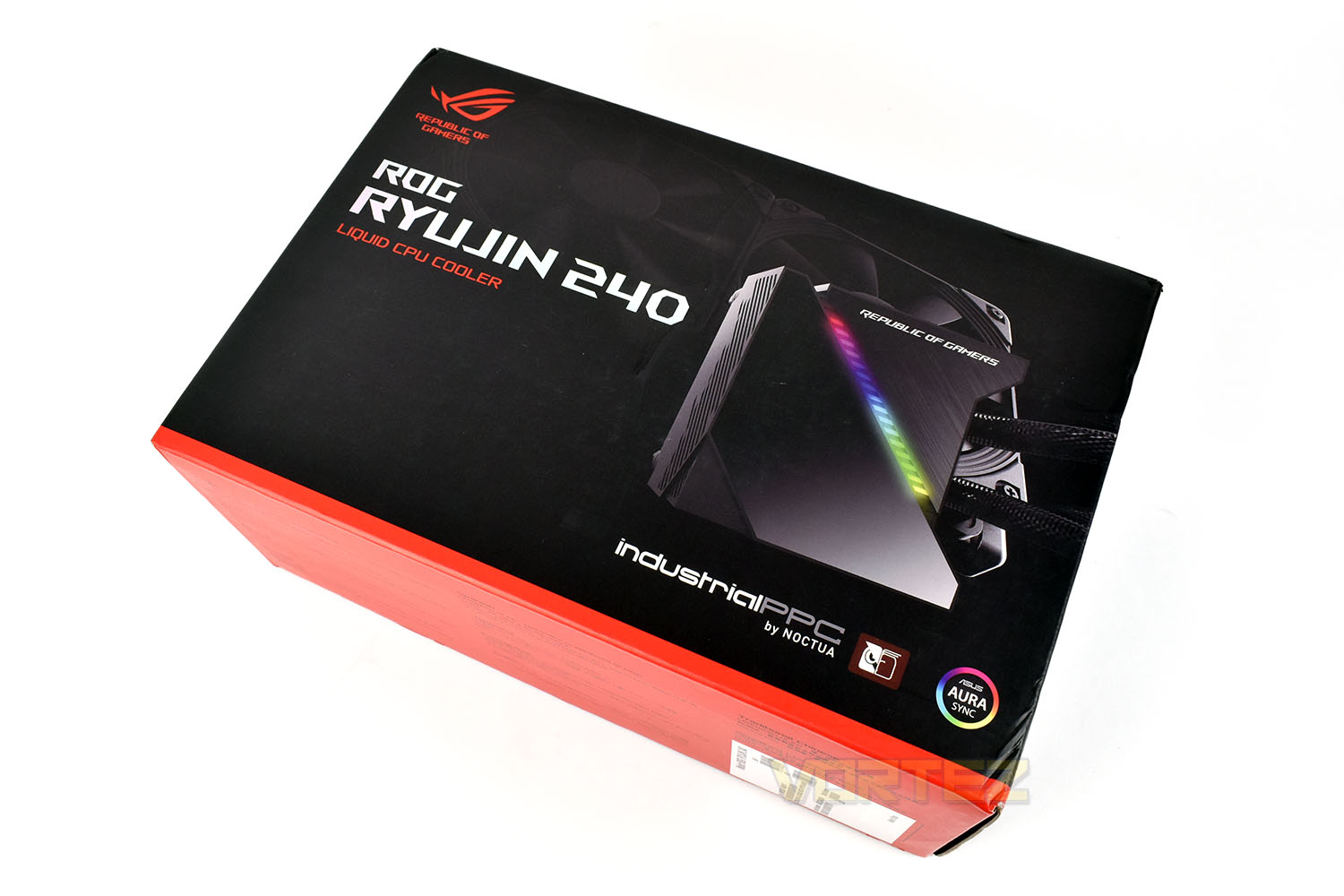
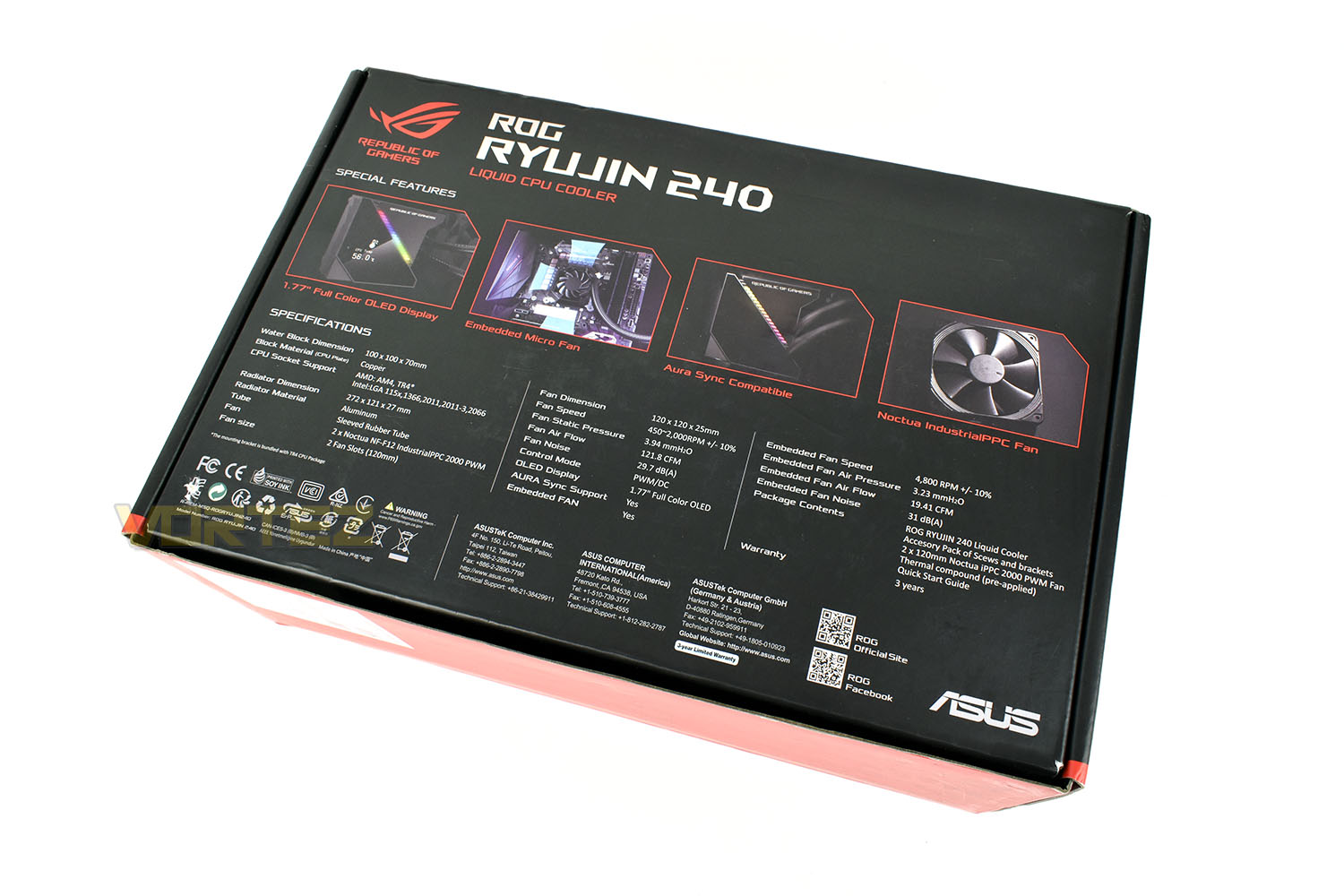
On the rear we get a lot more information, including dimensions, specifications and notable features.
Lifting up the top, it uses a fancy folding mechanism to reveal the ROG eye logo in the lid. The cooler is packaged well inside a cardboard carton, though sadly it was poorly re-packaged by the previous users so the image isn’t necessarily representative of how you would receive the product.
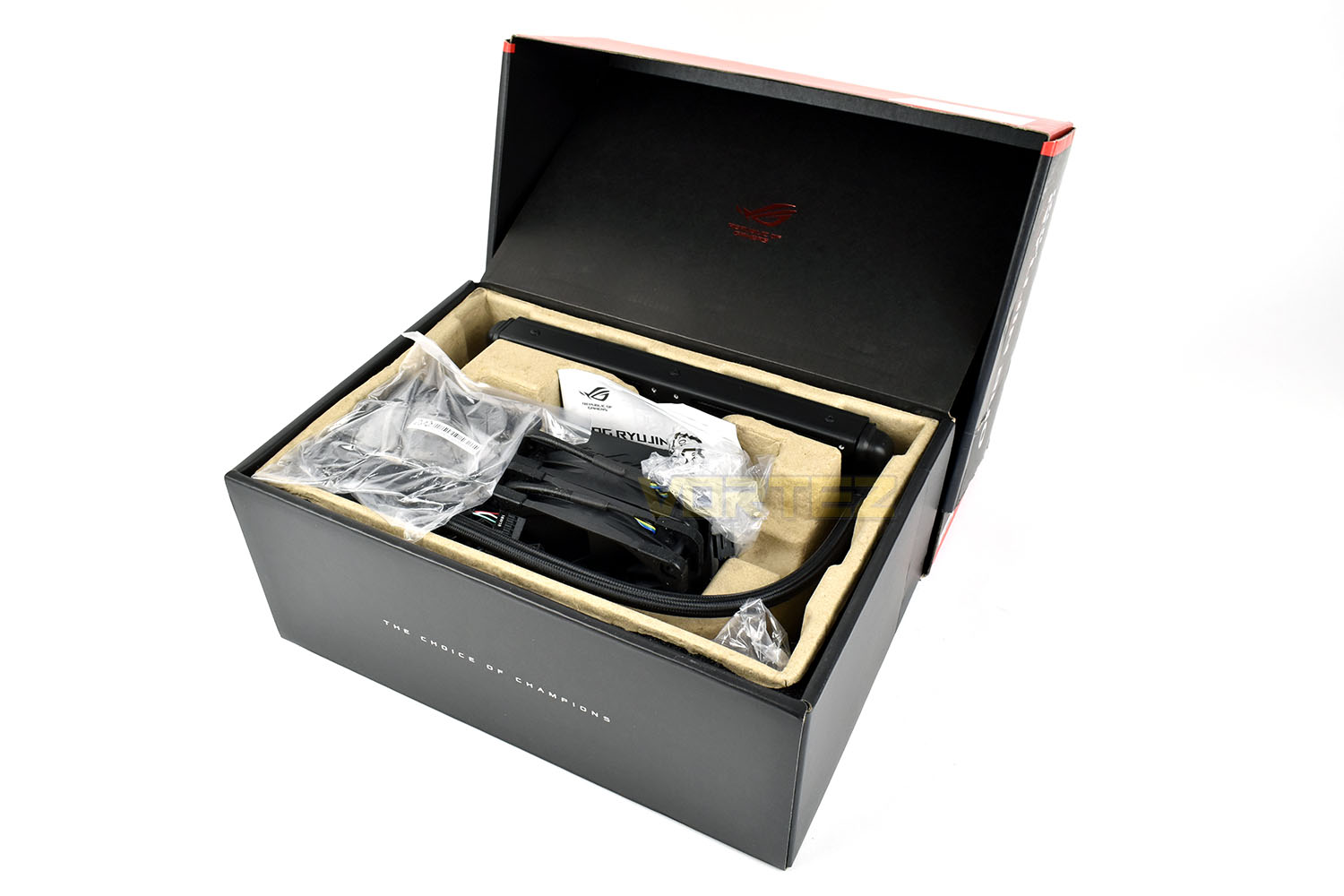
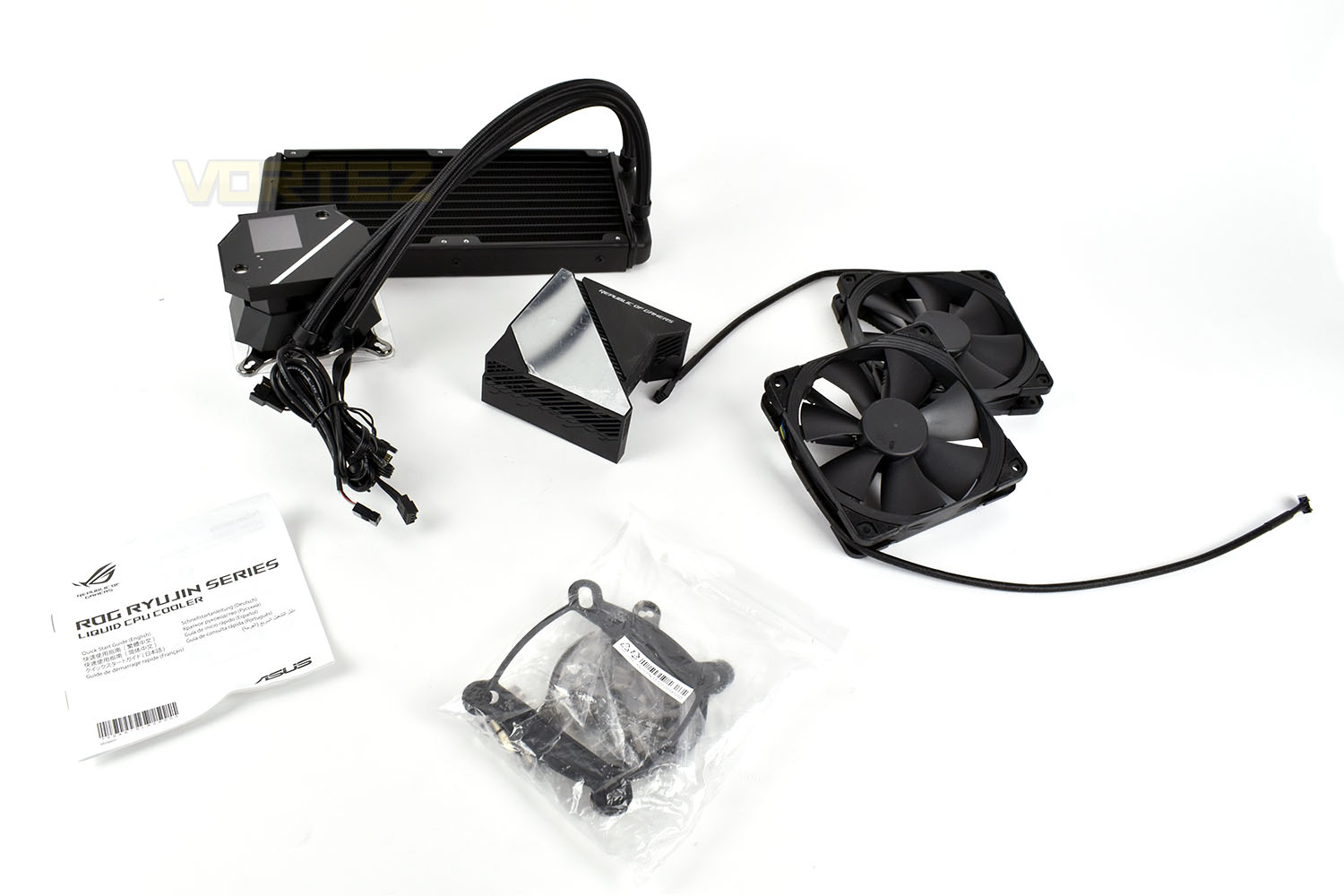
Included with the Ryujin 240 is an instruction booklet, mounting hardware for Intel and AMD CPUs, a pair of Noctua NF-F12 cooling fans and the cooling loop itself.
Closer Look
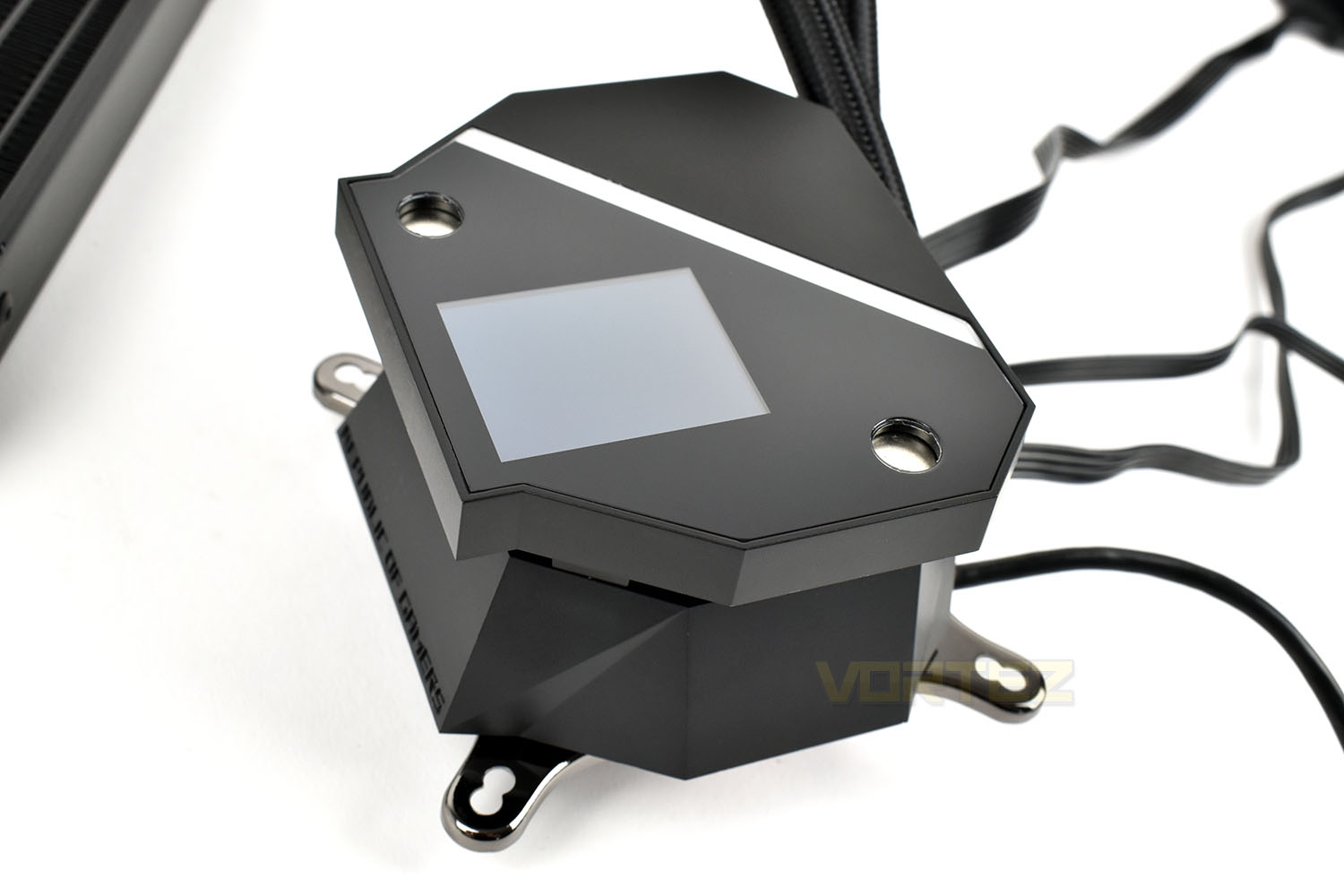
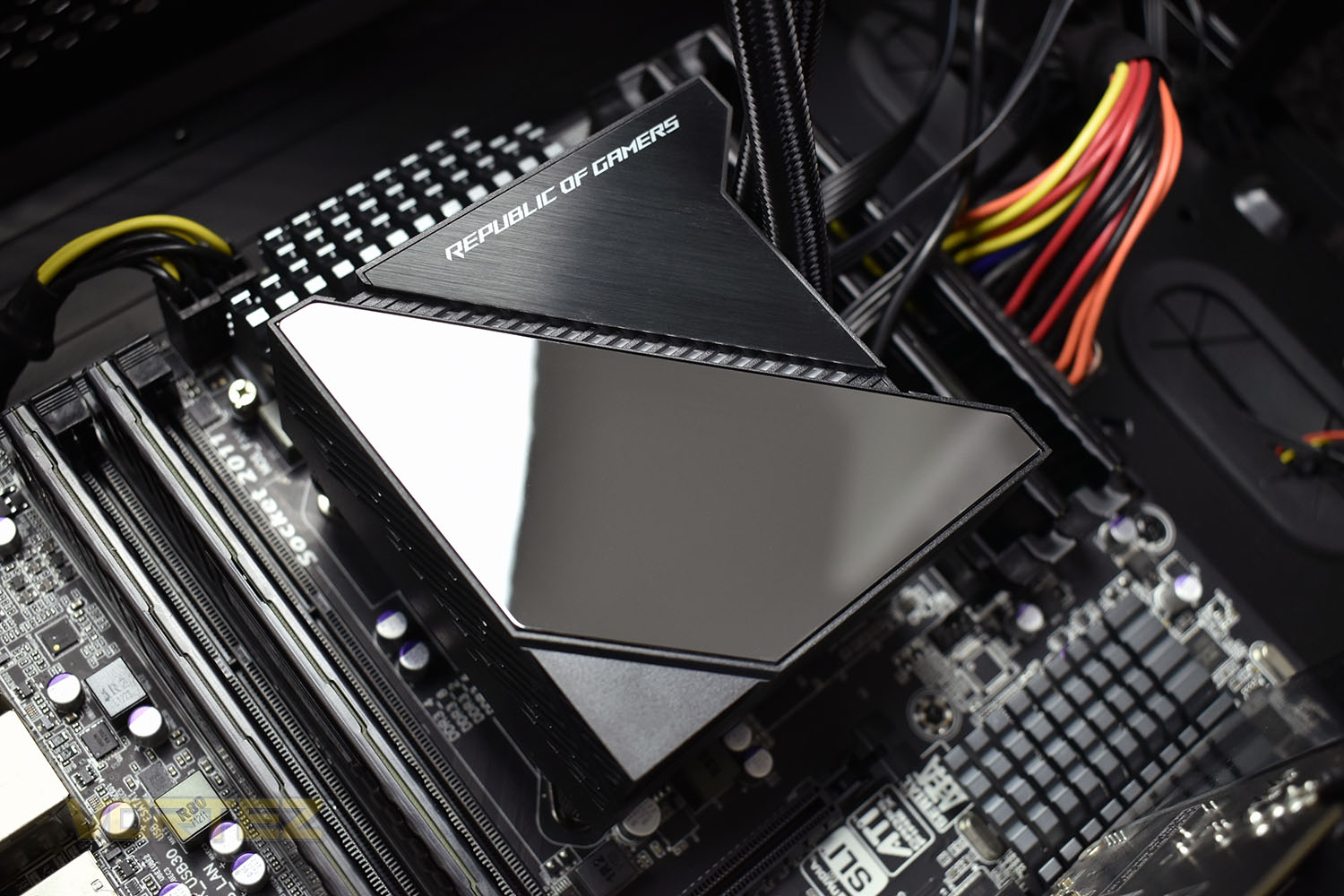
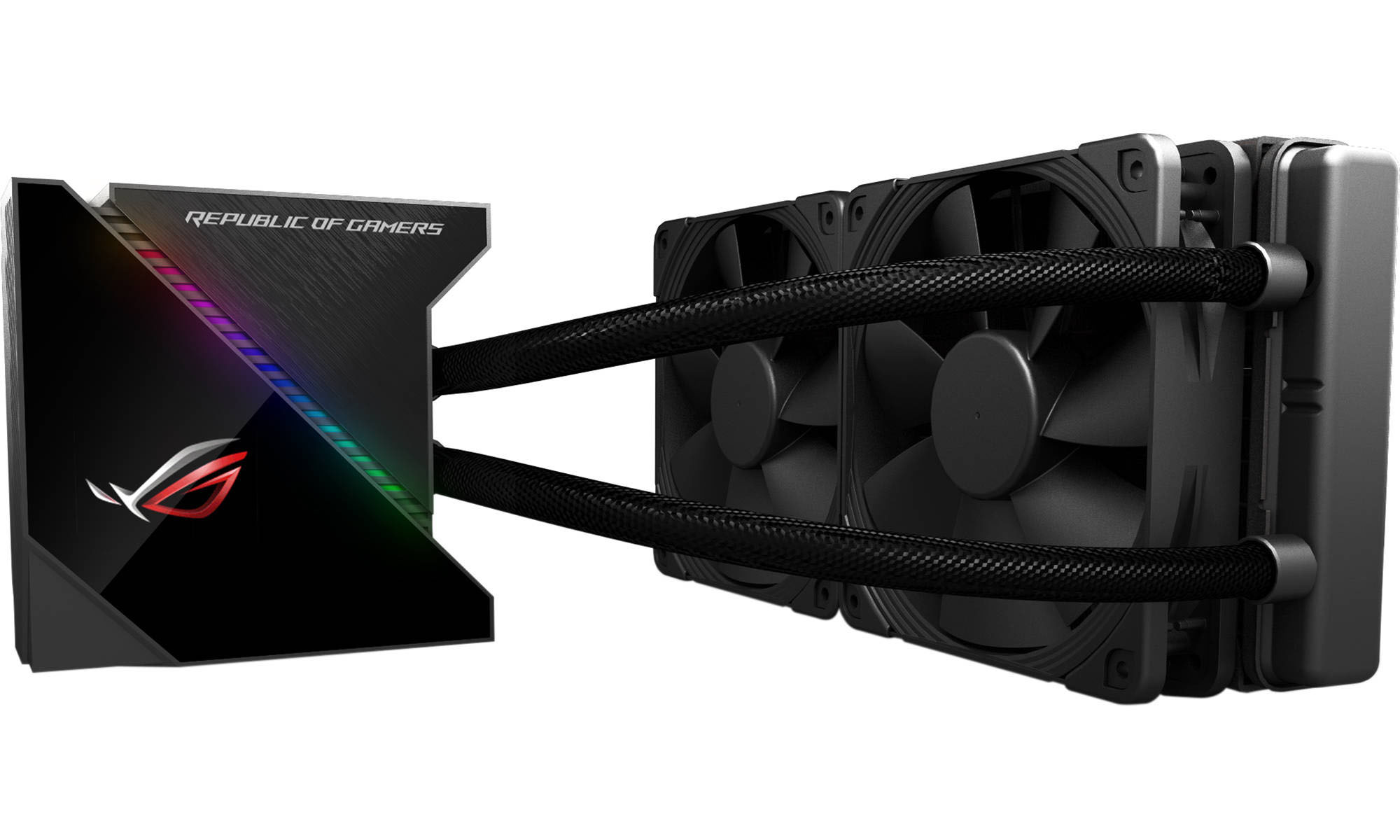
Straight away we’ll focus on the most interesting part of the cooling loop, the pump enclosure. ROG have placed a 1.77” full-colour OLED display on the top, as well as a strip of LED lights, to give the cooler a proper “wow” piece. This isn’t something we’ve seen on any other product as of yet so we’ll be interested to know just how versatile it is as a display.Under the display is an embedded fan, designed to expel air out of the sides, this fan is rated to spin at 4800 RPM, so very well may be audible, however, one of the biggest problems facing users of AIO systems such as this is a lack of airflow around the CPU socket. CPU power delivery VRMs, M.2 drives and other surrounding components can get increasingly hotter with stagnant air, this fan aims to reduce this.
The two silver circular cut-outs on the top face of the cooling block are magnets; they attach to the cover to make installation easier.
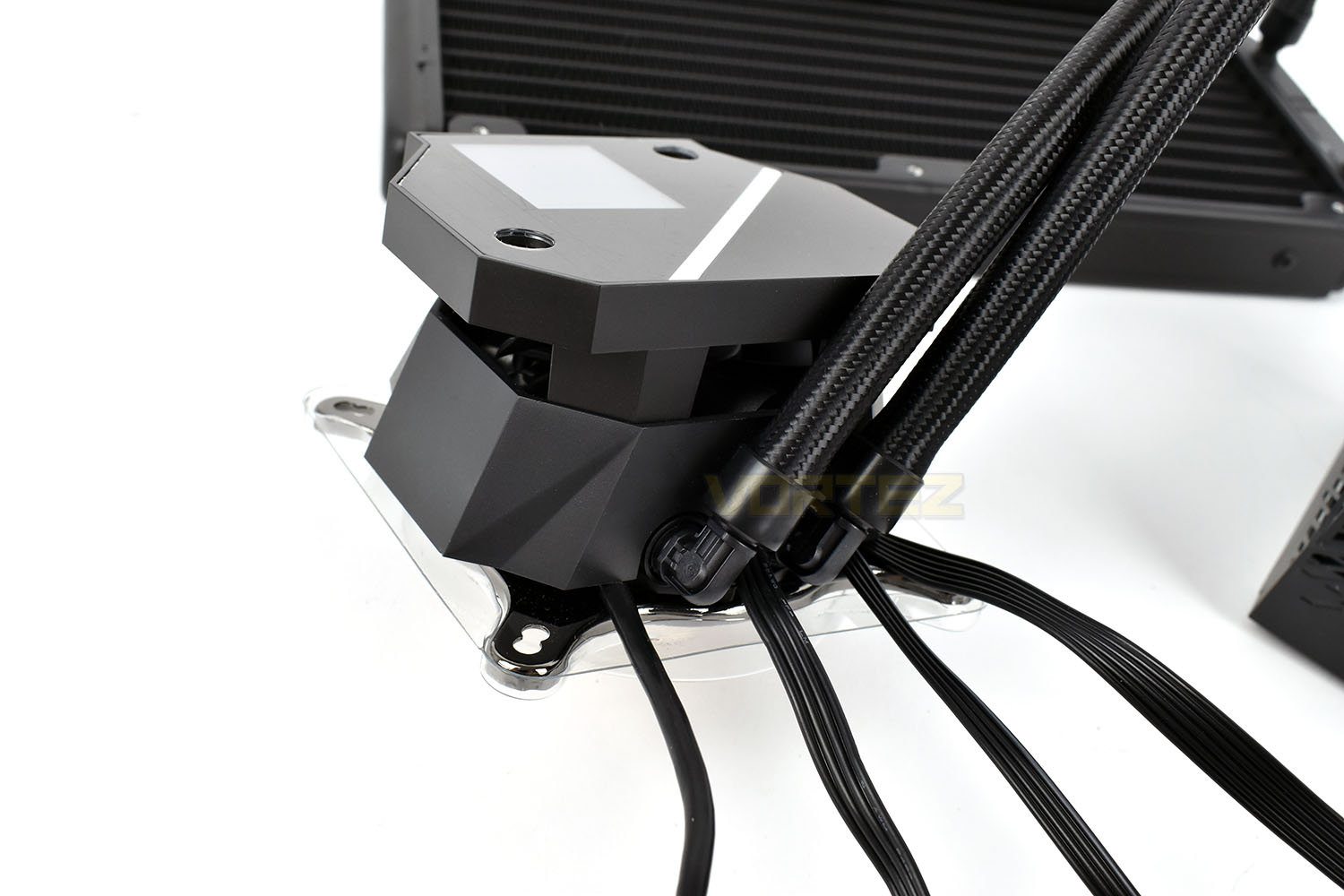
Out of the side of the pump housing are four separate cables, one connects to a USB header on the motherboard, one is for SATA power, another is a 3-pin fan header to provide the motherboard with pump speed readings and the fourth cable is for fan-speed control of the two Noctua fans.
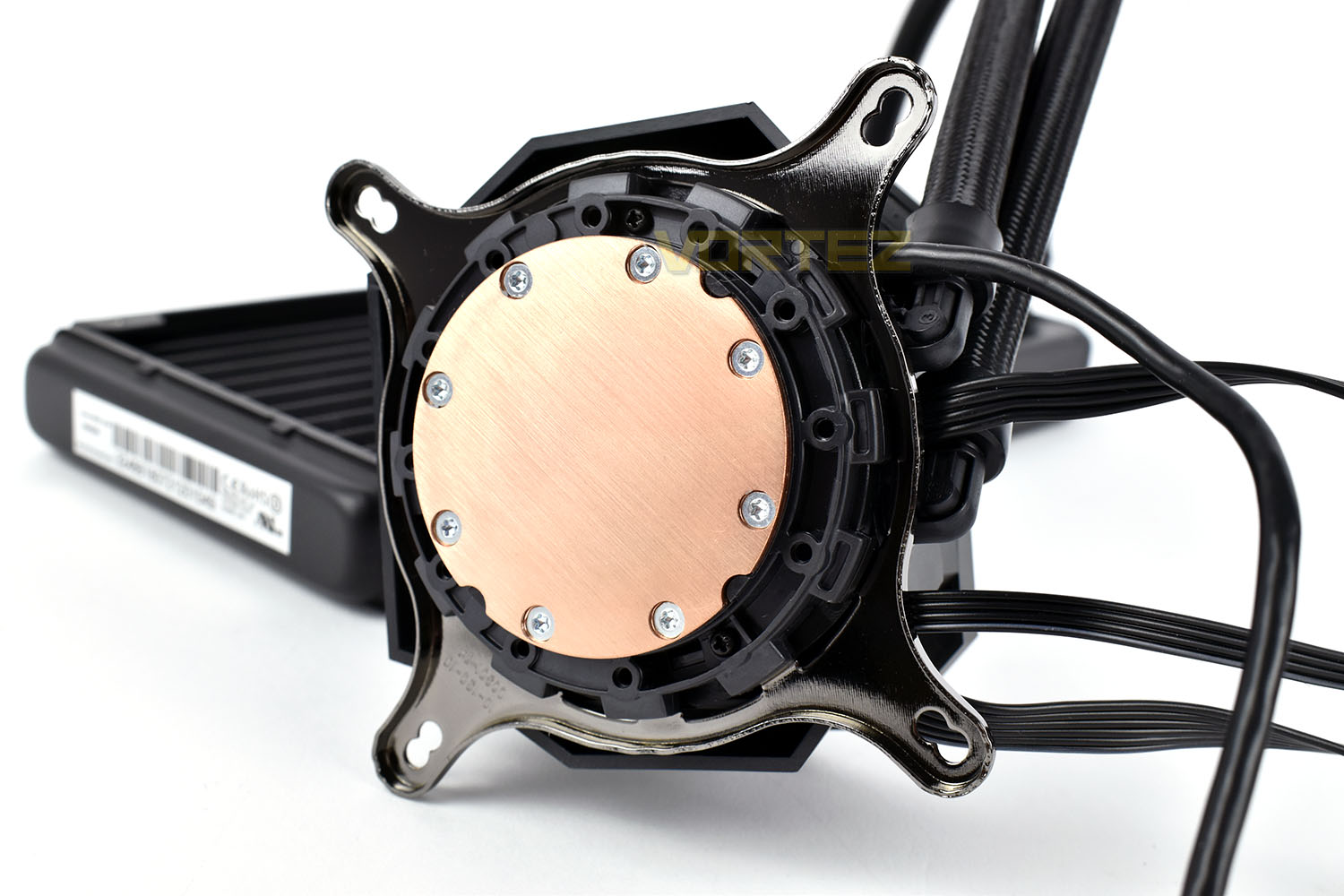
Looking at the coldplate, there’s nothing fancy here, just a solid, smooth piece of copper. There’s no included thermal paste and the base doesn’t have any pre-applied so be sure to purchase some with the Ryujin.
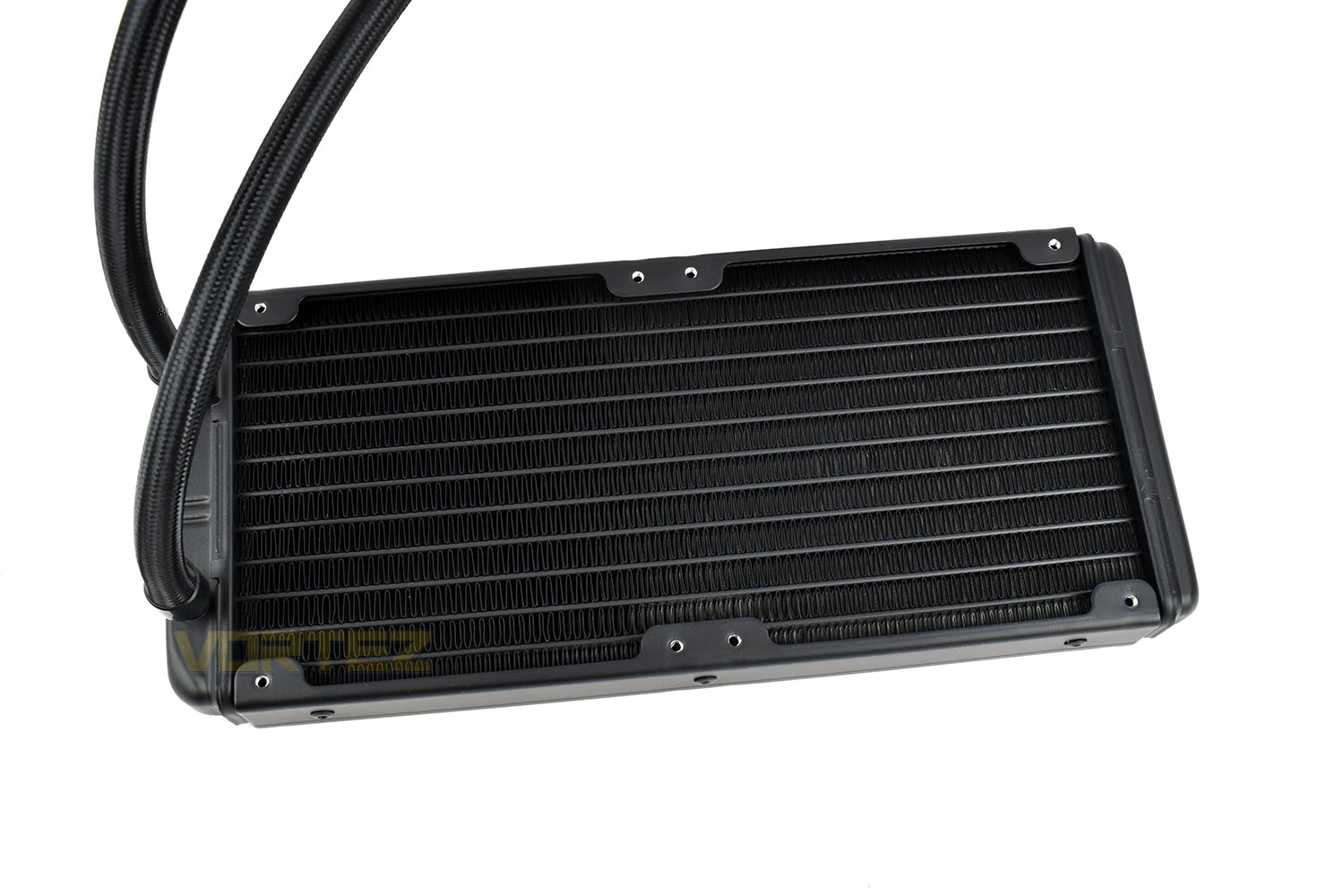
Much like the base of the cooler, the radiator is a fairly standard affair too. The 380mm long braided tubes are longer than usual, giving a little more freedom on placement options, particularly in larger cases.
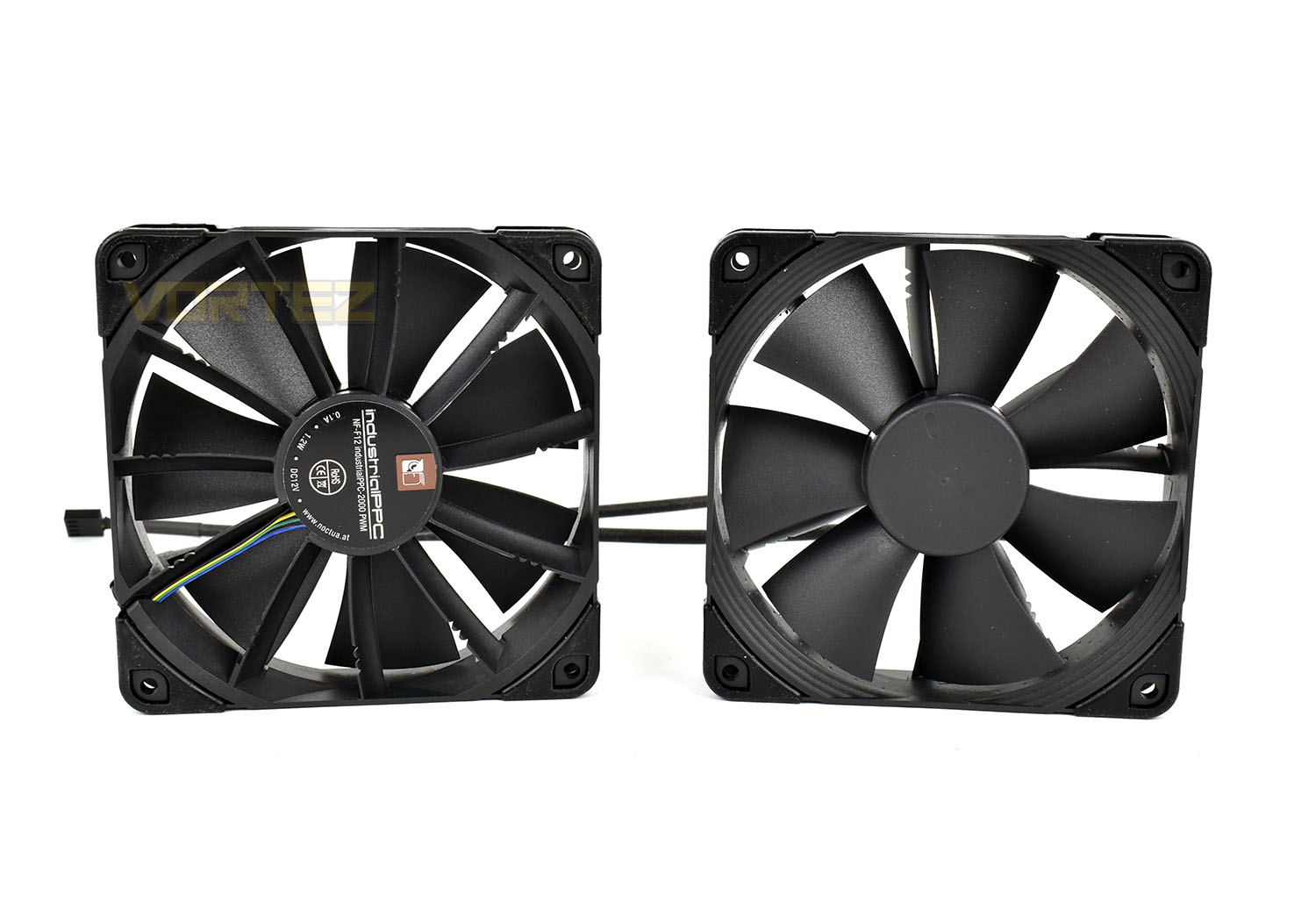
Noctua’s NF-F12 fans have been included, known for their excellent performance and long lifespan, however, even Noctua themselves admit these fans aren’t as quiet as alternatives; they’ve traded acoustics for outright performance; however, we’ll see what Noctua consider as “noisy” when it comes to our testing. These fans have a fantastic operating range from around 400 RPM right up to 2000 RPM.
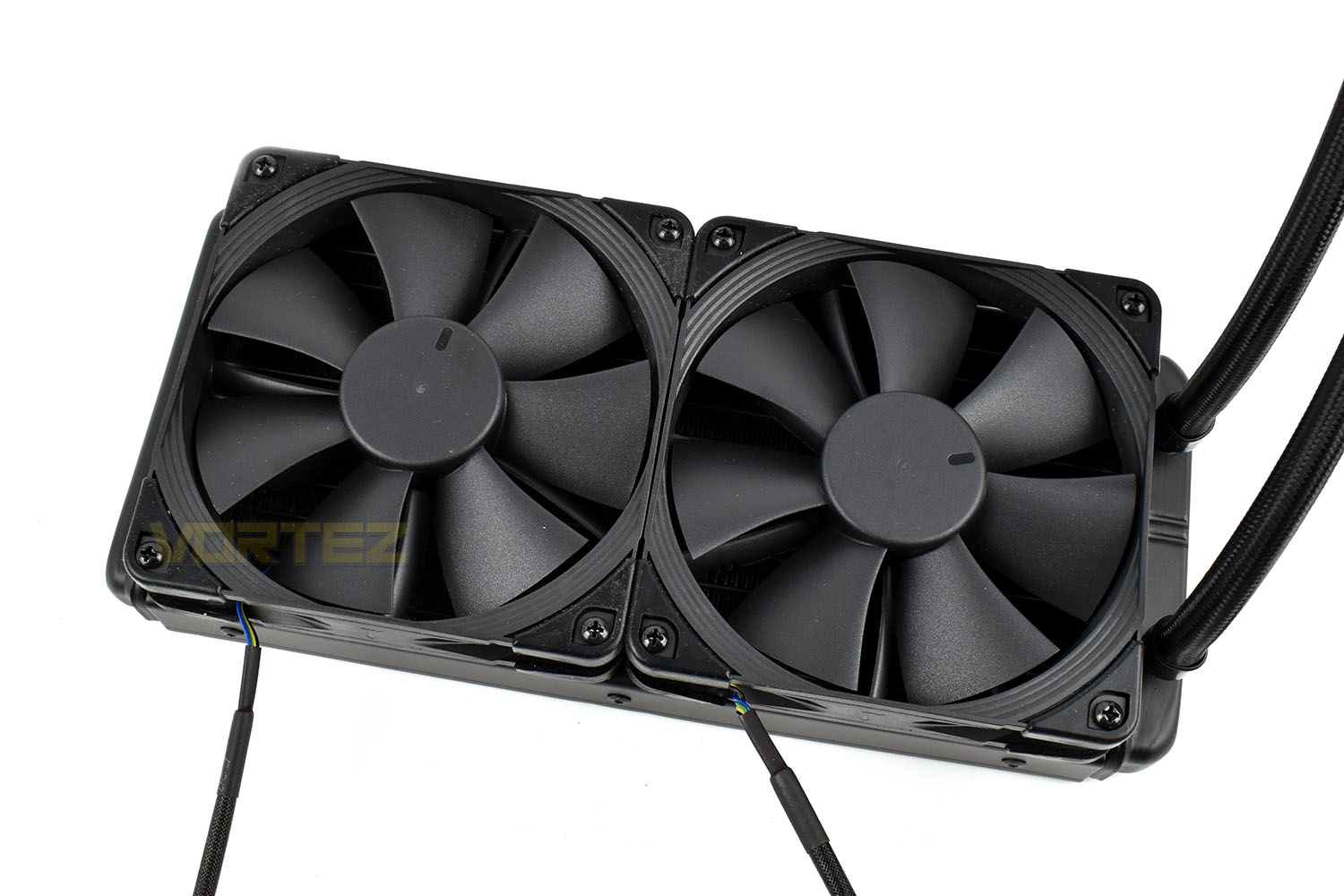
Installation onto the radiator is simple enough and thanks to the pre-mounted rubber corners on the NF-F12 fans, vibrations into the radiator should be kept to a minimum.
Installation
To begin the installation, we first install the four standoffs into our LGA 2011 socket and apply some Noctua NT-H1 thermal paste to the Intel Core i7-3930K. We use the Noctua NT-H1 to ensure our tests are as fair as possible, eliminating one more variable between coolers.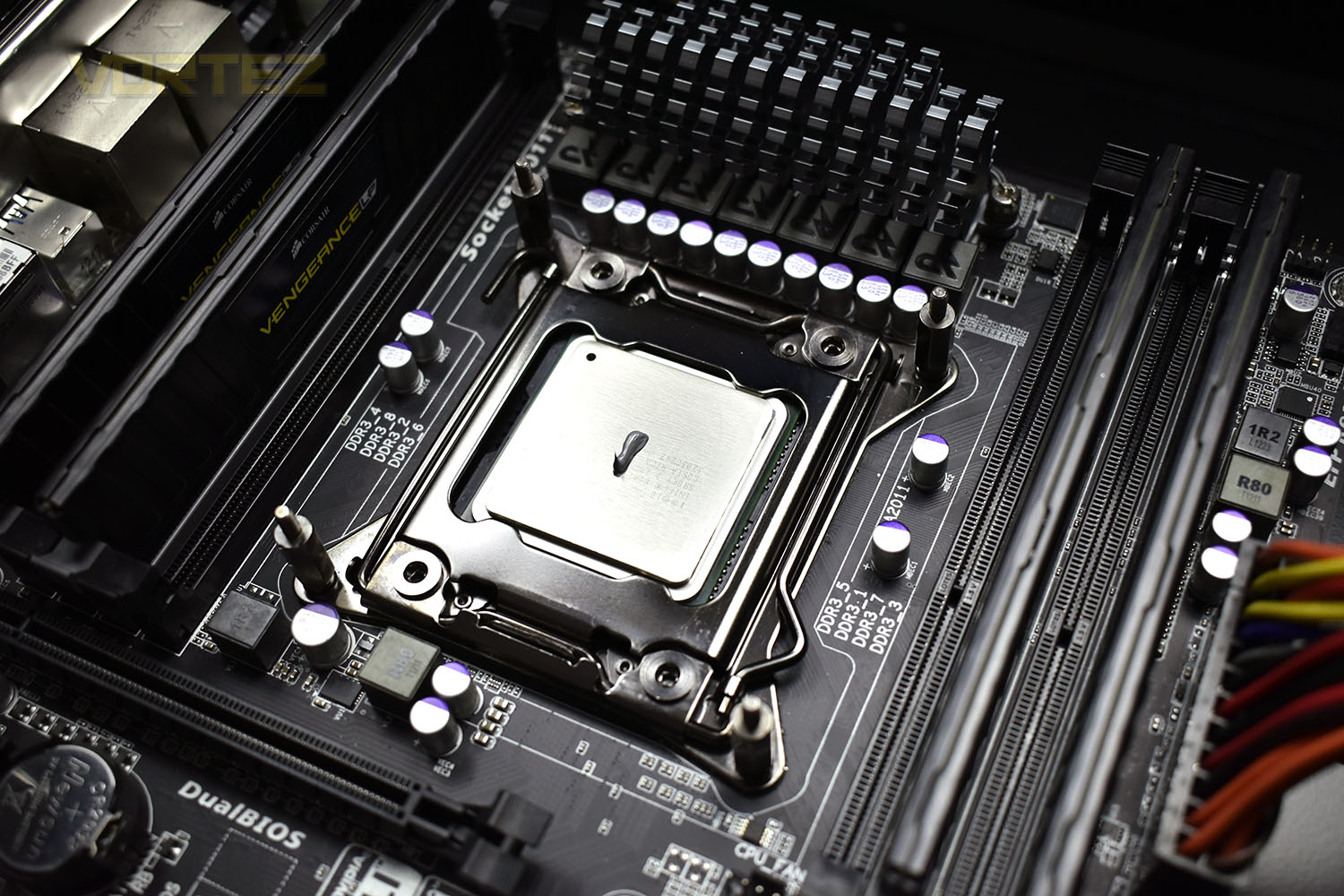
Next up we have to bolt the pump enclosure into place. Despite its complexity with the OLED screen and embedded fan, it’s as simple as any other pump to install, with a thumbscrew in each corner. Remember to tighten them equally to ensure the thermal paste is distributed as evenly as possible.
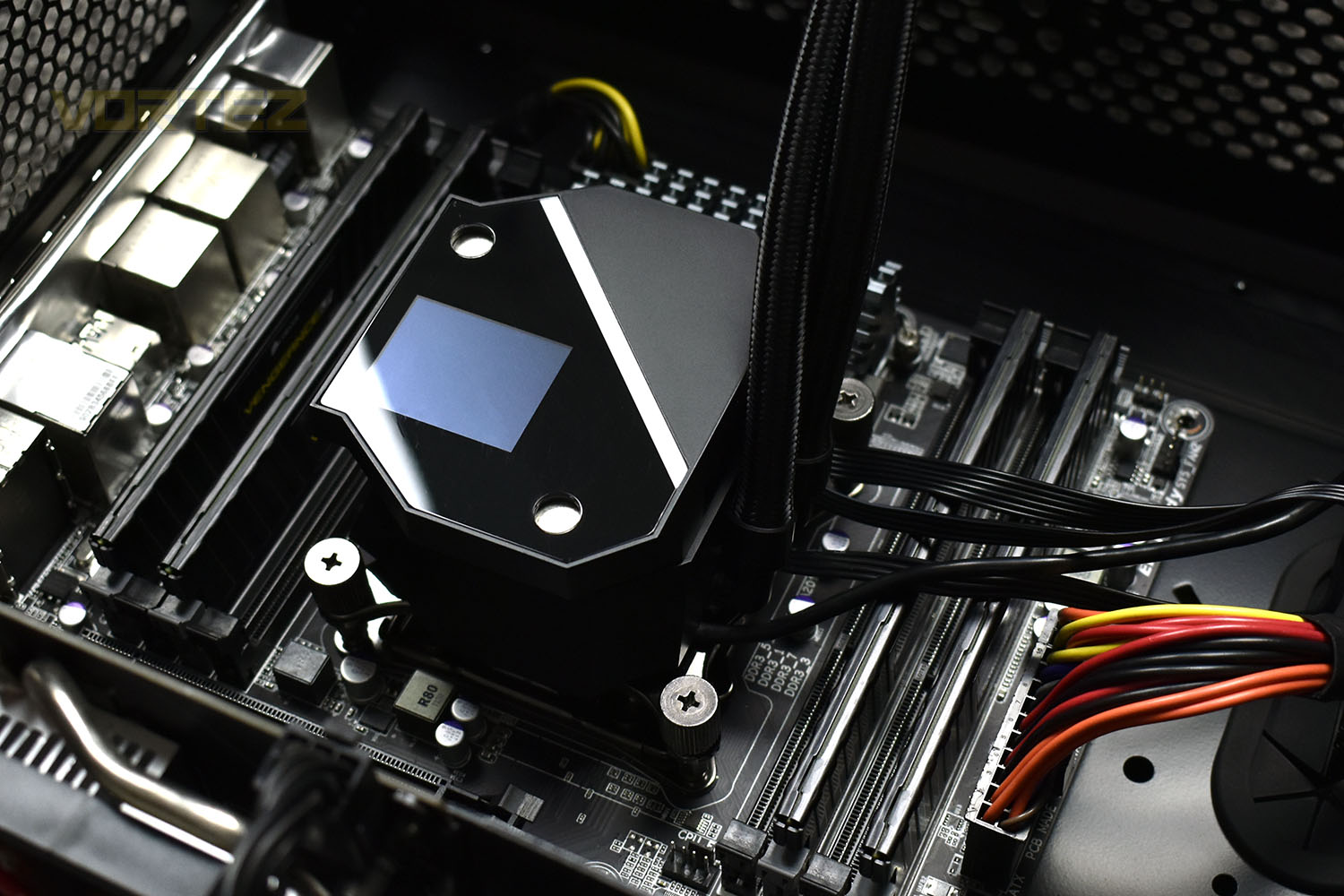
Attaching the pump cover is super simple; the two magnets are strong enough to grab hold and bring home the cover once it’s somewhere near, meaning there’s very little fiddling around.
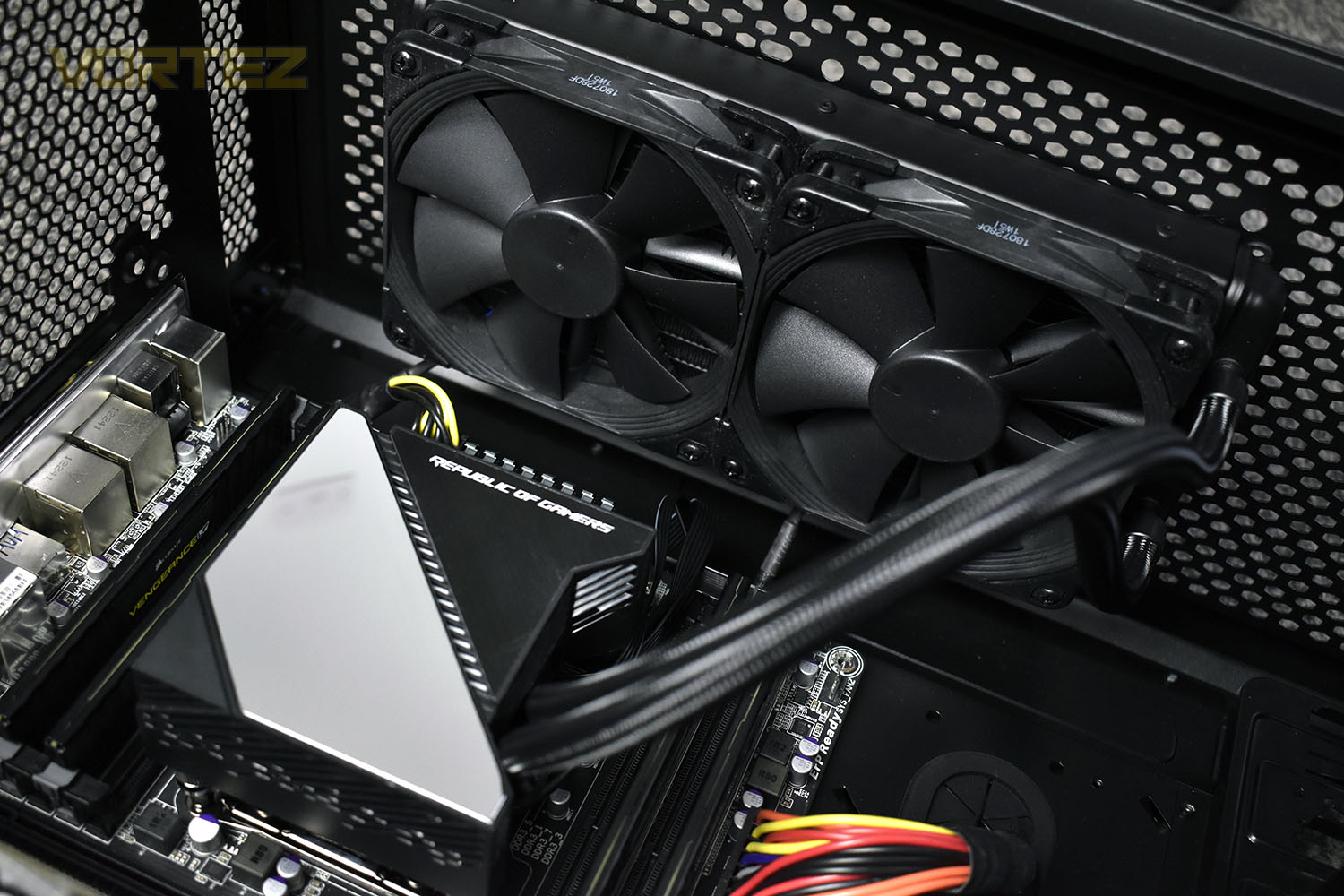
Last up is the radiator, again, a simple installation, with 8 screws in the top from outside of the case. It’s then a case of connecting up the cables, which we insist you do behind the motherboard to keep things tidy.
Test Setup & Methodology
We perform two individual testing routines with each CPU cooler that we receive – temperatures and acoustics. The system used is as follows and all tests are performed at stock 3.8 GHz and overclocked 4.4 GHz frequencies.Processor – Intel Core i7-3930K
Motherboard – Gigabyte X79-UP4
Memory – 8GB Corsair Vengeance LP 1600MHz CL9
Video Card – Sapphire Radeon HD 6850 1GB
Power Supply – NZXT Hale90 650W
Storage Drive – Kingston HyperX 240GB SATA III SSD
Case – Corsair Carbide 760T
Monitor ASUS ROG SWIFT PG278Q
Motherboard – Gigabyte X79-UP4
Memory – 8GB Corsair Vengeance LP 1600MHz CL9
Video Card – Sapphire Radeon HD 6850 1GB
Power Supply – NZXT Hale90 650W
Storage Drive – Kingston HyperX 240GB SATA III SSD
Case – Corsair Carbide 760T
Monitor ASUS ROG SWIFT PG278Q
To keep our tests consistent, we always review CPU coolers as they come out of the box – with their factory cooling fans, as the manufacturer intended and as the consumer expects. It should, however, be noted that we do not use supplied thermal paste but instead, Noctua NT-H1 paste to, again, ensure consistency. The paste is applied and the CPU allowed to run for a couple of hours, at idle, to give the thermal compound some time to “bed in.”
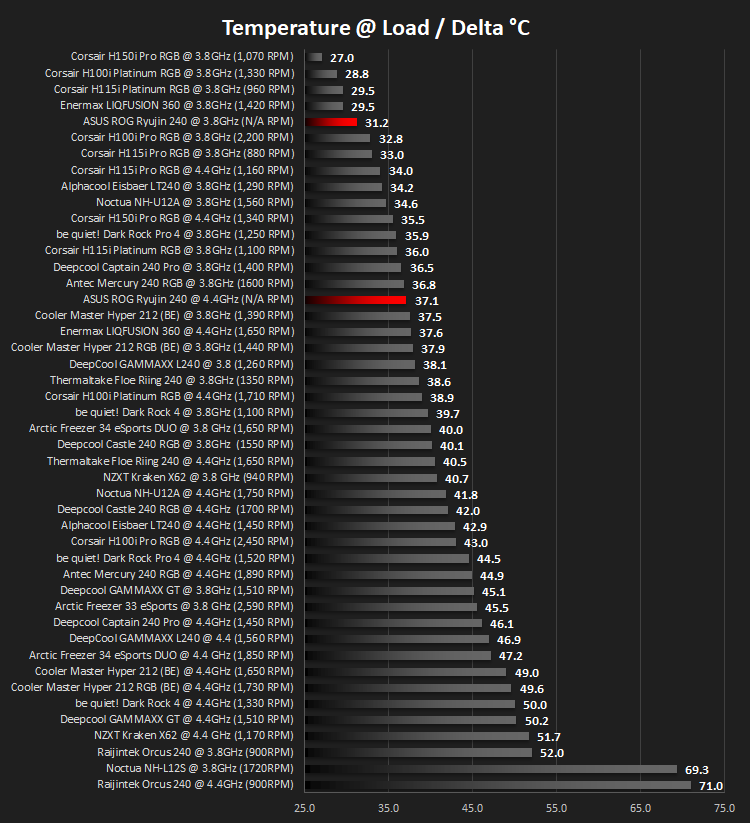
In the first test, we record idle and load temperatures as shown by the most current version of the Real Temp monitoring utility. The test system is booted to the Windows desktop and left to idle for 20 minutes to ensure temperatures have stabilised. The average core temperatures are then recorded over a 1 minute period and averaged across the six cores. We then perform a continuous 20 minute AIDA 64 stress test. The maximum absolute core temperatures are recorded immediately after the test has completed and averaged across the six cores. All results are displayed as delta temperatures – these are calculated by subtracting the ambient room temperature from the average core temperatures recorded. For temperature testing, the Corsair 760T chassis door is closed and has all three systems fans powered on to simulate real-world conditions.
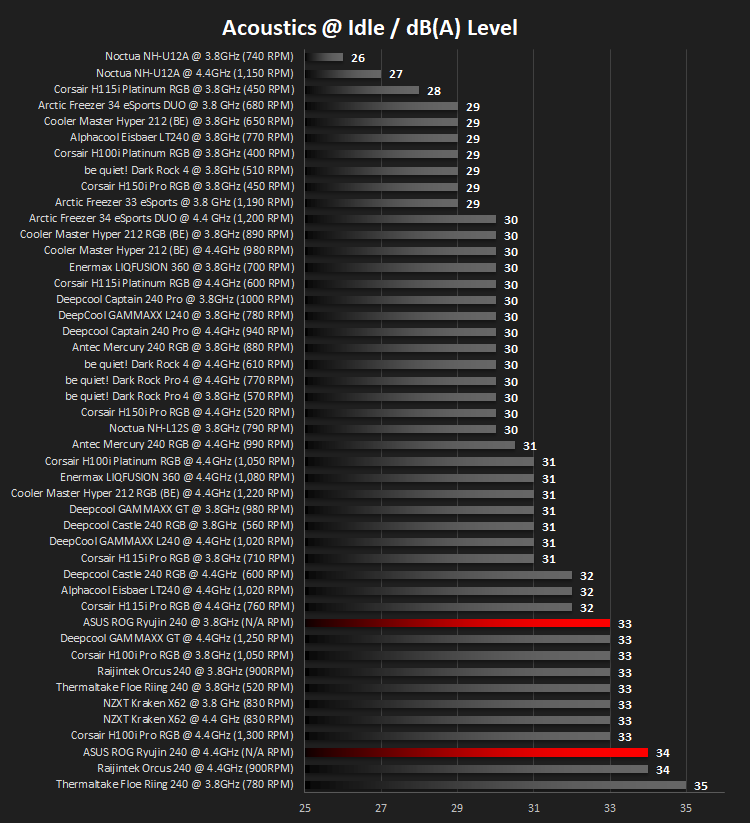
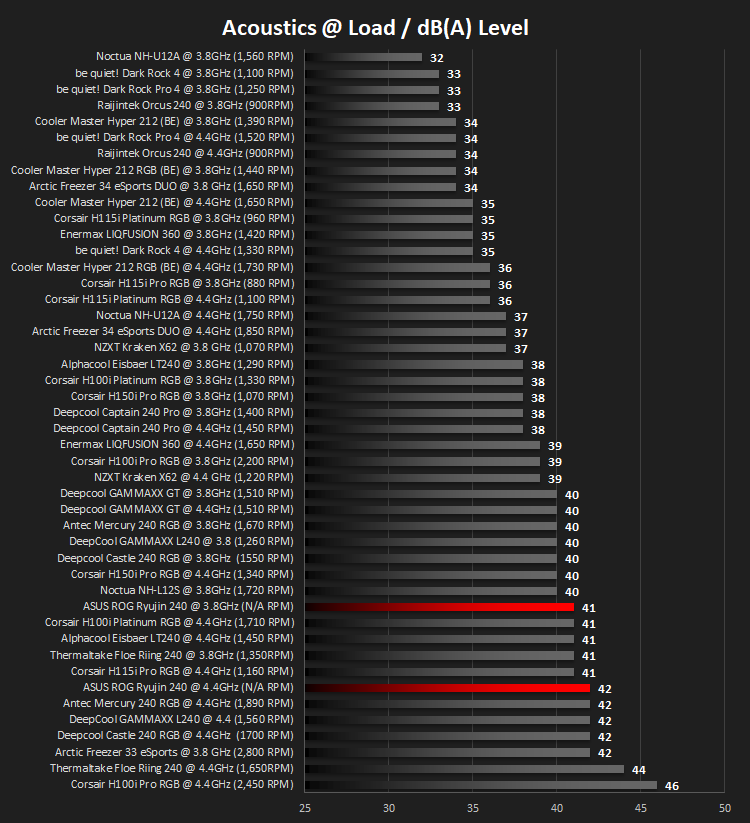
Our second test follows a similar methodology to the first, with the key difference being that the Corsair 760T chassis door is now left open and all three systems fans are disabled. This allows for the CPU cooler fans acoustic profiles to be captured in isolation. From cold, the system is again booted to the Windows desktop and left to idle for 20 minutes to ensure temperatures have stabilised. The acoustic level is then recorded at a distance of 20cm from the CPU cooler and where the individual result is an average level over a 1 minute period. We then perform our continuous 20 minutes AIDA 64 stress test. Acoustic levels are again recorded at a distance of 20cm from the CPU cooler and where the individual result is an average level over a 1 minute period.
Benchmarks – Thermal Results
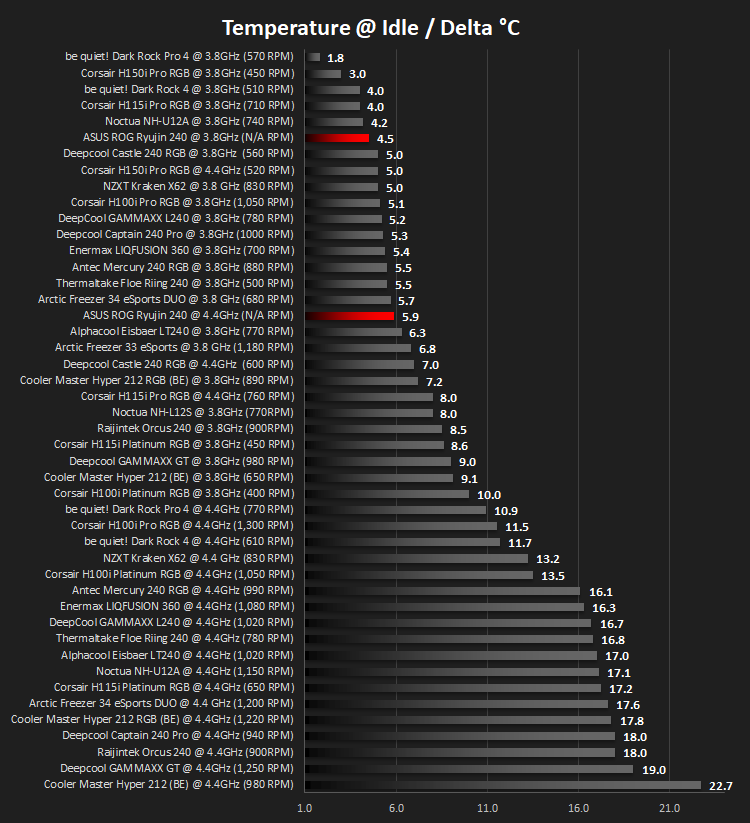
As mentioned on the previous page, we give the system a couple of hours to bed in, as we do with all of our cooling system reviews, to ensure things are as even and fair as possible. It also helps to give the system some time to equalise so that temperatures are normal and the CPU isn’t working on anything in the background, such as searching for updates.We then take an idle reading, both at 3.8GHz and our overclocked 4.4GHz profiles.
It’s then given a blast of 20 minutes with AIDA 64 and measure the temperatures again, taking a reading over 60 seconds then averaging across the six cores.
Benchmarks – Acoustic Results
Moving onto acoustics, we take a measurement of the fan output at the same time as the temperature readings.We measure the noise output with the system at rest.
Then once the 20 minutes of AIDA 64 comes to an end, we measure the CPU temperature over 60 seconds and take the noise measurement below.
Conclusion
Our performance tests are pretty clear, the cooling ability of the Ryujin 240 is excellent, finding itself at the lower end of our graphs in all tests, even beating some coolers with larger radiators which is impressive, but acoustics suffer hugely. We found the pump-embedded fan would spin up once things got warm causing a lot more noise than any other components.The pump-fan might well be adjustable, but to control the RGB lighting, pump speed or fan speed, you are required to install the ASUS AI Suite, but this piece of software is only compatible with machines running on an ASUS ROG motherboard. This, to us, is entirely unacceptable, especially when considering that this fact isn’t mentioned on the box or product page on their website. Based on that fact, we were also unable to monitor the Noctua’s fan speeds for out graphs, which is a shame.
After discovering that we were unable to run the AI Suite, we found a program called LiveDash which allowed control of the RGB lighting and OLED Display, but for some reason we couldn’t get this to run, at all. We tried it on an MSI Z270 Gaming M7 and Gigabyte X79-UP4, both to no avail.
Sadly, because of the lack of any available functioning software, we’ve been unable to thoroughly test the product and can only provide what is available on the previous pages.
Having said all of that, there’s no getting away from the Ryujin’s excellent capability of cooling a CPU, but the noise output was much higher than we anticipated.
Moving onto price, at GBP £190, USD $220 and AUS $380, we expected a lot more of ASUS. A universal software suite and quieter performance are a must.
For a company as prominent as Republic of Gamers, we expected much more. We couldn’t possibly recommend this cooler to someone on the basis of requiring an ASUS ROG motherboard to access basic functions.
Pros
+ Excellent cooling capacity
+ Easy to install
+ Will suit ASUS ROG themed builds
Cons
– Unacceptably loud at full load
– Requires an ASUS ROG motherboard to function fully
– OLED screen isn’t impressive
– Very pricey
+ Excellent cooling capacity
+ Easy to install
+ Will suit ASUS ROG themed builds
Cons
– Unacceptably loud at full load
– Requires an ASUS ROG motherboard to function fully
– OLED screen isn’t impressive
– Very pricey
Click here for an explanation of our awards at Vortez.net.
Stay connected with the Vortez Social Media pages: