







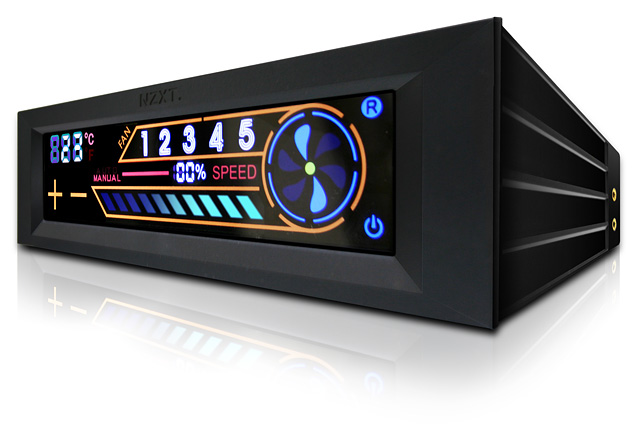
With its colourful touch screen interface, the Sentry 2 looks to set itself apart from other fan controllers.
Product on Review: NZXT Sentry 2
Manufacturer and Sponsor: NZXT
MSRP: $29.99 USD / €29.90
Street Price: $29.99 USD

The Sentry 2 is NZXT’s latest addition to their Sentry fan controller series. Unlike the Sentry 1, the Sentry 2 features a colourful touch screen interface in order to make the fan controlling experience much more intuitive. Furthermore, the colourful interface of the screen will certainly add a hint of modern looks to any computer system. Asides from the touch screen interface, the Sentry 2 packs many worthwhile features such as support for five case fans, five temperature diodes, automatic and manual fan control modes, and 10W per channel.
Although fan controllers with knobs make up the major part of the market, the Sentry 2’s flat bezel will be very helpful for consumers that have a computer case with a front door that could potentially interfere with such knobs. Given the fact that touch screen interfaces are not broadly used amongst fan controller manufacturers, it will be most interesting to see if NZXT has hit the right notes in making the Sentry 2 a good product.
About NZXT : Link
| NZXT, a company built upon gamer’s dreams, hopes to create products that put consumers first. With the objective of designing unique products catered for hardware enthusiasts and gamers, NZXT has grown into a globally renowned brand recognized for dedication towards creating the next great gaming product. NZXT has won numerous awards from media and publications from across the globe with a product line spanning from gaming chassis, power, and gaming input devices. As a corporation formed by gamers, NZXT continues to expand into new horizons and push the limits further with each product unveiling. Our dedicated sales and customer service team will work diligently to earn your trust and loyalty. All our products are built with high quality material and engineered in the best conditions. NZXT products are designed and engineered in the United States and manufactured overseas in China and Taiwan. NZXT was established in 2004 in Los Angeles, California. |
Features and Specifications
The Sentry 2 offers various features, in addition to the touch screen interface, that will please many consumers. The most interesting feature would probably be support for fans of up to 10W, which means that the Sentry 2 can power most high-speed case fans at ease. Some case fans rated at 150CFM, such as Delta fans, might not work, however, seeing as some require almost 13W to function.
The fan controller also features support for five case fans and it comes with five temperature probes that can be shown on the screen in both Celsius and Fahrenheit. Therefore, the Sentry 2 will accommodate most computer systems.
Obviously, seeing as the Sentry 2 does not have any knobs for controlling the fans, the fan controller comes with on-board memory to store the settings, such as fan speed and temperature alarm. It is good to note also that the Sentry 2 is installed in a single 5.25” drive bay.
The Sentry 2 comes with many more features that can be read of their website.
Link: Features and Specifications Website
| Introducing the Sentry 2, a full system fan controller with an advanced touch screen interface. Sentry 2 easily installs in a 5.25: bay and is compatible with any fan that uses voltage control. The innovative touch screen features ultra fast selection and response time and displays all pertinent info including temperature readout in both Celsius and Fahrenheit. Sentry 2 allows users to control up to 5 fans with the option for manually tuning individual fan speeds or letting the automatic controls take over to correspond to a specific temperature. The controller’s advanced functionality sounds an alarm to alert the user should the temperature exceed a preset amount and stores saved settings even after it is turned off. Designed to maximize efficiency, the Sentry 2 supports 10W per channel and creates less heat than traditional temperature displays. Specifications – Touch screen interface – Five fan control through an intuitive interface – Ultra fast selection and response time – Display temperatures in both F and C – Light switch turns off the meter when sleeping – Automatic and manual modes of control – Full compatibility with all types of fans using voltage control – With 10 Watts per channel, the Sentry 2 will support almost all high end fans – Tuned accuracy with only a tolerance of one degree – Sound alarm to alert when the temperature is over – Stored settings, the Sentry keeps your settings even after power off |
Packaging and Contents
The Sentry 2 comes in a small black carton box. It was also initially wrapped in plastic. The front of the packaging gives a quick overview of the product including a large picture of the Sentry 2 and some of its important features. The packaging has a very bold look.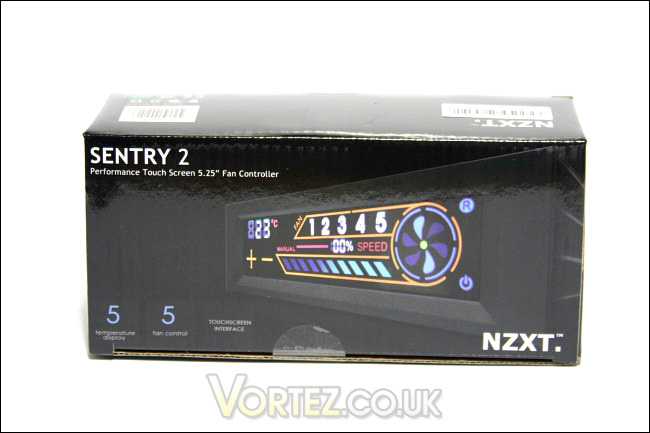
The front of the packaging
At the back of the packaging, there is a point form list of the various features of the Sentry 2. It is given in four languages, including English, French, German and Spanish. These features are the same as the one that can be read off from NZXT’s website with the addition of a few clarifications.
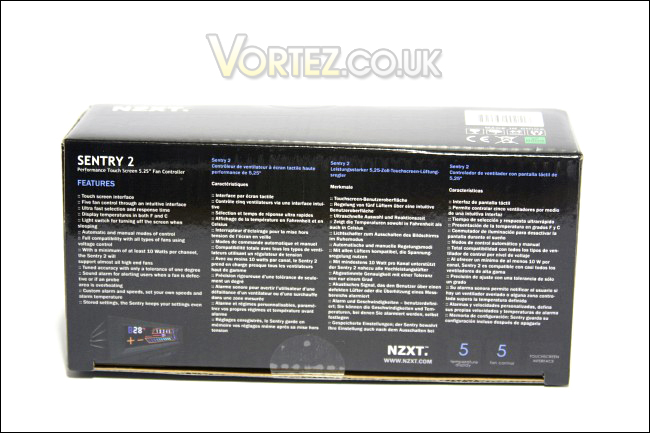
The back of the packaging
Opening the box is quite strange. A small plastic seal holds the lid in place, but the lid itself was actually the front face of the box unlike most boxes where the lid is the top of the box. Nevertheless, it serves its purpose and, when opening the packaging, we can see that the NZXT Sentry 2 is secured in two small Styrofoam pieces as well as a red plastic bag.
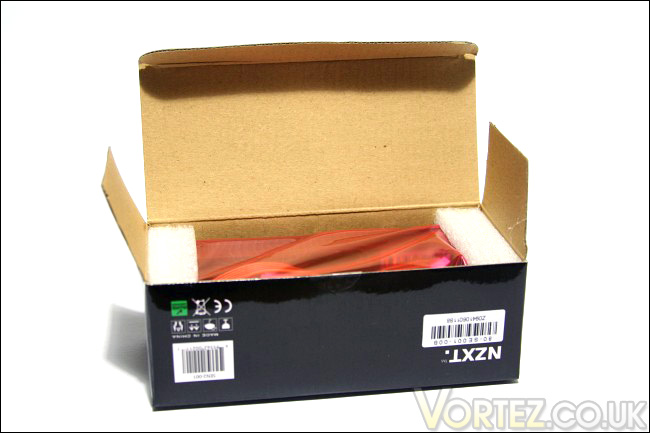
The box containing the Sentry 2 and its accessories
In terms of package contents, the Sentry 2 comes with the fan controller itself, two extra temperature diodes, a 12 cm zip-tie cable, four screws, six 2×1 cm strips of electrical tape and a quick-setup manual. The temperature diodes are a nice addition if ever the ones installed on the Sentry 2 fail. However, using these extra temperature diodes will be difficult because the ones installed by default are held onto the sockets with hot glue. It is a rather strange decision by NZXT to include such cables when using them would be difficult, indeed. The electrical tape will be handy if you are planning to place the thermal diode on an electrical sensitive device, such as a hard drive. The manual gives a quick rundown of how to install the device into a computer case and the identity of the included cables. Unfortunately, an error has slipped in the manual: the Sentry 2 is referred to as the Sentry LX, another fan controller by NZXT. The manual is written in four different languages like those seen at the back of the box: English, French, Spanish and German.
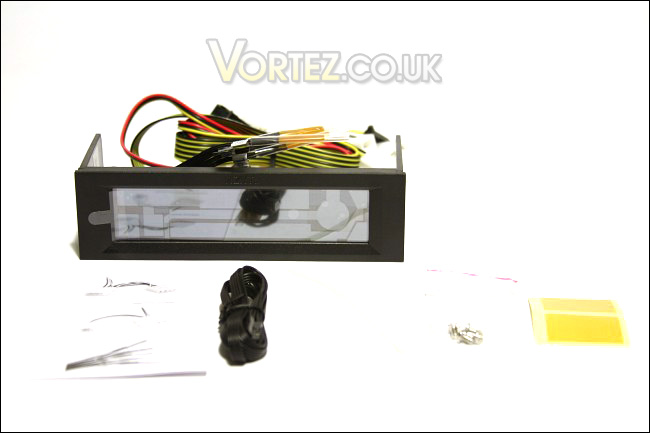
The Sentry 2, its manual and its accessories
Like it was mentioned earlier, the Sentry 2 comes in a very tight box. NZXT’s use of packing material is quite small and sufficient enough to protect the product during transportation. The packing material consisted of a carton box, a plastic wrapping, a red plastic (code 3) bag, two Styrofoam holders and two small resealable plastic bags. Needless to say that NZXT did a good job with the packaging.
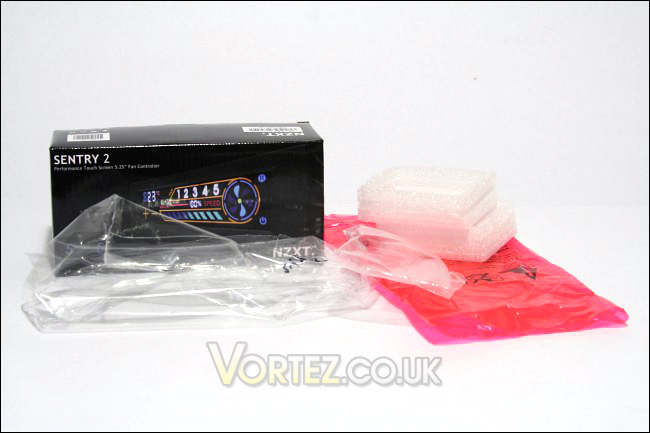
The packing material
Closer Look: Sentry 2
The Sentry 2’s bezel is made of black matte plastic. This might disappoint some consumers because the original Sentry 1 came with a metal bezel. Nevertheless, seeing as most computer case come with a plastic bezel, the Sentry 2’s plastic bezel should fit the design of such systems. The Sentry 2’s screen is slightly inset with the bezel having a bevelled edge. This creates a nice and very simple look.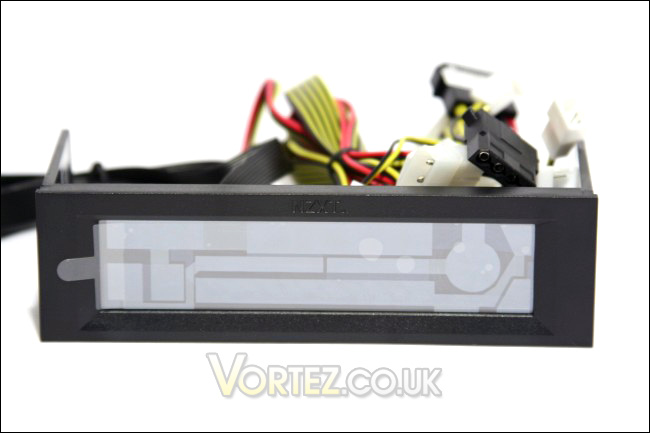
An overwiew of the Sentry 2
The Sentry 2, like most fan controllers, is deep enough so that only the screw holes near the front of a computer case’s drive bays will be used to secure the device. The threads of the screw holes of the Sentry are golden, making it look of much higher quality.
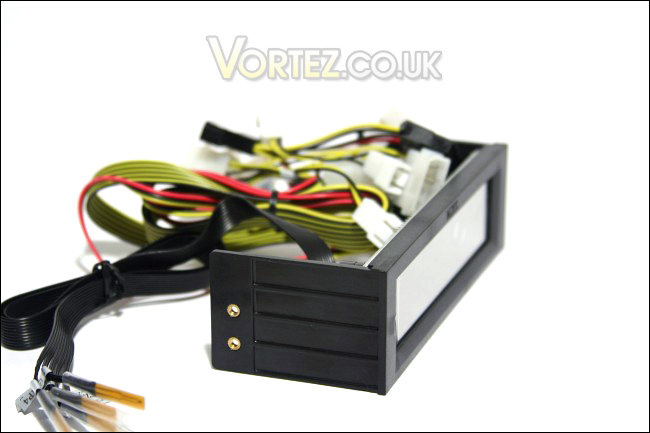
The side of the Sentry 2
At the back of the Sentry 2, we see that the device has a fairly large blue PCB. On the left, we see the power cable connectors for both the device and fans, and, on the right, we see the black cables for the temperature diodes. We also see on the right a small circular black speaker that will be handy for the alarm feature of the Sentry 2. No heatsinks are used to cool the Sentry 2, and I hope the device can keep itself cool enough to power five fans at 10W each.
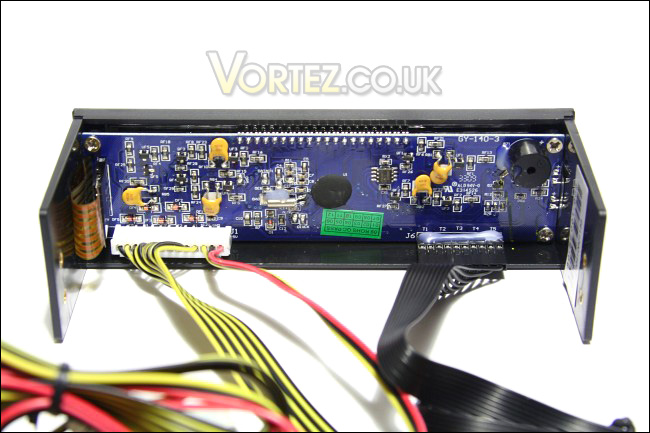
The PCB of the Sentry 2
The temperature diode cables of the Sentry 2 have independent connectors, but they are actually hot-glued to the fan controller’s PCB. Therefore, removing these cables or replacing them might be a challenge for some. I am not sure why NZXT has decided to hot-glue these connectors.
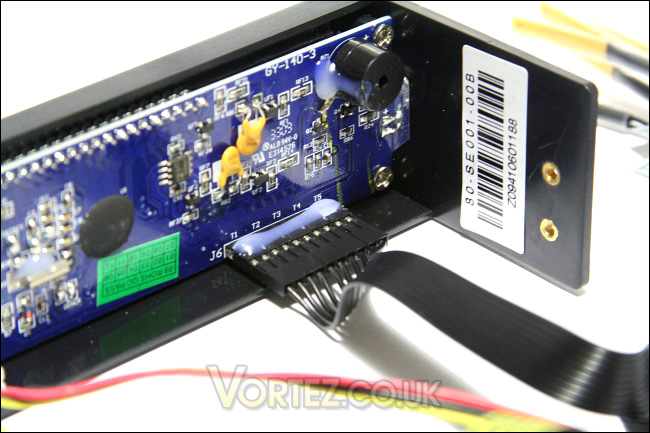
The temperature diodes of the Sentry 2, hot-glued
The power connectors for the five fans and the device are actually a single large cable. Therefore, even though you would only need one power cable for your single case fan system, you will have the four other fan power cables lying in your computer case. This is a downside if you have a relatively small computer case where extra cables might interfere with the airflow or, simply, the aesthetics. Also, the fan power plugs on the Sentry do not seem to be your typical 3-pin fan headers. As such, replacing the power cable someday will be definitely difficult. The Sentry 2 is not flexible in this perspective.
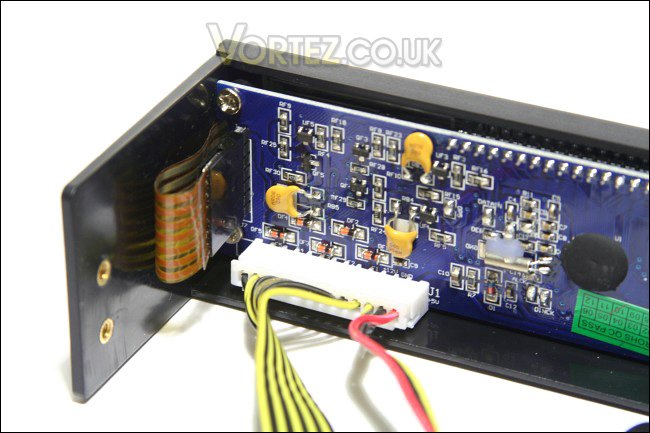
The single large power connector of the Sentry 2 for five fans and device power
Closer Look: Cables
The temperature diode cables included with the Sentry 2 have a length of approximately 60 cm. The length should accommodate most computer cases. These cables initially come stuck together, but the five cables can be easily separated. Each cable comes with a label from TEMP1 to TEMP5. Ideally, these temperature diode cables should be placed at a location near the fans connected to the power cables with the same number. These numbers will be indicated on the Sentry 2’s screen, and they will be useful if you plan on using the Sentry 2’s automatic fan control mode.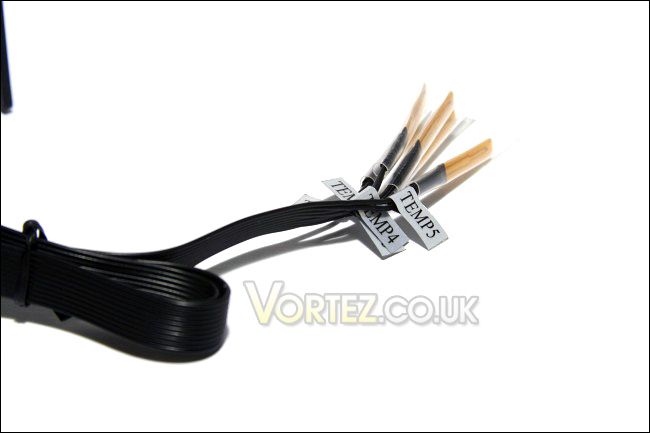
The temperature diodes with labels
As for the power cables of the Sentry 2, there are in fact six of them. One of them is the power cable for the device (a 4-pin pass-through molex connector of length 65 and 70 cm) and five fan power cables with molex and 3 pin (length of 70 and 75 cm, respectively). Initially, the fan cables are stuck together, and it looks like a total mess. Indeed, this might be a cable management enthusiast’s worse nightmare. However, these cables can be easily separated and some effort and patience will be needed to route these cables properly to optimize airflow inside a computer case.
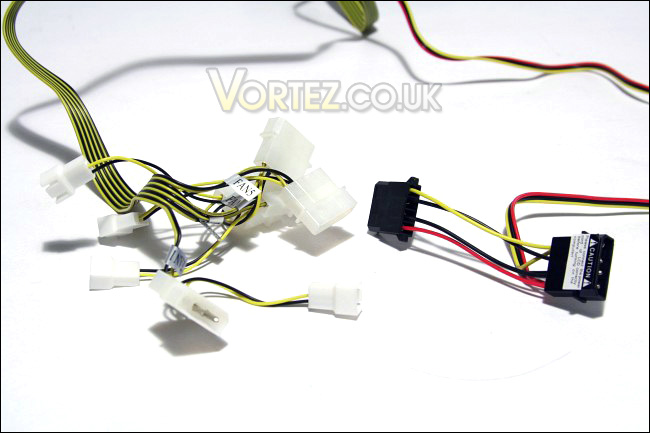
The power connectors with labels
Installation
The Sentry 2 is a 5.25” device that can be installed in a drive bay of same size. The Sentry 2 uses only one slot, like a typical DVD drive. Two screws are enough to secure the device, but all four could be used for added security. The manual included with the Sentry 2 briefly explains how this may be done.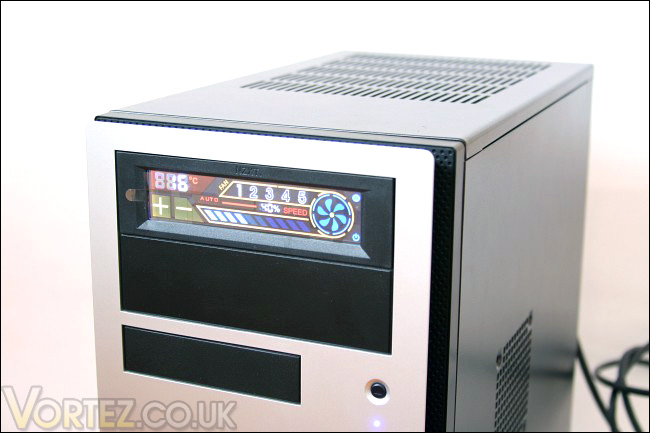
The Sentry 2 installed and powered
Needless to say that, after you secure the device, you must plug the Sentry 2 to a molex power connector of your power supply. Once that is done, you proceed with connecting your fans to the fan cables of the Sentry 2, then route the temperature diodes to the fan with the matching number. Once all of that is done, it is time to power on the system and observe the Sentry 2’s colourful screen, which becomes functional after a few seconds. Given the fact that the Sentry 2 has many cables, it is highly recommended that you plan ahead on how each of the cables will be routed inside the computer case. Indeed, if you are planning on using five fans with the Sentry with temperature diodes, you will have a total of 11 cables (including the device power cable) to organise. Without a plan, you might end up with a disorganized cable arrangement in your computer case, which is not ideal for aesthetics and, of course, airflow!
Test System and Testing Methodology
Testing Methodology
There will be no particular test for the NZXT Sentry 2. Responsiveness and ease-of-use of the Sentry 2 will be examined, but no measurements voltages will be taken. It would be ideal if the voltages being fed to the fans by the Sentry 2 were recorded as a benchmark, but I unfortunately do not have digital multimeter on hand. Nevertheless, if you are curious to know such data, I suggest you read BCCHardware’s review on the NZXT Sentry 2:
Link: NZXT Sentry 2 Touch Screen Fan Controller review by BCCHardware
Case fans used
– Coolink SWiF 1201
– Noctua NF-P12
– Noctua NF-S12-1200
Test Setup
– CPU: AMD Athlon X2 5000+ Black Edition @ 2.6 GHz 1.15V
– Motherboard: Gigabyte GA-MA78GM-S2H 780G
– RAM: Corsair XMS2 TWIN2X4096-6400C5 PC2-6400 2x2GB
– Case: Antec NSK3480 mATX
– Power supply: Antec EarthWatts 380W
– CPU cooler: Noctua NH-U12P with Noctua NF-P12 @ 5V
– Case fan: Noctua NF-P12 @ 5V
– Hard drive 1: Western Digital Caviar SE16 WD6400AAKS 640GB
– Hard drive 2: Toshiba MK2555GSX 250GB
– DVD Drive: LG GH22NS30 DVD Writer
– OS: Windows Vista Ultimate SP1 64bit
– Mouse pad: QPAD|UC Large
– Monitor: Dell E207WFP 20” TN
Test Results: Usage and Responsiveness
Although the small manual included with the Sentry 2 provides information regarding installation of the device and the identity of the cables, it does not give any information on how to use the device. The Sentry 2 by itself is quite straightforward, anyway, and the intuitive interface of the Sentry 2 provides an easy way of learning how to use the device. Nevertheless, a manual on how to operate the device is available on NZXT’s website:Link: Manual – Guidelines on how to operate the touchscreen on Sentry 2
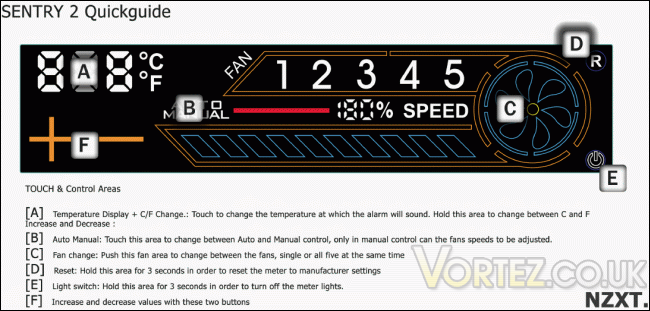
An extract from NZXT’s manual on how to operate the device
As you can see from the previous picture, the Sentry 2 basically has six touch sensitive areas. The manual pretty much explains how the device works. The touch and control areas are also very responsiveness with little to no lag between input and a response on the screen. The screen itself is very clear and bright enough to be read in the dark and at an angle. The screen is not bright enough to light a room and become bothersome if you plan to sleep near your computer case. In the situation where the screen’s brightness might bother you, you may turn it off by pressing and holding the “E” button.
By default, the Sentry 2 is set so that all fans are working on the automatic fan control mode. The interface shows the selected fan (1 through 5) to configure, its temperature from the temperature diode with matching number and the fan speed percentage. The fan speed percentage is also shown by the blue meter at the bottom of screen. At the right, we can see a circular shape with a fan fins in the middle. These fan fins will spin when the selected fan is spinning, and the fan fins on the screen will spin faster with increasing fan speed percentage.
The temperature setting for the alarm is set by default at 70°C. Pressing the “A” button once will allow you to modify the temperature at which the alarm will ring. The range for the threshold temperature for the alarm is 30-90°C. Also, when the alarm rings, it will beep loudly five times and the fan exceeding the threshold will blink on the screen. The alarm may be disabled by pressing the “E” button. Notice that by pressing this button, all sounds will be disabled.
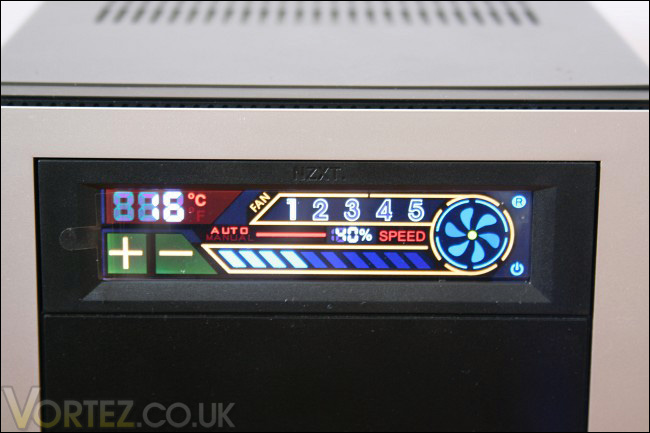
Fan 1 working on the automatic fan control mode
As mentioned earlier in the specifications, the Sentry 2 features two types of control modes: automatic and manual. Switching between the manual and automatic modes is done by pressing the “B” button. In the manual mode, the fan speed percentage can be modified by pressing the “F” buttons and the settings include 0, 40, 50, 60, 70, 80, 90 and 100%. It is unfortunate that the fan controller cannot bring down the fan speed percentage to 10-30%. For a silent enthusiast, it is quite disappointing. Indeed, at a fan speed of 40%, I felt that the Noctua NF-P12 was not running at a voltage below 7V. For silence, the Noctua NF-P12 would have to run at about 5V, which the NZXT Sentry 2 does not allow.
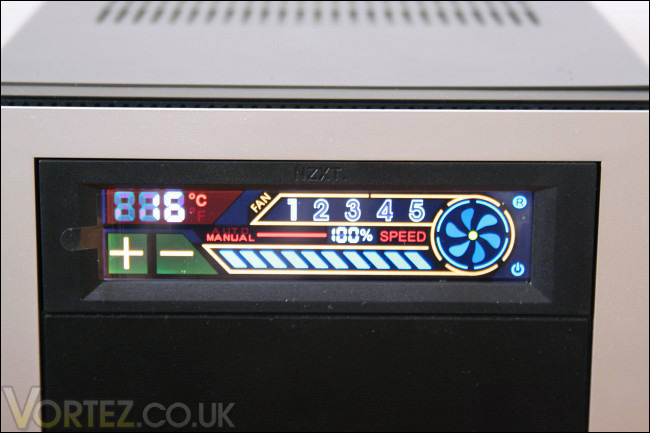
Fan 1 working on the manual fan control mode at 100%
In automatic mode, the fan speed percentage will be modified accordingly to the fan’s matching numbered temperature diode. The fan speed percentages used by the automatic mode are
– 40% (for < 20°C);
– 50% (for 20-24°C);
– 60% (for 25-29°C);
– 70% (30-34°C);
– 80% (35-39°C);
– 90% (40-44°C) and;
– 100% (> 45°C).
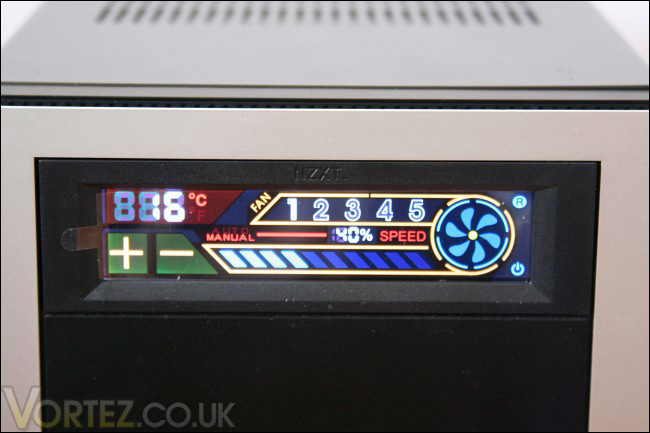
Fan 1 working on the manual fan control mode at 40%
Pressing the “C” button will allow you to navigate to another fan on the screen. Each fan may have an independent manual setting and temperature threshold for the alarm. Nevertheless, in manual control mode, all fans will be set to manual. Consequently, if you set automatic control mode for one fan, all fans will be automatically controlled.
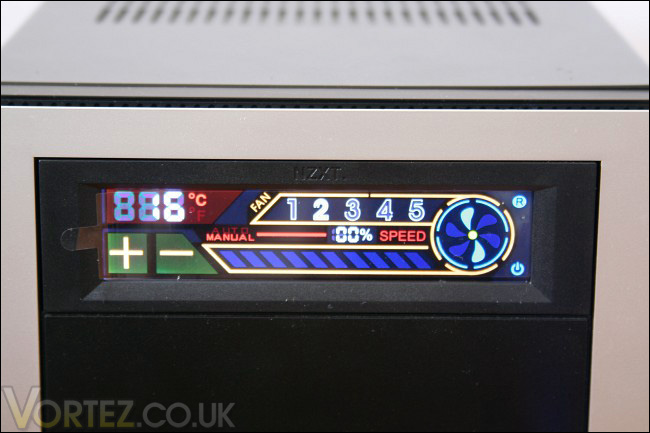
Each fan may be independently configured in manual mode
Although you may select fans 1 though 5, you may also select all the fans simultaneously. In this mode, you may set a temperature threshold common to all the fans. Furthermore, you may also set a common manual fan speed percentage to all the fans. Notice that in order to configure the manual fan speed when selecting all the fans, you will need to press on the area indicating the fan speed percentage. After a single press, the number will blink and then you will be able to configure it. I like to call this the Sentry 2’s secret seventh touch area. Elsewhere, when selecting all of the fans, no temperature reading will be displayed on the screen and no fan number will flash if ever one of temperature at a diode exceeds the threshold.
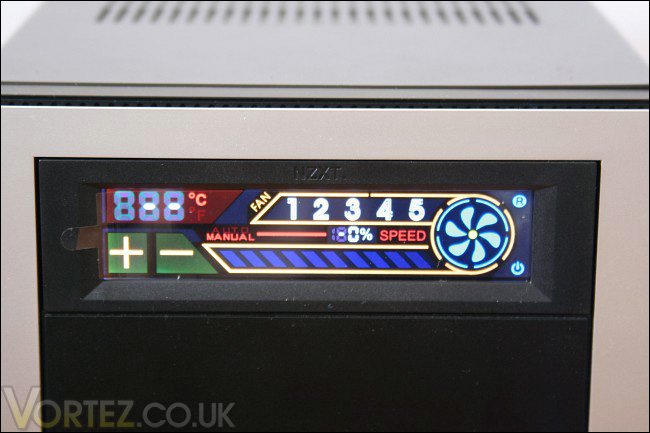
All fans may be selected and configured with common settings
In a nutshell, the Sentry 2 was very responsive with little to no delay between touching the touch areas and seeing a response. Each touch areas were also very large and sensitive. The Sentry 2 worked well with the three fans I tested it with and the alarm worked properly. No strange high pitch whine seemed to emit from the device. Also, the Sentry 2 had no trouble remembering the settings after a power off.
Conclusion
In all, the NZXT Sentry 2 packs a decent amount of features that make it a good fan controller: support for five case fans, 10W per channel, five temperature diodes, manual and automatic control modes, and an alarm.Nevertheless, the major feature that sets the Sentry 2 apart is its touch screen interface. Indeed, this sleek screen provides a quick and easy way of controlling case fans. Furthermore, the colourful and simple design of the interface will no doubt add a touch of style to any computer system. This touch screen is not only beautiful, but it works well. Indeed, responsiveness of the touch areas was top-notch and navigation throughout the interface was straightforward and easy to learn even without the manual on how to operate the device.
The downsides of the NZXT Sentry 2 consist of its inflexibility in terms of its connectors and its inability to reduce fan speed to 10-30%. Indeed, all of the power cables are on a single power connector. Therefore, removing unused cables is not easily done and replacing the cable in the case of failure would be difficult. Elsewhere, the Sentry 2 does not allow configuring the fan speed at 10-30%. For an average consumer looking for quiet computing, this should not be a great disadvantage because a 1200RPM 120mm fan working at 40% should be sufficiently quiet. Unfortunately, a fan speed of 40% will not accommodate all case fans for silent computing. Another small downside of the Sentry 2 is that it does not show a fan’s RPM. The fan speed percentage provides some indication on how fast the fan is spinning, but a RPM reading would be much precise.
Weighing in all of the aspects of the NZXT Sentry 2, my impression of the Sentry 2 is favourable. It looks great and it works well. Those looking for a fan controller with a sleek and modern look should definitely consider the Sentry 2. At a modest price of approximately $30, the NZXT Sentry 2 packs a good amount of value.
As such, the Sentry 2 is given Vortez Hardware’s Silver award.
Pros
[+] Flat bezel with no protruding elements
[+] Great value
[+] Manual and automatic fan control modes
[+] Minimal use of packing material
[+] Responsive and intuitive interface
[+] Sleek and modern design
[+] Support for five fans with temperature diodes and 10W per channel
Cons
[-] Absence of a manual on how to operate the device in packaging
[-] Inability to configure fan speed between 0 to 40%
[-] No fan RPM readings
[-] Single large and non-standard connector for power cables

