







We have all seen how SSDs perform since their release but how about the software supplied with them? Today we take a look at Samsung’s offering and put it to the test.

Product on Review: Samsung SSD Magician + Data Migration Software
Manufacturer & Sponsor: Samsung
Street Price: Free with Samsung SSDs
Samsung have been at the forefront of the solid state drive market since the beginning although relatively unknown until the past year or so with the release of the Samsung 830 Series into the mainstream, it could be considered a shock to know that Samsung are the biggest producer of flash memory in the world today. Samsung are one of the only companies on the market to produce all the parts for themselves, when you buy a Samsung SSD, you get a Samsung SSD. With Samsung’s utilization of the highly sought after NAND controller, their competitive pricing and fantastic performance it’s really no surprise to hear that they are among some of the most reliable and reputable brands in the world.
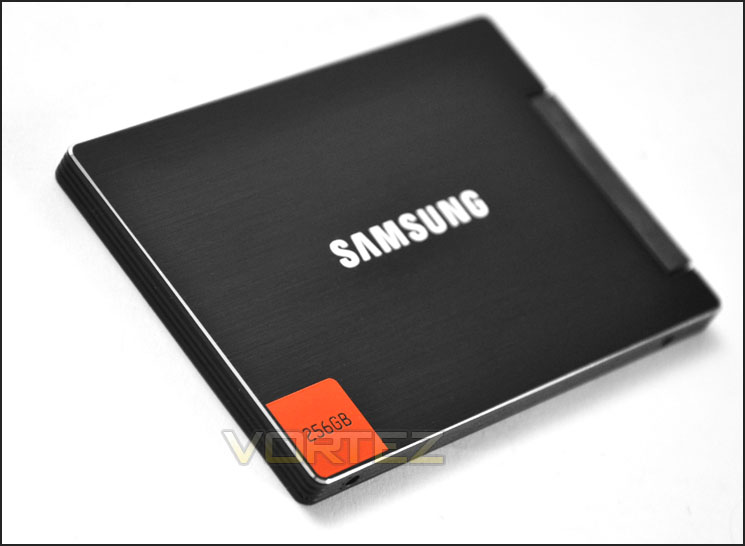
Behind every piece of hardware is a hard working piece of software and Samsung are no different in this respect. Samsung are currently supplying all their SSDs with bundled software which includes the Samsung Magician and Samsung’s Data Migration Software. Today we see how well they fit together and explain the features and other aspects of the software. To test and showcase the software we will be using the Samsung 830 Series 128GB SSD.
About Samsung
From stylish phones to semiconductors, from DRAM to digital TVs, Samsung encompasses a variety of businesses that harness speed, creativity and efficiency to invent, develop and market the products that are defining how we live today. With more than a quarter of Samsung employees engaged in research and development, each of our businesses is focused on discovering new technologies, products and services that will open a new world of possibilities for the people who use them.
Samsung SSD Magician
The Samsung SSD Magician software provides Samsung SSD users with an easy to use selection of tools which can be used for maintenance purposes such as updating the firmware of the SSD to the latest version, it also provides users with advanced features like SSD performance management, a benchmarking suite to make sure your Samsung SSD is performing correctly, and operating system optimisation.
It comes free with all new Samsung SSDs and the latest version can be downloaded here.
After you have installed the software via your preferred method (we installed via the cd that came with our Samsung 830 Series 128GB SSD) and double clicked on the Samsung SSD Magician software you will be greeted with a basic but good looking user friendly screen.
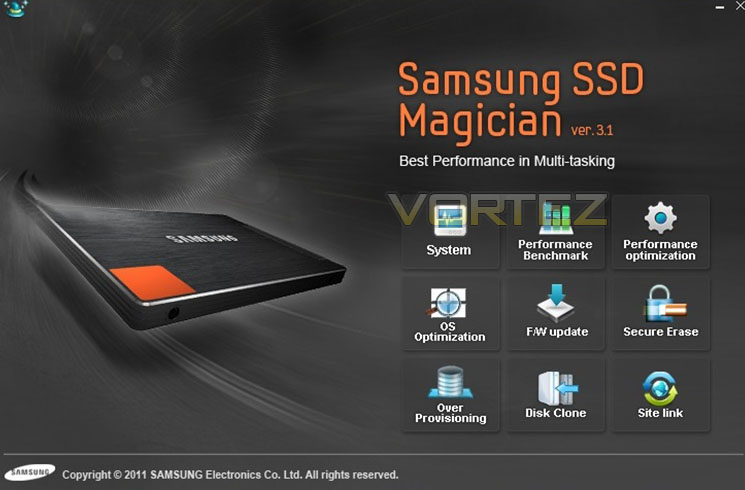
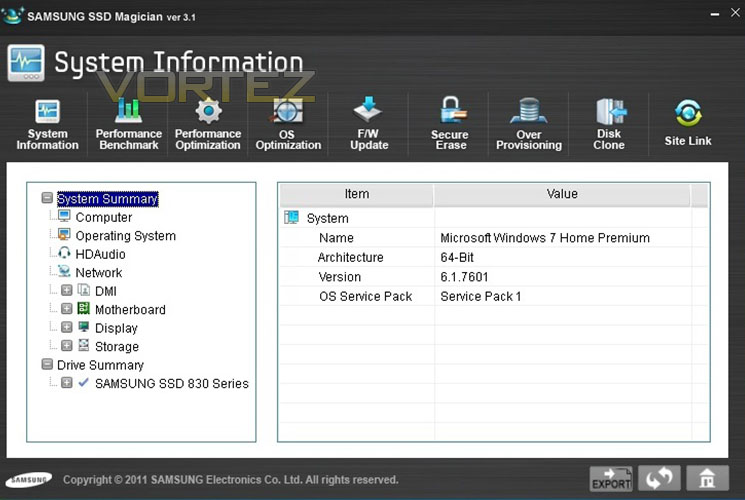
After clicking the first option “System” we were greeted with this screen which has a horizontal style menu which lists the different tools/features that this piece of software possesses. Underneath the menu we were displayed with our system information including the operating system. Within this you can look through a variety of options such as network, motherboard and storage information.
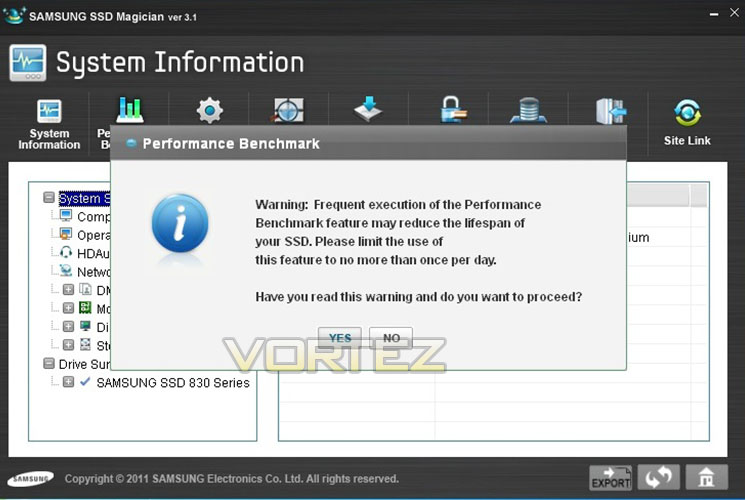
Upon selecting the Performance Benchmarking feature we were greeted with the following warning, it is recommended not to run SSD benchmarks very often as this can decrease the life span.
Samsung SSD Magician Cont.
After we ran the benchmark we were given the results, they coincide with the performance we should expect from the Samsung 830 Series 128GB SSD. We ran the test via our SATA 6Gbps port (SATA 3) to maximize performance.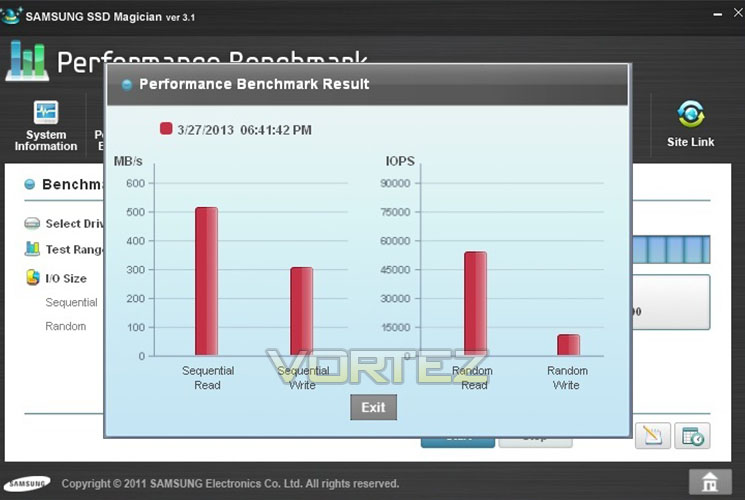
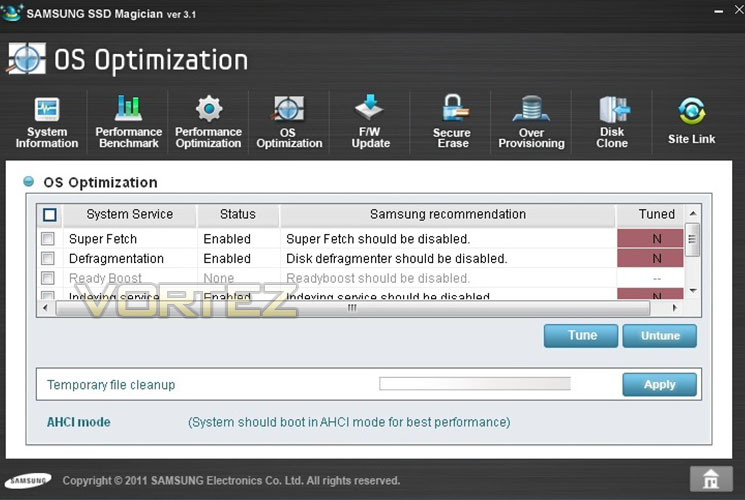
We then selected the OS Optimization tool which allowed us to use the Magician software to optimize our copy of Windows 7 Home Premium 64bit. You can also select to UN tune if you wish to do so.
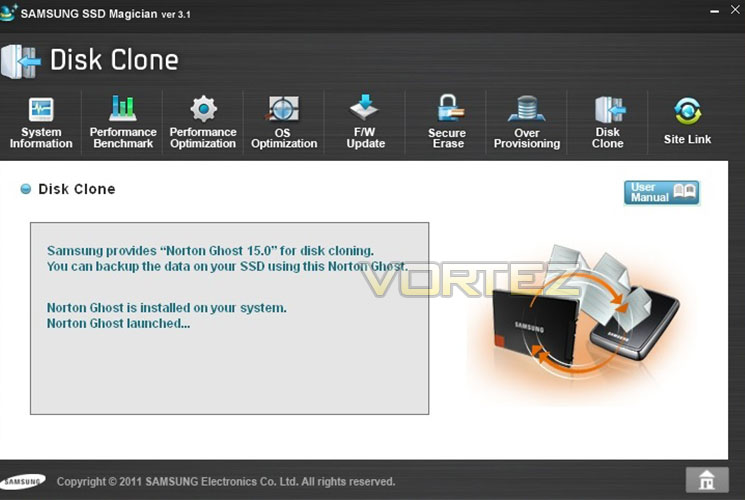
Next we decided to have a look at the Disc Clone feature. To use this feature you need to have Norton Ghost 15.0 installed, Make sure when you buy your Samsung SSD that you check to see if it comes bundled otherwise you will need to purchase this (we used an evaluation version to show you the main screen). Please note that Samsung have replaced this feature with the Data Migration software which will be provided with the 840 Series and above. This will work with all current Samsung SSDs. For those with 830 series please download via the Samsung Website.
Data Migration
With Samsung’s Data Migration software it allows you migrate your current operating system and data from your current storage device which then you can clone it to your Samsung SSD. This gives users the option to save themselves from having to reinstall everything from scratch. This software is also perfect if you don’t happen to have a copy of Norton Ghost 15.0, the Data Migration software is available for download here.
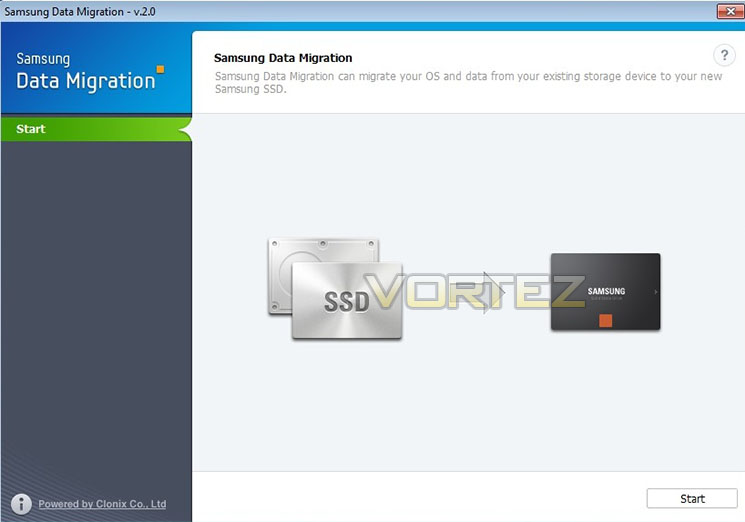
After installing the Data Migration software and opened the shortcut on our desktop we came across this screen. It is a quick and easy to navigate screen with a simple outlay of what the software does, and a start button.
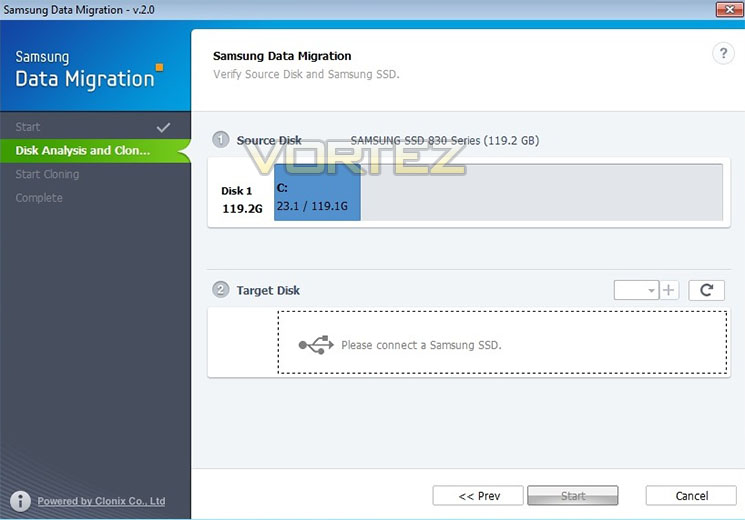
Once you click start it will move onto the next screen, here we are presented with a disk analysis which confirms what storage device is available known as the source Disk. To use this software you need to have a Samsung SSD and as you can see I needed to swap the device around and format our Samsung 830 Series 128GB SSD so we could show you how it works.
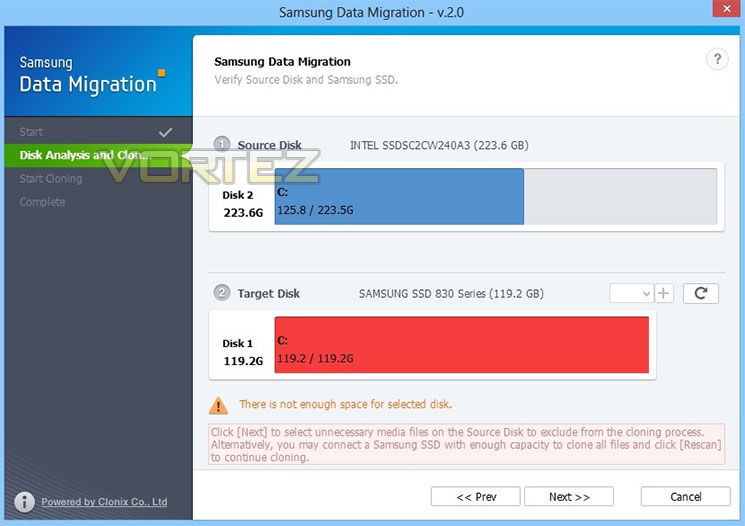
Upon formatting and swapping it around with our Intel 520 240gb SSD you can now see that the Samsung SSD doesn’t have enough space to fit the operating system and all the other files stored on our Intel SSD. It now gives you the option to go back where you can delete files that are not needed and will analyse the disks again or you have the option to click next and select them through the software itself.
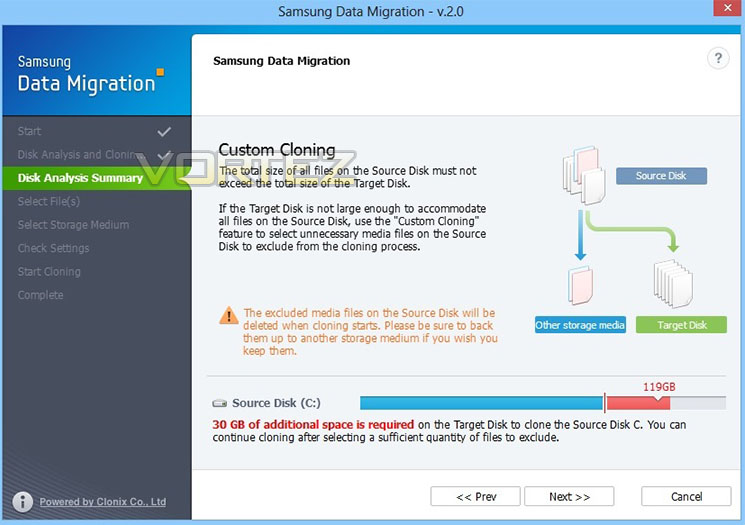
Now we come to the next screen, which informs of how much storage space we have as a deficit. As you can see the difference is 30GB, which is how much additional space we need to create.
Data Migration Cont.
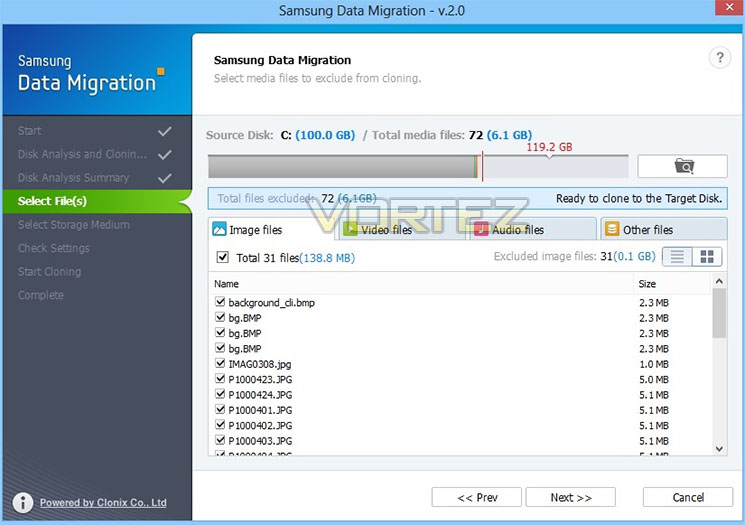
After clicking next and knowing exactly how much space we need to create, we move on. Now we have an option to scan and select which files we don’t want to clone over. It is separated into 4 different sections, Images, Videos, Audio, and everything else. We did struggle to pick up our games folders so we deleted a couple to make some more space manually via Windows.
On the next screen we were happily greeted with an option to transfer the remaining files over to another storage device and for this we used our USB flash drive to continue with the migration.
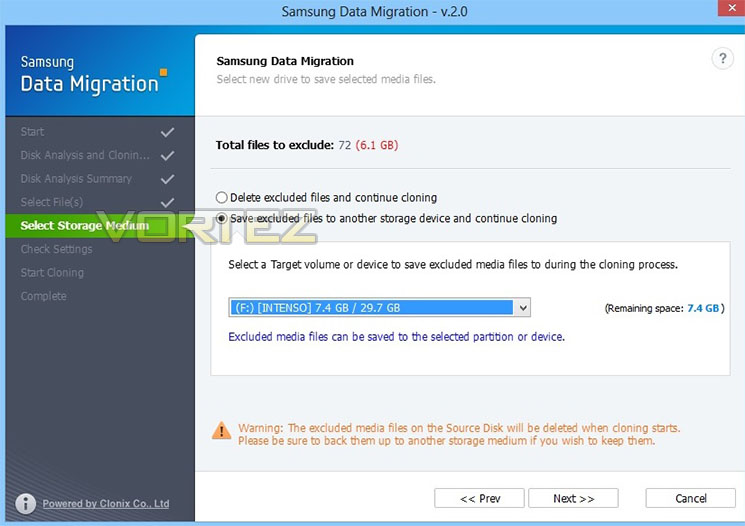
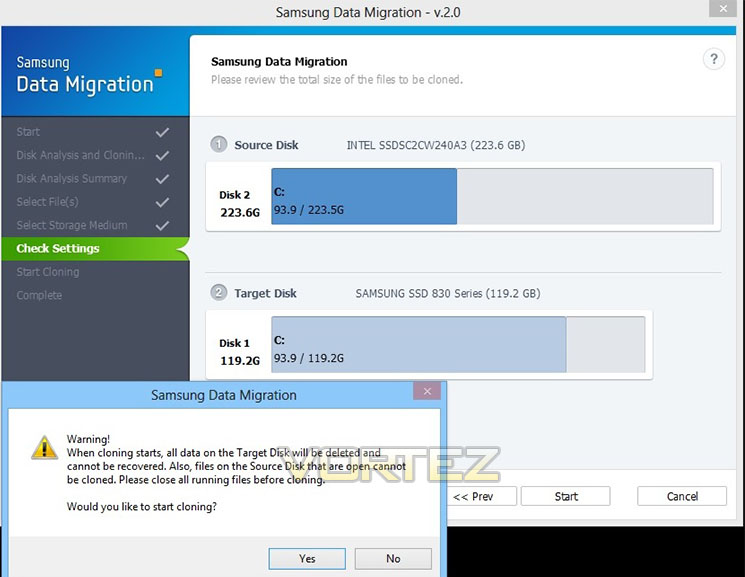
Once your finished selecting which storage device you want to use and move forward, you come to the next screen. It then gives you the option to go back and amend any settings and options you have selected throughout the process or you can start the cloning process. After clicking start you are given a warning which informs you that it will delete any data currently stored on the Samsung SSD, we freshly formatted ours before running the software but allows you to go back just in case there is something you might need or forgotten to back up.
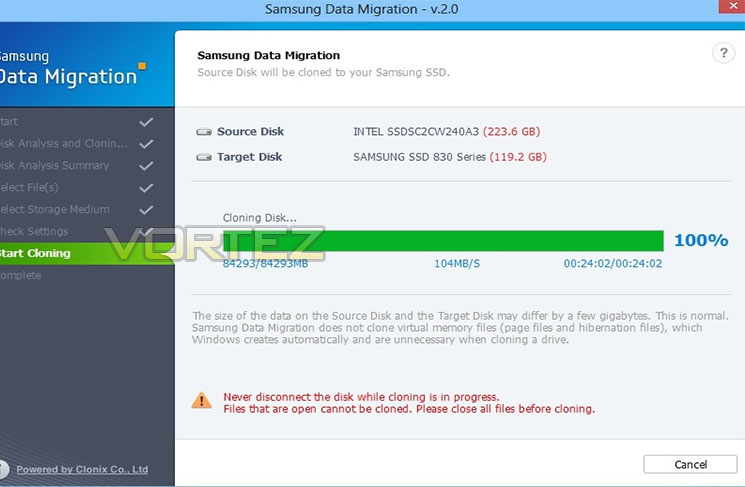
Upon starting the process we let it run, first it cloned the files onto our USB flash drive and then continued onto the SSD, this is where the fast write speeds come into play. We found it very quick considering how much data we moved overall.
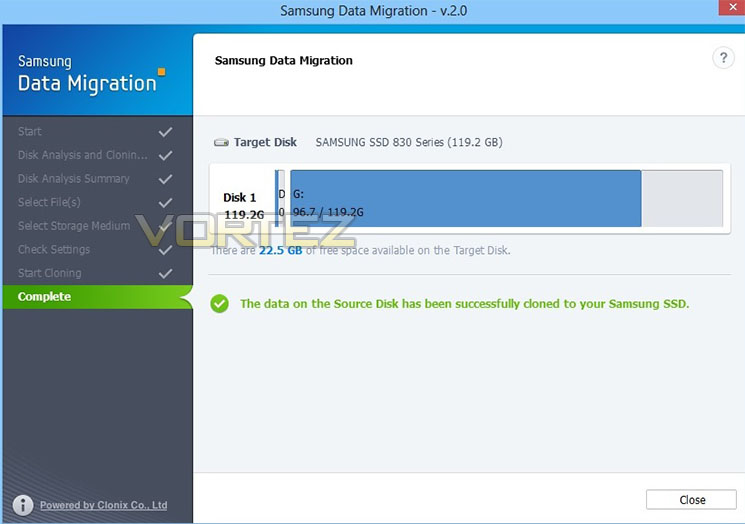
Here is the screen upon finishing which displays how much space is remaining on the Samsung 830 Series 128GB SSD. To try it out we took it over to another system and it booted up perfectly just like it should.
Conclusion
When we first reviewed the Samsung 830 Series 256GB SSD which picked up our Gold Award, we knew Samsung were on the winning road with their products especially when they combined premium build quality, high quality components with beautiful aesthetics into their SSDs.
Anyone who is looking for an SSD today can be confident that when they purchase one from the Samsung Series 830/840 range, they will get one with good reliability, quality and a one which will perform to a high standard. Today we took a look at the software that is available for use with all new Samsung SSDs, Samsung’s SSD Magician and the Samsung Data Migration software to see how they fit in alongside their range of SSDs. Well we got to grips with the software and put it through its paces but how did it do? Well let’s find out starting with the Samsung Magician Software.
Samsung Magician Software
After we had installed the software which was easy and painless as it could be, we ran the software and had a look at the many features such as OS Optimization, Secure erase and Disc cloning (Norton Ghost 15.0 required). We were pleasantly surprised to find that Samsung had including everything that the regular consumer could ever need in terms of options and tools.
The software felt very fluid and was a breeze to navigate around the plethora of menu’s and tools. The feature we feel deserves most praise is the OS optimization tool. Put simply, this changes the operating system’s settings such as page file, turns hibernation off etc. to squeeze every little bit of performance from the SSD. Another fantastic feature is the Firmware Update tool, with this it automatically searches for the latest firmware, and installs it without the need to use DOS or download manually and use a USB flash drive. The software was a pleasure to use which is a real credit to Samsung and we had no problems whatsoever with stability.
When we came to the clone function, we were prompted to install Norton Ghost 15.0. For those who don’t have a copy, the Data Migration tool is a direct replacement and will be distributed with all the latest new Samsung SSDs.
Samsung Data Migration Software
With the Data Migration software, Samsung wanted to provide the end user with a quick, easy and efficient experience in which to clone their SSDs, albeit you can do this with the Magician software and a copy of Norton Ghost 15.0 but we opted to use this as anyway as its a lot less complicated to use, and gives the exact same results. First impressions were great with a quick and easy installation, and as we went through the different stages of effectively cloning our Operating system and other files we found the experience a breeze. The software guided us through and informed us of all the important information right through the process even when it came to selecting a second media to store our overflow of files on(Our USB flash drive) . I have to mention that the software itself didn’t come bundled with the Samsung 830 Series 128GB SSD we tested it with but it is freely available to download from the Samsung website here
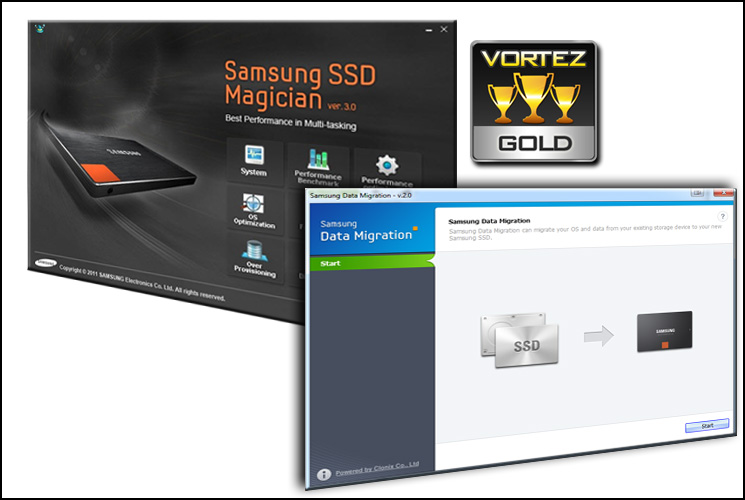
After using both pieces of software we are not only confident in Samsung’s abilities on the hardware side of things but with their software they show versatility. The software was easy to install and use and from hours of extended usage proved to be stable and bug free.
In regards to the clone feature on the Magician software, the Data Migration software does the same thing in effect and we really liked the results we received from using it. The cloned SSD was tested in another system and worked perfectly just like the original. So if you haven’t got Norton Ghost 15.0 and don’t want to purchase it, you don’t have to as the Data Migration software will allow you to clone with ease.
Samsung’s Magician software and Data Migration tool provides all Samsung 830 and 840 series owners with an easy to use solution for tasks which can be seen as a chore such as updating the firmware. Being bundled free with all the latest Samsung SSDs only adds to the quality and takes a product that is already top of the range and adds that little bit more. The Samsung 830 Series SSD received our gold award and now Samsung can be proud that their hard work has paid off as we award both the Magician and Data Migration software our gold award.
Pros
+ It’s Free
+ Easy to install and navigate
+ Polished Interface
+ Very Stable
+ Many useful features and tools
Cons
– None
+ It’s Free
+ Easy to install and navigate
+ Polished Interface
+ Very Stable
+ Many useful features and tools
Cons
– None

Click here for an explanation of our awards at Vortez.net.


