Synology are back with their next installment to the popular two-bay NAS; the DS216. With take an indepth look at it with the new DSM 6.0.

Product on Review: DiskStation DS216
Manufacturer & Sponsor: Synology
Street Price: £209 GBP / $290 USD
Having reviewed many Synology NAS units at Vortez and used them on our own personal networks over the years, it’s evident that we’re quite a fan of their products. The secret to their success lies in the fine balance between solid hardware specifications and an all-encompassing software suite. Rarely do you find a company which can strike this balance as one of these elements is generally weak (usually the software).
Over the years Synology has built-up a strong reputation in the NAS arena as having one of the most flexible and intuitive operating systems available. Their DSM OS receives regular updates and it’s clear that the company places particular emphasis on software development. Last month Synology release their sixth iteration of DSM to the public and today we’ll be exploring it along with the DS216.
DS216 is Synology’s 2016 edition of their popular two-bay NAS designed for workgroups and small offices. This elegant unit makes use of MARVELL Armada 385 88F6820, 512MB of DDR3 and can accommodate up to 16TB of data storage.
Synology on their DS216
DS216 is a feature-rich 2-bay NAS server, suitable for workgroups and office environment. With a hardware encryption engine, DS216 delivers speedy performance and protects data effectively, while boosting productivity.
Hardware Specifications
Below is the hardware specifications for the DS216 – courtesy of Synology:
CPU
CPU Model: MARVELL Armada 385 88F6820
CPU Frequency: Dual Core 1.3 GHz
Floating Point: Yes
Hardware Encryption Engine: Yes
Memory
System Memory: 512 MB DDR3
Storage
Drive Bay(s): 2
Compatible Drive Type
3.5″ SATA(III) / SATA(II) HDD
2.5″ SATA(III) / SATA(II) HDD (with optional 2.5″ Disk Holder)
2.5″ SATA(III) / SATA(II) SSD (with optional 2.5″ Disk Holder)
Maximum Internal Raw Capacity
16 TB (8 TB HDD X 2) (Capacity may vary by RAID types)
External Ports
USB 2.0 Port: 1
USB 3.0 Port: 2
File System
Internal Drives: EXT4
External Drives: EXT4, EXT3, FAT, NTFS, HFS+ (Read Only, max volume 2TB)
Appearance
Size (Height X Width X Depth): 165 mm X 108 mm X 223.2 mm
Weight: 1.3KG
Others
RJ-45 1GbE LAN Port: 1
Wake on LAN/WAN: Yes
System Fan: 92 mm X 92 mm X 1 pcs
Wireless Support (dongle): Yes
Noise Level: 18.5 dB(A)
Power Recovery: Yes
Scheduled Power On/Off: Yes
Power Supply Unit / Adapter: 60W
AC Input Power Voltage: 100V to 240V AC
Power Frequency: 50/60 HZ, Single Phase
Power Consumption: 13.42W (Access) 5.28W (HDD Hibernation)
Temperature
Operating Temperature: 5°C to 40°C (40°F to 104°F)
Storage Temperature: -20°C to 60°C (-5°F to 140°F)
Relative Humidity: 5% to 95% RH
Certification
FCC Class B
CE Class B
BSMI Class B
Warranty
2 Years
CPU Model: MARVELL Armada 385 88F6820
CPU Frequency: Dual Core 1.3 GHz
Floating Point: Yes
Hardware Encryption Engine: Yes
Memory
System Memory: 512 MB DDR3
Storage
Drive Bay(s): 2
Compatible Drive Type
3.5″ SATA(III) / SATA(II) HDD
2.5″ SATA(III) / SATA(II) HDD (with optional 2.5″ Disk Holder)
2.5″ SATA(III) / SATA(II) SSD (with optional 2.5″ Disk Holder)
Maximum Internal Raw Capacity
16 TB (8 TB HDD X 2) (Capacity may vary by RAID types)
External Ports
USB 2.0 Port: 1
USB 3.0 Port: 2
File System
Internal Drives: EXT4
External Drives: EXT4, EXT3, FAT, NTFS, HFS+ (Read Only, max volume 2TB)
Appearance
Size (Height X Width X Depth): 165 mm X 108 mm X 223.2 mm
Weight: 1.3KG
Others
RJ-45 1GbE LAN Port: 1
Wake on LAN/WAN: Yes
System Fan: 92 mm X 92 mm X 1 pcs
Wireless Support (dongle): Yes
Noise Level: 18.5 dB(A)
Power Recovery: Yes
Scheduled Power On/Off: Yes
Power Supply Unit / Adapter: 60W
AC Input Power Voltage: 100V to 240V AC
Power Frequency: 50/60 HZ, Single Phase
Power Consumption: 13.42W (Access) 5.28W (HDD Hibernation)
Temperature
Operating Temperature: 5°C to 40°C (40°F to 104°F)
Storage Temperature: -20°C to 60°C (-5°F to 140°F)
Relative Humidity: 5% to 95% RH
Certification
FCC Class B
CE Class B
BSMI Class B
Warranty
2 Years
Packaging & Bundle
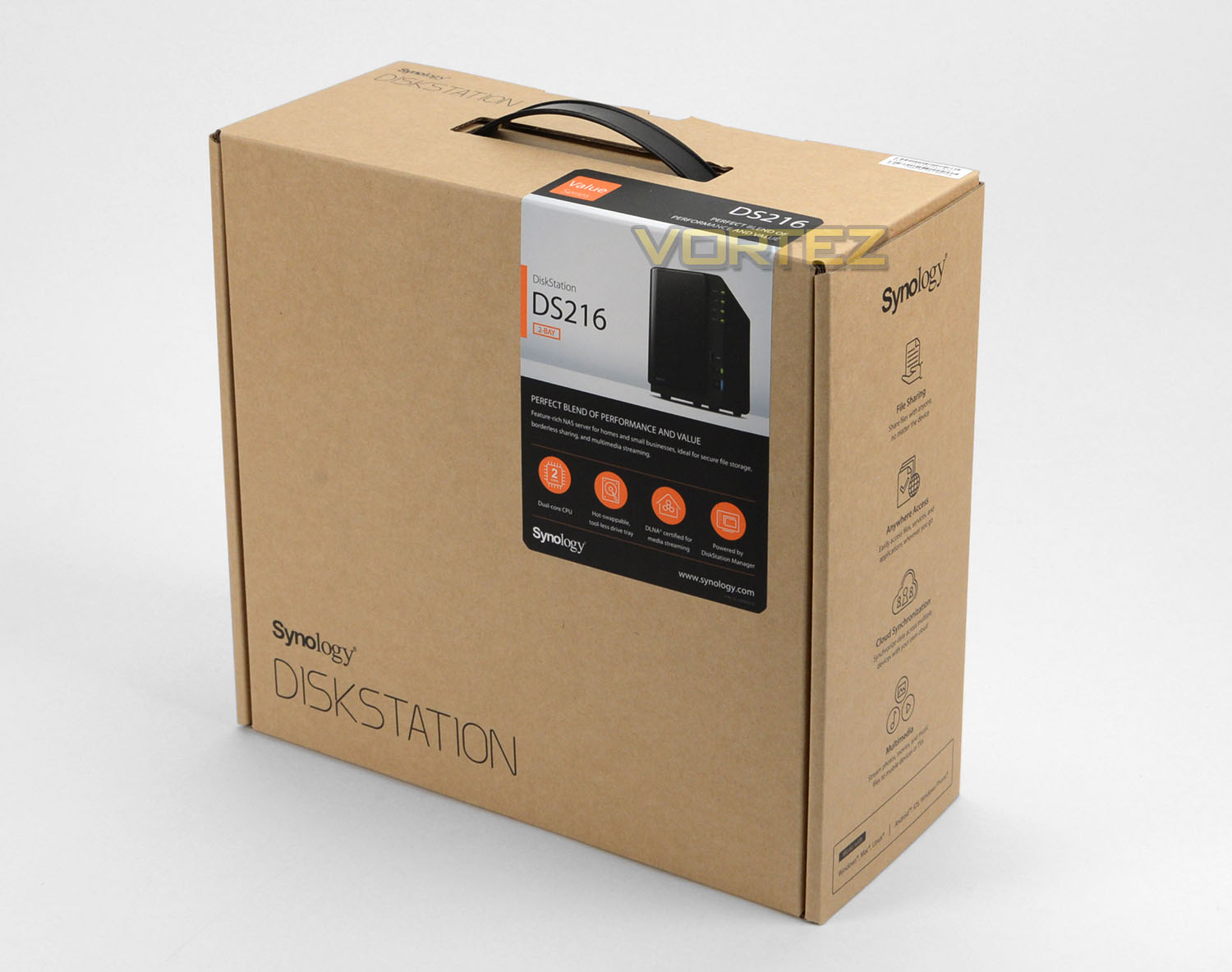
As part of Synology’s 2016 refresh the packaging for DS216 opts for a slim eco-friendly box which features a carry handle. Some of the key features are listed on the box as well as the serial number.
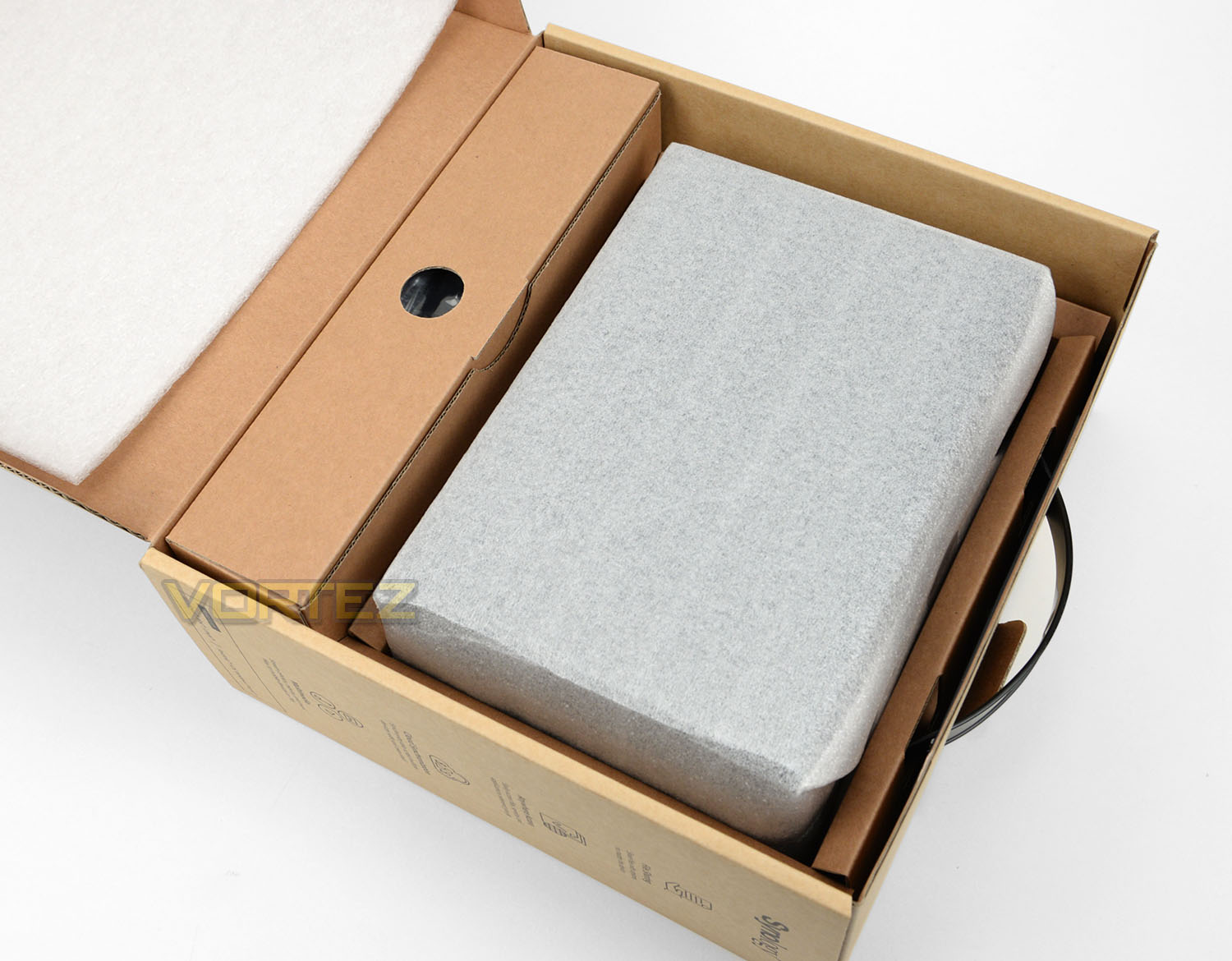
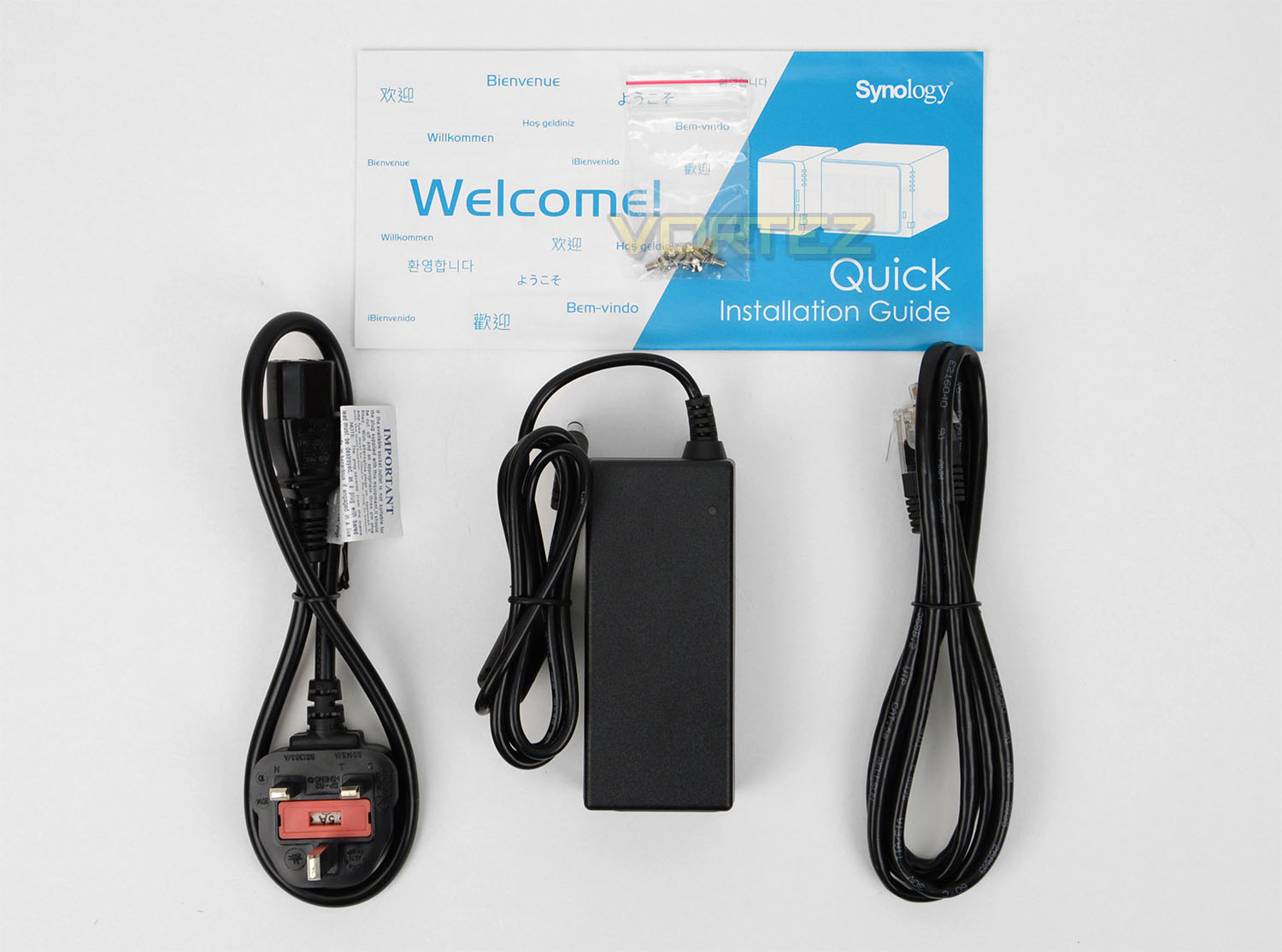
Opening the box up, inside the NAS is well-protected with a soft foam cover and cardboard reinforcement. Synology also include an additional box which contains all of the bundled accessories. These parts include:
• Main Unit X 1
• Welcome Note/Guide X 1
• Installation Screws x 8
• AC Power Adapter X 1
• AC Power Cord X 1
• RJ-45 LAN Cable (CAT5e) X 1
Closer Look
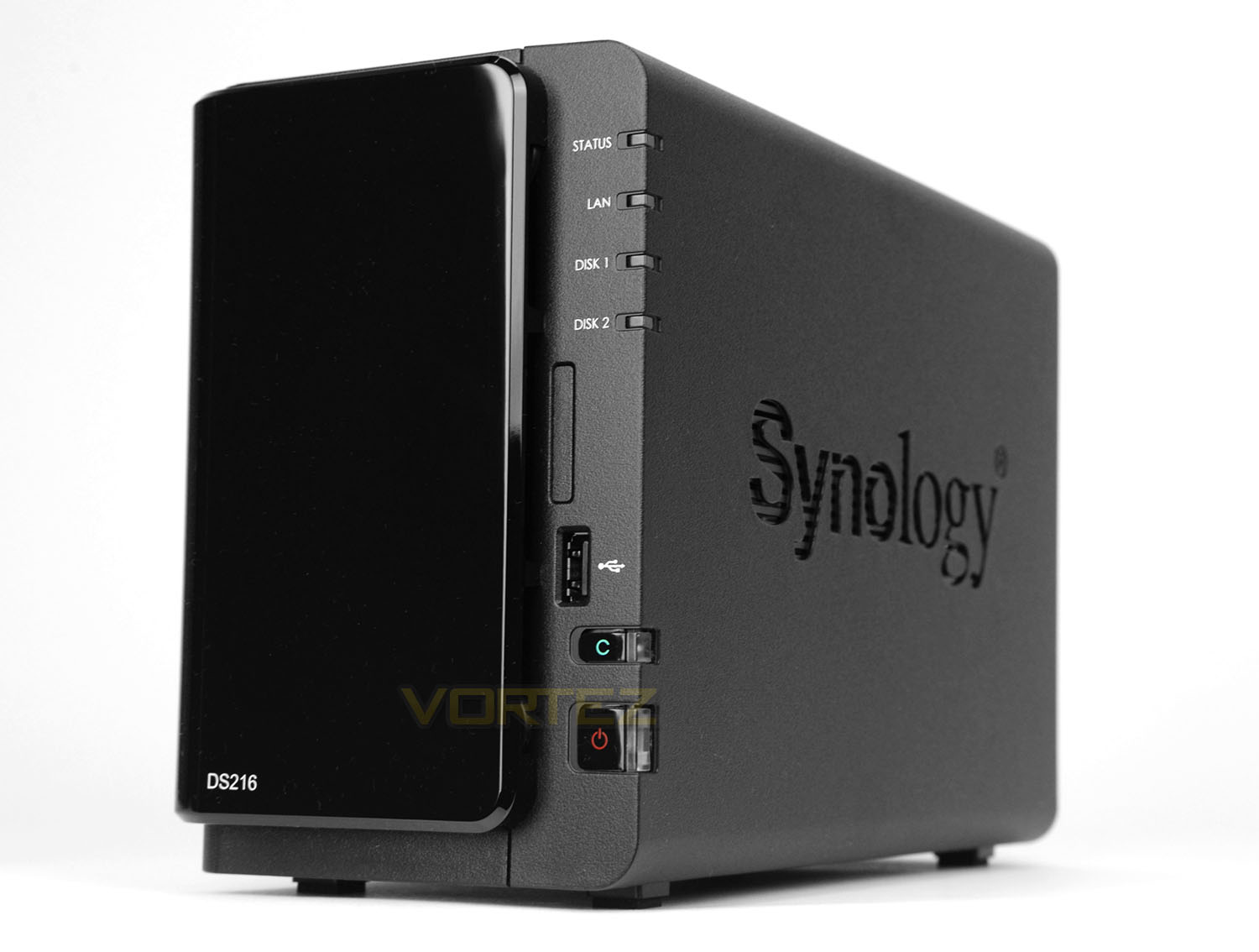
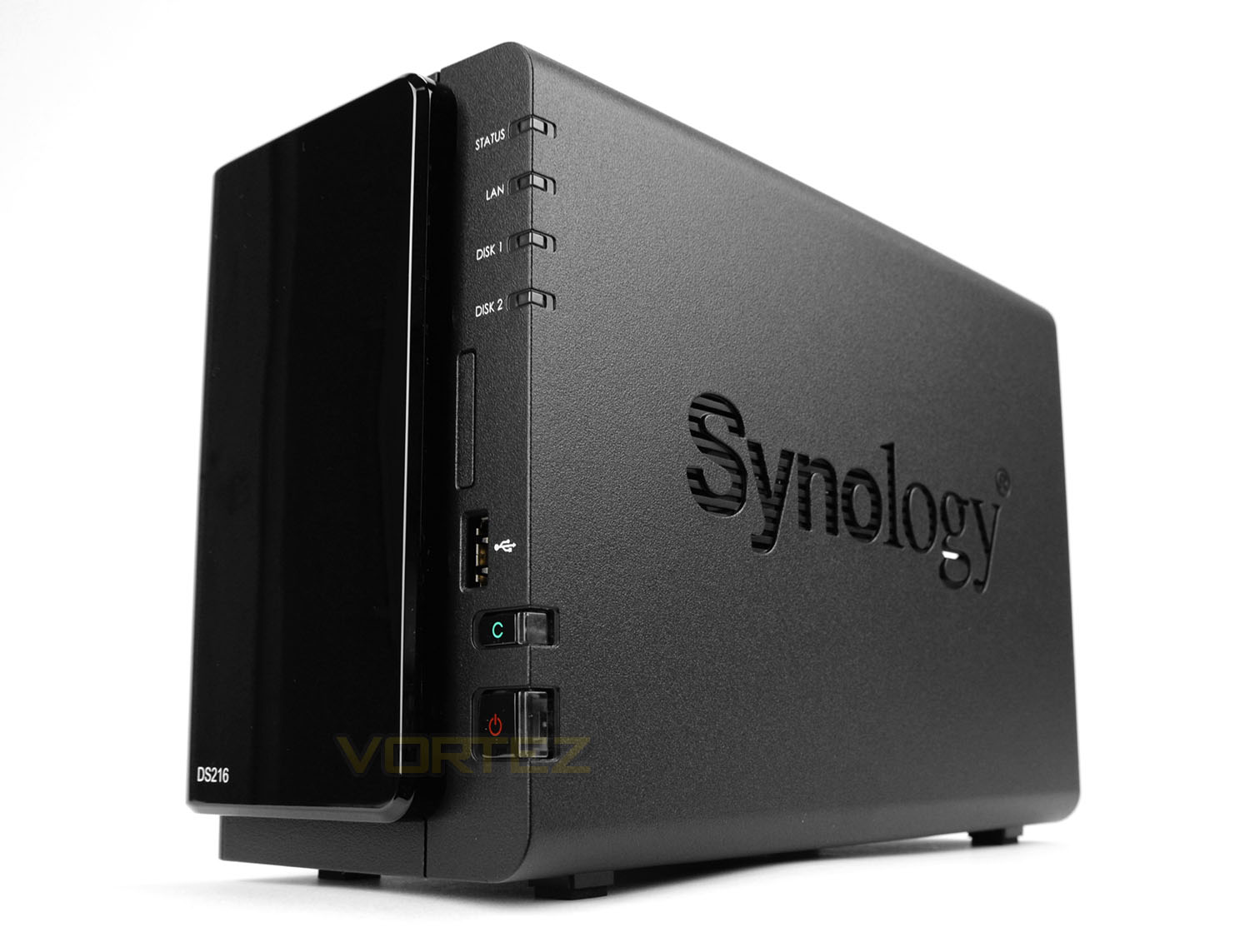
Removing the DS216 from its packaging, we are met by a rather sleek looking NAS unit. Both sides utilise a stencil cut-out of the Synology logo which also doubles up to offer some minor ventilation for the internal components and storage drives.
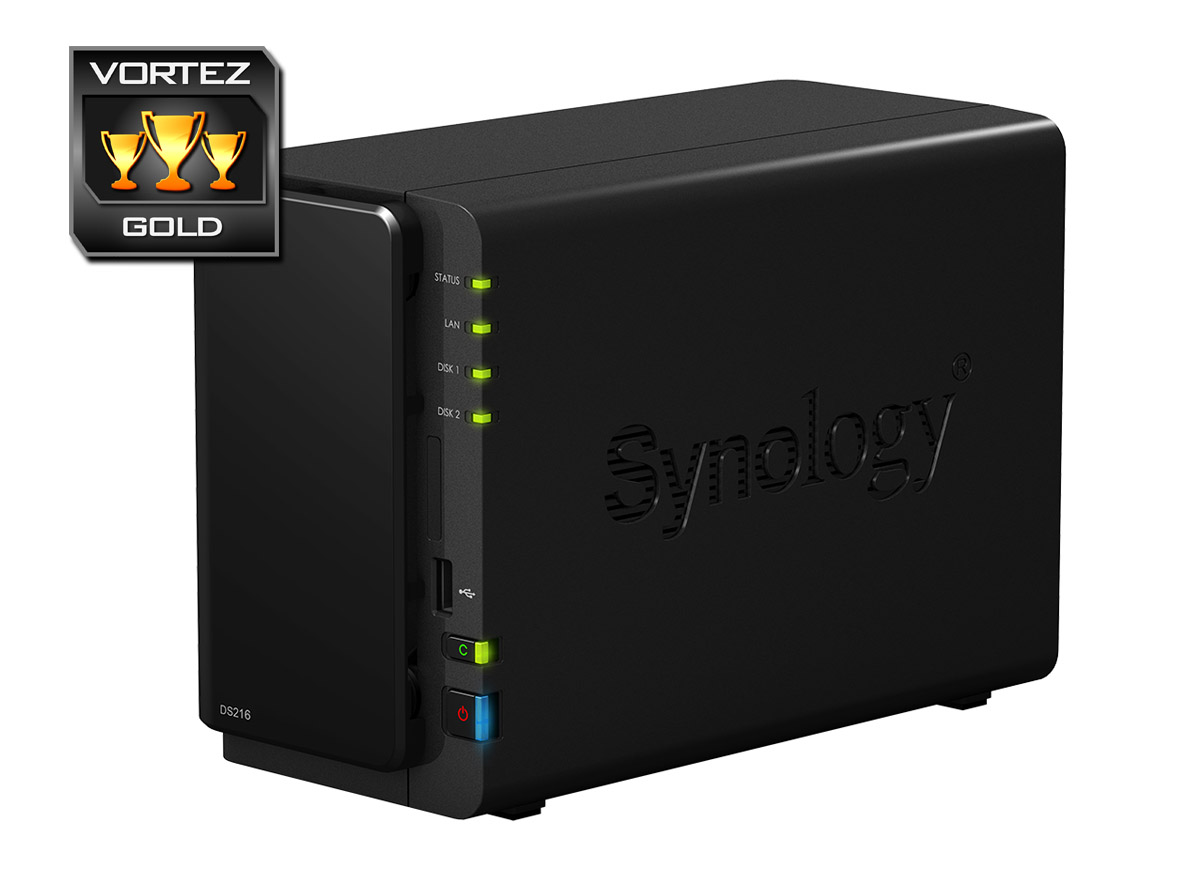
At the front we have a large detachable glossy panel which allows access to the storage trays and along the right-edge there are LEDs for STATUS, LAN, DISK 1 and DISK 2. Synology also include a single USB 2.0 port, fast copy button and the power button.
To take advantage of the copy button, this feature firstly needs to be enabled in the DSM software. Once enabled, backups can be easily processed by simply inserting a USB drive and pressing the button.
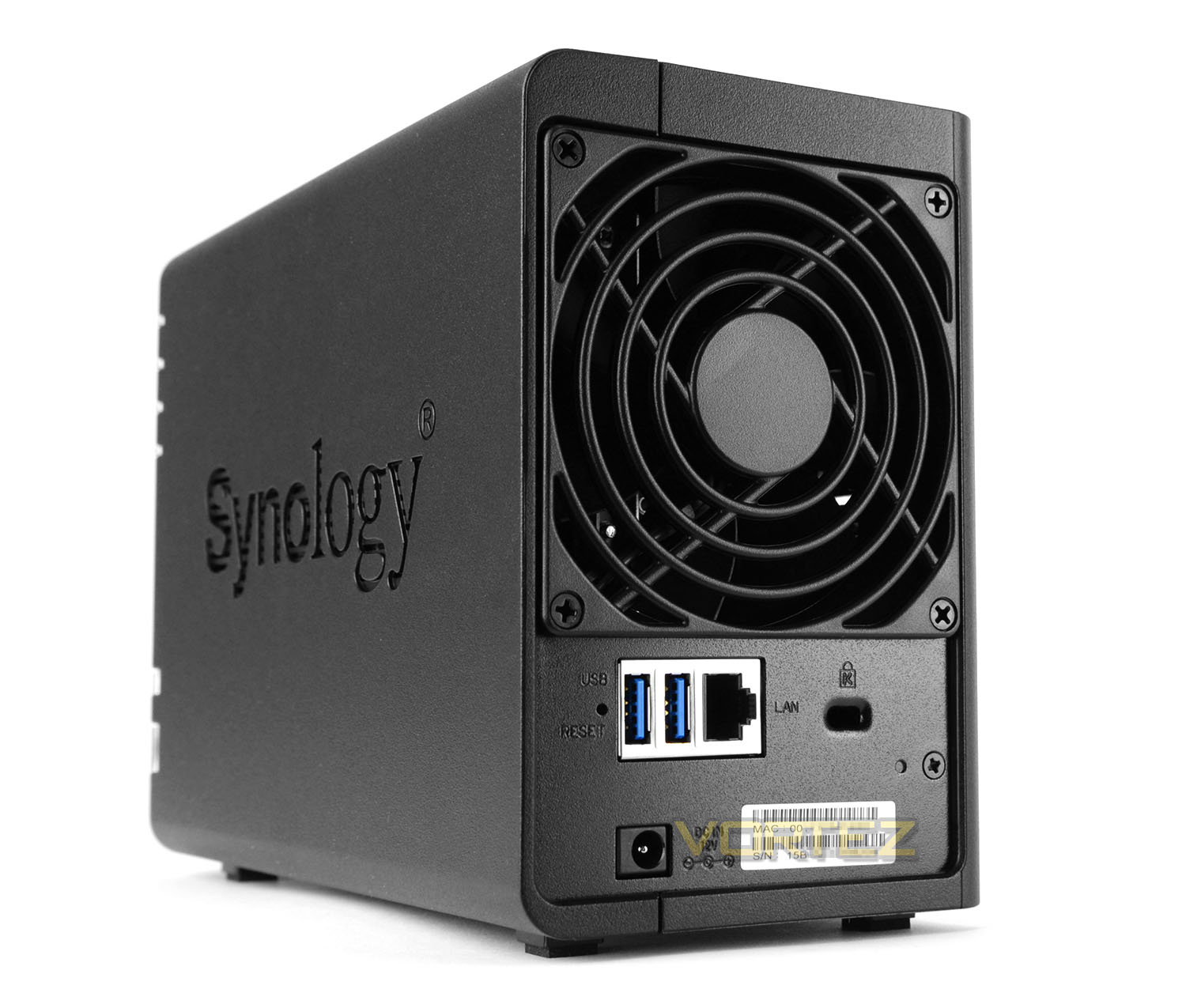
Around the back there is a grill for the 90mm rear exhaust fan – this fan is the only cooling solution within DS216 and is responsible for flushing out unwanted heat. and below this we have a factory reset button, two USB 3.0 ports, Gigabit LAN port, Kensington lock allocation and the AC power port to work in conjunction with the supplied power pack.
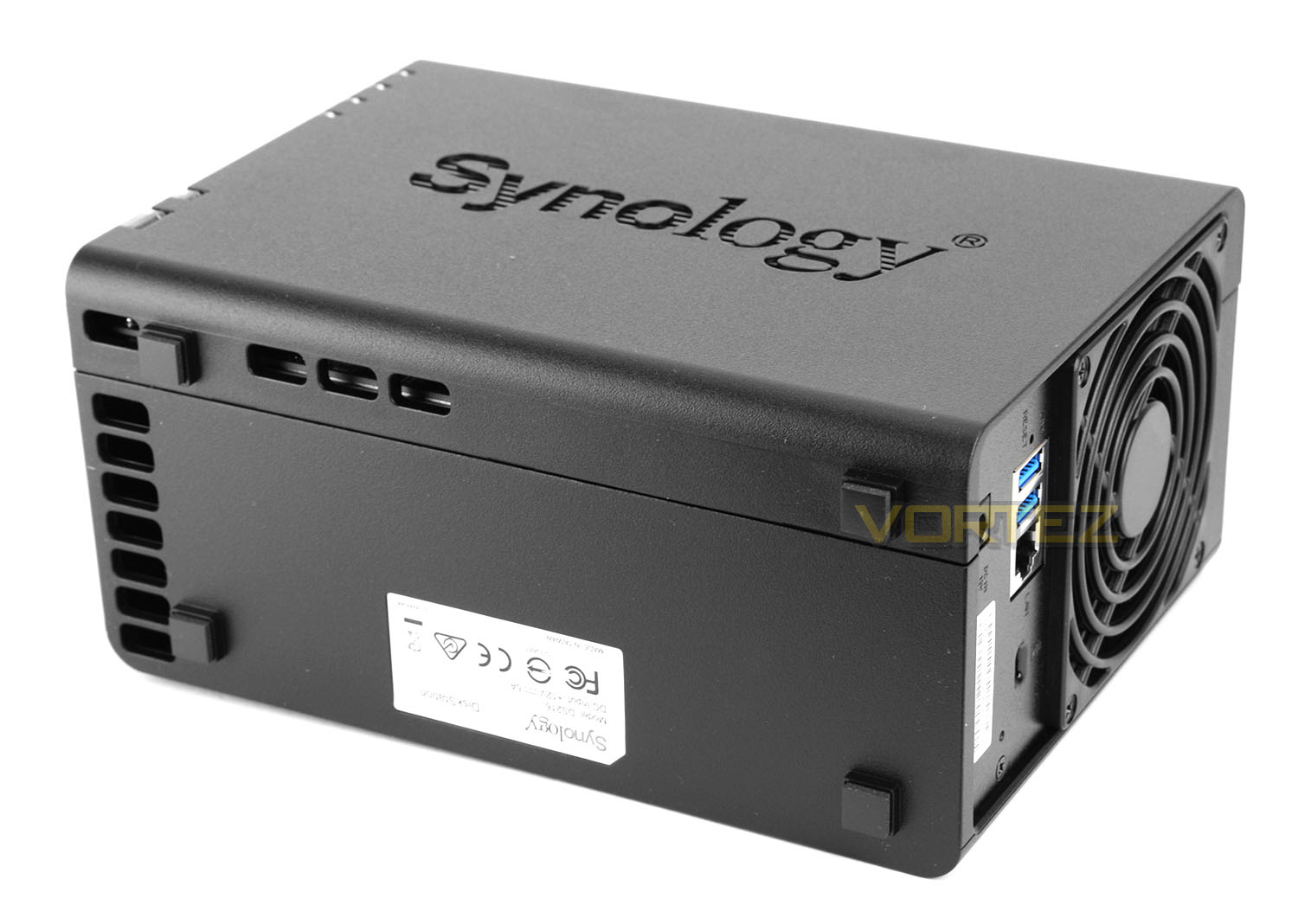
Flipping the DS216 over, onto its side, we have a group of four rubber pads to keep the unit stable when placed on smooth surfaces and there are some extra sections for ventilation.
HDD Installation – Inside DS216
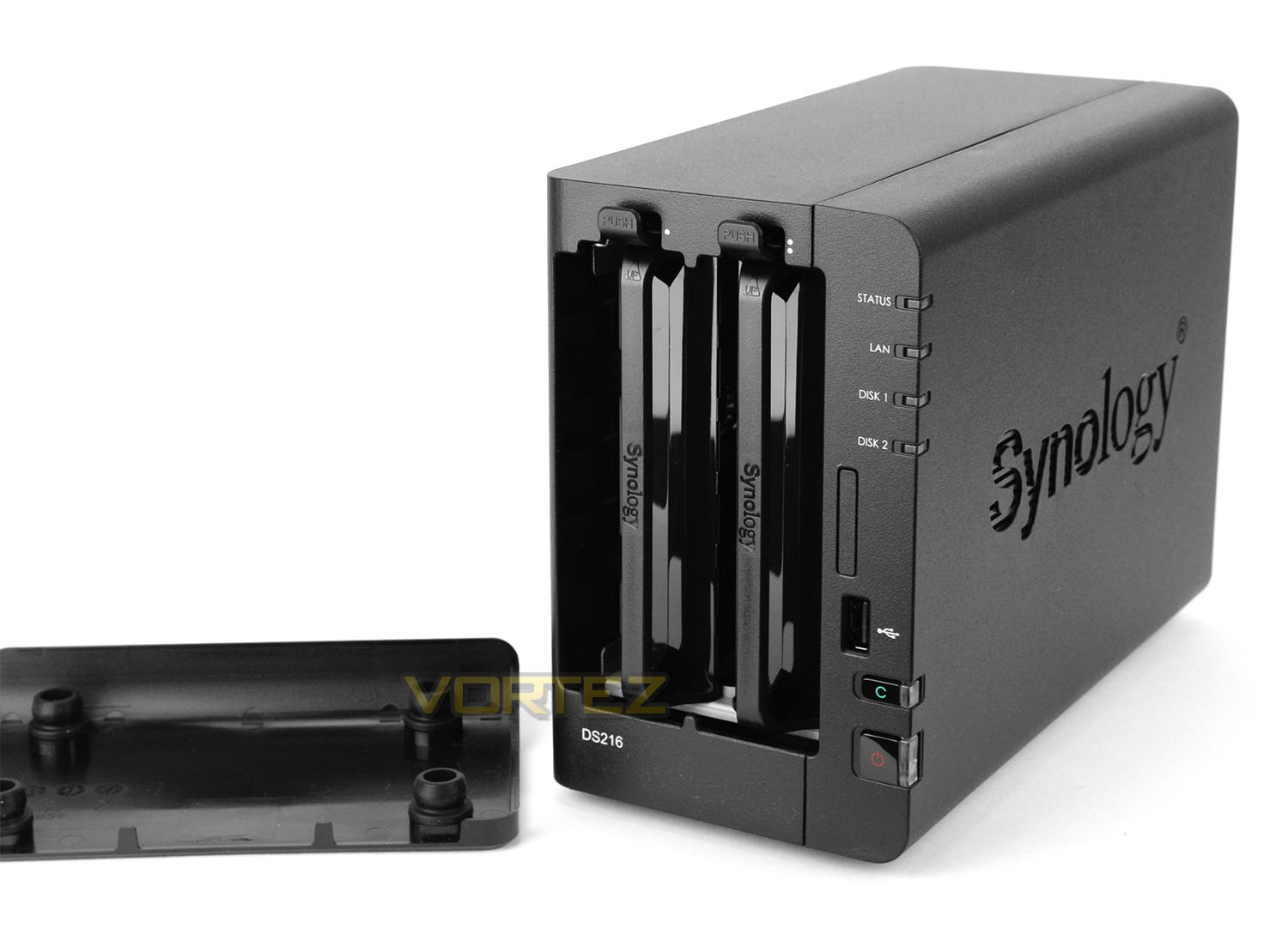
To gain access to the inside of DS216, the front fascia needs to be detached. This simply pulls off the chassis to reveal two HDD trays which offer hot-swappable functionality.
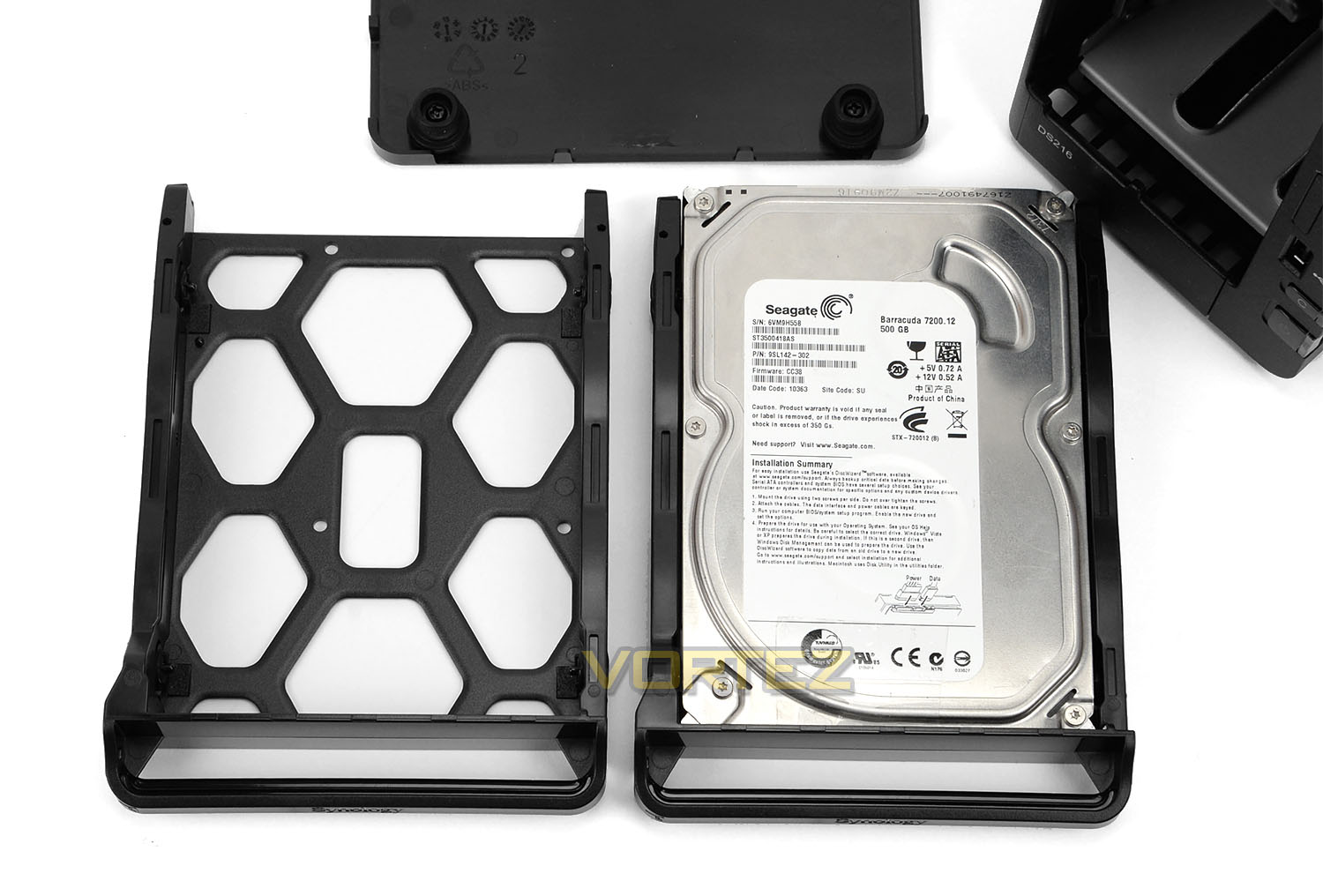
The HDD trays can host 2.5” and 3.5” drives and DS216 can accommodate up to 16TB of storage. DS215j has support for 2.5” and 3.5” drives and offers a maximum capacity of 12 TB. 3.5” drives can make use of a tool-free set of clips on either side and 2.5” drives require screws attaching from the underside.
Once the drive is secure, the tray can be slid back into the chassis to have the SATA connectors marry up with the ports inside the NAS.
We would usually take a look at the internal design and components within the NAS but since there is no clear way of getting inside the unit we must refer to the technical specifications instead. These are as follows:
• CPU Frequency: Dual-core 1.6GHz
• Hardware Encrypted Engine + Floating Point
• Memory: DDR3 512MB
• Internal HDD/SSD: 3.5″ or 2.5″ SATA(II or III) X2
• Max Internal Capacity: 16TB (2X 6TB HDD)
Last year (to our knowledge) Synology didn’t release a DS215 – only the DS215j and DS215+. Looking at the above specifications, the DS216 still sits behind last year’s DS215+; ideally we’d have liked to see some improvements to the memory capacity and CPU frequency.
Over the page we’ll be testing out the DS216 by looking at the DSM 6.0 software and its features.
Synology DSM 6.0
DSM 6.0 stepped out of its Beta stage last month (March 2016) and is now available as an official update. In the past we’ve been extremely impressed by DSM since it offers a rather extensive feature-set with plenty of flexibility for home and business users.
Here are some of the new features that users can experience with the new DSM 6.0:
• Virtualization for flexible resource allocation
• Secure and intuitive mail solution
• Private cloud collaboration suite
• Business-ready storage and backup
• Cloud and file syncing
• Anywhere access to multimedia files
• Strengthened security
Over the following pages we’ll explore some common features with DSM 6.0 but on this page we’ll discuss the process for getting up and running with this new OS.
To gain access to the NAS and begin using it, there are two methods which can be used – via the Synology Assistant or via Web Assistant. The Synology Assistant can be obtained from the Download Center. We used the Web Assistant method to install DSM – as you can see above, DSM can be fed to the NAS via a .pat file.
During the installation of DSM, networking settings are applied and configuration files are transferred. This process involves applying network protocols, formatting the drives and adding partitions ready to be used for storage. This process doesn’t take very long at all – it will of course depend on how large the drives are though.
Upon completion, administrator login credentials are requested and moments later you’re taken to the login page where you can enter the OS and configure your NAS.
Inside the GUI there are lots of features to look at and use. The interface is fluid, interactive and very extensive. Over on the subsequent pages we’ll demonstrate Video Station and Photo Station.
Synology DSM 6.0 – Video Station
A popular feature of Synology’s DSM is the Video Station functionality. This package allows users to view video content locally over a network or remotely over the internet. As well as being able to log into the NAS via DSM to view a video, the DS Video app can be installed on a mobile device which is especially useful if a computer isn’t accessible.
Inside Video Station libraries can be configured to host your favourite movies and the package even sources key information about the movie; such as the cast and critique rating.
Below is a demonstration of Video Station in action – along with the use of DS Video via the android version of the app. As you can see, the whole operation is seamless and certainly intuitive. (Video Station has already been installed on the NAS). To get the most out of this demo, please view at 1080p and using fulllscreen mode:
Synology DSM 6.0 – Photo Station
In similar fashion to the Video Station, the Photo Station is another common package which many users will want to take advantage of. Photo Station, as its name suggests, provides the user with a means to access a library of photo albums. Photo Station can be accessed via DSM through a computer or by using the DS Photo app via a mobile device.Photo Station offers an extensive feature-set which allows different users to see specific folders and images. Photos can also be viewed and ordered differently too – a slideshow presentation is even available if for example you’re wanting to show off those holiday snaps!
Below we’ve filmed a demonstration of Photo Station, along with the DS Station app using an Android device; there you can see just how wide-ranging this package is – it offers plenty of flexibility for your multimedia purposes. To get the most out of this demo, please view at 1080p and using fulllscreen mode:
Power & Thermal Performance
We have looked at some of the features that DSM 6.0 brings with DS216 but how are the typical transfer rates over a Gigabit network?
Test System Specifications
CPU Intel Core i5 2500K
Motherboard ASRock Z68 Extreme4 Gen3
Memory 8GB Kingston HyperX 1600MHz DDR3
Graphics NVIDIA GTX 580
PSU Thermaltake Toughpower Grand 750W
Motherboard ASRock Z68 Extreme4 Gen3
Memory 8GB Kingston HyperX 1600MHz DDR3
Graphics NVIDIA GTX 580
PSU Thermaltake Toughpower Grand 750W
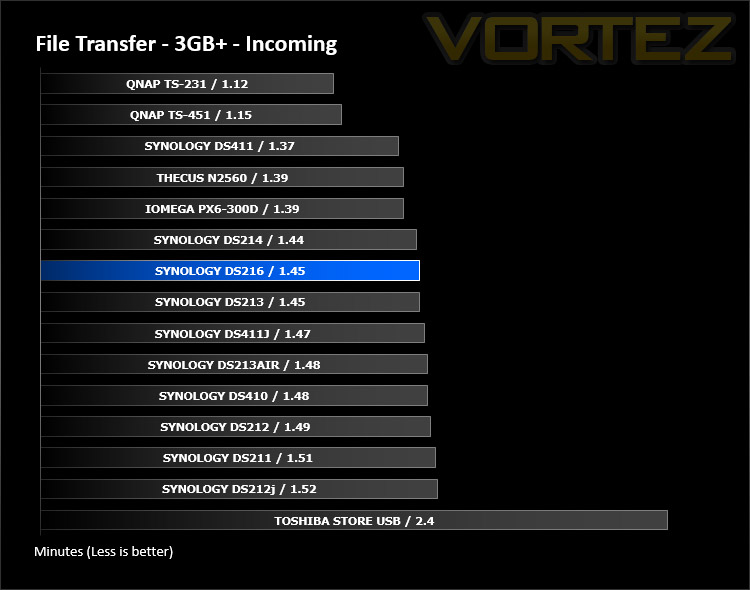
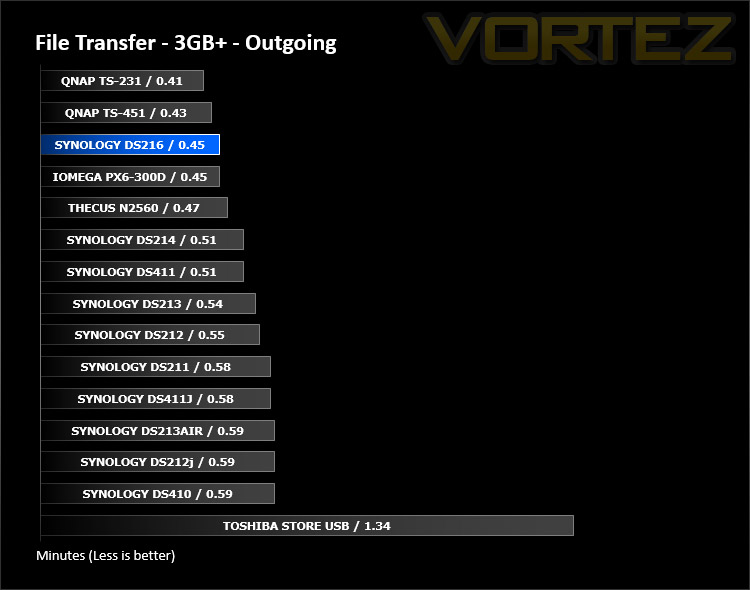
For the purpose of real world testing we bundled together 6 files which were in 2 folders amounting to 3.2GB. We wanted to discover the incoming and outgoing transfer times between the DS216 and the computer – against other devices on a Gigabit network. Here are the results.
Conclusion
It’s clearly evident why Synology hold such a strong position in the home and SMB NAS marketplace. This prolific brand focus all of their expertise in both the hardware and software aspects of their product development.
When examining the building blocks to success in the NAS arena the hardware aspect is perhaps regarded as a secondary entity while the software predominately takes centre-stage. Acquiring hardware isn’t difficult, but designing and intuitive, all-encompassing software suite is where many fall by the wayside, but not so for Synology. Their very latest DSM 6.0 is testament to the brands acute awareness to software development – having only entered the beta stages some six months ago, the final release is now freely available to the public. The brand constantly innovative with this development and they certainly do not stand still, which is perhaps an indicator to their success.
We’ve seen DSM change over the years and the latest version reveals a consistently strong software suite which translate to a very positive NAS experience. Regardless of whether you’re a home or business user there are a plethora of tools and options available which will cover a vast range of uses/activities. In this review we’ve tested out the Video Station and Photo Station – two packages which are probably quite popular amongst home users. Both packages are easy to set up and configure and as we’ve shown on the previous pages via video, mobile devices can be used to view multimedia files; so you don’t necessarily have to be sat at a computer to view such content.
The only criticism we’d perhaps flag up is the lack of progression with NAS specifications compared to previous generations. We’d ideally like to see a slight bump in performance and a USB 3.0 port at the front rather than USB 2.0.
DS216 is currently priced at £209 GBP / $290 USD – which represents decent value for money considering the build quality, hardware features on offer and extensive software suite. We’re also reminded that DS216 is backed by a generous 2-years warranty.
DS216 is a solid two-bay NAS which is equally backed by an outstanding NAS OS courtesy of the new DSM 6.0. Users have access to a comprehensive lineup of features that are suitable for the home or small office workspace.
Pros
+ Elegant design
+ Great build quality
+ Dual-core support
+ Can house up to 16TB
+ 2.5” and 3.5” drive support
+ USB 3.0 support at rear
+ Excellent performance
+ Low fan noise
+ Feature rich operating system
Cons
– Similar hardware specification to previous years!
+ Elegant design
+ Great build quality
+ Dual-core support
+ Can house up to 16TB
+ 2.5” and 3.5” drive support
+ USB 3.0 support at rear
+ Excellent performance
+ Low fan noise
+ Feature rich operating system
Cons
– Similar hardware specification to previous years!
Click here for an explanation of our awards at Vortez.net.