







We take a look at the latest incarnation of Uniblue’s RegistryBooster software, a simple yet powerful ‘click to fix’ solution to that cluttered and fragmented Windows registry.
Product on Review: Uniblue RegistryBooster 2010Manufacturer and Sponsor: Uniblue
MSRP: £26.62 ($39.99 at time of writing)
Street Price £19.99

Software developer Uniblue have only been around since 2003 but have already produced an extensive suite of applications targeted at improving PC security and performance. Their product range includes amongst others titles such as ‘SpeedUpMyPC’, ‘SpyEraser’ and the one we are looking at today ‘RegistryBooster’ – all pretty self explanatory really!
RegistryBooster 2010 has been updated to include some new features such as support for Windows 7 32 and 64-bit; a new ‘Damage Level Indicator’ to graphically show the potential impact of registry errors on performance and a redesign of the app itself to make it smaller and faster.
Registry cleaners have long been a matter of debate amongst technical gurus and opinions are often divided. Personally I have never used a Registry utility of any kind preferring to rely on my own abilities to keep my system running smoothly, until now that is.
Here’s what Uniblue have to say about RegistryBooster 2010:
| The Problem Have you noticed that the longer you have your computer, the slower it runs and the more it crashes? Often this is because whenever you install or uninstall software, add or remove hardware, or change your computer’s settings, the Windows registry is updated. These changes can leave the registry fragmented, with obsolete, corrupted and, in some cases, harmful files. Over time the registry starts to get bogged down and conflicts emerge. Left unchecked, your system will become increasingly unstable, run more slowly and crash more frequently. The Solution RegistryBooster is the easy answer to all your Windows registry problems. This award winning software starts by conducting a deep scan of your registry, checking for file extension errors and other registry conflicts. RegistryBooster will then repair or remove unused, corrupted and harmful files so optimizing your PC’s performance. You can then use regular scans to keep your registry structured and your PC speeding along at peak efficiency. With RegistryBooster you’ll see immediate increases in performance and decreases in system conflicts. |
Lets have a look at RegistryBooster and see if it lives up to the claims.
Installation & Usage
InstallationAs is pretty standard fare these days RegistryBooster’s setup wizard guides you through the process in only 8 screens with minimal user interaction required. From selecting the initial language for the installation, you go through a Welcome screen recommending that all other apps be terminated for the install, get asked to accept a standard EULA, select the installation path, select Start Menu folder, choose additional tasks such as create a desktop shortcut, then are presented with a recap of your choices before clicking ‘Install’ which takes only a few seconds to complete and then you are done and can choose to launch the program then if you want. No reboot was required and everything went very smoothly indeed.
Usage
As soon as you start the program it launches an initial scan (behaviour which can be changed through the settings screen) which does a complete check of the system’s registry and within a minute or two produces a report summary which will probably scare the living daylights out of most mere mortals! Don’t worry though as you are pretty much guaranteed to have at least some registry errors. My system had been completely rebuilt at the start of the year and so in less than two full months I was quite surprised to see the following results.
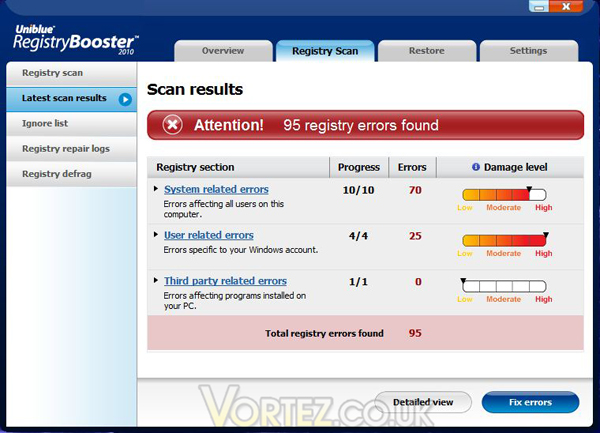
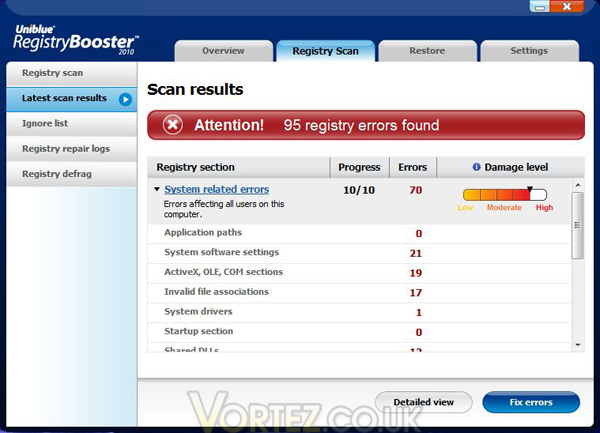
So as you can see I had 95 errors detected! Sounds bad. But what are those errors and how bad are they actually? As you can see they are categorised and each shows the number of errors and the severity or ‘Damage Level’. You can click on each of the three category headings which are underlined; System related errors, User related errors and Third party related errors – this will give you further information about which of the tested areas each error falls under.
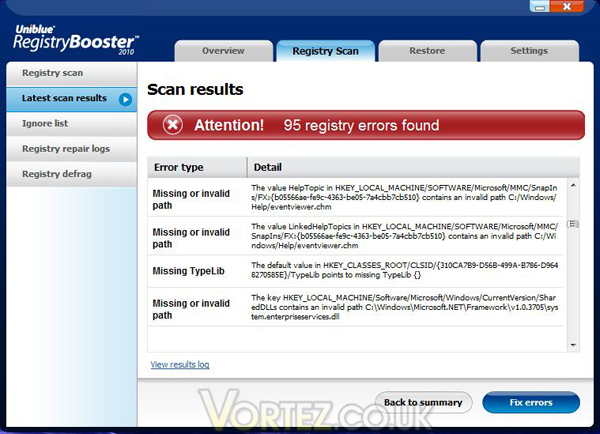
If that is still not enough information for you then by clicking on the ‘Detailed View’ button at the bottom of the screen you get a list of each individual error and which registry key it relates to.
Fixing the Registry
So we now know how many errors RegistryBooster considers the system’s registry to have and in what categories these errors were found. To fix them is simply a matter of clicking Fix errors on the Scan results page to have RegistryBooster automatically repair or remove the corrupt entries.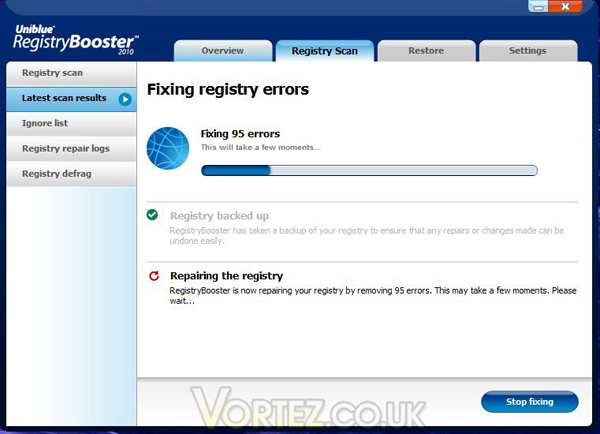
You’ll note from the screenshot that the first thing that happens is that RegistryBooster creates a backup of the registry to ensure that any changes can be undone should you require. This is a very important step and I am glad to see it is an automated one here, as for those who don’t know already a corrupted registry can stop your system dead in it’s tracks and without a backup you could be looking at a total re-installation to recover from it!
Once the fixing process has completed (less than a minute on my system) I was presented with the following notification saying that some entried were not fixed as they were locked by the operating system and as such they could be added to an ‘Ignore List’ so that they wouldn’t be shown in future scans.
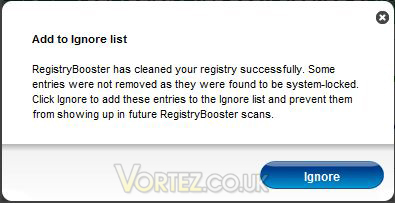
Click ‘Ignore’ to add the OS locked entries.
In my case a reboot was needed now to finalise the process and it did seem to me that the system started just that little bit faster, it’s hard to quantify with having only had 95 errors as that is actually pretty low really (remember I said this system hasn’t been in use for more than a couple of months so it should have been pretty clean to start with) – I’m sure however that continued use over time will keep my system starting and running smoothly.
And that’s it, you’re done! You now get back to the main screen where you can check into the other features of the software. The first thing you’ll see is a summary screen showing the result of the fixing process.
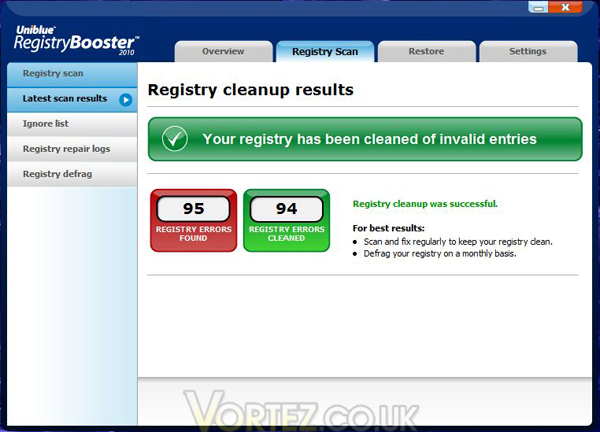
So there we go – it really is a one-click fix!
Other Features
Everything so far has been done in the ‘Registry Scan’ tab at the top of the screen, so lets have a quick look at the other tabs to see what they contain.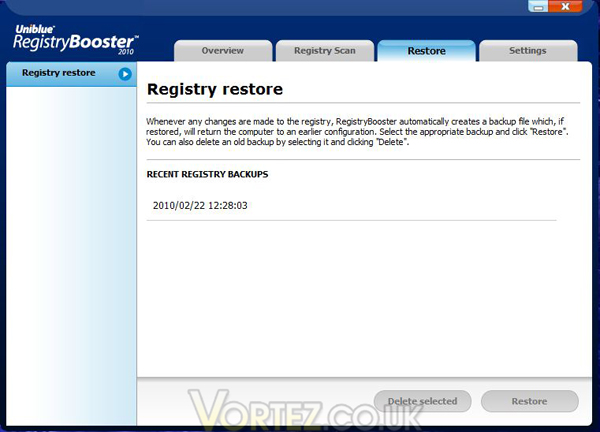
As the name implies this is where you can restore from a registry backup as was automatically saved earlier in the process. If you had looked at this tab before doing a ‘Fix’ it would of course have been empty. Once you have done more scans etc there will be an entry for each occasion and if you need to you can select a backup to restore from or to delete if required.
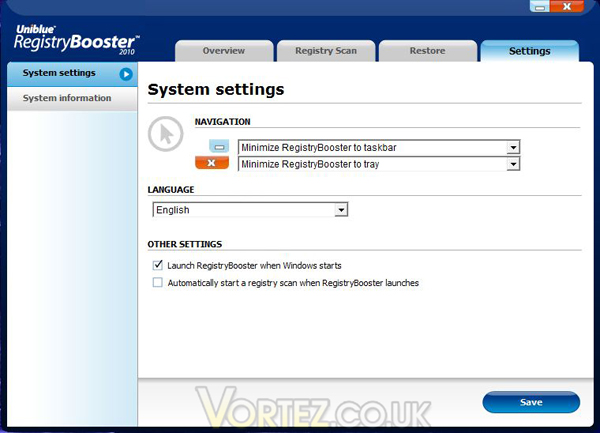
As stated earlier you can change the behaviour of the program, to alter what action occurs when clicking on either the ‘minimize’ or ‘close’ icons, to change the language, or to change how the program and scanning starts.
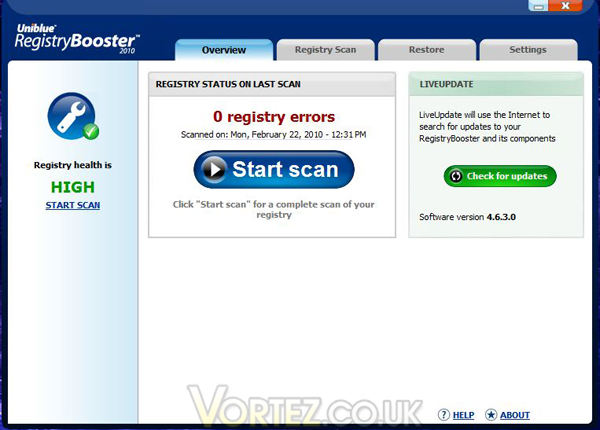
Having completed a scan and fix I decided to re-scan and see what was detected the second time around and thankfully things looked a lot happier. The Overview screen now showed a ‘HIGH’ Registry health result and zero errors!
You will also see that the program can be updated here on the Overview screen and it shows what current version you are running.
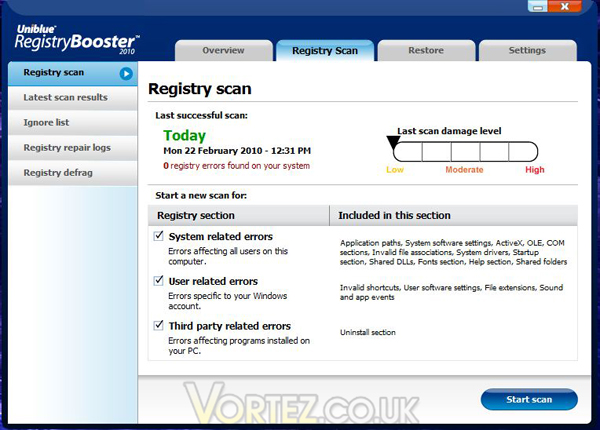
Moving back across to the Registry Scan tab and looking at the other selections available here we see a more detailed summary of the re-scan that I did to check the earlier fix. You can deselect what is scanned for here too should you wish to just scan one area of the registry, and you get a fairly detailed list of what is included in each category.
Registry Defragmenting
Registry defragmentation is another useful feature of this program which we will look at next. The registry, like any data store, can become fragmented over time and this can increase the time taken for the system to process the registry when starting up etc, so having the ability to keep the registry defragmented is very useful.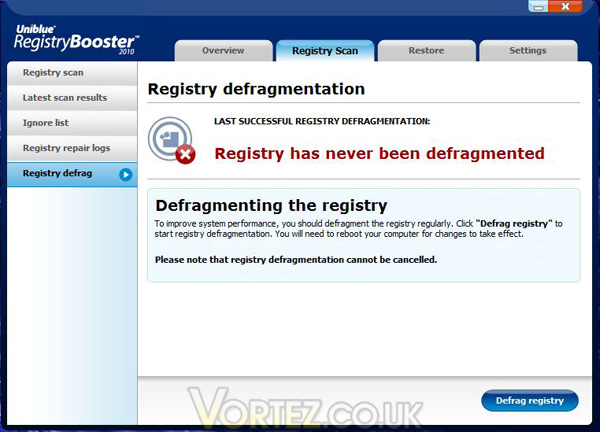
This feature is found on the main ‘Registry Scan’ tab and as it says this will require a reboot afterwards to complete the process on every use.
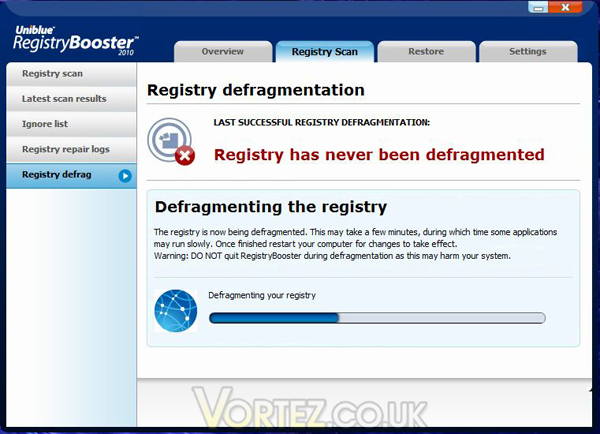
When you click on ‘Defrag registry’ you get a progress bar and a warning that ‘This may take a few minutes, during which time some applications may run slowly.’! To be honest I would recommend that this process is something you run on it’s own anyway – you can keep working whilst it is doing it’s thing but personally I prefer to let it have the full run of the system without me interfering!
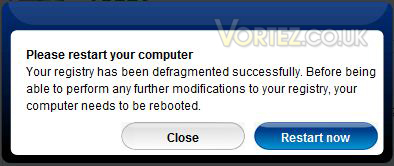
And now we are done – please reboot the system for changes to be made.
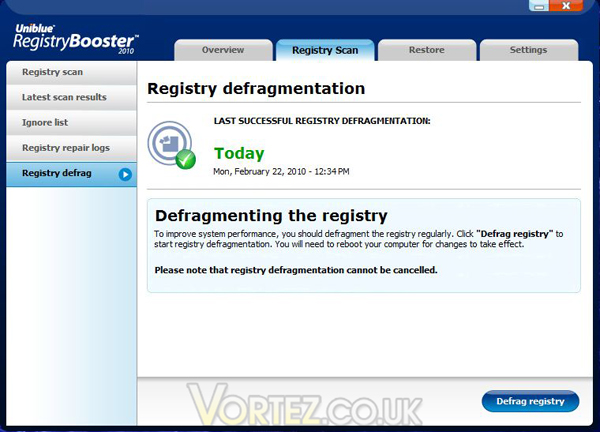
So that’s it, we have found and fixed 95 registry errors and done a complete defragment of the registry in less than 15 minutes (according to the times on the screenshots!) To check what actions have been taken we can look at the Registry repair logs, also found on the main Regsitry Scan tab.
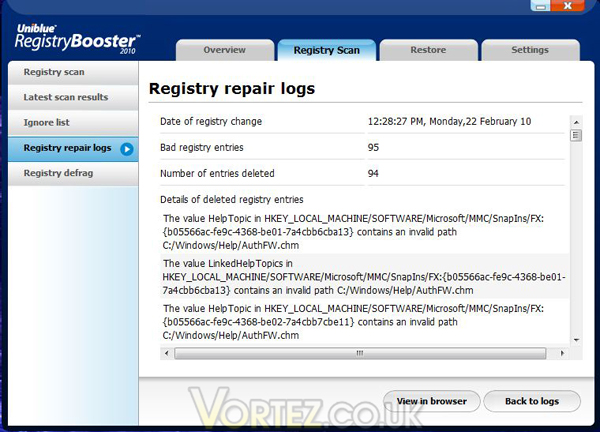
As you can see you get an overview of what was scanned and when, and anything found to be considered a ‘Bad’ registry entry, along with the full path to the item in the registry and what it was found to be at fault for.
Conclusion
It is difficult to accurately test a utility such as this since every system will have different errors in it\’s registry and different levels of fragmentation, however it seems to me that using Uniblue\’s RegistryBooster has had a positive impact on my system\’s performance and an appreciable boost to startup times. It has very quickly identified and fixed nearly a hundred errors in what is to most people a no-go area, the system registry. And that on what was almost a brand new installation of Windows too! Imagine what it could do for an older more used system…There are some slight annoyances with this software but they are purely cosmetic – it is set to automatically run a scan every time you load the program and the program is set to automatically load when you start Windows! This is rather pointless in my opinion as you simply do not need to clean and repair your registry every day, but thankfully this behaviour can be truned off in the Settings tab within the software.
All in all Uniblue have created a very useful application which I am sure will be a useful addition to my own tools and utilities and they have certainly converted me to a believer in registry cleaners. I think that this software would make a good addition to anyone\’s toolkit and should be considered almost a must-have item to sit alongside anti-virus and anti-spyware utilities on every system.
For it\’s ease of use and user-friendly interface it is a great product, marred only slightly by it\’s annoying default setting to auto-run and auto-scan, and as such Uniblue\’s RegistryBooster 2010 is awarded Vortez Hardware\’s Silver Award.
Pros
+ Ease of use
+ Single-click Scan and Fix
+ Fast operation
Cons
– Auto-run, auto-scan default settings
+ Ease of use
+ Single-click Scan and Fix
+ Fast operation
Cons
– Auto-run, auto-scan default settings
We would like to thank Uniblue for this sample. Discuss this review on our forums


