Improving on the H115i with improved fans, and, of course, RGB lighting, we take a look at the Corsair H115i Pro RGB.

Product on Review: Corsair H115i Pro RGB
Manufacturer: Corsair
Street Price: £134.99 / $139.99
We’ve seen RGB take the market by storm, with manufacturers stapling these multi-coloured LEDs to everything they can get their hands on; it now seems that all-in-one CPU coolers aren’t able to escape this treatment, with Corsair releasing both the H115i Pro and H150i Pro featuring 16.7 million colours within the pump header.
Within this review, we’re going to look at the Corsair H115i Pro RGB, a 280mm all-in-one watercooling solution to keep your CPU cool while also remaining quiet. 280mm coolers from Corsair is nothing new, however, the inclusion of RGB is.
Included with the radiator and pump is a pair of 140mm ML-Series fans, renowned for their quiet operation and high static pressure, two qualities which should make them ideal for forcing air through a radiator.
With the large radiator and the duo of large, 140mm magnetic levitation fans, the H115i Pro RGB should deliver impressive thermal and acoustic results. Read on to see how it fares.
Corsair on the H115i Pro RGB:
The CORSAIR Hydro Series H115i PRO is an all-in-one RGB liquid CPU cooler with a 280mm radiator built for low-noise cooling performance and bold styling with an RGB LED pump head. Two included 140mm ML Series magnetic levitation PWM fans provide great airflow while producing no more than 20 dBA of noise, pushing the performance of your build while staying whisper quiet. Take control with CORSAIR LINK software and customize lighting, monitor temperatures and precisely adjust fan speeds, or stop cooling fans entirely with the H115i’s Zero RPM fan mode. Easy to install and compatible with most major CPU sockets, the H115i makes it easy to cool your system in silence and style.
Technical Specifications
Coldplate Material: Copper
Tubing Material: Low permeation with black sleeving
Radiator Material: Aluminium
Radiator Size: 315mm x 143mm x 29mm
Fan(s) included: 2x ML Series 140mm PWM Fans
Fan Max Speed: 1200 RPM
Fan Airflow: 55.4 CFM
Fan Static Pressure: 1.27 mmH2O
Fan Noise Level: 20.4 dB(A)
MSRP: $139.99
Tubing Material: Low permeation with black sleeving
Radiator Material: Aluminium
Radiator Size: 315mm x 143mm x 29mm
Fan(s) included: 2x ML Series 140mm PWM Fans
Fan Max Speed: 1200 RPM
Fan Airflow: 55.4 CFM
Fan Static Pressure: 1.27 mmH2O
Fan Noise Level: 20.4 dB(A)
MSRP: $139.99
Packaging & Bundle
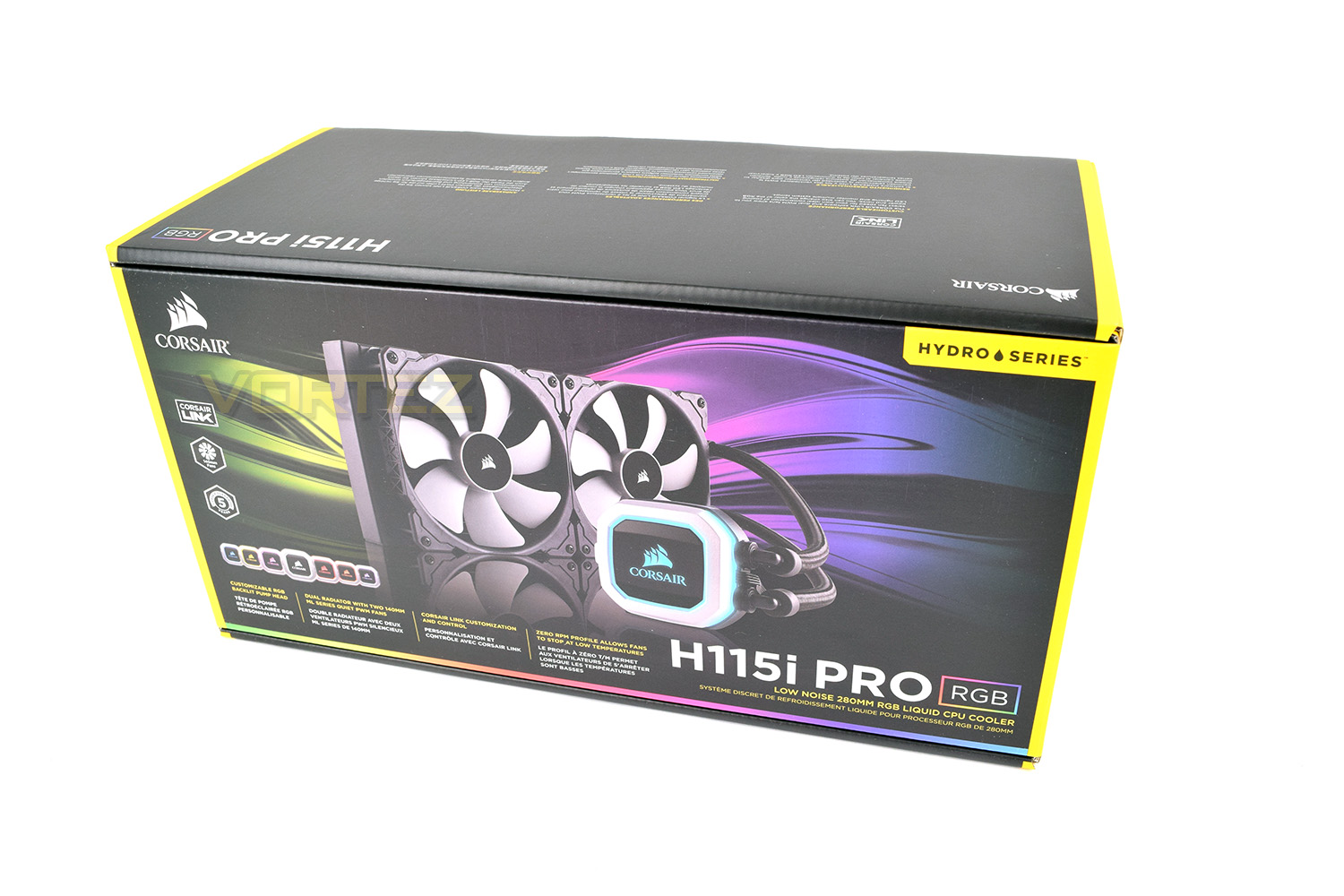
Corsair has packaged the H115i Pro RGB in an understandably large box, due to all of the component parts and the 280mm radiator. Things have to be laid out in such a way that the tubes do not become influenced into any specific shape while also allowing room for the fans, pump head, screws, fixings etc.The packaging is typically Corsair, with a black and yellow theme. The front of the box gives plenty of information without really needing to look around the back.
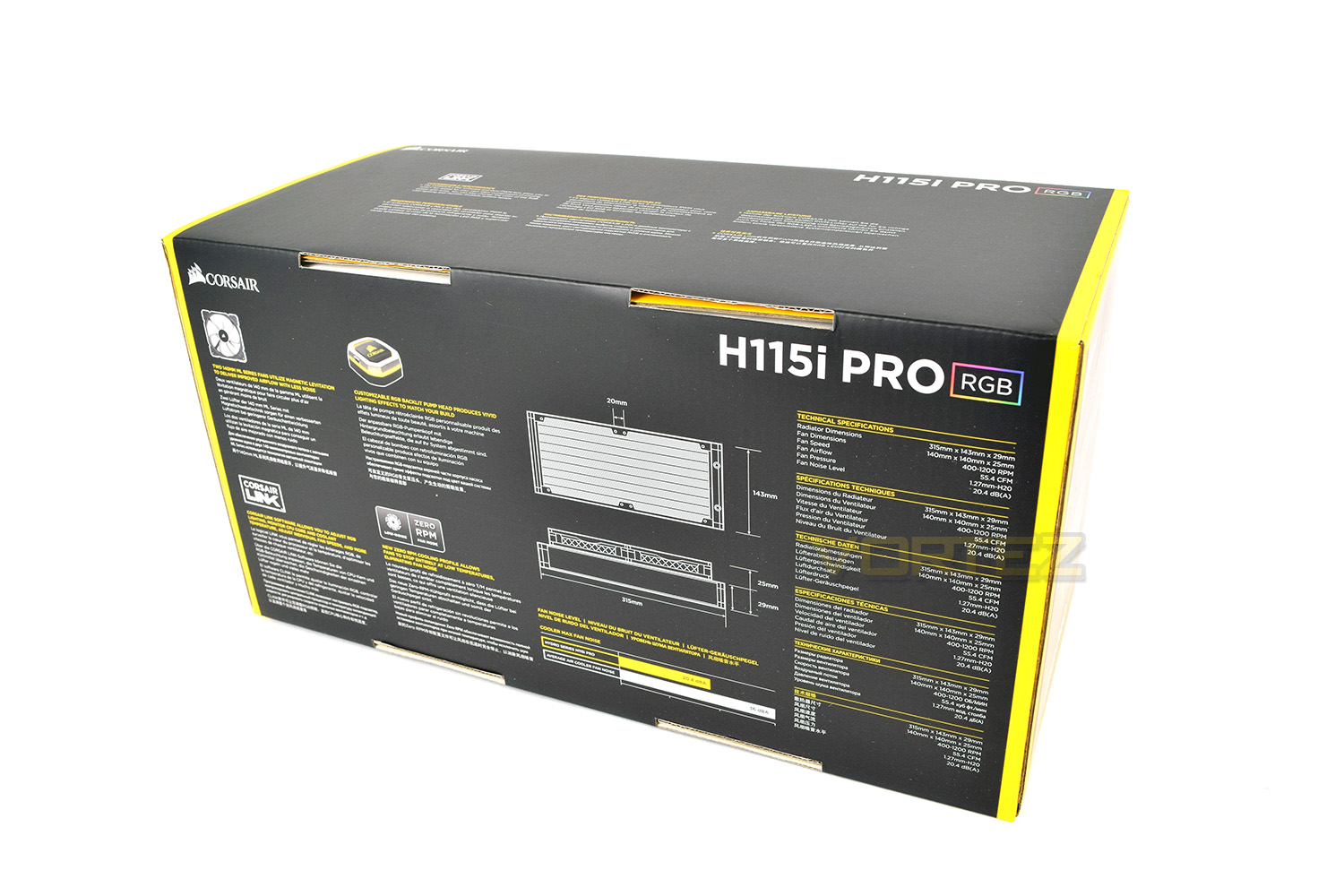
If space is tight within your computer chassis, it may be well worth checking out the detailed blueprint of the radiator and fans.
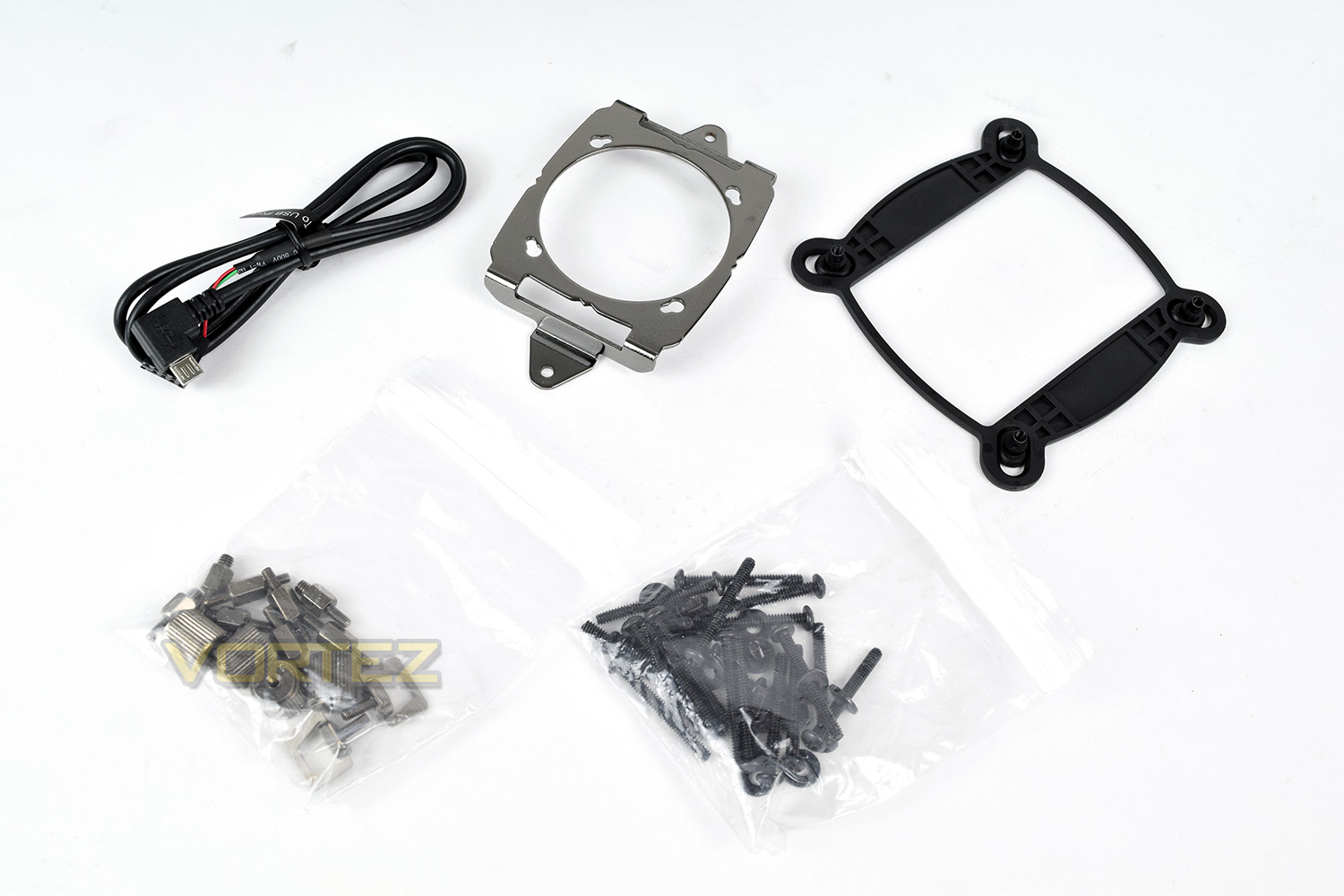
Inside the box, you will find a mounting bracket for Intel’s LGA 1150, 1155, 1156, 1366, 2011, 2011-3 and 2066. AMD is supported in the way of AMD AM2, AM3, AM4, FM1 and FM2; plenty of compatibility for a huge range of sockets. There are all of the associated screws to attach the fans, as well as the radiator to your case.
Closer Look
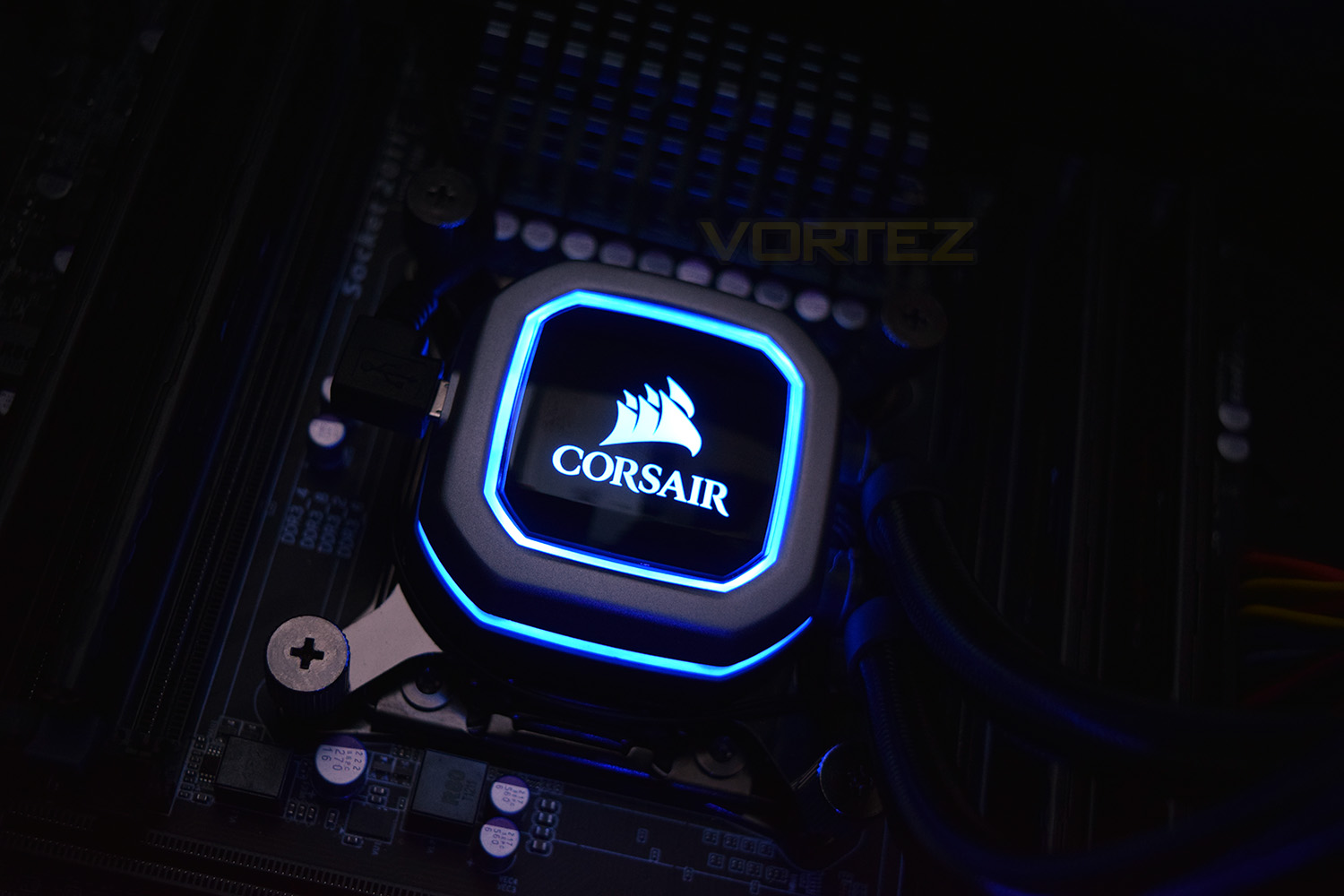
The pump features a silver border, inside of which is a large Corsair logo against a black background. The Corsair logo glows, along with the inner and outer edge of the silver border.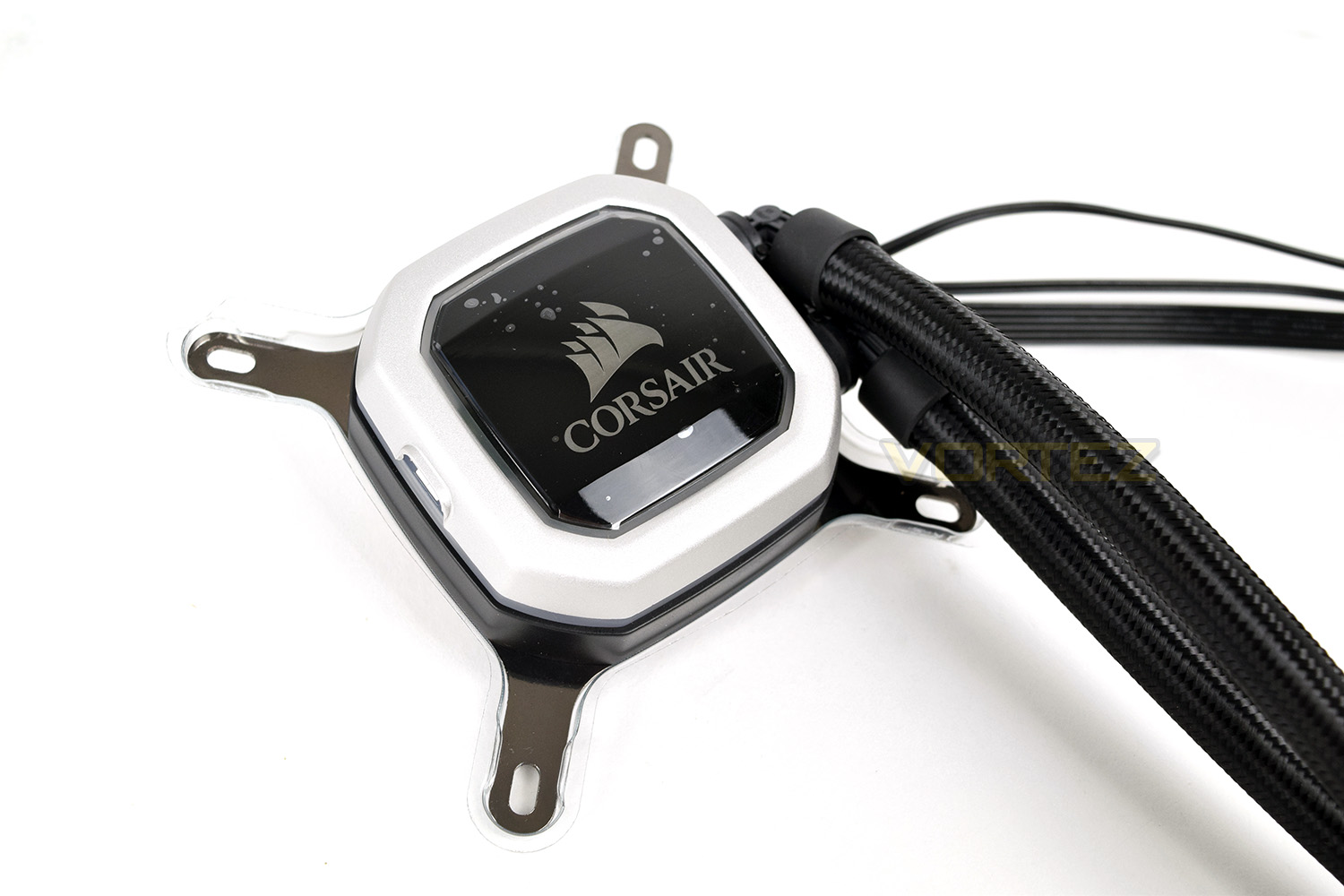
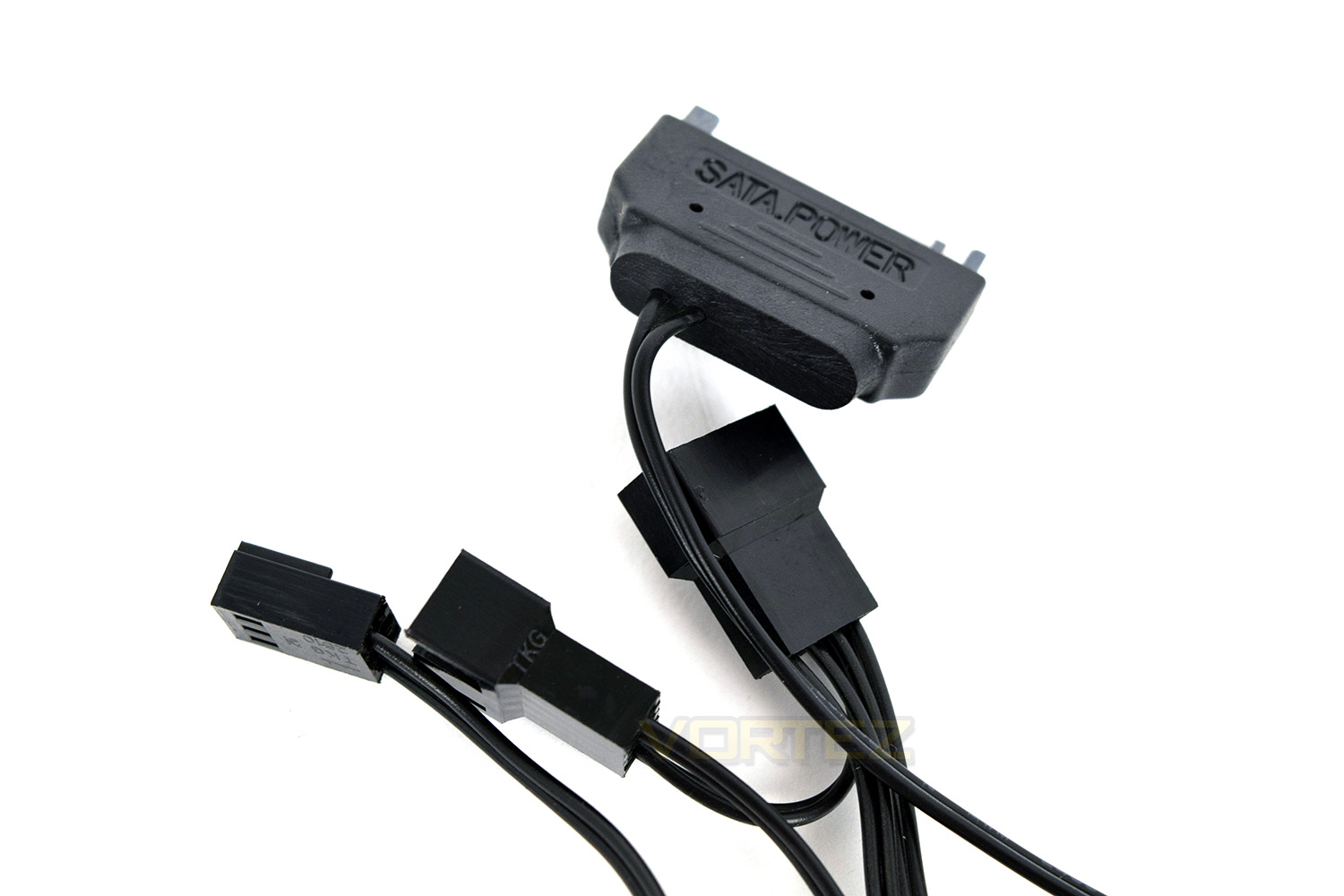
To ensure there’s enough juice to spin the fans, power the RGB LEDs and pump the fluid, there’s a SATA power connector directly wired into the pump head, along with a pair of 4-pin fan adaptors and a 3-pin fan header to allow the motherboard to monitor the pump speed.
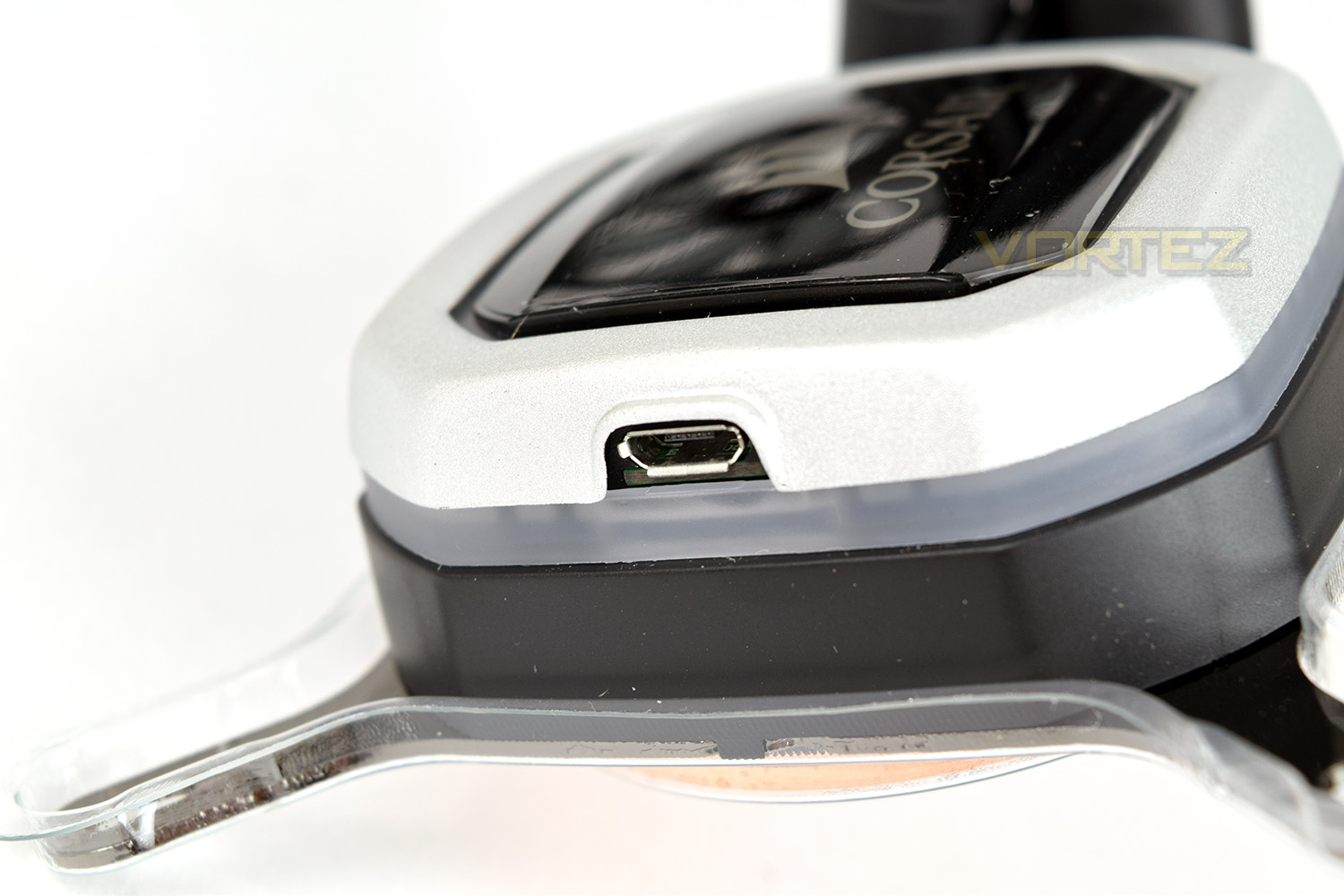
In regards to the Corsair LINK software monitoring certain parameters, the micro-USB connection on the side connects to a USB2.0 header on the motherboard. The connection between the pump and PC allows the user to monitor fluid temperature, individual fan speeds and the pump speed, along with adjustment of the RGB LEDs.
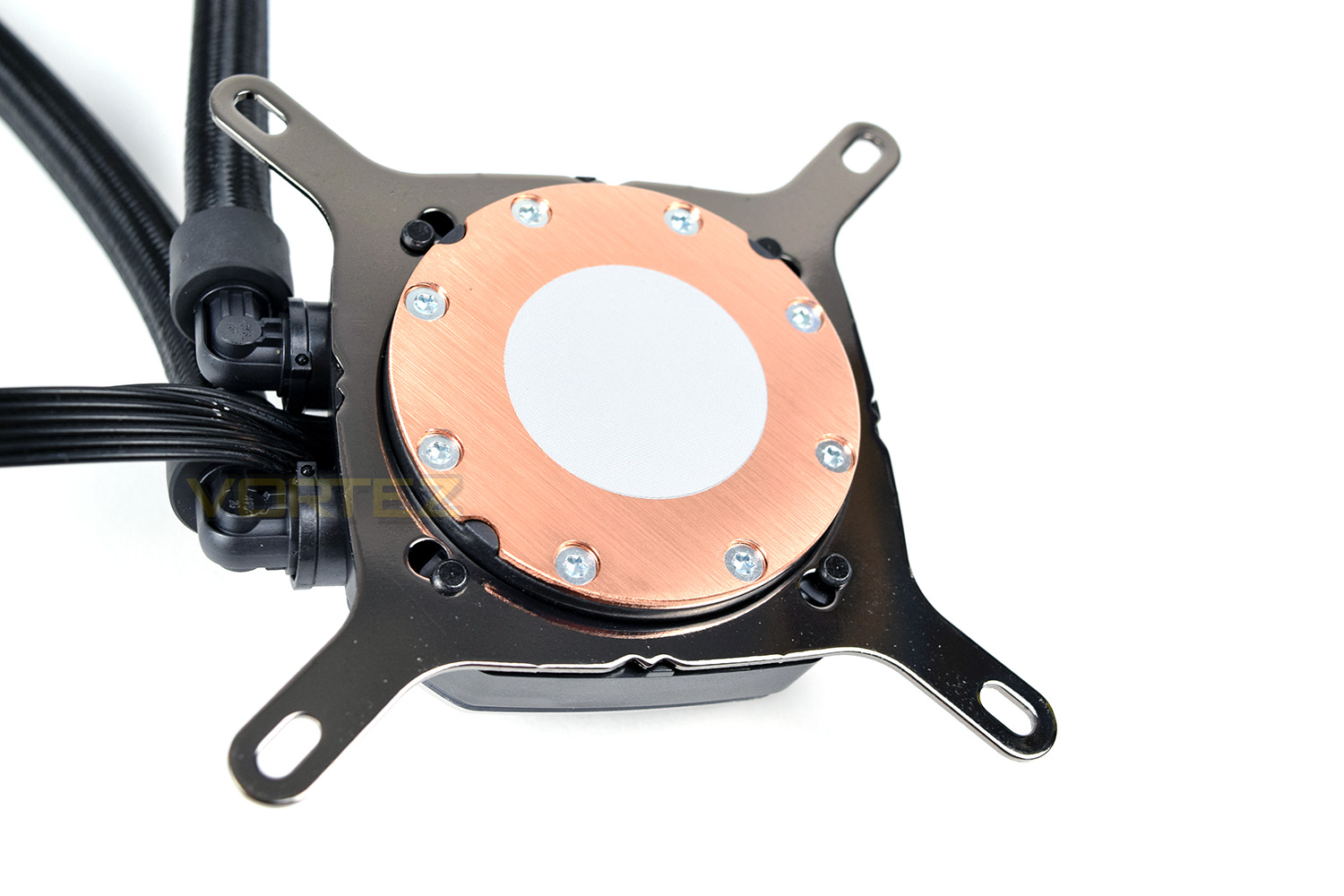
The copper coldplate is roughly 50mm across, which should be more than big enough for all but the largest of CPU heatsinks (Ryzen ThreadRipper springs to mind). The coldplate arrives with a pre-applied, pre-determined layer of thermal interface to ensure the best possible thermal conductivity between the CPU and the liquid behind. We always remove this and use Noctua’s NT-H1 thermal paste to ensure our results remain comparative.
The two 140mm PWM fans aren’t RGB enabled, but they do feature magnetic levitation, which is almost as cool, with the added bonus of being quieter and able to push a higher volume of air.
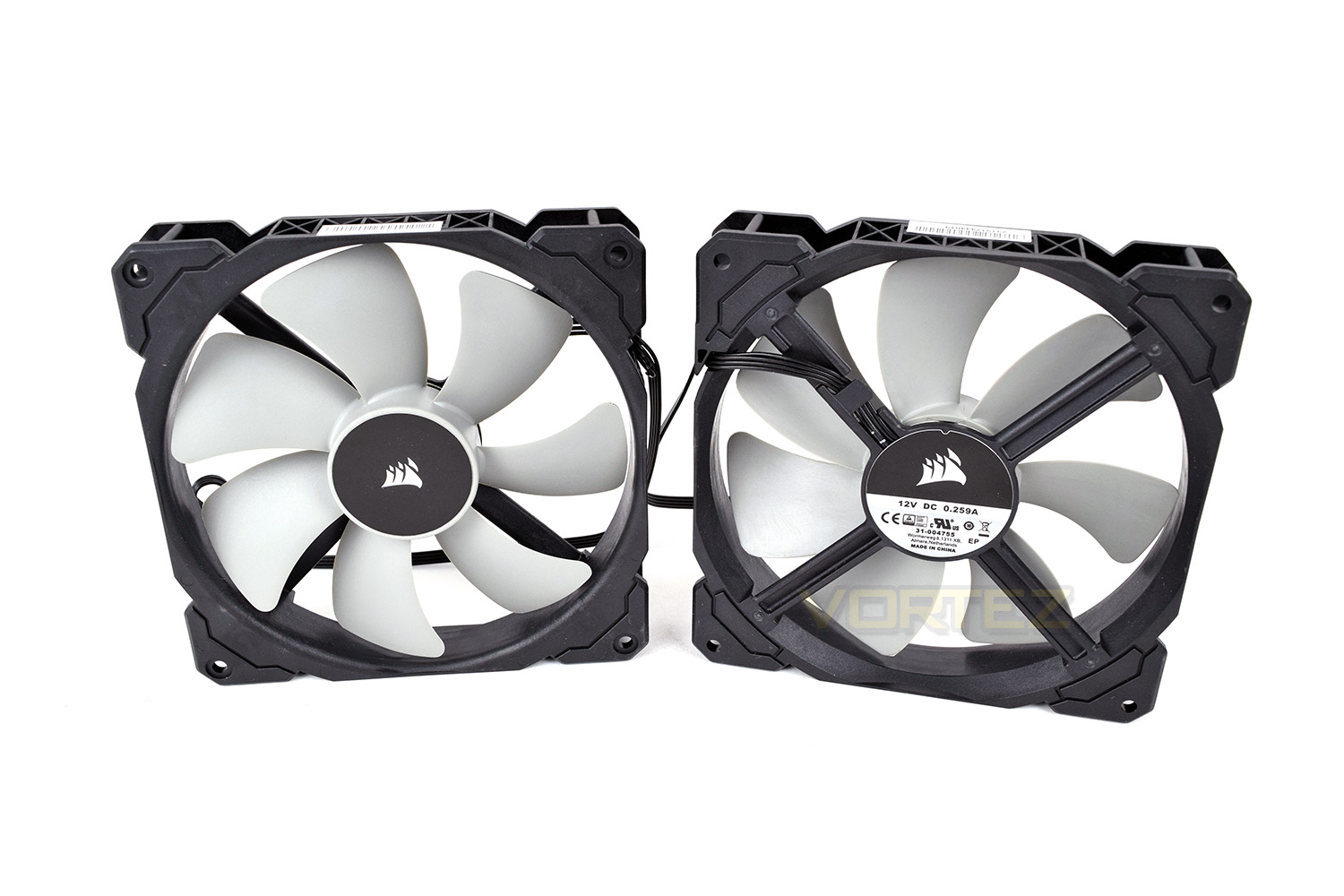
We would’ve liked to have seen some kind of rubber isolation between the mount of the fan and the body. Perhaps Corsair feel this is unnecessary with the magnetic levitation helping to reduce vibrations. We saw this on the Corsair ML120 Pro RGB fans reviewed last year.

Closer Look (Continued)
The 280mm radiator looks incredibly sleek, with only a simple, silver Corsair logo adorning each side of the radiator. The radiator measures exactly 315mm x 143mm x 29mm (54mm with fans installed).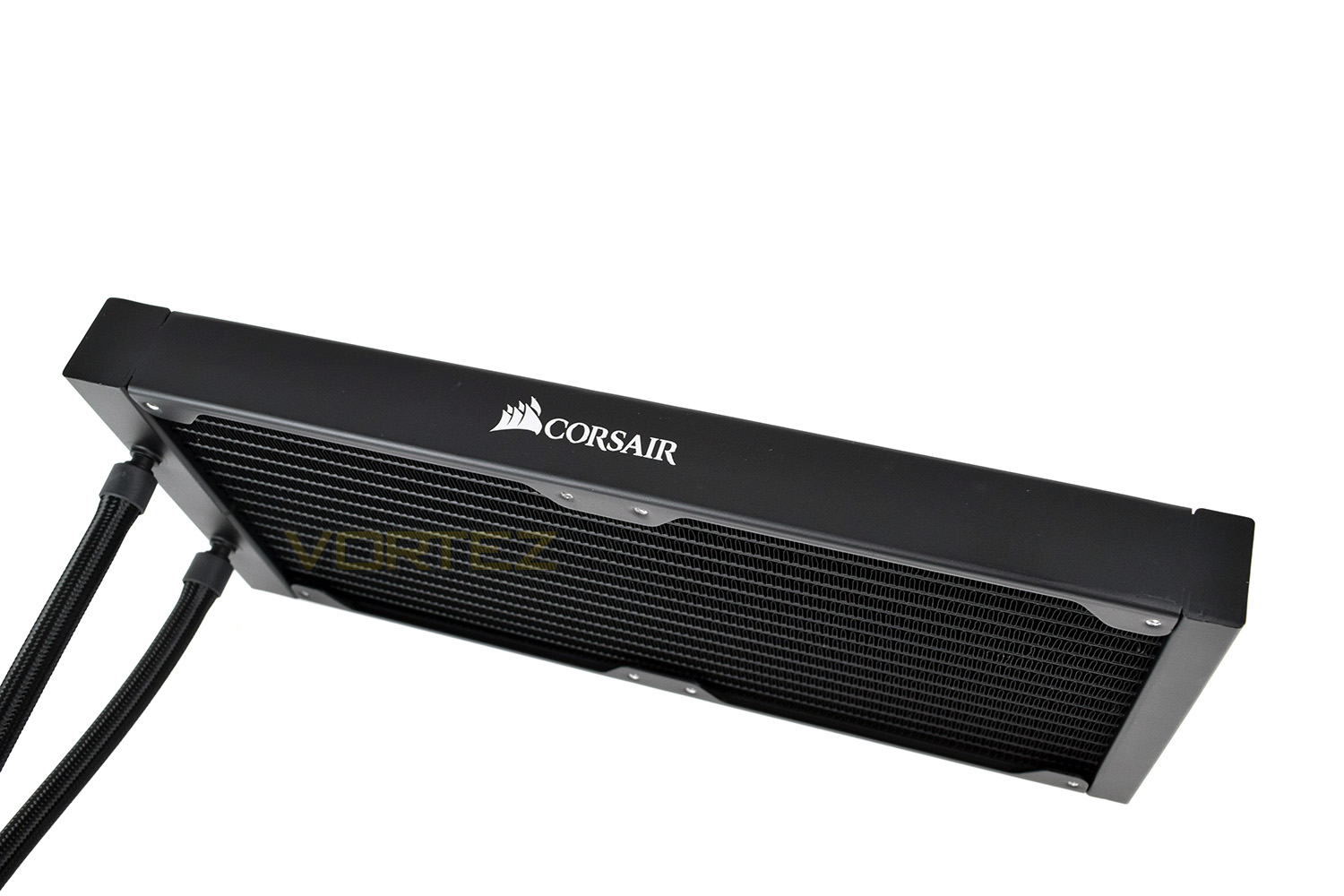
The tapped screw holes have been spaced 20mm apart, in the centre, to allow a small amount of space between the two fans, this may well be to ensure that there’s enough space for larger fans, if you wish to swap them for something more colourful or from a different brand. Having a small amount of flexibility like that is handy.

With the fans installed, the radiator measures 54mm tall (3mm taller at the screw heads). The seal between the fan and the radiator is almost perfect, with only a tiny amount of light able to work its way through. This tight seal should help improve airflow through the radiator.

Installation
With each CPU cooler that we test, a small pea-sized blob of Noctua NT-H1 thermal paste is applied to our CPU ahead of heatsink installation. We choose to use this high-quality paste in all of our CPU cooler reviews, essentially eliminating an unnecessary variable from the subsequent results and comparison graphs.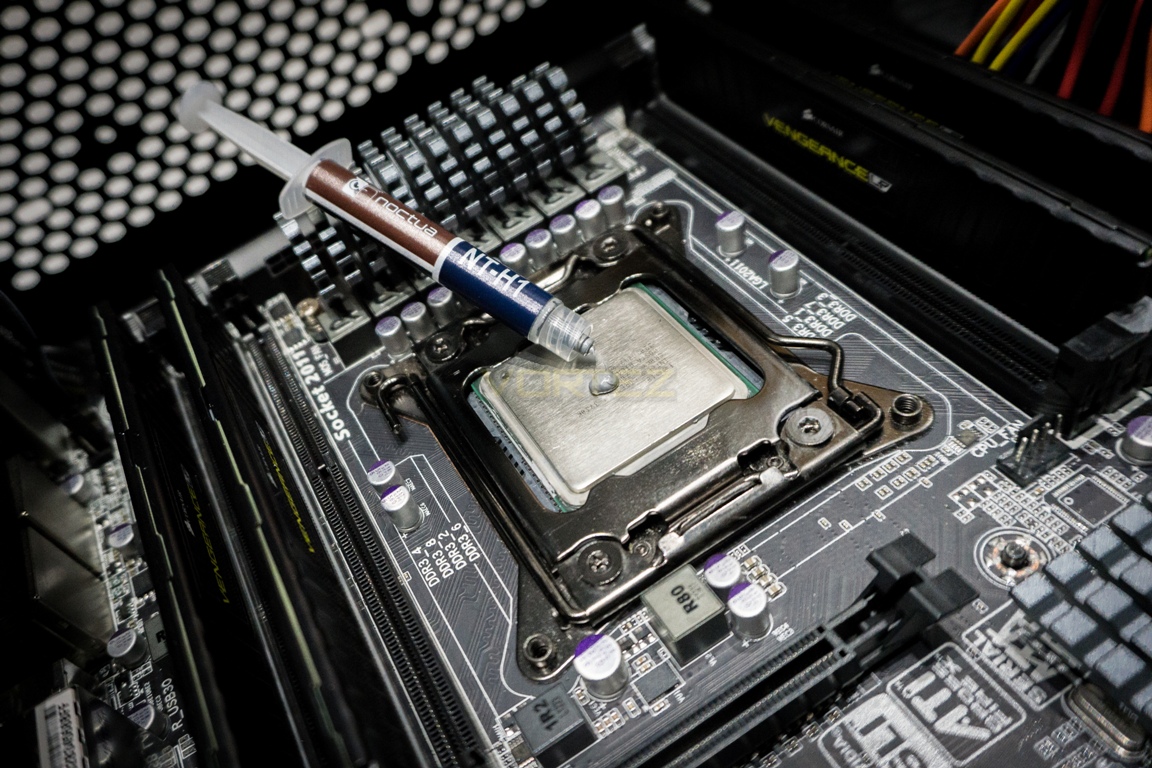
To install the Corsair H115i Pro RGB, first, we mounted the radiator into the top of the case, ensuring all of the fan cables were pointing the correct way for better cable management while making sure the hose pipes were orientated correctly. As you can see, the Corsair 760T case we use provides ample space for a huge radiator like the H115i Pro RGB. We mounted the fans in a blowing configuration. However, they can also be used to draw air through the radiator if required.

Corsair provides several different mounting methods for a vast range of Intel and AMD sockets, however, for our installation into an Intel LGA 2011 socket, we don’t need to use any backplate thanks to the integrated screw mounts within the socket itself. The thumb screws are large and easy to turn, though we would recommend to nip them up with a screwdriver to ensure they’re secure. When securing any CPU cooler, it’s advised to gently tighten the screws sequentially by proceeding in a diagonal manner to ensure even pressure is applied.
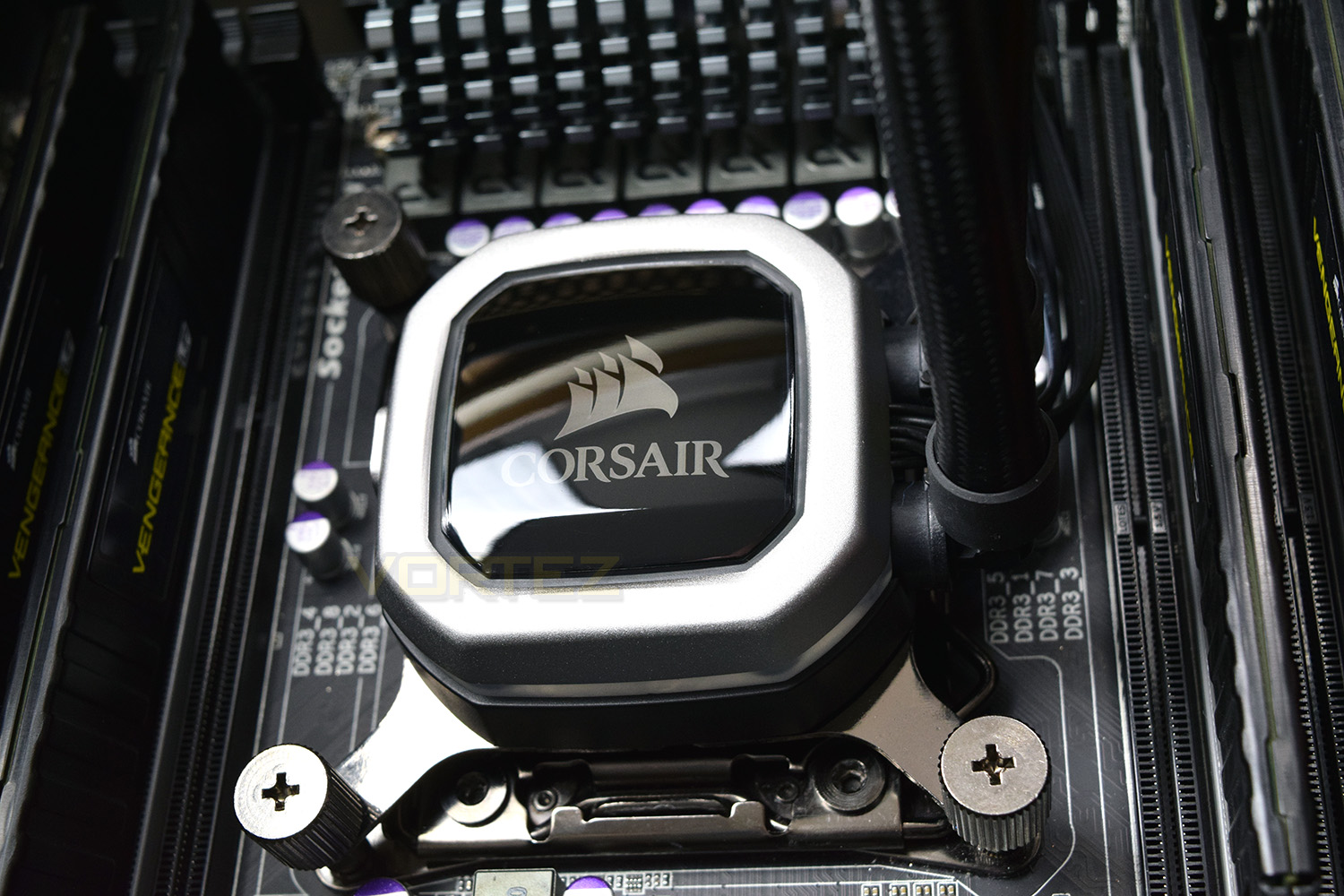
The only thing left to do is connect up the SATA power, USB header, fan cables and the motherboard’s fan connector for monitoring purposes. We connected these up behind the motherboard tray for tidiness. We found these cables to be a little bit too short which hindered our cable routing abilities somewhat; we appreciate that not all users will possess such a large case, but some extensions or a little extra length would’ve been welcomed.
Overall, the Corsair posed no real challenge in installing, despite the cable length issues. The radiator and pump looks excellent once installed; we can’t wait to see that RGB lighting in all of its glory!
Test Setup & Methodology
We have recently made changes to our cooling department and the associated testing methodology, so please note that the number of results shown will increase over time as we add additional products. We hope that these results will appear clearer to the majority of our readership and look forward to building upon the baselines that we currently have.We perform two individual testing routines with each CPU cooler that we receive – temperatures and acoustics. The system used is as follows and all tests are performed at stock 3.8 GHz and overclocked 4.4 GHz frequencies.
Processor – Intel Core i7-3930K
Motherboard – Gigabyte X79-UP4
Memory – 8GB Corsair Vengeance LP 1600MHz CL9
Video Card – Sapphire Radeon HD 6850 1GB
Power Supply – NZXT Hale90 650W
Storage Drive – Kingston HyperX 240GB SATA III SSD
Case – Corsair Carbide 760T
Monitor ASUS ROG SWIFT PG278Q
Motherboard – Gigabyte X79-UP4
Memory – 8GB Corsair Vengeance LP 1600MHz CL9
Video Card – Sapphire Radeon HD 6850 1GB
Power Supply – NZXT Hale90 650W
Storage Drive – Kingston HyperX 240GB SATA III SSD
Case – Corsair Carbide 760T
Monitor ASUS ROG SWIFT PG278Q
To keep our tests consistent, we always review CPU coolers as they come out of the box – with their factory cooling fans, as the manufacturer intended and as the consumer expects. It should, however, be noted that we do not use supplied thermal paste but instead, Noctua NT-H1 paste to, again, ensure consistency. The paste is applied and the CPU allowed to run for a couple of hours, at idle, to give the thermal compound some time to “bed in.”
In the first test, we record idle and load temperatures as shown by the most current version of the Real Temp monitoring utility. The test system is booted to the Windows desktop and left to idle for 20 minutes to ensure temperatures have stabilised. The average core temperatures are then recorded over a 1 minute period and averaged across the six cores. We then perform a continuous 20 minute AIDA 64 stress test. The maximum absolute core temperatures are recorded immediately after the test has completed and averaged across the six cores. All results are displayed as delta temperatures – these are calculated by subtracting the ambient room temperature from the average core temperatures recorded. For temperature testing, the Corsair 760T chassis door is closed and has all three systems fans powered on to simulate real-world conditions.
Our second test follows a similar methodology to the first, with the key difference being that the Corsair 760T chassis door is now left open and all three systems fans are disabled. This allows for the CPU cooler fans acoustic profiles to be captured in isolation. From cold, the system is again booted to the Windows desktop and left to idle for 20 minutes to ensure temperatures have stabilised. The acoustic level is then recorded at a distance of 20cm from the CPU cooler and where the individual result is an average level over a 1 minute period. We then perform our continuous 20 minutes AIDA 64 stress test. Acoustic levels are again recorded at a distance of 20cm from the CPU cooler and where the individual result is an average level over a 1 minute period.
Benchmarks – Thermal Results
We have recently made changes to our cooling department and the associated testing methodology, so please note that the number of results shown below will increase over time as we add additional products. We hope that these results will appear clearer to the majority of our readership and look forward to building upon the baselines that you see below.We start off by letting the CPU cooler “bed in” for a couple of hours, to ensure the paste has time to move around and form an even layer, after which an idle result is taken.
Please note that the Balanced profile was used within the Corsair Link software to strike a balance between noise and performance; this rings true for all of our tests on the H115i Pro, stock clocks and overclocked.
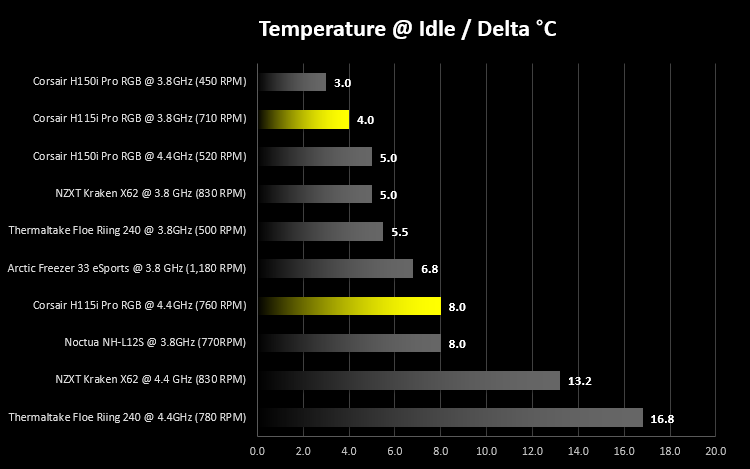
Looking at this graph, the H115i Pro RGB performs remarkably well, keeping the 130W CPU only 4°C above ambient temperature without much of a worry. Once overclocked, temperatures were also dealt with well – the fan speed did rise slightly but the extra heat wasn’t enough to worry the software into pushing any extra voltage to the fans.
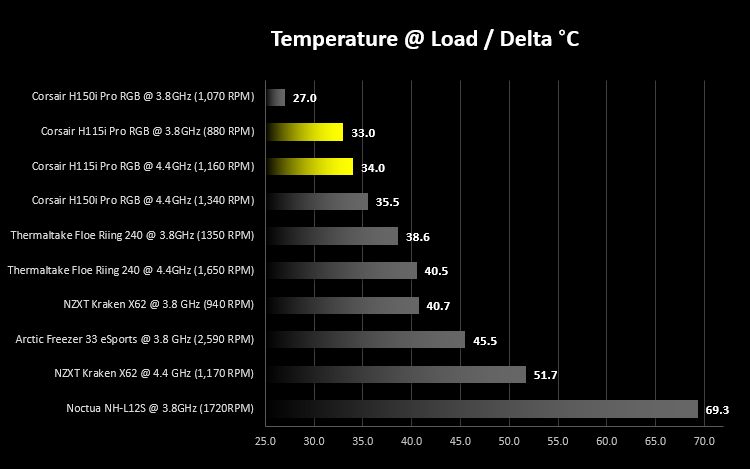
Pushing some load through the CPU for half an hour increased the idle temperatures to 33°C above ambient. This is somewhat warmer than the H150i Pro RGB with the 3 120mm fans, but acoustics may have something to say on that front. Loading up the CPU with an extra 900MHz and an associated 30W more power draw, the temperature rises by a single degree, with a noticeable bump in fan speed, however.
Over on the next page we take a look at acoustics.
Benchmarks – Acoustic Results
As mentioned on the previous page, we’ve made some recent changes to our cooling department and the testing methodology. Therefore our results graphs are starting from fresh – we’re working tirelessly to populate these graphs, but we hope you can appreciate that these results must be done fairly, and more importantly, correctly.We used the balanced profile, within the Corsair LINK software, throughout the review, allowing the software to work out the most ideal balance between fan speed and core temperatures. The fans are capable of turning off entirely, at which point around 25dB(A) of noise is generated by the pump; this is entirely inaudible inside a decent case.
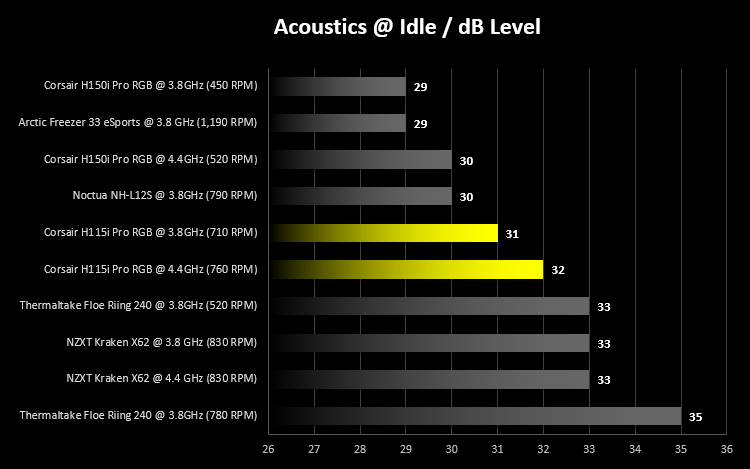
The main competitor for the H115i Pro RGB is the NZXT Kraken X62, they’re priced similarly and both offer RGB lighting on the pump head. As you can see, the Corsair copes better here in audible tests, but those fans could easily spin a little slower if the software would allow it.
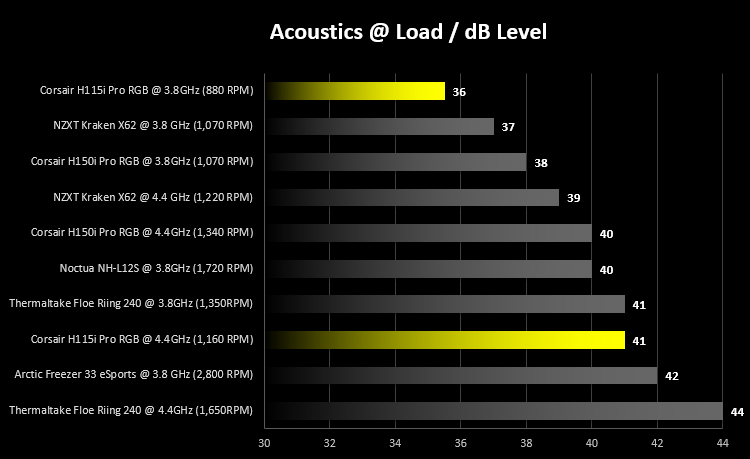
Sticking some load onto the CPU encourages noise, with increased fan speeds to deal with the extra heat generated. At stock speeds, the fans barely need to spin up at all, keeping the CPU within a very comfortable heat bracket while being the quietest tested so far. The overclocked results did show a weak spot here, with the fans creating an average of 41dB(A) of noise while spinning at 1,160 RPM. This can be remedied with a little tweaking of fan curves.
Conclusion
With the inclusion of RGB lighting and Corsair’s Magnetic Levitation fans, this new H115i Pro RGB represents a decent improvement over the previous iteration.We saw some impressive thermal results from the H115i Pro RGB, maxing out at 34°C above ambient, while overclocked; that’s the best result we’ve had on the overclocked profile so far. Idle results and acoustics were both good, however, it is our belief that some tweaking to the fan profiles, either by the user or by Corsair themselves, could see things improved further.
The RGB pump head looks fantastic inside the case, with a vast range of nearly 17 million colours available. Even when switched off entirely, it still looks stylish and wastes no real-estate within the case.
Installation of the cooler was straight forward and about as easy as it can be, with most parts being “tool-less” excluding the screws to hold the fans onto the radiator.
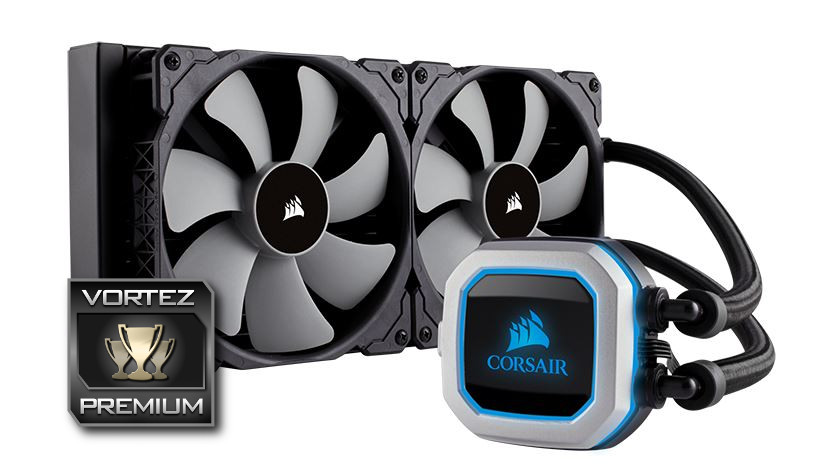
If it’s a toss-up between the NZXT X62 or the H115i Pro RGB, we would have to recommend the Corsair. It improves over the predecessor in almost every way
Pros
+ RGB lighting look the part
+ ML 140 fans perform incredibly well
+ Low idle noise
+ Excellent performance all round
+ Five year warranty
+ Easy installation
Neutral
+- Encroaching on “noisy” while overclocked
Cons
– Wires are a little short
– Multi-zone RGB would be nice
+ RGB lighting look the part
+ ML 140 fans perform incredibly well
+ Low idle noise
+ Excellent performance all round
+ Five year warranty
+ Easy installation
Neutral
+- Encroaching on “noisy” while overclocked
Cons
– Wires are a little short
– Multi-zone RGB would be nice
Click here for an explanation of our awards at Vortez.net.
Stay connected with the Vortez Social Media pages: