







In the spotlight today is the first WiFi ready NAS from storage stalwarts Synology. With bundled wireless functionality can this 2-bay NAS tick all the boxes?

Product on Review: Synology DS213air
Manufacturer and Sponsor: Synology
Street Price: £250 Inc. VAT (At time of review)
Synology is no stranger to our storage section and we quite openly admit that we have a soft spot for many of their storage solutions, and we aren’t alone. Over the last few years momentum has been growing for this Taiwanese brand; not only is their hardware stylish, good quality and reliable but their notorious Operating System dubbed DSM has paved the way for much of their success too.
Under the spotlight today is something quite special. Back in October of last year Synology released the DS213air; a 2-bay NAS incorporating WiFi technology. A first for the company and one that will be certain to entice the storage cohorts.
Due to DS213air having WiFi built-in, it can be connected wirelessly to a network without cumbersome cabling, or be configured as a hotspot to extend the range of an existing WiFi network. Users can even deploy the DS213air as a wireless router to create a wireless environment at no extra cost.
Will this new WiFi functionality be the icing on the cake? Let’s find out!

Synology on the DS213air
Synology® DiskStation DS213air is a one stop solution for wireless sharing, web applications and centralized storage. Specifically designed for small office and home users who need the convenient solution of wireless sharing capability with full-featured network attached storage, to share and protect data cost-effectively, while increasing productivity with comprehensive office applications.
Features & Specification
Features
• Built-in WiFi for Wireless Environment
• Features SuperSpeed USB 3.0
• Cool and Quiet Design
• Hassle-free System Installation with Mobile Devices
• Running on Synology DiskStation Manager (DSM)
• Built-in WiFi for Wireless Environment
• Features SuperSpeed USB 3.0
• Cool and Quiet Design
• Hassle-free System Installation with Mobile Devices
• Running on Synology DiskStation Manager (DSM)
Hardware
• CPU Frequency : 1.6 GHz
• Hardware Encryption Engine
• Memory : DDR3 256 MB
• Internal HDD/SSD : 3.5″ or 2.5″ SATA(II) X 2 (Hard drive not included)
• Max Internal Capacity : 8 TB (4 TB HDD X 2) (Capacity may vary by RAID types)
• External HDD Interface : USB 3.0 Port X 2
• Size (HxWxD) : 165 x 100 x 225.5 mm
• Weight : 0.94 kg
• LAN : Gigabit X 1
• Wake on LAN/WAN
• System Fan : 92 x 92 mm X 1
• Built-in Wireless Support
• Noise Level : 19.0 dB(A)
• Power Recovery
• AC Input Power Voltage : 100V to 240V AC
• Power Frequency : 50/60 Hz, Single Phase
• Power Consumption : 22.44W (Access); 5.76W (HDD Hibernation);
• Operating Temperature : 5°C to 35°C (40°F to 95°F)
• Storage Temperature : -10°C to 70°C (15°F to 155°F)
• Relative Humidity : 5% to 95% RH
• Maximum Operating Altitude : 6,500 feet
• Certification : FCC Class B, CE Class B, BSMI Class B
• Warranty : 2 Years
• CPU Frequency : 1.6 GHz
• Hardware Encryption Engine
• Memory : DDR3 256 MB
• Internal HDD/SSD : 3.5″ or 2.5″ SATA(II) X 2 (Hard drive not included)
• Max Internal Capacity : 8 TB (4 TB HDD X 2) (Capacity may vary by RAID types)
• External HDD Interface : USB 3.0 Port X 2
• Size (HxWxD) : 165 x 100 x 225.5 mm
• Weight : 0.94 kg
• LAN : Gigabit X 1
• Wake on LAN/WAN
• System Fan : 92 x 92 mm X 1
• Built-in Wireless Support
• Noise Level : 19.0 dB(A)
• Power Recovery
• AC Input Power Voltage : 100V to 240V AC
• Power Frequency : 50/60 Hz, Single Phase
• Power Consumption : 22.44W (Access); 5.76W (HDD Hibernation);
• Operating Temperature : 5°C to 35°C (40°F to 95°F)
• Storage Temperature : -10°C to 70°C (15°F to 155°F)
• Relative Humidity : 5% to 95% RH
• Maximum Operating Altitude : 6,500 feet
• Certification : FCC Class B, CE Class B, BSMI Class B
• Warranty : 2 Years
Packaging & Bundle
DS212air has attractive white packaging which lists some of its fundamental features on the front and more detail on the sides and back. As we’ve experienced with other Synology models, packaging is finely presented and much care has been put into this aspect of its production.
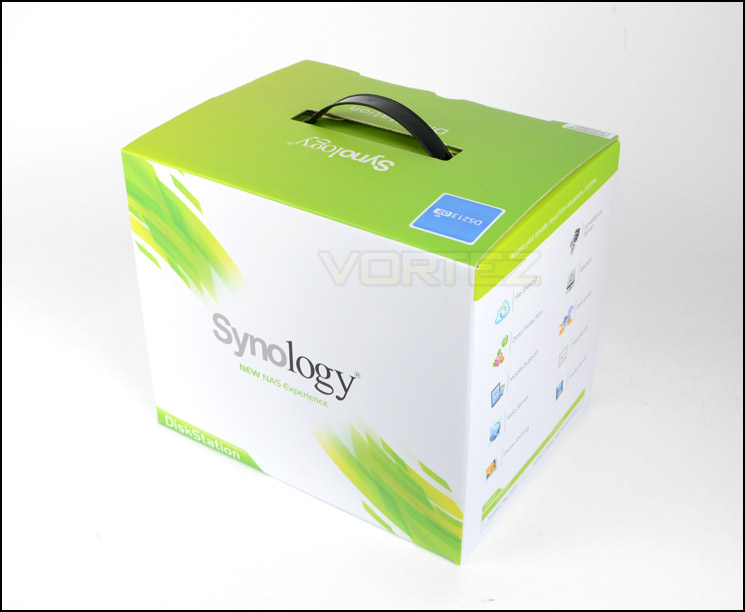
DS213air packaging is neat, tidy and professional
Inside, all of the items within the bundle are sectioned off in compartments via cardboard. The bundle consists of:
• Documentation – Quick start
• AC power pack/cables
• Network cable – CAT5
• Screws for attaching drives to HDD trays
• Installation CD – Guide, setup utility, data replicator 3

DS213air bundled accessories
Over the page we will examine the DS213air unit itself. Looking at its internal and external make-up.
Closer Look
To distinguish between Synology’s entry level and higher end models the company reserve the white glossy plastic exterior exclusively for the j series, DS213air uses the entry level styling. Either side has the Synology insignia carved out – as seen on previous years models and although this unit is entirely plastic it still holds a level of quality and edge of professionalism.
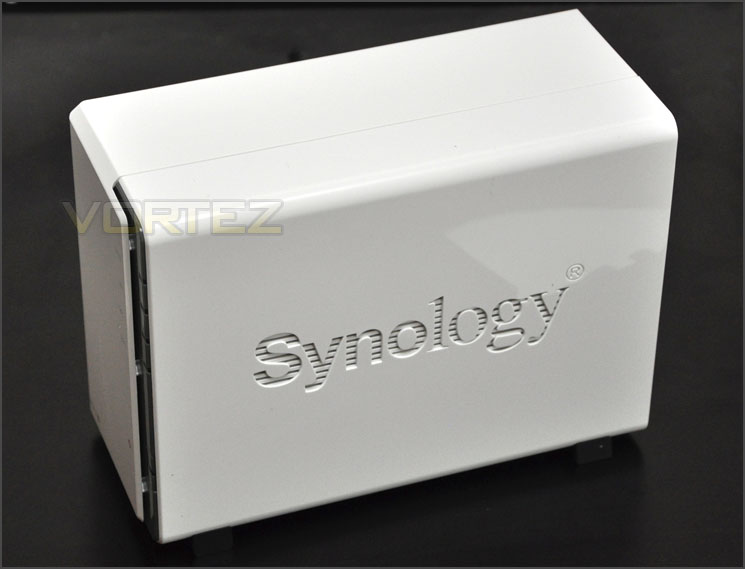
White glossy exterior – sleek and
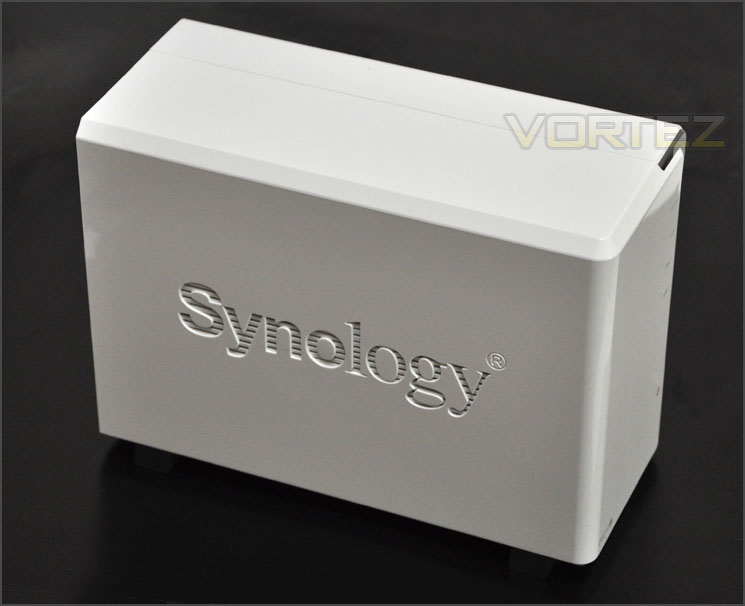
Synology logo on either side
Moving to the front of the unit along the right edge of the unit are various LED indicators and a power button. The LED indicators are as follows:
• Status LED
• LAN LED
• Disk 1 LED
• Disk 2 LED
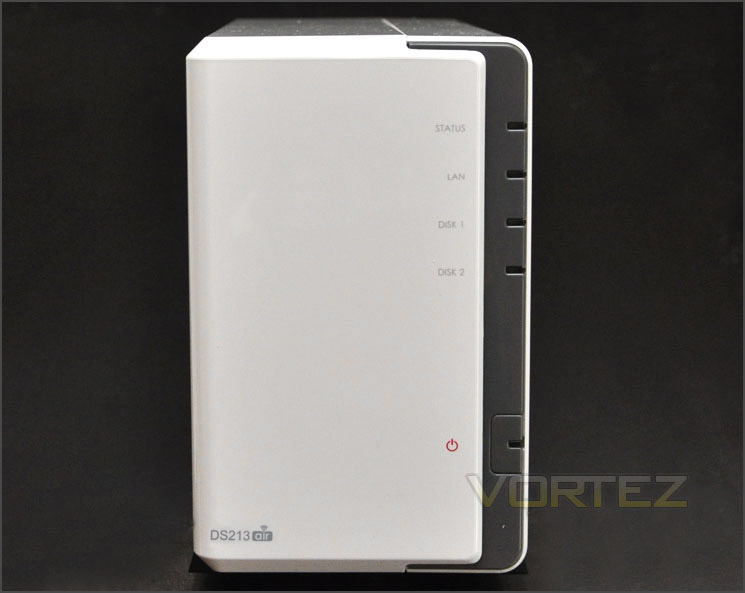
The front of DS213air
Spinning the DS213air round to its rear we see the unit has a 90mm exhaust fan for extracting heat from the PCB and HDDs. Beneath this fan are dual USB 3.0 ports and a RJ45 Gigabit LAN port. Also on the back panel is the AC connector and a label with the mac address and serial number.
Although DS213air is WiFi ready there is no physical antenna on the outside of the unit but there is a handy on/off button for WiFi.
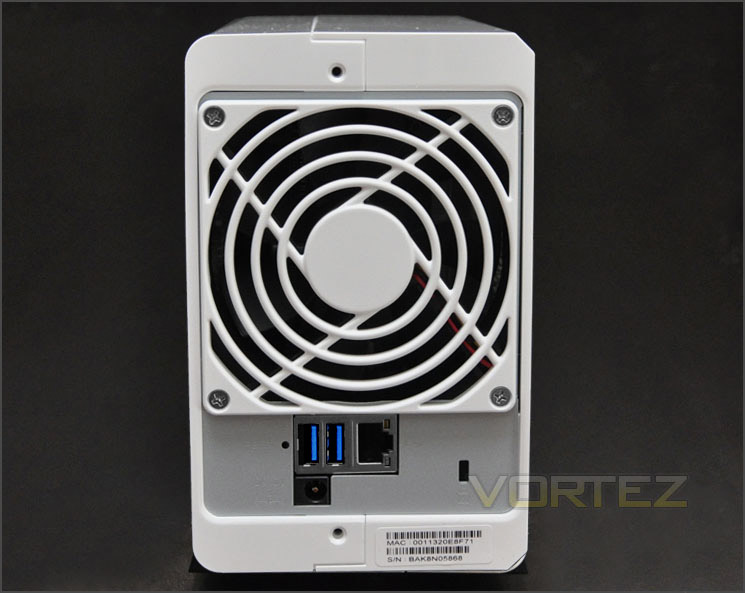
The back of DS213air with dual USB 3.0 ports and Gigabit LAN
HDD Installation – DS213Air
DS213air has to be pulled apart in order to get inside. To get inside, one side must be pushed in a backwards fashion and then the unit will separate into two parts.
Once inside, there is a rack for mounting two HDDs. The drive just needs to be slid into one of the slots so that it marries up with the SATA connections – screws should be attached to keep the drive(s) securely positioned.
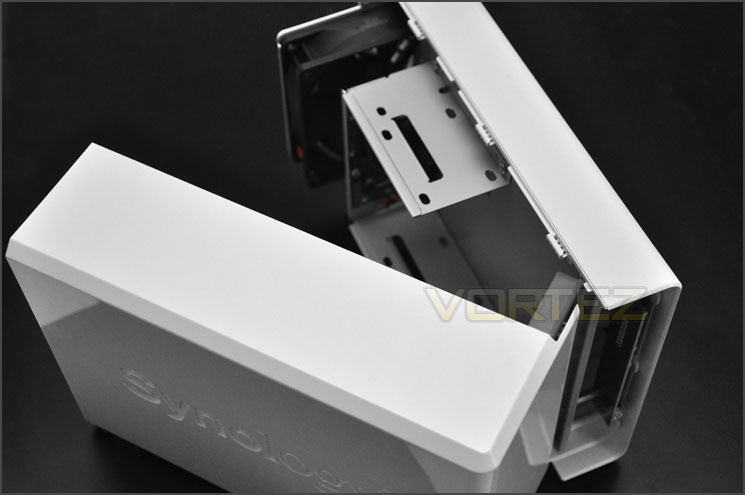
DS213air separates into two parts
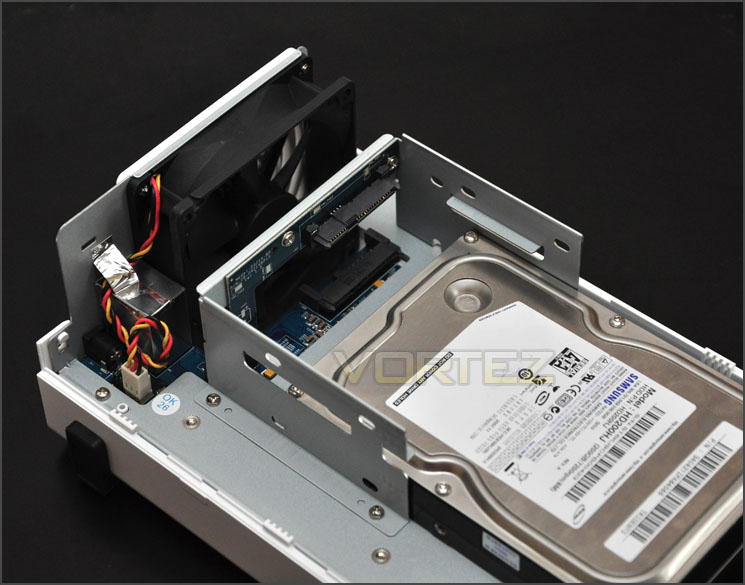
HDD rack for installing 2.5” or 3.5” drives
Unfortunately there is no obvious way to get at the PCB and take a look at the components. But we can confirm the DS213air has the following components:
• CPU Frequency: 1.6GHz
• Hardware Encrypted Engine
• Memory: DDR3 256MB
• Internal HDD/SSD: 3.5″ or 2.5″ SATA(II) X2
• Max Internal Capacity: 8TB (2X 4TB HDD)
Built-in Wireless Support
• Operating Frequency: 2.4 GHz
• Standards: IEEE 802.11b/g/n
• Antennae : 2T2R
• Wireless Security: WPA/WPA2-PSK, Wi-Fi Protected Setup (WPS), Wired Equivalent Privacy (WEP)
• Firewall: NAT firewall with up to 100 rules
• Quality of Service (QoS): WiFi Multimedia standard (WMM) ensures smooth audio and video transmission
• Filtering: Deny/Allow by MAC address
Synology have released a DS213j yet but we are quite certain it will have an uncanny resemblance to that of the DS213air both externally and internally too. The ‘j’ moniker typically sees the series offer the glossy white shell for entry level models.
Synology DSM 4.x (Video Overview)
Back at the beginning of last year Synology unveiled DSM 4.0 BETA. As we have reported in the past DSM is vast in its usability, pleasing the eye and is a firm favourite. DSM 4.0 integrates Cloud features, Apps-on-demand and of course multi-tasking is a key element too. To gain access to the NAS and begin using the DS213air the Synology Assistant must be installed and the latest version of DSM via a .pat file.
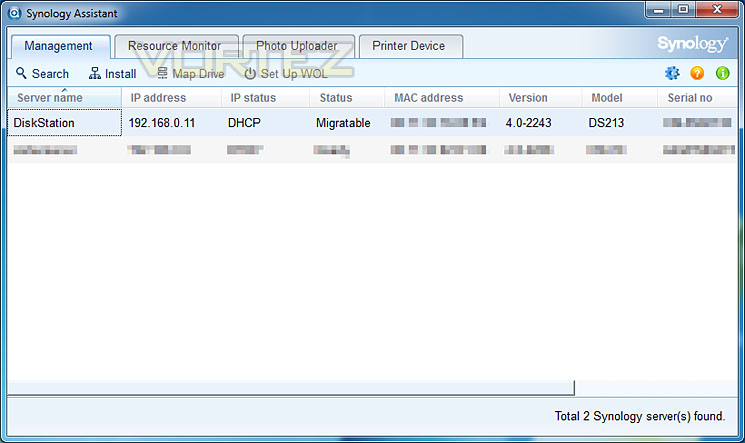
Synology Assistant gives access to available NAS’ on the network
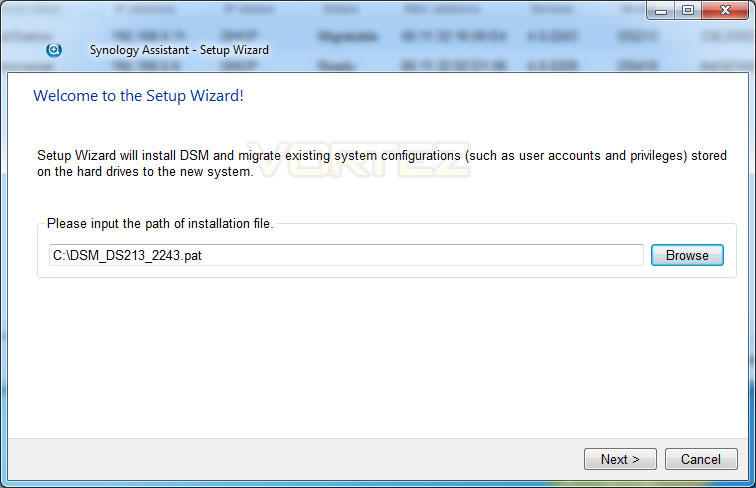
Installing latest DSM via .pat file from Synology website
The next stage of installation is to set the credentials – setting the password and naming the server. Once you are happy with the details submitted – click the next button.
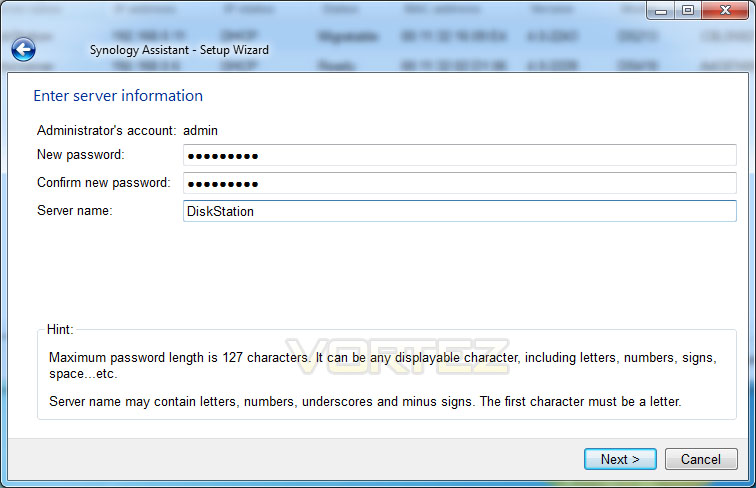
Setting up credentials
During the installation of DSM, networking settings are applied and configuration files are transferred. This process involves applying network protocols, formatting the drives and adding partitions ready to be used for storage. This process doesn’t take very long at all – it will of course depend on how large the drives are though. Once complete, the installation wizard reboots the NAS.
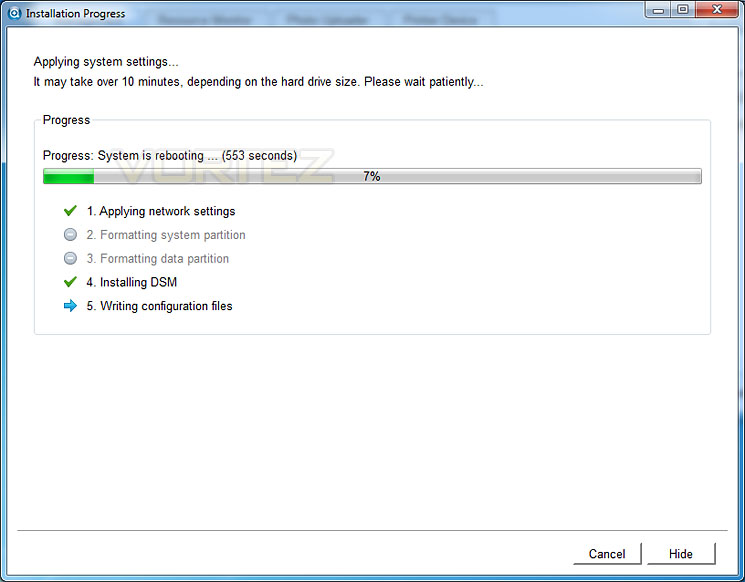
DSM during various installation stages
Upon completing the installation of DSM we can now log into the system. Login details are “admin” and the password that was specified during setup.
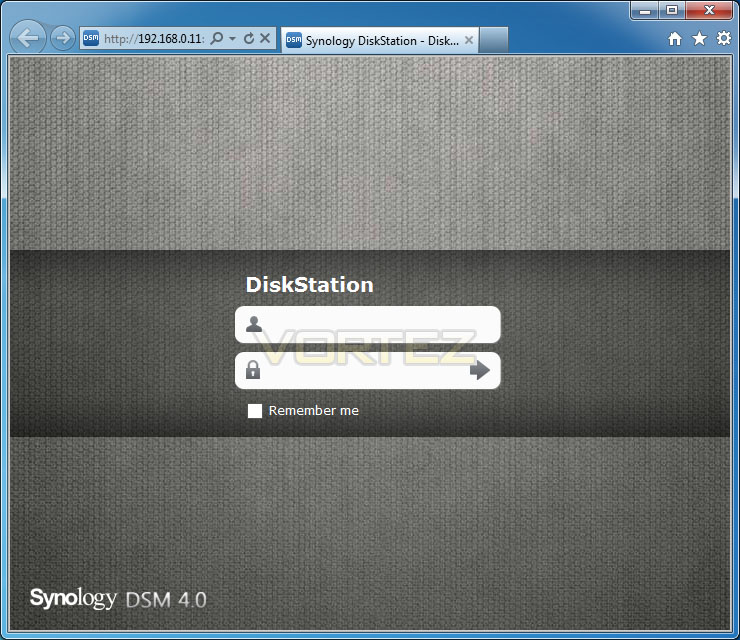
Login screen after installing DSM
Inside the GUI there are lots of features to look at and use. Compared to previous versions, DSM 4.x is even better. The interface is fluid, interactive and very extensive. Rather than show its functionality via screenshots, here is a brief overview of what you can find inside.
VIDEO – DSM 4.0 Control Panel Overview
Audio Steaming – Mobile Phone
VIDEO OVERVIEW – DS Audio in action!
Amongst many of the class leading features within DSM 4.x we have the ability to store files on the NAS and stream them to mobile devices such as Android ready devices. For the purpose of this review I thought it would be a worthwhile inclusion to show the functionality between the NAS and mobile device for audio files with DS Audio by Synology. About Synology DS Audio.
Synology DiskStations not only offer a great storage solution for media files, but now you can access your music collection directly from your iPhone or iPod Touch. Synology’s DS audio application allows users to access their music collections stored on the Synology DiskStation and stream that music through the iPhone or iPod Touch across an internet connection.
NOTE: Sound station will need to be enabled from the Control Panel of DSM 4.x
The first thing to do is download the App from Android Market. Performing a search for Synology returns lots of different Apps and the best thing is, they are all free! DS Audio is the one we want.
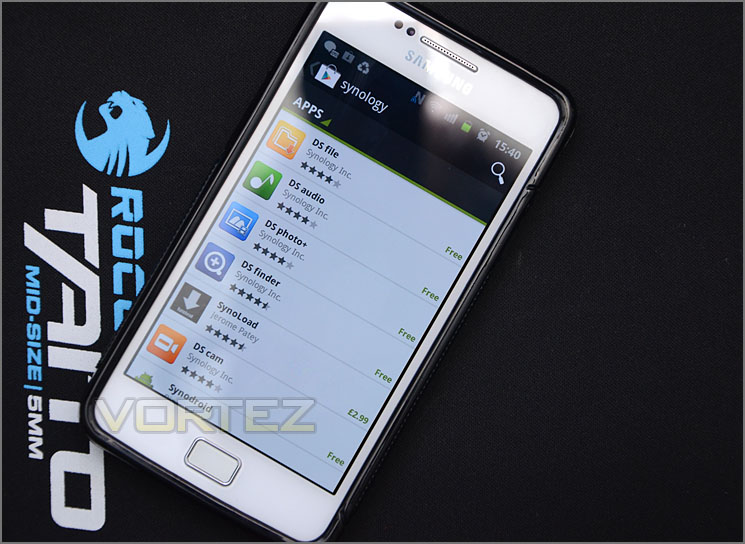
Android market has many Synology Apps – all are free!
After installing the app, we are met with a login screen (just put in the IP, username and password) and then you come to a home screen which gives you different options. I select “Folder” and can then navigate to where I have put an MP3 on the Diskstation.
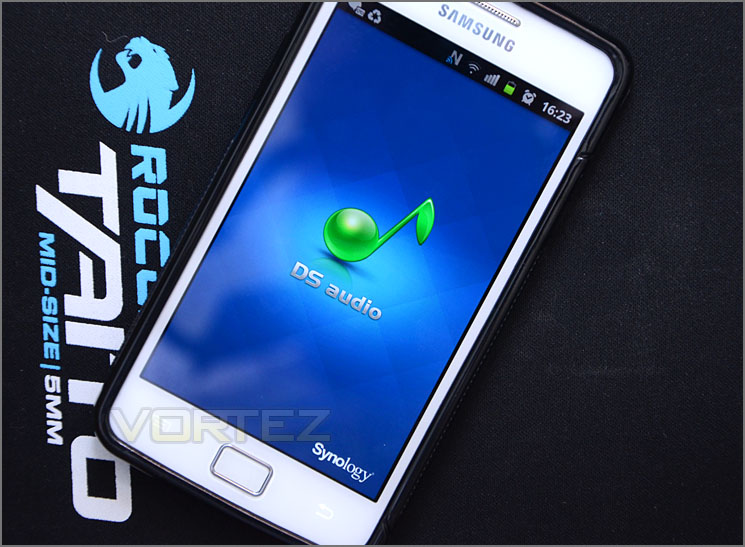
The DS Audio loading up
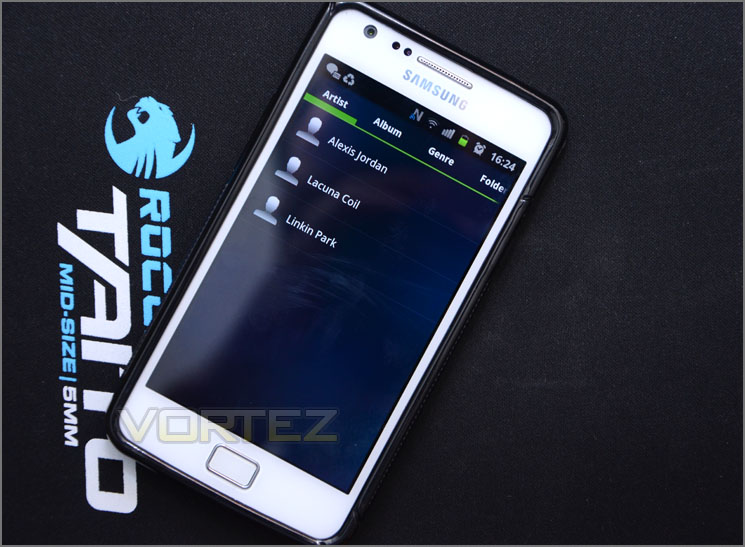
MP3s listed on the NAS
I can then play the file directly from the NAS, from anywhere within range of the wireless connection the NAS is being hosted on. So if you have a docking station with speakers you can ideally have the music playing off the NAS within another room. Perfect if you are entertaining guests and want some ambience!
From start to finish – installing software onto the NAS is very easy. Once DSM is installed we then have a plethora of features to take advantage of that allows seamless operation for almost any task a user could want.
WiFi functionality
The major talking point with DS213air is of course the WiFi functionality, afterall this is how this unit receives the “air” moniker. Thanks to a built-in wireless adapter DS213air can be setup as an access point to give extra coverage in blackspots which are inevitable in any building. Sometimes rooms have thick walls, are far away from the web router or are on different floors which can present connectivity problems.
Synology have integrated WiFi support within DSM 4.x, which allows users to quickly and easily configure the NAS to one of three devices – Wireless Hotspot, Wireless Router or to simply Join WiFi Network as seen below:
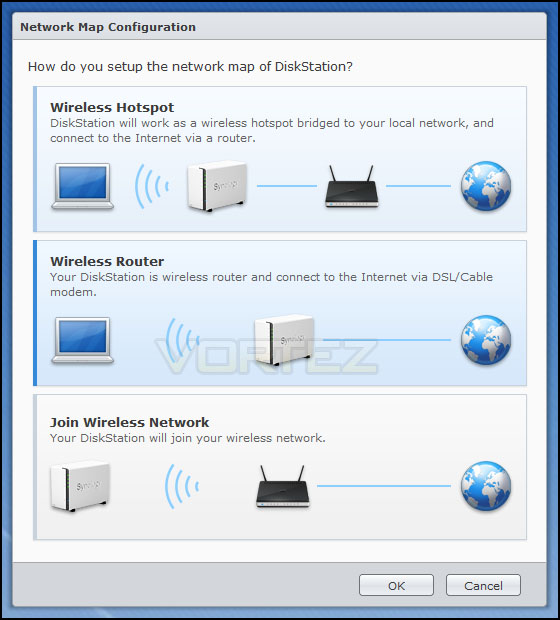
A whole host of settings can be tweaked, giving novice users the chance to get up and running efficiently and advanced users the versatility they require. Synology have really thought this out very well indeed and it’s obvious from the interface that every angle has been covered.
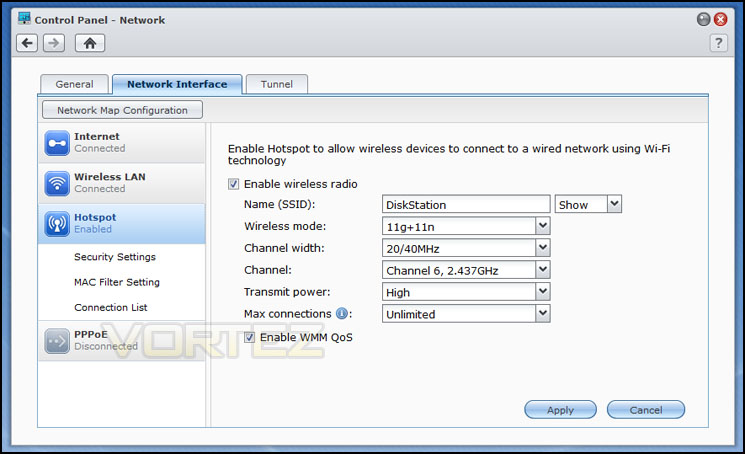
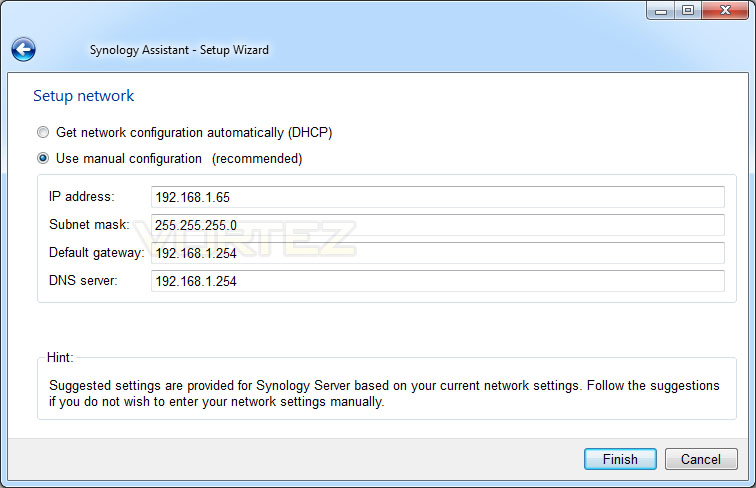
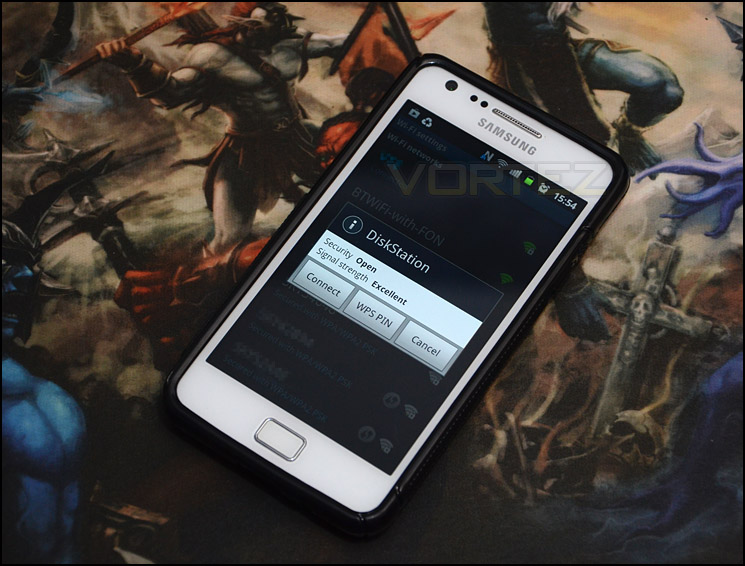
We tested this functionality out and it really does work. Having a hotspot at the opposite end of the building to the web router is a worthwhile consideration as it will boost the connection in this area with little to no connection interference. Do bear in mind though, the NAS will require a physical network cable running from the gateway in order to transfer the internet connection over to the NAS.
Power & Thermal Performance
We have looked at some of the features that DSM 4.x brings with DS213air but how does this affect performance? What are typical transfer rates like over a Gigabit network? Is power consumption reasonable? These are all questions that you might be asking and we are here to answer them.
Test System Specifications
CPU Intel Core i5 2500K
Motherboard ASRock Z68 Extreme4 Gen3
Memory 8GB Kingston HyperX 1600MHz DDR3
Graphics NVIDIA GTX 580
PSU Thermaltake Toughpower Grand 750W
Motherboard ASRock Z68 Extreme4 Gen3
Memory 8GB Kingston HyperX 1600MHz DDR3
Graphics NVIDIA GTX 580
PSU Thermaltake Toughpower Grand 750W
Devices
– Belkin N1 Gigabit Router
– Synology DS213
– Synology DS411
– Synology DS411j
– Synology DS211
– Synology DS410
– Toshiba STORE Steel USB
– Synology DS213
– Synology DS411
– Synology DS411j
– Synology DS211
– Synology DS410
– Toshiba STORE Steel USB
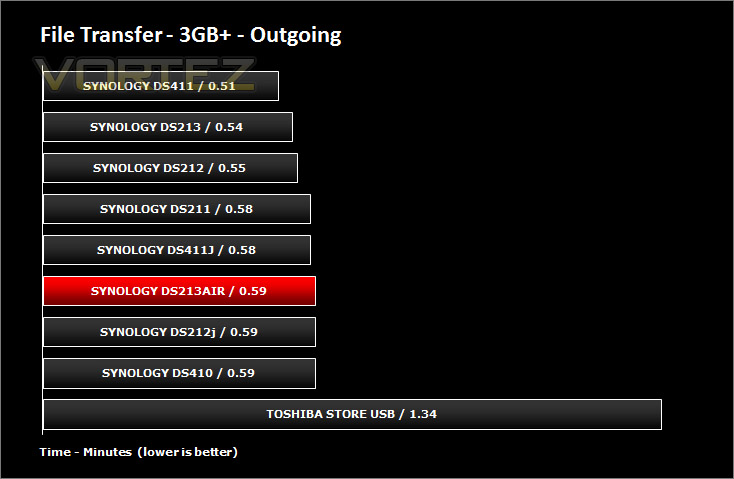
First of all, for the purpose of real world testing we bundled together 6 files which were in 2 folders amounting to 3.2GB. We wanted to discover the incoming and outgoing transfer times between the DS213air and the computer – against other devices on a Gigabit network. Here are the results.
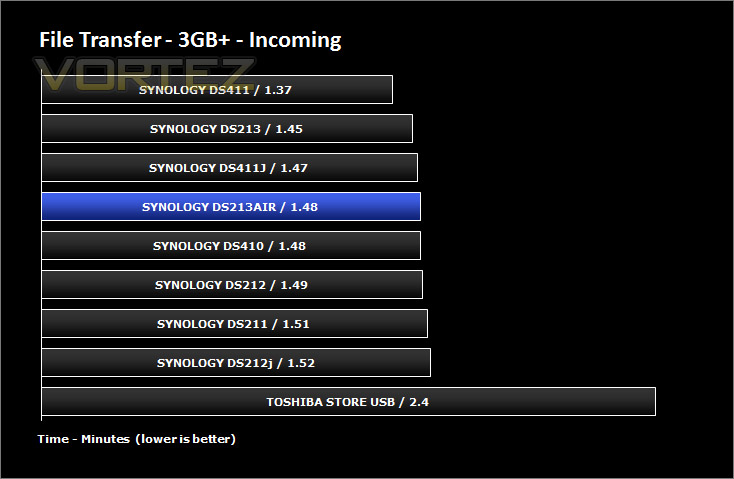
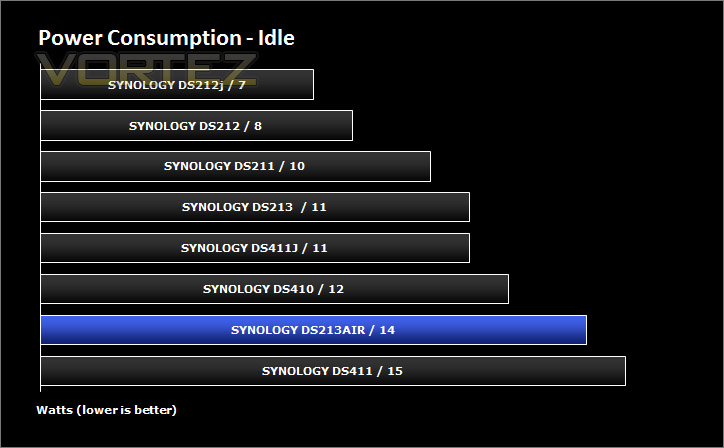
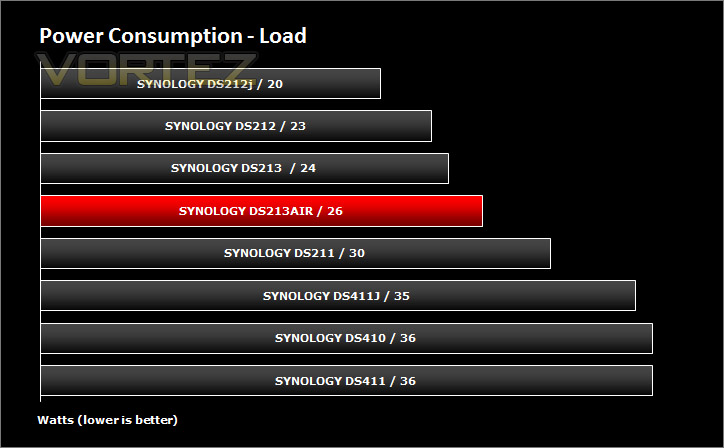
Whilst performing these tests load power consumption was monitored. The power consumption was also monitored whilst being in an idle state. There are actually two states, idle after usage and hibernation which the unit falls into after 10 minutes of non-usage. Hibernation figures were recorded.
Conclusion
Ever since we heard about a WiFi ready Synology NAS we were eager to see what the new DS213air was really capable of.
At this moment in time there is only the DS213 within the 2-bay series for 2013, there is no ‘j’ option which usually denotes the entry level solution. The DS213air actually has the typical styling that is synonymous to the ‘j’ line, this could be a hint that the air is infact going to take up this very spot. Nevertheless, the hardware specification is very respectable – compared to the higher end DS213, there is half the memory and a slightly slower CPU found in DS213air. All of which prove to be more than adequate, even for the likes of the spectacular Synology DSM.
We mentioned earlier in the review that Synology’s DSM is not only easy to setup but it also delivers seamless functionality that will keep many different types of users entertained. Whether you are a novice or an avid storage enthusiast, DSM will have exactly what you need or want. As we have found in the past, Synology’s DSM Operating System is just fantastic. The features with this OS are so extensive, to name but a few: Media Server, Audio Station, Photo Station, Download facilities, Mail Server, Surveillance Station via IP cameras and much more.
In this review we demonstrated how easy the Audio Station is to use both via pictures and video. Some may not want to use this feature but even so, it is testament to Synology’s wealth of expertise and the passion they have in providing a feature-rich experience.
The real talking point with DS213air though, is that intriguing moniker – air. This NAS of course comes with WiFi built-in to allow users to configure the unit as an access point. We demonstrated this feature earlier and even tested it out and provided you have an Ethernet cable between the gateway and NAS this feature really does help to alleviate those dreaded blackspots where the WiFi signal from the router is so painfully low that internet usage becomes frustrating. Working with DSM, the WiFi functionality is flexible and highly customisable.
Priced at £250inc VAT (GBP) the DS213air is priced in the same region to that of the higher-end DS213. Its defining feature is of course that WiFi connectivity which is obviously going to cost a little more since it breaks the mould, offering something significantly different to the standard NAS.
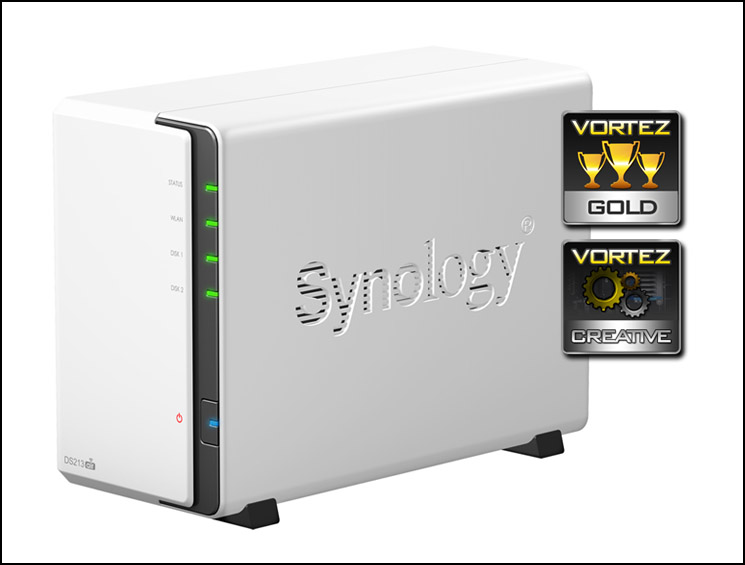
Synology’s new DS213air is bound with the usual plethora of Synology class. It looks classy, has great build quality and performs very well. Those who are wanting a reliable network solution with the added bonus of WiFi functionality should look no further, we love the DS213air – so much so, it receives our gold and creative awards.
Pros
+ Stylish aesthetics
+ Capable hardware specification
+ Excellent performance
+ Low fan noise
+ Feature rich operating system
+ Extended functionality with WiFi options
Cons
– There are none!
+ Stylish aesthetics
+ Capable hardware specification
+ Excellent performance
+ Low fan noise
+ Feature rich operating system
+ Extended functionality with WiFi options
Cons
– There are none!

Click here for an explanation of our awards at Vortez.net.


