







Can GIGABYTE’s new mechanical keyboard, based around Cherry MX Red switches, impress at the premium end of the peripheral market?

Product On Review: GIGABYTE Aivia Osmium
Manufacturer And Sponsor: GIGABYTE
Street Price: £109.99
GIGABYTE have long been recognised as a major player in the PC component market, releasing a range of hardware for businesses, cost-conscious gamers and enthusiasts alike. The Taiwanese company was founded way back in 1986, and in the intervening years has become a fixture in consumer electronics in both Eastern and Western markets. We perhaps see them as most notable for their mid- and high-end motherboards and VGA cards, components with which they now have extensive experience and an impressive portfolio, but they have increasingly branched out beyond that somewhat fickle industry. Indeed it was at a UK event taking the wraps off their much-vaunted GTX 680 SuperOverclock that we first spied the peripheral we’re reviewing today.
Before we get to that however lets provide a little background on GIGABYTE peripherals. Perhaps overshadowed by their strong component lineup the GIGABYTE peripheral range, contrary to what you might expect, debuted many years ago. Initially centred around business use, the middle of the previous decade saw them expand into the cost-conscious gamer segment, with often strong but sometimes mixed results. Always featuring striking aesthetics, the M/K and Force ranges service the cost-conscious consumer well, yet GIGABYTE seemed to have difficulty breaking into premium range successfully.
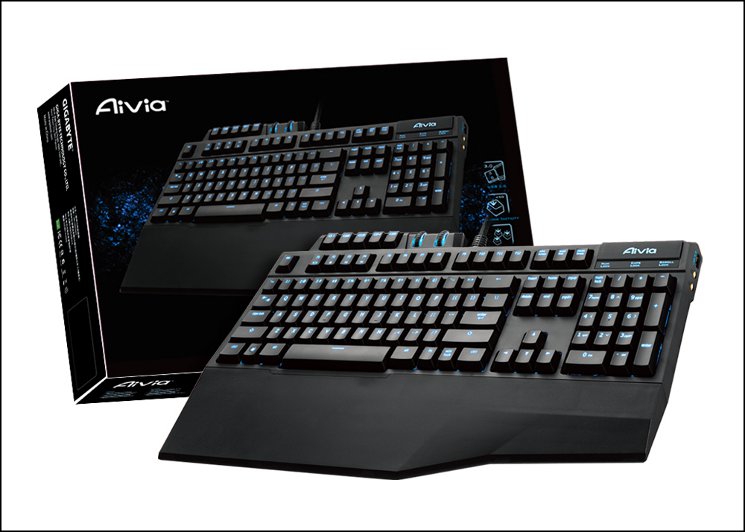
Enter the Aivia branding, now dedicated to the more discerning consumer and featuring both high-end gaming keyboards and mice. It has been 14 months since our review of the Aivia M8600 wireless mouse, and since then GIGABYTE have updated their premium line with the Aivia Krypton Mouse and Osmium Mechanical Keyboard. We’ll be taking a look at the Krypton very soon, but first up is the Osmium:
GIGABYTE introduces you the whole new premium gaming keyboard, Aivia Osmium Mechanical Gaming Keyboard. The blue Platinum group metal “Osmium” is the heaviest element at normal conditions. Its’ hard, rare and noble nature represents ultra durability and luxury of Aivia Osmium Mechanical Gaming Keyboard. It not only features Cherry Red mechanical key-switches, but is also exclusive built with an USB3.0 hub. Aivia Osmium is utilizing the revolutionary anti-ghosting matrix key-switch design, and innovatively features dynamic volume and backlit wheel controllers.
Price a hair under £110 in the UK, the Osmium occupies a position at the high end of the market, commensurate with the flagship mechanical keyboards of many competitors. In this respect GIGABYTE will need to leverage additional features to push the Osmium ahead of the pack.
Features and Technical Specifications
Features
Superior CHERRY MX Red Mechanical Key-Switch
The Aivia Osmium gaming keyboard utilizes Cherry™ RED mechanical key-switches that provides superior tactile feedback and an optimized actuation force of 45g. Reduced key actuation distance of 2mm improves keyboard response time while remaining whisper silent during operation.
Ultra durability offering 50million key press lifespan
Superior materials and design improves key durability offering a staggering 50 million key press lifespan which is more than 10 times the amount of conventional keyboards. Key Travel – 2mm to actuation; 4mm to bottom.
Supports USB3.0 Superspeed
Equipped with a built-in USB 3.0 output which enables the ability to extend USB 3.0 Superspeed support from the motherboard. Connect your USB3.0 device simply through the keyboard.
Independent USB3.0 signal transferring through motherboard ensures the full data transmission without any loss. 10X data transfer speed boost over USB 2.0
1.8X power supply compare to USB2.0
Absolute Anti-Ghosting Multi-Key press Capability
Utilizing the revolutionary Anti-Ghosting Matrix key-switch design, Aivia Osmium provides Anti-Ghosting across all zones of the keyboard. Dominate the competition with the amazing advantage and versatility of being able to input multiple keystrokes at once. Never be hindered again on the battlefield as you twist, weave, and decimate your enemies through the unparalleled freedom of Absolute Anti-Ghost technology.
*supports 64 simultaneous key presses via USB connection*
Built-in GHOST™ Macro engine
Intuitive GHOST™ Macro Engine which features intuitive interface allows you to pre-define and switch between macro keys easily for latest PC gaming titles. Profile switch at your fingertips enables you to switch between 5 different gaming profiles. Up to 70 macros memorization for the gamer on the go.
The Aivia Osmium gaming keyboard utilizes Cherry™ RED mechanical key-switches that provides superior tactile feedback and an optimized actuation force of 45g. Reduced key actuation distance of 2mm improves keyboard response time while remaining whisper silent during operation.
Ultra durability offering 50million key press lifespan
Superior materials and design improves key durability offering a staggering 50 million key press lifespan which is more than 10 times the amount of conventional keyboards. Key Travel – 2mm to actuation; 4mm to bottom.
Supports USB3.0 Superspeed
Equipped with a built-in USB 3.0 output which enables the ability to extend USB 3.0 Superspeed support from the motherboard. Connect your USB3.0 device simply through the keyboard.
Independent USB3.0 signal transferring through motherboard ensures the full data transmission without any loss. 10X data transfer speed boost over USB 2.0
1.8X power supply compare to USB2.0
Absolute Anti-Ghosting Multi-Key press Capability
Utilizing the revolutionary Anti-Ghosting Matrix key-switch design, Aivia Osmium provides Anti-Ghosting across all zones of the keyboard. Dominate the competition with the amazing advantage and versatility of being able to input multiple keystrokes at once. Never be hindered again on the battlefield as you twist, weave, and decimate your enemies through the unparalleled freedom of Absolute Anti-Ghost technology.
*supports 64 simultaneous key presses via USB connection*
Built-in GHOST™ Macro engine
Intuitive GHOST™ Macro Engine which features intuitive interface allows you to pre-define and switch between macro keys easily for latest PC gaming titles. Profile switch at your fingertips enables you to switch between 5 different gaming profiles. Up to 70 macros memorization for the gamer on the go.
Tech. Specs.
Interface:- USB 2.0
Activation:- Cherry Red Mechanical Switch
Switch Life:- 50 million times
Key Profile:- Standard
Travel Distance:- 4mm to the bottom
Activation Distance:- 2mm to actuation point
Peak Force:- 45g
USB Port:- USB3.0 + USB2.0
Audio:- Microphone-in/ Earphone-out
Weight:- 1500g ±10%
Dimension:- 454(L)* 257(W)*45(H) mm
Cable Length:- 2.0m ±10%
OS Support:- Windows XP/ Vista/ Windows 7
Color:- Black
Activation:- Cherry Red Mechanical Switch
Switch Life:- 50 million times
Key Profile:- Standard
Travel Distance:- 4mm to the bottom
Activation Distance:- 2mm to actuation point
Peak Force:- 45g
USB Port:- USB3.0 + USB2.0
Audio:- Microphone-in/ Earphone-out
Weight:- 1500g ±10%
Dimension:- 454(L)* 257(W)*45(H) mm
Cable Length:- 2.0m ±10%
OS Support:- Windows XP/ Vista/ Windows 7
Color:- Black
Packaging And First Look
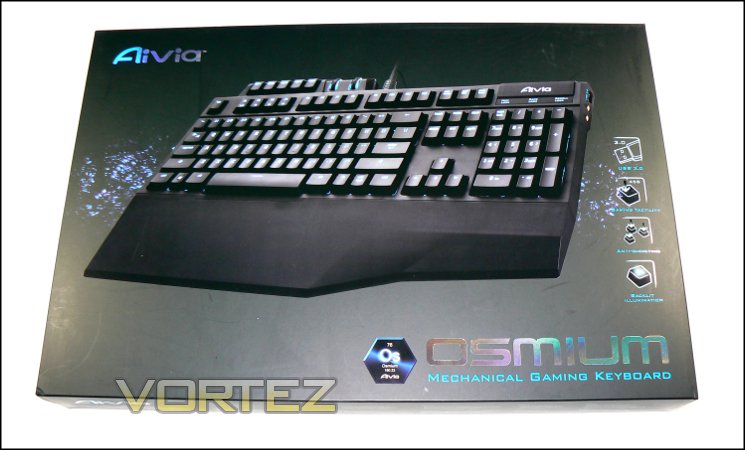
Yes, the GIGABYTE Aivia Osmium packaging is huge for a keyboard, and certainly encapsulates a premium look from the outside. The front boldly displays the Osmium keyboard in high-gloss relief, alongside the key features of USB 3.0, Gaming Tactility, Anti-Ghosting (AKA key rollover) and Backlit Illumination. However there does exist some potential for confusion here as USB 3.0 is not required in order to utilise the keyboard.
The ‘Osmium as an element’ theme is also continued on the packaging, citing its atomic number (76) and mass. For chemistry buffs out there that’s a pretty cool addition.
You’ll note that despite the UK keyboard layout of our sample, the packaging displays the US layout of the Osmium. Before buying ensure that you have picked up the correct layout by checking the left-hand-side of the packaging near the S/N and barcode. For reference, UK layouts will be stamped UK Layout BLK here.
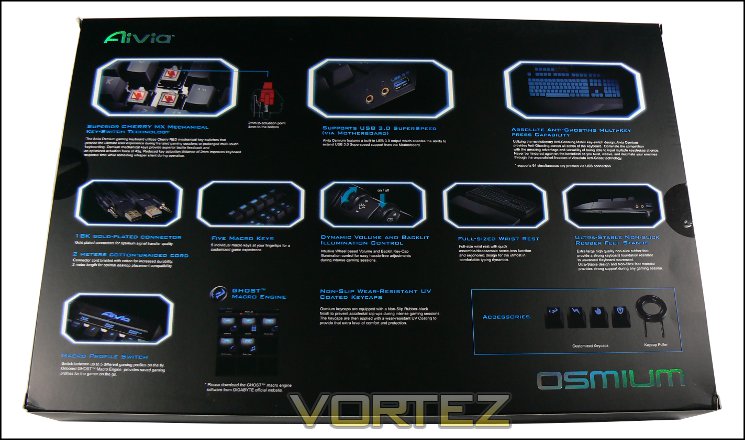
Given the realestate on this box it’s no surprise that GIGABYTE can go into some depth regarding the features of their keyboard. Pride of place undoubtably goes to the mechanical switch type, but they carefully go through all eleven marketable keyboard features to give you some idea of what to expect from the keyboard. Due to this, there should be very few surprises inside.
Finally, the right-hand-side briefly lists the specs of the keyboard. Other sides are devoted to multi-lingual summaries of the keyboard features.
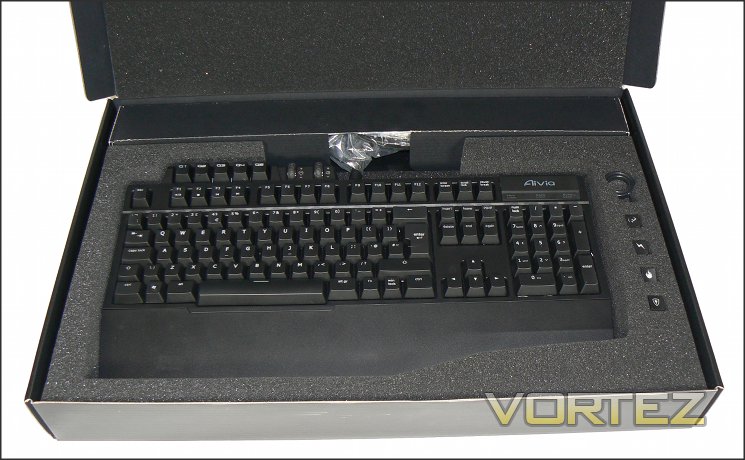
Upon opening, we discover that the outer layer is a sleeve for what can best be described as a transit case for the Osmium keyboard and accessories. Opening up we get our first view of the Osmium, complete with additional keycaps and keycap remover, all sitting snuggly in >1cm thick dense foam. This frankly shouts high-end and premium, and is a theme which GIGABYTE are pushing in other Aivia products; if nothing else, the keyboard should be extremely well protected in transit.
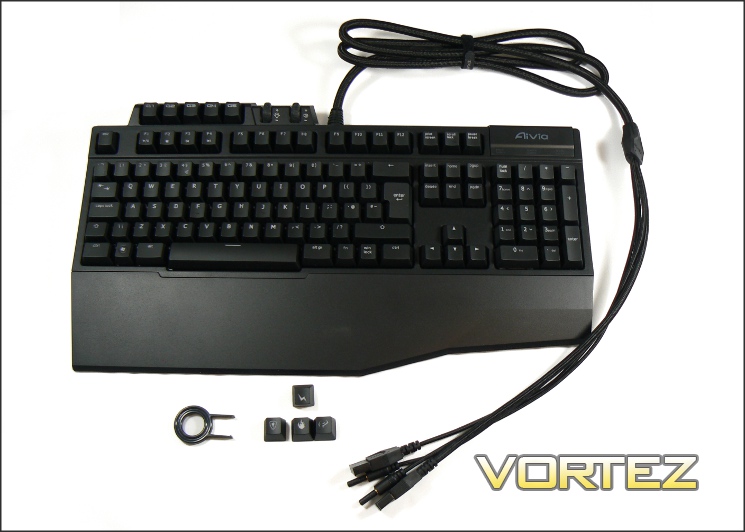
By way of accessories, the Osmium may seem a little thin on the ground. A wrist-rest is obviously included, and is very welcome at that, but apart from those already noted the only other thing included in the bundle is a brief Quick Guide outlining setup instructions and where to download the GHOST software. We’re certainly not complaining – that’s much better for the environment after all – but worthy of note for those expecting over the top bundles seen on some products with pretensions of premium status.
The keyboard measures 450mm x 190mm, extending to 450mm x 260mm with wrist-rest attached. The locking mechanism for the rest is very robust, and extendible feet under the front of the keyboard ensure that the keyboard is stable on a continuous plane. Feet at the rear add close to 20mm of height at the highest point, giving the Osmium a fair typing angle if preferred. Four non-slip rubber pads (six with wrist-rest) hold the keyboard in place whilst in use.
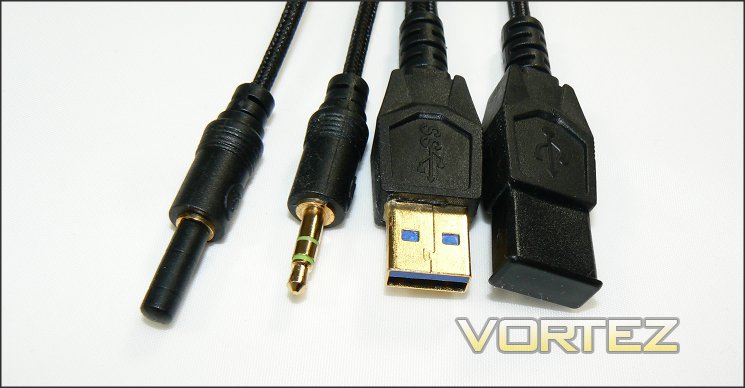
To round out our first look we need to make a quick point on cabling. The Osmium’s connector cabling is bundled together in a tightly woven braided sheath, cutting down significantly on expected long-term cable wear. The aggregated cable is 2m long, which should be plenty for reaching the back of a typical system, and includes USB 2, USB 3, L/R Audio and Mic In. Note of course that only USB 2.0 must be connected for the keyboard to function, other features are simple passthrough.
First impressions of the Osmium are excellent, but can it withstand closer scrutiny?
A Closer Look
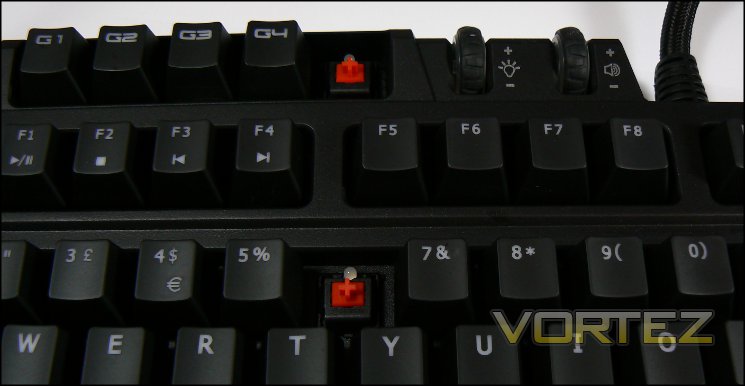
Lifting one of the Aivia Osmium’s keycaps reveals the characteristic red cross of a Cherry Red switch, a switch which is present for each key including G1-5 on the topmost row. Cherry Red keys require 45g of force to actuate, much less than Blacks seen on some other mechanical keyboards, and has a linear actuation style. This style is a favourite of gamers as the force with which they perform a keystroke typically bottoms-out the key, rendering tactile feedback moot.
More detailed information on the Cherry MX range of switches can be found here.
Above each switch is a blue variable-brightness LED designed to shine through the keycap in low-light conditions. The blue matches GIGABYTE’s brand colour, but has the side-effect of introducing more glare than red LEDs of similar intensity and has the potential to be problematic for those who utilise corrective lenses. The backplate of the GIGABYTE Osmium is black, with a rigidity which indicates a steel composition. There is no flex to the keyboard whatsoever, indicating an extremely durable construction especially compared to many membrane keyboards on the market.
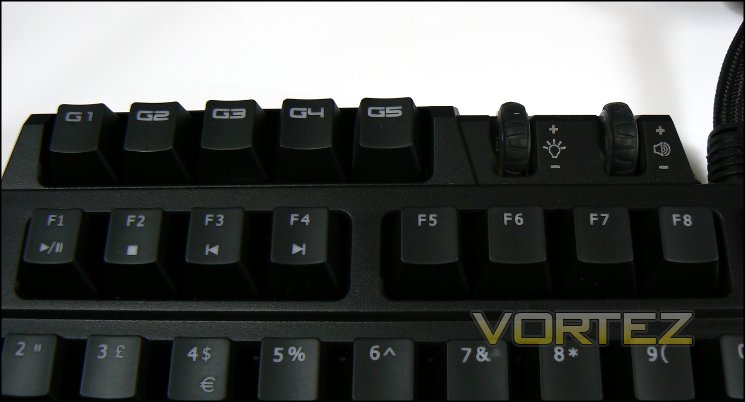
Macro keys – on the Osmium stylised as G-Keys – are included on the topmost key row next to two wheels labelled for audio and brightness adjustment. These keys are programmable in software for specific functions, with settings stored in memory on the keyboard itself and hence transferable between PCs. As with standard keys their keycaps can be replaced by the customised ones supplied, or others from a 3rd party source.
Function-Lock (fn)
The Osmium features a function key modifier labelled fn on the right-hand-side (next to alt gr) Whilst not a toggle, pressing this key simultaneously with F1-4 alters their behaviour to that of standard media keys Play/Pause, Stop, Step Back and Step Forward respectively. This functionality neatly cuts down the number of functions you would consider binding to the G-Keys, but nonetheless are unlikely to be hugely valuable unless you’re playing a lot of media on your PC.
Media player functionality is further augmented by the volume control roller on the top bar to the right of the G-Keys. Rotating up and down will increase and decrease the overall system volume, whilst pressing the wheel will mute the system volume. Of all the media functionality, this is by far the most useful, and a sensible addition to the feature set.
Additional Features
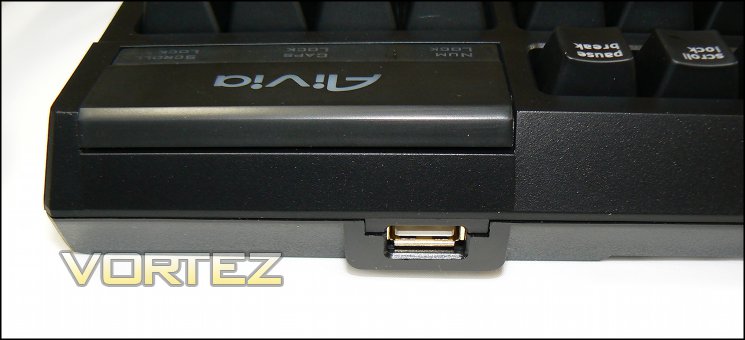
USB 2.0 and 3.0 ports are present on the rear and right-hand-side of the Osmium keyboard. The USB 3.0 is a passthrough which needs to be connected at the rear of your system to be enabled, whereas USB 2.0 comes through the same signalling as the keyboard’s port. This may have some impact on compatibility given the faster polling rates utilised by this and other gaming keyboards, but by far the most important factor is to be aware of port power limitation. The USB 2.0 port will be supplying plenty of juice to the keyboard and LED options, and plugging in a particularly power-hungry device such as a smartphone in need of charging could easily exceed the supplied power. Generally speaking, best to stick to thumb drives on USB 2.0, whilst the separate supply of USB 3.0 should make it a much more hardy proposition.
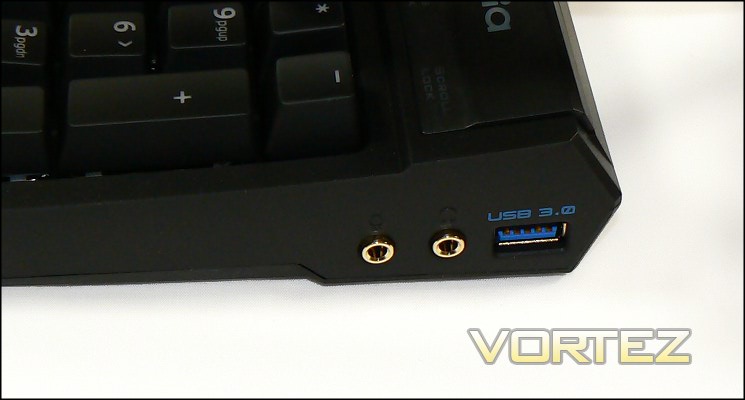
The Osmium also includes headset audio passthrough from the rear of your system to the right of the keyboard. The value of each of these features will greatly depend on your own set-up – generally the location of your PC case and the configuration of its front panel. We can’t fault the execution or thought behind it, and can certainly envision instances where it substantially reduces desk clutter.
Lighting and Customisation
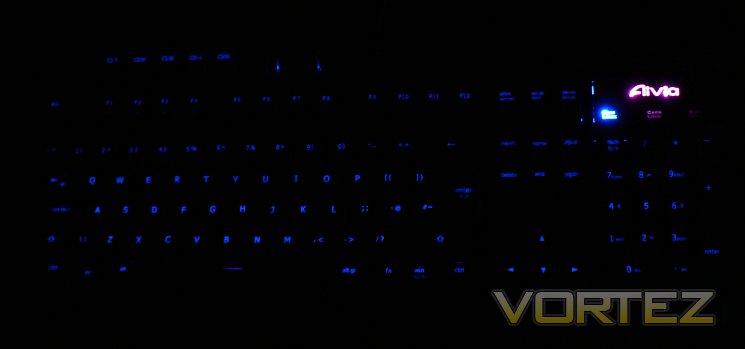
Keyboard backlighting, minimal brightness
As is becoming increasingly common with mechanical gaming keyboards, the Osmium offers full keyboard backlighting. In the case of the Osmium, this backlighting is provided by an individual blue LED for each key including NUMPAD and G-keys. As you might expect this won’t come cheap in terms of power requirements, so ensure that your USB bus has sufficient power to do the job.
LED brightness is controlled via a wheel at the top of the keyboard, and can be completely disabled entirely by pressing down once. At low levels the lighting is sufficient for a gentle glow on each keycap letter/number; higher levels illuminate the keycap and backplate brightly – great if you want to show off your keyboard but has the potential to introduce glare. In our view the subtle lighting is an excellent option which makes up for the lack of clustered lighting to highlight only areas of the board such as WASD keys, but this will come down to personal preference.
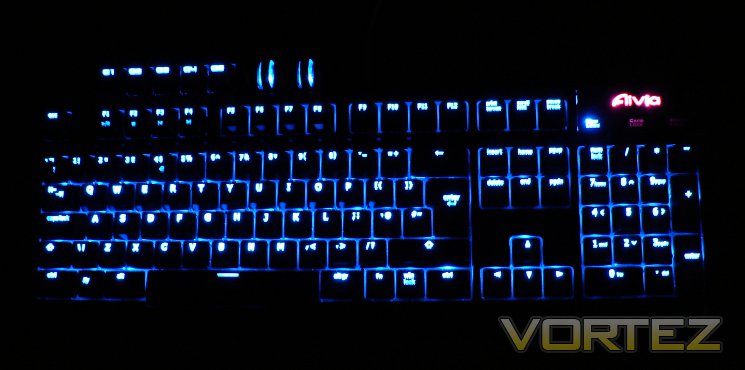
Keyboard backlighting, maximum brightness
The top-right panel with Aivia icon is illuminated by separate LEDs not controlled by the scroll brightness controller. Pushing down on this panel will scroll the keyboard through each of the five profiles (or fewer, if you choose to disable them in software), each of which has a different associated colour. Software options also allow you to add a pulsing/breathing effect to these LEDs but not dim them permanently, with colours also remaining fixed.
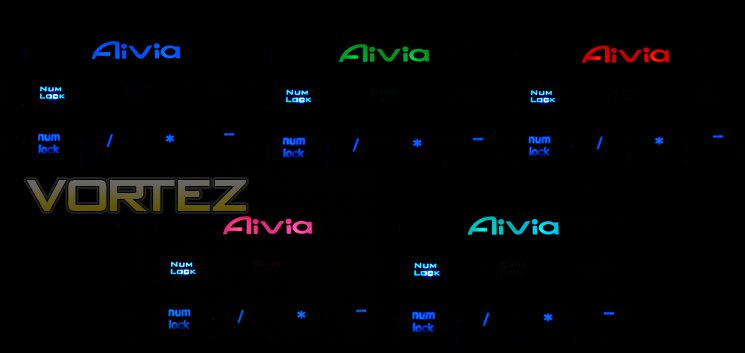
Keyboard backlighting, minimal brightness
NUMLOCK, CAPSLOCK and SCROLL LOCK LED brightness is fixed, independent of all other controls.
Beyond the lighting brightness, customisation options are somewhat limited. However GIGABYTE does include four additional keycaps to customise any alphanumeric or G-key position on the keyboard. Each has a different icon – flame, shield, lightning and GHOST insignia – and are a fun option for MOBA/MMO players who set up hotkeys for specific in-game skills.
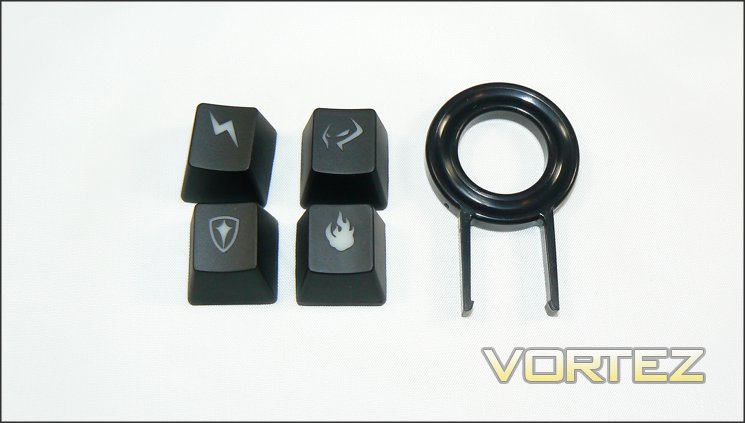
In summation, the Osmium has fewer appearance customisation options than some other mechanical keyboards, but also no omissions which would be detrimental to usability. Couple that with additional connectivity options and it appears to be plain sailing ahead… lets move on to the software.
Software
Osmium makes use of GIGABYTE’s unified GHOST Macro Engine software package, which includes both driver and UI support for button assignments, macros, and profile management. The unified nature of the application means that only one download and update process is required for all GIGABYTE peripherals currently used in your system, cutting down the hassle of an update process but also increasing QA requirements on GIGABYTE’s end.
In testing we utilised version 1.4 of the package, found here.
GIGABYTE do not supply a driver disk with the package, but in today’s connected world this is rarely an issue. The install process is as simple matter of downloading the software directly from the official website and installing it to a suitable location. The installation file is standalone – once downloaded, an internet connection is not required thereafter.
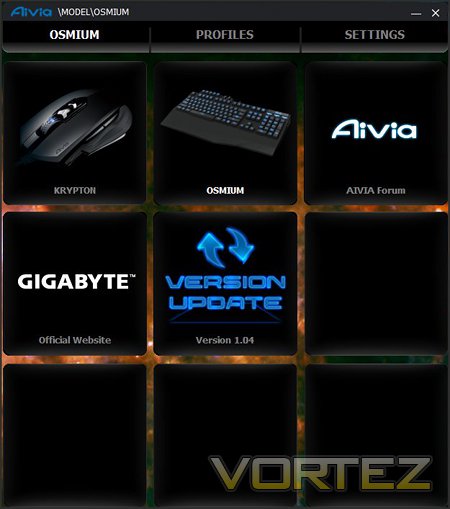
The GHOST software’s tiled template is a theme through the configuration process, likely speaking to a modular design which could be expanded with later releases. The main screen displays all compatible peripherals currently connected to the system (in this case the Osmium and Krypton). To alter peripheral bindings and settings, first off select the peripheral and then click either Profiles or Settings in the top bar.
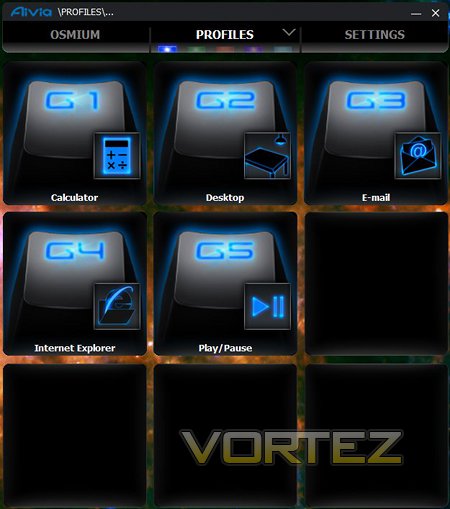
The Profiles screen is where you configure the G-Keys on a per profile basis. Profiles are selected by clicking one of five colours at the top or pressing the Aivia button on the keyboard, following which the G-key assignments will be shown for that profile. Click on each key to set to one of many pre-selected or user-defined macros.
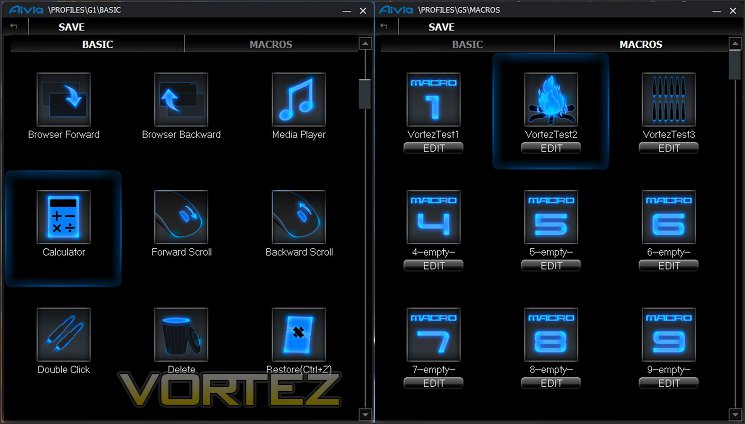
GIGABYTE allow two different types of macros to be utilised: well known pre-configured Windows macros – under the ‘BASIC’ tab – or user created ones – under ‘MACROS’ (see above). Basic macros are limited to those typical Windows shortcuts such as default web browser or ALT+Windows key combinations, whilst advanced macros are generated only by keyboard or mouse keystrokes, with cursor and delay information optionally stored. Not being able to launch specific applications, such as Steam or a game of your choice, is something of a disappointment but not unbearable and may have been a compromise to make the keyboards as autonomous as possible.
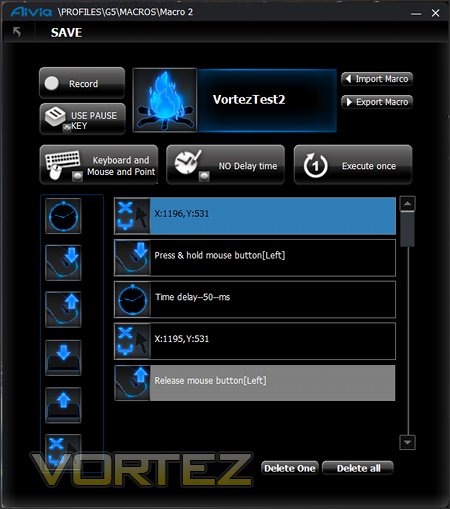
The Macro creation screen takes some getting used to, but with experience can be quite powerful. Upon starting Recording keyboard keystrokes and/or mouse clicks are logged, as well as position and time delay if specified. Additional specific entries can also be added from the list to the side for macros which are more difficult to record thanks to OS limitations. Cursor position is defined in absolute terms – X,Y coordinates relative to the top-left of your screen.
Macro’s can be exported or imported to/from a .ini file on a per macro basis. Note that these files are specific to the device, Osmium macros will not work with the Krypton mouse and visa versa. Unlike some manufacturers, GIGABYTE offer no back catalogue of macros tailored to specific games – you’ll need to configure and import/export them yourself unfortunately.
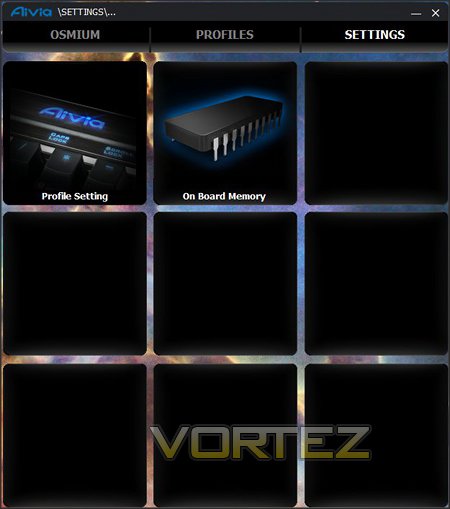
Finally, in the Settings -> Profile Settings tab GIGABYTE allow the selective disabling of Profiles. Handy if only two are being used, but cycling between them is a common occurrence (esp. in-game), this is a great addition. The only point to note is that ENABLE means ‘This profile is enabled’ rather than ‘Click to enable’; the same holds true for DISABLE. The Breathing effect is solely for the profile LED on keyboard, and whilst a nice effect was a little distracting.
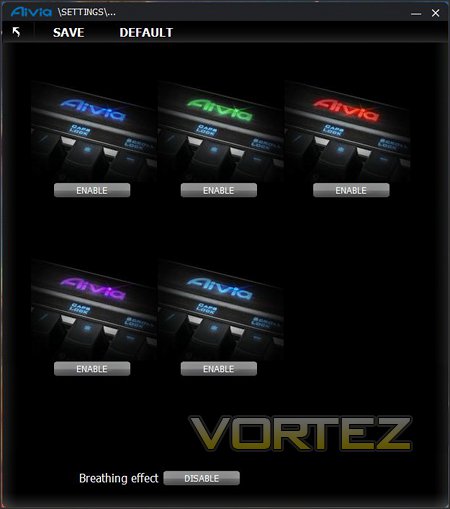
If the Osmium’s overall package has an obvious weak link, the GHOST software is it. Functionality is certainly there, but it’s poor for checking settings at a glance; one such example is in telling when a profile is enabled or disabled as graphics and wording appear to disagree.
A more significant issue can be that of customisable icons. This is a great feature which doesn’t appear to have been tested to its fullest extent, inevitably leading to an improper choice of icon which will cause “Invalid Imagelist” error messages on load and prevent further use of this feature. Worse still, there doesn’t appear to be any way to clear the list of icons should this error occur.
Other features such as loading a profile upon running a particular application, or allowing macro’s to open files directly, are missing. Fundamentally, it’s not as comprehensive as it could be and you might expect for a premium product. On the other hand, the utility’s modular structure allows these sorts of features to be added at a later date; there’s certainly scope for improvement within the existing framework.
Performance
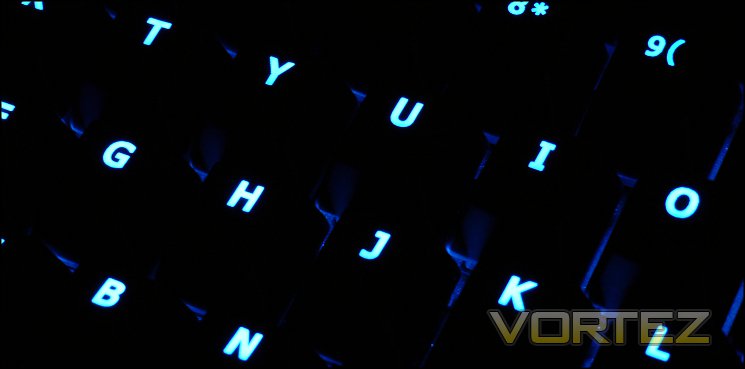
The GIGABYTE Aivia Osmium features Cherry MX Red switches, which we’ve discussed in previous reviews. They’re an ideal switch for the first foray of a gamer into mechanical keyboards as they feature lightweight linear actuation with no tactile feedback, i.e. click. More heavyweight Black switches are a slightly more acquired taste, typically sought out by experienced users of multiple switch types as they require much more force to actuate. As no Black option is available for these keyboards, at their current retail price it’s best to be sure that MX Reds are to your own taste.
Osmium keycaps are a UV coated, matte black finished translucent plastic with alphanumeric symbols etched into the top. The paint finish is even with no blemishes so far as we can see, and doesn’t have the same uncomfortable ‘blackboard’ feel of some mechanical keyboards on the market today whilst achieving the coveted non-slip effect. A rigid metal backplate supports the keyboard, ensuring that there is minimal flex on striking the keys.
The layout of the Osmium is reassuringly standard – with the only major departures from a UK-layout being G-Keys and control wheels above the F-keys it should be familiar to any user. Switching profiles is a snap through the Aivia button on the top-right of the keyboard – on other keyboards this is typically dead space containing a few indicator LEDs – and so nothing is lost by including it. One pleasant addition is the win-lock function, which when pressed simultaneously with the Windows-key enables or disables it; for a gamer, being able to do this in hardware rather than a software work-around is excellent.
Typing and word-processing on the Osmium is very good, although slightly more easy to ‘fat-finger’ than other mechanical keyboards we’ve tested due to the fractionally wider keycaps. Although it lacks some of the softness many prefer on membrane keyboards, it more than makes up for it in precision and responsiveness without being quite at the high-end of the latter seen with Cherry MX Black switches. Keystrokes are consistent across the keyboard with one or two exceptions, and whilst a little narrower than normal take little getting used to. One reservation we did have is with the ENTER key, which has a flat rather than curved surface and sits proud on the keyboard – it’s far from problematic, but isn’t consistent with the rest of the keyboard and is likely a variation specific to the UK layout.
One issue which presents with many keyboards, especially those where you’re hammering the keys, is where the underside doesn’t grip the desk well enough and it begins to wander. The four rubber feet of the Osmium grip extremely well, holding the keyboard in place even though the nature of mechanical keyboards would work against it.
Thanks to the removable keycaps and supplied tool the keyboard is a cinch to clean, a feature it shares with most mechanical keyboards. The keycaps themselves were also relatively resistant to the buildup of grime over the course long gaming sessions, which is nice to see. The overall keyboard housing is a little less resistant to dirt due to the textured finish; when cleaning you will need to be sure to use a lint-free cloth.
Anti-Ghosting/ N-Key Rollover
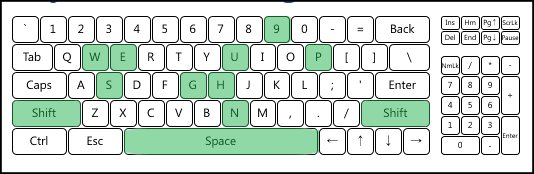
Up to 64 simultaneous keystrokes are advertised in the Osmium’s anti-ghosting feature, an extremely impressive number for USB keyboards when 6 or 12-key rollover is the standard. This feature is notoriously difficult to test due to the sheer number of possible combinations on a standard keyboard, and in the past was only seen on keyboards which utilised PS2 connections (thanks chiefly to limitations of the USB protocol).
A solid port of call is Aquakey, a small application which tracks the keypresses registered by the OS and displays them on a convenient UI; Microsoft offer a similar web-based service here. Testing all combinations simply isn’t feasible, but important ones such as around the standard gaming WASD keys are more than possible and often present themselves during gaming, especially MMO gaming. Here the Osmium performed exceptionally, with well over 30 simultaneous keypresses logged and no issues reported around the crucial WASD keys.
Gaming Performance
We took a look at three common gaming titles representing three distinct gaming types to see how well the keyboard was suited to gameplay and if any issues cropped up. The following is a summary of our conclusions.
Team Fortress 2
The ubiquitous free to play FPS enjoyed by thousands on a daily basis posed no barrier for the Osmium which was responsive at all times. The short actuation length aided in this, whilst Cherry MX Red switches provided predictable response times. We did feel the need to be a little more precise in our keystrokes with the Osmium than some other keyboards we have tested as it felt a little easier to hit and actuate adjacent keys than in the past; note that this will vary greatly from person to person.
The Osmium has a standard layout, allowing much easier transitioning from old to new keyboard than it might be. The one note of variation – Osmium’s G-Keys – are sufficiently disparate from the main keyboard to be no impediment. The G-Keys themselves are generally speaking less useful ‘in the thick of battle’ as they’re quite some distance from the WASD keys. However for functions such as character selection and loadout shortcuts they are ideal, especially if bound to a sequence of shortcut keys. In this regard, the ability to programme in delays to macro’d keystrokes is also extremely useful.
Starcraft & Torchlight 2
Torchlight 2 and Starcraft represent genres where your fingers tend to migrate across the keyboard a little more than a TF2-esq FPS. Response and precision are all important, as are fast successive keypresses. In the case of Starcraft, utilising a rhythm through a predictable and regular response from the key aids in developing muscle memory.
The Cherry MX Red switches of the Osmium were easily up to the task, and provided generally even responses throughout the keyboard. The inclusion of a wrist-rest somewhat surprisingly did help to make long gaming sessions easier on the wrists and fingers, not always a case with such features.
Macro keys by contrast were less useful. The positioning makes them a little less easy to access compared to if they were to the left of the keyboard, and these sorts of less frequently used one-off macros are less often used than in FPS’s. MMORPG gameplay will by contrast have significantly more use from these G-Keys, but generally in wider open-world gameplay rather than mid-battle.
Overall, the Osmium performed with aplomb, and whilst the macro keys will generally be a limited value there are key productivity and gaming niches which will be able to exploit them to the fullest extent.
Conclusion
So, the GIGABYTE Aivia Osmium is a great performer with a few very interesting features. What does that mean for our overall verdict?
We believe that no factor of the Aivia Osmium’s hardware can be identified as a weak link – mechanical switches perform well and the layout is exceptional in how standard it is in these days of over the top designs. If we had one complaint it would be the finish of the keyboard housing – the rough plastic doesn’t serve the aesthetics well and picks up dust fairly easily.
Feature-wise, the Osmium is exceptionally well equipped. The variety of passthrough options should be welcome for anyone who makes use of USB peripherals on a day-to-day basis or can exploit niche uses of audio-out. USB 3.0 passthrough is still very rare, but of great value to anyone running a modern motherboard in a legacy case without suitable front-panel ports.
As with many of the other mechanical keyboards we’ve reviewed, GIGABYTE has chosen to outfit the Osmium with Cherry MX Red switches. Moving to mechanical from membrane switches makes this ideal, but many veteran users of mechanical keyboards will be a little disappointed by the lack of alternative options such as MX Blacks which offer very slightly better dynamics for gaming.
Perhaps our one disappointment was in the GHOST software. Whilst reasonably intuitive, it’s not as well appointed as others we’ve used, and doesn’t quite feature the flexibility we like to see with macros. Still, it seems a churlish criticism given that most mechanical keyboards won’t offer macro keys and multiple profiles.
Built-in macro keys them will often be a catch-22, and in the Osmium the trade-off is one of location. They’re almost always a sensible inclusion, but said location is less optimal for gaming than the left side of the keyboard, which by contrast would increase the keyboard footprint. Even so, from a productivity standpoint they’re a solid addition, our stated reservations notwithstanding.
Whilst some may desire a colour other than blue, the lighting is excellent. The brightness adjuster is a great addition over adding effects of lighting levels, allowing continuous adjustment from very discrete to Christmas tree. The former especially should be of note to wearers of glasses, as it will reduce glare considerably.
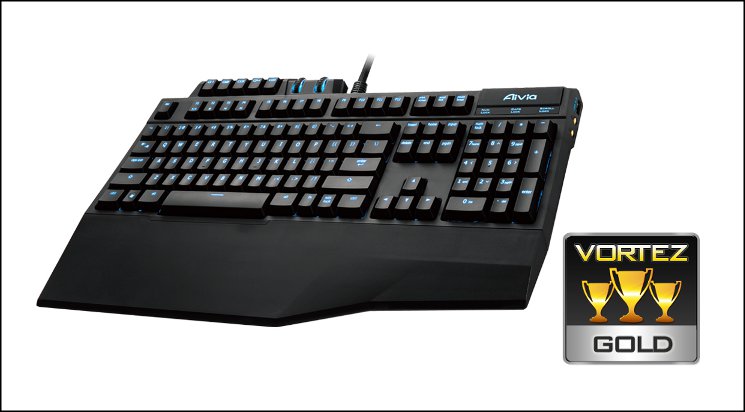
Constructed to be durable, the GIGABYTE Aivia Osmium nonetheless includes gaming and productivity features which you should expect at the price point including excellent backlighting and five independent gaming profiles. Although the GHOST software package would benefit from further development time, additional well thought features which should see a great deal of use in both office and gaming environments more than balance out any shortcomings. What can we say, the GIGABYTE Aivia Osmium is without doubt a Vortez Gold Award winning mechanical keyboard for the gaming market.
Pros
+ Full size means minimal learning curve
+ Cherry MX Red switches
+ Blue backlight with variable brightness
+ 5 Macro Keys
+ Up-to five profiles
+ Additional connectivity features
Cons
– Rough plastic exterior
– Software needs work
+ Full size means minimal learning curve
+ Cherry MX Red switches
+ Blue backlight with variable brightness
+ 5 Macro Keys
+ Up-to five profiles
+ Additional connectivity features
Cons
– Rough plastic exterior
– Software needs work

Click here for an explanation of our awards at Vortez.net.


