







The latest member of the Aivia peripheral range brings an innovative take to addressing the more pressing issues of wireless mouse design.

Product On Review: Aivia Uranium
Manufacturer: GIGABYTE
MSRP: £99.95 (inc. V.A.T.)
GIGABYTE are best known for their best-selling range of graphics cards and motherboards, spanning the full range of budgets and performance requirements. However we were reacquainted with their Aivia peripheral range earlier this year through the Aivia Osmium, a mechanical keyboard which seduced us with excellent build quality and feature set. Since then the Osmium has added Cherry MX Brown switches to its arsenal, adding more choice to the EU market where switch variations tend to be limited. The Krypton mouse too has brought with it some success, and included some premium touches. But we’re not here to talk about the Osmium, Krypton or GIGABYTE’s excellent component line. Time for something new.
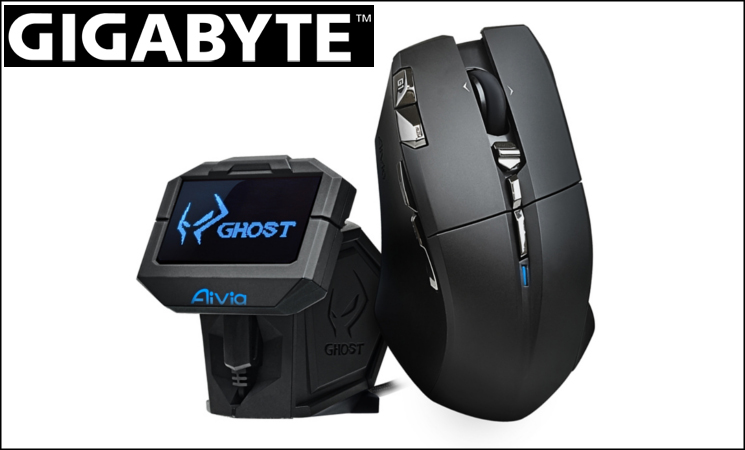
This week GIGABYTE are introducing the Aivia Uranium to the market for the first time. We initially saw the mouse at the GIGABYTE Tech Tour in the Spring, and although the focus was on an altogether more high-profile product (a new SOC GTX TITAN with updated WindforceX3 cooler) the Uranium was quickly turning heads thanks to a new take on a problem long in the making.
Mice have, for around the last five years, included on-board memory for storing key settings and later macros. As macros became more complicated the on-board processor for the mice tended to be beefed up, requiring more power and also incrementally more USB bandwidth. The trouble is that mouse wireless technology is limited by wireless conditions, some of which can be overcome but become compounded by a macro data stream in addition to normal mouse movement. Furthermore writing data into flash memory on a mouse over wireless can take some time, potentially an unacceptable length of time, thanks to asynchronous data transmission rates. Something has to give.
Other manufacturers have moved to eliminating on-board memory entirely from some models. Razer is a prime example; their Synapse 2.0 software moves the load entirely to the CPU with the consequence of reducing bandwidth requirements. However this means that Synapse software needs to be installed on every PC you intend to use the mouse’s macro functionality with as well as implementing an additional means to migrate settings, an unacceptable policy for some including many LAN event organisers.
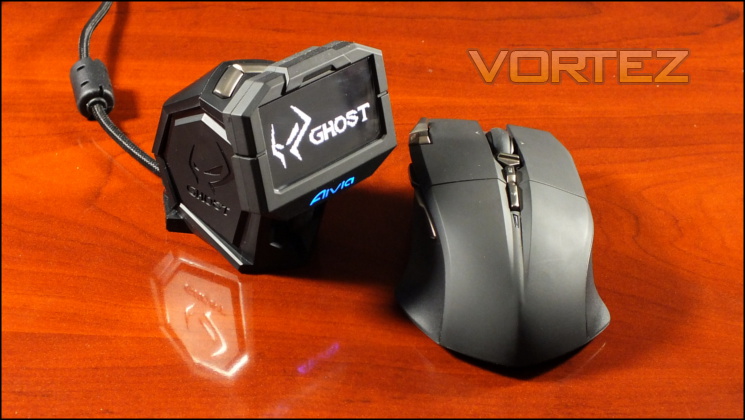
GIGABYTE are approaching the problem in a different way – by separating the mouse and the memory. Enter the GHOST Macro Station, a wireless base station which translates in real time mouse inputs into macros. Consequently only button inputs are ever sent wirelessly, which in theory reduces the potential for lag and an unsatisfying gameplay experience. However because it doesn’t rely on system software for an interpretive layer it can be migrated between PCs whilst retaining all macro information.
The GHOST Macro Station utilises a crisp OLED display for important information such as active profile and current DPI, offloading the power overhead that would have on the mouse. The mouse can get on with the job of tracking human input, with streamlined functionality allowing it to squeeze out a claimed 50 hours of continuous gameplay or 2 weeks of balanced use from a single charge of its AA NiMH batteries.
However the proof of the pudding is in the eating, so lets dive in..
Features And Technical Specifications
Features
GHOST™ Macro Station
GHOST™ Macro Station is your control center built for pro-gaming task, functions as dynamic status display, hot-switchable macro system and instant charging dock.
Dynamic Display Mode
The display screen on GHOST Macro Station dynamically update and display the current DPI value, report rate, gaming profiles, and battery life of the mouse. Allows you to catch the live data and stay the optimal status while intense gaming.
Live Editing Mode
The live setup system of GHOST Macro Station enables you to re-assign macro hotkeys and pre-set the DPI value for each on-the-fly adjustment to meet the present in-game situation without leave your game.
GamePlay™ Wireless Technology
Lag-free & Risk-free Macro Recording — Introducing GIGABYTE patent pending technology, built-in GHOST™ macro engine onto wireless receiver guarantee no time lag and signal loss even while recording or executing a complex macro.
1000Hz report rate, performs as good as corded — 1ms response time ensures your commands are executed without any delays!
Nonstop Gaming Experience
2X Battery Life Performance Higher — Powered by two AA NiMH rechargeable batteries, Aivia Uranium supports continuous battery life of over 50hrs in the wireless game plays.
Instant Charging Device
For times you actually run out the batteries, simply pull out the charging cable for instant power supply. You can still use the mouse while charging.
Twin-eye Gaming Laser Sensor
State of the art laser technology gives the twin-eye laser sensor an unprecedented edge over standard optical sensors. Extremely precise and accurate tracking coupled with low power consumption for the ultimate gaming package.
Dual Functional Wheel Controller
The mouse wheel offers 4-directional scrolling and also works as D-pad controller for OLED on-screen operation.
10 Programmable Buttons
Equipped with 10 programmable buttons, including 2 mouse buttons located just next to your forefinger offer an effortless execution of any immediate gaming commands.
Advanced User’s Interface
Intuitive GHOST™ Macro Engine — GHOST™ macro engine which features intuitive interface allows you to pre-define and switch between keys or buttons easily to match the latest PC gaming titles.
Key Mapping
The shortcut of key mapping functionally allows user to switch a keystroke on the mouse button through on-screen setting on GHOST Macro Station without installing application, offering an instant definition for hotkeys.
On-the-fly DPI Switching
800/1600/3200/5600 4-Stage DPI adjustable switch
GHOST™ Macro Station is your control center built for pro-gaming task, functions as dynamic status display, hot-switchable macro system and instant charging dock.
Dynamic Display Mode
The display screen on GHOST Macro Station dynamically update and display the current DPI value, report rate, gaming profiles, and battery life of the mouse. Allows you to catch the live data and stay the optimal status while intense gaming.
Live Editing Mode
The live setup system of GHOST Macro Station enables you to re-assign macro hotkeys and pre-set the DPI value for each on-the-fly adjustment to meet the present in-game situation without leave your game.
GamePlay™ Wireless Technology
Lag-free & Risk-free Macro Recording — Introducing GIGABYTE patent pending technology, built-in GHOST™ macro engine onto wireless receiver guarantee no time lag and signal loss even while recording or executing a complex macro.
1000Hz report rate, performs as good as corded — 1ms response time ensures your commands are executed without any delays!
Nonstop Gaming Experience
2X Battery Life Performance Higher — Powered by two AA NiMH rechargeable batteries, Aivia Uranium supports continuous battery life of over 50hrs in the wireless game plays.
Instant Charging Device
For times you actually run out the batteries, simply pull out the charging cable for instant power supply. You can still use the mouse while charging.
Twin-eye Gaming Laser Sensor
State of the art laser technology gives the twin-eye laser sensor an unprecedented edge over standard optical sensors. Extremely precise and accurate tracking coupled with low power consumption for the ultimate gaming package.
Dual Functional Wheel Controller
The mouse wheel offers 4-directional scrolling and also works as D-pad controller for OLED on-screen operation.
10 Programmable Buttons
Equipped with 10 programmable buttons, including 2 mouse buttons located just next to your forefinger offer an effortless execution of any immediate gaming commands.
Advanced User’s Interface
Intuitive GHOST™ Macro Engine — GHOST™ macro engine which features intuitive interface allows you to pre-define and switch between keys or buttons easily to match the latest PC gaming titles.
Key Mapping
The shortcut of key mapping functionally allows user to switch a keystroke on the mouse button through on-screen setting on GHOST Macro Station without installing application, offering an instant definition for hotkeys.
On-the-fly DPI Switching
800/1600/3200/5600 4-Stage DPI adjustable switch
Technical Specifications
Tracking:- Twin-eye Laser Sensor
Resolution:- up to 6500dpi*
Report Rate:- 1000 Hz
Maximal Acceleration:- 50G
Maximal Tracking Speed:- 150ips
Programmable Buttons:- 10
Mouse Dimensions:- 127mm x 67mm x 42mm (LxWxH)
Cable Dimensions:- 1.8m (USB), 50cm (charging cable)
Battery Life:- 50 hours continuous; 2 weeks normal gameplay usage.
Wireless Frequency:- 2.4GHz
Weight:- 117g excl. battery, 170g inc. battery.
OLED Screen Recolution:- 128 x 64
Resolution:- up to 6500dpi*
Report Rate:- 1000 Hz
Maximal Acceleration:- 50G
Maximal Tracking Speed:- 150ips
Programmable Buttons:- 10
Mouse Dimensions:- 127mm x 67mm x 42mm (LxWxH)
Cable Dimensions:- 1.8m (USB), 50cm (charging cable)
Battery Life:- 50 hours continuous; 2 weeks normal gameplay usage.
Wireless Frequency:- 2.4GHz
Weight:- 117g excl. battery, 170g inc. battery.
OLED Screen Recolution:- 128 x 64
*sensor resolution up to 5600dpi, boosted to 6500dpi through software
Packaging And First Look
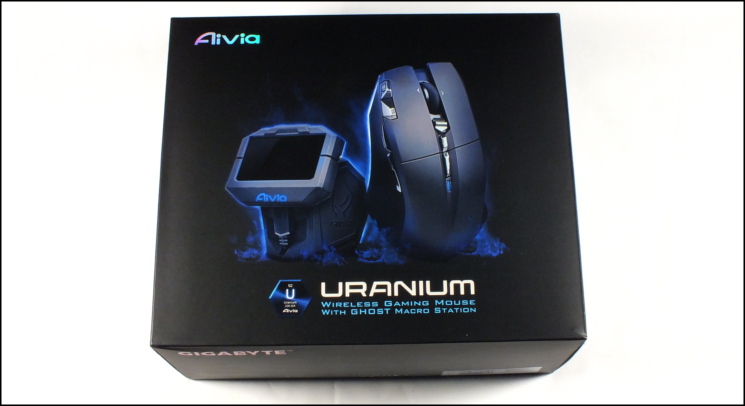
We’ve been notified by GIGABYTE that the packaging displayed here isn’t quite the finished article, and may undergo a little cosmetic update for the retail release seen in stores.
The Aivia Uranium’s packaging, and indeed branding, shares many of the hallmarks of the GIGABYTE premium peripheral line we’ve reviewed in the last 10 months. A black and blue exterior firmly places the Uranium front and centre rather than relying on spiffy graphics and marketing jargon, whilst the overall size will tip you off that there’s something a little bit special inside.
Unsurprisingly, both mouse and wireless base station are prominently displayed on the front, although interestingly nothing in the way of product features apart from its wireless nature. Left and right side go into significantly more detail for the mouse and it’s features, including ‘lag-free gameplay and risk-free macro recording’ as well as 1000 Hz polling rate. Most technical specifications are also listed including the sensor capabilities and expected battery life. The packages contents are also listed here, including the very relevant information that the rechargeable NiMH batteries are AA size.
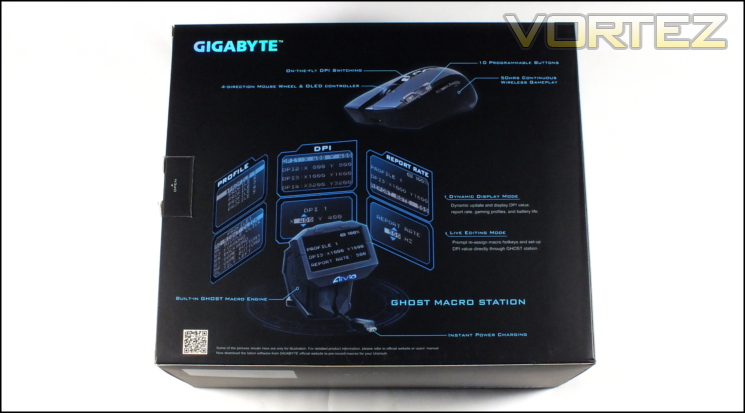
Moving to the rear, the capabilities of Uranium’s GHOST Macro Station are detailed. A dynamic display and live editing mode are briefly discussed, indicating that the Uranium is able to operate largely independent of system software. It’s also worthy of consideration that the Uranium has neither docking station nor bespoke removable battery. Instead a cable at the bottom of the base station can extend and plug into a port on the front of the mouse, allowing it to be charged whilst still operating.
More information specific to the mouse, including non-standard functionality such as additional buttons and mouse wheel tilt functionality are outlined and indicated on the mouse image. Nonetheless, as you can see there is a great deal of empty space to be filled on the packaging. No mention is made of the wireless frequency under which the mouse operates, nor the number of profiles and amount of on-board memory, each of which could easily be printed here.
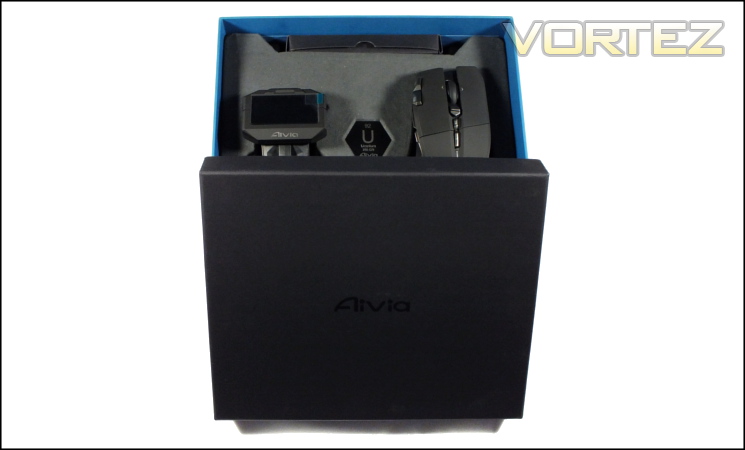
Once again, as with the Osmium keyboard, the unboxing experience is very pleasant indeed. The mouse is held snugly within a very sturdy box and sitting on a moulded tray. Also immediately visible is the Ghost Macro Station with its long braided USB cable. Finally, there’s also a small box containing the additional parts of the retail bundle.
Included in the bundle is:
* Uranium Mouse
* Ghost Macro Base Station
* 2 x AA NH Chargeable Battery
* Mouse Feet Pad Replacement
* Cleaning Cloth
* Users’ Guide
* Ghost Macro Base Station
* 2 x AA NH Chargeable Battery
* Mouse Feet Pad Replacement
* Cleaning Cloth
* Users’ Guide
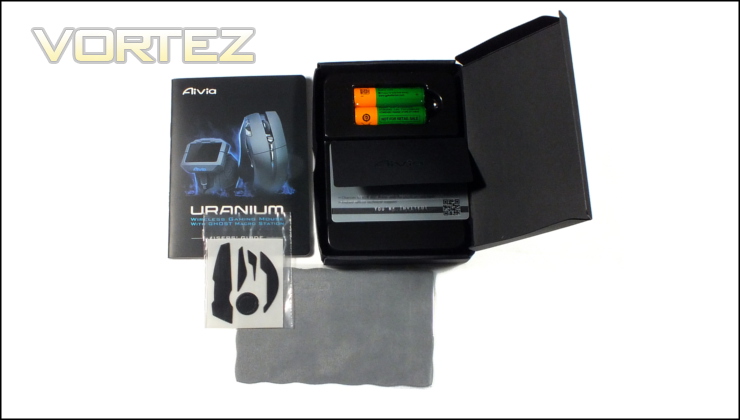
When a manufacturer prices a peripheral – especially a mouse – at near the £100 mark there’s sometimes an effort to pack the retail product with additional inexpensive items to make it seem ‘premium’, but GIGABYTE haven’t made this misstep. The items included are all useful, dare we say it necessary, and add up to very little being overlooked.
Once again GIGABYTE have hit a home run with the unboxing experience, making you feel excited to open your new toy for the first time. That’s all too rare as manufacturers attempt to cut costs, and hopefully the finished version will be no different.
A Closer Look
Time to take a closer look at the Uranium, starting with a top-down approach. Literally.
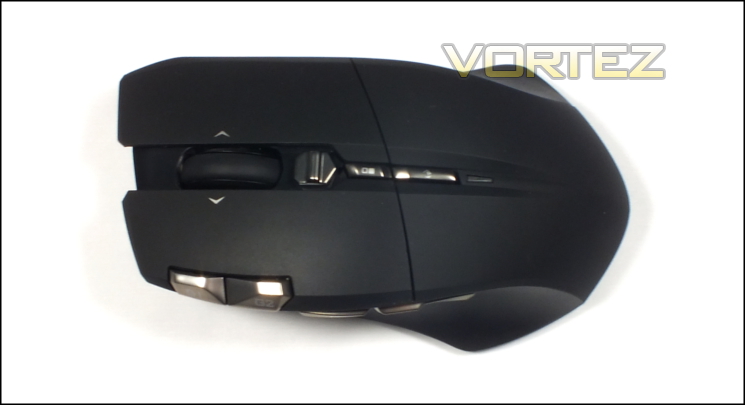
It’s clear to see that unlike the previously reviewed Krypton GIGABYTE have pushed the Uranium to an ergonomic design for right-handed users. The curve is relatively subtle, but will be enough to ensure that it’s not really suitable for left-handed users.
Compared to most mice the Uranium is quite large, especially in front to back dimensions where it measures 127mm. That’s a natural consequence of the addition of internal battery power in the mouse, but it nonetheless needs to be designed around. Those with smaller hands may find it less comfortable, but on the flip side the button sizes and placements should be suitable for a majority of grip styles.
The vast majority of the buttons are located on the top, and GIGABYTE have gone down the path less travelled in their placement. Two main buttons will always be a fixture, in this case with a smooth plastic surface rather than grippy rubberised coating. However just to the left are two additional button, labelled G1 and G2; the positioning is relatively uncommon, most often used by Logitech in their G-series mice. Pushing these buttons is easiest from directly above; actuating by leaning on the sides with your index finger requires much more force, especially in regards to G1.
A tilting scroll wheel (complete with icons on the left and right mouse buttons to indicate additional movement) is centrally located. The wheel has a very light-weight movement with only the smallest hint of ratcheting. Below that is a rocker switch which behaves as a DPI selector and cannot be assigned to an alternate function in software or hardware. We should note that we took issue with the similar component on the Krypton for lacking quality; here it is much more satisfactory even if it does still allow you to erroneously push down.
Below these two features are two more buttons and like the DPI rocker switch they have fixed functionality. The top-most switches the mouse into a controller mode for the GHOST Macro Station, whereas the latter cycles through profiles. When in controller mode the small LED at the bottom will glow blue.
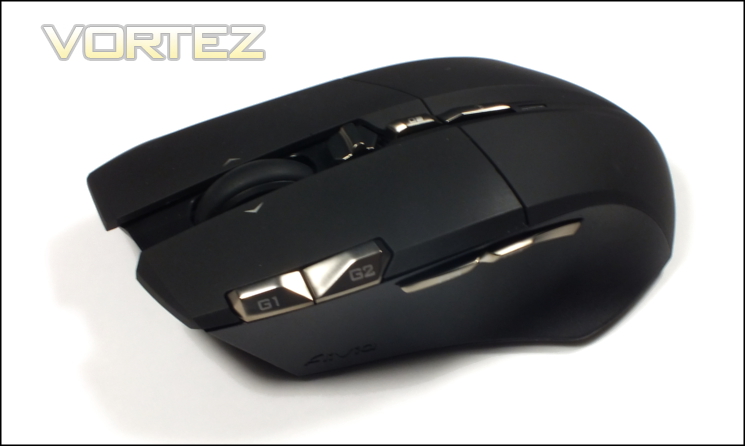
Looking from the left side we have two major buttons, in this case labelled G3 and G4. These are very much standard positions for the thumb buttons, most often used for previous and next-page functions in web browsers but also assignable to in-game functions. We’re pleased to report that these are far more satisfying and less spongy than many, and benefit from a relatively light touch. Actuation is immediate and the back-stop for the button is solid.
In total there are 10 programmable buttons/mouse events: the right mouse button, G1-G4, left/right tilt, scroll up/down and middle mouse button. As pure numbers go that’s enough for a MMO or the more hotkey heavy Action-RPG, but placement and software functionality remain important to unlock their potential.
The side wall itself is once again plastic but in this case has a textured surface for improved grip, just what this quite heavy mouse needs. The outward slant of the side wall will aid in lifting the mouse off the mousing surface, but even so you will need to keep a pretty tight grip to ensure it remains stable. A small flaring at the bottom provides some thumb support, but not a great deal.
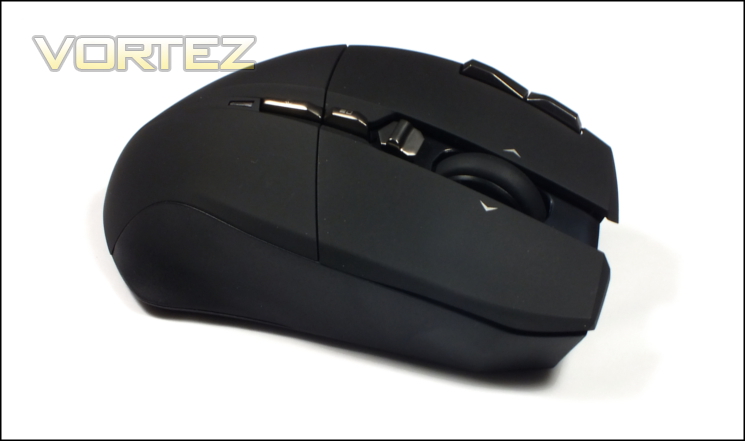
A quick look at right side from a similar angle shows a somewhat warped perspective due to the height difference of the left compared to the right. The left of the mouse is around one centimetre higher at the tip of the mouse, whilst the difference is more pronounced towards the middle. This will have some impact on your grip and especially the typical finger position as you scroll.
The front is unadorned except for a micro-USB port for the charging cable, which is recessed far back into the chassis and has a guide on either side of the channel to help to secure it firmly.
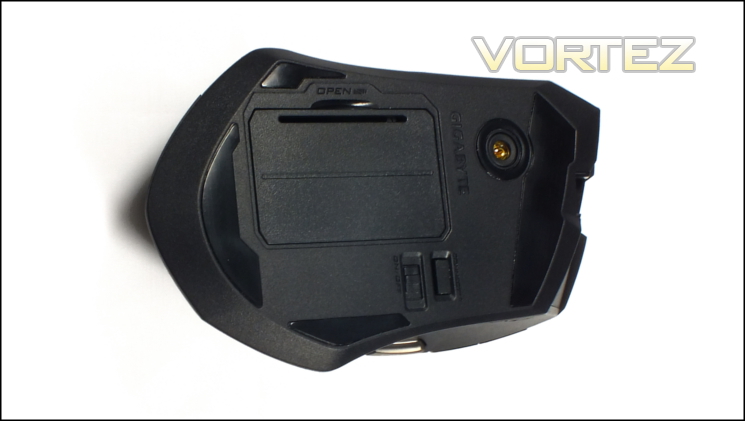
Moving to the floor there’s very little to be surprised about. Four Teflon feet provide a stable surface to mouse on, and their bespoke shape makes us all the more pleased that GIGABYTE saw fit to include spares in the Uranium’s retail bundle. The sensor is markedly off-centre in both the horizontal and vertical, which will increase the learning curve for those who take advantage of high sensitivity and subtle mouse movements rather than broad linear sweeps.
Below the sensor is the cover for the 2 x AA battery compartment, with a serial number also located inside. Next to that is an on-off switch for conserving battery life for periods when you’re away from the PC or in transit. Above this is a connect button, which in tandem with software pairs the mouse with its wireless receiver in the best wireless channel available (note that out the box the mouse will auto-pair with its receiver).
So outwardly the Uranium is certainly a smart looking mouse with very few aesthetic touches that might turn someone off. However it’s only half the equation, the other being the GHOST Macro Station…
A Closer Look Pt.2 – Ghost Macro Station
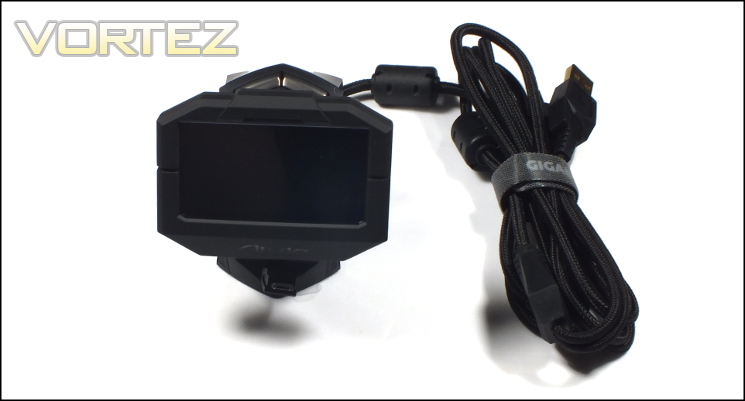
As wireless receivers go the GHOST Macro Station is sizeable and has more in common with the docking stations of rechargeable mice of old than today’s more common USB micro-receivers. It stands 80mm tall, with a footprint of 70mm x 80mm making it large enough to not get lost on a relatively tidy desk. GIGABYTE leverage this size to its advantage by including two rubber feet at the base, holding it in place despite the weight of the braided USB cable used.
Fixed to the front and on a articulated support is a monochrome OLED screen with a 128px x 64px resolution. The display is naturally angled at approximately 10 degrees from the vertical, and can be angled a further 40 degrees depending on the preferences of the user. Below the screen is an LED illuminated Aivia logo, capable of ten colours and typically used to indicate the active mouse profile.
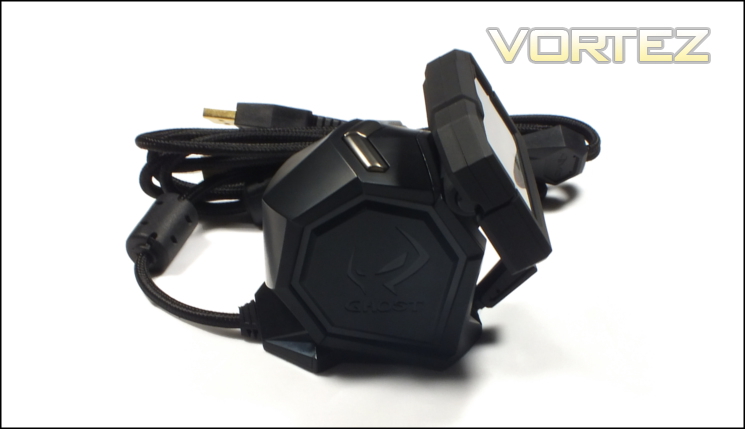
OLED displays are an interesting technology. They illuminate on a per-pixel basis rather than using a backlight and LCD panel, and hence provide an excellent contrast between blacks and intense colours. The Uranium’s Macro Station is limited to a monochrome panel, but it keeps the text extremely sharp despite the relatively low resolution. Mindful that the panel could appear to be very bright in low-light conditions the top of the base station is equipped with two buttons to adjust the overall brightness of the display between five pre-determined levels.
At the base of the Macro Station is a retractable mini-USB ribbon cable designed for charging the Uranium mouse and then hiding unobtrusively. This spring-loaded cable is packed away neatly when not in use but is still light-weight enough to allow uninhibited mouse movement when plugged in. Although notationally 50cm long, out sample stretched to 60cm without problems.
As a final mark of quality GIGABYTE have seen fit to braid the Macro Station’s main USB cable and also included a Velcro cable tidy to tie up any unnecessary length. This gives the cable an inherent rigidity which may have been a problem in a lightweight base station design. However the cable extrudes from the base at a horizontal angle, ensuring that it doesn’t lever up the Station when sat on a flat surface.
—
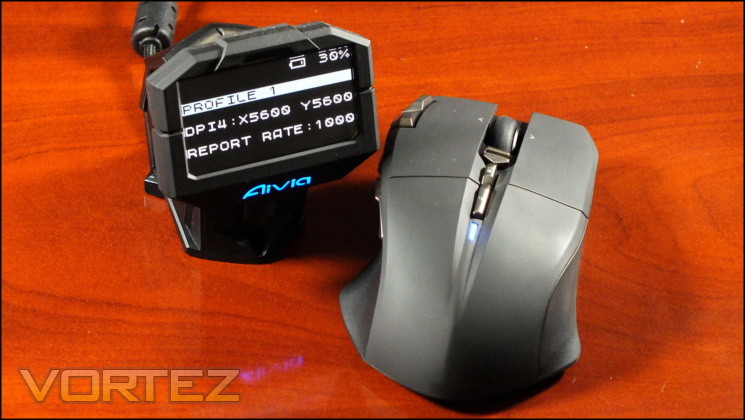
The GHOST Macro Station displays four pieces of core information by default: mouse battery charge level (in 10% increments), Active Profile, horizontal and vertical DPI, and USB report rate (in Hz). By pressing the configuration button on the mouse (labelled with two squares) the menu items are selectable and editable. An illuminated blue LED at the rear of the mouse indicates that it’s in configuration mode, and that mouse input is no longer passed to the OS; pressing the config. button again will exit this mode.
Navigation through the menus is controlled via the scroll, tilt and middle-click inputs of the scroll wheel. Editing DPI levels and Report Rate specifically is simple: tilt ‘right’ when highlighted, scroll to select desired level, middle-click to confirm changes. It’s notable that DPI and Report Rate changes apply to all profiles, which isn’t necessarily expected behaviour for gaming mice.
By navigating through the Profile menu option it’s possible to make new button assignments on a per-button basis. Mirroring the Ghost software’s functionality you can map basic commands such as default mouse buttons, multimedia functionality, common windows functions etc. Alternatively you can map specific keys (unmodified, i.e. no ALT or CTRL+keystroke), or assign a pre-created macro. The one downside is that macros can still only be created in software, but in fairness expecting the mouse to be able to cope with this could would be expecting a bit too much.
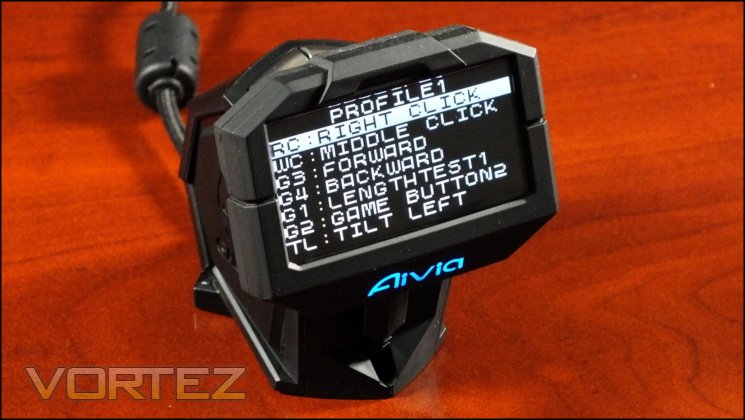
If a macro or keystroke assignment is made to the mouse then that is explicitly listed in the profile button assignments. This makes troubleshooting your profile relatively simple, although the exact keystokes which make up a macro aren’t able to be shown on the display.
As additional functionality which we weren’t expecting, the GHOST Macro Station also includes a Cooldown Timer. Configurable only in software, any particular button can be set to begin a countdown timer that once expired displays on the OLED screen. It’s a niche use, but pretty cool. For anyone who favours hotkey-style MMOs or MOBA-esq game titles it could be really valuable, so long as the display is somewhere in your field of view.
The OLED screen is very sharp, and the GHOST macro station is an interesting take on the solving the problem delivering low-latency macros in a wireless gaming mouse. Where previously the entire macro would be sent, here the only data passed is that of a specific button press/release event. Macro data is stored on the base station, and thus still allows you to migrate the mouse between systems without losing profile information for games/other application.
The largest problem is that the functionality is largely quite basic for premium grade software. That’s not intended as an attack on the solution, which is a logical one, but rather that in needing to mimic the software functionality it’s perhaps not quite as comprehensive as it could be when compared to the capabilities of wired gaming-grade mice.
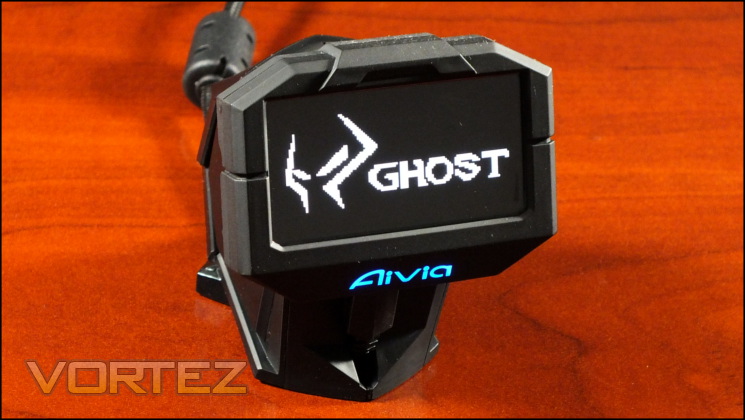
One other thing to note: the OLED screen also has a user-defined screensaver, which is imported via the GHOST software. The default resolution matches that of the screen, 128 x 64. The screen is only mono-chrome (i.e. black and white), but if a colour bitmap (.bmp being the only file type supported) is imported you are given the option of choosing a threshold for pixel intensity and thus a creating a natural silhouette. Generally speaking though you’ll have more success using an image editor and then saving in a native monochrome format. We just wish that it was possible to use this image by default rather than have the detailed information only displayed the vast majority of the time.
In the fullness of time it would be interesting to see if the API could be opened up to allow in-game notifications to be displayed. As it is, it shows a lot of promise, but not much more than that.
Software
In common with most mice on the market today GIGABYTE do not bundle the configuration software with the Uranium. Instead, the Aivia GHOST Engine is downloaded from the official website and acts as a unified configuration suite across the whole of the Aivia range including the older Osmium and Krypton. The latest version is v1.0.6, updated specifically for the release of the Uranium.
The GHOST Engine utilises a modular design and a layout which is close to identical for each device in the range. Those who have had experience with the utility in the past will appreciate the short time it will take to get up to speed, but it should also be recognised that a one-sized fits all solution can result in loss of functionality because the most obvious scheme for implementing a feature doesn’t always fit easily within the design ethos.
As with many solutions which utilise on-board memory the Uranium doesn’t require the GHOST Engine to run, only the creation and editing of macros and some other non-critical functionality. At the time of writing there were no firmware update available for the mouse, nor its GHOST Macro Station.
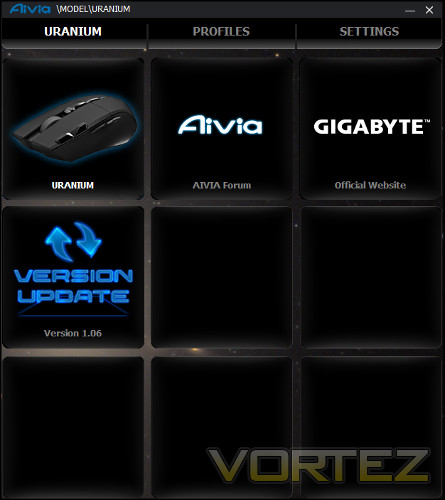
GHOST Application Launch Screen
Get used to this layout, because you’ll be seeing it a lot. The GHOST Engine utility’s principle layout is a 3 x 3 grid with additional options listed at the top. On this page you’re prompted to select a device to begin configuration, with additional compatible peripherals also present if connected. Also included in the grid of options is an software version update check and downloader (which is always welcome), a link to the Aivia forum for configuration and trouble-shooting tips, and GIGABYTE’s own official website.
The benefits of this layout are its expandability. Compatible peripherals or new links can be added simply by adding a tile where necessary, rather than designing a new graphical element and integrating that into a finalised UI. The downside is that it doesn’t look nearly as polished as standalone solutions.
Once a device is selected the next step in configuration is made by clicking Profiles.
Profiles
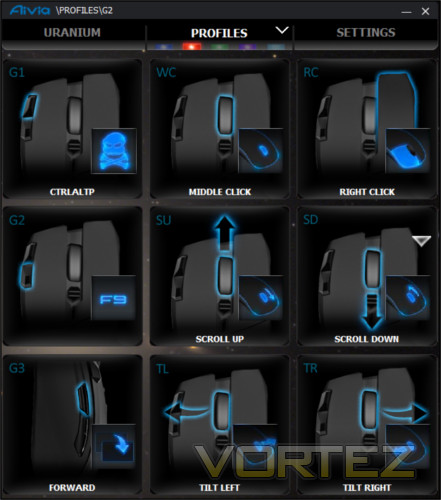
Unlike some mice were user-defined settings are complex and largely independent of each other the intent of profiles on the Uranium is simply to store button assignments. At the top of the window, just under where Profile is written, there are five coloured blocks which indicate the five different profiles. Also numbered 1-5 internally, the colour indicated will be shown on the GHOST Macro Station when that profile is active. Profiles cannot be renamed, only assigned a different colour; profile backups are also not part of the default GHOST Engine functionality.
Once again we have a 3 x 3 grid. Here each tile represents a particular button or mouse event location which can be assigned to simulate a keypress or trigger a macro. The small icon on each one represents the current button assignment pictorially, either though an image that shows a mouse function, that the button is disabled, a keystroke, or a macro image. Note that if a macro is bound the icon that represents it can be customised.
Clicking on a tile throws up a new screen with three main options: Basic, Key Mapping and Macros. Selecting Basic brings up a series of default windows functions, media keys and common shortcuts such as Copy and Paste; in total there are 50 commands to choose from. Alternatively Key Mapping allows you to select a single alphanumeric keystroke, or one of F1-F12.
By comparison to the market leaders this functionality is really the minimum you would expect. Other mice include modified keystrokes using standard keyboard modifiers such as Alt and Control where required. If you want to perform any advanced sequence of keystrokes on the Uranium you’re going to have to go through the macro editor, which is a little less convenient. Furthermore there’s no option for reassigning the DPI rocker switch to anything but DPI change, and no short-term DPI modifier (as seen in mouse sniper buttons) for any other button. As unique customisation options go, the Uranium is banking on the suitability of the G1, G2 and wheel tilt macro assignments.
Macro Creation
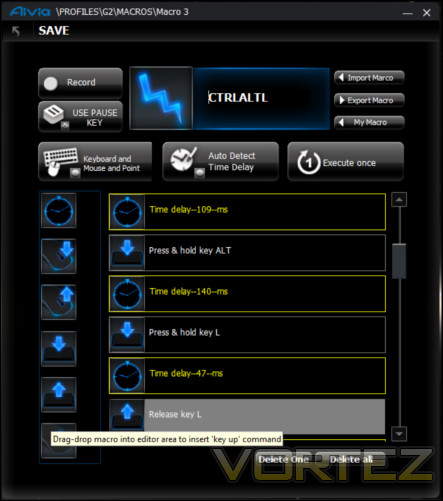
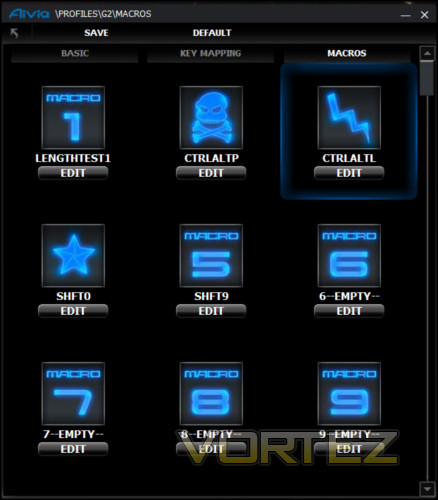
The Macro window shows a total of 70 slots, each for a unique macro which you can name and assign an icon to. The macros displayed are all those stored with the GHOST Macro Station, and if they’re represented here they will also be displayed in the Station’s own macro list. Clicking edit for any tile will bring up the Macro Creation window.
Creating a macro is easy and swift using a standard recording system, whilst delays between recorded keystrokes can be integrated or set aside as required. The maximum number of keystrokes is 52, which should prove to be ample for all your needs. Clicking on the icon in the macro editor will throw up a grid of alternate icons to choose from, as well as give you the chance to upload your own image. Note that this image is only represented in software and won’t be reflected in the Base Station’s display.
Intriguingly, GIGABYTE have once again included the ability to set the X/Y coordinates of the mouse pointer during a macro on a mouse click event. GIGABYTE are one of very few manufacturers which include this functionality in their macro recording utility, and well worth considering if it would be valuable to you.
Macro backup and restore is also included here through import and export functionality, but solely on a per-macro basis. When exported they’re saved with the .ini extension, which is a little unfortunate as it’s commonly used in system OS configuration. GIGABYTE don’t provide a default save location, so you will need to set your own and navigate to it as required. If you delete the macro from the on-board memory you can then import it and save it to to on-board memory once again, or just grab a library of GHOST macros suitable for your games from an enthusiast forum.
Settings
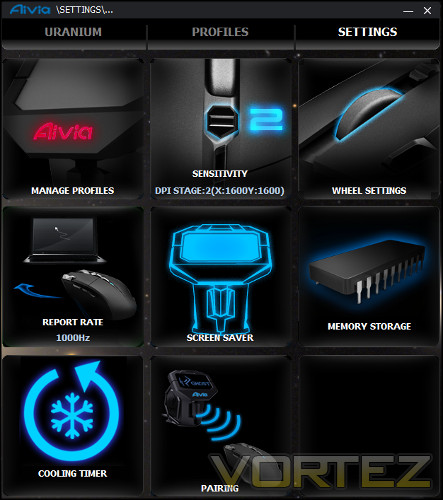
The final menu option is Settings, which contains the configuration options for the mouse which don’t come under the banner of button assignment. Some settings are rather niche, but others are more useful in the main.
The most important is Sensitivity, where DPI levels are stored. This allows you to define the DPI for each of the mouse’s four DPI Levels in both X and Y rates. Each is independent of the other, but unfortunately there is no facility to either selectively disable a DPI level or set up a temporary modifier. You’re instead reliant on your dexterity not only in pushing the DPI rocker at the right time, but also in the right direction. This may tax a number of FPS players, but as we’ve discussed the mouse isn’t ideal for that genre of games.
Manage Profiles allows you to selectively enable and disable mouse profiles (which is great) and also change their default colour (to one of seven options) and colour effect. What you’re not able to do is associate a profile with a specific application, name the profile or back the entirety of it up for later use. The default functionality is fine so far as it goes, but is outstripped by competing solutions.
Scroll and tilt configuration is made through the Scroll Wheel option, describing the number of lines/character to transit per notch of the wheel or tilt movement. In the former case, which mimics the default windows behaviour.
Report Rate allows you to set up the polling rate of the mouse in Hz, with 1000 Hz being equivalent to a response time of 1ms. Variation is in a series of presets representing a response time of 1, 2, 3, 4, 5, 6, 7 and 8ms respectively.
The Pairing option manually pairs your mouse with it’s base station counterpart. Useful if you’re in an environment with more than one Uranium mouse, or if the wireless landscape is in high demand, it should also seek to utilise the best wireless channel for data transmission.
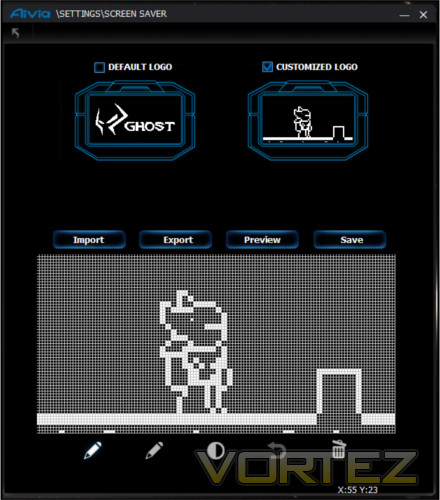
The final two options are specific to the Uranium and seek to leverage the OLED display of the base station. The first is the configuration of a screen saver, allowing the importing of a 128x64px bitmap for uploading as an image to display on the screen during idle periods. The other is a Cooling Timer (AKA Cooldown Timer) which will alert you a set amount of time after pushing a particular button on the mouse.
Both are interesting options, but neither go far enough. From one perspective it would be pleasant if the ‘screen saver’ was actually the default image, and the current default display was only shown when the mouse was in configuration mode. As for the latter, the value will vary with the user and title, and is something you’d only really want operating with specific game profiles.
Overall the software is distinctly average. A lot of the configuration options are shared between profiles, when really they could do with being set on a per-profile basis. Rather than modular design opening up the possibilities of the utility it appears to be hampered by it, despite a few novel ideas. It’s certainly functional, but cannot really hold a candle to the advanced functionality on some MMO mice on the market today.
It’s not clear if the design of the Uranium is holding it back, or the software itself. However seeing as the Krypton had many of the same limitations, we’re leaning towards it being the software.
Performance
When assessing the performance of the Aivia Uranium we made use of a large generic cloth mousemat with 3mm thick rubber backing. This type of mat is fairly typical of gaming setups and generally well matched to both laser and optical sensors, whilst the relatively thick backing should support the additional weight of the Uranium well.
General Performance
Unfortunately we need to be clear right from the start: our testing of the GIGABYTE Uranium was plagued with wireless issues that inhibited performance. During times of heavy wireless network load there were pronounced periods of cursor freezing and numerous unregistered button clicks. At all times – regardless of network load – button clicks were not reliable, with one in every hundred or so not being registered even if wireless network traffic was relatively low.
A key indicator of poor performance was the scroll wheel. OS response continually lagged behind human input, with some lines clearly not being registered at all despite careful rotation at a slow speed. Although not crucial to run of the mill use, it would prove to be a significant problem in games for both response time and accuracy.
In order to tease out the causes of the problems we moved the mouse to a different location which we believed to have better wireless conditions. Unfortunately although performance improved it was never truly dependable; button presses were still routinely missed and the scroll wheel lagged.
At this stage we were concerned that the movement itself might be lagging, but we couldn’t untangle the issue of experimenter bias. For what it’s worth it didn’t appear to lag so much as freeze for 2-3 secs, although this was by comparison a very rare event (occurring once every two hour session). Waking up from a short idle period did appear to have a slow response, but not problematically so and may instead have been inbuilt mouse acceleration.
This experience was at odds with the overall feel of the mouse, which is generally very good. Buttons are solid and appear to be very responsive when working well, and if G1 and G2 started out a little stiff they soon became much more easy to work with.
Palm and claw grip users shouldn’t find the Uranium to be too much trouble, although those with a claw grip should be able to integrate G1 and G2 more easily. Fingertip grip users, and those who prefer high DPI settings and small mouse movement will initially have some difficultly with the off-centre sensor if their normal method involves some rotational movement, but they should be able to adapt relatively quickly.
The mouse is also heavy – 170g is quite a lot to be moving around all day and will hurt precision at the very highest sensitivities. Overcoming initial inertia will be the largest impediment to precision use under otherwise perfect conditions, and so it’s a better general office mouse than one for which you’d want to use for specialised DTP etc.
A lightweight mouse wheel is ideal for document and website navigation. The Uranium has a very soft ratcheting, allowing for fast scrolling with minimal effort. Middle button presses can sometimes cause you to scroll or inadvertently activate a tilt, but only if you’re a little fat fingered as the mouse platform overall is stable.
Gaming Performance
As noted, we suffered some with the wireless performance which really tells its own story. Trying to set that aside, we want to provide you with some idea as to its gaming potential presupposing more ideal conditions.
The first thing of note is that build quality seems excellent. Yes, it is heavy, but it also has a solidity about it which is rare in mice. There are no loose panels, nor buttons which you think give way too easily or are in danger of collapsing into the housing. It’s a massive improvement over the Krypton in this regard, and we would rate it highly on our own internal charts. Accordingly we have a generally positive outlook for the long-term durability of the mouse and base station unit.
In FPS gaming the Uranium was aided by a set of exceptionally good non-stick feet, allowing it to glide over the mouse-pad with an ease which belied its weight. The slightly more expansive movement involved in FPS gaming over other types masked some of the minor inconsistencies such as sensor location and resulted in an experience which could have been satisfying under other circumstances.
Macros were less useful, and the button placements weren’t quite ideal for twitch gameplay relying on fast reflexes. Compared to other premium mice, the lack of a low dpi modifier button (e.g. sniper button) hurt it. Our skills in our regular FPS of choice – Team Fortress 2 – certainly suffered from a lack of low-DPI toggle, and although the DPI switches were present it was quite easy to become flustered with using them in the heat of battle. With enough time adjusting to this scheme should be possible, but it’s not nearly as ideal as alternate solutions already well represented.
MMO Gaming benefited from a fairly comprehensive macro and profile system. Recording Macros was easy, and although the locations of the macros keys wasn’t quite so comfortable as in other MMO-specialised mice we’ve tried the button responses were acceptible. We did find the DPI switch to be pretty redundant during all non-FPS gameplay and wished we could bind the switch to something different, but sadly that wasn’t possible.
We didn’t come across a need for quick button assignment switching in hardware, one of the core uses of the GHOST Macro Station. However a trip to a local LAN opened our eyes a little as we observed a Dota 2 team member struggle with their button assignments on a organiser-provided system for a character class they were less familiar with. Other mice would require profiles set up well in advance, whilst the Uranium would only require that the specific macros are set up and present on the system’s library of 70. In addition, it also provides a lot more flexibility for multiple users using the same mice and set up their system specific to them.
At the end of the every gaming session we did feel more than a little worn out. Although you may not feel it in the moment, lugging around 170g of mouse is quite a chore and will be a major downside to some players who favour extended sessions.
Battery life is one facet which definitely lived up to the billing. Over four days of heavy use the battery held out on a single charge without being turned off during the night. The lightweight charging cable performed its role admirably, not getting in the way during vigorous use retracting without difficulty afterwards. The only oddity we observed was that the indicator stayed at 80%+ far longer than any increment below this level, perhaps indicating that they haven’t quite been normalised properly.
Finally, the base station is a cool idea but has far potential yet to be unlocked. It’s possible that so much more information could be displayed on it if the API was opened up and games or utilies had more direct access to the display. A cooldown timer is a good start, but doesn’t really encompass the range of notifications games could be sending it. It may also be hampered by (or conversely hampering) the GHOST Engine software, which is at best of average functionality and doesn’t have the polish of competitor releases.
—
Unfortunately none of the positives can get away from the chief negative of poor wireless performance. When it works well, it’s a pleasure to use, but when poor it makes you crave going back to wired. That’s disappointing to say the least for a mouse costing the best part £100.
Conclusion
To say that our experience with the Uranium was mixed would be an understatement.
Our own wireless performance problems shouldn’t be the same for all environments but have to be a concern for anyone not either already using a 2.4GHz wireless mouse successfully or well out of a wirelessly congested area. Similar mice would likely have much the same issues in similar circumstances, but in some cases the design mitigates the impact by offering a dual-mode for wired USB operation. That said, performance would have been terrible if the Uranium relied on sending an entire macro wirelessly; in this respect the decision to offload on-board memory and processing to a base station is at least partially vindicated.
The problems were made all the more frustrating by the fact that the Uranium’s build quality is excellent, and this is far closer to the standard we expected from the Krypton after the strong showing of the Osmium keyboard. With buttons which are responsive and reassuring the Uranium is everything the Krypton wasn’t, and more. As a mousing platform the Uranium is exceptionally stable, with no wobble on hard flat surfaces or pitching forward or back and excellent balance considering the size of the batteries used.
Button placement was unusual considering that these days they tend to be packed into the side wall for use with the thumb. It’s not problematic, but does mean that it’s less suited for FPS gaming and fast reflex titles than could otherwise be. MMO gamers by comparison should have no problems adapting so long as they’re willing to utilise the whole of the available bindings. We believe that claw grip users will find most success with the G1 and G2 buttons especially, but your mileage may vary.
There’s no getting away from the fact that compared to competitors the software is poor, and not just due to a lack of polish; when you look beyond macros alone the functionality is limited. You cannot bind profiles to application launches, set per-profile DPI levels, or a number of other things we take for granted on premium mice software. Those fresh to the concept of offloading work to mouse macros and who have done little to customise core aspects of the mouse performance will be satisfied, but the true high-end enthusiast will be disappointed.
The Aivia Uranium could have been a great product, but it’s undermined by weak software and a reliance on wireless performance which it isn’t guaranteed to deliver.
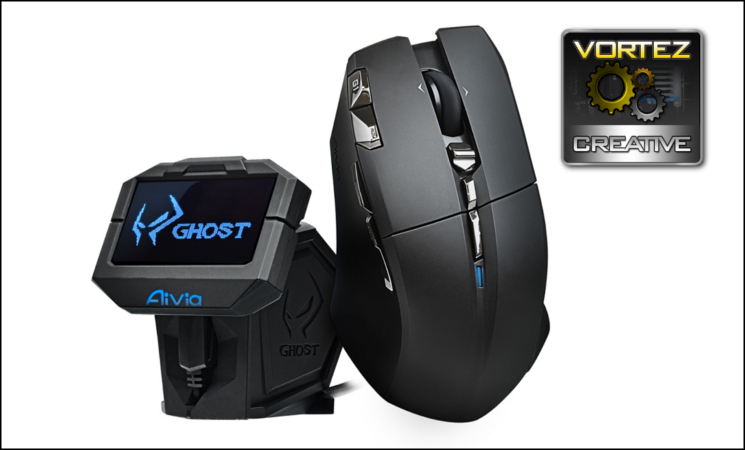
The GIGABYTE Aivia Uranium is a curious beast thanks to its GHOST Macro Module, which acts as an external macro engine. In theory this should reduce the performance implications to macros over wireless, but reception inconsistencies can still occur in areas where wireless networks are heavily used. Nonetheless the approach is novel and the overall build quality is as match for any mouse we have reviewed thus far. Also hampered by limited software and heavyweight bulk, this is one to try before laying down your money. The Uranium gains our Creative Award, but important reservations remain.
Pros
– Five Profiles
– Onboard memory
– 10 programmable buttons
– Very good battery life
– Sharp OLED display
– Usable whilst charging.
Cons
– Poor response in wirelessly congested areas
– Very limited software for a mouse in this class
– Heavy
– Button placement leads to a relatively high learning curve.
Tips
= High performance variability makes it ideal for a trial period.
– Five Profiles
– Onboard memory
– 10 programmable buttons
– Very good battery life
– Sharp OLED display
– Usable whilst charging.
Cons
– Poor response in wirelessly congested areas
– Very limited software for a mouse in this class
– Heavy
– Button placement leads to a relatively high learning curve.
Tips
= High performance variability makes it ideal for a trial period.

Click here for an explanation of our awards at Vortez.net. Thanks to GIGABYTE for providing this review sample.


